
Configuring a New Project Account: One job, many templates
ACM.422 Creating a standalone account and resources to work on a segregated project in an AWS Organization
~~~~~~~~~~~~~~~~~~~~~~~~~~~~~~~~~~~~~~~~~~~~~~~~~~~~~~~
⚙️ Check out my series on Automating Cybersecurity Metrics | Code.
🔒 Related Stories: AWS Organizations | IAM | Deploying a Static Website
💻 Free Content on Jobs in Cybersecurity | ✉️ Sign up for the Email List
~~~~~~~~~~~~~~~~~~~~~~~~~~~~~~~~~~~~~~~~~~~~~~~~~~~~~~~
In the last post I was pondering why it was taking me so long to get some code written. I needed to think for a minute about what would help me get done faster.
In the post prior to that, I created a new project account with a specific name that matches the project for which I’m setting it up.
In this post, I’ll explain how I automated the configuration of that account. As for the code, I’m thinking about releasing a tool at an upcoming conference. It’s a ton of work. I need to clean this all up before I push it to GitHub.
Note that one key factor with this implementation is as follows and something I built into my deployment pipeline I archited for a company:
You can give developers ownership of the scripts they own and are allowed to modify and deploy, without giving them full control of the deployment pipeline that deploys their resources. This aligns with the concept of separating your control plane from your data plane.
I’m using my container that requires an MFA token each time it runs a deployment job:
and CloudFormation microtemplates — a concept I made up and described in prior posts.
Why might you need a project-specific account?
Let’s say you have some top secret new project you’re working on. Perhaps you’re working on an M & A (mergers and acquisitions) deal and you want a segregated account for that analysis and the related resources. What might you deploy in that account? Here’s what I’m going to create.
* IAM Group: For project users
* IAM Group Policy: What project users can do
* IAM User
* IAM UserToGroupAddition: Add the user to the group
* KMS Key for the project with policy
* KMS Key Alias
* S3 Bucket for the project, encrypted with the KMS key
* An S3 bucket policy
* Two Elastic IP addresses for the project (for specific firewall rules)
* A VPC Flow Logs role
* A VPC
* A Public Route Table (with Internet access)
* A network ACL for my subnets
* Network ACL Entries with the specific CIDRs I want to allow or deny
* A subnet for project resources
* A subnet NACL association
* A security group for project resources
* Security group rules for my security group
* A Secret matching the user name encrypted with the KMS key
* A Secret policy
* A user policy that allows them to access their own secret
* An SSH key for my project user stored in the user secret
* A Linux EC2 instance encrypted with the KMS key*
* An Ubuntu EC2 instance encrypted with the KMS key*
Recall the architecture for this framework
The architecture includes the following files. I’ve included a partial example of each file I’ve explained in prior posts. I’m going to explain a couple of files I haven’t really covered yet in more detail.
- A Dockerfile for a container that can run jobs.
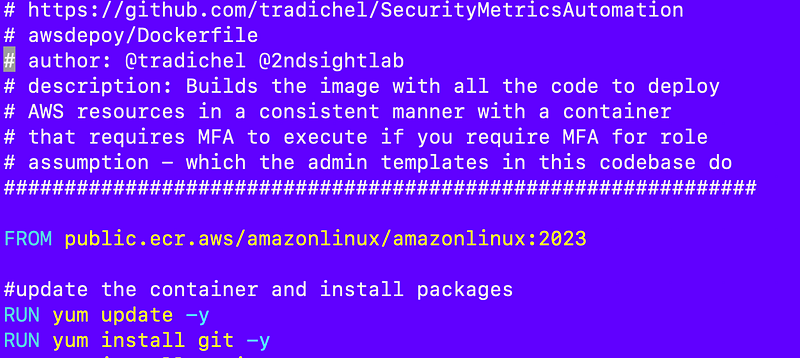
- A container folder has scripts for things like building, pushing, and deleting containers and images.

- An ec2 folder has the userdata I used to test passing an MFA to a container in the EC2 userdata.

- A job/run.sh script that gets executed when the container starts and requires the parameters to retrieve a secret with credentials and an MFA token in order to run the specified job.
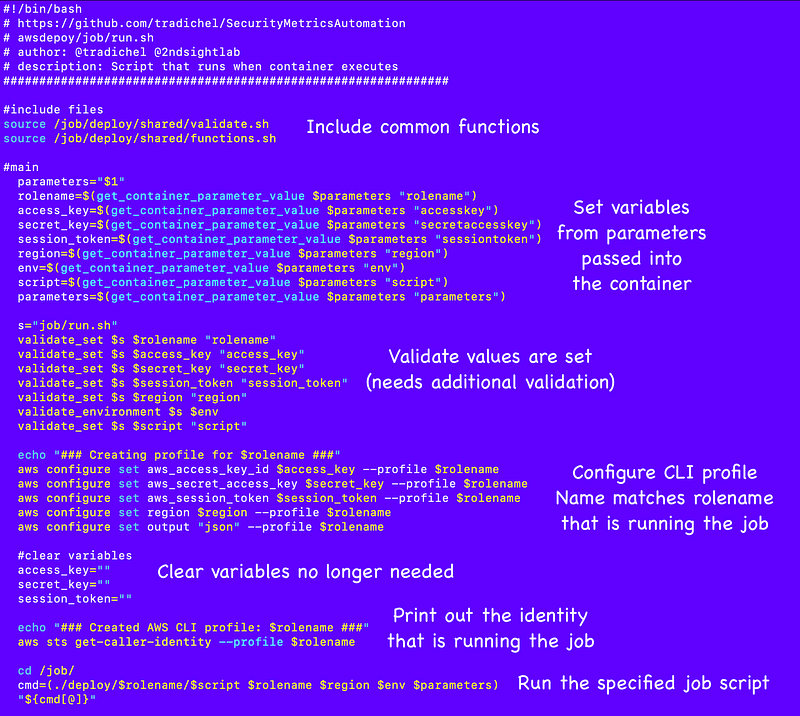
- A deploy folder contains job scripts executed by run.sh.

- Subfolders for each [deployment role] in the exist deploy folder.
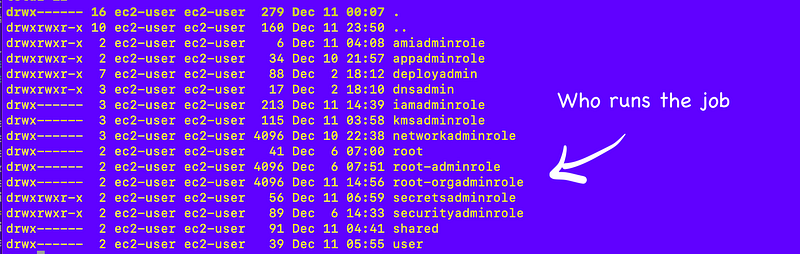
- A [job name].sh script for each job a role owns exists the corresponding role name folder.
- The job script I ran to configure my project account is highlighted below. It leverages other jobs scripts as explained in a prior post to use multiple scripts in a single AWS assume role session.
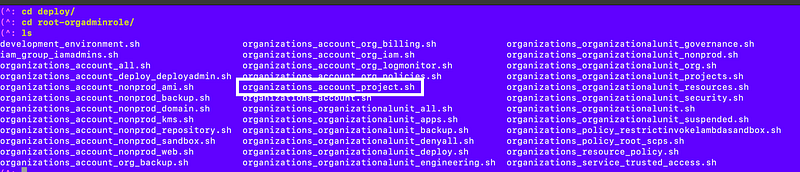
- A deploy/shared/ folder for common functions used by many scripts such as the function to deploy a stack.

- The above files contain common functions used in multiple files not specific to a single CloudFormation type or job. I will likely move the ssm parameter code to the ssm parameter functions file.
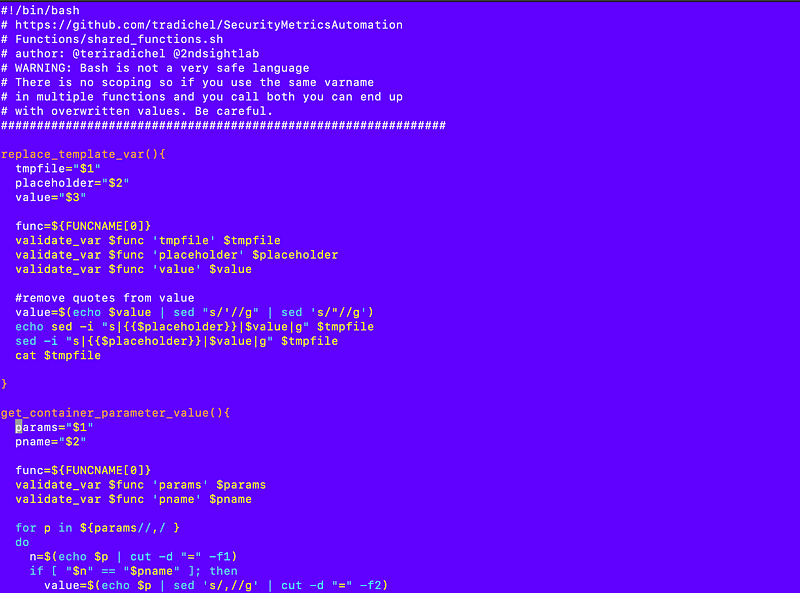
- A resources folder for all CloudFormation resource types.

- A subfolder named for each CloudFormation [category type] inside the resources folder for each CloudFormation Type.
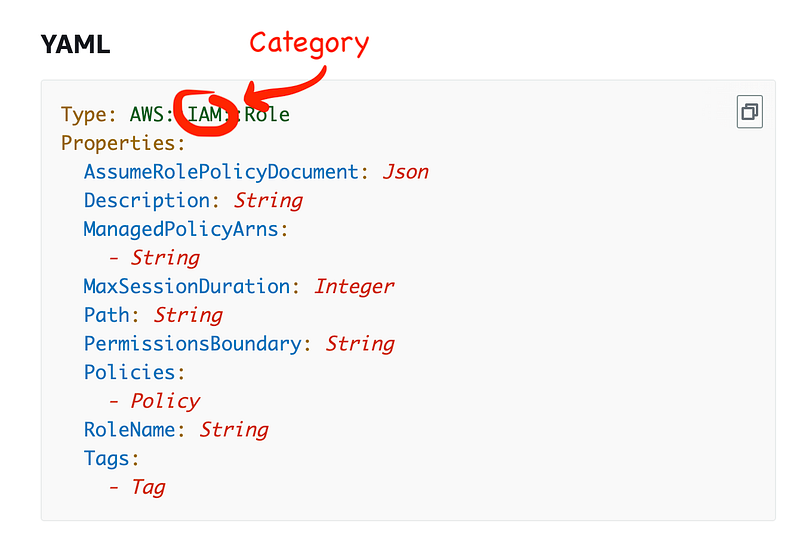
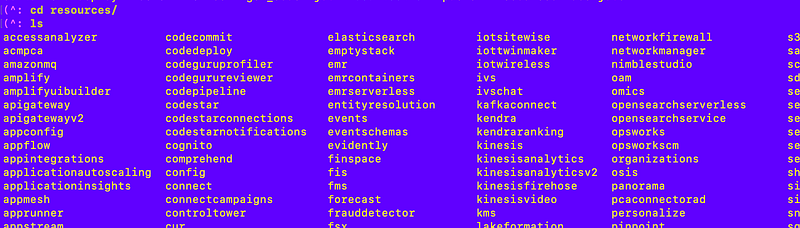
- A subfolder named for each CloudFormation [resource type] (roughly) in a category.
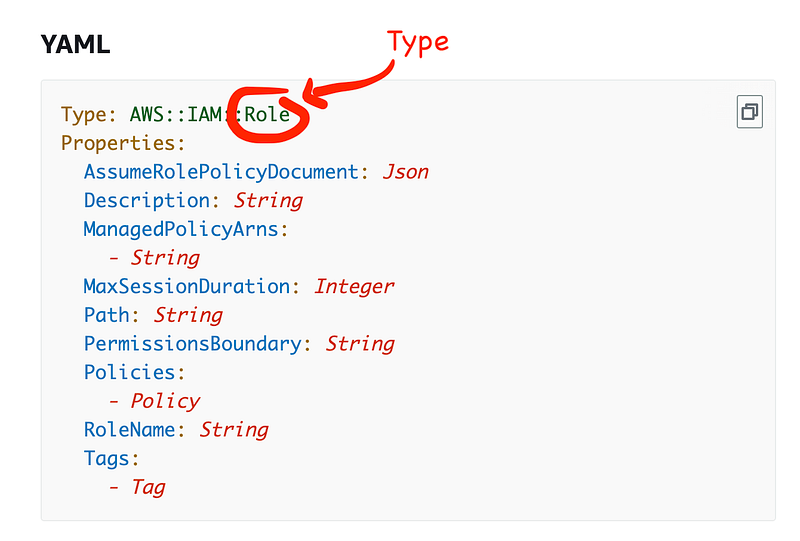

- A [resource].yaml template if a generic template is possible for a type and other non-generic cloud formation templates for that type.

Sample templates demonstrated throughout this series:
- A [resource]_functions.sh file with resource specific functions inside of each resource type folder.

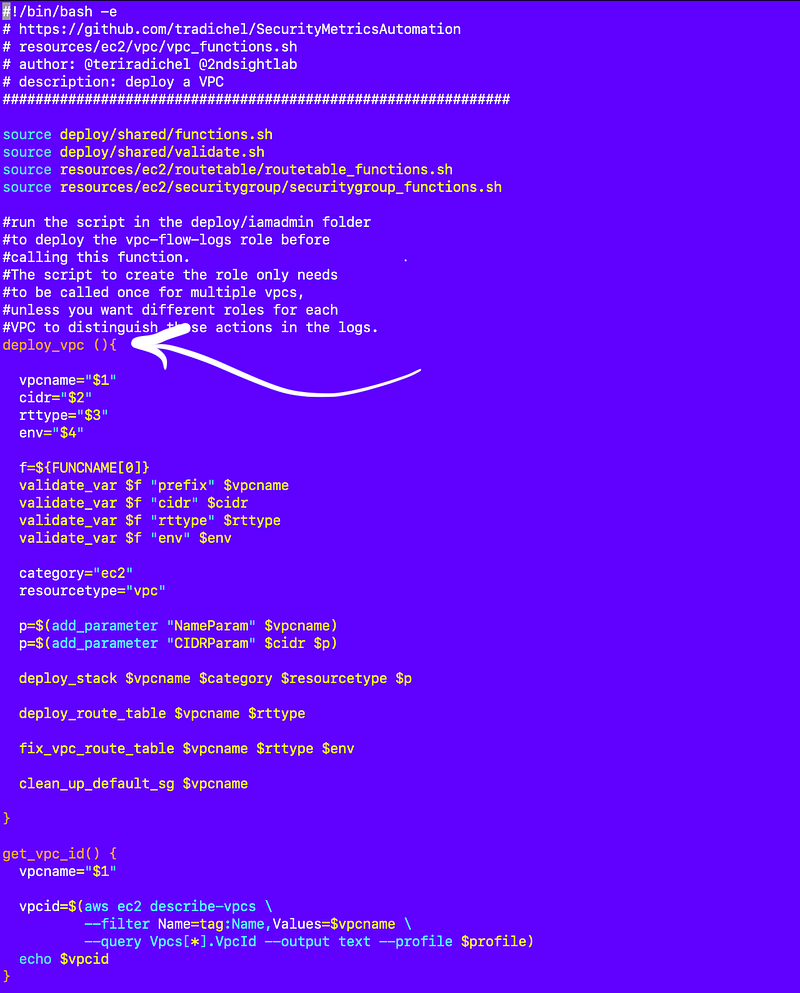
- A deploy_[type] function in the functions file to deploy the type.
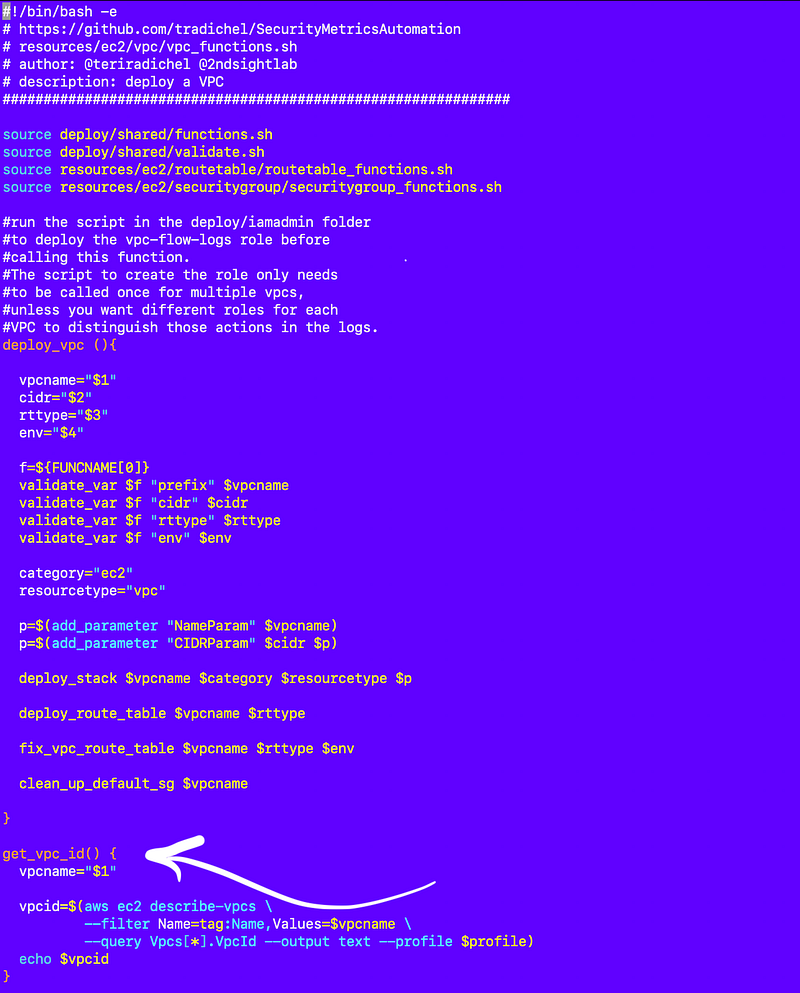
- A get_[type]_id function in the functions file to retrieve the ID for a type based on its name.
- A gen_code folder with code to generate the files above for a new type including the copyright and license language at the bottom of each file and a header with the filename and description.
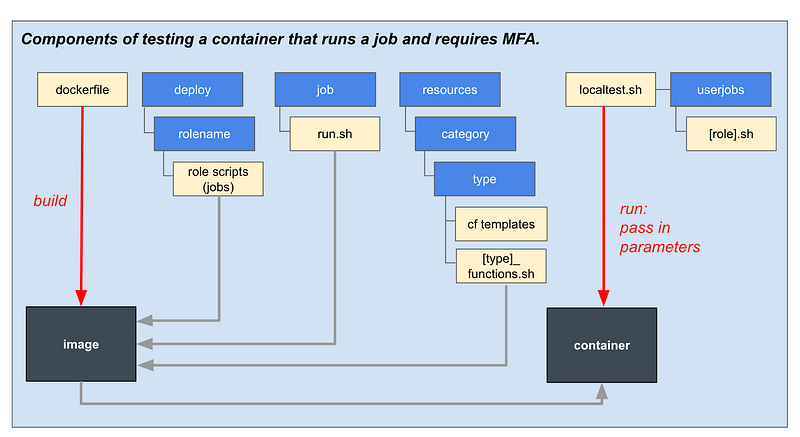
- A localtest.sh script to locally test the container outside of an EC2 instance.

Truncated ~ I think it is easier to run the job and show you how this works below.
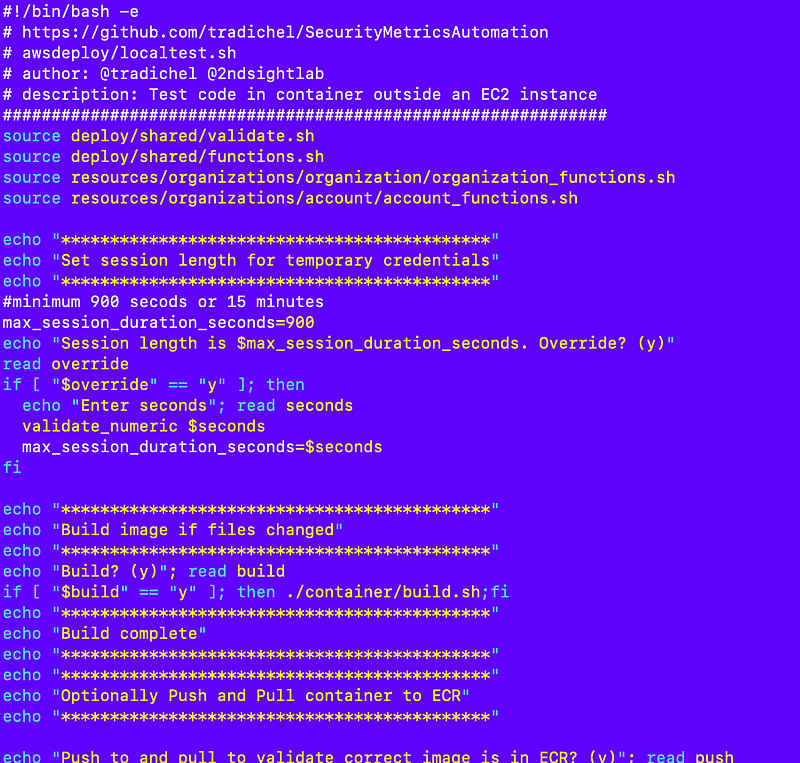
One key point is that the user selects the user with credentials that runs the job and they must have the associated MFA token that can use those credentials. If you had a team of people you could have a process for checking out the hardware MFA device or you could create a more extensive solution tracking the roles and jobs each user can run, but I have to start somewhere.

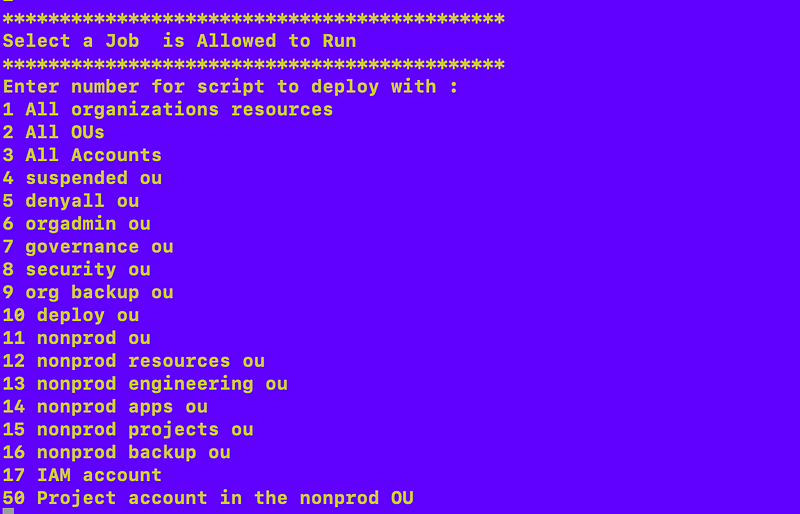
Based on the selected user, a file is included that lists the jobs that user can run:
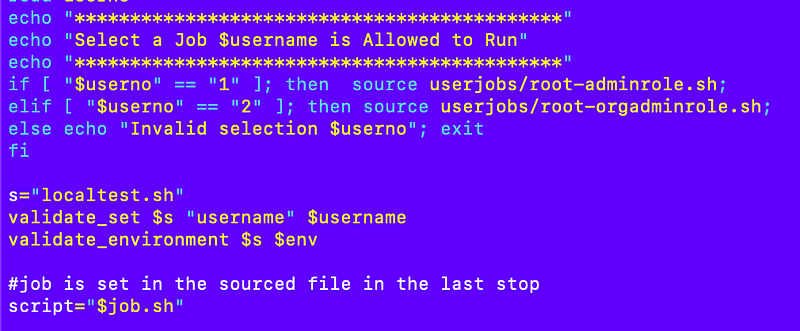
The selected job equates to a job script in the deploy/[selected admin] folder.
- A userjobs folder with a file for each role that lists the jobs it can execute. These are the files included above based on the selected user credentials.

The included file lists the job options so the person executing the test script can select a job to run.
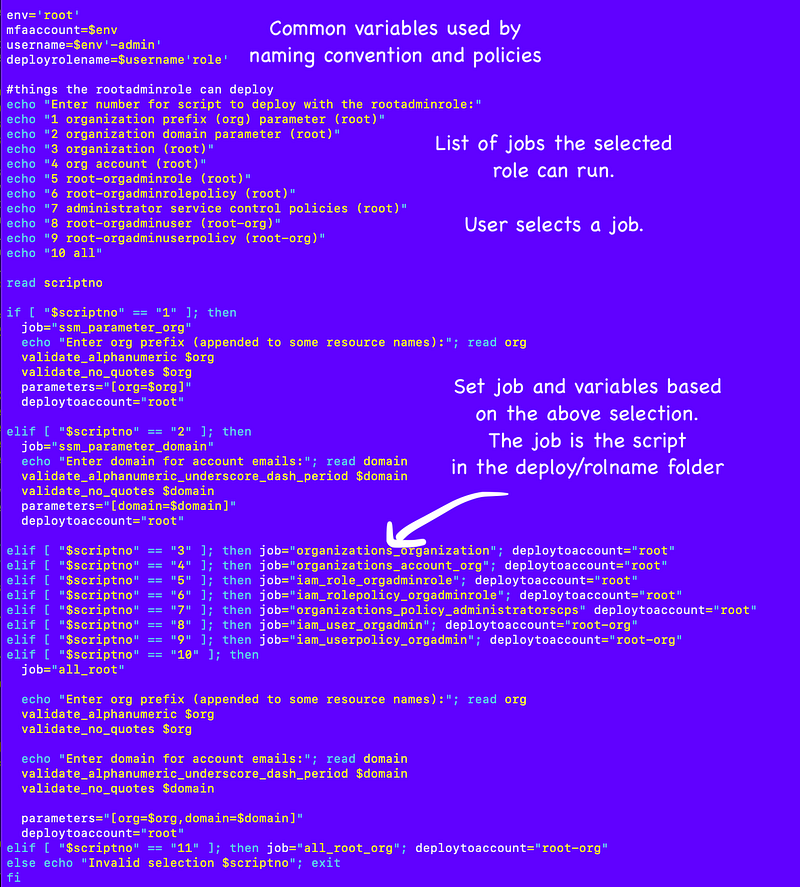
Once the job is selected, various parameters and variables get set, the script requests an MFA token from the user, and that is all passed into the container to run the select job. The container uses the MFA token and the credentials in SSM Parameter store to execute the job. This can all be moved into an EC2 instance that handles what is happening in the local test script in the instance userdata. That way the person running the job might have access to start a particular instance but not alter what it runs. You could also leverage spot instances to save money or a trusted enclave for highly sensitive data. I’ve covered those topics in prior posts.
Here’s a visual of the job and test script components:
Migration
I migrated all my POC code from my prior posts to the new framework and fixed what I needed for this project deployment to work. I wrote about those steps here.
Configuring my project account
In order to cofigure my project account I first had to create all the sub-jobs that I call in the outer job that configures my account. That involved creating:
- A CloudFormation template for each type I need to deploy and in some cases an individual template for a resource that cannot be completely generic.
- A functions file for each type to deploy the template.
- A job script to deploy each resource, so as explained in prior posts I can deploy an individual resource or a whole batch of resources.
I combined my individual resource deployment jobs (scripts) into the project account job script I highlighted above in the deploy/root-orgadmin folder:
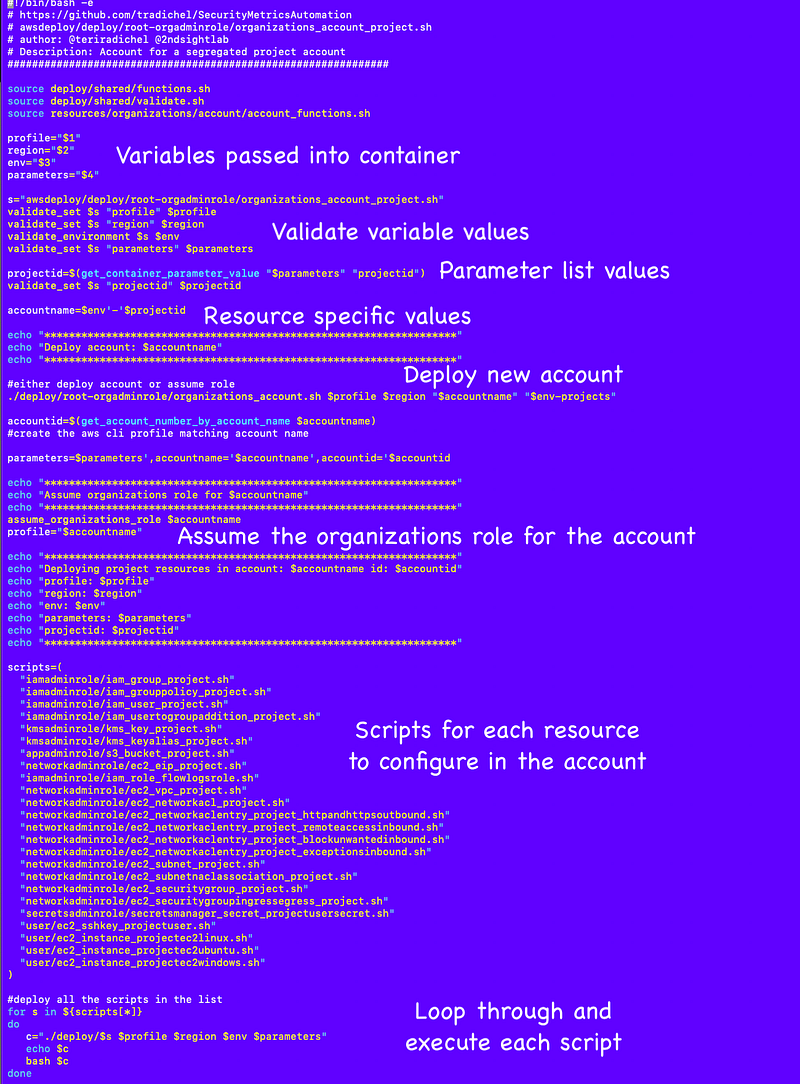
I explained how the container receives certain constant variables every time plus I can pass in a named parameter list at the end with job sepcific parameters here:
Ok let’s take a look at the script in action. Note that I have hard coded a few values in the script where it requests for an entry so you won’t see those values reflected to the screen.
I execute the following:
./localtest.sh
Here’s what it looks like.
The default session length is 15 minutes (lowest allowed):
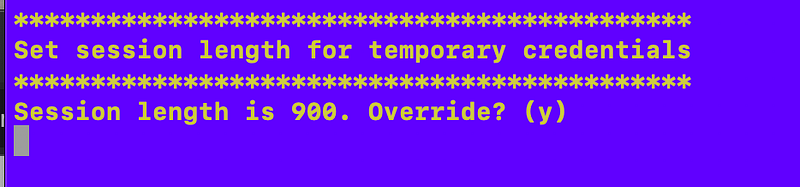
I can override that if needed as explained here:
If the code has changed I can build the container, which pulls all the scripts in the visual above into the container:
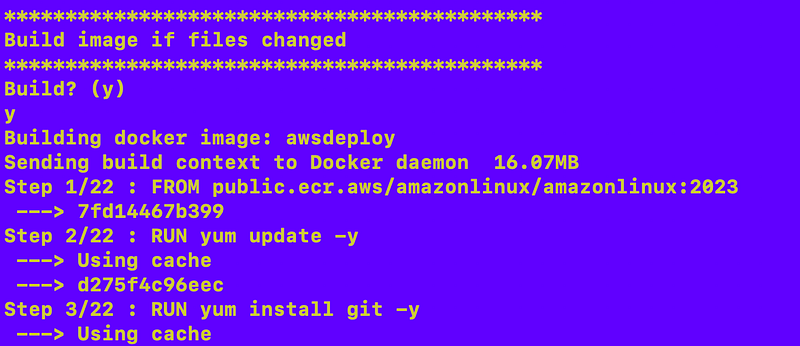
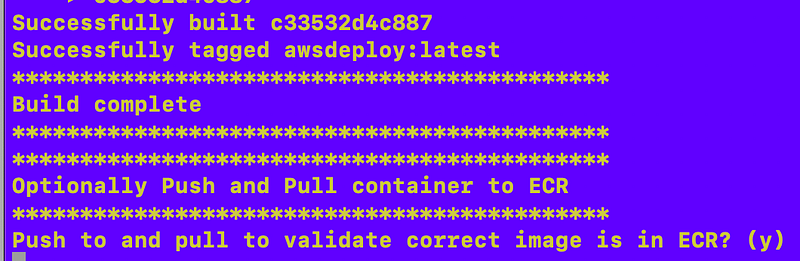
I can optionally test pushing the container to ECR and pulling it back again, but in this case, I haven’t yet created my environment ECR repositories so I’m going to skip that step. More on that later.
Choose the user credentials that can run the job:

Select the job number, which in this case is number 50:
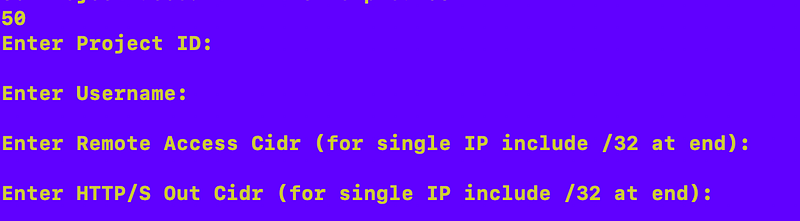
Enter some project configuration values — I intend to move this configuration and will explain that later.
Select the role that will simulate the EC2 instance role. Remember the ultimate goal is to run this on an EC2 instance. The instance will be running with a role that has access to the credentials to use to run the job which are stored in Secrets Manager. So you have to select a role profile on your machine that has that acces.
I have this defaulting to my SandboxAdmin role for now.
The script can also list all the profiles configured on the current host if the user types “L” so the user can enter one that is available in the list.

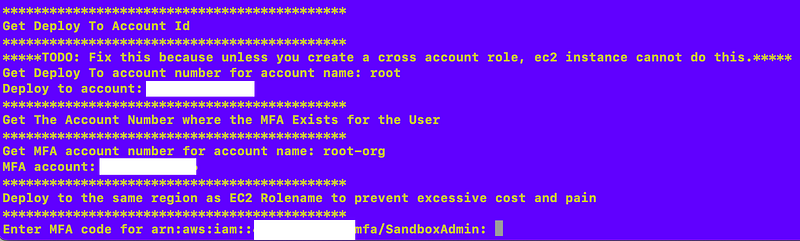
Based on the role we’re using, determine the account number where the resources will be deployed. I have something to fix here but that’s what it will do.
I also parse out the account number that contains the MFA device associated with the credentials.
I’m only allowing same region deployments (meaning the account where the job is run and the target account are in the same region) because cross-region traffic is expensive and complicated but if required it would be possible to change that.
The last item here should not be required on an EC2 instance, or I’d have to pass in two tokens, which might be desirable if you want to require two people to run a job. But in my case, I’ll probably change my policy so the EC2 role can obtain the credentials without MFA and the user has to provide an MFA token to leverage those credentials to assume the job role. For now, I’m entering a token for the role profile that is simulating the EC2 instance role.
The script assumes that role, obtains the credentials from SSM Parameter Store, and then requests a token from the user associated with those credentials.
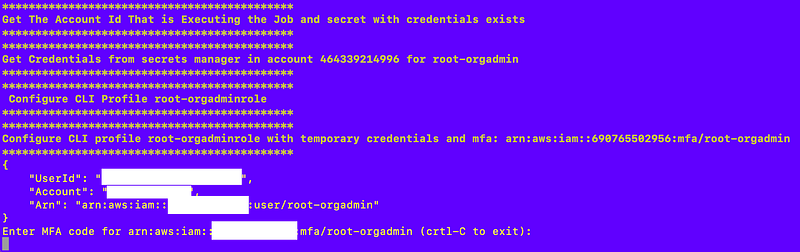
Next the script assumes the job role and starts executing the job scripts.
The first script it executes deploys the project account:
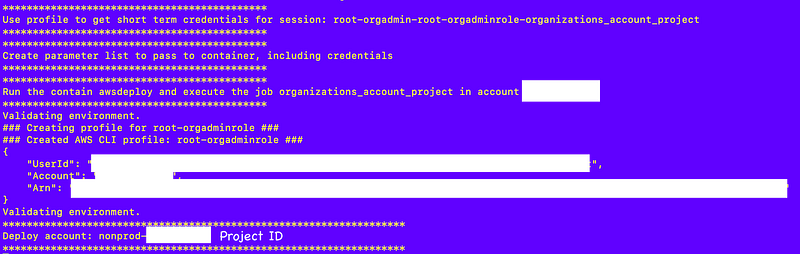
I can use the same template to deploy to different environments with different jobs. So I could deploy a project account in production or non-production or any other defined environments.

I’ve already deployed this account so it tells me it is up to date.
Once the account is deployed I have created one exception to the denial of role chaining in my organization. The root-orgadmin user can assume the organization role in any account without MFA. A role that assumes a role cannot provide MFA. This functionality allows the org-adminuser role which can only be assumed with MFA to assume the organization role in the environments to which it has access. Becuase it is the organization admin it has access to all accounts. (I plan to do this a bit different later, stay tuned.)
So now the orgadmin can assume the role in the new account.
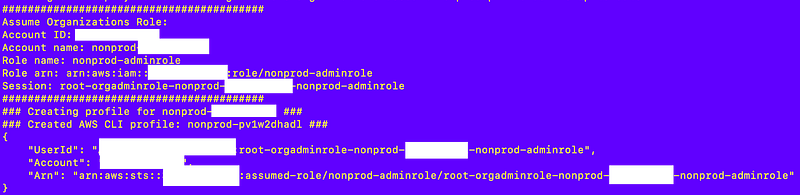
I explained how that works here:
Once that role has been assumed, the deployment continues and all the remaining resources get deployed in the target account.
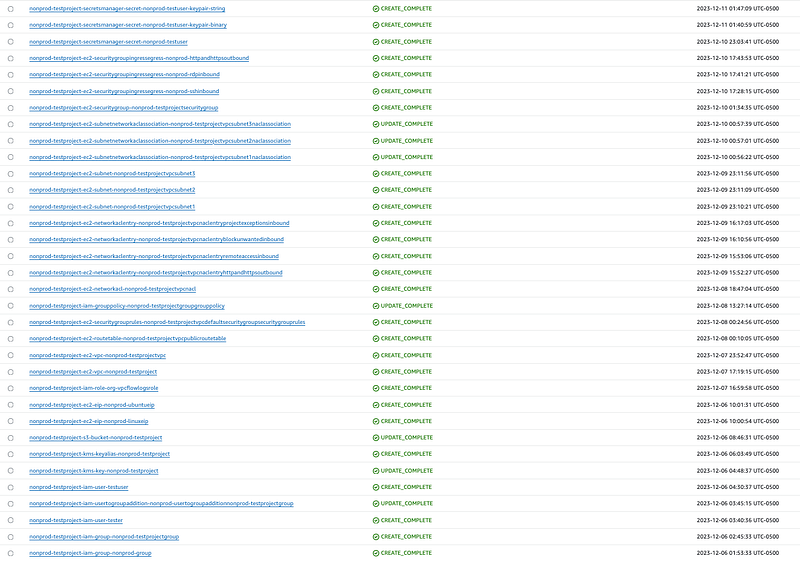
Here are the CloudFormation stacks for an account named nonprod-test project that I deployed using the above script, less the EC2 instances as I have some things to fix there. I’ll write more about EC2 instances and AMIs shared to an organizational unit in another post.
There you have it. I’m done for a bit. Have to complete some other projects — and on that note — spell checking this later!
Follow for updates.
Teri Radichel | © 2nd Sight Lab 2023
About Teri Radichel:
~~~~~~~~~~~~~~~~~~~~
⭐️ Author: Cybersecurity Books
⭐️ Presentations: Presentations by Teri Radichel
⭐️ Recognition: SANS Award, AWS Security Hero, IANS Faculty
⭐️ Certifications: SANS ~ GSE 240
⭐️ Education: BA Business, Master of Software Engineering, Master of Infosec
⭐️ Company: Penetration Tests, Assessments, Phone Consulting ~ 2nd Sight Lab
Need Help With Cybersecurity, Cloud, or Application Security?
~~~~~~~~~~~~~~~~~~~~~~~~~~~~~~~~~~~~~~~~~~~~~~~~~~~~~~~~~~~~~
🔒 Request a penetration test or security assessment
🔒 Schedule a consulting call
🔒 Cybersecurity Speaker for PresentationFollow for more stories like this:
~~~~~~~~~~~~~~~~~~~~~~~~~~~~~~~~~~~~~~~~~~~~~~~~~~~~~~~~~~~~~
❤️ Sign Up my Medium Email List
❤️ Twitter: @teriradichel
❤️ LinkedIn: https://www.linkedin.com/in/teriradichel
❤️ Mastodon: @teriradichel@infosec.exchange
❤️ Facebook: 2nd Sight Lab
❤️ YouTube: @2ndsightlab