
Azure — Building Different Environments With Terraform Using Folders
An Example Project using Azure Resource Groups
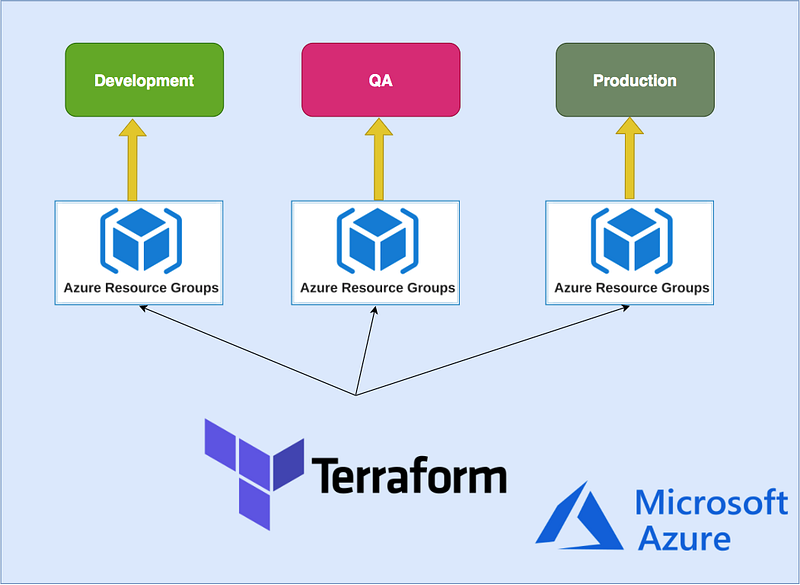
Every application needs different environments for different purposes and each application needs at least 3 environments. For example, we need a Development environment for the developers to push the code and test it themselves, a QA environment for testers to test the app before we put that into production, a prod environment for the live users.
We need to build these environments before we deploy our applications. We can even have a separate one for regression testing and we can have as many environments as we want. It all depends on our needs.
Terraform is an Infrastructure as a code tool that can build these environments with one command. In Azure, we can build these environments using resource groups and subscriptions. In this post, we will see how we can build different environments on Azure using Terraform.
- Prerequisites
- Example Project
- Configuring Backend
- Creating Infrastructure For One Environment
- Create Multiple Environments
- Summary
- Conclusion
Prerequisites
Let’s see what are some prerequisites before going through this post.
Azure
You need to have hands-on experience on the Azure cloud at least you need to understand how resource groups work on Azure. If you are not familiar with the resource groups or subscriptions and how these things are important when you are building different environments on Azure, check out the below post.
Terraform
Terraform is the infrastructure as a Code offering from HashiCorp. It is a tool for building, changing, and managing infrastructure in a safe, repeatable way. Operators and Infrastructure teams can use Terraform to manage environments with a configuration language called the HashiCorp Configuration Language (HCL) for human-readable, automated deployments. Go through the below post if you are not familiar with it.
Terraform — 5 Ways To Create Infrastructure in Multiple Environments
VSCode
Any code editor is fine, but this has very good extensions and maintained by Microsoft. Here is the link for it.
Azure Prerequisites
Once you install the necessary components and run the terraform on your local machine. It’s time to create a Microsoft Azure Account checkout this link
- Microsoft Azure Account
- Create a subscription
- Create a Storage Account
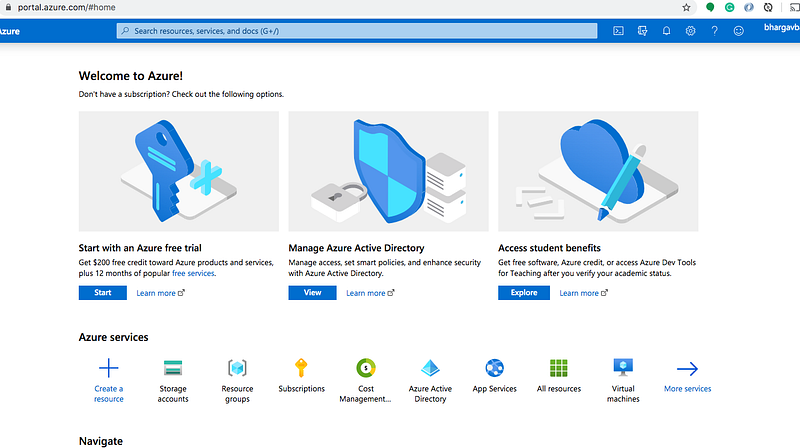
You can see the below dashboard once you create your account.
Create a subscription
You need to create a subscription that’s how It serves as a single billing unit for Azure resources in that services used in Azure are billed to a subscription
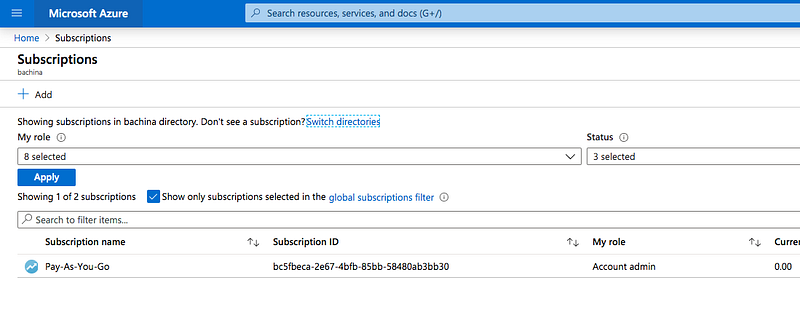
Install the Azure CLI and authenticate with Azure with the following command. Make sure you have the right subscription account by default.
az loginaz account list --output=tableExample Project
Here is an example project that you can clone and use to create infrastructure from your local machine.
// clone the project
git clone https://github.com/bbachi/terraform-azure-multi-env-folders.git
// init
terraform init// plan
terraform plan // apply
terraform applyConfiguring Backend
Every Terraform project has a state and this state determines which resources to create, destroy, etc. Whenever you do the Terraform apply command it looks at this state and determines the action on the resources. By default, Terraform uses the “local” backend, which is the normal behavior of Terraform. This is not the case in the professional environment and you can’t use the local backend all the time since we work in a collaborative environment with teams. In Terraform, Backend is a way to configure a Terraform state in a remote place where everybody can access in a collaborative environment.
You can store the Terraform state in Azure Storage. The State allows Terraform to know what Azure resources to add, update, or delete. There are two steps to configuring Backend.
- Creating a Storage Account and Blob Container for the terraform state
- Include Backend Block in the Terraform scripts and run the command
terraform init
Creating a Storage Account and Blob Container for the terraform state
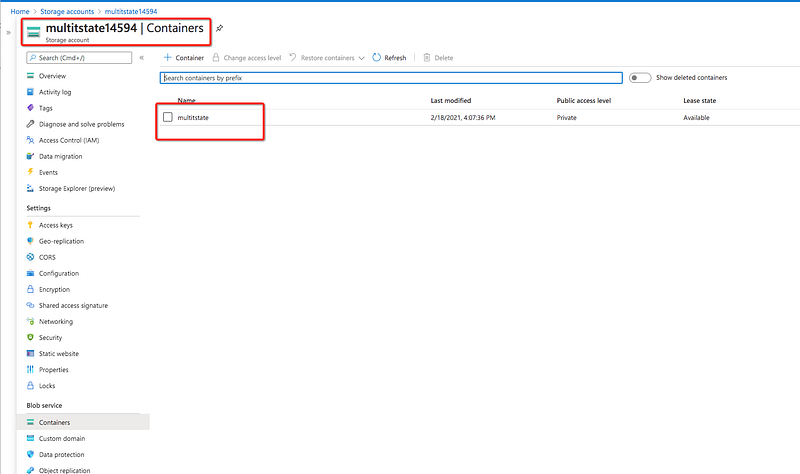
The first thing you need to run this script with this command sh backend.sh so that it creates the resource group, storage account, and container in Azure.
Here is the output of the above script.
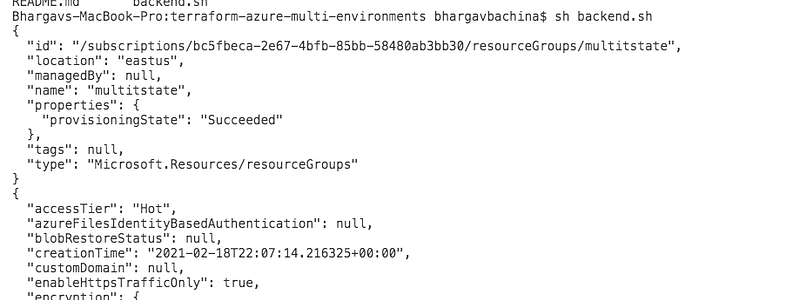
You can log in to the Azure portal and verify that the storage account is created or not.
Include Backend Block in the Terraform scripts and run the command terraform init
You need the access key for the Terraform to provision infrastructure on Azure so you need to export that as an environment variable.
export ARM_ACCESS_KEY=MEkicUgawLyIWwFIfMDvP+dQy41qU5ruJY9FHobKSdJxAVlvogfrESYw1PNXHkr/agkWWaNADp51PpT2rA/53A==Once you have this file all you need to do is that run the following command.
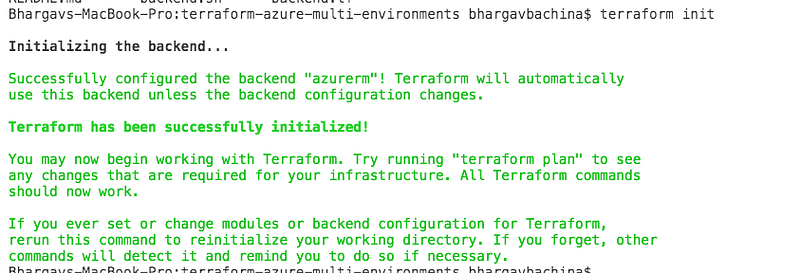
terraform initHere is the out when we run the above command
Once you have this file all you need to do is that run the following command.
terraform initHere is the out when we run the above command
Creating Infrastructure For One Environment
Here is the main terraform file in which we define the provider first and then the resource group called rg-multienv-demo. We are creating a storage account with the status website and finally, we are adding the index.html content to the blob storage.
Once you have the file in place. You need to run the following commands
// init
terraform init
// plan
terraform plan// apply
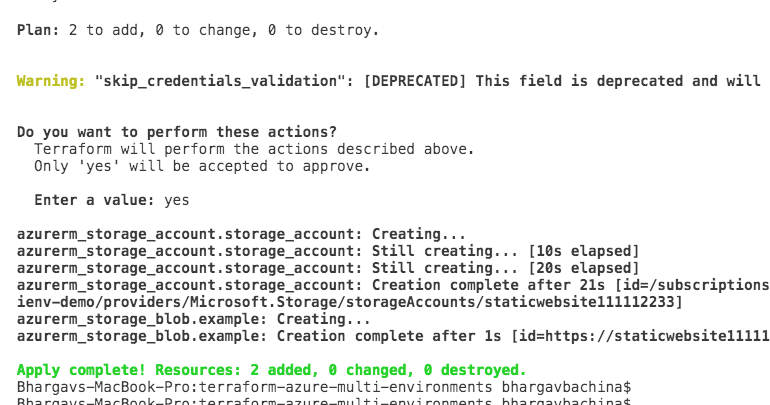
terraform applyYou will see the below output.
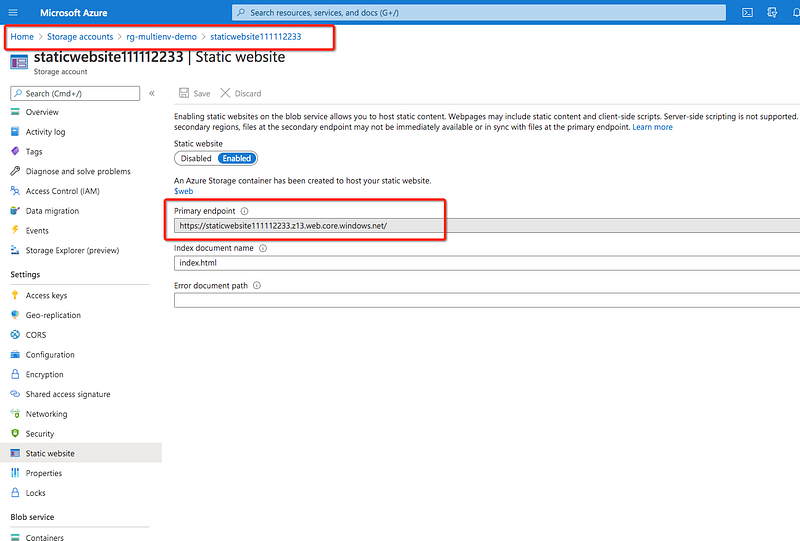
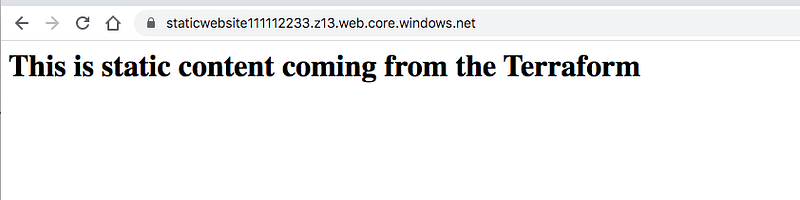
You can see that two resources are created in the portal and take the URL and hit it in the browser.
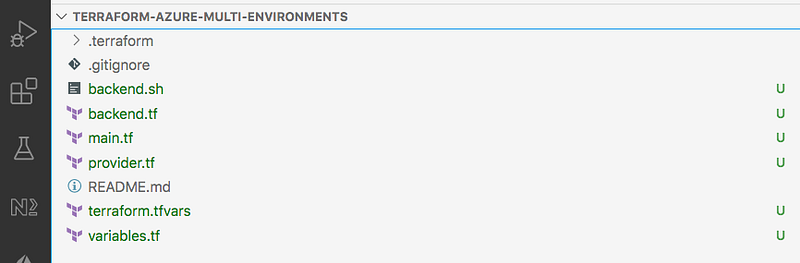
We have put everything in one file, and it’s tough to create multiple environments. So, let’s separate the file into multiple files. The first thing we need to do is to create a provider file.
We have a variables file here to pass the values dynamically.
Here is the main terraform file that reads the variables like this var.location.
Here is the file that passes the actual values named terraform.tfvars.
The project structure at this point looks like below.
Create Multiple Environments
As we have seen in the above sections we can create multiple environments with resource groups. We have created a static website in one resource group and let’s extend that to multiple resource groups that represent multiple environments such as dev, QA, prod.
First, we need to create different folders that contain all the files. We have to duplicate the files in this method.
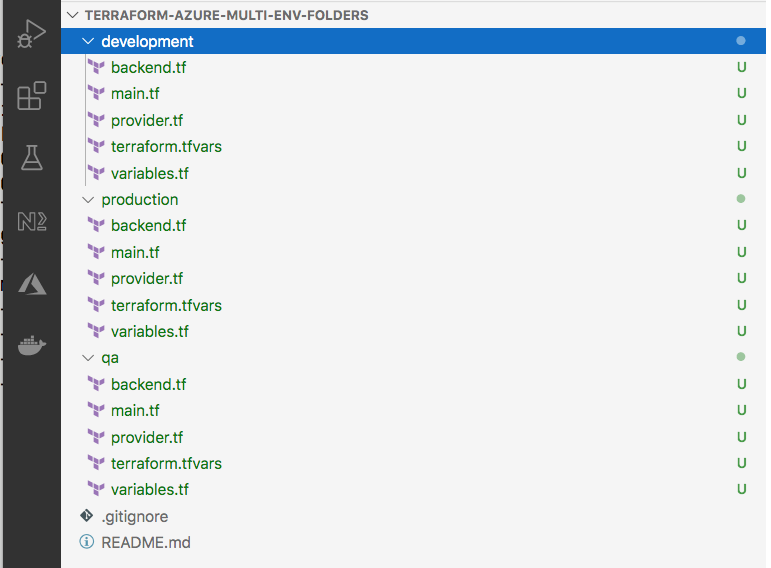
There are a number of ways to create multiple environments as we mentioned in the above sections but, when you are running the Terraform script from the local machine using workspaces or different folders is the best option since it isolates the terraform environment.
The first thing we need to do is that we have to create a separate backend key for each environment as below. Notice the key in each file and everything is same.
Dev Environment
Let’s run the following command to create infrastructure in a development environment.
// cd into folder
cd development
// init
terraform init// plan
terraform plan// apply
terraform apply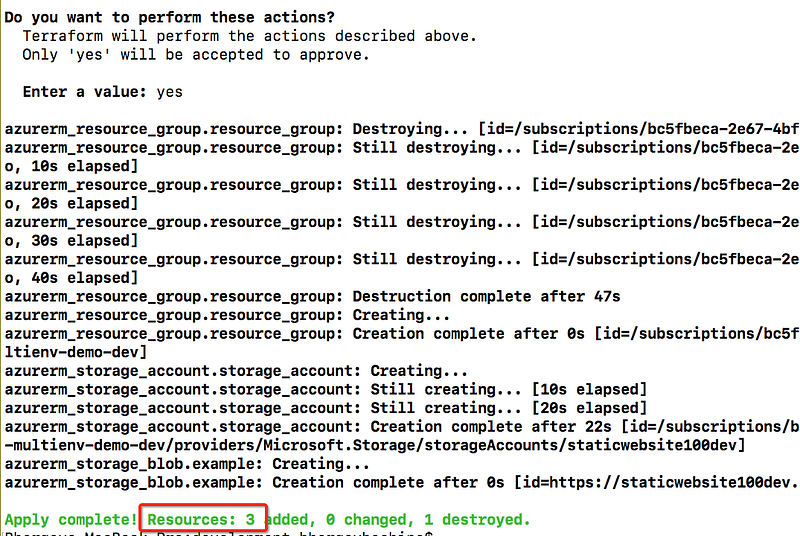
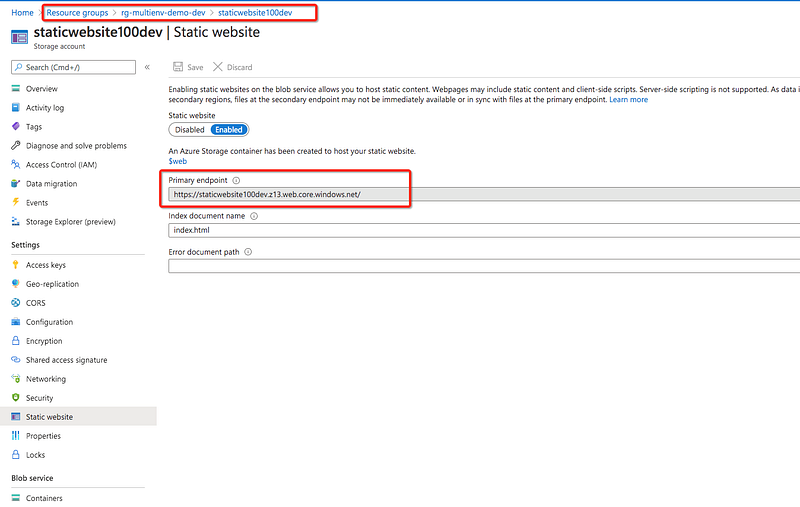
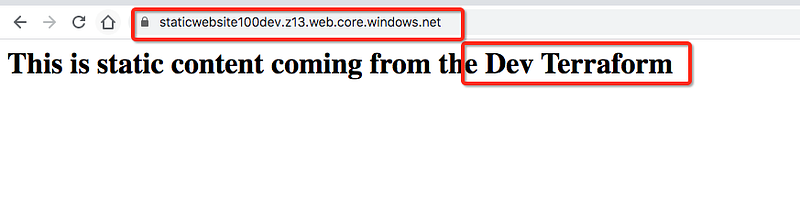
You can see in the portal that the dev environment is created. You can take the URL and hit it in the browser.
QA Environment
We are in the development folder and we need to switch to qa folder. Let’s run the following command to create infrastructure in the QA environment.
// cd into folder
cd qa
// init
terraform init// plan
terraform plan// apply
terraform apply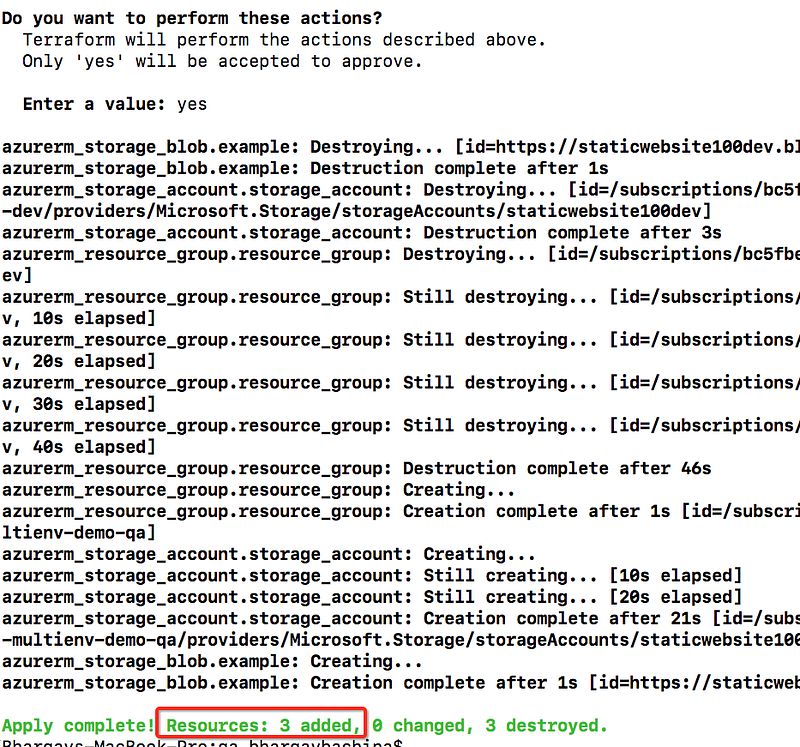
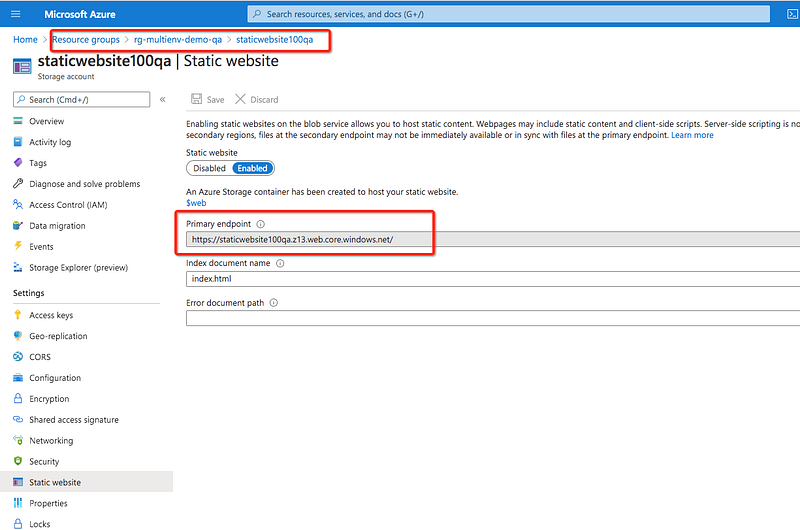
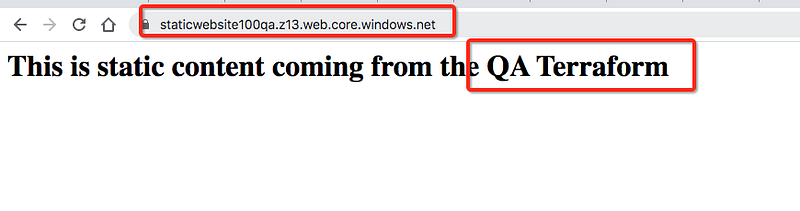
You can see in the portal that the QA environment is created. You can take the URL and hit it in the browser.
Prod Environment
We are in the QA folder and we need to switch to the production folder. Let’s run the following command to create infrastructure in a production environment.
// cd into folder
cd production
// init
terraform init// plan
terraform plan// apply
terraform apply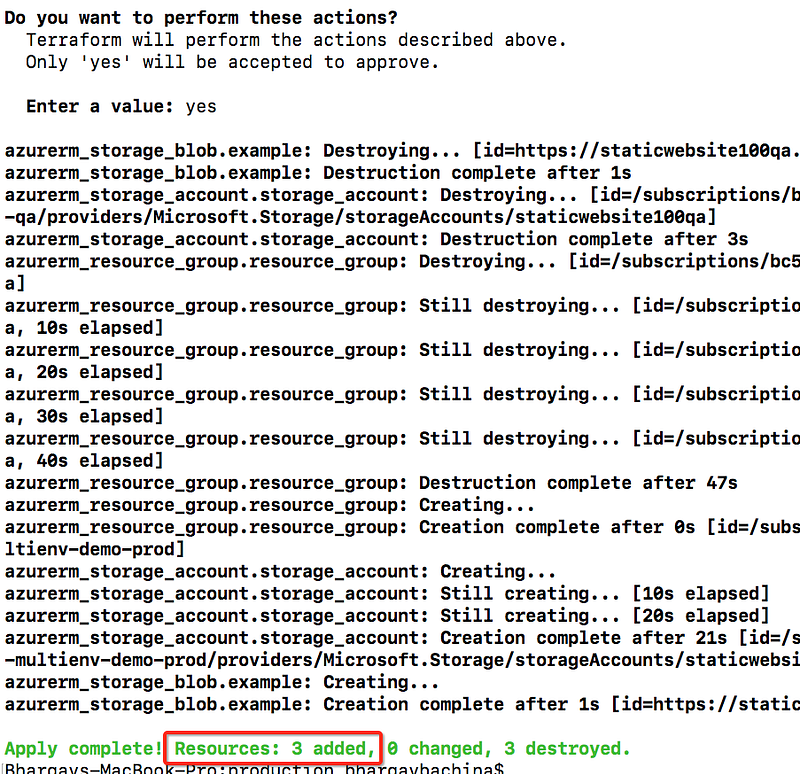
You can see in the portal that the production environment is created. You can take the URL and hit it in the browser.
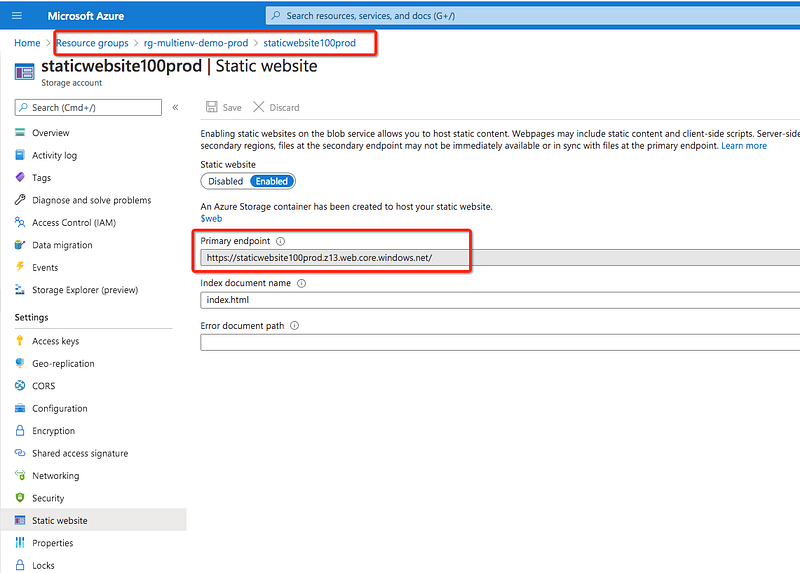
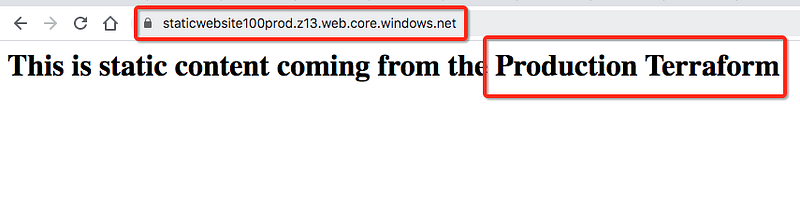
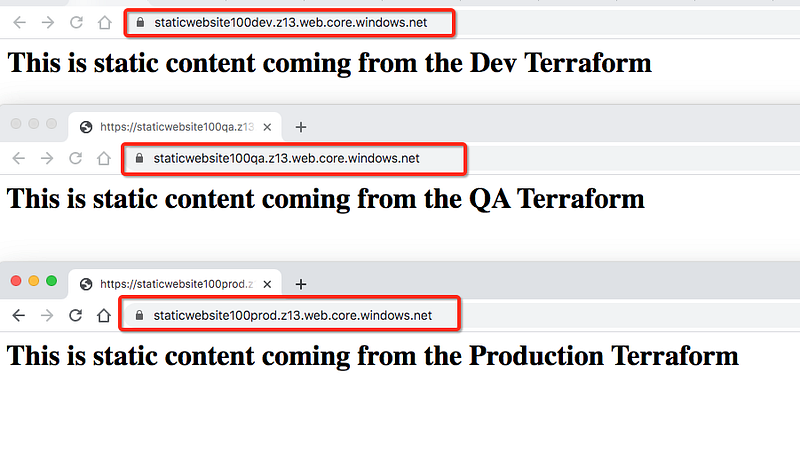
Here are the three environments deployed on Azure Cloud.
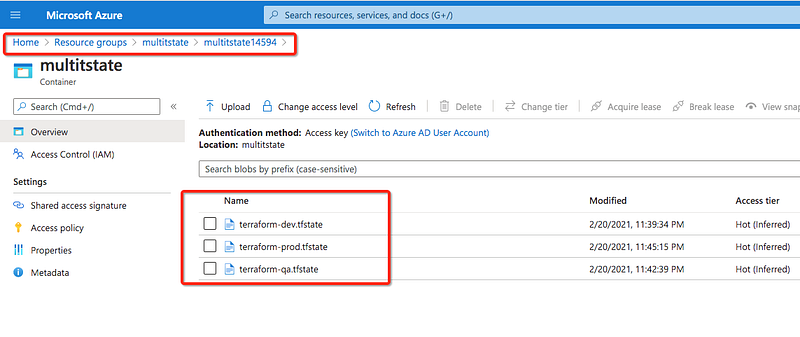
You can see three different keys for the three environments in the backend storage account.
You can destroy all the environment with the following commands. You need to run this in each workspace.
// dev folder
cd development
// destroy
terraform destroy// qa folder
cd qa// destroy
terraform destroy// prod folder
cd production// destroy
terraform destroySummary
- Every application needs different environments for different purposes and each application needs at least 3 environments.
- We need to build these environments before we deploy our applications. We can even have a separate one for regression testing and we can have as many environments as we want. It all depends on our needs.
- Terraform is an Infrastructure as a code tool that can build these environments with one command.
- In Azure, we can build these environments using resource groups and subscriptions.
- Every Terraform project has a state and this state determines which resources to create, destroy, etc. Whenever you do the Terraform apply command it looks at this state and determines the action on the resources.
- As we have seen in the above sections we can create multiple environments with resource groups. We have created a static website in one resource group and we extend that to multiple resource groups that represent multiple environments such as dev, QA, prod.
- There are a number of ways to create multiple environments as we mentioned in the above sections but, when you are running the Terraform script from the local machine using workspaces or different folders is the best option since it isolates the terraform environment.
Conclusion
We have seen how to build different environments using folders on Azure. There are other ways as well such as using workspaces, Terragrunt, etc. We will explore these methods in future posts.


