
How To Create Different Environments on Azure
Building different environments such as dev, QA, prod on Azure
Every application needs different environments for different purposes and each application needs at least 3 environments. For example, we need a Development environment for the developers to push the code and test it themselves, a QA environment for testers to test the app before we put that into production, a prod environment for the live users.
We need to build these environments before we deploy our applications. We can even have a separate one for regression testing and we can have as many environments as we want. It all depends on our needs.
In Azure, we can build these environments using resource groups and subscriptions. In this post, we will see what are resource groups and what are subscriptions, and how we can use these to build separate environments for applications in Azure.
- Prerequisites
- Azure Management Groups
- Subscriptions
- Resource Groups
- Understanding Hierarchy
- Different Environments With Management Groups
- Different Environments With Subscriptions
- Different Environments With Resource Groups
- Different Environments With Mixed Approach
- Summary
- Conclusion
Prerequisites
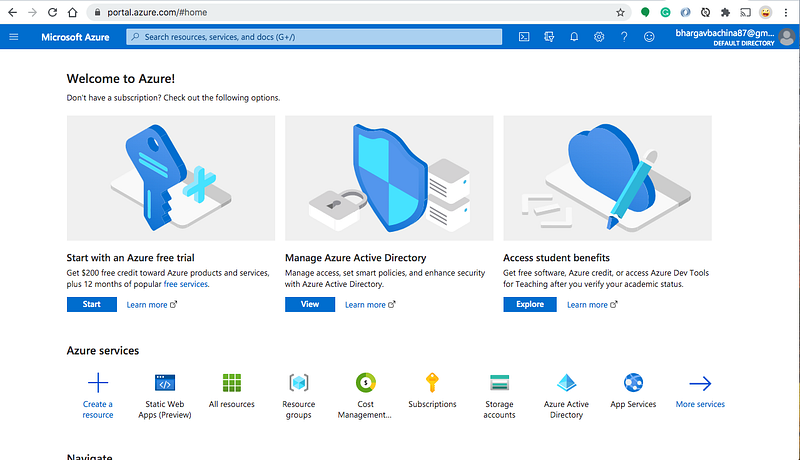
You should have a Microsoft Azure Account. You can get a free account for one year. You should see the below screen after you login.
You need to understand Management Groups, subscriptions, and resource groups well before building the environments for your company. Let’s understand these in the following sections.
Azure Management Groups
Management Groups are nothing but the groups where you can manage multiple subscriptions. Management groups are containers that help you manage access, policy, and compliance across multiple subscriptions. Create these containers to build an effective and efficient hierarchy that can be used with Azure Policy and Azure Role-Based Access Controls.
According to Microsoft Docs, If your organization has many subscriptions, you may need a way to efficiently manage access, policies, and compliance for those subscriptions. Azure management groups provide a level of scope above subscriptions. You organize subscriptions into containers called “management groups” and apply your governance conditions to the management groups. All subscriptions within a management group automatically inherit the conditions applied to the management group.
For example, every account has a Root Management Group called Root Tenant Group and you can create other management groups (Ex: IT Department) and subscriptions under it. You can even create child Management Groups (Ex: Core Services Department, Marketing Department).

You can create a management group with the following command.
az account management-group create --name 'management group name' or az account management-group create --name 'your_name' --display-name 'group_name'You can even create one in the portal. When you are creating the first management group It creates under tenant root. It takes 15 minutes to create the first one.
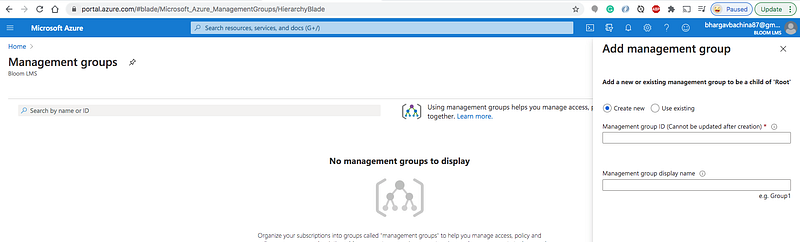
You can see the management group created after some time.
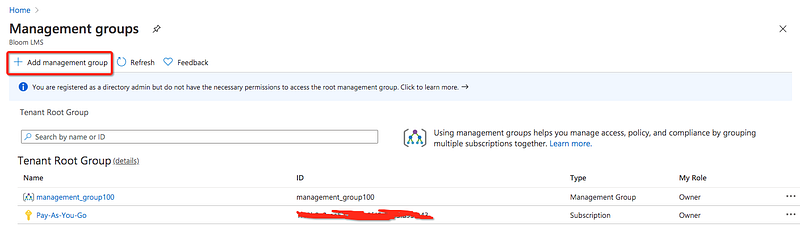
We can click on the management group and create child management groups.
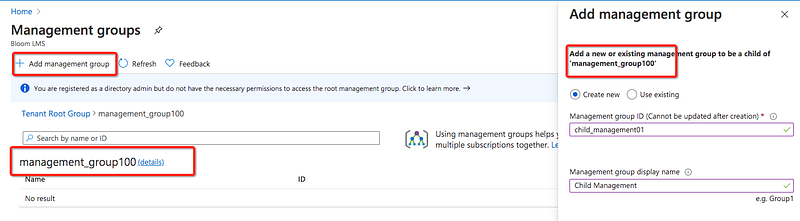
Here are the child management groups created under the parent management group.

Subscriptions
Subscriptions are nothing but the entity that groups all of the resources that you use under one billing account.
According to the Microsoft website, A subscription is an agreement with Microsoft to use one or more Microsoft cloud platforms or services, for which charges accrue based on either a per-user license fee or on cloud-based resource consumption.
Organizations can have multiple subscriptions. User accounts for all of Microsoft’s cloud offerings are stored in an Azure Active Directory (Azure AD) tenant, which contains user accounts and groups. User accounts are stored in an Azure AD tenant.
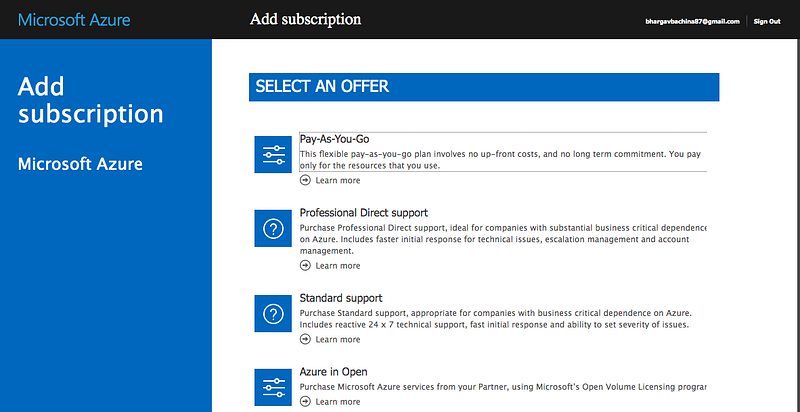
To create a subscription, you need to log in to your account and click on the subscriptions and add one.
You need to create a subscription for your account. The most common is Pay As You Go subscription.
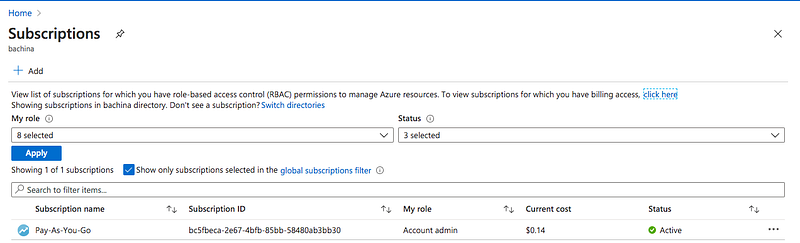
You need a subscription to be associated with your tenant so that all the cost is billed to this subscription. One management group can contain multiple subscriptions as long as these subscriptions belong to the same tenant. Here is the example Hierarchy.

Resource groups
Resource groups are nothing but the groups that you can put your logically related resources into.
According to Microsoft Docs, A resource group is a container that holds related resources for an Azure solution. The resource group can include all the resources for the solution, or only those resources that you want to manage as a group. You decide how you want to allocate resources to resource groups based on what makes the most sense for your organization.
For example, if you are working on an application in the core services team you can create a resource group to put all the resources that belong to this application. Let’s add the resource groups to the subscriptions below. You can have as many resource groups as you want for each subscription based on your need.

Understanding Hierarchy
Let’s understand the Hierarchy. First, we need to have a tenant/ Azure Active Directory and every tenant has a root management group called Root Tenant Group. If you don’t create any management groups further all the subscriptions are tied to this root management group.
You can create management groups and subscriptions under the root management group. You can create child management groups under the management group as well based on your need.
Subscription can be created under management group and each management group can have multiple subscriptions as long as these subscriptions belong to the same tenant. An Azure subscription has a trust relationship with Azure Active Directory (Azure AD). A subscription trusts Azure AD to authenticate users, services, and devices. Multiple subscriptions can trust the same Azure AD directory. Each subscription can only trust a single directory.
You can create resource groups under each subscription and you can create as many as you want based on your need.

Different Environments With Management Groups
We are building the below web application in which we have three resources: blob storage, function app, and cosmos DB. We are placing all the UI code in the blob storage and all the APIs are built with Azure functions. We are using Cosmos DB here for the database.
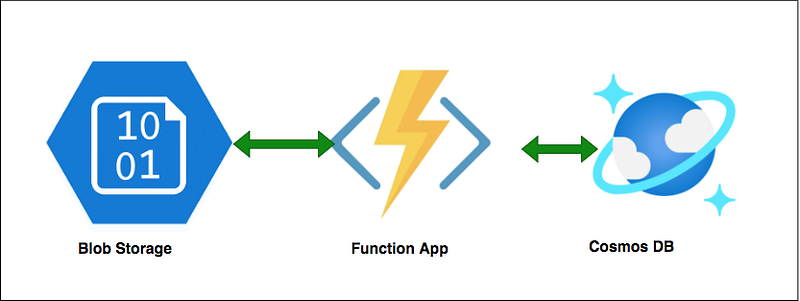
Let’s see how we can build different environments for this application with management groups. We have Azure Active Directory Tenant at the top and default root tenant group. We can create a separate management group for each environment such as dev, QA, and prod as below, and create a subscription and resource group for all the resources needed for your applications.
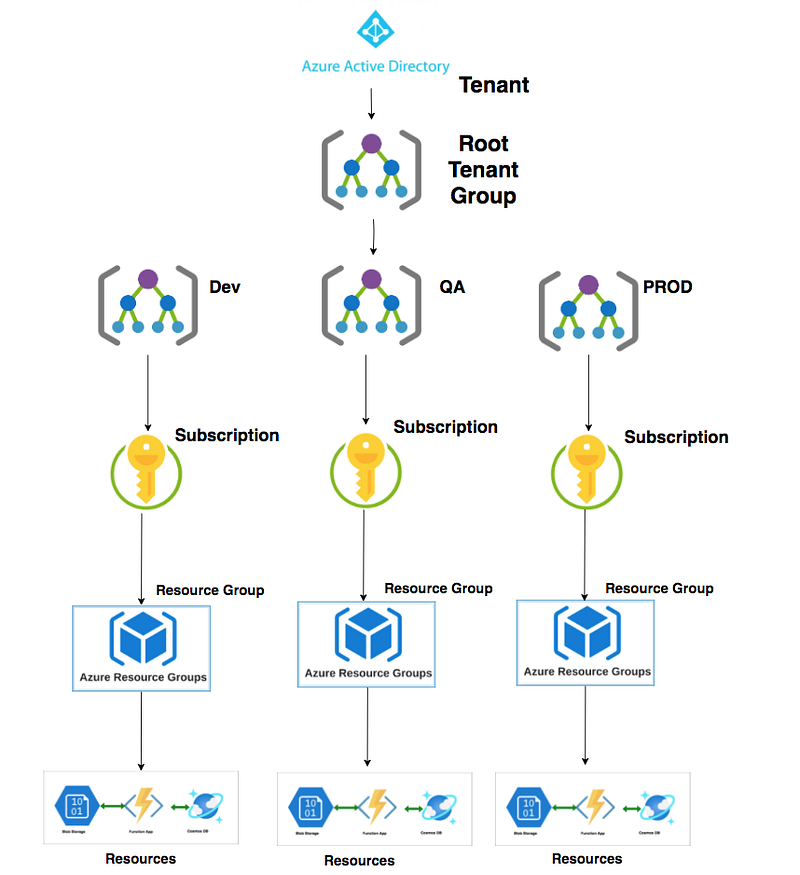
This type of approach is good if you want to do it under different business units or geographical areas and separate billing for each environment.
Different Environments With Subscriptions
Let’s see how we can build different environments for this application with subscriptions. We have Azure Active Directory Tenant at the top and default root tenant group. We can create a separate subscription for each environment such as dev subscription, QA subscription, and prod subscription as below, and create a resource group for all the resources needed for your applications.
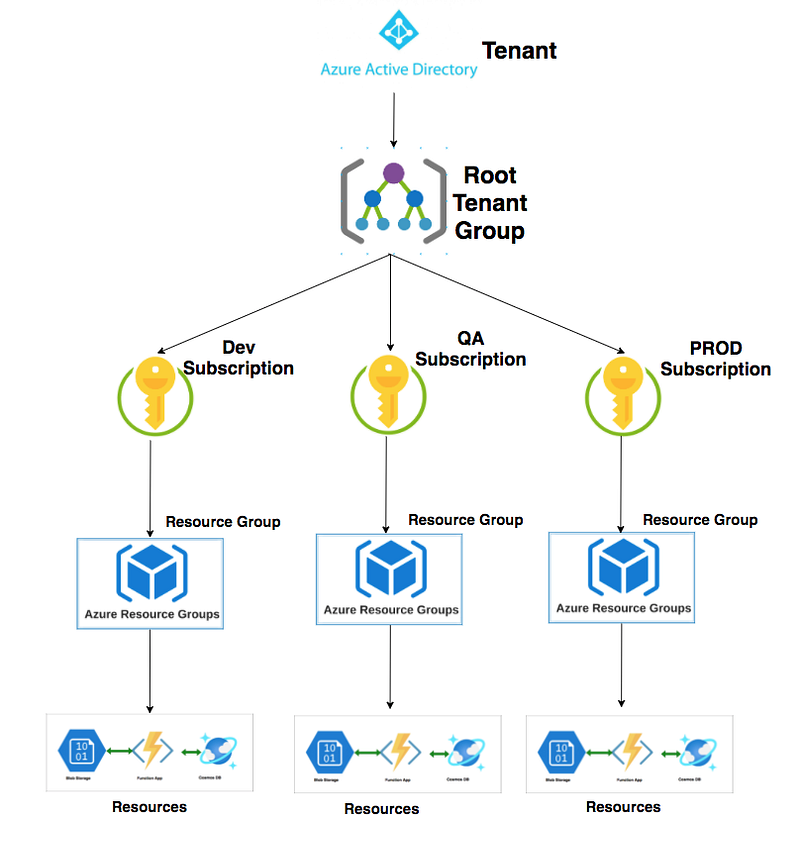
This type of approach is good if you want complete isolation under one management group and separate billing for each environment.
Different Environments With Resource Groups
Let’s see how we can build different environments for this application with resource groups. We have Azure Active Directory Tenant at the top and default root tenant group. We can create a resource group for each environment such as the dev resource group, QA resource group, and prod resource group under the subscription as below.

This type of approach is good if you want all the environments under one business unit and billed to one subscription.
Different Environments With Mixed Approach
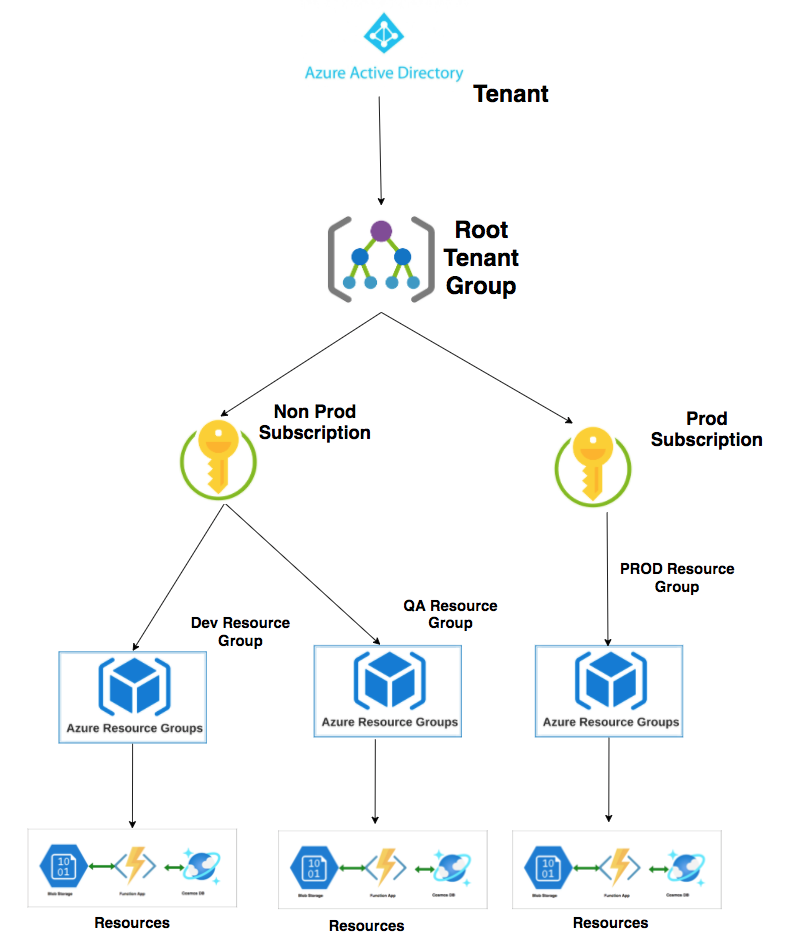
We can have a mixed approach like this where we have two subscriptions such as non-prod subscription and prod subscription and define resource groups accordingly. We can even try other combinations as well.
Summary
- Every application needs different environments for different purposes and each application needs at least 3 environments.
- Management Groups are nothing but the groups where you can manage multiple subscriptions. Management groups are containers that help you manage access, policy, and compliance across multiple subscriptions.
- Subscriptions are nothing but the entity that groups all of the resources that you use under one billing account.
- Resource groups are nothing but the groups that you can put your logically related resources into.
- We have Azure Active Directory Tenant at the top and default root tenant group. We can create a separate management group for each environment such as dev, QA, and prod as below, and create a subscription and resource group for all the resources needed for your applications.
- We have Azure Active Directory Tenant at the top and default root tenant group. We can create a separate subscription for each environment such as dev subscription, QA subscription, and prod subscription as below, and create a resource group for all the resources needed for your applications.
- We have Azure Active Directory Tenant at the top and default root tenant group. We can create a resource group for each environment such as the dev resource group, QA resource group, and prod resource group under the subscription as below.
- We can have a mixed approach like this where we have two subscriptions such as non-prod subscription and prod subscription and define resource groups accordingly. We can even try other combinations as well.
Conclusion
Every application needs different environments for development, testing, and production. We can create those environments in Azure in different ways as we have seen above. You can choose based on your need.


