avatarBhargav Bachina

Free AI web copilot to create summaries, insights and extended knowledge, download it at here

5336

Abstract

y such as having a pipeline for the provisioning infrastructure.</li></ul><h1 id="d40c">Configuring Backend</h1><p id="24f8">You can store the Terraform state in Azure Storage. The State allows Terraform to know what Azure resources to add, update, or delete. There are two steps to configuring Backend.</p><ul><li>Creating a Storage Account and Blob Container for the terraform state</li><li>Include Backend Block in the Terraform scripts and run the command <code>terraform init</code></li></ul><h2 id="174f">Creating a Storage Account and Blob Container for the terraform state</h2><p id="aa15">The first thing you need to run this script with this command <code>sh backend.sh </code>so that it creates the resource group, storage account, and container in Azure.</p> <figure id="93f8"> <div> <div>

            <iframe class="gist-iframe" src="/gist/bbachi/dc1faab86da812d6e291e1c9586e1a93.js" allowfullscreen="" frameborder="0" height="undefined" width="undefined">
          </div>
        </div>
    </figure></iframe></div></div></figure><p id="fa5b">Here is the output of the above script.</p><figure id="36f1"><img src="https://cdn-images-1.readmedium.com/v2/resize:fit:800/1*4y78ENDDy9Pgyq3hUtnRMQ.png"><figcaption><b>Script Output</b></figcaption></figure><p id="a722">You can log in to the Azure portal and verify that the storage account is created or not.</p><figure id="cfc0"><img src="https://cdn-images-1.readmedium.com/v2/resize:fit:800/1*ahl0O5y1Z0-L3FmzbHRXyA.png"><figcaption><b>portal</b></figcaption></figure><h2 id="58ad">Include Backend Block in the Terraform scripts and run the command terraform init</h2><p id="fcc3">You need the access key for the Terraform to provision infrastructure on Azure so you need to export that as an environment variable.</p><div id="05ae"><pre>export ARM_ACCESS_KEY=oadt<span class="hljs-number">5</span>k/<span class="hljs-number">9</span>HI+ekuqUoui<span class="hljs-symbol">nsUOGcd5</span>ZasxhMDeKaooWJMW<span class="hljs-symbol">Na5</span>Wt<span class="hljs-number">2</span>ZE<span class="hljs-number">19</span>CRjKSV<span class="hljs-number">4</span>S<span class="hljs-symbol">NuhW0</span>FWISGgtq<span class="hljs-number">7</span>Goc<span class="hljs-symbol">nmVm2</span>S<span class="hljs-number">6</span>A==</pre></div><p id="2f99">Let’s create a file called <b><i>backend.tf</i></b> and place all the backend information in the backend block like below.</p>
    <figure id="b15e">
        <div>
          <div>
            
            <iframe class="gist-iframe" src="/gist/bbachi/1e4588de50121c6bc7fd5f1621b752be.js" allowfullscreen="" frameborder="0" height="undefined" width="undefined">
          </div>
        </div>
    </figure></iframe></div></div></figure><p id="ca3d">Once you have this file all you need to do is that run the following command</p><div id="037f"><pre>terraform <span class="hljs-keyword">init</span></pre></div><h1 id="bcaf">Provisioning Infrastructure</h1><p id="e0b6">Let’s create a Storage Account and resource group. We need to provision infrastructure for it.</p><p id="e4c7">Here is the <b><i>main.tf</i></b> file that contains resource group and Storage Account</p>
    <figure id="f7d4">
        <div>
          <div>
            
            <iframe class="gist-iframe" src="/gist/bbachi/5bff5f3235df166c2f9f686cdece1504.js" allowfullscreen="" frameborder="0" height="undefined" width="undefined">
          </div>
        </div>
    </figure></iframe></div></div></figure><p id="0e00">Let’s run the following commands to create these resources in Azure.</p><div id="492d"><pre><span class="hljs-comment">// Initialization</span>

terraform <span class="hljs-keyword">init</span></pre></div><div id="64bb"><pre><span class="hljs-comment">// Plan</span> terraform plan</pre></div><div id="1308"><pre>// <span class="hljs-built_in">apply</span> terraform <span class="hljs-built_in">apply</span></pre></div><figure id="9ce6"><img src="https://cdn-images-1.readmedium.com/v2/resize:fit:800/1*AauzbP2ah5Jip-KtX1K43A.png"><figcaption><b>Resources Successfully Deployed</b></figcaption></figure><p id="f0fc">You can verify that by logging in to the portal</p><figure id="e7f5"><img src="https://cdn-images-1.readmedium.com/v2/resize:fit:800/1*YGfFyjixADD2LwKAJ9JmUw.png"><figcaption><b>Resources Created</b></figcaption></figure><p id="ee0f">Once you run the command <code>terraform apply</code> the terraform state is created in the remote backend as below.</p><figure id="a001"><img src="https://cdn-images-1.readmedium.com/v2/resize:fit:800/1*UrcQsW-pkaWOp5Lsubrw2Q.png"><figcaption><b>Remote Backend</b></figcaption></figure><h1 id="200a">Inputs and Outputs</h1><h2 id="e5ef">Inputs</h2><p id="b8fa">Input variables serve as parameters for a Terraform module, allowing aspects of the module to be customized without altering the module’s own source code, and allowing modules to be shared between different configurations.</p><p id="fe05">When you declare variables in the root module of your configuration, you can set their values using CLI options and environment variables. When you declare them in <a href="https://www.terraform.io/docs/configuration/modules.html">child modules</a>, the calling m

Options

odule should pass values in the <code>module</code> block.</p><p id="6615">Let’s pass the inputs in our file instead of using direct values in the <b>main.tf </b>file. The first thing we need to do is define the input variables in the <b>variables.tf</b> file as below.</p> <figure id="01c9"> <div> <div>

            <iframe class="gist-iframe" src="/gist/bbachi/fc0957bfbbc02d47f5e601956459f437.js" allowfullscreen="" frameborder="0" height="undefined" width="undefined">
          </div>
        </div>
    </figure></iframe></div></div></figure><p id="6b89">Once all the variables are declared you can read those variables with <b><i>var.varibaleName</i></b> in the terraform scripts as below</p>
    <figure id="aa8e">
        <div>
          <div>
            
            <iframe class="gist-iframe" src="/gist/bbachi/67d9fe77caa9e8bd30d89b2ca85c0da2.js" allowfullscreen="" frameborder="0" height="undefined" width="undefined">
          </div>
        </div>
    </figure></iframe></div></div></figure><p id="36f8">The above file is the declaration file, you need to define another file to pass actual values for these variables as below. You can use different files for different environments.</p>
    <figure id="fe13">
        <div>
          <div>
            
            <iframe class="gist-iframe" src="/gist/bbachi/ca7d985f5049fffc7d0d2b7641fb33c2.js" allowfullscreen="" frameborder="0" height="undefined" width="undefined">
          </div>
        </div>
    </figure></iframe></div></div></figure><p id="bda5">Now you can pass this file with the following commands.</p><div id="5522"><pre><span class="hljs-comment">// plan </span>

terraform plan -<span class="hljs-keyword">var</span>-<span class="hljs-keyword">file</span>=terraform.tfvars</pre></div><div id="7f77"><pre><span class="hljs-comment">// apply</span> terraform apply -<span class="hljs-keyword">var</span>-<span class="hljs-keyword">file</span>=terraform.tfvars</pre></div><h2 id="9711">outputs</h2><p id="cdaf">Output values are like the return values of a Terraform module. A child module can use outputs to expose a subset of its resource attributes to a parent module. A root module can use outputs to print certain values in the CLI output after running <code>terraform apply</code>.When using <a href="https://www.terraform.io/docs/state/remote.html">remote state</a>, root module outputs can be accessed by other configurations via a <a href="https://www.terraform.io/docs/providers/terraform/d/remote_state.html"><code>terraform_remote_st</code>ate data source</a>.</p><p id="7470">You can define the outputs in a separate file as well like the inputs. I have defined the outputs in the <b><i>main.tf</i></b> (line 24) for simplicity.</p> <figure id="1691"> <div> <div>

            <iframe class="gist-iframe" src="/gist/bbachi/7c681e6126cafdd9da95118769035b33.js" allowfullscreen="" frameborder="0" height="undefined" width="undefined">
          </div>
        </div>
    </figure></iframe></div></div></figure><p id="dff2">When you run the command <code>terraform apply -var-file=terraform.tfvars</code> you can see the outputs.</p><figure id="268c"><img src="https://cdn-images-1.readmedium.com/v2/resize:fit:800/1*qeMeSjW-5-UHUszIBk37Ww.png"><figcaption><b>output</b></figcaption></figure><h1 id="6dcd">Destroying Infrastructure</h1><p id="0802">You can destroy the infrastructure with the following command.</p><div id="e8bd"><pre>terraform destroy -<span class="hljs-keyword">var</span>-<span class="hljs-keyword">file</span>=terraform.tfvars</pre></div><h1 id="2604">Summary</h1><ul><li>Terraform is a tool for building, changing, and versioning infrastructure safely and efficiently. Terraform can manage existing and popular service providers as well as custom in-house solutions.</li><li>You need a subscription from Microsoft Account for provisioning infrastructure with the Terraform.</li><li>In Terraform, Backend is a way to configure a Terraform state in a remote place where everybody can access in a collaborative environment.</li><li>You can store the Terraform state in Azure Storage. The State allows Terraform to know what Azure resources to add, update, or delete. There are two steps to configuring Backend.</li><li>You need to initialize with the command <code>terraform init -backend-config="backend.tf"</code></li><li>You can provision the infrastructure with this command <code>terraform apply</code></li><li>Input variables serve as parameters for a Terraform module, allowing aspects of the module to be customized without altering the module’s own source code, and allowing modules to be shared between different configurations.</li><li>Output values are like the return values of a Terraform module. A child module can use outputs to expose a subset of its resource attributes to a parent module.</li></ul><h1 id="92d5">Conclusion</h1><p id="1fa7">This is a Beginner’s guide to provisioning infrastructure on Azure with the Terraform. In future posts, we will see how we can create more resources on Azure, creating modules, workspaces, provisioning infrastructure on multiple environments, etc.</p></article></body>

How To Provision Infrastructure on Azure With Terraform

A Beginner's Guide with an example project
Terraform is an infrastructure as a code tool that makes it easy to provision infrastructure on any cloud or on-premise. Terraform is a tool for building, changing, and versioning infrastructure safely and efficiently. Terraform can manage existing and popular service providers as well as custom in-house solutions.

Configuration files describe to Terraform the components needed to run a single application or your entire datacenter. Terraform generates an execution plan describing what it will do to reach the desired state, and then executes it to build the described infrastructure.

In this post, we will see how to provision infrastructure on Azure.

  • Get Started With Terraform
  • Prerequisites
  • Example Project
  • What is Backend
  • Configuring Backend
  • Provisioning Infrastructure
  • Inputs and Outputs
  • Destroying Infrastructure
  • Summary
  • Conclusion

Get Started With Terraform

The first thing we need to do is to get familiar with Terraform. If you are new to Terraform, Check the below article on how to get started. It has all the details on how t install, Terraform Workflow, Example Projects, etc.

How To Get Started With Terraform

Prerequisites

It’s very important to set up and configure a local development environment for the terraform. Please make sure you install the below tools before going through the entire CLI.

Azure Prerequisites

Once you install the necessary components and run the terraform on your local machine. It’s time to create a Microsoft Azure Account checkout this link

You can see the below dashboard once you create your account.
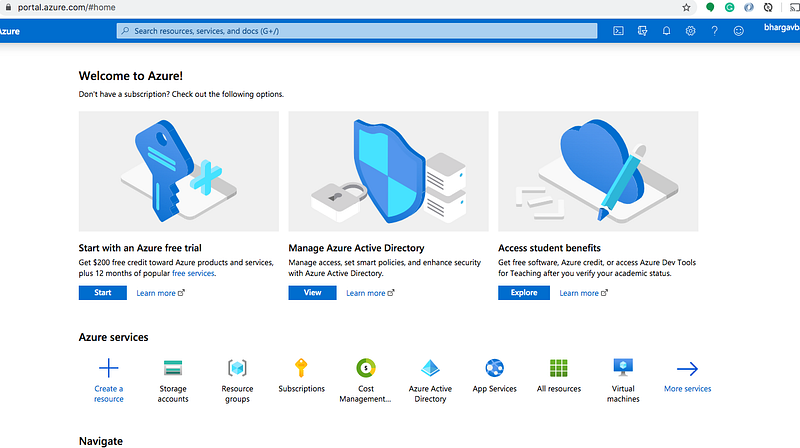
Azure Dashboard

Create a subscription

You need to create a subscription that’s how It serves as a single billing unit for Azure resources in that services used in Azure are billed to a subscription
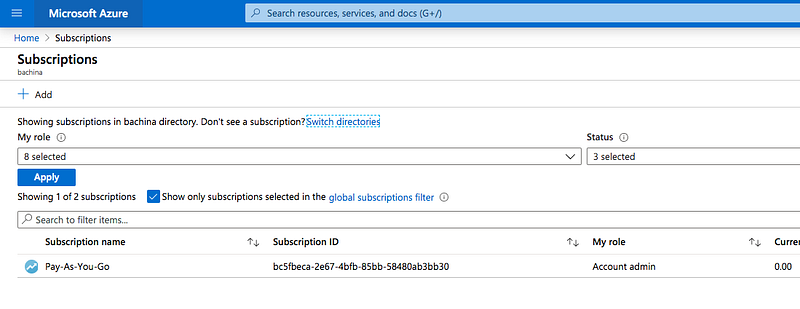
Pay-As-You-Go Subscription

Example Project

Here is an example project you can clone it and run it on your local machine and provision infrastructure on the Azure platform from your local machine.

// clone the project
git clone https://github.com/bbachi/terraform-azure.git
// Initialization
terraform init
// plan
terraform plan -var-file="terraform.tfvars"
// apply
terraform apply -var-file="terraform.tfvars"

What is Backend

Every Terraform project has a state and this state determines which resources to create, destroy, etc. Whenever you do the Terraform apply command it looks at this state and determines the action on the resources. By default, Terraform uses the “local” backend, which is the normal behavior of Terraform. This is not the case in the professional environment and you can’t use the local backend all the time since we work in a collaborative environment with teams. In Terraform, Backend is a way to configure a Terraform state in a remote place where everybody can access in a collaborative environment.

There are some benefits to using Backends.

  • You can’t use a local state when you work in a team because everybody should have a shared state. Using remote backends helps you share the state.
  • You can protect the sensitive information as the data is the backends is saved remotely and off the disk.
  • You can do remote operations as the state can be accessed remotely such as having a pipeline for the provisioning infrastructure.

Configuring Backend

You can store the Terraform state in Azure Storage. The State allows Terraform to know what Azure resources to add, update, or delete. There are two steps to configuring Backend.

  • Creating a Storage Account and Blob Container for the terraform state
  • Include Backend Block in the Terraform scripts and run the command terraform init

Creating a Storage Account and Blob Container for the terraform state

The first thing you need to run this script with this command sh backend.sh so that it creates the resource group, storage account, and container in Azure.

Here is the output of the above script.

Script Output

You can log in to the Azure portal and verify that the storage account is created or not.
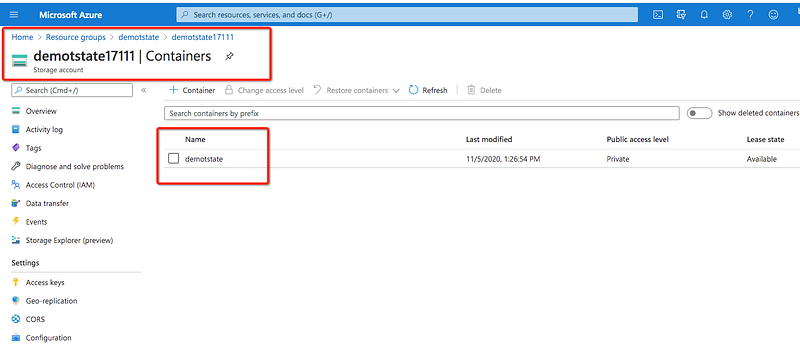
portal

Include Backend Block in the Terraform scripts and run the command terraform init

You need the access key for the Terraform to provision infrastructure on Azure so you need to export that as an environment variable.

export ARM_ACCESS_KEY=oadt5k/9HI+ekuqUouinsUOGcd5ZasxhMDeKaooWJMWNa5Wt2ZE19CRjKSV4SNuhW0FWISGgtq7GocnmVm2S6A==

Let’s create a file called backend.tf and place all the backend information in the backend block like below.

Once you have this file all you need to do is that run the following command

terraform init

Provisioning Infrastructure

Let’s create a Storage Account and resource group. We need to provision infrastructure for it.

Here is the main.tf file that contains resource group and Storage Account

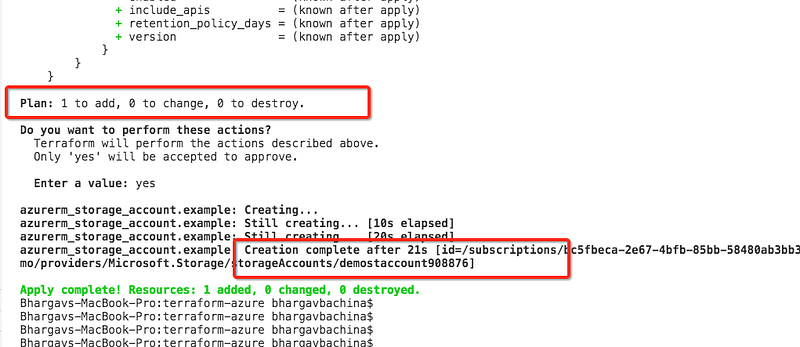
Let’s run the following commands to create these resources in Azure.

// Initialization
terraform init
// Plan
terraform plan
// apply
terraform apply
Resources Successfully Deployed

You can verify that by logging in to the portal
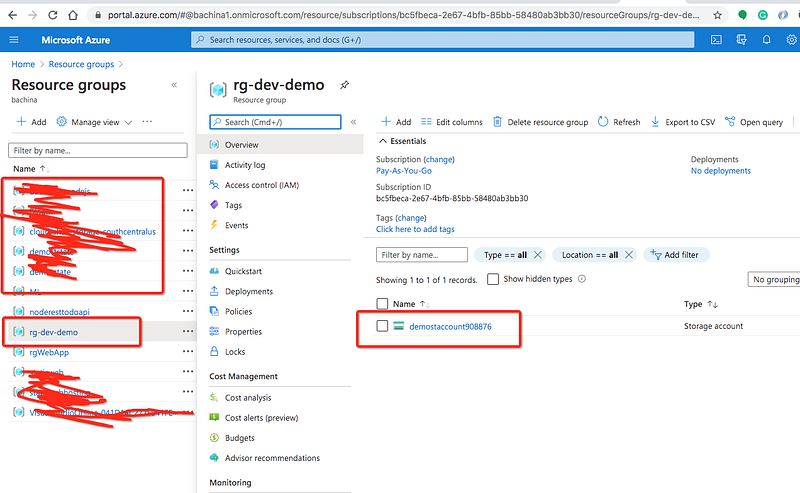
Resources Created

Once you run the command terraform apply the terraform state is created in the remote backend as below.
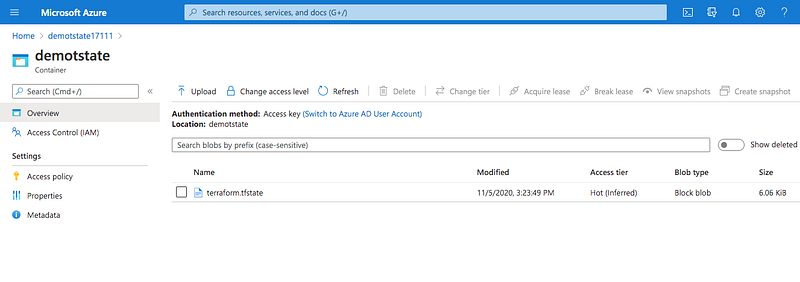
Remote Backend

Inputs and Outputs

Inputs

Input variables serve as parameters for a Terraform module, allowing aspects of the module to be customized without altering the module’s own source code, and allowing modules to be shared between different configurations.

When you declare variables in the root module of your configuration, you can set their values using CLI options and environment variables. When you declare them in child modules, the calling module should pass values in the module block.

Let’s pass the inputs in our file instead of using direct values in the main.tf file. The first thing we need to do is define the input variables in the variables.tf file as below.

Once all the variables are declared you can read those variables with var.varibaleName in the terraform scripts as below

The above file is the declaration file, you need to define another file to pass actual values for these variables as below. You can use different files for different environments.

Now you can pass this file with the following commands.

// plan 
terraform plan -var-file=terraform.tfvars
// apply
terraform apply -var-file=terraform.tfvars

outputs

Output values are like the return values of a Terraform module. A child module can use outputs to expose a subset of its resource attributes to a parent module. A root module can use outputs to print certain values in the CLI output after running terraform apply.When using remote state, root module outputs can be accessed by other configurations via a terraform_remote_state data source.

You can define the outputs in a separate file as well like the inputs. I have defined the outputs in the main.tf (line 24) for simplicity.

When you run the command terraform apply -var-file=terraform.tfvars you can see the outputs.
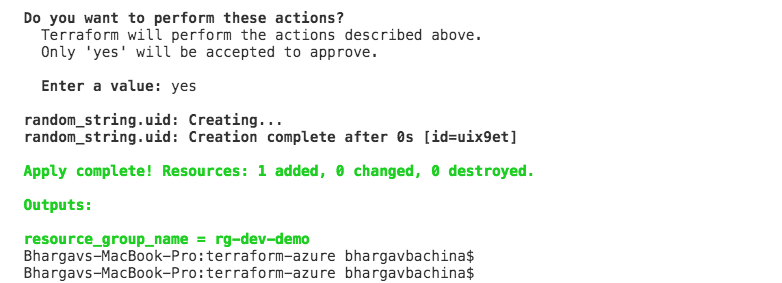
output

Destroying Infrastructure

You can destroy the infrastructure with the following command.

terraform destroy -var-file=terraform.tfvars

Summary

  • Terraform is a tool for building, changing, and versioning infrastructure safely and efficiently. Terraform can manage existing and popular service providers as well as custom in-house solutions.
  • You need a subscription from Microsoft Account for provisioning infrastructure with the Terraform.
  • In Terraform, Backend is a way to configure a Terraform state in a remote place where everybody can access in a collaborative environment.
  • You can store the Terraform state in Azure Storage. The State allows Terraform to know what Azure resources to add, update, or delete. There are two steps to configuring Backend.
  • You need to initialize with the command terraform init -backend-config="backend.tf"
  • You can provision the infrastructure with this command terraform apply
  • Input variables serve as parameters for a Terraform module, allowing aspects of the module to be customized without altering the module’s own source code, and allowing modules to be shared between different configurations.
  • Output values are like the return values of a Terraform module. A child module can use outputs to expose a subset of its resource attributes to a parent module.

Conclusion

This is a Beginner’s guide to provisioning infrastructure on Azure with the Terraform. In future posts, we will see how we can create more resources on Azure, creating modules, workspaces, provisioning infrastructure on multiple environments, etc.

Terraform
Azure
Cloud Computing
Software Development
DevOps
Recommended from ReadMedium