
All It Takes is 1 Minute to Clear your iPhone’s System Cache
…and make it significantly weightless

If you take a close look at the breakdown of your iPhone system storage, you’ll find a light grey colour bar at the end saying ‘System Data’ (formerly ‘Others’).
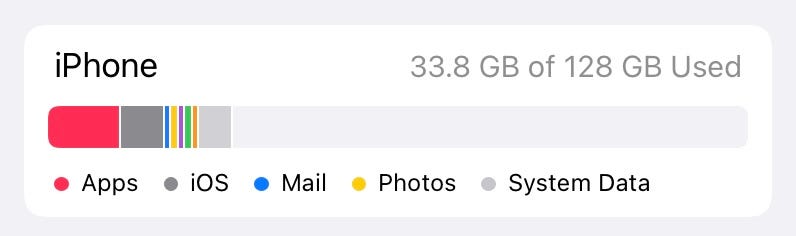
And if you scroll down entirely, you’ll find how much memory the culprit’s hogging:

So what’s it, anyway?
The system data is an important array of data Apple stores in a separate space on your iPhone.
It’s to provide you the best iOS experience — As the data comprises your personalised interests and cached data to avoid latency whenever you visit the same app or webpage again.
However, I’m sure you visit tens of websites everyday, and you most probably won’t visit all of them again — right?
Even then, Apple stores their data too on your iPhone, which is futile. This piles up mega or even gigabytes of useless data only to show up the annoying ‘Storage Full!’ alert later.
This is only one example. System data also contains:
- Browser cache,
- Mail cache and attachments,
- App cache,
- Error logs,
- Siri voices,
- What Siri learned etc.
Clearing it completely is impossible, as it’d brick your iPhone. However, let me suggest you few tips to clear it as much as possible.
#1. Clear it with this simple trick
I’ve suggested three tips to clear iPhone RAM in this article:
But let me give you the most efficient way of them I’ve figured out:
Just do this:
- Press and release
Volume Upbutton, - press and release
Volume Downbutton, - press and hold side button till the screen goes blank.
Now, your iPhone gets rebooted.
Now go check your System data. Mine dropped by 800 MB! How much for you?
#2. Clear Safari cache
Safari is hands-down a cool browser — its smoothness and privacy features are peerless. But the fact is — it’s only because of a large pile of backend data that knows everything you do and did.
While this is important, it’s suggested you clear it occasionally to avoid it chomping up space.
Here’s how you do it
Open Settings ⚙️ < Safari 🧭 < Clear History and Website Data . Note this couldn’t help but clear your history too.
And… Choose to
- Remove download list items after a day, or after successful download. This only removes the list, not the files — so no worries.
- Close tabs after a day, week, or month of idleness.
These slight changes can show significant results over long-term.
Quick Tip: Use a private tab to visit a webpage you don't think you'll visit again - As Safari doesn't (fortunately) store data from these pages.#3. Optimise storage
By default, Apple configures your iPhone settings to give you the maximum possible functionality. For this,
- Your iCloud Photos are set to store locally in original quality.
- Your messages are set to stay forever.
- Your deleted voice memos are stored forever.
While this is convenient, it overtime bogarts lot of space. So here’s what’s suggested:
For Photos:
Go to Settings ⚙️ < Photos < Click on 'Optimise iPhone Storage' . This saves original quality photos only on iCloud, and saves a bit less (but unnoticeable) quality photos locally, saving ample space.
For Messages:
Go to Settings ⚙️ < Messages 💬 < Keep Messages and set it to 30 days or 1 year. This will delete old messages and makes room for new ones.
For Voice Memos:
Go to Settings ⚙️ < Voice Memos < Clear Deleted and set it to something other than Never .
#4. Offload apps
Offloading apps is an exclusive feature by Apple that only deletes the app but keeps its data. So if you ever re-download the app, it works as if the app wasn’t ever deleted.
Quick Tip: This works best when the app is very large but caches very little local data - like Google MapsHere’s how you do it:
- Automatically:
Go to
Settings ⚙️ < App Store < Turn on 'Offload Unused Apps'. This will automatically detect if an app is unused for a long time, and will offload it. - Manually:
Go to
Settings ⚙️ < General ⚙️ < iPhone Storage. If you think you’ll not need an app in the near future, click on it, and clickOffload App.
#5. Beware of streaming apps

Apps like Netflix, Prime Video, Instagram, Spotify are the ones we thoughtlessly jump into without boredom even saying hi.
Whenever you binge on an episode or media, these apps save some cache so ensure smooth playback if you play them again. This overtime clogs up lots of cache which chomps up your precious memory.
So it is suggested you delete and reinstall a streaming app after you complete an episode or series — so cache files of that particular content will be cleared.
Or try it directly from the app
Some apps allow you to clear cache directly from the app.
Say Spotify — Open the app < Settings < Storage < Clear cache . Nifty right?
If everything fails…
Oh no. We’ve tried everything possible to clear useless system data on your iPhone — but if everything fails,
#6. Update software
Did you know once iOS and iPadOS 13 had issues that didn’t let system data be optimised? Apple had to push a software update to fix it (details).
Keeping up to date ensures you have the latest codes that keep your iPhone in good condition. As soon as you get notified of a new update, never ignore it.
I’m sure you know how to update your iPhone. So I need not explain you the process. PS: The latest upate is iOS 15.4, and it’s awesome.
#7. The final option: Backup and reset
The biggest culprits of the storage problem are the invisible corrupted files and those wonky bugs — And you can’t remove them one by one. The best way is to burn everything down, and start all over.
To do this, have a backup, erase your iPhone, and restore it back. Two ways for it:
- iCloud Backup:
Go to
Settings ⚙️ < (Your name) < iCloud ☁️ < Turn on iCloud Backup. This will back up all the data on your iPhone, including files, settings, apps, and app data. However, you’ll need to have enough space on iCloud (5 GB basic tier might not suffice). - iTunes or Finder backup: Connect your iPhone to your Windows PC or MacBook. Open iTunes or Finder. Click on 📱 symbol, and backup all the data to your PC.
Now, on your iPhone, go to Settings ⚙️ < General ⚙️ < Transfer or Reset iPhone < Erase All Content and Settings < Continue . This will completely wipe off your iPhone to a clean slate.
After that, restore your backup. You’re now done!
Conclusion
So that’s how you could get rid of the annoying excess System data that does no good but just linger around.
I feel Apple has to bring the facility to analyse the files that are making much of System data — So it’d be much easier to clear them.
Agree?
If you liked this, you might also like:
Get notified via email whenever I publish. Join 50+ others!
Not a Medium member yet? To get unlimited access to all stories on Medium, Sign up now!
(It’s an affiliate link so I receive a portion of your payment, with zero extra cost for you.)


