avatarNikhil Vemu

Free AI web copilot to create summaries, insights and extended knowledge, download it at here

1825

Abstract

Touch by going to <code>Settings ⚙️ < Accessibility 🚹 < Touch 👆 < AssistiveTouch</code> .</li><li>Press and release <code>Volume up</code> button,</li><li>press and release <code>Volume down</code> button.</li><li>Now, press and hold <code>Side button</code> until you see <code>slide to power off</code> .</li></ul><p id="7f40">DON’T SLIDE TO POWER OFF.</p><ul><li>Now, tap on the AssistiveTouch button (Or Home button if your iPhone uses Touch ID).</li><li>Tap and hold <code>Home</code> until you come back to your Home Screen.</li></ul><p id="ee8f">That’s it.</p><p id="0fda">A bit faster process to clear RAM — right?</p><h1 id="6b11">#1. The Camera app is for the rescue</h1><p id="bc4d">This tip surprised me. All thanks to this iReviews YouTube <a href="https://www.youtube.com/watch?v=MzdvIziHYxE">video</a>.</p><ul><li>Open the Camera app, wait for a moment.</li><li>Now close it, completely.</li></ul><p id="ce74">Your RAM is cleared! Surprising, right? How could simply opening and closing the Camera app clear RAM?</p><p id="c4f5">No one knows. But,</p><h1 id="0f8c">Proof this tip works</h1><figure id="7bb8"><img src="https://cdn-images-1.readmedium.com/v2/resize:fit:800/1*COH4AruPvPWWMAQ3zqBPGQ.jpeg"><figcaption></figcaption></figure><figure id="9bee"><img src="https://cdn-images-1.readmedium.com/v2/resize:fit:800/1*1ZUxk5NYxnSLpk6qNtraWg.jpeg"><figcaption>My iPhone memory usage before and after using the Camera tip.</figcaption></figure><p id="651b">You can also verify the fidelity of the first two tips (#3, #2) using any RAM status app. I use <a href="https://apps.apple.com/in/app/usage-widgets/id970353453">Usage Widgets</a>.</p><h1 id="d9ed">Conclusion</h1><p id="bc17">Who under the sun would expect using such simple tips could massively clear their iPhone’s RAM? I’m sure this would

Options

n’t be the last amazing hidden feature iOS has. Do you too?</p><p id="aeb1"><b>If you liked this story, you might also like:</b></p><div id="9acd" class="link-block"> <a href="https://readmedium.com/10-amazing-things-you-didnt-know-your-iphone-could-do-294c37628850"> <div> <div> <h2>10 Amazing Things You Didn’t Know your iPhone Could Do</h2> <div><h3>Unleash your iPhone’s hidden superpowers</h3></div> <div><p>medium.com</p></div> </div> <div> <div style="background-image: url(https://miro.readmedium.com/v2/resize:fit:320/0*xQh9s8-7Z_R6jaIQ)"></div> </div> </div> </a> </div><div id="2077" class="link-block"> <a href="https://readmedium.com/7-hidden-iphone-hacks-you-probably-never-knew-about-c663089372f3"> <div> <div> <h2>7 Hidden iPhone Hacks You Probably Never Knew About</h2> <div><h3>If you knew these tricks, you’re no less than an iOS pro</h3></div> <div><p>medium.com</p></div> </div> <div> <div style="background-image: url(https://miro.readmedium.com/v2/resize:fit:320/0*HkBveJDa8_5cQwiB)"></div> </div> </div> </a> </div><p id="5165"><a href="https://nikhilvemu.medium.com/subscribe"><i>Get notified</i></a><i> via email whenever I publish. Join 30+ others!</i></p><p id="5f9f"><i>Not a Medium member yet? Me too. But if you consider signing up for it, <a href="https://nikhilvemu.medium.com/membership">Sign up</a> now!</i></p><p id="1aa1"><i>(It’s an affiliate link so I receive a portion of your payment, with zero extra cost for you.)</i></p></article></body>

How to Clear your iPhone RAM in 5 Seconds — or Less

Simple tips that actually work
Photo by Martin Sanchez on Unsplash

The iOS is such standalone that it doesn’t need any third-party app for RAM management. An iPhone always stays shiny clean (inside) every time its user picks it up.

However, no judgement if you use a third-party app for the job. They’re always available in the AppStore, which actually work.

But I, as a minimalist, always try to eke the available resources for all my iOS jobs. This way, I stumbled upon three easy, app-less ways to clean up my iPhone RAM instantly.

#3. Restart your iPhone the non-ordinary way
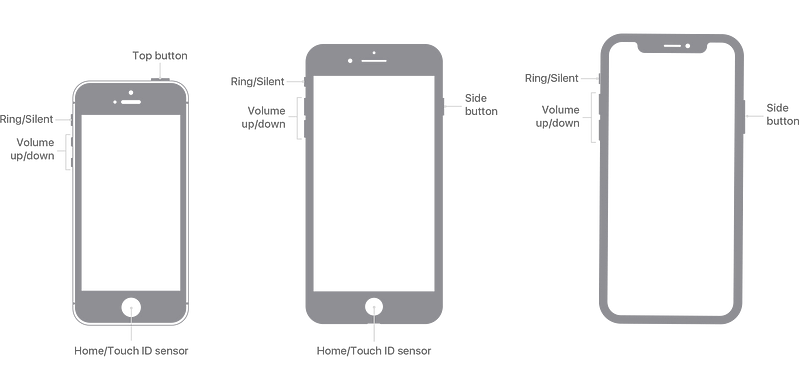
Image from Apple
  • Press and release Volume up button,
  • press and release Volume down button.
  • Now, press and hold Side button .

Keep holding it even after you see slide to power off prompt. Your iPhone will now turn off. Let it automatically restart.

This frees you ample RAM. However, it’s a slow process.

#2. Use AssistiveTouch

If you use an iPhone with Touch ID, skip the first step below.

  • Enable AssistiveTouch by going to Settings ⚙️ < Accessibility 🚹 < Touch 👆 < AssistiveTouch .
  • Press and release Volume up button,
  • press and release Volume down button.
  • Now, press and hold Side button until you see slide to power off .

DON’T SLIDE TO POWER OFF.

  • Now, tap on the AssistiveTouch button (Or Home button if your iPhone uses Touch ID).
  • Tap and hold Home until you come back to your Home Screen.

That’s it.

A bit faster process to clear RAM — right?

#1. The Camera app is for the rescue

This tip surprised me. All thanks to this iReviews YouTube video.

  • Open the Camera app, wait for a moment.
  • Now close it, completely.

Your RAM is cleared! Surprising, right? How could simply opening and closing the Camera app clear RAM?

No one knows. But,

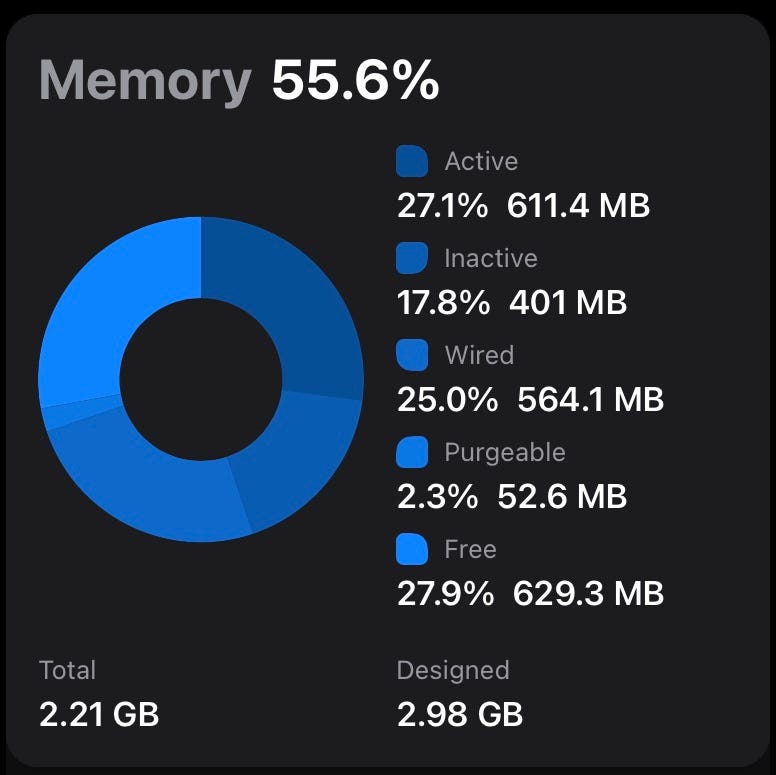
Proof this tip works
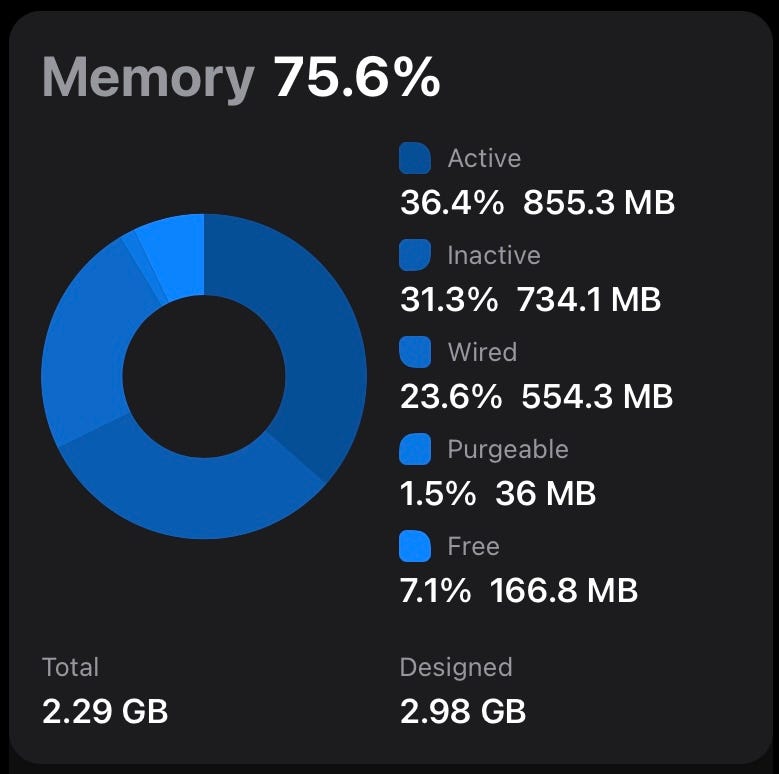
My iPhone memory usage before and after using the Camera tip.

You can also verify the fidelity of the first two tips (#3, #2) using any RAM status app. I use Usage Widgets.

Conclusion

Who under the sun would expect using such simple tips could massively clear their iPhone’s RAM? I’m sure this wouldn’t be the last amazing hidden feature iOS has. Do you too?

If you liked this story, you might also like:

Get notified via email whenever I publish. Join 30+ others!

Not a Medium member yet? Me too. But if you consider signing up for it, Sign up now!

(It’s an affiliate link so I receive a portion of your payment, with zero extra cost for you.)

Technology
Mobile
Apple
Innovation
Art
Recommended from ReadMedium