
10 Amazing Things You Didn’t Know your iPhone Could Do
Unleash your iPhone’s hidden superpowers
The iPhone isn’t just a brick with software inside. It’s a mystery box filled with lots of features that could probably change your life.
Even after a year and a half of using Apple devices, I still discover new features every other day. They completely change my opinion on my iPhone. It feels I’m carrying a superpower with me all the time — just like that crazy Marvel hero who’s experimenting with his newly got spidey powers.
Here are a 10 of the amazing features I lately discovered. You probably didn’t knew these.
#1. Send photos with Siri 🔺
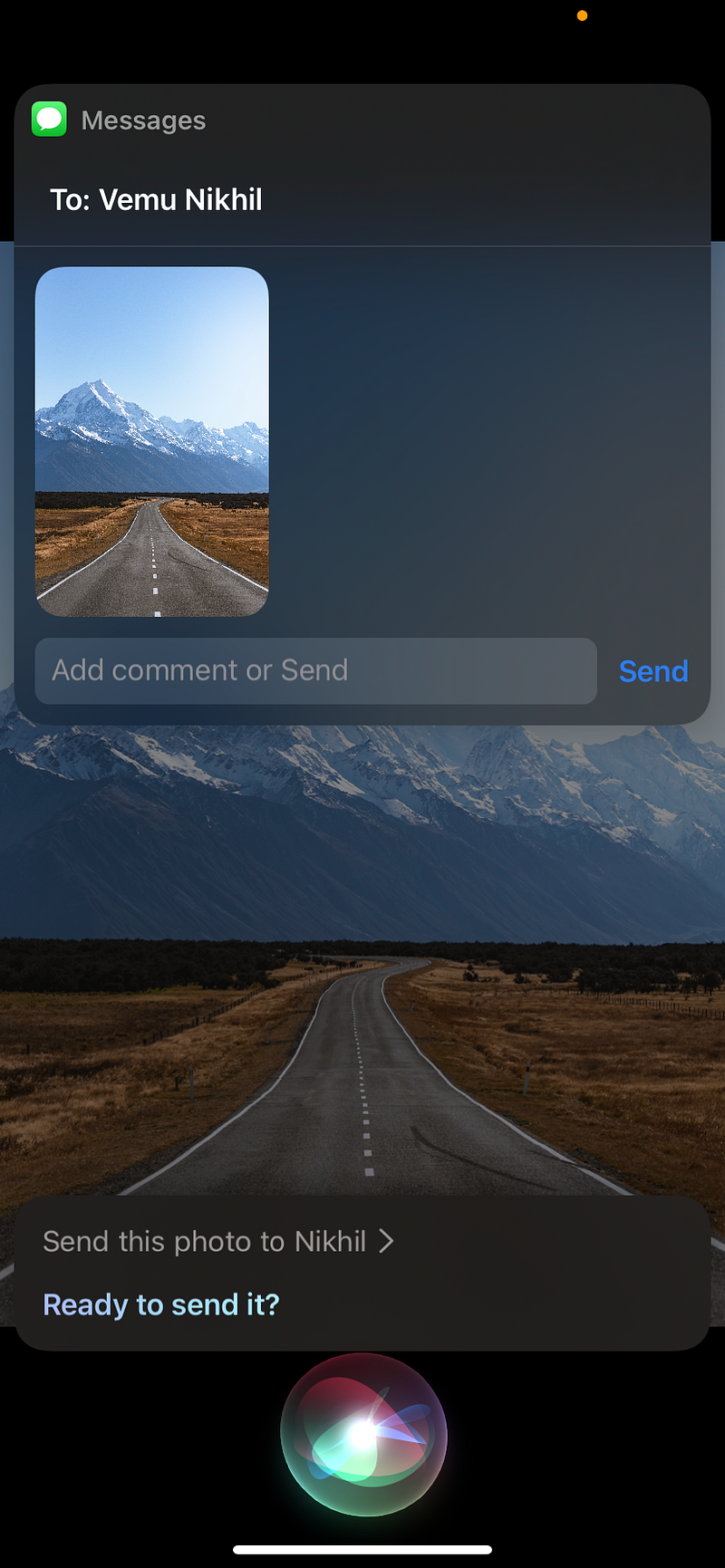
Navigate to any photo on your default Photos app and say, “Hey Siri! Send this photo to Jane!” or someone else. And the photo is instantly ready to go. If you’d like to add a caption for it, you can do it too.
This way, you can easily send photos to someone without those fussy clicks and searches.
Drawbacks:
• Works only with Apple photos and iMessage.
• Can only send single photo at a time.
#2. Hold calls ⏸
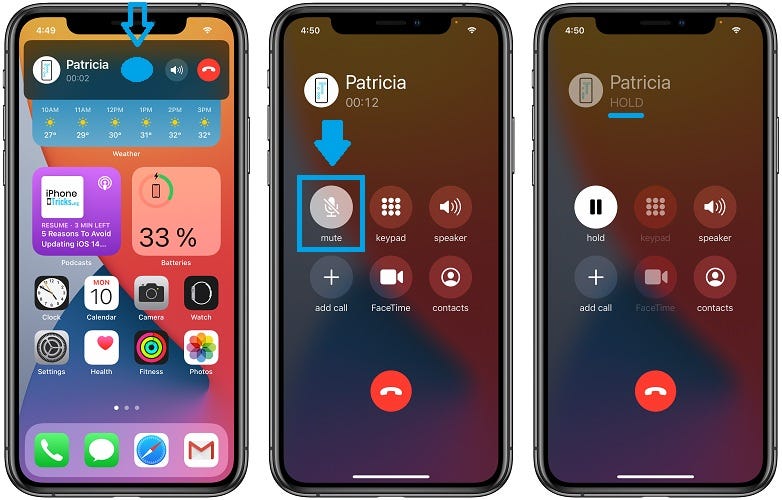
We generally don’t see the ‘Hold’ option on iPhones while on calls. It only appears when we’re on two calls simultaneously. Right?
However, it is possible to hold a single call – Apple has hidden it, right below the Mute button. To hold a call, just hold the Mute button for a few seconds, and your call is now on ‘Hold’.
#3. Drag and drop text and photos across apps 📍
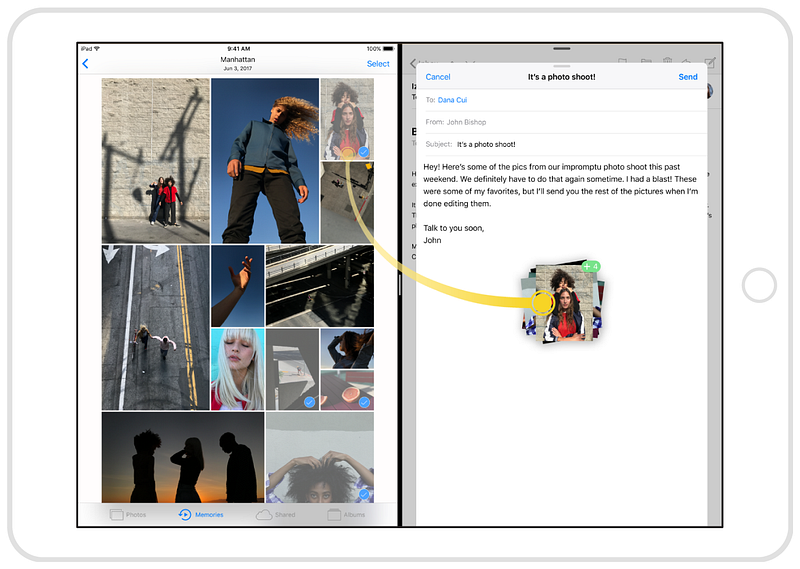
Though the above image is of iPad, the feature works on iPhones too.
This is the most underused iOS feature of all time. When I explain this feature to my pals, their eyes widen up. “Wow! I didn’t knew this!”, they say.
In Messages
If you want to send a same message to someone else, tap and hold that message with a finger. Hold it tight. Now use another finger to navigate to the other contact and drop that text in that SMS space. Now the message is copied there.
In Photos
The same way, you can drag photos from the default Photos app and drop it in Messages, Notes, Files, and many other third-party apps. This way, you can send or store text and photos without having to copy-paste or browse for them.
In Safari
You can also do the same thing on Safari. If you like any picture on the internet, and want to save or send it, you can drag and drop the photo across apps.
How to choose multiple images?
After you drag an image or text with a finger, tap on other images or text to include it in your dragging list.
#4. Use Photos search the right way 🔍
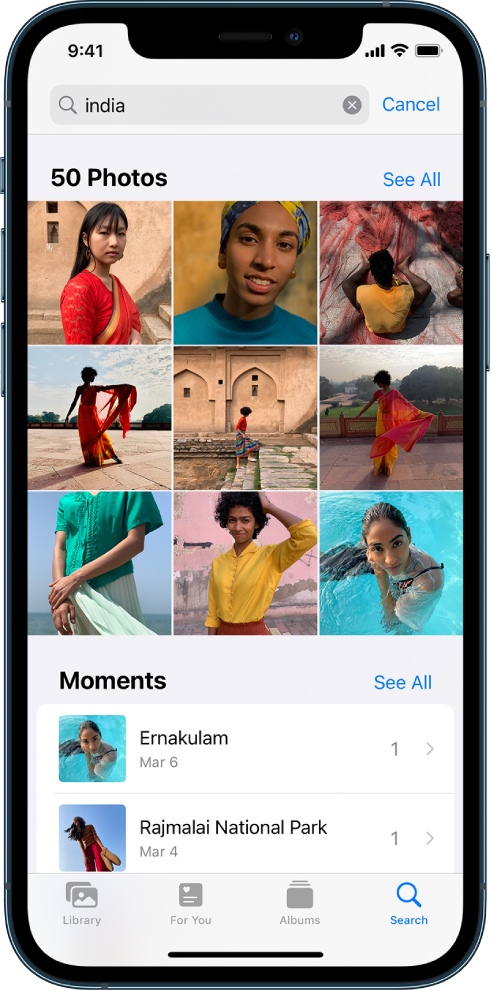
Most of us Apple users underuse the ‘Search’ feature on the default Photos app. Even when we use, we often restrict the use to search by people or time.
However there are many other ways you can search your photos:
- By month or year
- By person (We’ve discussed these both)
- By place (city, country, or business name like hospital, museum, for example)
- By category (beach, sunset, for example)
- By events (concert, sports, for example)
- By animals
- By caption
Try it today.
#5. Get full document OCR¹ text
iOS 15 has been out for a while, and you might be knowing Apple has included ‘Scan Text’ feature that opens camera and text-ifys what’s before it.
From there, you’re just a gesture away to scan documents and get full text.
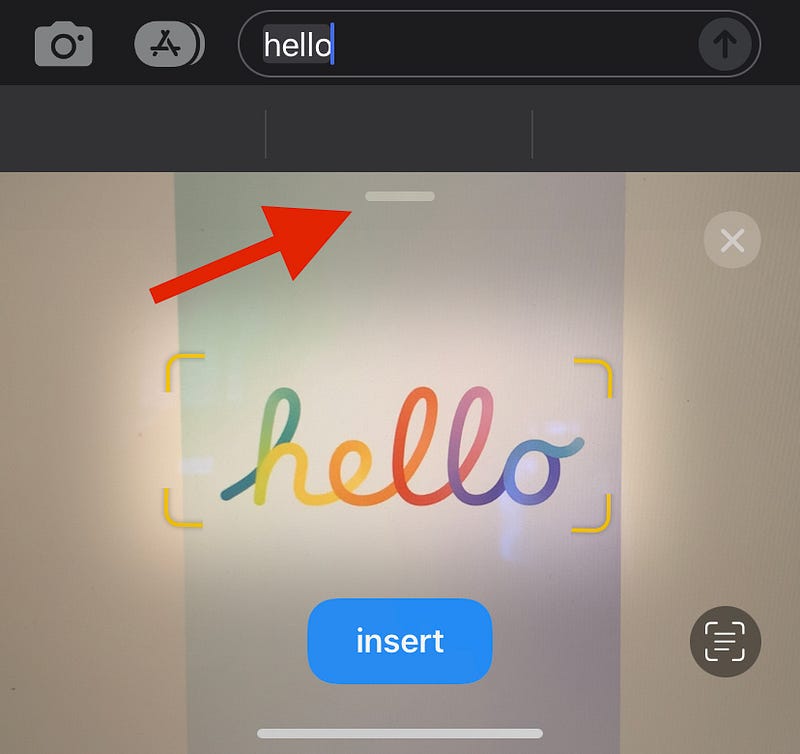
Just swipe up from the line you see in the above screenshot, and then you can scan bigger documents.
Another great OCR feature
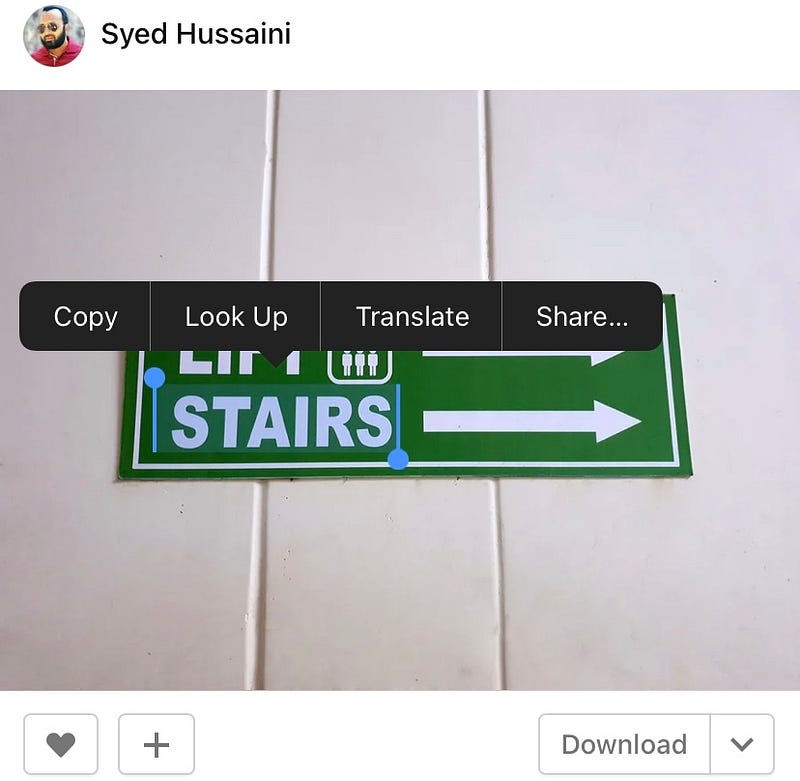
If you’d like to copy text on an image you see on the internet, you don’t need to download it. Just hold on the text for a while and you’re good to go.
¹OCR: Optical Character Recognition
#6. Turn on or off multiple alarms ⏰
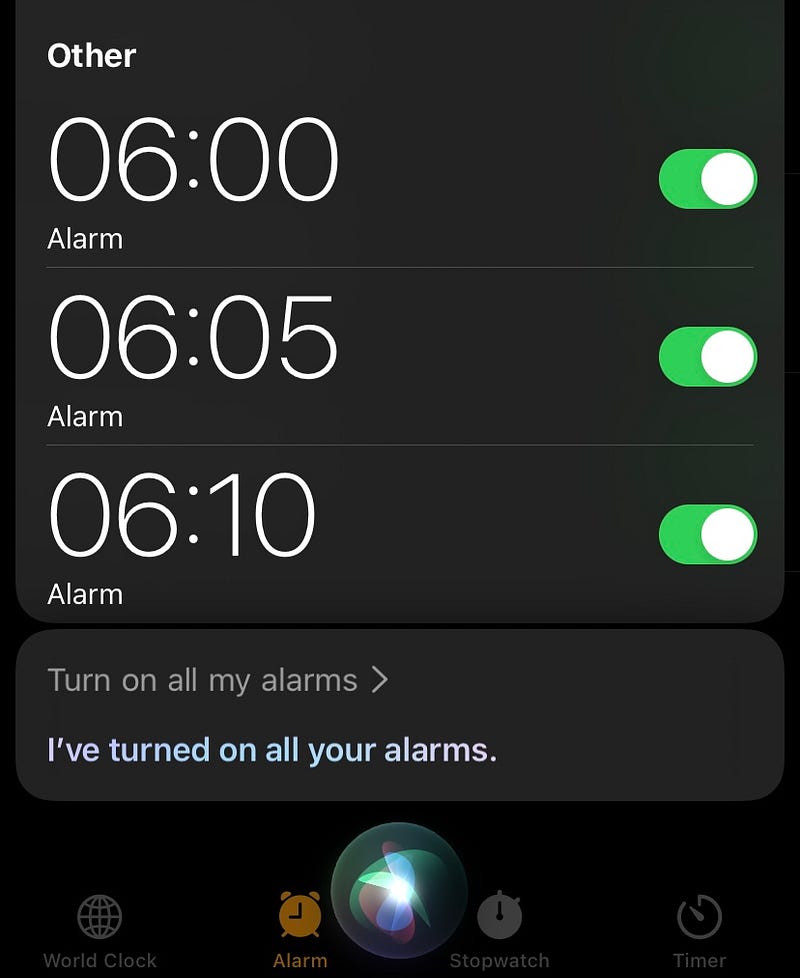
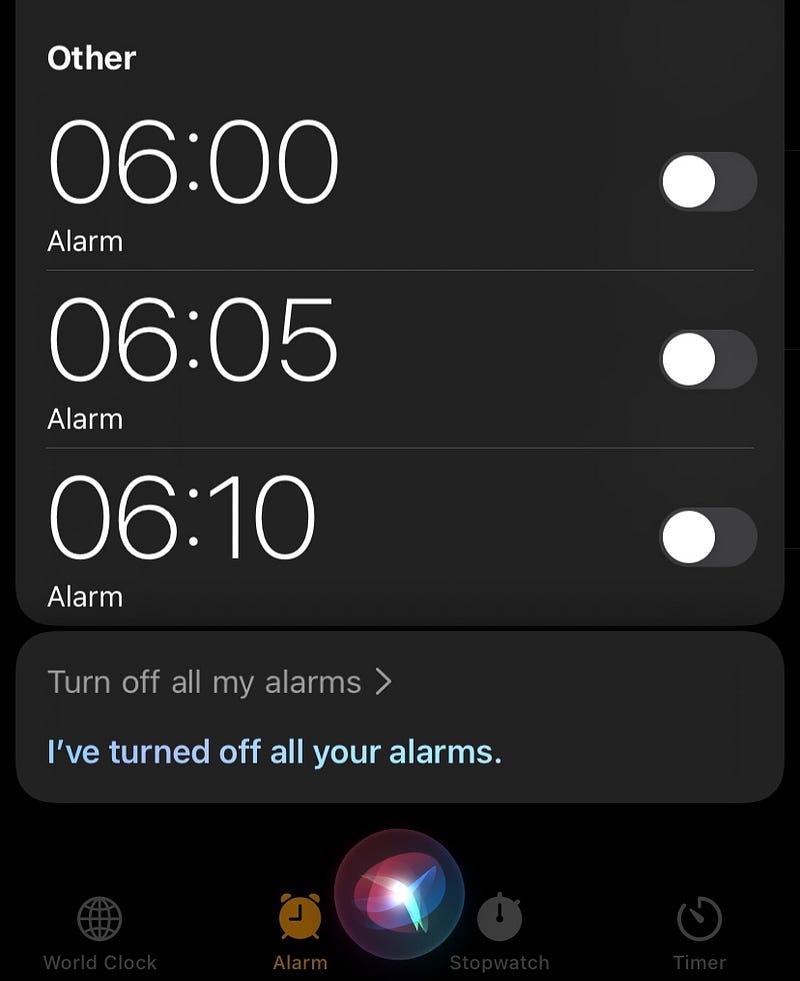
While I don’t encourage the multiple alarms habit, this is for people who do it.
Few of us have the habit of turning off alarm and sleeping only to repent after its too late. “Alas! I should have snoozed!”, I hear you. That’s why we turn on multiple alarms to save the day.
The easiest way to do it: Tell Siri, “Turn on all my alarms”. Or if you woke up early and wanted to turn off all your alarms, you can say, “Turn off all my alarms.”
#7. Let Siri rearrange apps for you on your Home Screen 🤖
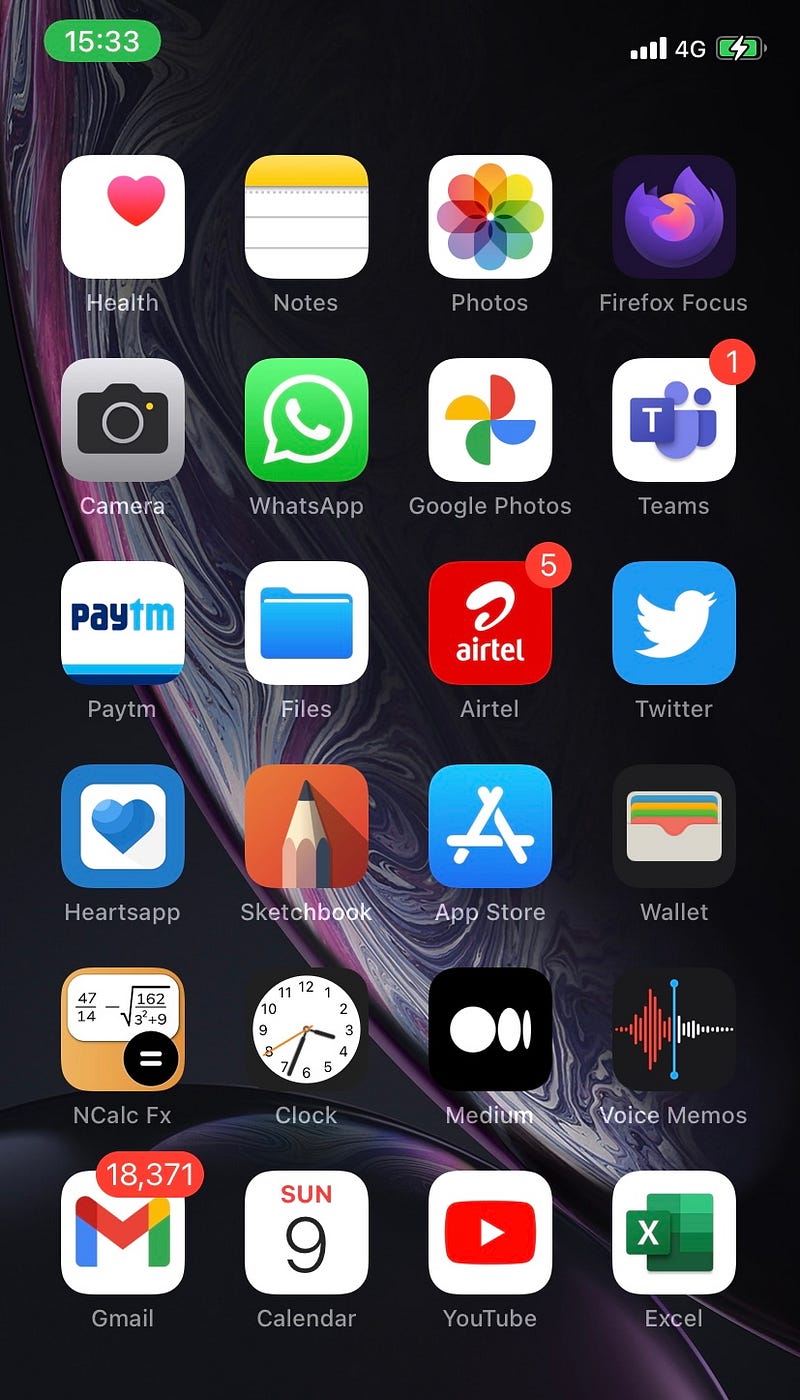
If you don’t have a specific choice for order of your apps on your Home Screen, you’re awesome. Let Siri do it for you based on which apps you’d likely use at that time of the day, or your location.
For this, add multiple ‘Siri suggested apps’ widgets on your Home Screen based on how many apps you have.
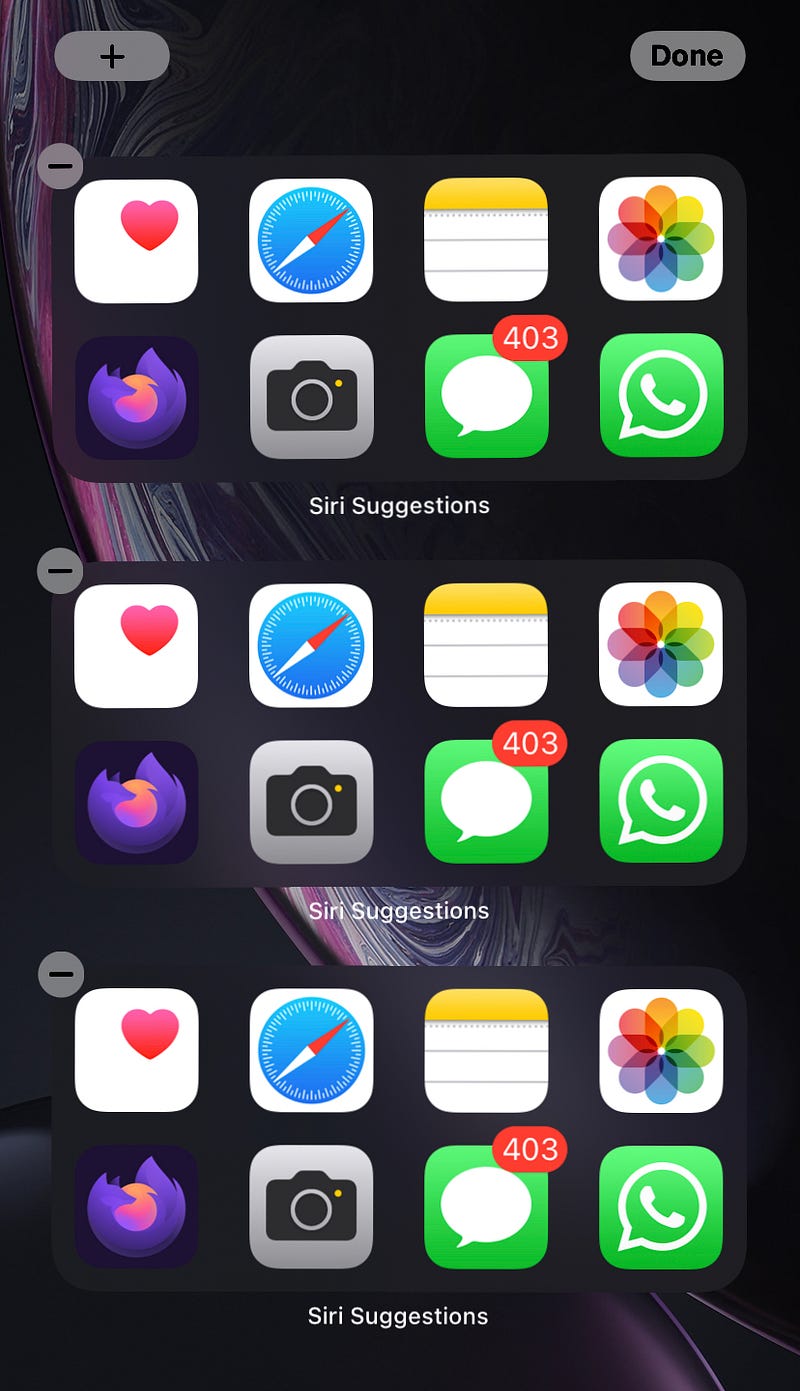
Don’t worry. They don’t show the same apps, instead, they all work as a single widget that shows relevant apps.
#8. Your iPhone is vigilant 🚨
Try this:
Lock your iPhone (don’t show it your face), and ask Siri, “What’s my name?” or “Who’s iPhone is this”, or a similar question that reveals your identity. (you need to enable Siri on lock screen)
What happens?
Siri replies with your name (And secretly disables Face ID for the next unlock).
Why does it do that?
Say you’ve lost your iPhone in a party, and someone finds it, not knowing it’s yours. They ask Siri (while locked) to know the owner is you.
Then, Siri promptly disables Face ID to prevent them hacking the Face ID some way and finally unlocking your iPhone. Pretty awesome right?
#9. Sublists in Notes app 📝
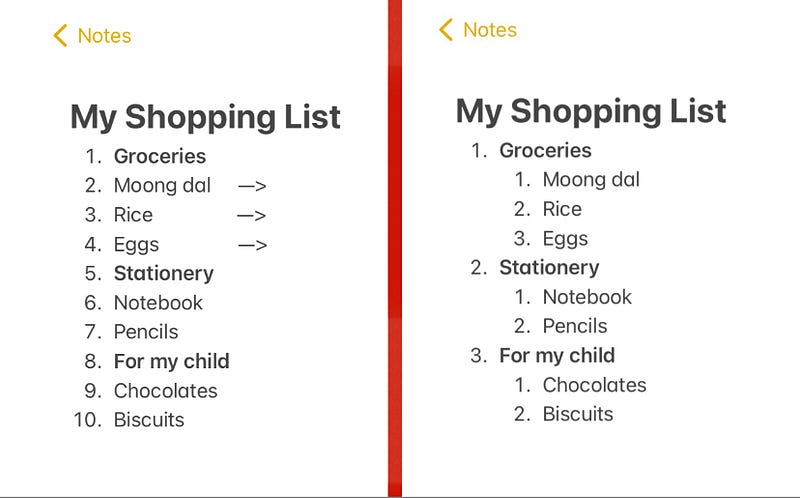
If you use notes app for your shopping lists, here’s a simple trick to manage the irksome task easier.
I often see my pals making multiple notes for shopping in different shops. One note for groceries, one note for stationery items etc…
However, here’s a nifty way to do that.
Just type up everything (shops and goods) with serial numbers in a single note and then swipe right (as shown in the image) to make the goods as sublists, neatly arranged.
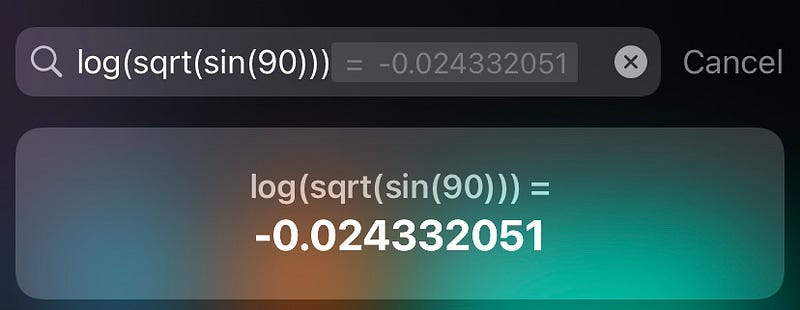
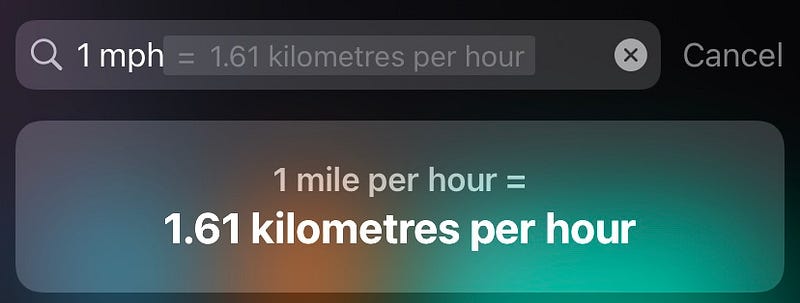
#10. Spotlight does more 🔦
I use Spotlight as a to-go assistant for almost everything.
It could search my files, photos, notes, Safari history. I could google things, call or message pals, download apps, get definitions, track flights, and what not!
However, not many know it works as a calculator too. Not only it could do basic calculations, but could also convert units, currency, and many more.
Try these:


#11: Bonus point 💡
Did you know you could adjust the brightness of your iPhone’s flashlight? This could significantly save your battery while on emergency.
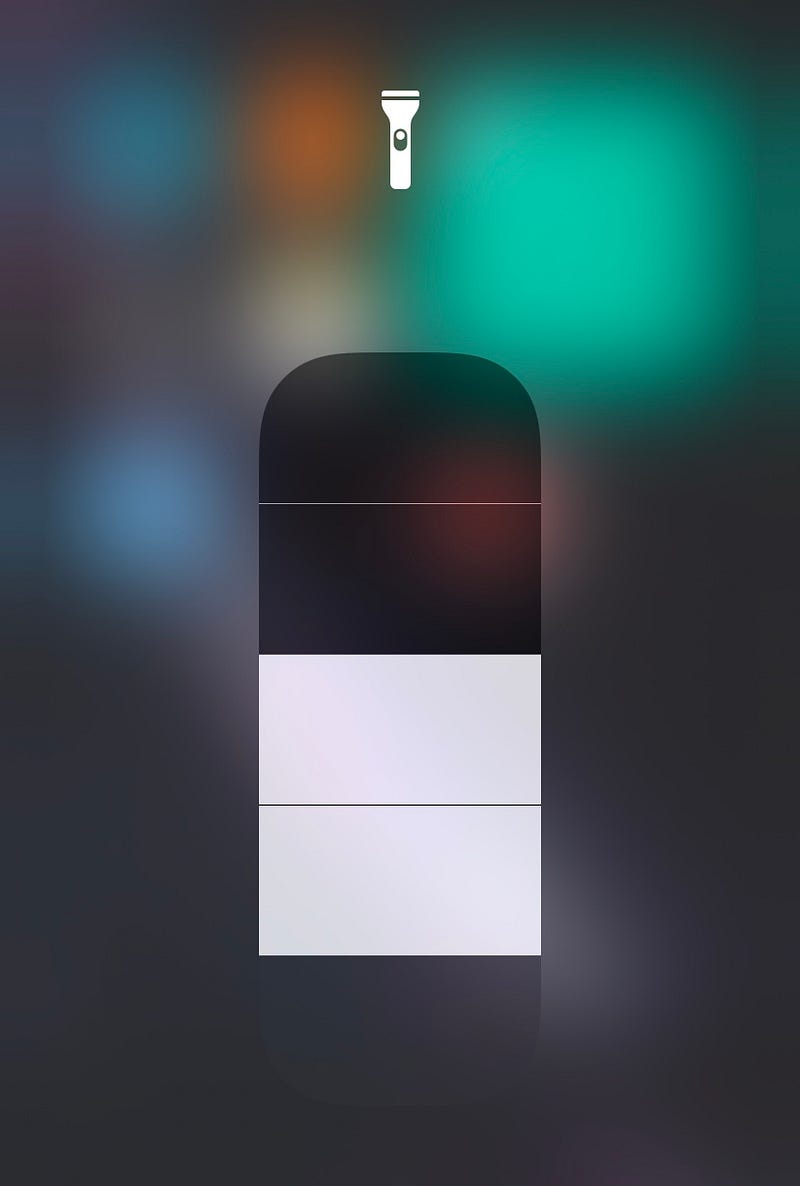
Here’s how you do it: Add flashlight to your Control Centre from Settings. Now, press and hold the icon for a while until you see the brightness adjust option. You could now choose any level of brightness, and it saves that level for the next time you use the flashlight too.
Want more?
- Press and hold the tab icon on Safari to see ‘Close all tabs’ option.
- Ask Siri to take a selfie or a video.
- Hold the spacebar to make your keyboard a trackpad.
- Put widgets on widgets to make a widget stack.
Conclusion
While I learnt and regularly use many hidden features on my iPhone, I still feel there are many other features and shortcuts yet to be explored.
Every other day I still discover new features that make me more and more productive. Using all these features everyday makes one an iOS pro. Right?
If you liked this story, you might also like:
Get notified via email whenever I publish.
Not a Medium member yet? Me too. But if you consider signing up for it, Sign up now!
(It’s an affiliate link so I receive a portion of your payment, with zero extra cost for you.)


