
The Fastest Way to Share “Gigabyte-Sized Files” Between your iPhone and MacBook
It’s faster than AirDrop & iTunes
Last week, I had a FaceTime call with my college peer group.
Being relatively new to the Apple ecosystem, especially to Macs, which they’ve been using for decade, I curiously inquired them — How do you guys share files between your iPhone and Mac?
I got many distinct replies. They said:
- I email them to myself,
- I upload them to iCloud,
- I use Handoff (rare guy…),
- I use AirDrop,
- I use iTunes.
But I knew them already…
And I even tried all these methods ever since I purchased my MacBook. However, I usually prefer the iTunes way as I always keep my iPhone connected to Mac via USB for internet (I’m allergic to Wifi hotspot).
Unlike those usual answers, the most geeky guy of the call replied, “I use SMB, and it’s the fastest way.”
We all were like… “Wha-a-t? SMB? What do you mean? Does it even exist in a MacBook?”
“Yes. ‘Server Message Block’. It exists in Macs but is a lesser known feature buried inside your system settings.” And he then explained us how it could be used.
Oof…I’m lucky to have known that secret way, and I’ve been using only that ever since then. Let me explain it to you too.
What’s SMB, exactly❓
SMB is a file sharing protocol that was originally invented by IBM and was used by Microsoft as its LAN manager product during the mid-1990s. Later, till date, it’s being significantly enhanced of its speeds and efficiency.
Apple has incorporated SMB for the ‘File Sharing’ option in MacOS, and that feature is often utilised by businesses using a local network.
How to create your own SMB share on your Mac? 🧑🔧
Not a rocket science. Just follow these simple instructions once and for all, and you can share your files anytime you’d like to.
To-do in your Mac 💻
Go to System Preferences < Sharing < Turn on File Sharing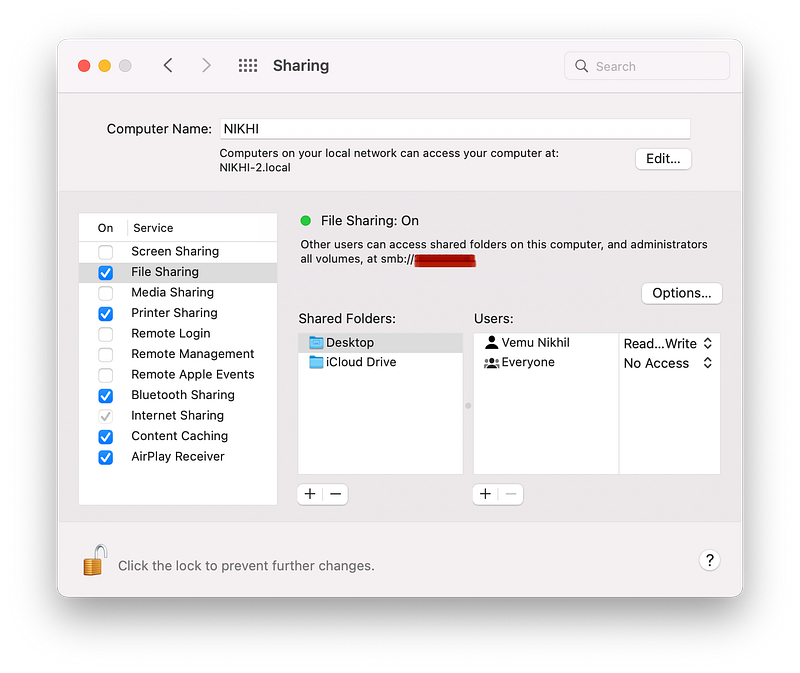
Click on + below the shared folders to add the folders you use the most. In my case, it’s desktop and iCloud Drive.
(Optional) Now, add users for your shared folders by clicking + below the Users menu. It not only allows you to choose from your Mac users, but also from your contacts list.
You’ll have to assign them a random password of your choice, so they can access your folders using it.
You can also choose the level of access you give the users. For myself, I give read and write rights, and for everyone else, I give read-only or no access to the folders.
Now, you’re done with your Mac settings.
To-do in your other device (iPhone with me) 📱
First, do any of these two things:--> Connect your Mac and device to the same Wifi network, or
--> Connect your Mac to your device hotspot (Wired or wireless).Now, go to Files < Click on ‘…’ on the top-right corner < Click on Connect to Server.
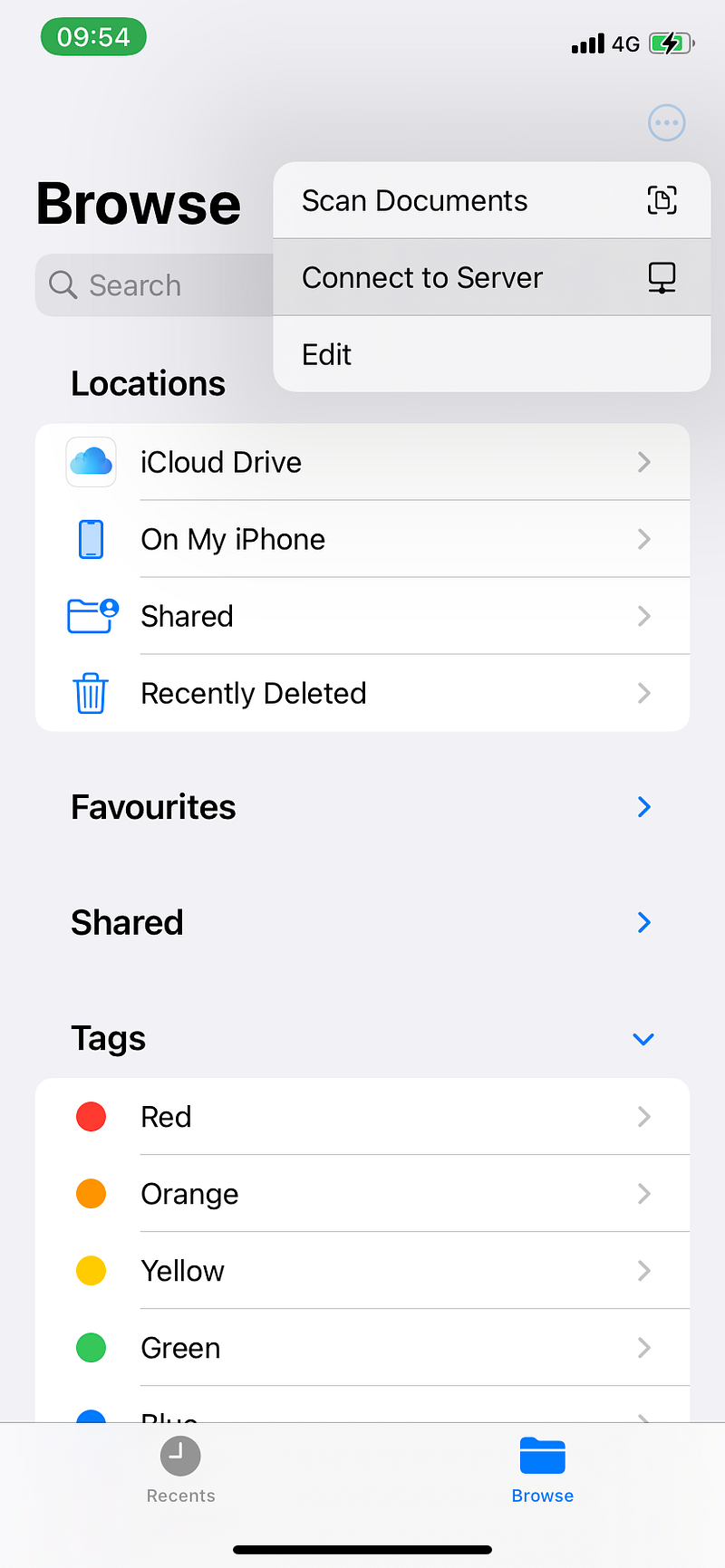
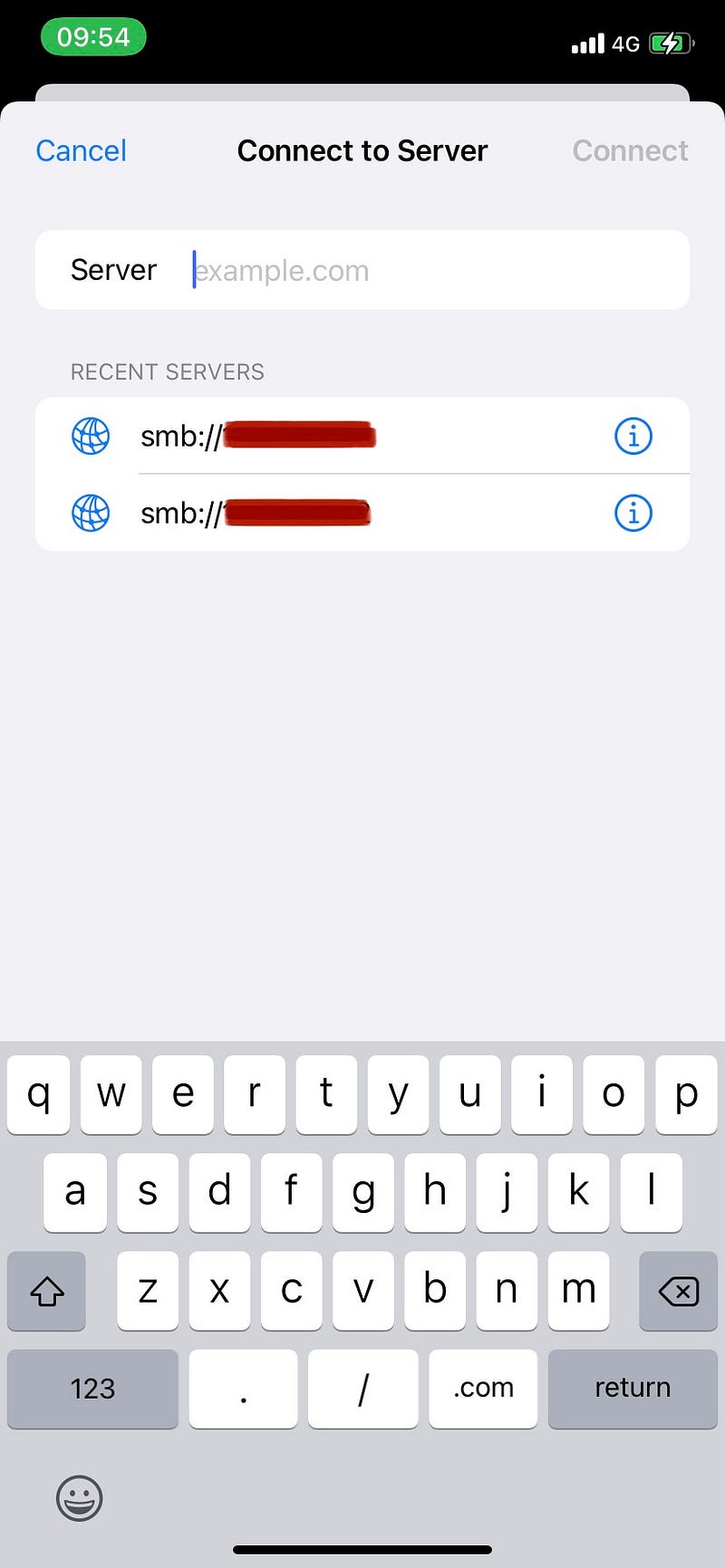
Type the IP address that you see on your Mac (I’ve covered it with red on the Mac screenshot) and click on Connect.
Now you see this prompt.
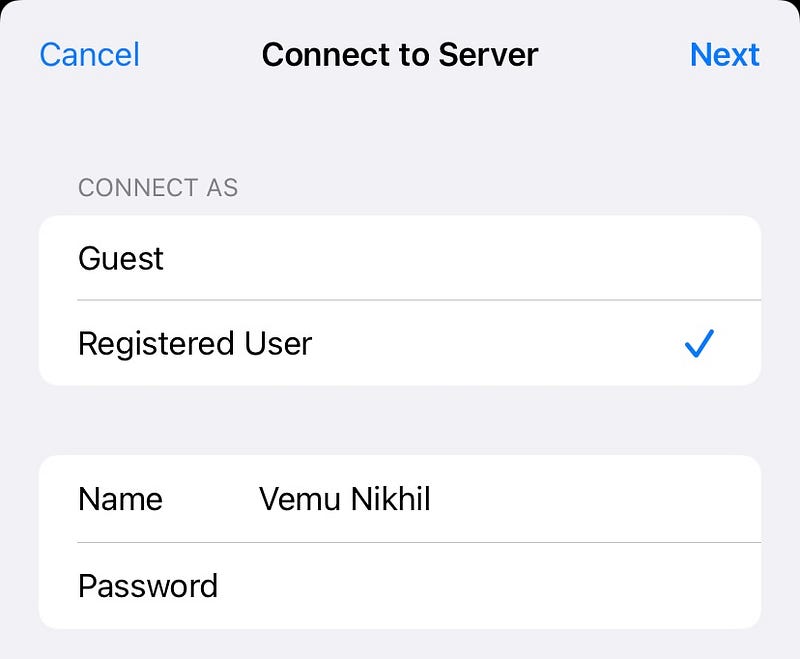
Type your Mac username and password and click Next to get the setup done.
Ta da! You can now access all your shared Mac folders on your device.
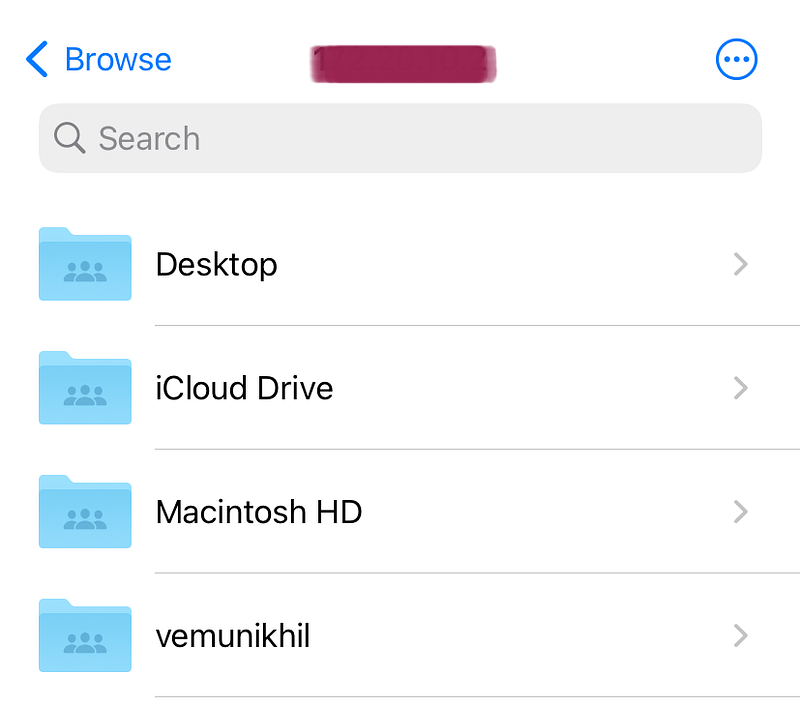
If you’ve enabled read and write access for yourself, you can almost instantly view, add, edit, or delete your Mac’s documents, pics, and videos as if you’re doing it in your local device storage itself.
Works with… ⚙️
You can use it Mac to Mac, Mac to iPhone, iPad, and iPod touch.
To transfer Mac to Mac, open finder in the receiver Mac, click on ‘Go’ on the top menu, click on ‘Connect to Server’ and follow the same instructions.
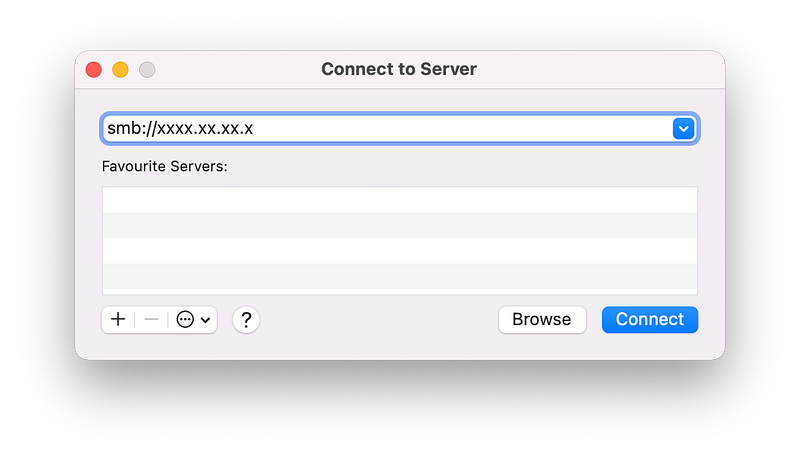
SMB speeds 💨
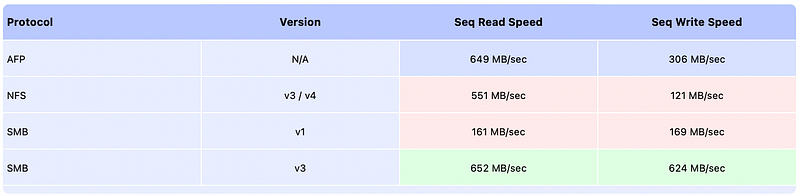
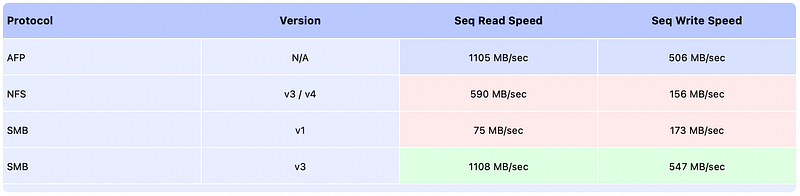
This article from photographylife compares SMB/CIFS speed with two other protocols on Mac — AFP (Apple Filing Protocol) and NFS (Network File System) speeds with the final verdict being:
SMB is the best protocol for file transfers one can use on MacOS in terms of overall performance.
Conclusion
Even, in the future, if Apple makes that Finder (iTunes in Windows) file transfer facility faster, I may still probably continue to employ only the SMB way for the job.
Because, this method makes my task so easy that I can view, edit, add, or transfer my Mac files directly from my iPhone, and it’s so quick that it feels all my Mac files are synced to my iPhone in real-time. Agree?
If you liked this story, you might also like:
Get notified via email whenever I publish.
Not a Medium member yet? Me too. But if you consider signing up for it, Sign up now!
(It’s an affiliate link so I receive a portion of your payment, with zero extra cost for you.)