
7 Hidden iPhone Hacks You Probably Never Knew About
If you knew these tricks, you’re no less than an iOS pro
I’ve told the same point often enough in different ways, but I couldn’t help but still write the same point. Because, such is the enormity of the topic.
The iOS is a mystery box of lots of hidden features Apple didn’t reveal. And every time I discover something new, I’d run like un-naked Archimedes yelling “Eureka!”.
Here I’d bring to you 10 hidden iOS features I recently discovered. You might not knew these before.
#1. App pages (I call it so) 🗞
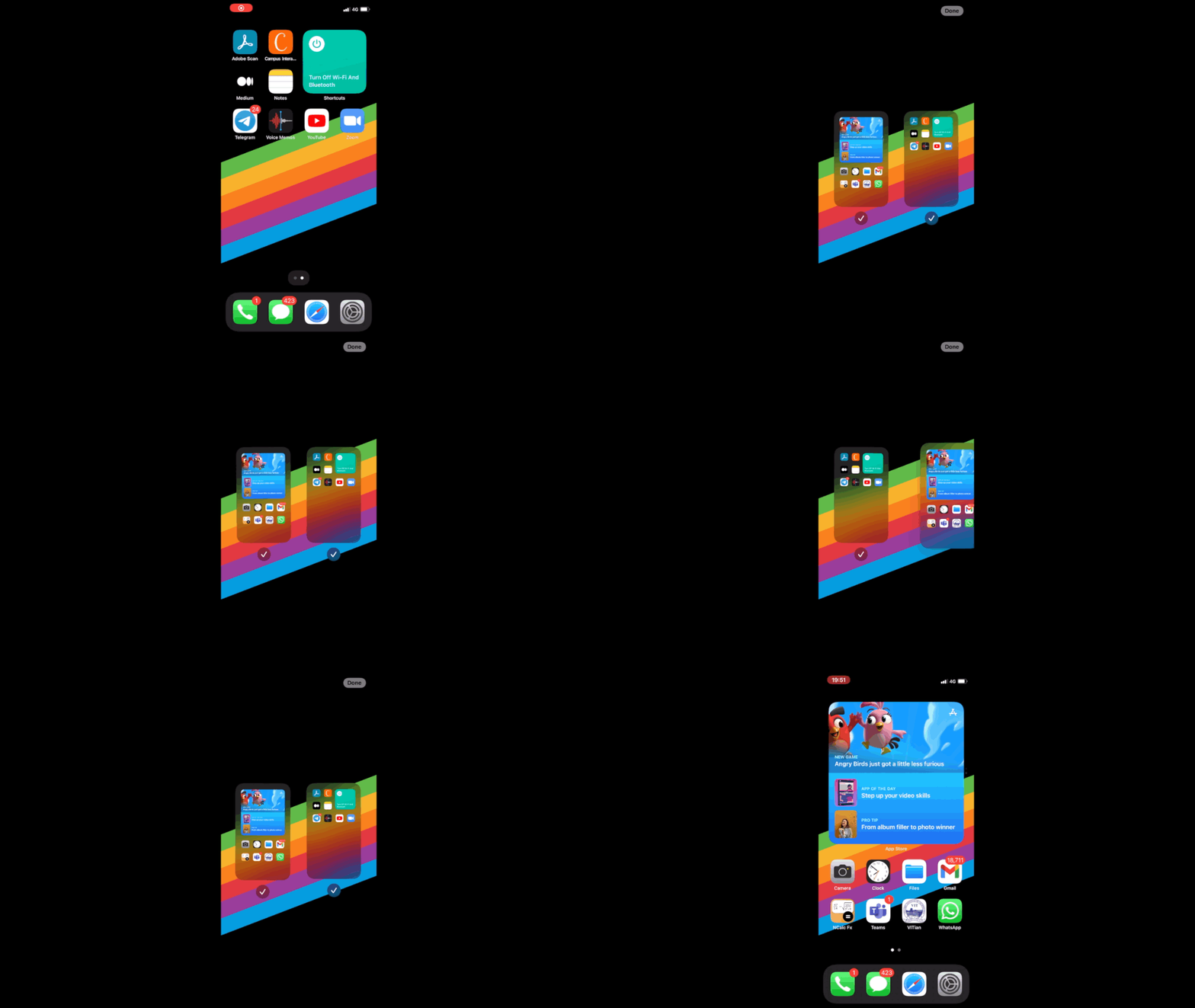
This lesser-known feature makes managing Home Screen as easy as managing Safari tabs.
To use this, press and hold the dots below your apps on the Home Screen till your apps jiggle. Now, take your finger to view all your Home Screen apps organised neatly as pages.
This way,
- you can alter their order by dragging,
- hide a page by unchecking it,
- or even delete a page by clicking – after you hide it.
This helps you avoid removing all your apps one-by-one. I’m sure you’ve experienced that misery before.
#2. Background sounds that help you focus 🌙 🎶
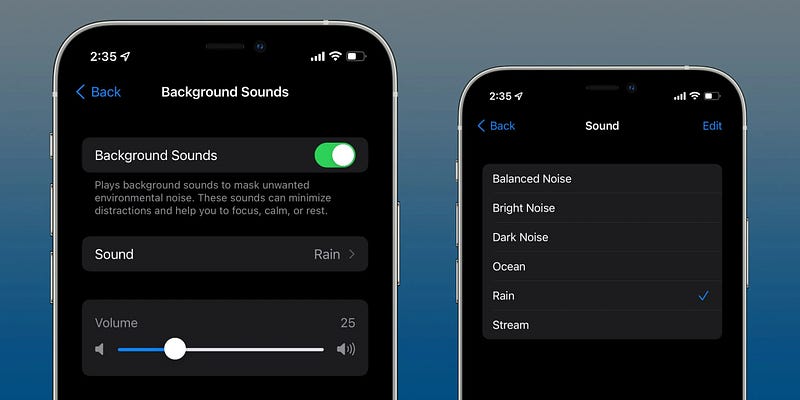
This great accessibility feature helps you have realistic sounds from your iPhone to help you focus, be calm, or rest.
Go to Settings ⚙️ < Accessibility 🚹 < Audio/Visual 📢 < Background Sounds and turn it on. You can choose sounds among balanced, bright, and dark noises, ocean, rain, and stream sounds.
“But Nikhil, it’s difficult to go so deep and turn it on every time I need it…”
Okay, I’ll give you three easy ways for it.
1. Do it from the Control Centre
Go to Settings ⚙️ < Control Centre 🎚 and add Hearing 🦻 in the included controls. Now, you can turn on background sounds directly from the Control Centre.
2. Do it by triple-pressing the side button
Go to Settings ⚙️ < Accessibility 🚹 < Accessibility Shortcut 🚹 and check on Background Sounds . Now anytime you need it, you can just triple-press your side button.
Note that this disables triple-click for Emergency SOS.
3. Do it by Back Tap
Go to Settings ⚙️ < Accessibility 🚹 < Touch 👆 < Back Tap . Now, choose between double tap or triple tap and enable Background Sounds in it. Now, just tap your iPhone near the logo, and you’re good to go.
You can redo the same thing to turn off the Background Sounds.
#3. Filter your media in the default Photos app 📷
If you’re a habitual photo snapper or if you download way too many photos from the internet, you’ll definitely appreciate this feature.
- Go to
Photos 📷 < Library < All Photos. - Now press the three-dots ‘…’ icon on the top right corner,
- and click on
Filtersto view this menu.
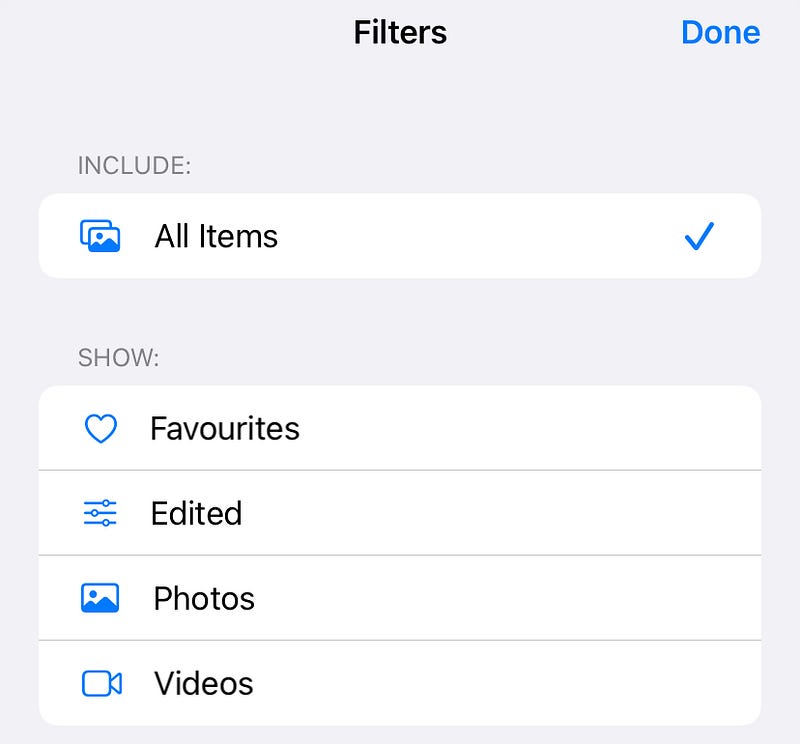
This helps you clear the mess and filter your media by favourites, edited, photos, and videos. You can even choose more than one filter.
#4. Hide photos the new way 🙈
I’m sure you already knew the traditional way Apple offers to hide your photos. If you don’t, here’s how you do it.
Open a picture in the default photos app, click on Share < Hide . However, this isn’t a secure way, as the hidden photos album is clearly visible to anyone.
Here’s the most secure way I’ve discovered
- Open the image you want to hide,
- click on
Editon the top-right corner, - and click on the
Markup ✏️icon on the top right corner.
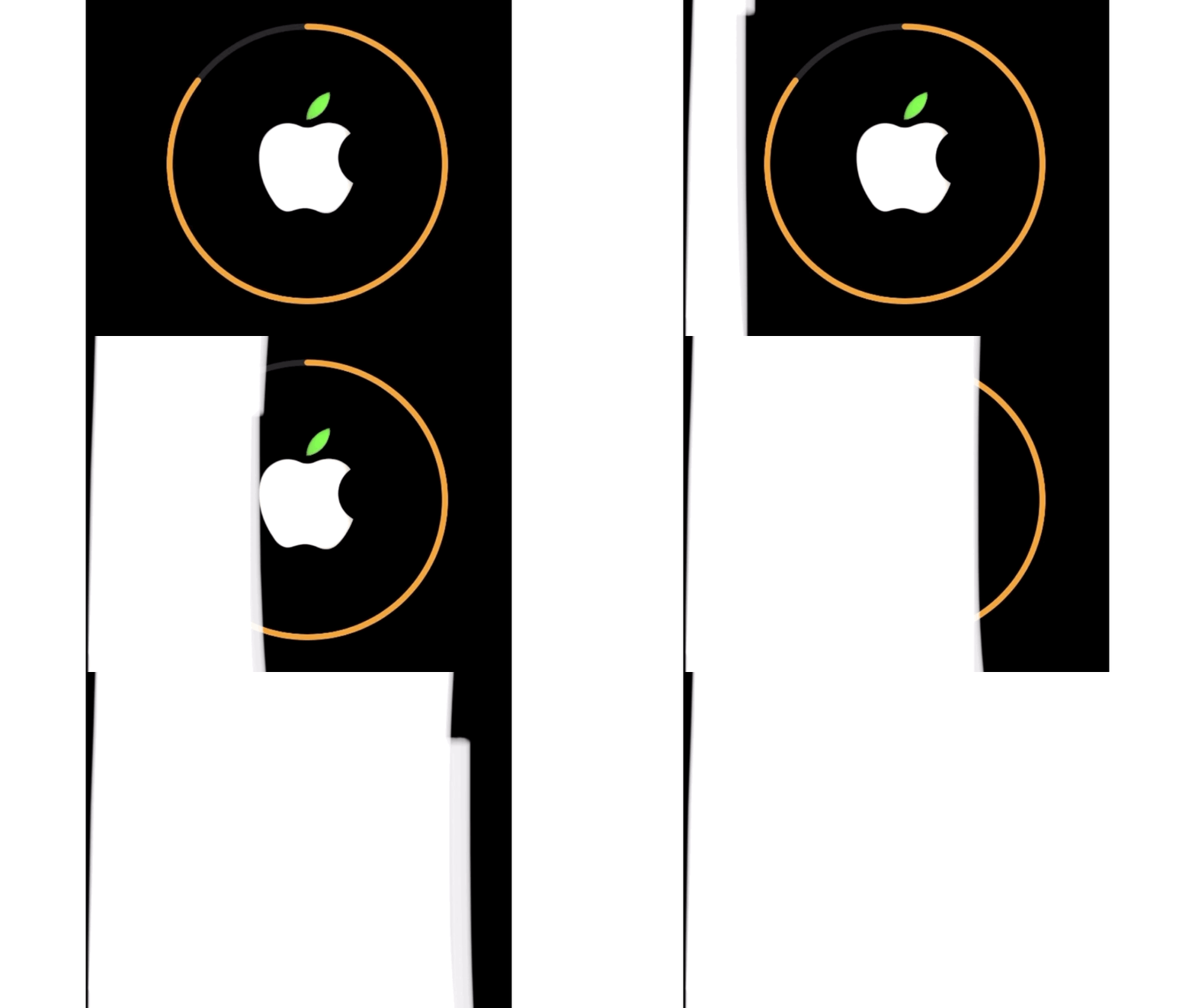
Now, fill the picture with any colour to make it look simply plain. Save the picture.
It now appears like a plain solid-colour picture. If you want your original picture back again, open it, click on Edit , and click on Revert to get it back lossless-ly.
Note: If you’ve uploaded this image to e.g. Google Photos and deleted it locally or from iCloud, you can’t retrieve your original image back.#5. Avoid people opening personal apps 🥷
Had this happened to you anytime?
Your friend might have asked you your iPhone for a call, and you hesitate to give it being afraid they might open a personal app(s). And you can’t escape.
For your rescue, here’s a nifty trick to avoid people secretly prying into your apps. <*Evil smile*>
Prerequisite
Go to Clock app ⏰ < Timer ⏱ , and click on When Timer Ends . Scroll down and click Stop Playing . Click Set. Close the app now.
Do this now
- Go to
Shortcutsapp 🗃 < Automation 🕰. - Click on
+at the top-right corner. Click onCreate Personal Automation. - Click on
App — E.g. "When "Weather" is opened or closed". - Choose your personal apps in the
Choose Applist. ClickDone. - Keep ✔️ on
Is Opened. ClickNext. - Now, click
+ Add Action. Search forStart a timer for 1 second. Add it and clickNext. - Uncheck
Ask Before Running. This is important. This makes the process automatic. Now clickDone.
Ta da! Now the automation locks your iPhone if someone attempts to open your personal apps. You can also choose to notify yourself or take a screenshot immediately if this happens.
Your friend’s deadly embarrassed now.
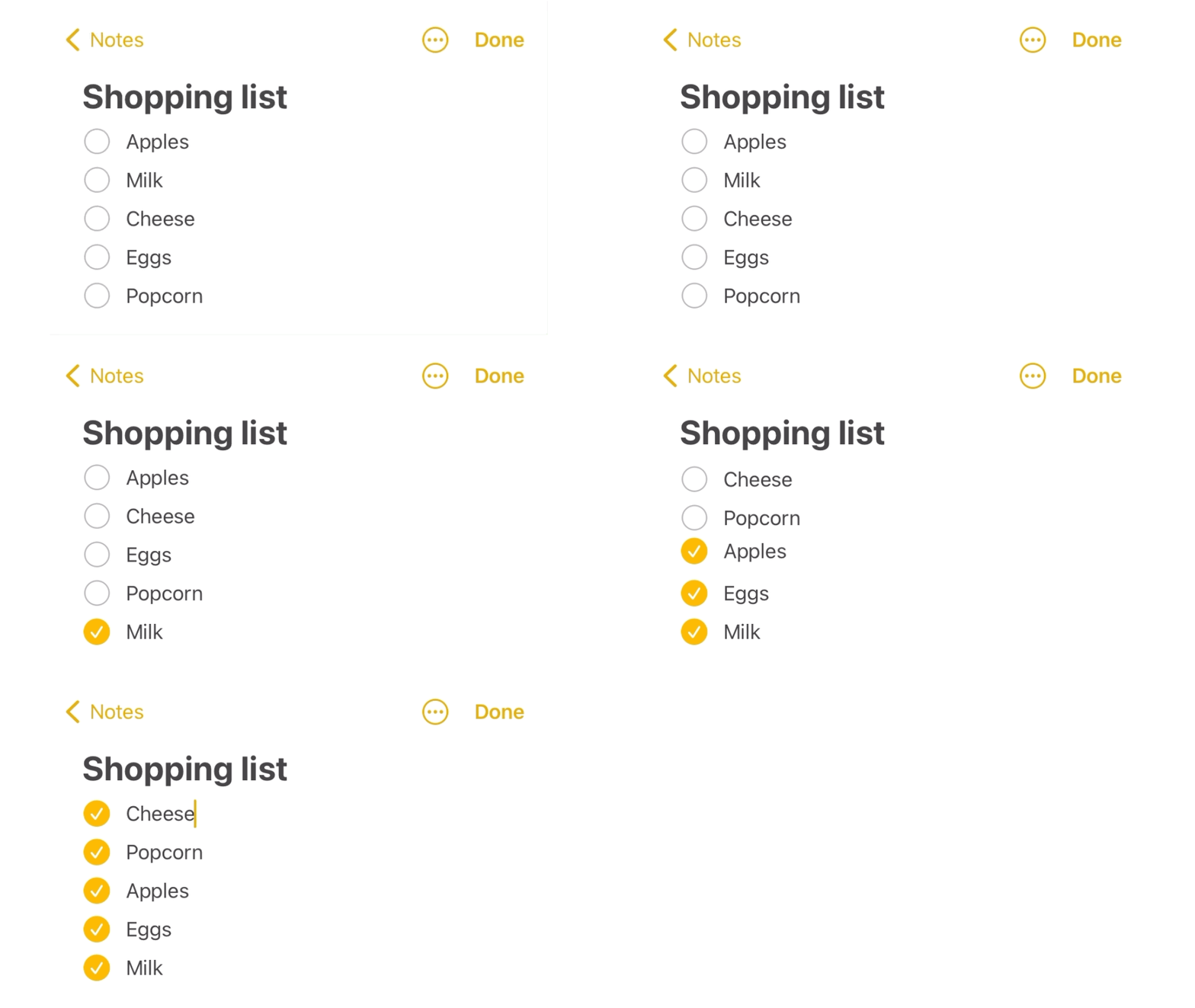
#6. Automatically move checked items to the bottom 🔻
You’ll greatly appreciate this feature if you’re a frequent shopper who fills their notes app with huge shopping lists. Are you one?
If so, I’m sure you ever needed a feature that moves all the stuff you’ve bought to the bottom of the list, so as make the checklist and shopping more manageable.
Fortunately, it’s already there on your iPhone.
Download Notes app if you’ve deleted it before.
Go to Settings ⚙️ < Notes 📝 < Sort Ticked Items , and check Automatically . Happy shopping!
#7. Copy-Paste like a pro 🖇
The traditional way to cut/copy text is to double-press, and to click Cut/Copy . And to paste is to single-press on a text space, and to click Paste .
But let me tell you a simpler way you didn’t know existed.
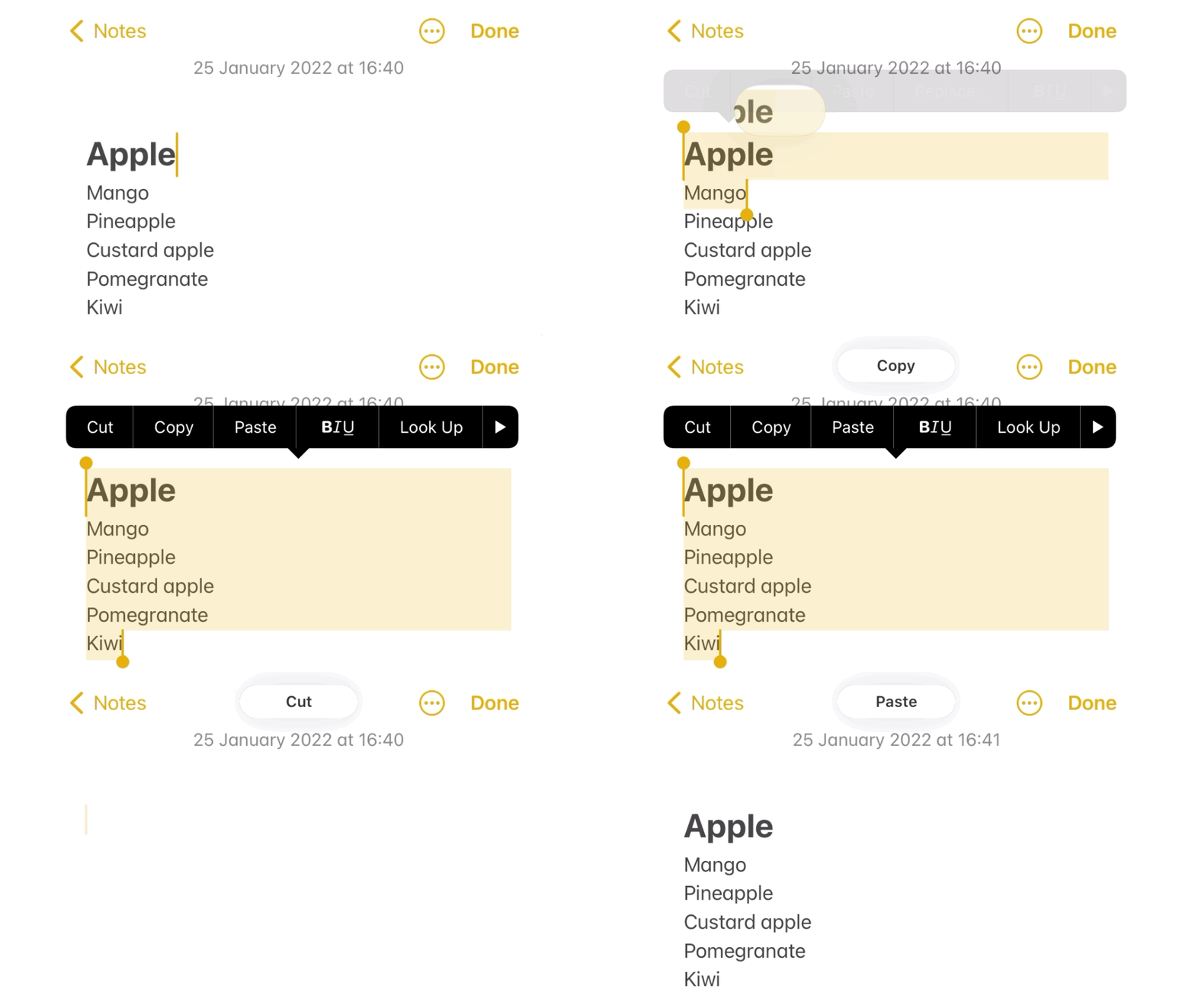
- First, select some text.
- To copy it, pinch on the screen with thumb and two fingers.
- To cut it, pinch the same way again.
- To paste it, spread on the screen with the same fingers.
You can also paste photos and videos. And this trick works in any app.
Bonus tip #8: Set custom charging animation 🔋
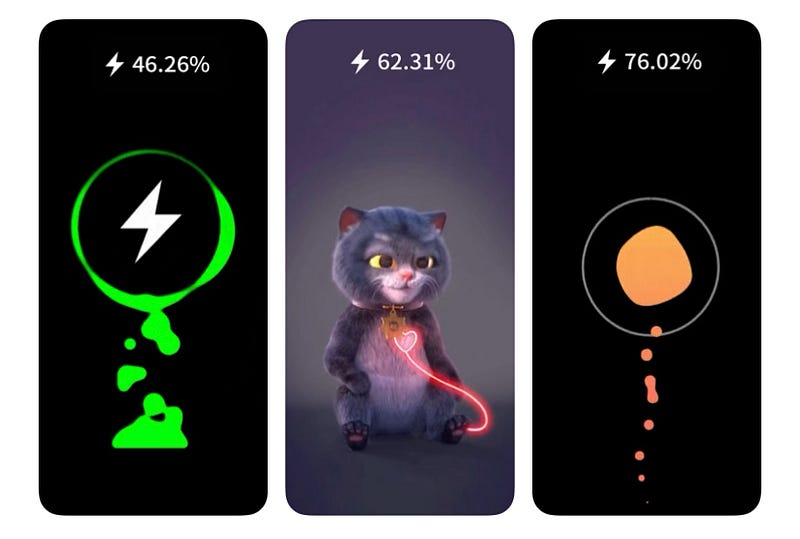
Back in my early Apple days, lack of customisation was the one thing that disappointed me. Everything was so formal and predictable.
As a beacon, this hidden trick of setting up a fancy charging animation brought smile onto my face.
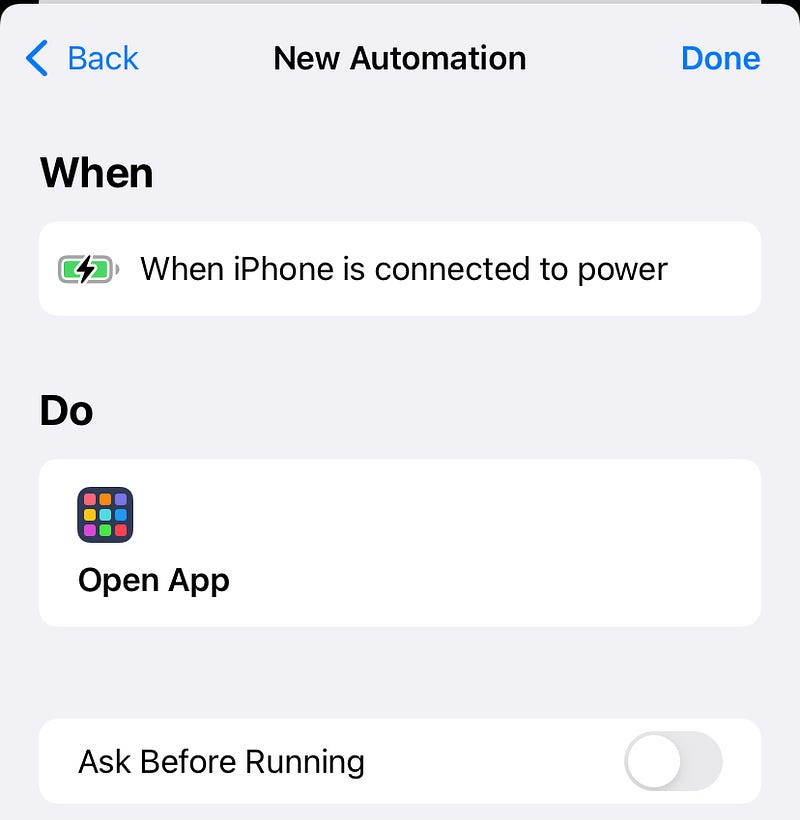
To do this, download a “charging animation” app from the AppStore. Now, create an automation in the Shortcuts app to open the app as soon as you plug in your iPhone.
Conclusion
Though I learnt many hidden features by my discovery, from my pals, and from YouTubers, I feel it’s very difficult to put all of them into practice, as I got much used to the traditional ways.
However, it makes me more productive when I effectuate these, and more specially, it makes everyone awe. Agree?
If you liked this story, you might also like:
Get notified via email whenever I publish.
Not a Medium member yet? Me too. But if you consider signing up for it, Sign up now!
(It’s an affiliate link so I receive a portion of your payment, with zero extra cost for you.)


