
Doctor.ai with Alan and Neovis.js
An alternative implementation
By Sixing Huang and Liang Li. Inspired by Maruthi Prithivirajan Lokananthan.
Knowledge graphs are semantic graph databases. We encode our knowledge into a series of subject-predicate-object triples and import them into the graphs. Knowledge graphs can integrate information from multiple sources. As a result, they can enrich user experience by adding context and depth to applications. From Google’s Infoboxes to Amazon Music, we can see knowledge graphs at work.
In the massive healthcare industry, knowledge graphs can make medical knowledge and medical records more readily available. On the one hand, doctors can have better overviews over the health statuses of the patients, make more informed diagnosis and treatment plans, and keep in touch with the newest medical developments. On the other hand, patients can get more personalized health recommendations and know more about their medical options. However, we have to write SPARQL or Cypher to interact with knowledge graphs. So currently, only programmers can make the most out of knowledge graphs.
We want to change that. We are developing chatbots that can translate English, German, or Chinese questions into queries and get the answers. These chatbots thus give everyone access to knowledge graphs, and perhaps more importantly, knowledge itself.
In our previous articles (here, here, here, here, and here), we have described Doctor.ai, our solution to the aforementioned problem. It consists of three components: a Neo4j knowledge graph that combines four public databases, a natural language understanding (NLU) engine and a React frontend. All components are vendor-independent. For example, we started with AWS Lex as our NLU engine, but then we used the superior GPT-3. We have also improved the accuracy of speech recognition in the frontend with Alan AI. We can even change the graph data and thus transform Doctor.ai into HR.ai, Forestry.ai or Logistics.ai.
Through these gradual improvements, the latest Doctor.ai is a very functional chatbot. However, there is lots of room for improvement. Firstly, the current GPT-3-based Doctor.ai relays the query outputs directly back to the users without any linguistic decoration. So the answers are very dry. For example, when we ask “what is the pathogen that causes cowpox?”, instead of “the cowpox virus is the causative agent of cowpox”, Doctor.ai can just only say “Cowpox virus”. Secondly, the chatbot is text-based and does not have multimedia support. Compared to the beautiful BEBOT from Japan, Doctor.ai can only display texts and tables.
Those are not dealbreakers. But we can try to address them with some simple solutions. For example, in order to address the first point, we can use the full Alan Studio as the NLU engine. The Alan Studio is a full-fledged chatbot solution. Similar to AWS Lex, we can design specific replies for each question type (intent) in Alan. The results are rich and more human-like answers. As to the second point, we can create customized components in the React Simple Chatbot to display multimedia.
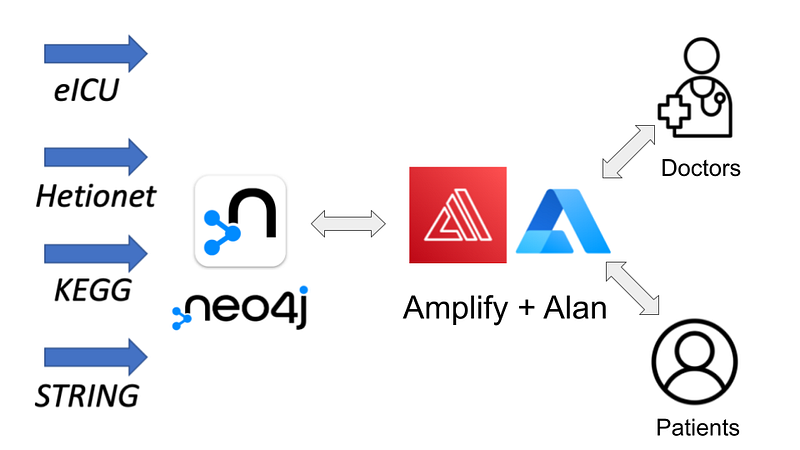
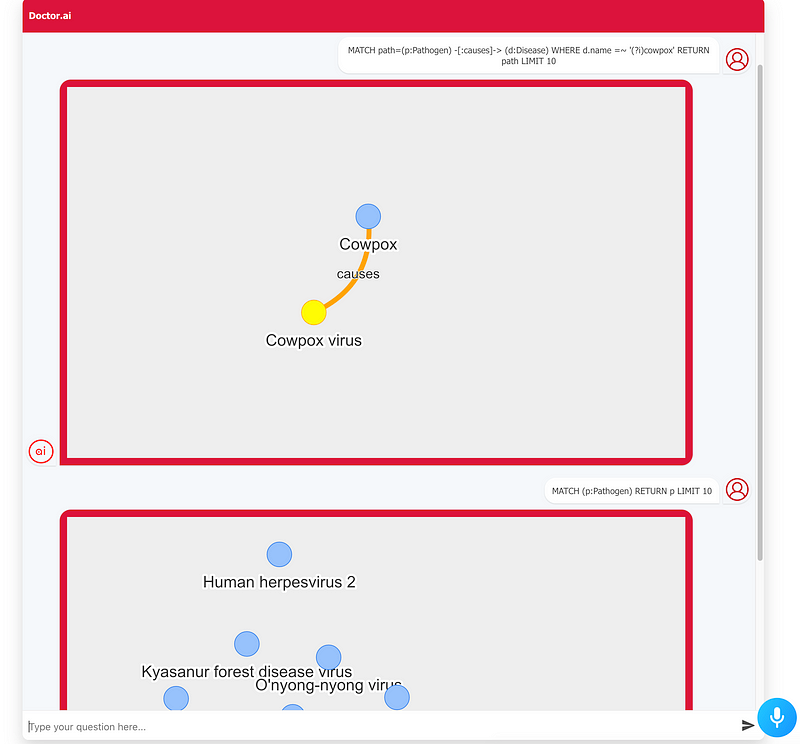
In this article, we are going to show you how to implement these two solutions. To be exact, we will use Alan Studio as the NLU engine to handle the natural language. And then we will use Neovis.js to display the Neo4j results as network graphs in the chatbot (Figure 2). The code for this article can be found in our GitHub repository here.
1. Programming Alan
In our previous article, we have shown how to program Alan’s server and its client. Because we only made use of its transcription ability there, we have stripped down the server code to a single fallback function. In this article, Alan will do a lot more. It listens to the speaker, classifies his intent, says a small announcement, and sends back the correct Cypher query to the frontend.
First, sign up or sign in your Alan account. Then create a voice assistant by clicking the button Create Voice Assistant. Choose Alan Integrations. And the script editor will appear. Delete all the default scripts and create a new script. Copy and paste the following content.
In Alan, we program intent-reply pairs. Intents are what the users want to do. For example, a user can ask for the gene that is associated with Christianson syndrome or request the names of ten pathogens. Intents are embodied by question patterns, such as “what (gene_) cause the $(DISEASE* .+)?”. The question function takes these question patterns as its first few arguments (Line 13). The (noun_) expression takes care of the singular and plural forms. And $(DISEASE* .+) is a regular expression that captures the disease name in the user’s utterance.
The last argument is the reply function. Our replies consist of two play functions. The first one plays back a voice announcement, such as “${p.Disease.value} is caused by the gene”. The second function returns two key-value pairs to the client. The first command: "neo4j-query" pair alerts the client, while the data pair contains the actual Cypher query. Notice that we use the expression ${p.DISEASE.value} to get the value of the aforementioned capture.
The script has defined five intents: show a few pathogens, the disease caused by a certain pathogen, the pathogen that causes a certain disease, the drug that treats a certain disease, and the gene that is associated with a certain genetic disease. We can test the server side functions in Alan’s Debugging Chat panel.
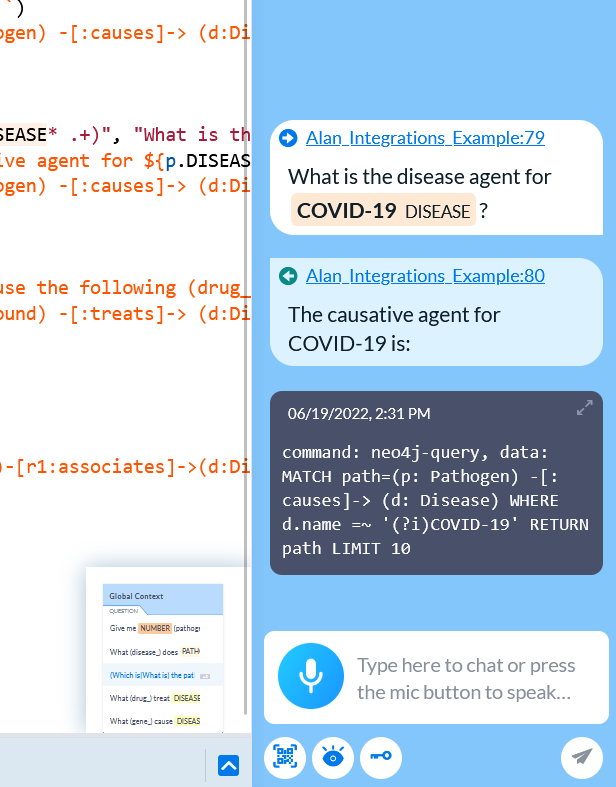
You can type some sample questions there and test whether Alan can correctly recognize the slot value and return the corresponding replies.
2. Programming the frontend
After the server side programming, we can write our client side. We will modify the Doctor.ai frontend so that it can interact with the Alan server. In addition, we will create a custom component with Neovis.js to visualize the networks created by the Cypher queries.
First, let’s configure App.js in the frontend. In our previous article, we have already shown how to add the Alan button to the frontend. In this project, we need to expand the alanBtn function like this.
Whenever the user speaks to the Alan button, the function above communicates with the Alan server and gets back commandData. As we mentioned in Listing 1, commandData contains two key-value pairs. If the command variable is equal to neo4j-query, we extract the Cypher from data and add that as a user input in the chatbot (Listing 2, Line 11).
That user input immediately triggers the draw function in NeoVis.js.
The search variable in Line 4 receives the Cypher. Afterwards, we initiate Neovis in Line 10 and pass the Cypher to the render function.
Listing 4 shows the draw function. In the initiation, we first define the URL, username and password of our Neo4j server (Listing 4). Next, we need to define which property serves as the label in the visualization. In our case, we want to display the name properties for all node types (Line 8–19).
Although the official examples never mention that, the render function in fact can take an optional argument — the Cypher query, and run it against the Neo4j server. It then draws the result in an interactive network visualization in the chatbot (Figure 1).
3. Configuring the frontend on AWS
After the local development, we can migrate the frontend to AWS Amplify. The migration process is very similar to our previous Doctor.ai deployments. We first commit and push the code to GitHub. In the Amplify console, choose the Host web app option. Afterwards, select the GitHub repository and the main branch. In the Configure build settings page, add these four key-value pairs: REACT_APP_NEO4JURI, REACT_APP_NEO4JUSER, REACT_APP_NEO4JPASSWORD and REACT_APP_ALAN_API. It is worth mentioning that you should use the neo4j protocol in REACT_APP_NEO4JURI, because the bolt protocol does not work. That is, the value of your REACT_APP_NEO4JURI should look like neo4j://xx.xx.xx.xx:7687.
After the setup, Amplify pulls, builds, and deploys our frontend code. In the end, it generates a URL. If you open the URL, the familiar Doctor.ai interface should appear. But in order to make the connection with the Neo4j server work, you need to run http://xx.xx.xx.xx:7687/ once in your browser and make it a security exception.
4. Testing the new Doctor.ai
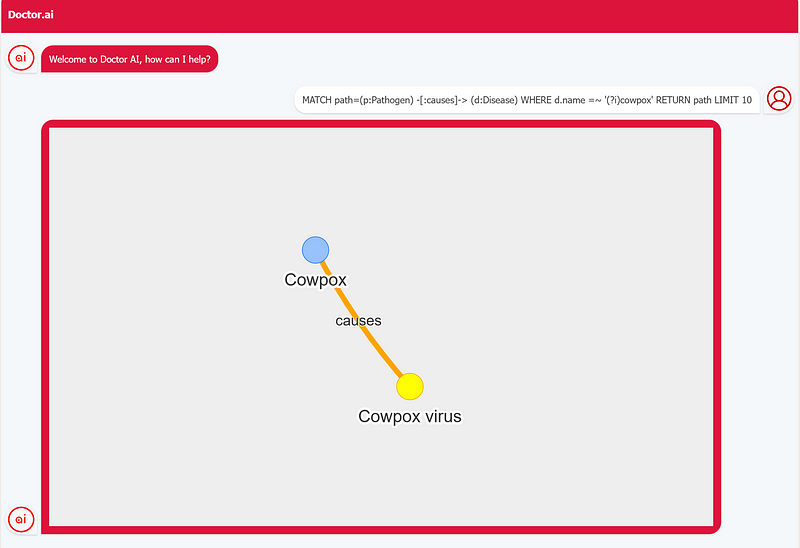
Now let’s test this new Doctor.ai. Click the blue Alan button, and speak the following question into your microphone: “What is the pathogen of cowpox?”
Doctor.ai will first say one of the short announcements that we defined in Listing 1. Then a Cypher query appears as the user input. It will be then followed by a graph. It shows that the cowpox virus is the culprit behind cowpox.
Let’s try a second question: “What gene causes Christianson syndrome”.
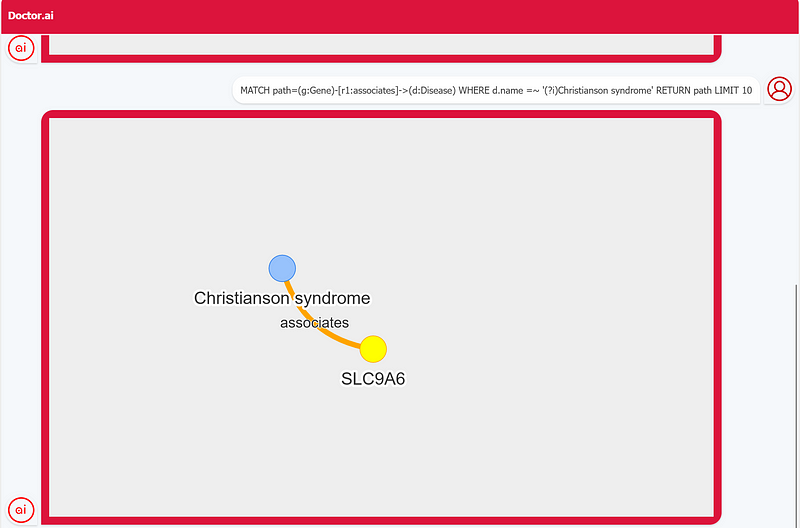
Doctor.ai shows that the gene SLC9A6 is associated with the disease.
Finally, let’s try: “Which medicine is used against lung cancer?”
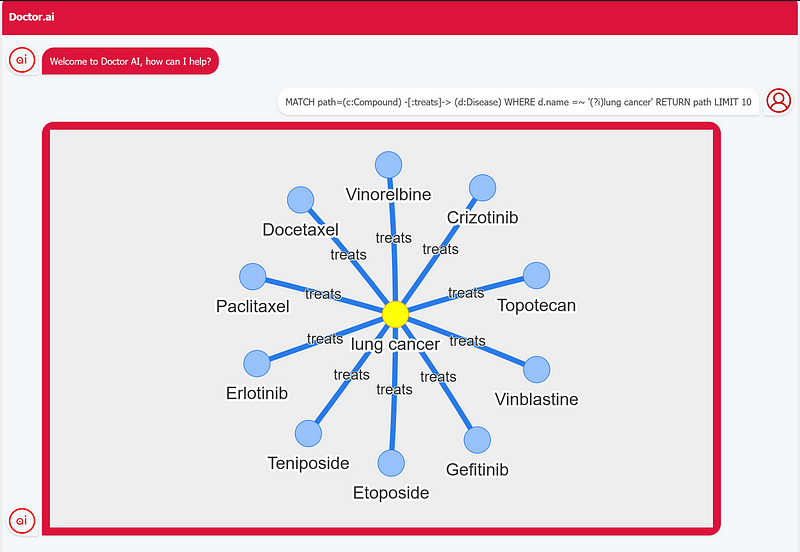
Because we have used LIMIT 10 in our Cypher, Doctor.ai has just shown ten drugs against lung cancer.
Conclusion
Doctor.ai is more of a conceptual framework than a concrete implementation. We can easily swap the components and even the data inside the framework. In this article, we have shown you an alternative implementation of Doctor.ai. In it, Alan AI serves as the NLU engine, while Neovis.js brings the interactive network visualization to the interface. The project makes it clear that Doctor.ai is easy to modify and to extend.
Developers from AWS Lex should feel quite at home with Alan Studio. Both platforms share concepts such as intent, slot, context and so on. Compared to Lex’s multi-faceted console, Alan Studio has one clean editor where developers can write down all the server logics. In addition, Alan’s programming is a lot easier than Lex. There is neither sessionState nor sessionAttribute. And the program control flow is greatly simplified in Alan, too.
But this implementation has a small shortcoming. We haven’t figured out a way to stage the voice transcript into the input field. As a result, the user cannot edit the transcript and the voice command goes straight from the Alan button to the Alan server. Although Alan’s voice recognition was very good, in some cases it did fail repeatedly to register some of our utterances.
Do you have more ideas about Doctor.ai? Please let us know.
The Chinese version of this article is here.


