
How to Integrate Alan’s Speech-to-Text Engine into Doctor.ai
Improve Doctor.ai’s speech recognition with the highly accurate Alan AI
By Sixing Huang and Liang Li
For a voice chatbot, its ability to accurately capture the speaker’s utterances can make or break the user experience. An intelligent transcriber is always fun to talk to. And it is a productivity boost because speaking is about two to three times faster than typing.
In contrast, a choppy speech-to-text engine, such as the one from Chrome, can quickly frustrate users. In this case, the user will soon realize that the time spent in the correction is more than the time gained from the dictation. As a result, he will always type and not speak. And that defeats the whole purpose of a voice chatbot.
During the development of our medical chatbot Doctor.ai (1, 2, 3, 4, 5, and 6), we have noticed early on that the speech-to-text engine in Chrome is not great. It dropped and misinterpreted words. It formed incoherent sentences that make no sense. Its performance in medical conversations, which Doctor.ai needed the most, was abysmal.
We have been on the hunt for a better engine. This new engine should not only excel in normal conversations but also understand the common medical jargon, such as names of diseases, drugs, and pathogens. And our search has been rewarded with the Alan AI.
According to its website, Alan is a conversational voice AI platform. Its Spoken Language Understanding (SLU) is designed to process the error-prone output of Automatic Speech Recognition (ASR). And it has a so-called Domain Language Model to better recognize the specialized language, dynamically adapting to users’ conversational style.
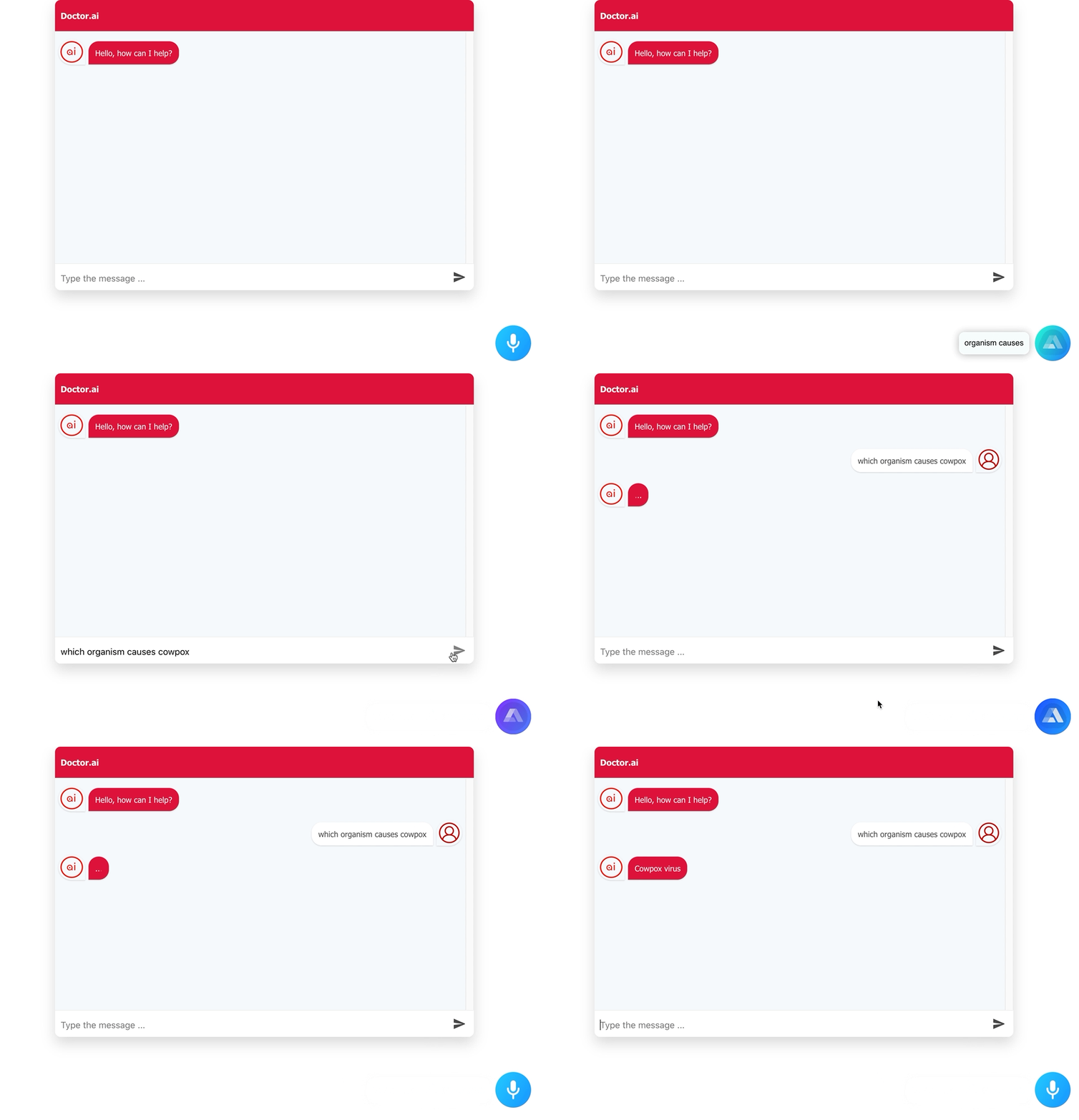
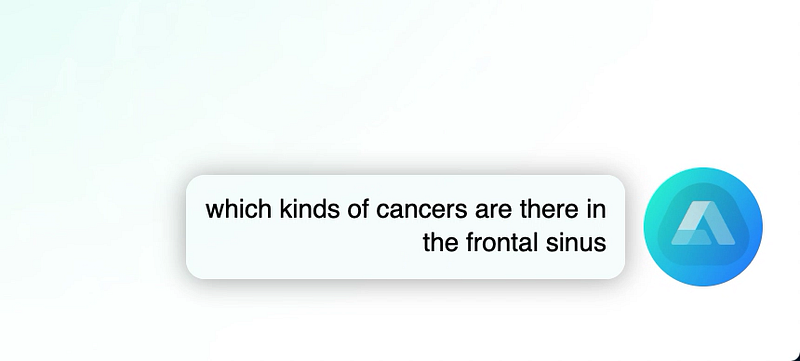
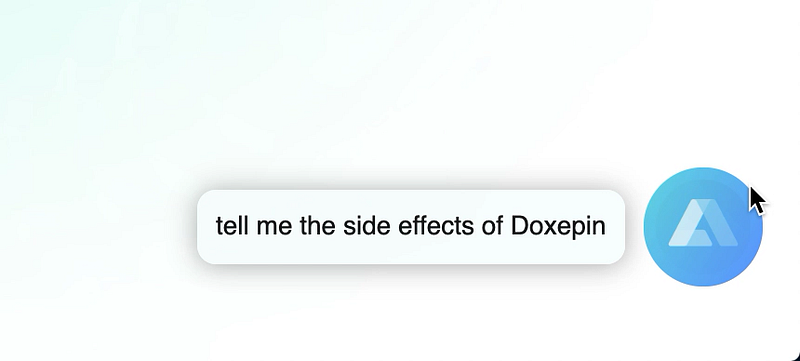
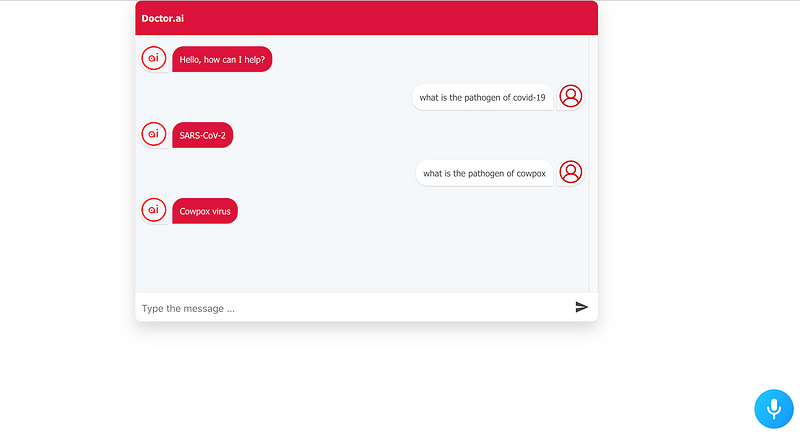
We are impressed by Alan’s highly accurate voice capturing (Figure 1). It outperforms Chrome entirely in both normal and technical conversations. It sailed through many biomedical jargons such as “photosynthesis”, “frontal sinus”, “Doxepin” and “cowpox” (Figure 2). What amazes us the most is that, as you can see in Figure 1, even though Alan got some wrong words here and there, it was able to correct the mistakes and form coherent sentences in the end.
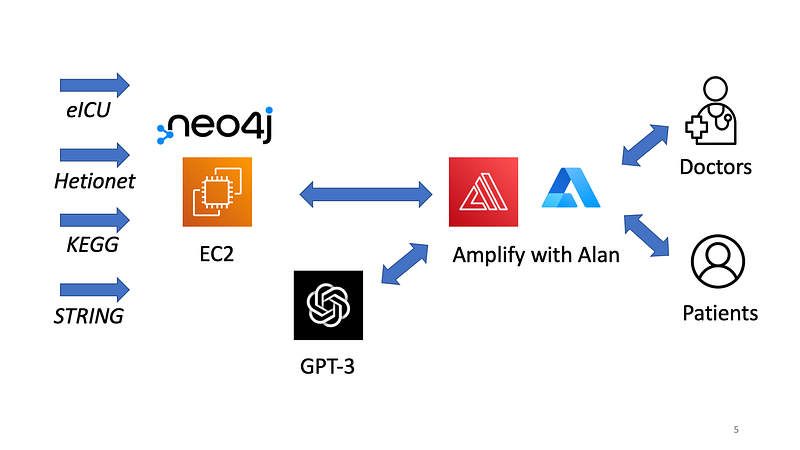
In this article, we are going to show you how to integrate the Alan button into Doctor.ai’s frontend to improve user experience (Figure 3). It understands English. If you have the Enterprise version of Alan, you can make a German version, too. The project does not cost money with Alan’s Developer Plan. The code for this project is hosted on the GitHub repository here.
1. Get Alan’s SDK key
Go to Alan’s website and sign up. And get the “Developer Plan” by following the instructions. This plan gives you over ten thousand free interactions in Alan. Once you are in the Alan Studio, click Create Voice Assistant and name it like doctorai_en.
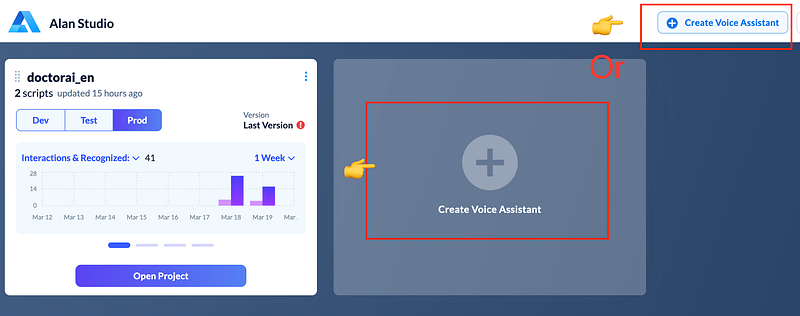
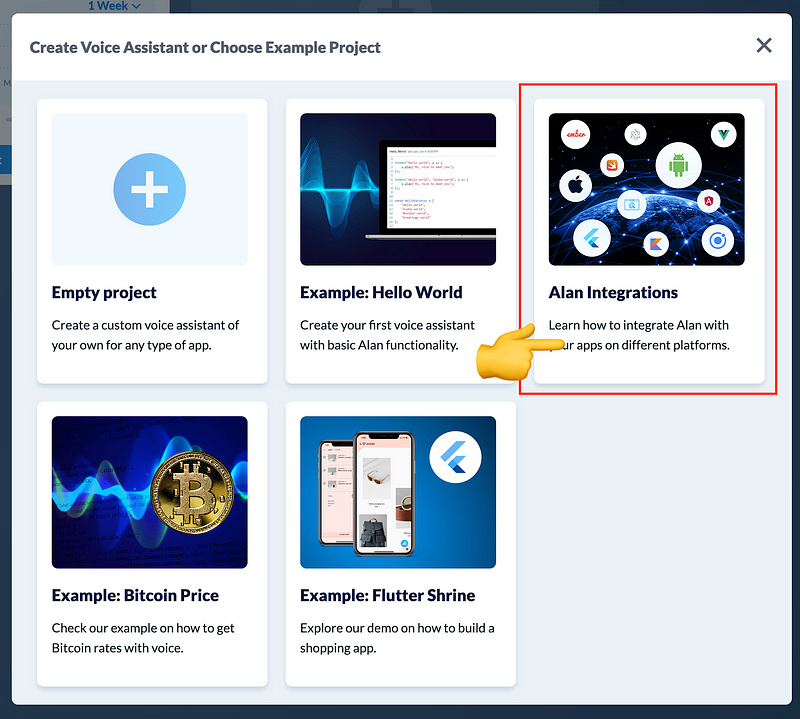
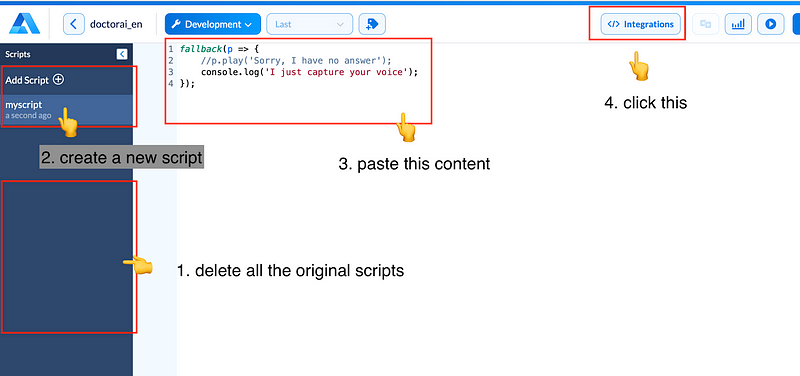
Once inside the Studio, create an “Alan Integrations” Project. Delete all the original scripts on the left panel and create a new one. Copy and paste Code 1 into the content. This script captures the user’s speeches and silences Alan’s voice responses. Finally, click the </> Integrations button.
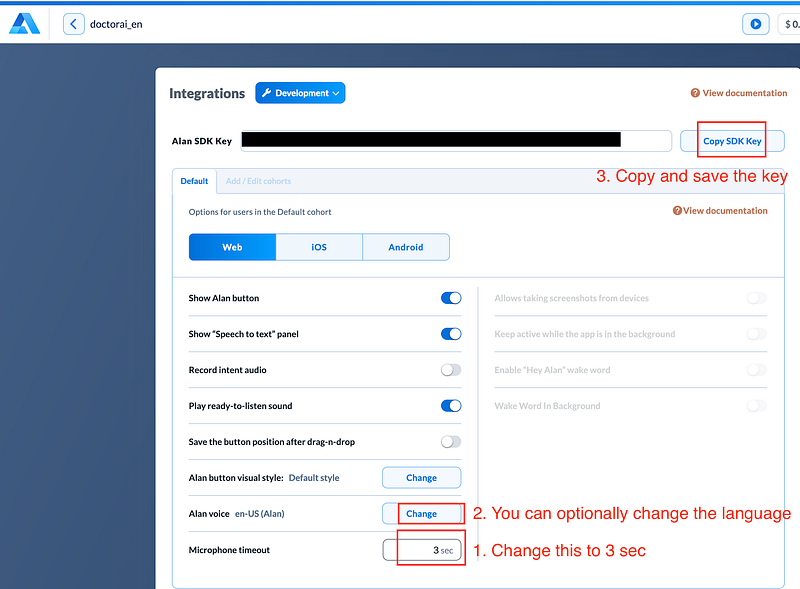
Once in the Integration page, change the Microphone timeout to 3 sec so that Alan will not capture the voice response from Doctor.ai. You can change the language, too. Finally, copy the SDK Key.
2. Change the frontend of Doctor.ai
We have updated the code in Doctor.ai’s frontend to accommodate the Alan button. You can find this new code in the repository. Here is a brief rundown of the changes.
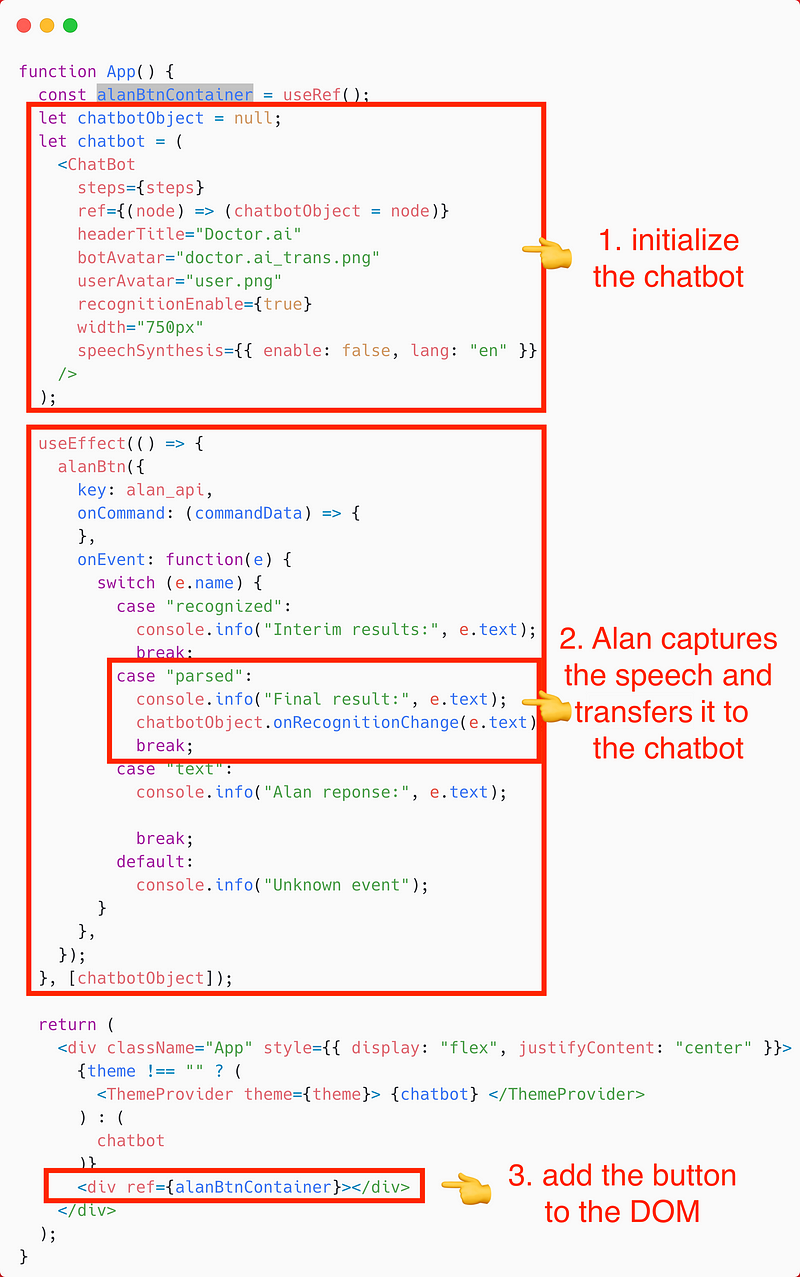
The chatbot is initialized like in the previous articles except for a new ref. Next, we use Alan’s parsed event to capture the speech and transfer the transcript to the chatbot’s input field. And finally, we add the Alan button to the DOM.
3. Start the Amplify frontend
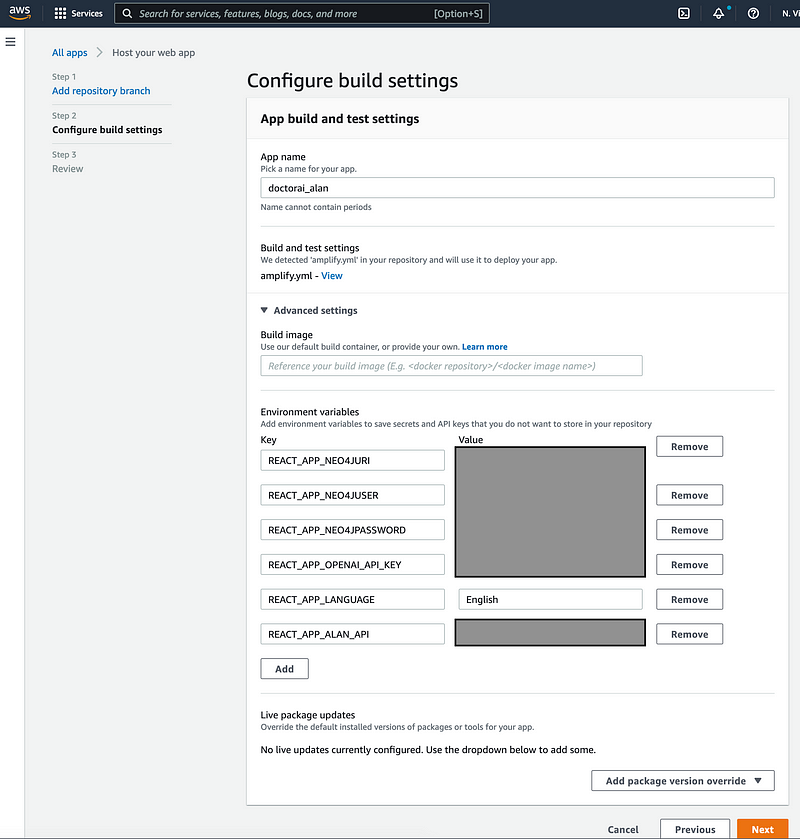
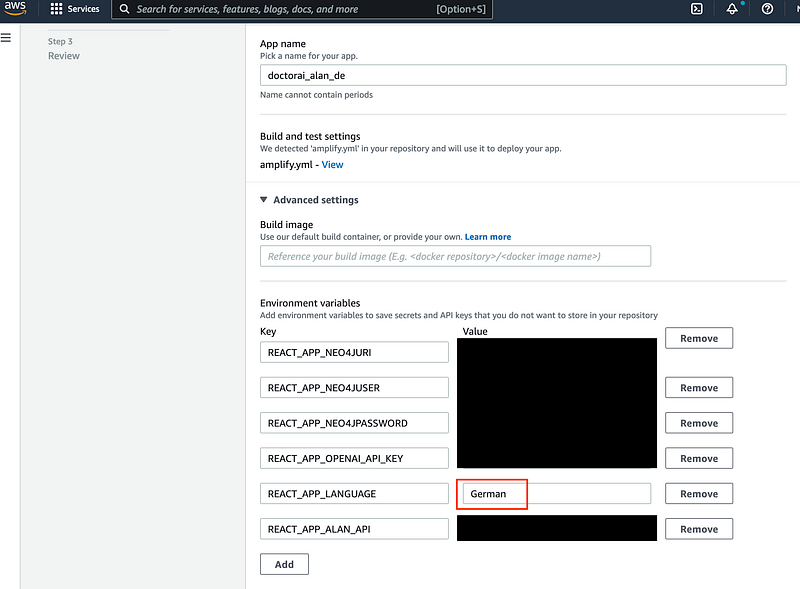
Now let’s set up the Amplify frontend and test Alan. Fork our repository to your own GitHub account. Setup Doctor.ai as described in this article. Add the following environment variables during the setup:
So it should look like this in your Configure build settings page:
Once Amplify finishes the setup, head over to your chatbot’s URL and have fun! Notice that after Alan captures your speech, the transcript will appear in the input field. You can examine or correct the transcript before sending it to the chatbot.
4. The German version
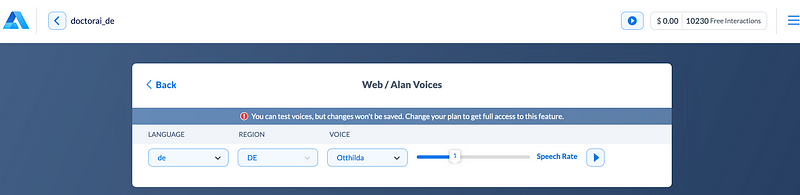
If you have Alan’s Enterprise version, you can also easily set up the German version. Create a new project in Alan Studio and change the language to de (Figure 10). Copy and save the SDK Key.
During the setup in Amplify, don’t forget to change the REACT_APP_LANGUAGE to German.
Now, you can chat in German, too.
Conclusion
In this article, we show you how to integrate the speech-to-text engine from Alan into Doctor.ai. This engine can capture our speeches with a much higher success rate than that from Chrome. Even though Alan sometimes misinterprets some words, we can easily correct them in the input field. This addition boosts the efficiency of our interactions with Doctor.ai.
This project also shows how easy it is to extend Doctor.ai. Doctor.ai is modular and communicates via APIs. Developers can switch individual components accordingly. And we can easily add elements to its Amplify frontend in order to enhance the user experience. So we encourage you to try Doctor.ai and tell us your experience with it.
The Chinese version of this article is here.
More content at PlainEnglish.io. Sign up for our free weekly newsletter. Follow us on Twitter and LinkedIn. Join our community Discord.