
🔥 How I Increased my Productivity with Raycast on macOS
Raycast helped me consolidate many apps into one.
🙅🏻♂️ Apps that I No Longer Use, Thanks to Raycast
1. Maccy (Clipboard History)
I have used Maccy a lot (see my other post about it). It’s a clipboard management app for macOS that keeps track of as many items as you want and also supports images, files, etc. By assigning a shortcut CMD-SHIFT-C to Maccy, I’ve been able to quickly summon up its search window and paste items from the clipboard. It’s pretty lightweight and doesn’t interfere with my workflow at all.
BUT…
Raycast already has a built-in clipboard history. I actually like the UI more as it shows me information such as the app from which I copied something, the time, file type (image, text, etc.), while also letting me to filter my clipboard history items based on text, image, file, links, or colors. I let the following gif show you how easy and straightforward it is to use.
- One limitation of both Maccy and Raycast is that they paste text unformatted, meaning that copying MS Word texts will remove their formatting. Although, Raycast has an option to paste the text formatted, but it’s not the default setting.
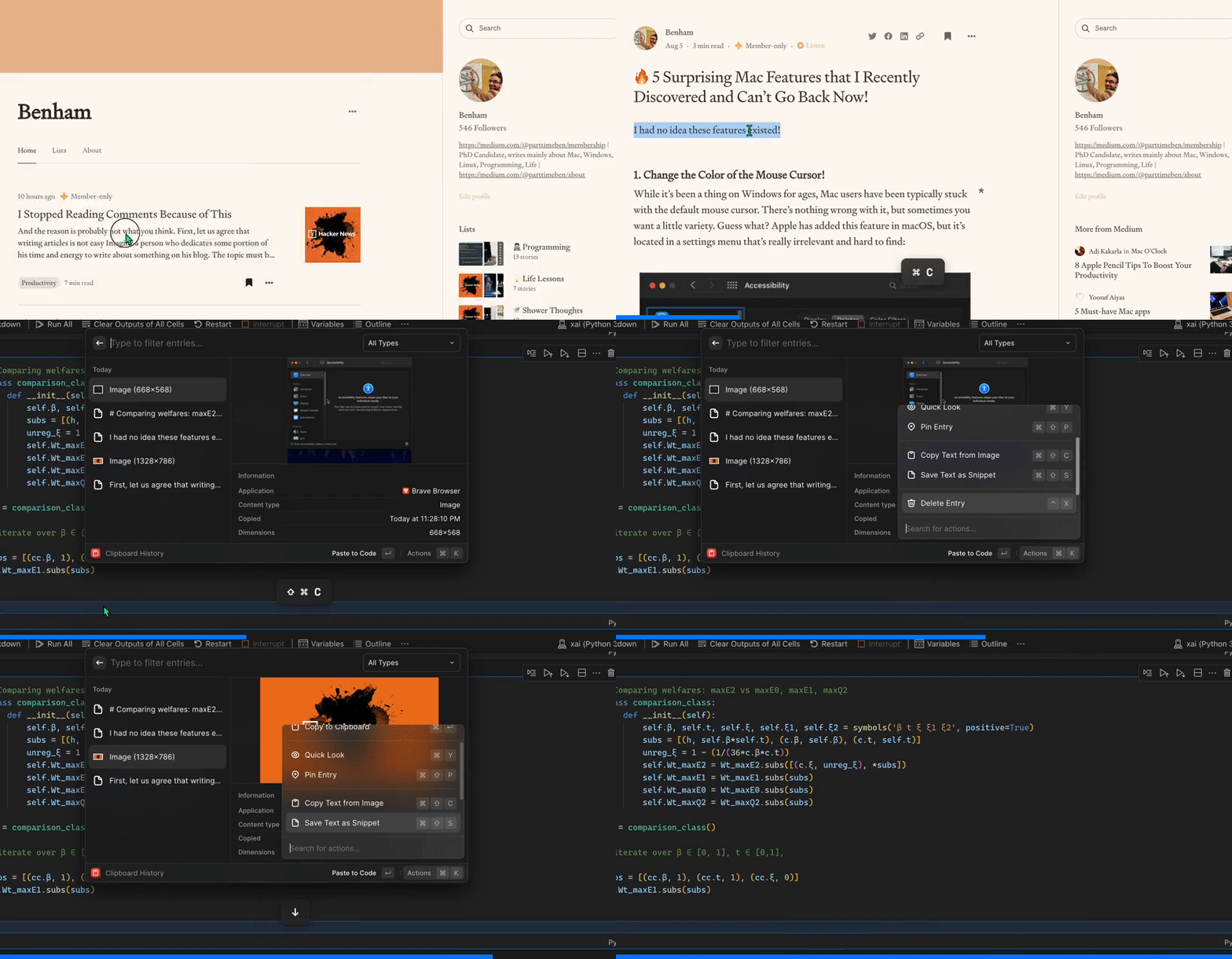
⛱ I press CMD-SHIFT-C to open clipboard history using Raycast.

2. Activity Monitor (Force-Quitting Apps)
Whenever I needed to Force Quit an app because it was hanging, I used to go to the built-in Activity Monitor app on macOS. But it takes some time to load, the UI is old, the search doesn’t work that well, and the buttons are too small. Plus, it doesn’t really work well with keyboard shortcuts.
BUT…
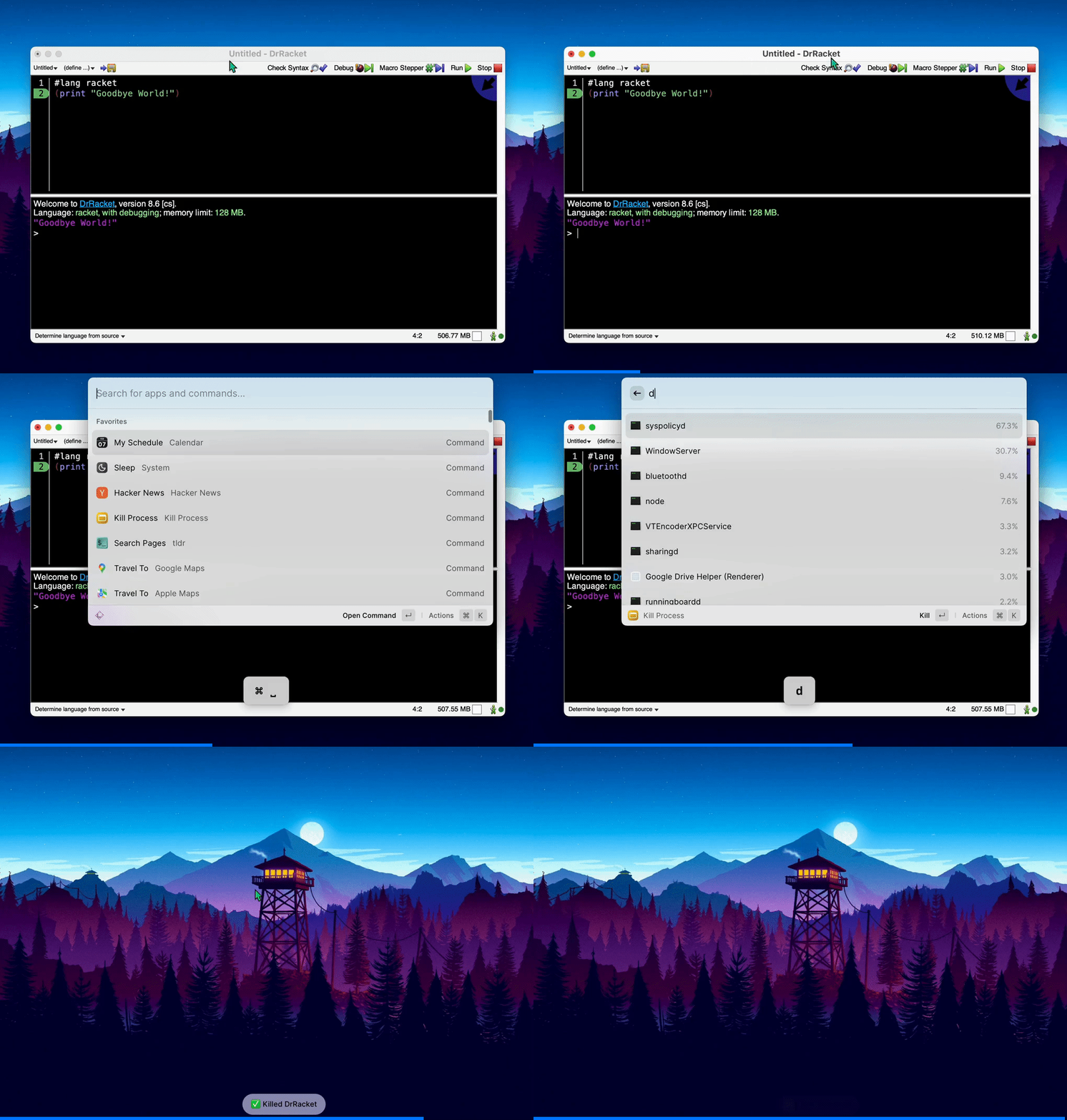
Raycast has a Kill Process command that does the job quickly. You can assign it to a keyboard or just type the first few letters and find it in Raycast. Then you can search for any app you want to quit and it just works.

3. HotKey (Opening/Switching Apps with a Shortcut)
I have used Hotkey over the past few months and all I can say is that it’s a simple app that lets you assign keyboard shortcuts to apps so you can open them quickly (or switch to them if they’re already open). However, HotKey is not perfect—sometimes it takes several seconds for it to work, defeating the whole purpose.
BUT…
Since you can already open apps with Raycast and it supports keybindings, I realized I can stop using HotKey for good. Look at the gif below to see how easy it is to assign such shortcuts (I use CTRL-the first letter of the app ). In my experience, Raycast is blazing fast 🚀
HotKey has a feature that hides the opened app if you press its shortcut again, and I was pleasantly surprised to see that Raycast also has this neat feature!
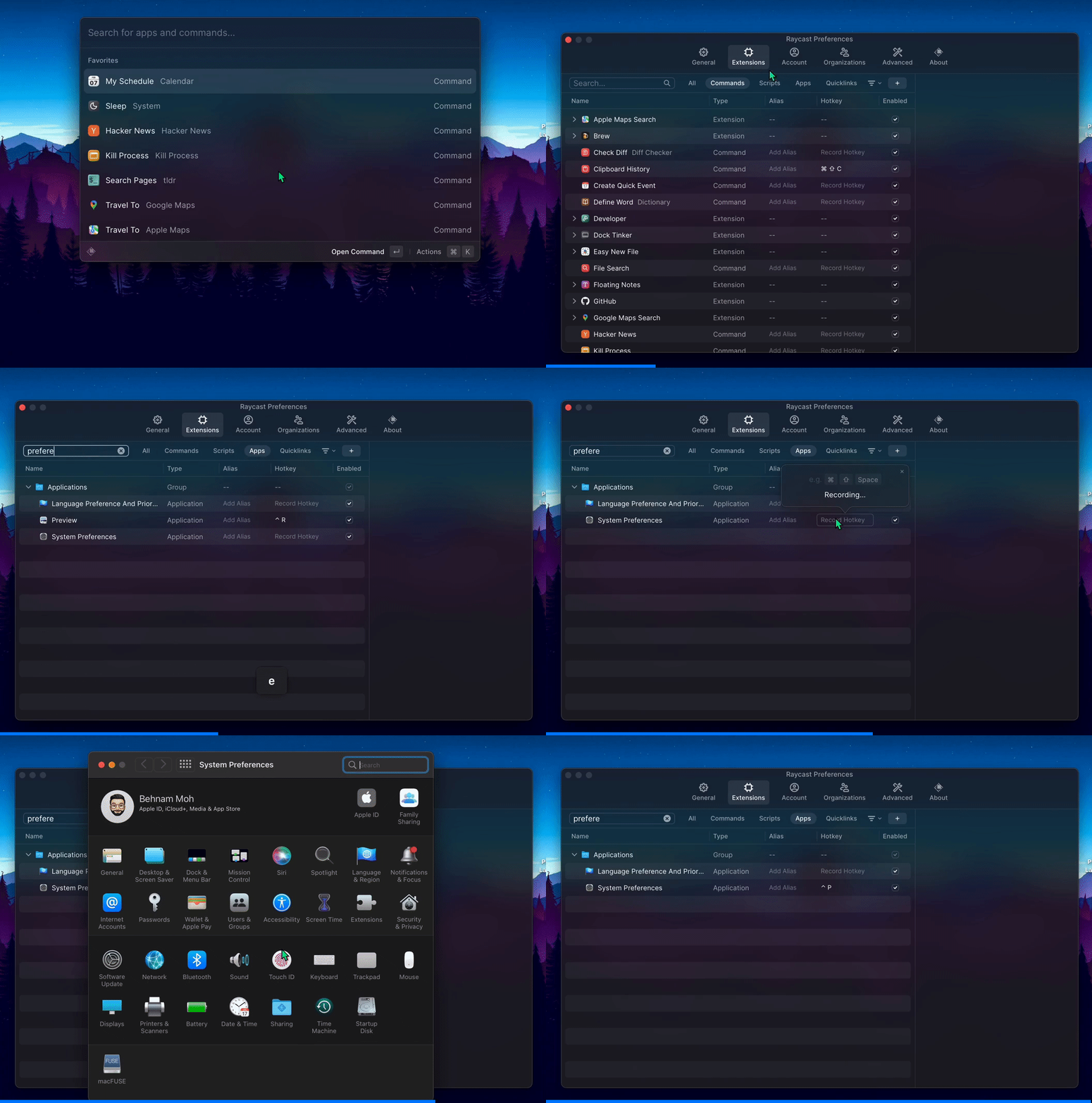
⛱ Right now I have set the following shortcuts:
CTRL-P→ System PreferencesCTRL-S→ SpotifyCTRL-E→ CotEditorCTRL-B→ Brave BrowserCTRL-W→ MS WordCTRL-F→ FinderCTRL-R→ PreviewCTRL-V→ VSCode
4. Paletro (Search Menu Items)
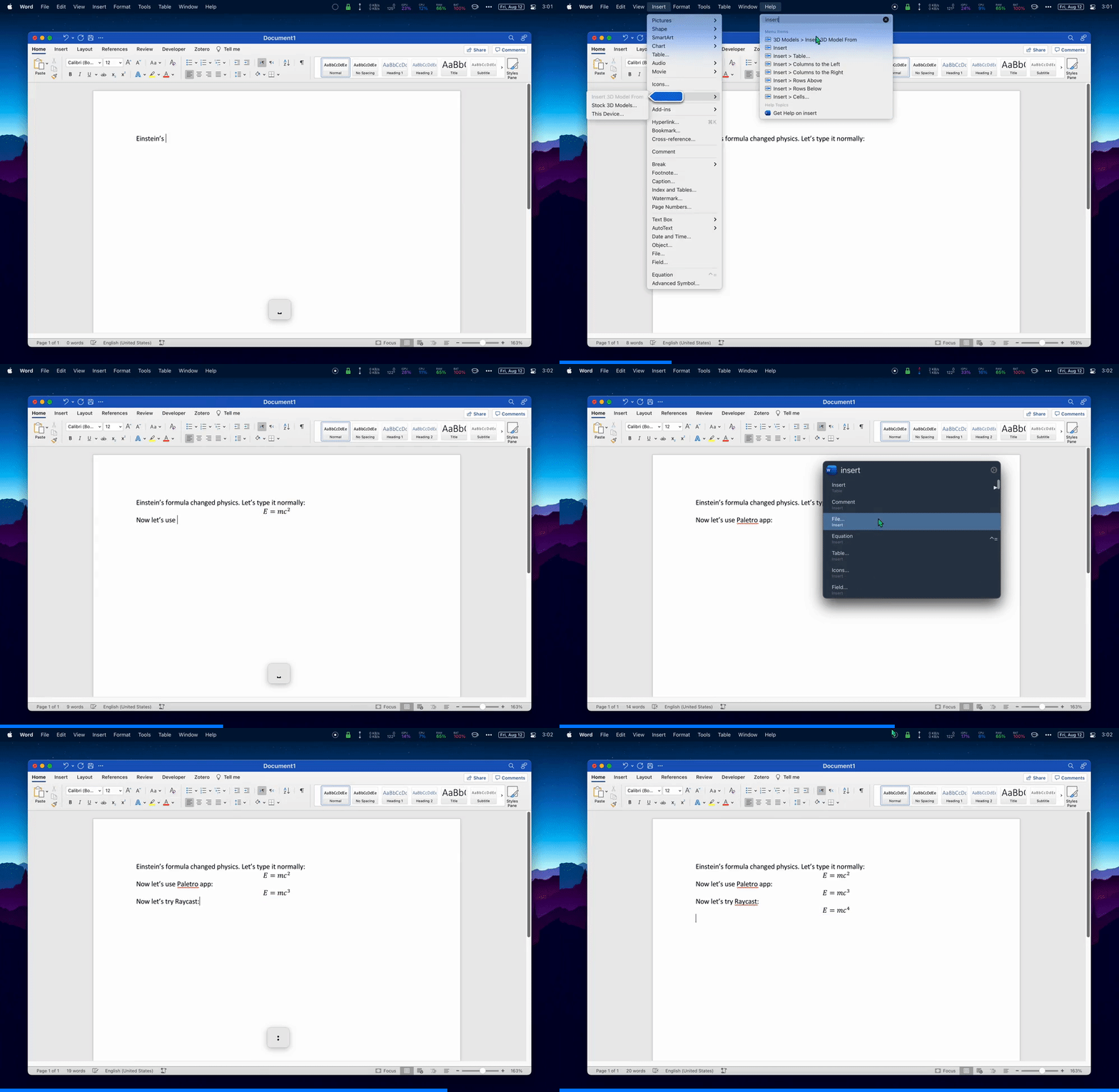
On macOS you can press CMD-SHIFT-/ to open the Help menu bar at the top and start searching for your desired item. But this is limited. For example, in MS Word you might want to add an equation. If you use CMD-SHIFT-/ and type “Insert”, you won’t find “Insert Equation”; you’d have to type “Equation”.
Paletro helped with this by smartly showing all the possible options that come after “Insert”. This has boosted my productivity tremendously.
BUT…
Raycast also has a Search Menu Items command that does Paletro’s job. You can assign it to the same keyboard shortcut and forget about using Paletro. Although, I might keep using Paletro because I paid for it! 💰 Watch the gif below to see the differences between the above methods (sorry for using Calibri as font… 🤦🏻♂️).
5. Nightfall (Toggle System Dark Mode)
I have been using Nightfall for the past few weeks and I like it (see my previous post about it). Nightfall is a simple menu-bar app that toggles dark/light mode just by clicking its icon. The problem? It doesn’t let me set a shortcut, nor does it change its icon depending on whether dark or light mode is active.
BUT…
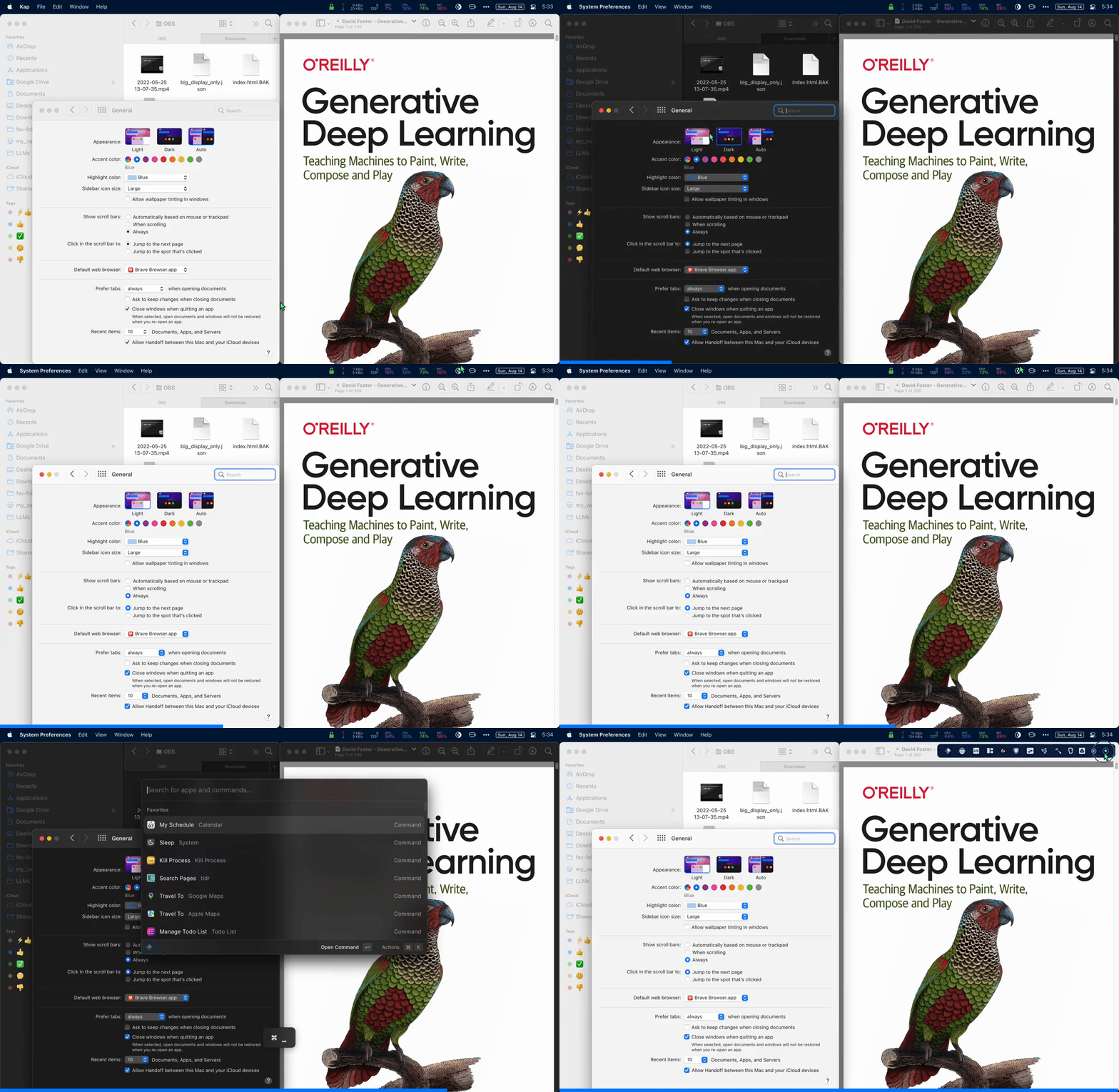
Raycast has a Toggle System Appearance command that does the same thing. Like Nightfall, it doesn’t show any notification about the current dark/light mode of the system, but unlike Nightfall, it can be assigned a shortcut or summoned verbosely in Raycast. In the following gif, I show three ways to toggle dark mode. The second one uses Nighfall’s menu-bar icon.
☯️ Apps that Raycast Completes
1. Spotify
I’ve always wanted to be able to control Spotify without switching to the app. In fact, I wrote a post about it a while ago. One major gripe I have with Spotify.app is that it doesn’t allow liking/starring songs programmatically (see my post to see why).
BUT…
Raycast comes with a Spotify extension that lets me do just that! I have assigned a shortcut CTRL-L to its “Like Current Song” command which can be activated anywhere in the OS. 😌 This extension also comes with a lot of other features that you can see in the gif below:
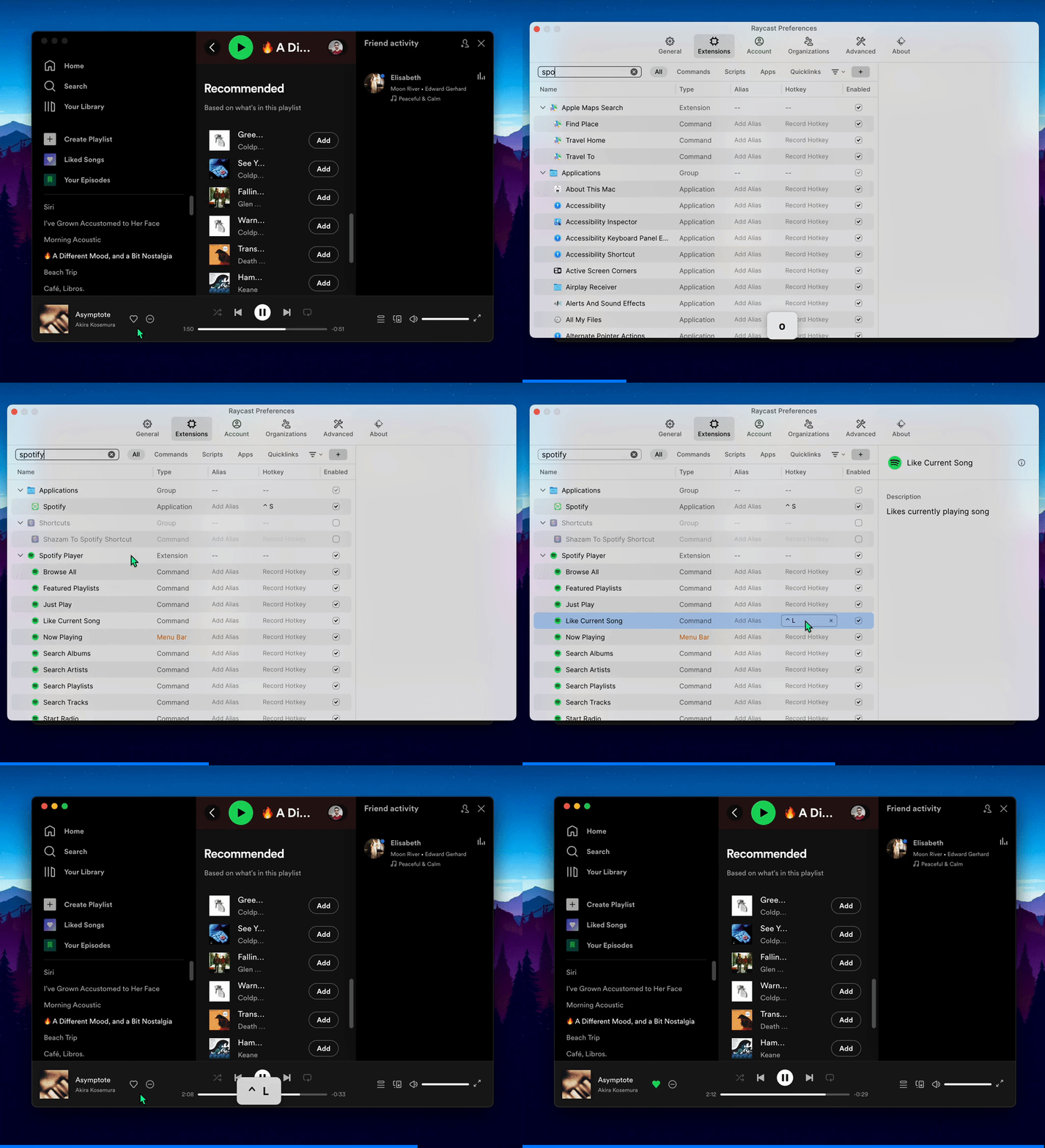
⛱ I finally decided to use CTRL-. as the shortcut key because CTRL-L interferes with my terminal’s keybinding for theCLEAR command.
2. Finder
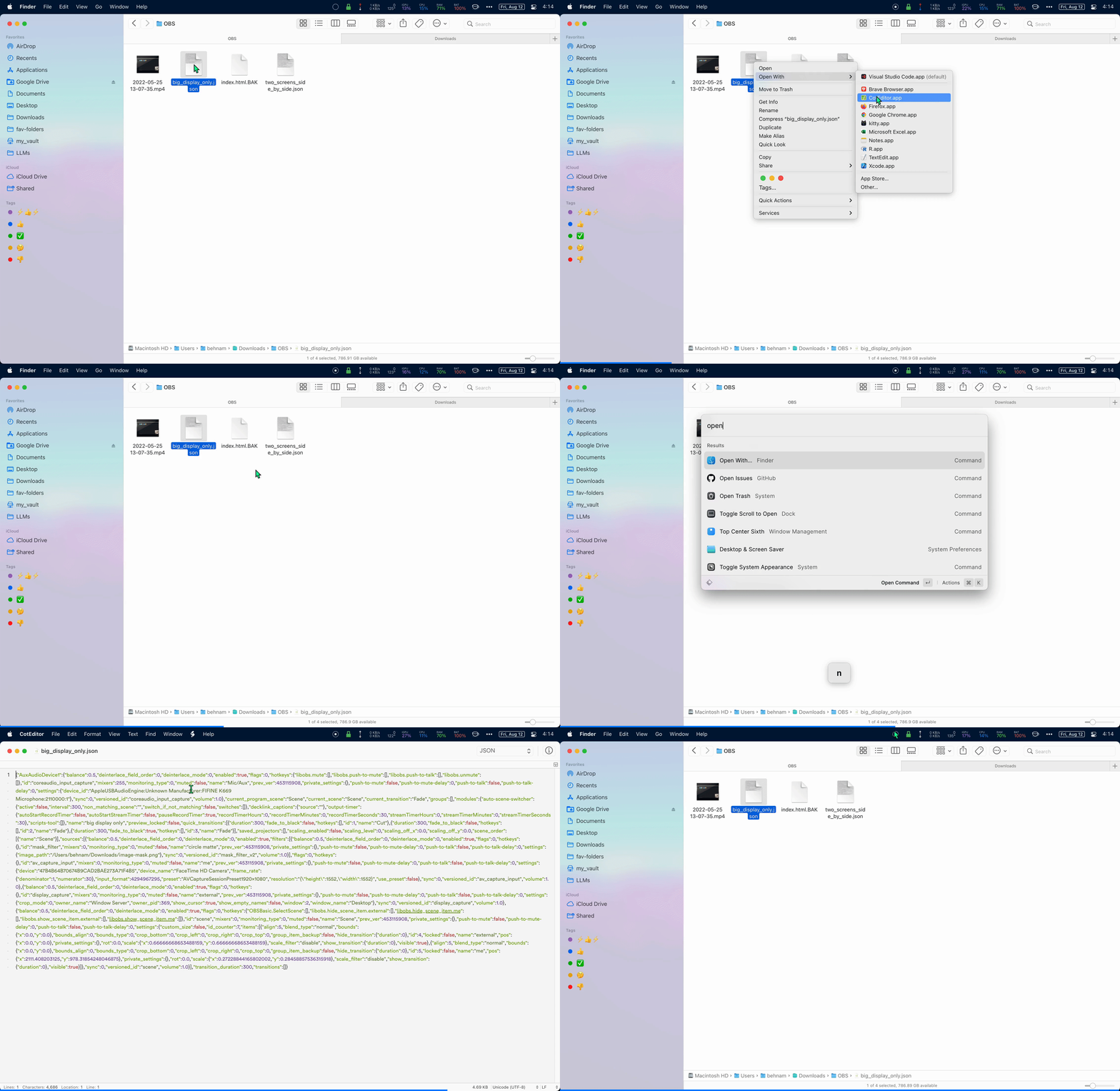
Normally if you want to open a file with a specific app, you have to right-click on it and select Open With . But macOS is not that good when it comes to keyboard shortcuts, so you always end up reaching for mouse to do this simple task.
BUT…
With Raycast, I can simply use the Open With command. Just select the file you want and summon this command from Raycast. It’s even possible to assign a keyboard shortcut to it. Below I show the two methods when opening a JSON file:
- Currently only works on local files. Files in Google Drive don’t open this way 😕
3. Internet Browser (Brave, Chrome, Firefox, etc.)
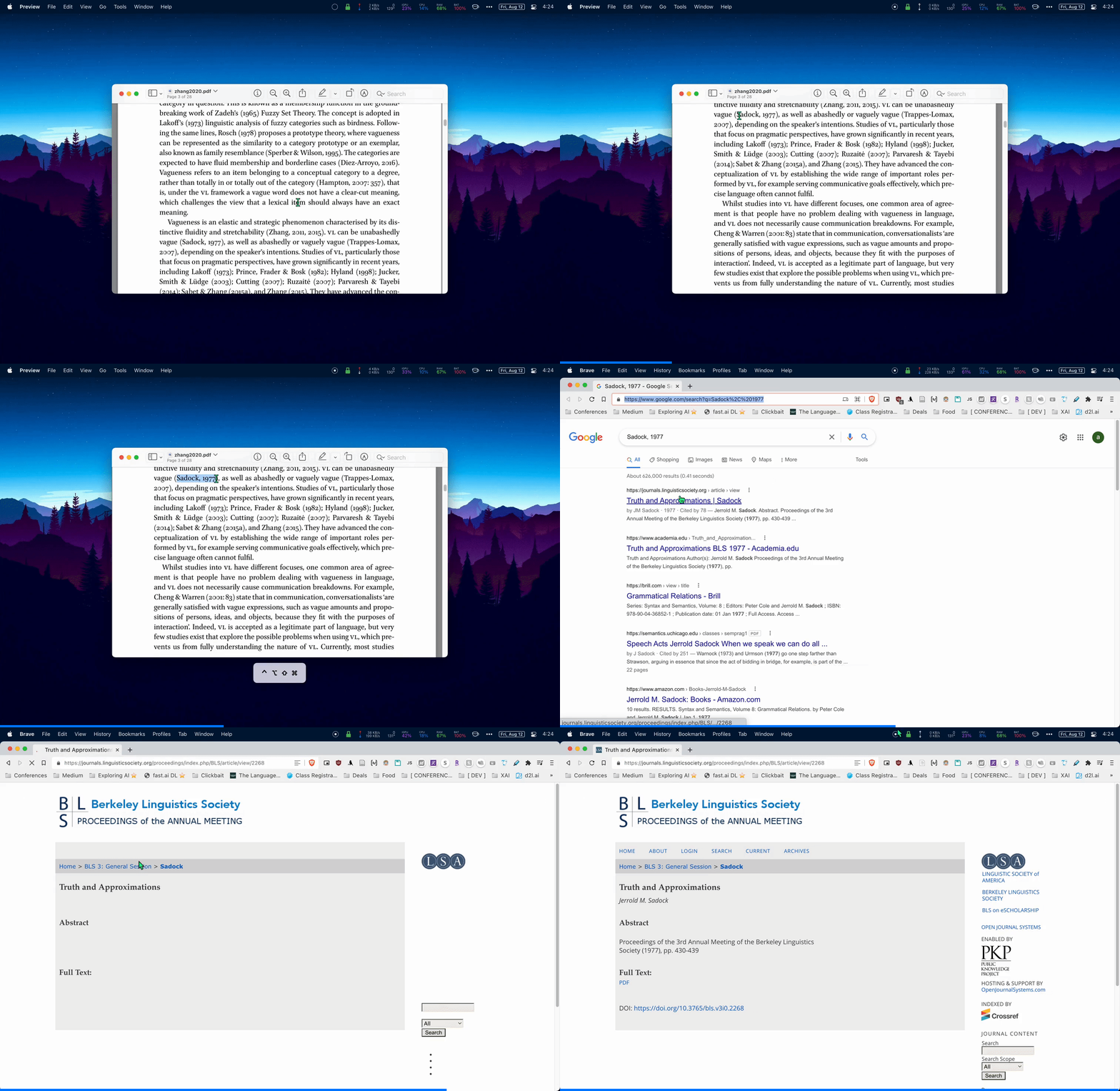
Whenever I get an error message during my programming, or when I want to search Google for some text I have selected in a PDF, I used to have to copy and paste it into the internet browser.
BUT…
Raycasyt has a Google Search command. I have assigned it to a keyboard shortcut such that when I select some text and press the key, it opens the browser and google’s that text automatically! Sure, you can accomplish this using Hammerspoon and Karabiner, AppleScript, or a variety of tools, but Raycast just makes it way easier.
4. Change the Audio Device 🔊
Sometimes you connect AirPods, external speakers, monitors with speakers, etc. to your Mac and want to choose which device should be used to play music. In my previous article I demonstrated a short script that does that. Basically, I would summon the terminal quickly and type au1 or au2 to choose whether I want the sound to be redirected to my MacBook’s speakers or the external ones.
BUT…
Raycast has a Set Output Device command which makes things way easier. First, I don’t need to use the terminal. Second, I don’t have to write a separate alias for each audio device (e.g., au1, au2, au3, …).

5. Sleeping 💤
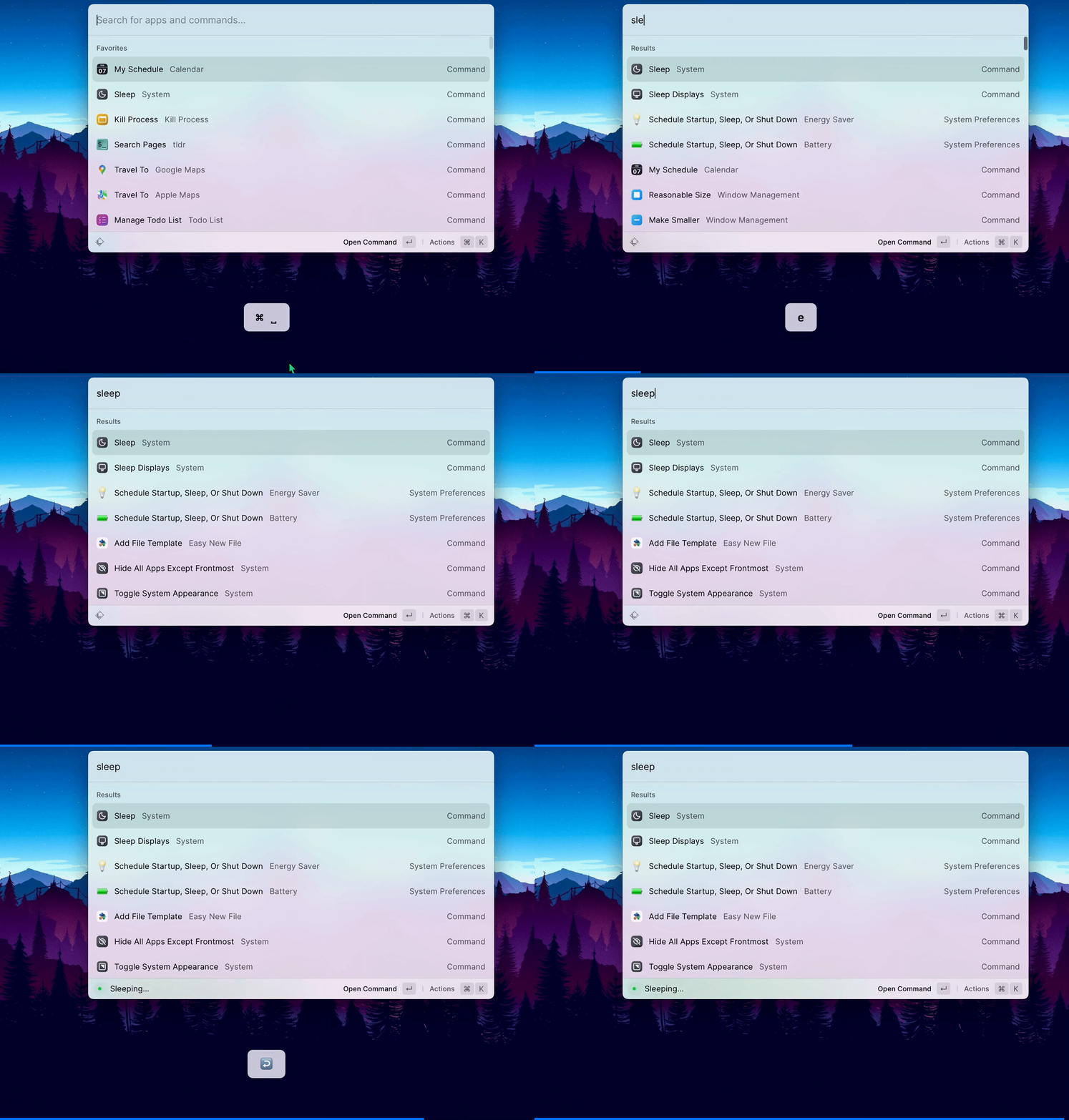
Instead of using mouse to click on the Sleep button, I just use Raycast’s Sleep command. Technically I can assign it to a shortcut, but I don’t want accidental sleeps.
Yes, you can close your Mac’s lid to put it into sleep, but I don’t recommend that because in my experience with 2015 and 2021 MacBook Pros, the keyboard will ruin your Mac’s display… Just use Raycast, ok?
6. Dictionary
Normally you would open the dictionary app and type a word to see its definition.
BUT…
Raycast has a Define Word command which I don’t use! The reason is that it requires one extra key-press to reveal the definition. Instead, I assigned a shortcut CTRL-? to the dictionary app. This has contributed to my productivity.

⛱ My List of Aliases for Commands and Extensions
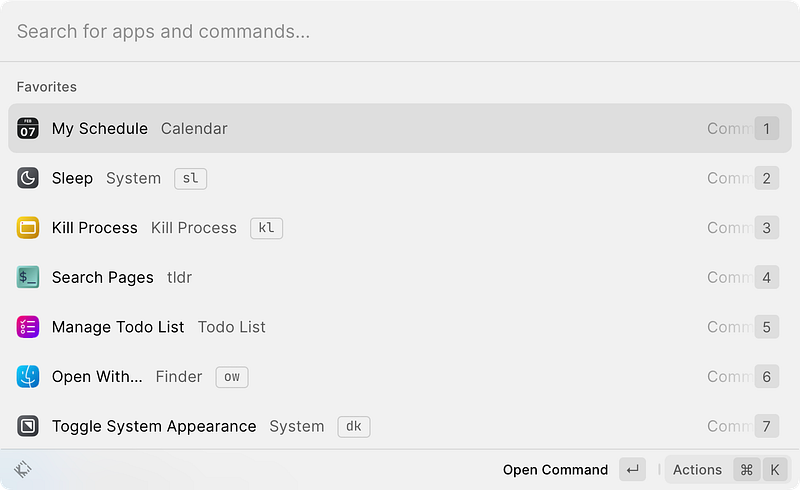
In Raycast settings, you can also assign an alias to commands. Here’s my aliases; they help me type less to get more!
dk→ Toggle System Appearance (dark/light mode)kl→ Kill Processessl→ Sleepow→ Open Withau→ Set Output Deviceauf→ Set Output Device to Favorite — You have to enter the name of your favorite audio device in Set Audio Device settings.d>→ Next Desktop (Moves the current app to the next desktop)d<→ Previous Desktopm>→ Next Display (Moves the current app to the next monitor)m<→ Previous Displaycon→ Connect (for my VPN extension)dis→ Disconnect (for my VPN extension)esgo→ Start Espanso (for my Espanso extension)esno→ Stop Espanso (for my Espanso Extension)cago→ Caffeinate (Prevent Mac from Sleeping using this extension)cano→ Turn off Caffeineca?→ Caffeination Statusca→ Toggle Caffeinateyy→ Search YouTube (using this extension)dl→ View the Downloaded Items (using this extension)dd→ Quickly open the Last Downloaded File! (using the same extension. It’s super useful! 🔧)ti→ Quickly set a custom timer (using this extension)
In addition, one can choose certain commands as Favorite to see them at the top of Raycast’s list. This is useful because the first one can be quickly summoned by opening Raycast (e.g., by CMD-SPACE ) and pressing ENTER/RETURN . Doing this, I can quickly see all my schedule:
How to Install Raycast
You can install Raycast by going to their website (not affiliated). If you use HomeBrew, however, you can simply install it in one line in your terminal:
brew install --cask raycast


