Free AI web copilot to create summaries, insights and extended knowledge, download it at here
2587
Abstract
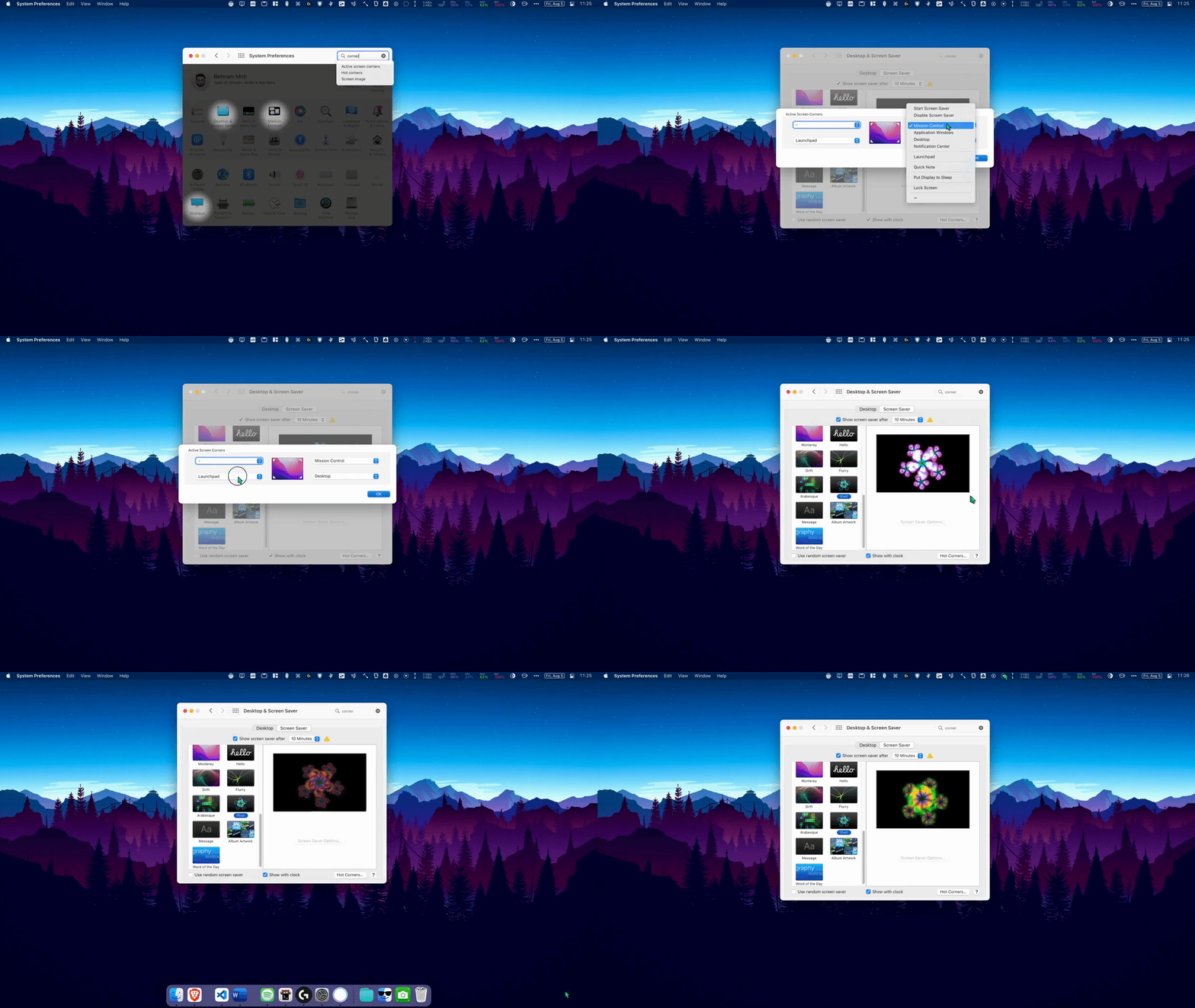
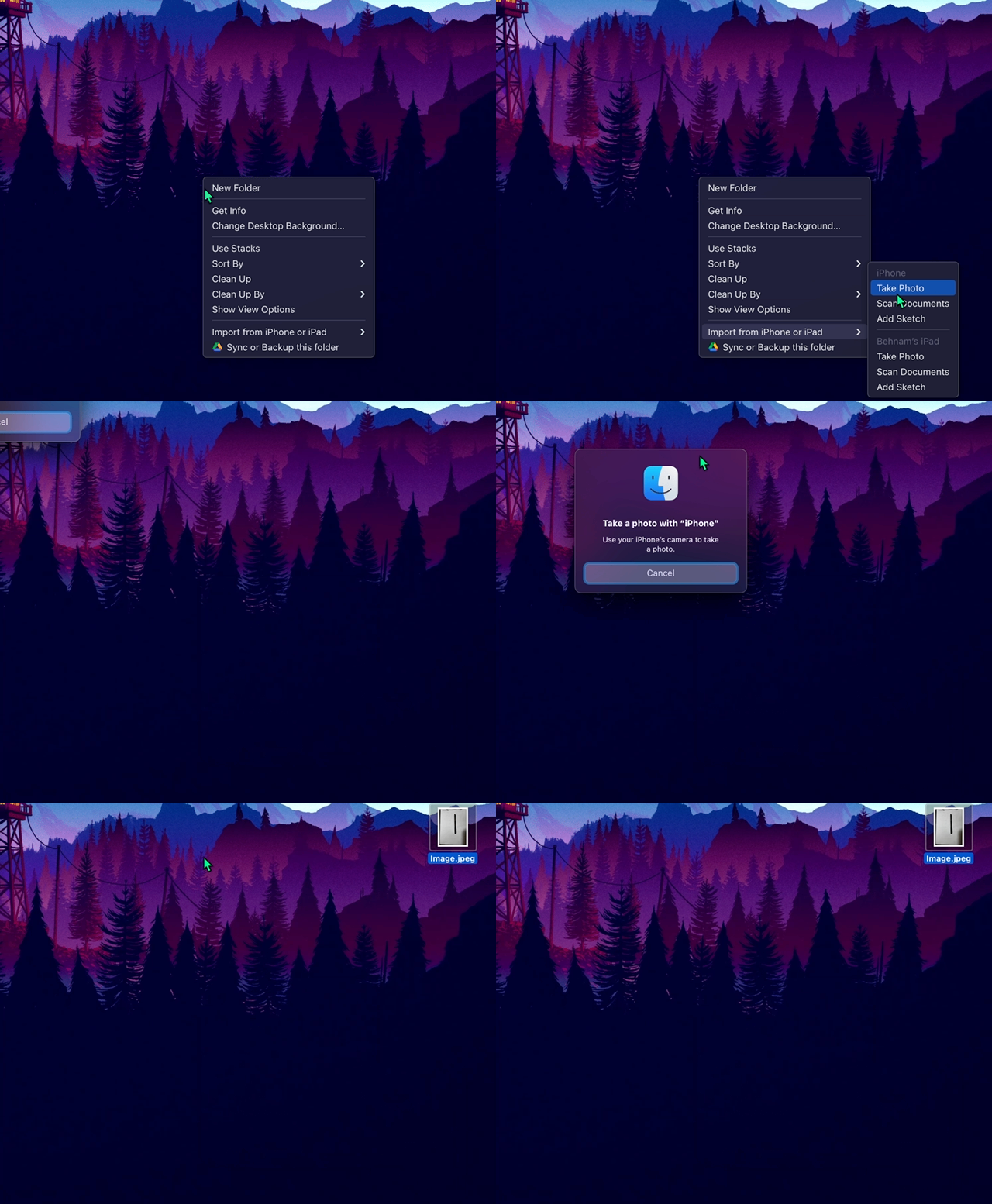
02b"><img src="https://cdn-images-1.readmedium.com/v2/resize:fit:800/1*eeg0twLrkFHigAPglYlngg.gif"><figcaption>Gif by <a href="undefined">Benham</a></figcaption></figure><figure id="9cf7"><img src="https://cdn-images-1.readmedium.com/v2/resize:fit:800/0*TolnxNHt7dyPzplW.png"><figcaption></figcaption></figure><h1 id="ba8a">4. Easily Import Photos/Scanned Documents</h1><p id="57f7">When working on Mac, sometimes you need to quickly snap a photo or scan a document by your iPhone/iPad and transfer it to Mac. Normally, you’d take a photo and Airdrop it to Mac. But macOS has made it even easier now. See below:</p><figure id="d090"><img src="https://cdn-images-1.readmedium.com/v2/resize:fit:800/1*mXR8XBvKhIwQ4cSq4d_BoA.gif"><figcaption>Gif by <a href="undefined">Benham</a></figcaption></figure><div id="9441" class="link-block">
<a href="https://readmedium.com/8-ways-that-raycast-has-revolutionized-my-mac-workflow-in-2022-part-1-6e9c91cc1991">
<div>
<div>
<h2>🔥 One App to Rule Them All: My Experience with Raycast on Mac</h2>
<div><h3>Raycast helped me consolidate many apps into one.</h3></div>
<div><p>medium.com</p></div>
</div>
<div>
<div style="background-image: url(https://miro.readmedium.com/v2/resize:fit:320/0*W_kISLlelNCx9pKH.png)"></div>
</div>
</div>
</a>
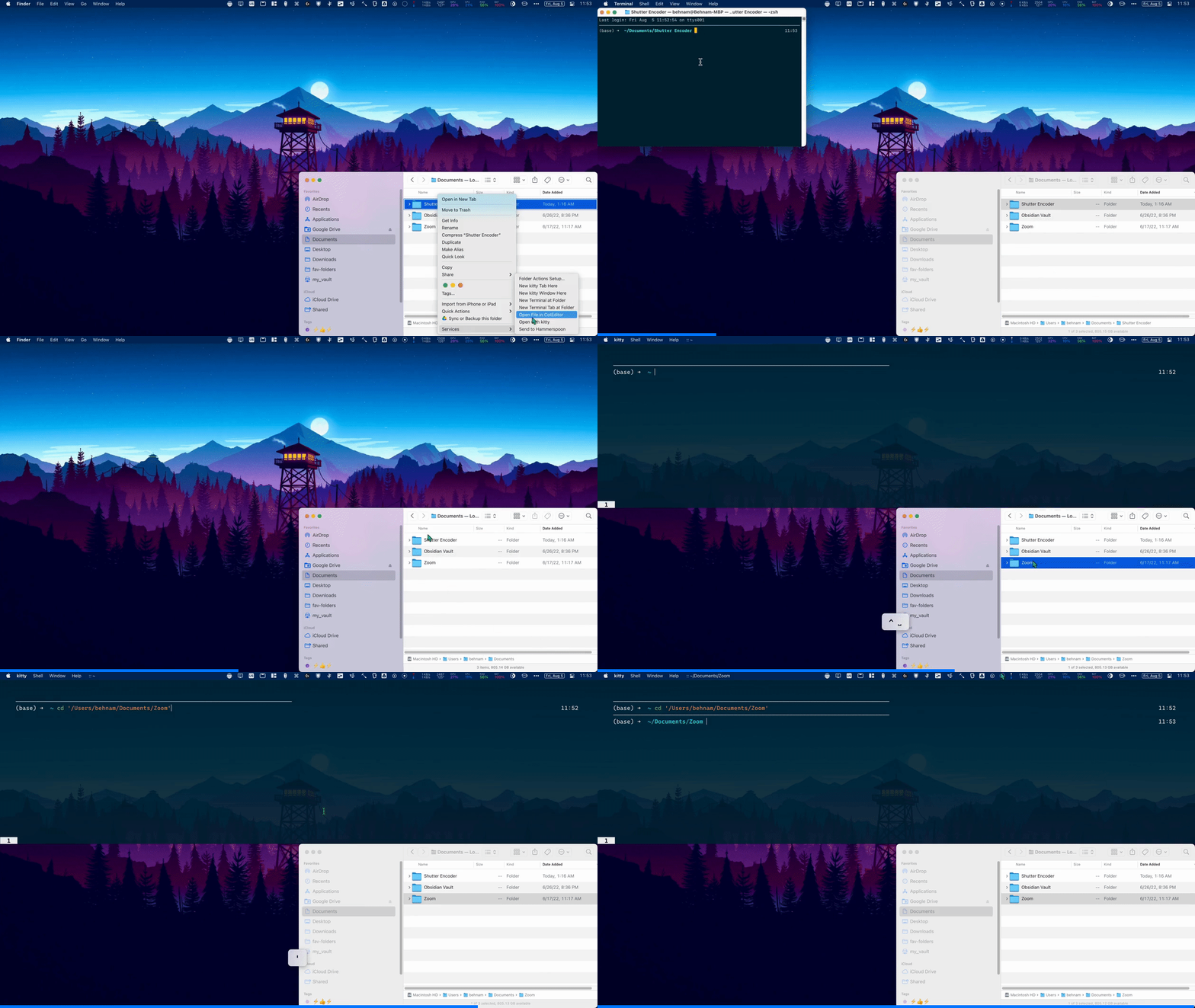
</div><figure id="a041"><img src="https://cdn-images-1.readmedium.com/v2/resize:fit:800/0*biZ2cA_N-uC6eVKG.png"><figcaption></figcaption></figure><h1 id="0446">5. Open Terminal at Current Folder</h1><p id="7811">If you’re using terminal, then you know how frustrating it is when you want to navigate to any specific folder. There are many ways to make that easier, but perhaps one of the best ones is to use a combination of GUI and terminal.</p><p id="dff8">macOS provides a service to open a new terminal tab in the current folder/directory. It also works on third-party terminal apps like Kitty.</p><p id="1c58">Alternatively, you can press <code>CMD-OPTION-C</code> to copy any file/folder’s path, which is really nice.</p><ul><li>Thanks to a comment in <a href="https://news.ycombinator.com/item?id=32358072">the HN post</a>, you can just use “Copy” in the Finder, then paste in Terminal, and Terminal will use the path. You can also drag from the Finder into the Terminal.</li></ul><figure id="45c6"><img src="https://cdn-images-1.readmedium.com/v2/resize:fit:800/1*Sc6J9HdKnDDIcXEkm6vZUQ.gif"><figcaption>Gif by <a href="undefined"
Options
Benham</a></figcaption></figure><h1 id="9c1e">Takeaway</h1><p id="dd13">In this article, I showed you 5 macOS features that are built right into your OS to make your Mac much more pleasant to use. They also boost productivity as you don’t have to jump through loops to get such simple tasks done.</p><div id="86a0" class="link-block">
<a href="https://readmedium.com/5-mysterious-mac-features-that-apple-hides-in-plain-sight-the-2nd-one-will-shock-you-e2a32a51ab96">
<div>
<div>
<h2>5 Secret macOS Features that Apple Hides in Plain Sight</h2>
<div><h3>Shrouded in secrecy, these features are actually super useful!</h3></div>
<div><p>medium.com</p></div>
</div>
<div>
<div style="background-image: url(https://miro.readmedium.com/v2/resize:fit:320/1*MggB0VABaMDe2s9kZiYEmA.png)"></div>
</div>
</div>
</a>
</div><div id="61ed" class="link-block">
<a href="https://readmedium.com/5-little-macos-apps-that-make-a-big-difference-in-2022-part-4-programmer-edition-e1eda9c4e59a">
<div>
<div>
<h2>🔥5 Little macOS Apps that Make a Big Difference in 2022 [Part 4—Programmer Edition]</h2>
<div><h3>Boost your productivity with these open-source apps that you probably never heard of before!</h3></div>
<div><p>medium.com</p></div>
</div>
<div>
<div style="background-image: url(https://miro.readmedium.com/v2/resize:fit:320/0*VnGHFXm8tznb_wi3)"></div>
</div>
</div>
</a>
</div><div id="1e6a" class="link-block">
<a href="https://readmedium.com/5-little-macos-apps-that-make-a-big-difference-in-2022-part-3-52ec31c5ea61">
<div>
<div>
<h2>🔥 5 Little macOS Apps that Make a Big Difference in 2022 [Part 3]</h2>
<div><h3>Most of them free and/or open-source!</h3></div>
<div><p>medium.com</p></div>
</div>
<div>
<div style="background-image: url(https://miro.readmedium.com/v2/resize:fit:320/1*lsxiiR-O0q4kNuV0ecv1sQ.png)"></div>
</div>
</div>
</a>
</div><figure id="4bcf"><img src="https://cdn-images-1.readmedium.com/v2/resize:fit:800/0*8VtA7_Y0UA88GGJP"><figcaption>Photo from <a href="https://unsplash.com/photos/mP7aPSUm7aE">Unsplash</a></figcaption></figure></article></body>