
🔥 5 Secret macOS Features that Apple Hides in Plain Sight
Shrouded in secrecy, these features are actually super useful!
1. Type Umlauts Easily
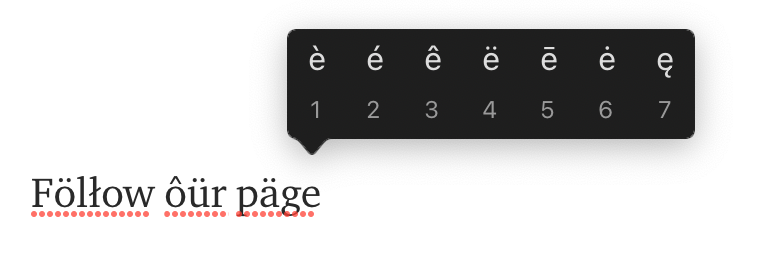
You know how you can press and hold letters on iOS to see their umlaut variants? You can do the same on macOS!
Press and hold any key to see its umlaut variants. You can even select which one you like based on its number!
2. Take Screenshots
You don’t need an app to take screenshots on Mac because Mac already comes with Screenshot.app . Here’s how to use it:
CMD+SHIFT+3 → Capture entire screenCMD+SHIFT+4 → Capture selected portionWhen using CMD+SHIFT+4 , there are a couple tricks you can do:
CMD+SHIFT+4   then press SPACE and click window   →
                                             Capture selected window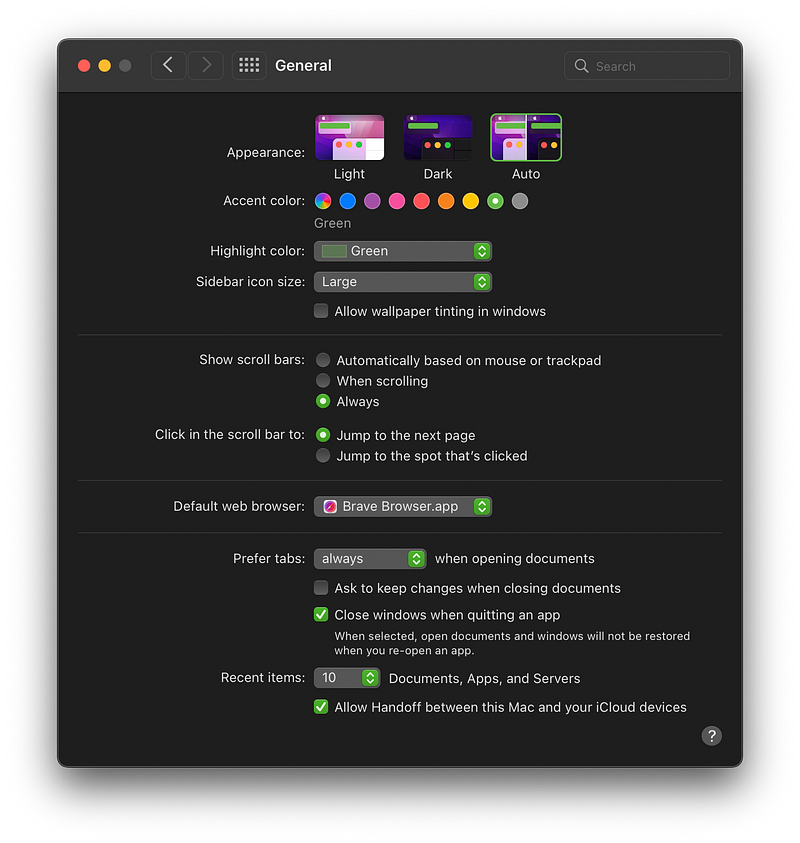
CMD+SHIFT+4   SPACE   then hold OPTION and click window   →
                              Capture selected window without shadow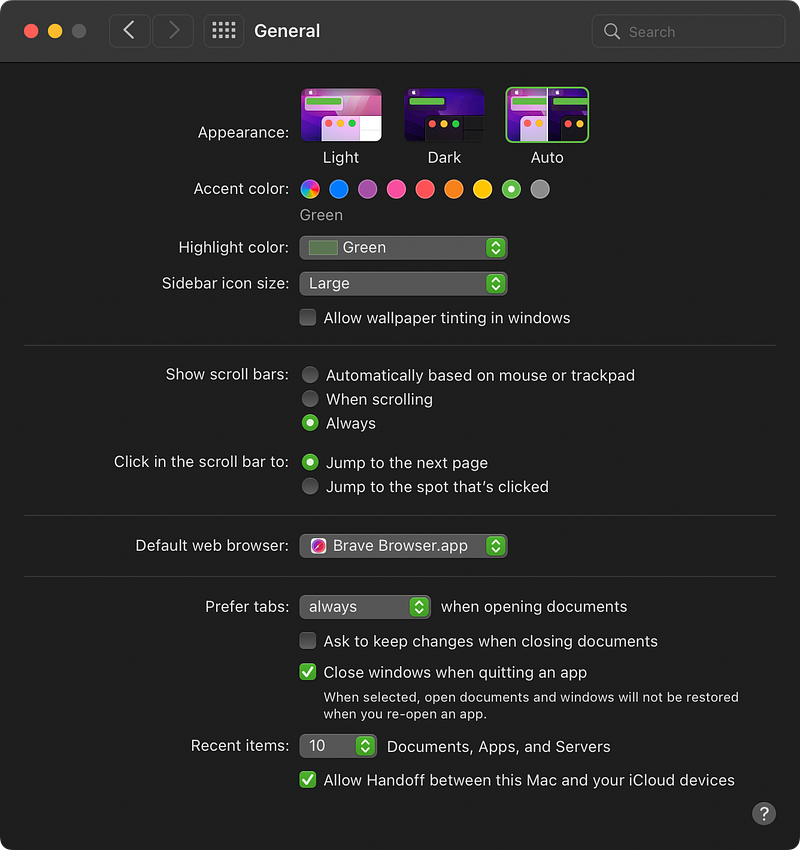
- At any point if you press
CTRLwhile clicking on a window/portion of screen, the screenshot will be copied directly to clipboard!
3. Customize System Preferences
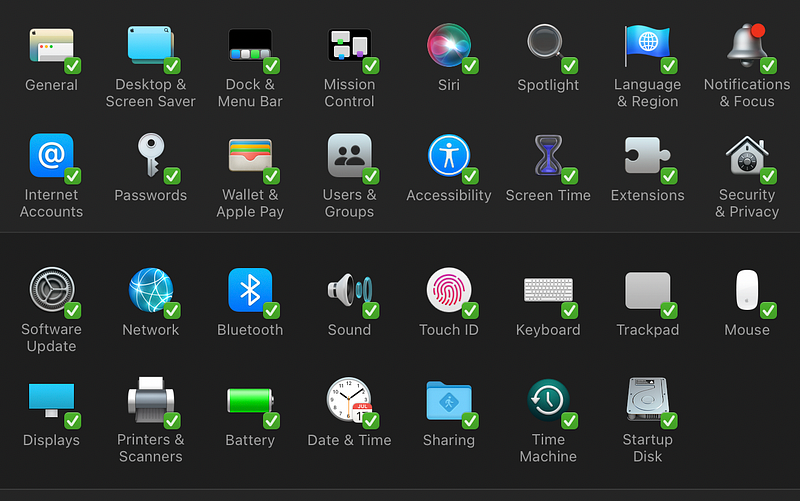
Did you know that you can customize the items in the settings menu? Open System Preferences ⚙️ and in the menu bar, go to View > Customize .
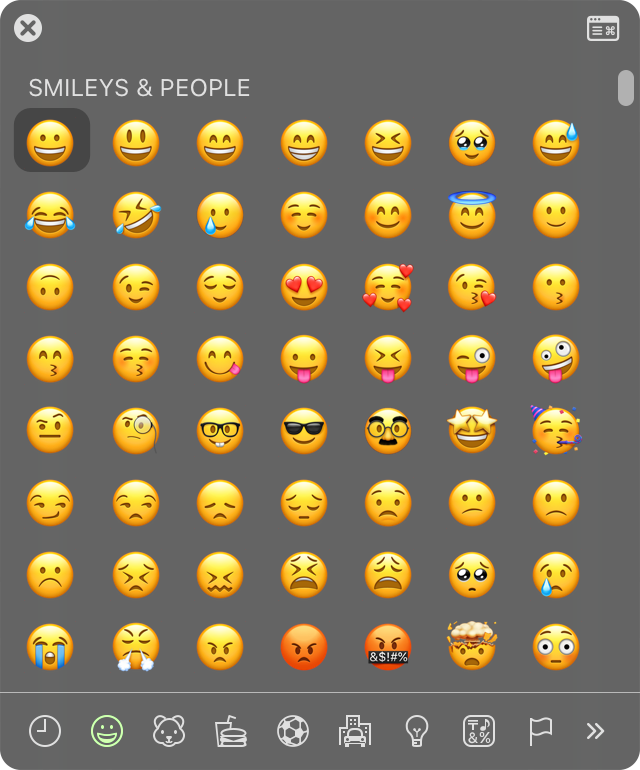
4. Emojis 🤗
You can simply press CTRL+CMD+SPACE to open the emoji dialog. You can then start typing and search for the thing you’re looking for.
5. Change App and Folder Icons Easily
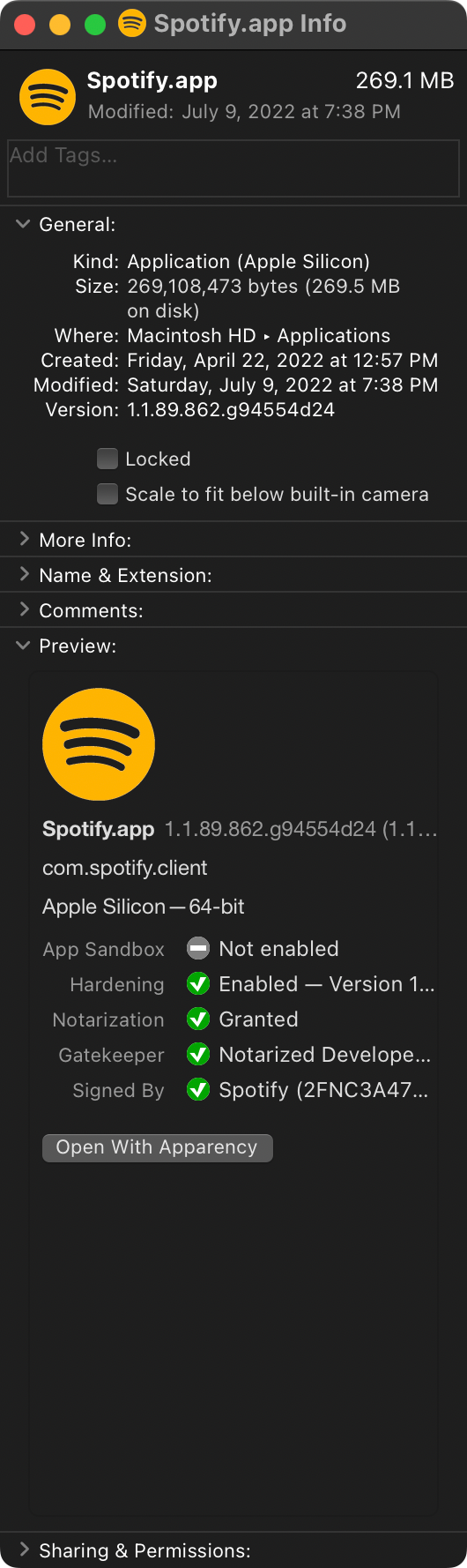
You can use *.ics or *.png files as icons for your applications and folders. Simply select the folder/app and press CMD+I to open its info. Then drag the picture on the icon at the top left.
- You can also copy a picture, select the top left icon in the info window, and paste the picture there!
- You can download thousands of icons from this website.
Here’s how my Spotify app looks like!
If you like this kind of stuff, you can 👏 and follow this page for future updates!