Mac’s Bugs are… Different
“It Just Works”, yeah, right!
Today I want to talk about a strange issue with Mac computers and a simple solution.
🤨 Problem
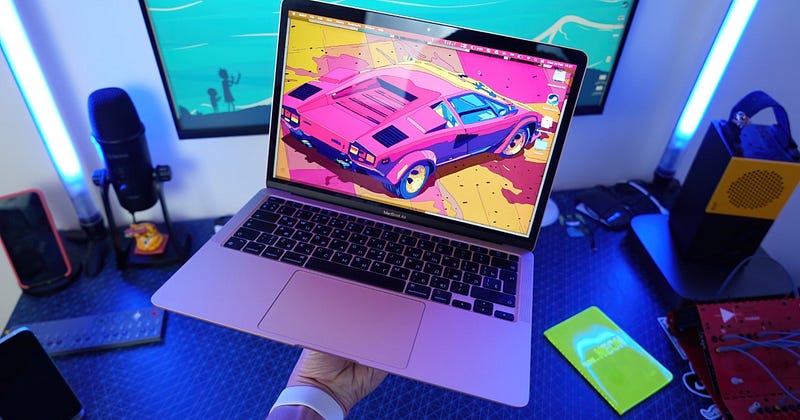
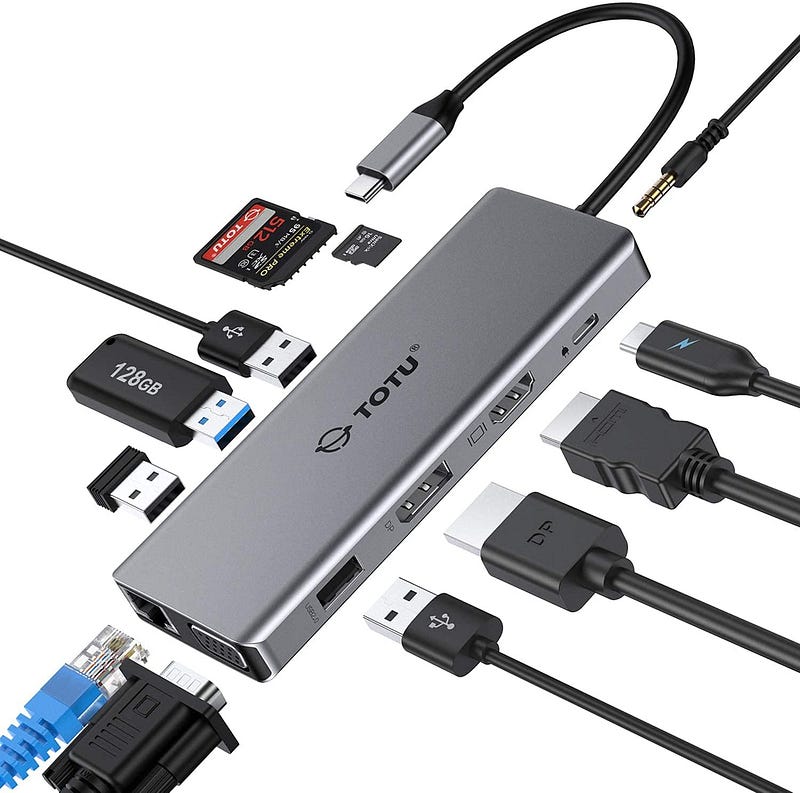
I have a USB Hub/Dongle which I bought for almost $70. It was an expensive purchase for a dongle, but this product was the only USB hub that had all the features I needed. It worked fine out of the box on Windows. No problem ever. Then one day I decided to buy a new Mac (with M1) and all of a sudden, the USB hub stopped working properly. The USB A and C ports still worked, but HDMI and DisplayPort, and the 3.5mm headphone jack stopped working. I use HDMI to connect my Mac to an external monitor and the 3.5mm is used to connect it to my speakers. It was a bummer to realize that I now have to buy a new USB hub…
👨🏻💻 Solution
So as it turns out, there is a rather simple solution to this:
- Unplug all HDMI and USB cables and devices from the USB hub.
- Plug in the USB C charging cable (which seems to activate the device).
- Then plug in mouse, keyboard, and other cables.
For some weird reason, doing this fixes the HDMI issue, with one caveat: sometimes random horizontal noisy bars appear on the screen. I think it’s just Apple being Apple, being incompatible with the industry standards (more about them in my previous post).
🤔 But wait! What about the 3.5mm jack?
Right. So it works now, but macOS is not smart enough to switch to the 3.5mm output automatically, unless the 3.5mm cable is directly plugged in to Mac. To solve this problem, there are two solutions:
- Solution #1: Every time you plug in the USB hub, manually go to
System Preferences > Sound > Outputand choose the speakers connected to the USB hub. - Solution #2: Write a script that does it for you!
If you’ve been following me, you know that I prefer the second solution as it’s more convenient. You pay the fixed cost of writing a tiny script once, and then you just profit! For this we need an open-source command-line utility tool called SwitchAudioSource. Install it by Homebrew:
brew install switchaudio-osx
Then go ahead and type this in a terminal:
SwitchAudioSource -a -t output
-a lists all your audio devices, then -t filters them based on their "type", which you wrote as "output". For me, this shows the following:
S32D850
USB PnP Audio Device
MacBook Pro Speakers
The first one is my external monitor connected by HDMI. The second is the USB hub which has my 3.5mm speakers plugged in to it. SwitchAudioSource -s DEVICE_NAME selects the source you want for audio output. So if I type SwitchAudioSource -s "USB PnP Audio Device", my Mac quickly switches to the speakers. Nice! But can we do better?
🤖 Automate Baby!
What if we could send the desired device name from SwitchAudioSource -a -t output to SwitchAudioSource -s? This is where shell scripting becomes handy. Write the following:
SwitchAudioSource -s "$(SwitchAudioSource -a -t output | grep -i 'USB PnP Audio Device' | sed 's/ (.*//')"This one-liner takes the output of SwitchAudioSource -a -t output, greps the desired device name. See this page for more info.
The next step is to assign an alias for this script. In my .zshrc I added the following two lines (mind the \ before " in the inner commands):

.zshrc file.Now whenever I invoke au1, the audio is redirected to my Mac, and au2 redirects it to the external speakers connected to the USB hub! If you enjoyed this, you know what to do 😊