
12 macOS Apps To Thrust Your Productivity To Its Peaks
Apps that speed up your mundane tasks or automate them

It’s been a while since I wrote an article focusing on macOS apps. The reason: (I’m shy to reveal) Procrastination.
A guy who procrastinates just wrote an article on productivity apps. Ironic, isn’t it?
I don’t know why but I regularly go through days of extremely low productivity and then get back to productive state again. Does this happen to you too?
Anyways, here are 12 macOS apps that almost 2x my productivity when it’s already on.
Apps included in this article
1 — News Explorer: Create your perfect RSS feed 2 — Focused: Focus on your writing 3 — AirBuddy: Monitor your wireless devices 4 — MenubarX: Browse the web from menu bar 5 — WallCal: Pin clear calendar to desktop 6 — Spark Mail: Manage emails easier 7 — BusyCal: Sync your tasks with calendar 8 — KeyKey Typing Tutor: Boost your typing speed 9 — Keysmith: Create a shortcut for any action 10 — MarginNote: Study more productively 11 — NetSpot: Find the best network connection 12 —NotePlan: One space for all your work
#1. News Explorer
($9.99 for lifetime | Available on Setapp)
I personally love RSS readers. They provide an ad-free and undistracted experience for pursuing my blog-love. My recommendation: News Explorer.
News Explorer is the RSS reader for noobies and pros. It’s both easy-to-setup and contains all the features that pros appreciate.
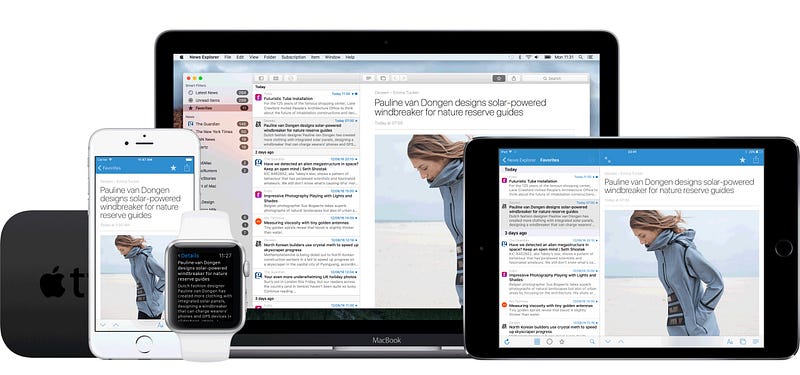
Best part, it’s one of the fewest apps you could use with any device inside the Apple Ecosystem. True! You could read articles even on your Apple Watch and Apple TV.
Also, say you love Apple but don’t know what popular websites offer Apple-related content. Instead of scouring the internet by yourself, simply type ‘Apple’ in the app itself, and it will do the job of recommending you such sites.
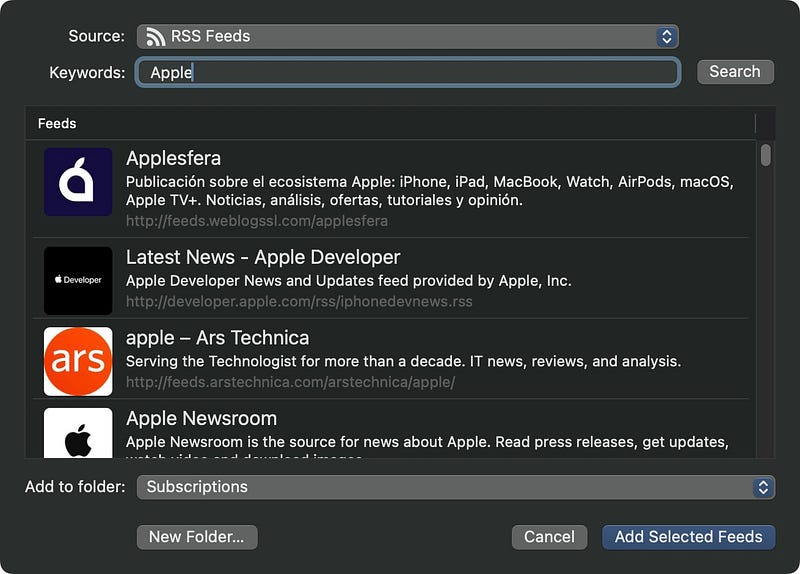
Just a click, and they’re added.
The app supports RSS, RDF, JSON, ATOM, and Mastodon feeds. If you don’t like its minimalistic reader view, you could sync the article’s webpage and read it like it’s on web on the same panel itself.
Apart from that, News Explorer offers customisations to text’s font, size, and background colour.
How does your existing RSS reader compare to News Explorer?
#2. Focused
($19.99 for lifetime | Available on Setapp)
Ahh, Focused… Such a nice app. It’s the most minimalistic app I’ve ever used.
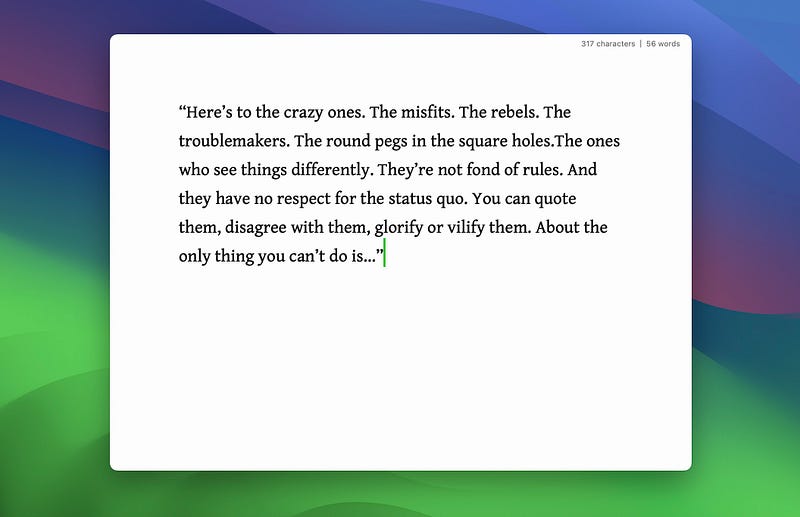
Know what? I’m a chronic procrastinator and who easily gets distracted when he uses Safari to open Medium and write an article.
My monkey brain wants to binge on YouTube than dreading to write. And I’ve lost countless hours doing so.
It’s only after I downloaded ‘Focused’ that I started to focus effortlessly on my writing.
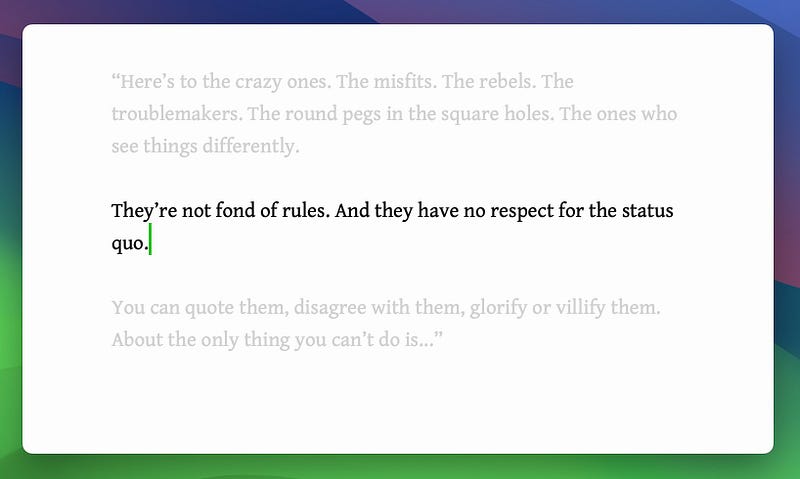
The app is just a clean white page with zero messy settings that distract you. It only wants you to write, write, and write.
It offers
- Multiple formatting options (like Headings 1–6, Body, B, I, Blockquote)
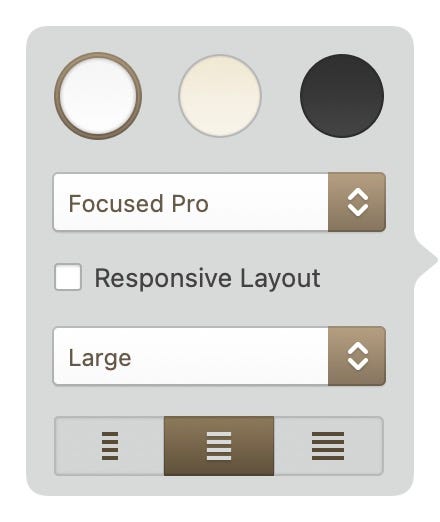
- Three page colours, Six (beautiful) fonts, Four font sizes.
- Export options to HTML, RTF, and PDF. (You can preview before exporting)
- Paragraph Focus mode that fades the other paragraphs while you’re working on one.
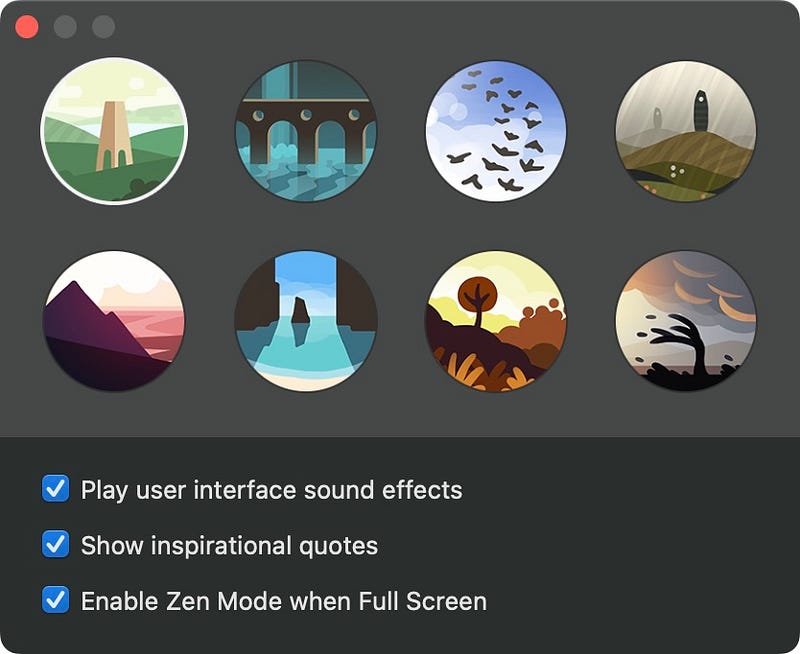
- Most importantly, Zen mode that plays calm music to help you focus while writing.
#3. AirBuddy
($12.99 for lifetime | Available on Setapp)
I’ve got dozens of Apple devices at our house. (Being an Apple blogger is an excuse to buy Apple products, isn’t it?)
Lol.
And I get utterly annoyed whenever I see a device on low battery. But I can’t keep checking each device every moment, right? And it’s not something I could hire someone for too.
What’s the solution?
AirBuddy!
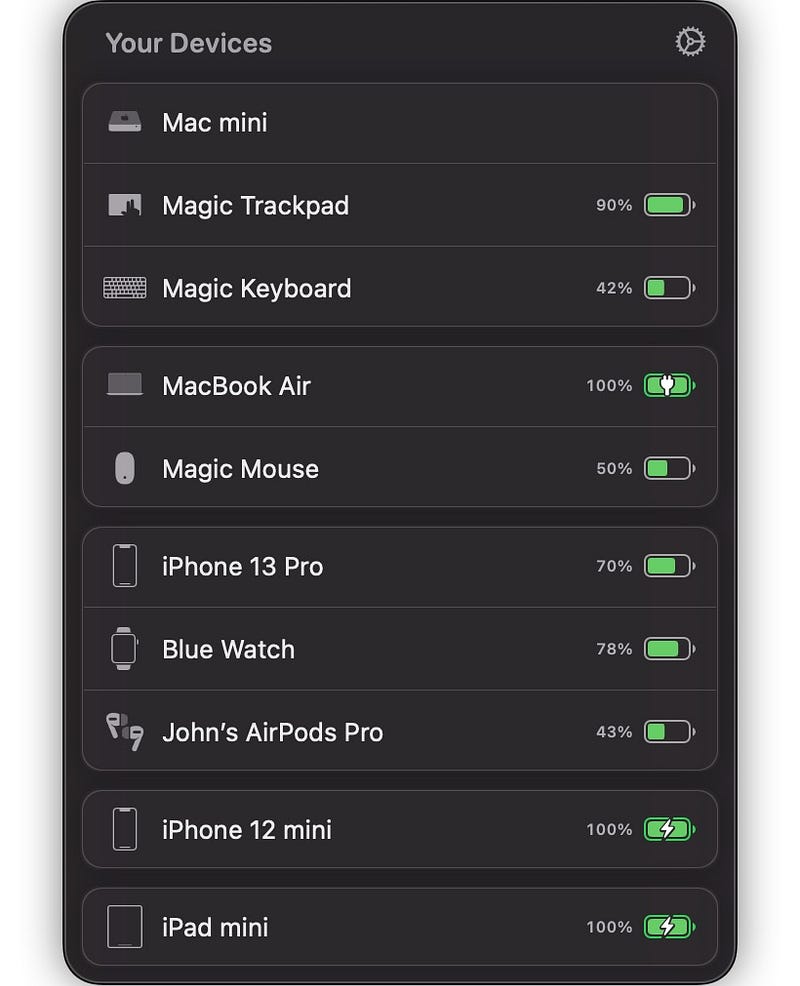
It helps keep track of all my devices’ batteries with a simple click. I generally use it for my iPhone 14 Pro and Pro Max, AirPods Max, and Apple Watch.
But why is this a productivity app? Coz it’s helps monitor your devices’ battery levels without looking at them individually. Else, it could be a bit frustrating & could take a toll on productivity.
Best part,
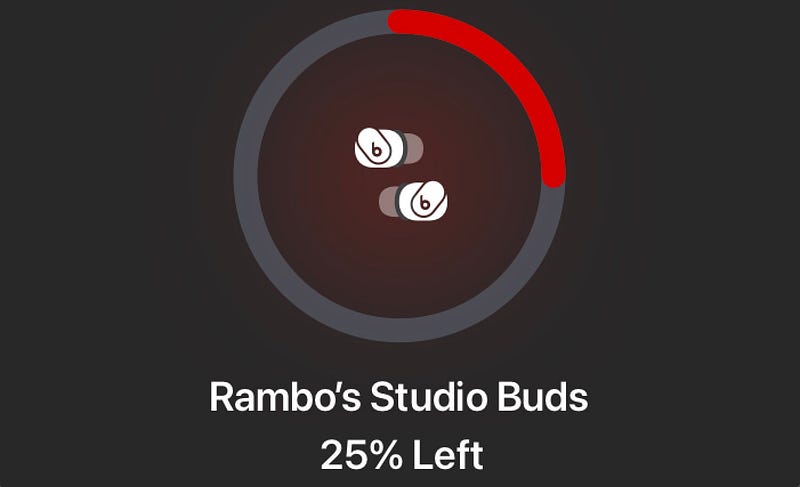
- AirBuddy displays a splash screen showing my AirPods’ battery level as soon as I remove their case (Like my iPhone 14 Pro Max shows)

- It also works well with non-Apple headphones and other peripherals.
- It alerts you if a device’s battery crosses over or drops below a certain level.
- It notifies when there’s a new AirPods firmware update (yayy!).
- And, I can do all these with custom hotkeys:
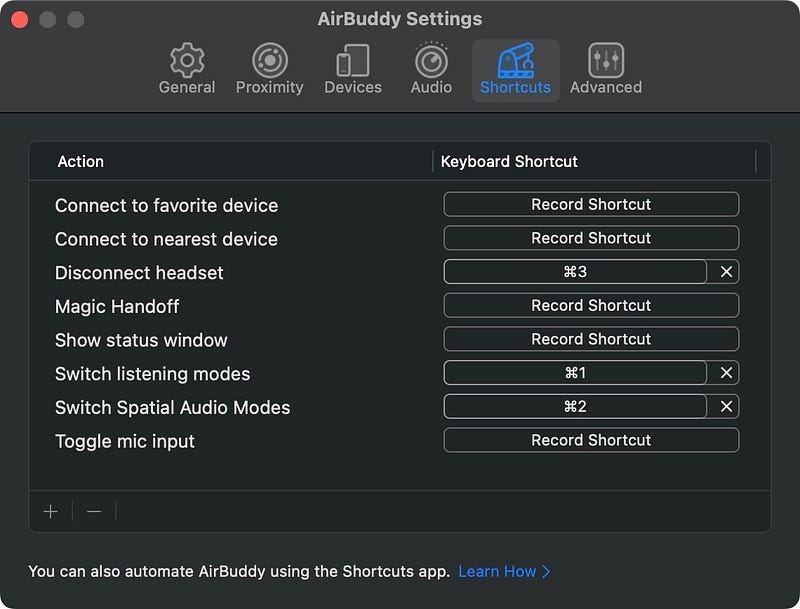
- If you have two Macs, you can monitor the second Mac’s battery from first Mac.
- You can also handoff some devices to the other Mac. So you can monitor their battery levels from there.
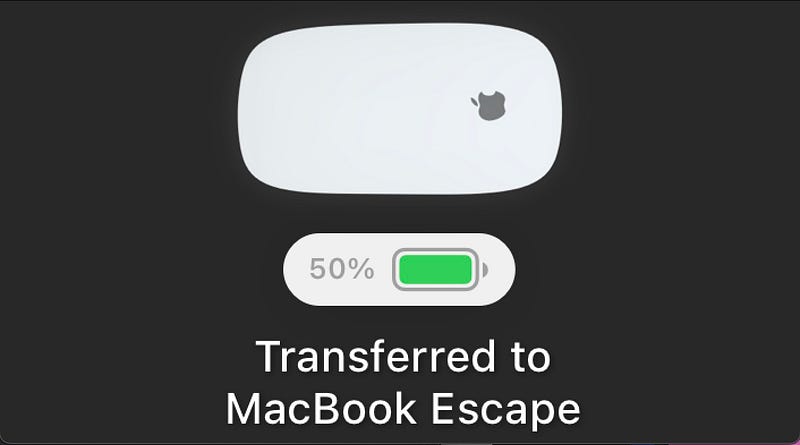
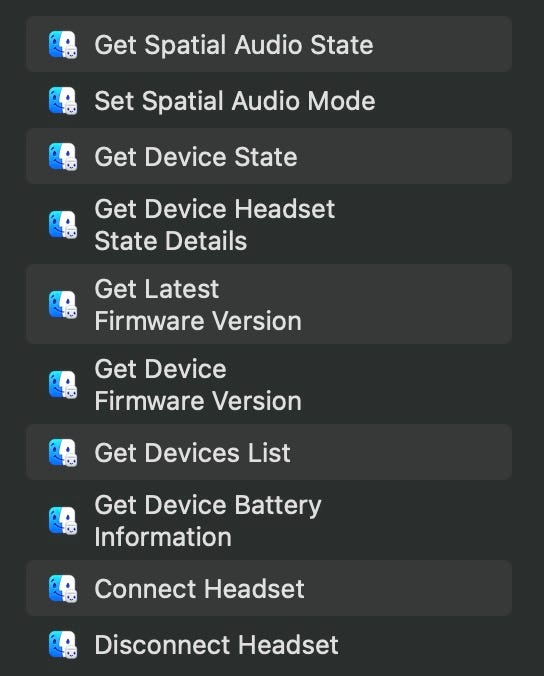
- AirBuddy offers some really useful Shortcut blocks that come handy:
#4. MenubarX
($4.99 for lifetime | Available on Setapp)
MenubarX, as the name suggests, creates a new place for your web apps — on the very Menu Bar!
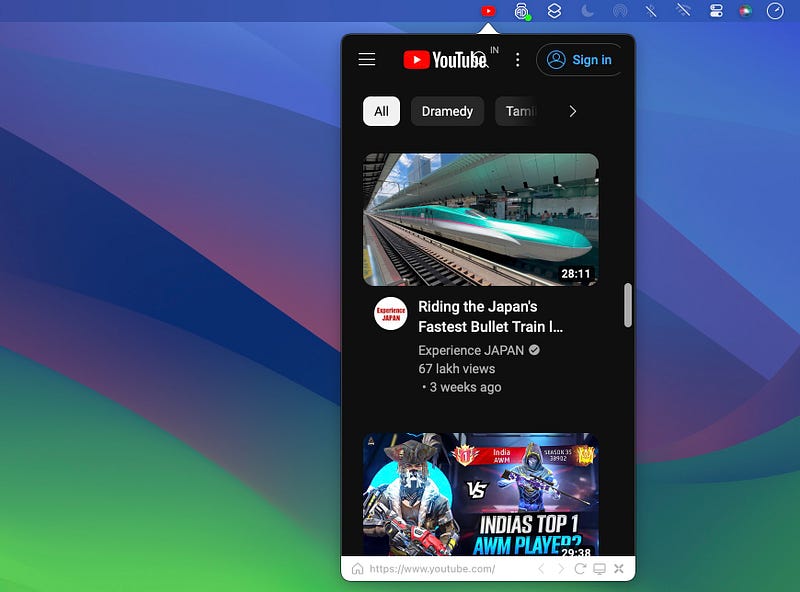
It lets you create multiple web apps (like YouTube, ChatGPT, Instagram, Coinbase) and keep them all within a click’s reach on the menu bar.

— like I keep ChatGPT, Google, & Google Translate handy using MenubarX.
This way I don’t need to switch to an entire Safari tab just for a few seconds of work. I can simply use the web app from where I’m working.
Additionally, it could also simulate iPhone, iPad, and Mac window sizes, and can mimic various browsers like Safari, Chrome, Edge, Kindle as user agents.
It also
- Syncs the web apps to iCloud,
- Blocks ads (yayy!),
- Force-enables dark mode for all the apps,
- Auto-refreshes them at regular intervals (optional),
- Allows bookmarks.
So if you regularly use web apps, give MenubarX a try, and see if it enhances your experience.
#5. WallCal
($11.99 for lifetime | Available on Setapp)
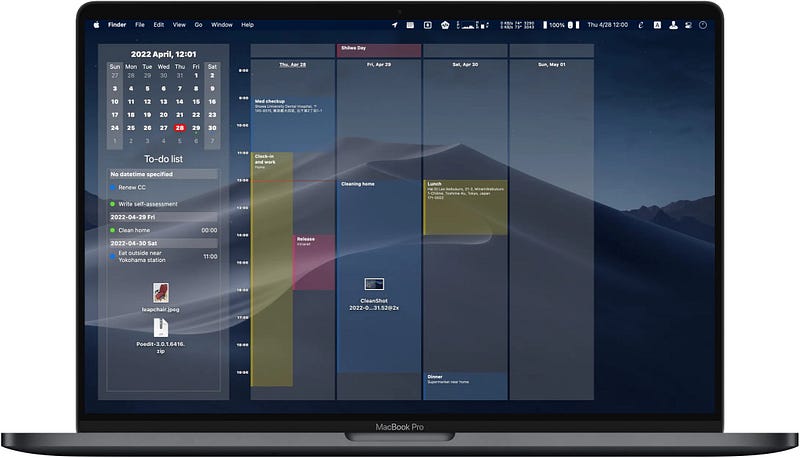
WallCal is a calendar and reminder widget that sticks on my desktop — so I’ll always have all my appointments handy and never miss one.
Best part, the UI is irresponsive, and that’s great — so you don’t need to worry about clicking stuff and messing things up.
You could sync it in real-time with your iCloud, Google, or Outlook calendar.
More features: You can
- Resize or move it across the desktop.
- Change its colours and opacity to chamelionize
(I made the word up)it into your wallpaper. - Choose to show your reminders, calendars, or both.
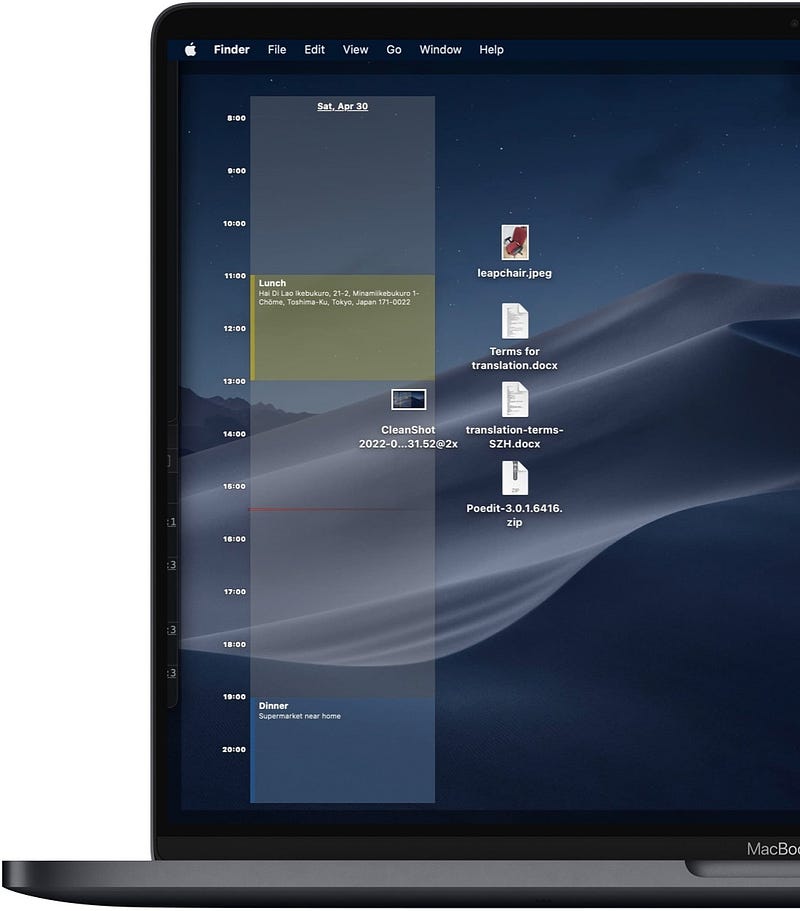
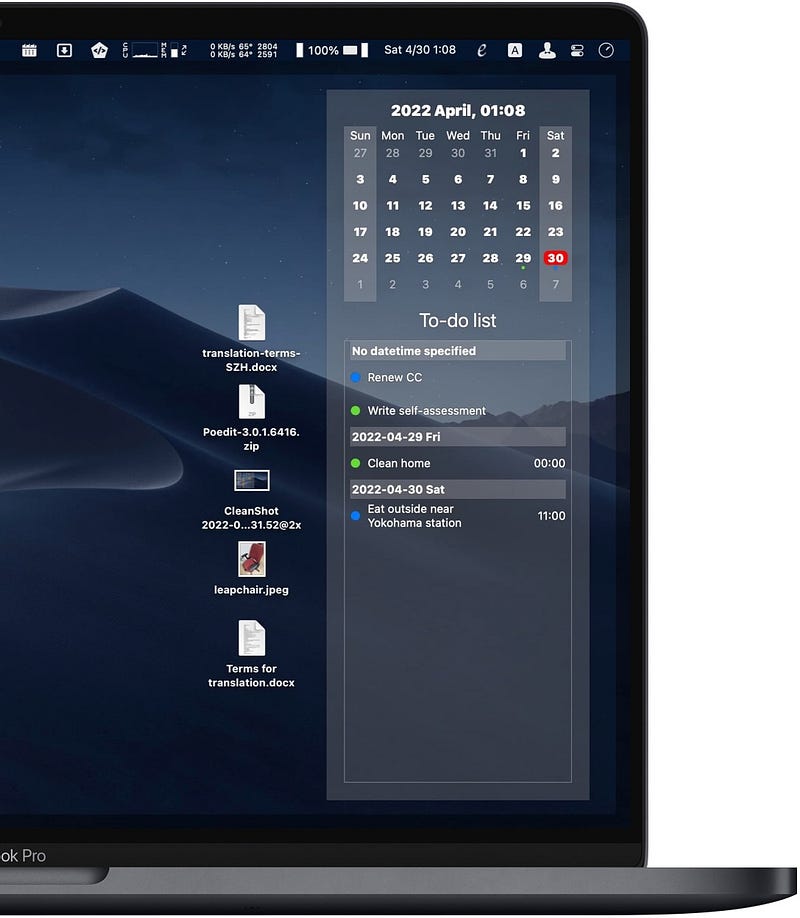
- Change calendar view to weekly or monthly.
How cool!
WallCal makes the first thing you look at when you login to your Mac… your calendar. And hence, doesn’t let you forget you’ve got appointments stuffed.
#6. Spark Mail
($7.99/mo or 59.99/yr | Available on Setapp)
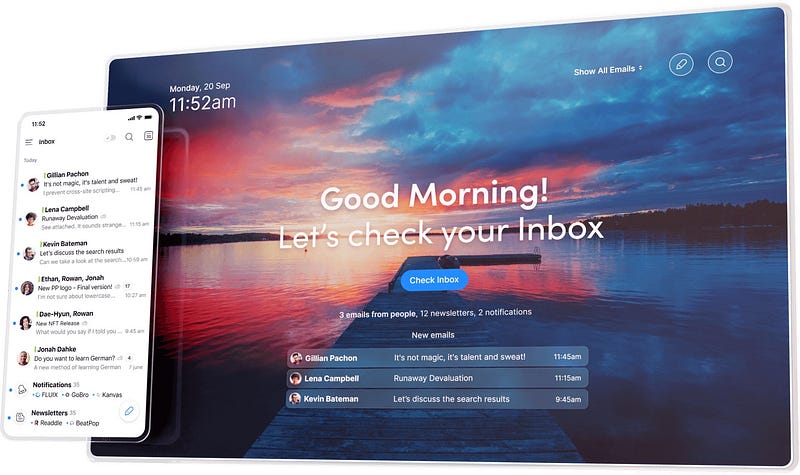
“Spark is the best email client I’ve ever used” — says my productivity.
Why?
It’s a mail app developed by a guy who’s perhaps frustrated by bombarding emails and missing important mails and appointments. I can sense it by the tremendously useful features the app provides.
Here’s how Spark’s helping me:
- Spark doesn’t sort unread emails by their time. Rather, it puts personal emails at the top and promotional ones at the bottom.
- I can hit the ⚡️ glyph beside a mail to pin it to top, and keep it there until it’s no longer required.
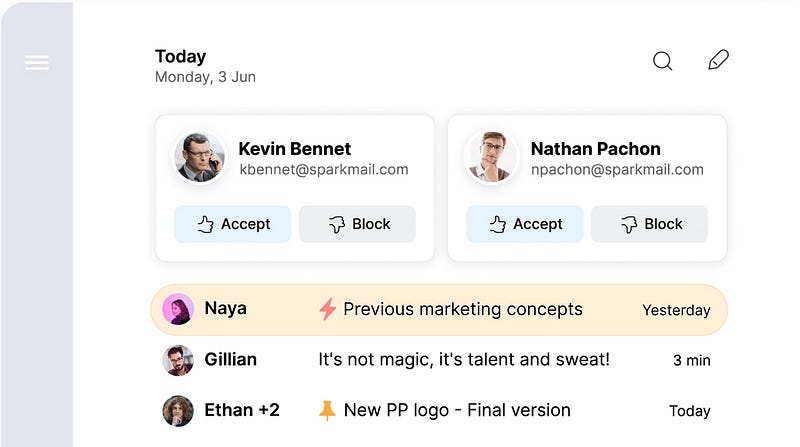
- It groups emails by sender, so there’s no clutter of multiple emails by a single sender.
- I can set important emails aside to view them later (lifesaver).
- Most importantly, it’s got AI built-in. I use it to summarise long emails and type professional replies to my colleagues and clients.
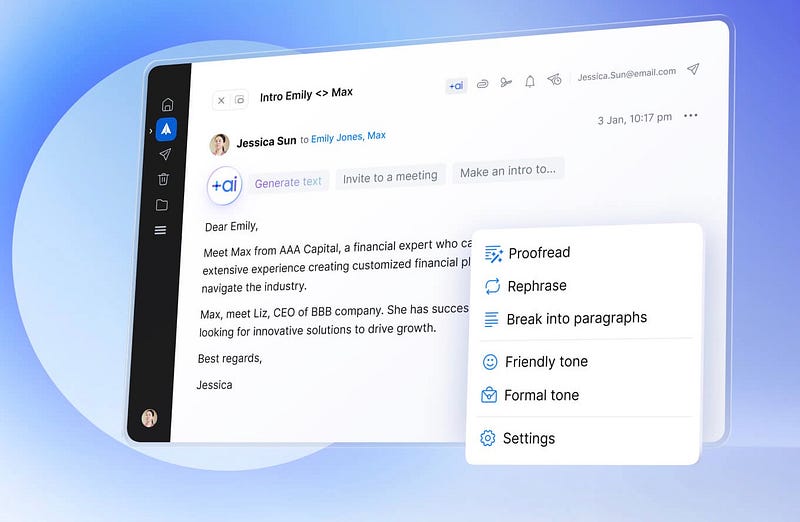
So if you’ve been using Gmail or Apple Mail apps and are struggling with productivity, it’s time you try Spark.
Best part, it’s available even on your Apple Watch.
#7. BusyCal
($49.99 for lifetime | Available on Setapp)
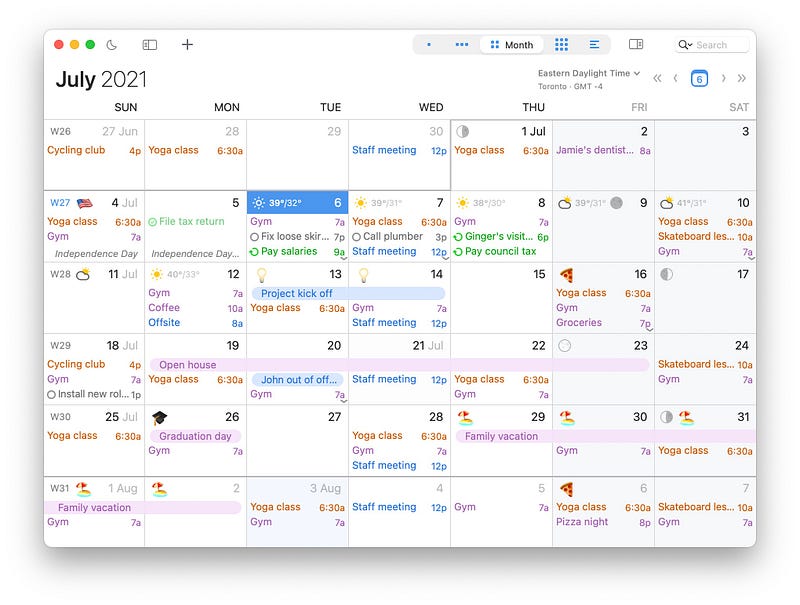
OMG, BusyCal. It’s the king 👑 of calendar apps. Why?
It’s an all-in-one, fully customisable, cozy calendar app that’s more than just enough to organise your days.
Best part, it syncs your events and reminders from multiple calendars in real-time and displays them all in a single calendar.
Best features, you can:
- Quickly check calendar, upcoming events and appointments on the menu bar.
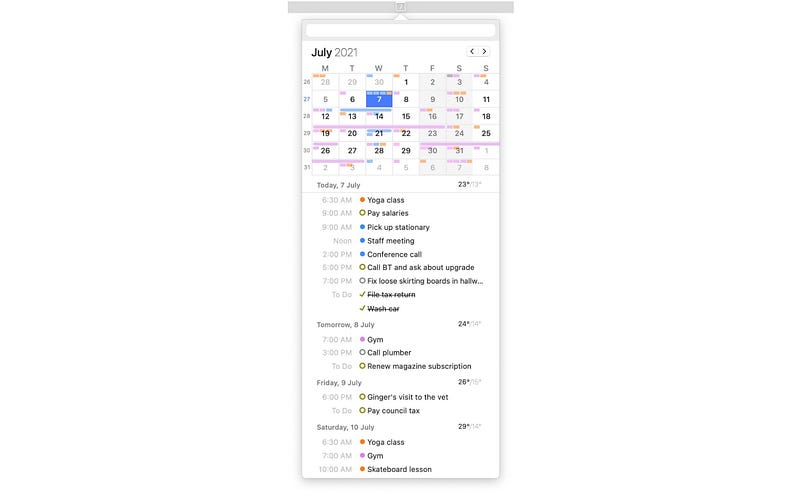
- Get weather forecast for your events. (Helpful)
- View calendar in day, week, month, year, and list views.
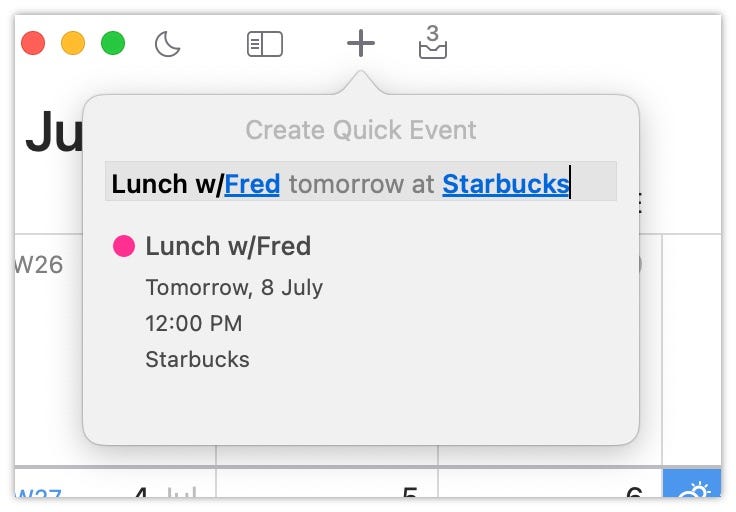
- Quickly create events, reminders, or alarms using natural language. Example:
- Segregate events by various colours.
- Move events across days or extend them by simply dragging (Wow!).
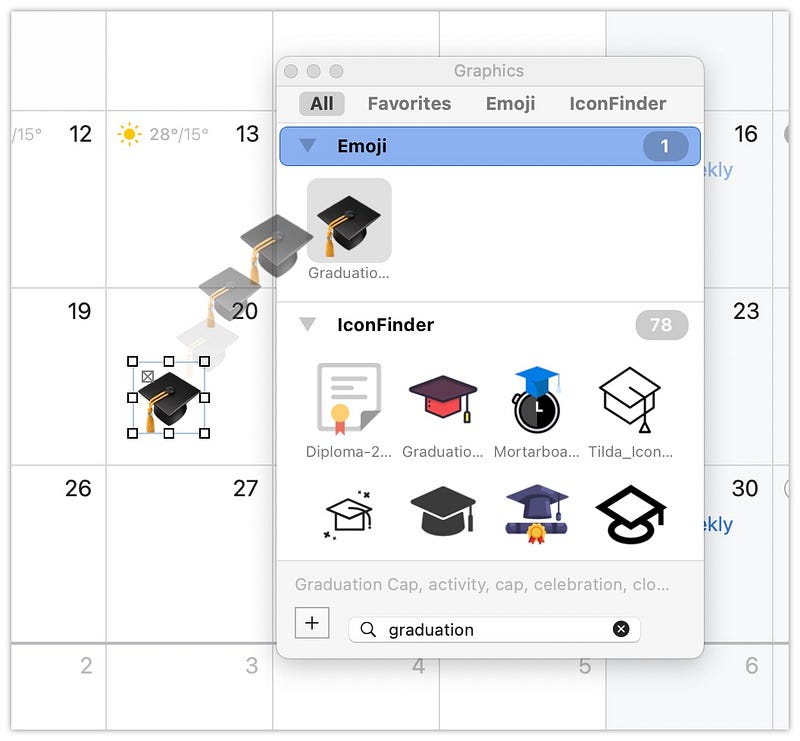
- Use sticky notes and graphics to make it visually easier to spot events.
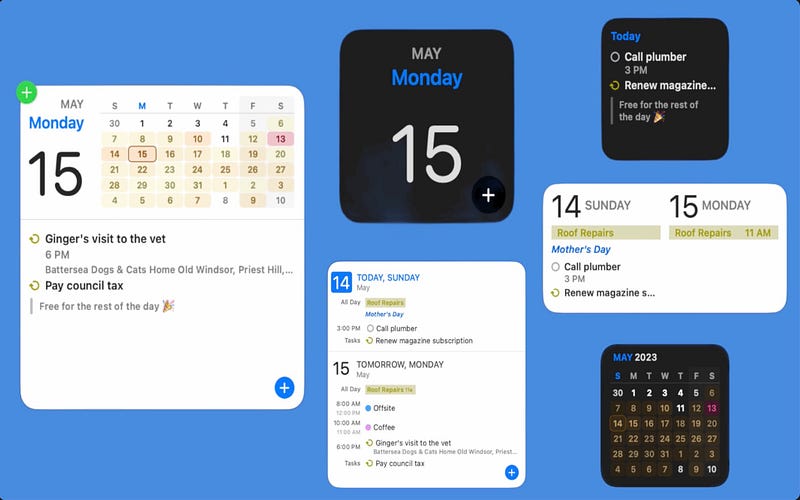
- Try out these amazing widgets on your Mac desktop.
So it’s worth taking some time to download BusyCal, coz it could prolly become your only go-to life organiser.
#8. KeyKey Typing Tutor
($14.99 for lifetime | Available on Setapp)
I’m a pretty fast typer (75 wpm) and I attribute that home-schooled skill to two things: Typespeed and KeyKey Typing Tutor.
Typespeed is a Homebrew (cask) game. (More info about it in #5 of this article → )
KeyKey Typing Tutor is an app that taught me how to type fast like a pro. And that only happened when I lost the need to look at the keyboard.
KeyKey’s first lesson is exactly that.
Did you know F and J keys on your Mac have bumps? I’ve never noticed that until KeyKey told me. They help me correctly position my fingers on keyboard without even having to look at it.
KeyKey then taught me with which fingers to press which keys.
Every next lesson got increasingly challenging. And only when I passed a lesson with zero typos, I progressed to the next one.
It shows my typing speed (char/min or words/min), accuracy, and typos for every task.
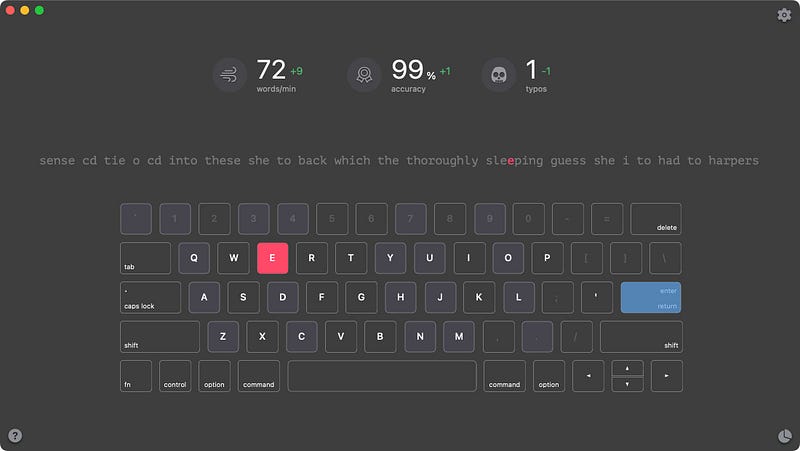
And, as my ego doesn’t want me to fall below my previous record, my typing speed has drastically improved.
Oh, and by playing Typespeed game, my improvement got a l’il more boost.
#9. Keysmith
(Free, $54 one-off for Pro | Available on Setapp)
Imagine… How nice would it be if you automate
- Opening Google on Safari,
- Executing a command on Terminal,
- Approving a PR on GitHub,
- Snoozing an email for next week.
Keysmith does exactly that.
All you need to do is think of a mundane (repetitive) task you perform regularly.
Thought? Great.
Now open Keysmith and start recording that task. The app records what you do, where you click, what you type, etc. Everything.
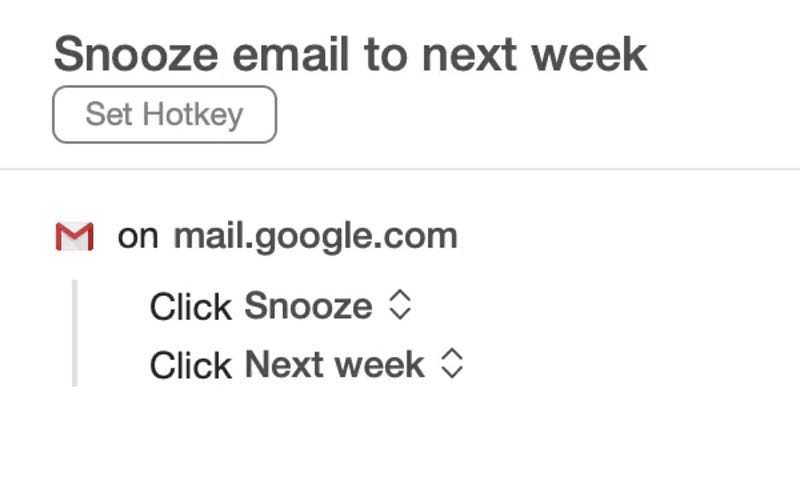
Now assign a hotkey and a name to what you’ve just recorded. And whenever you use that hotkey, Keysmith executes that with blazing fast speed.

Best part, the app remembers what you click. And if it couldn’t, it remembers the coordinates. Note, the recording is always editable later.
There are unlimited use cases for the app and the developer leaves them to your imagination. What are the use cases you can think of right now?
#10. MarginNote
($40 for lifetime | Available on Setapp)
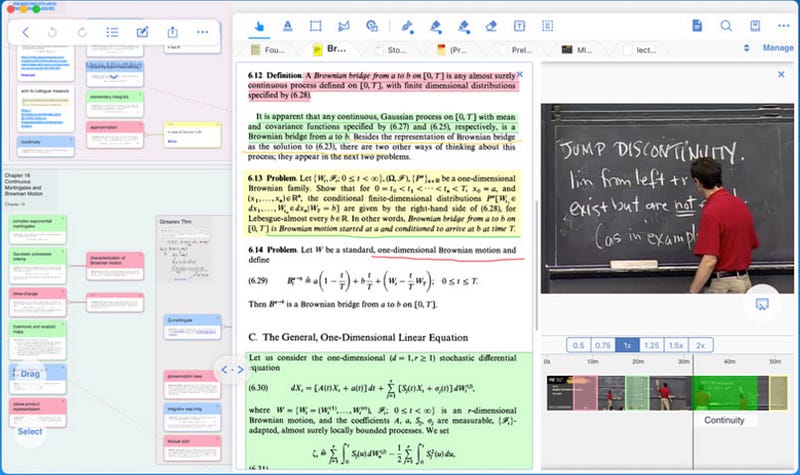
MarginNote is the most sophisticated note-taking app I’ve ever seen. Though it’s primarily designed for students, it can be used by working professionals and freelancers too.
The app could do so much that I can even write an ebook about it and sell it for $5. Lemme try my best to brief it in a few lines.
MarginNote lets you
- Import your lecture videos, pdfs, and all types of study materials.
- Use the OCR engine to recognise what’s in a material.
- Highlight their important parts.
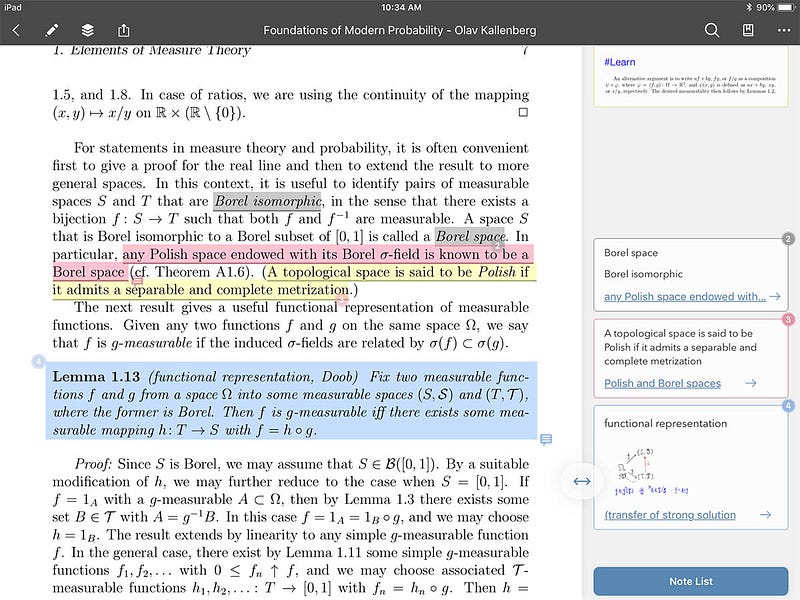
- Create own notes for the highlights.
- Create flow charts, mind maps, and put sticky notes to parts of videos and study materials.
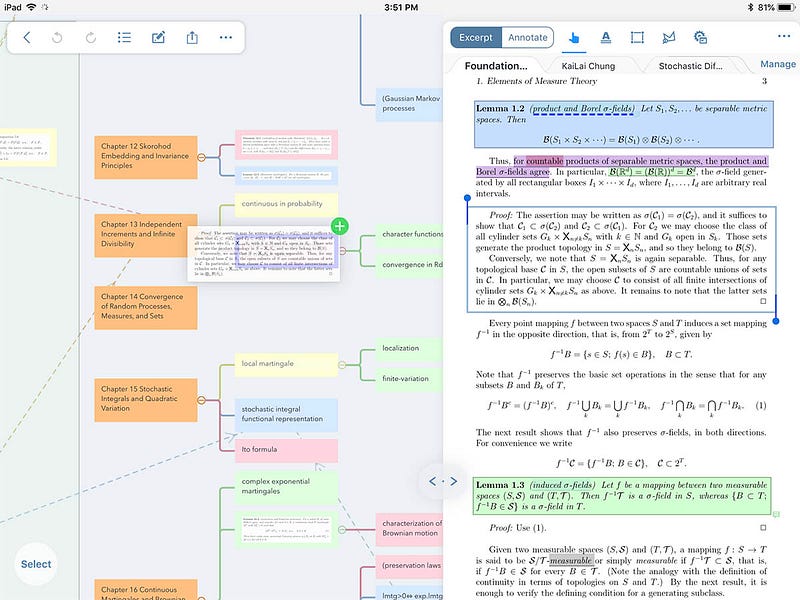
- Manage your notes with #hashtags.
- Use its built-in web browser for research.
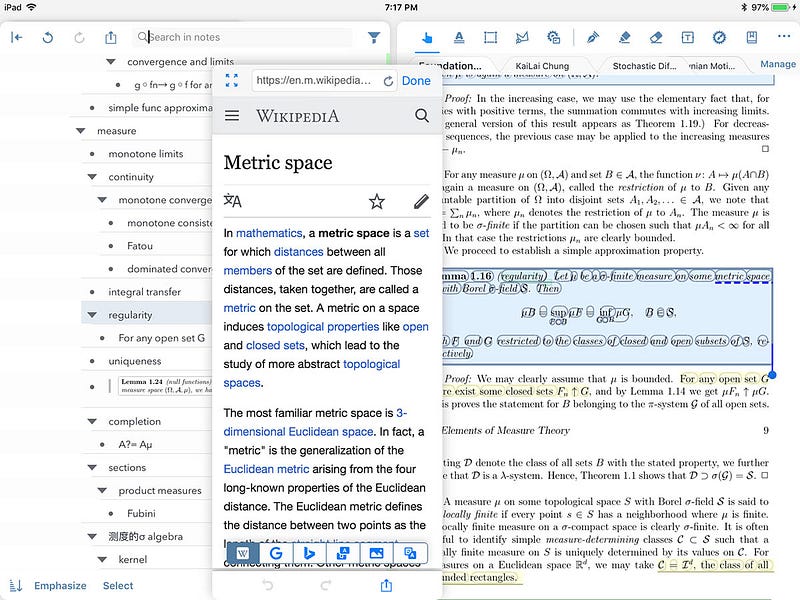
- Create flash cards for easy exam preparation.
Now that you’ve understood how gigantic of an app MarginNote is. And if you’re a student, teacher, or someone who works with lots of materials everyday, it’s high time you’ve downloaded it.
#11. NetSpot
($49 for lifetime | Available on Setapp)
“Aarrgh, the Wi-Fi is too slow!”
You might’ve heard this a bajillion times or you could’ve screamed this yourself too. But here’s the point, the problem doesn’t always need to be with the Wi-Fi. It could be with the router’s location too.
A router shouldn’t just exist. It should be strategically placed at a location to ensure maximum coverage and the best Wi-Fi speeds possible.
If you work in the same room your router’s placed with nothing between you both, no worries. But if you (or your family/colleagues) work in different rooms everyday, it’s time you think of the strategic location.
To know it, try NetSpot.
It helps survey your site for the best Wi-Fi speeds, analyse it and plan router and extender placements.
All you need to do is: Create or upload a map of your home or office, set your current location and router’s, and move around.

This will generate a heat map of your Wi-Fi bandwidth, that helps you plan where to place your router and extenders.
Cool, right?
But why did I include this in a productivity app list? — Coz better productivity requires faster Wi-Fi.
#12. NotePlan
($9.99/mo or $99.99/yr | Available on Setapp)
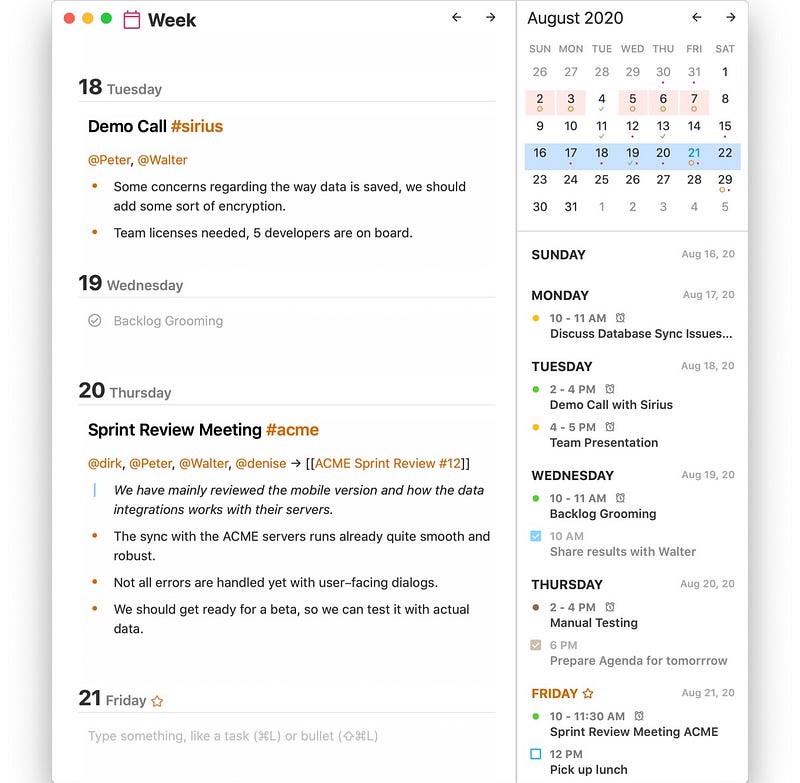
The name says it all — NotePlan. It helps plan your days with simple & plain notes.
You can create tasks by simply typing them in a new line. Then you can mention someone using @, segregate them using #ashtags, and set deadlines using dates.
I can best explain it with examples:
- plan report for #sales @michael > 2023–10–25
- call back @joyce for #urgent meeting
- call with @mike about the upcoming [[Stoneville Project]] and the planning. It’s all about the timelines! Make sure that @trayci gets the memo too. As long as we deliver in time, we’re good to go.
Now that you’ve got it. — (# helps you segregate notes, @ helps you mention someone. [[note_name]] helps interlink notes.)
All the reminders you create this way will be synced real-time to your Apple calendar and all your notes to iCloud.
All of this, plus NotePlan offers all the formatting options you’ll ever need — like B, I, Bullets, Checklist, Headings 1–3, Table, Line Separator, Quote, Code Block etc.
Isn’t this a completely new and easy way to organise your days? What do you think of it?
For more a’macOS’zing apps, read these
Finally,
If you love exploring new iOS & Mac apps (like me), consider subscribing to Setapp. You’ll get access to a curated collection of 240+ amazing apps for just $9.99 a month, which rather cost hundreds of dollars if purchased individually.
- Use my affiliate link to start your Setapp journey! (It’s free for 30 days)
- Get my free list of 70+ Ultimate macOS Apps on Setapp here.
If you enjoyed this story, join 410+ others to get notified whenever I publish a new story.


