
14 Safari Hacks I Desperately Want Every iOS User to Use
Get ready to learn a few tricks you’ve NEVER used before
iOS 15 gave Safari massive upgrades. Best of all: Tab Bars.
This let users with short hands or those without a “Mini” access the address bar easily. If you aren’t using Safari tab bars, you’re unknowingly missing something big.
A handful of points in this article are optimised for Tab Bars only. So before you start reading this article (or execute what’s written), switch to that in Settings ⚙️ < Safari 🧭 < Tab Bar.
On to Safari hacks →
#1. Search 🔍
• In a tab
The traditional way of searching for a keyword on a webpage sucks. That way, you had to click ‘Share’, scroll down, click ‘Find on Page 🔍’, and then execute the search.
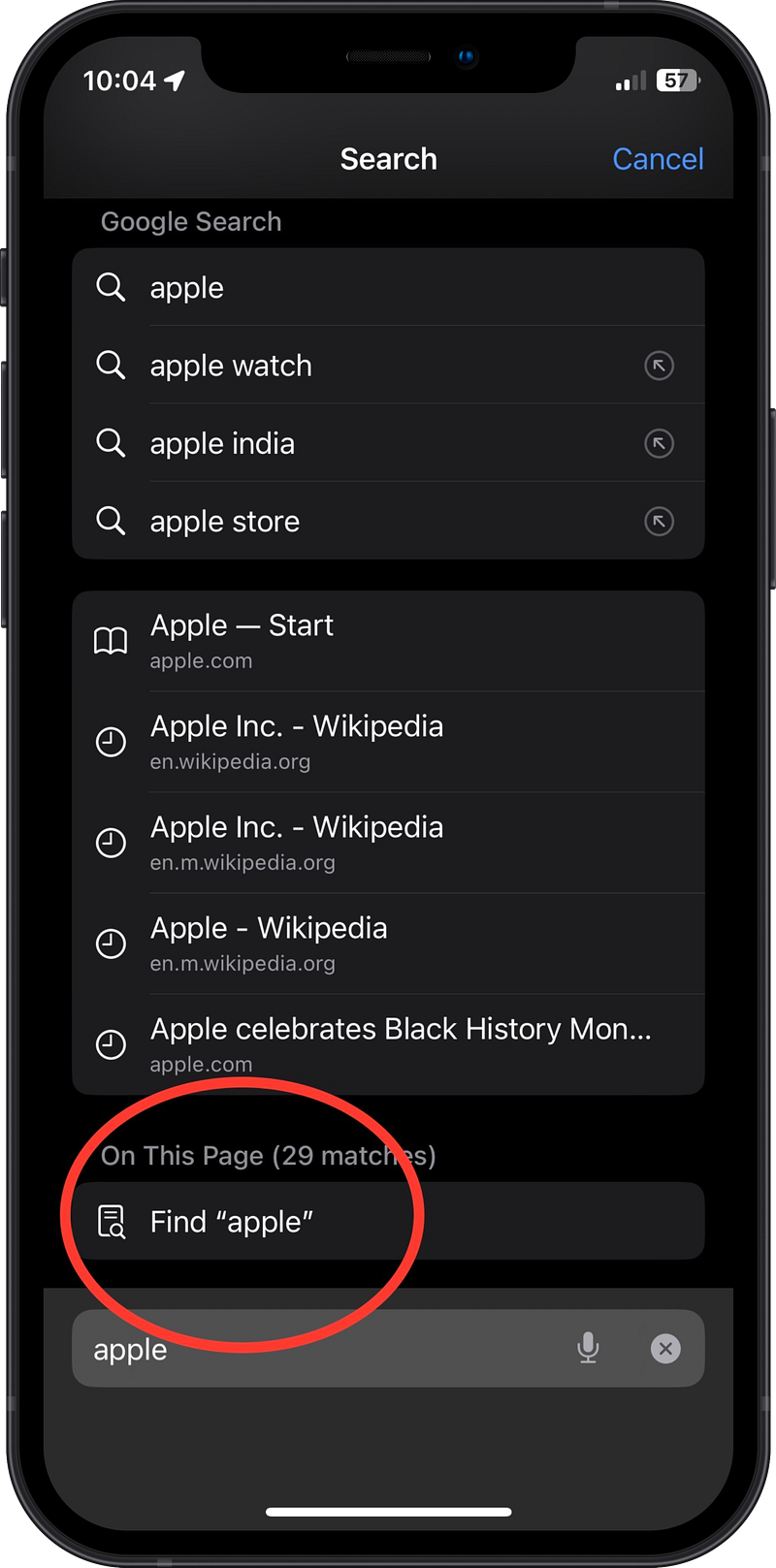
Instead, simply type the keyword on the address bar. Scroll down, click ‘On this Page’, and you’ll see the results.
• Across tabs
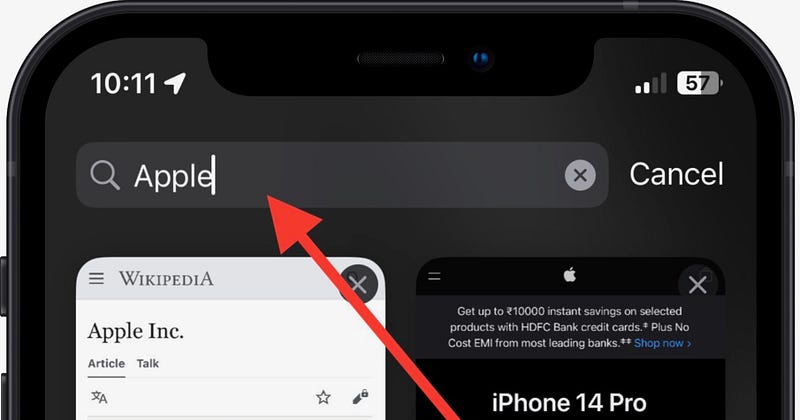
People with a myriad of active tabs really need this → Swipe up the tab bar swiftly (like you close apps) to open Tab Switcher (remember this).
Now scroll up (swipe your finger down) to find ‘Search Tabs’ secret option. Go ahead and search for the tab(s) you need.
Bonus feature
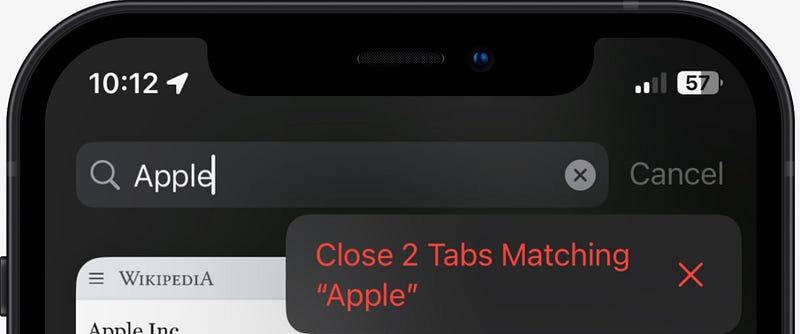
- Tap cancel to cancel the search.
- Tap and hold cancel to close all matching tabs.
#2. Swipe ↔️
• To switch tabs
The best part of tab bars is that you can switch between consecutive tabs just by swiping left or right on their address bars.
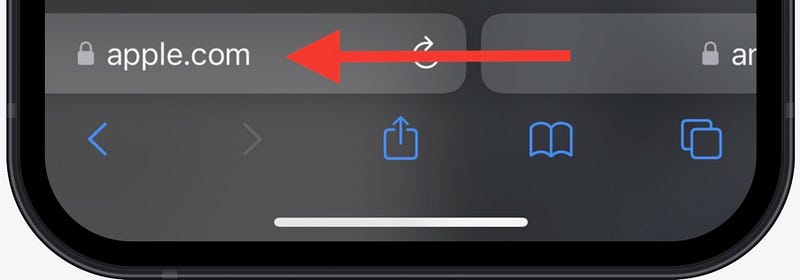
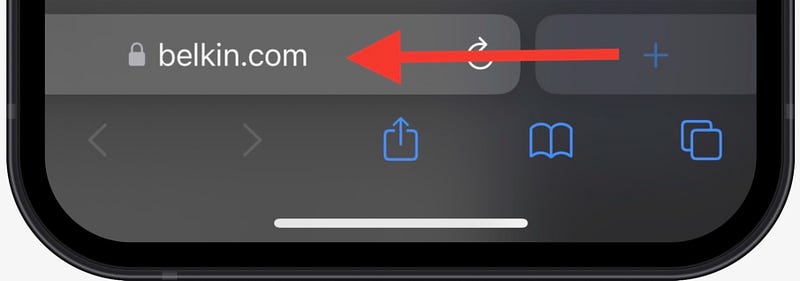
• To create a new tab,
just swipe left on the last tab.
• To close a tab, ❌
instead of clicking its ‘X’ glyph on Tab Switcher, swipe it left and it’ll go away.
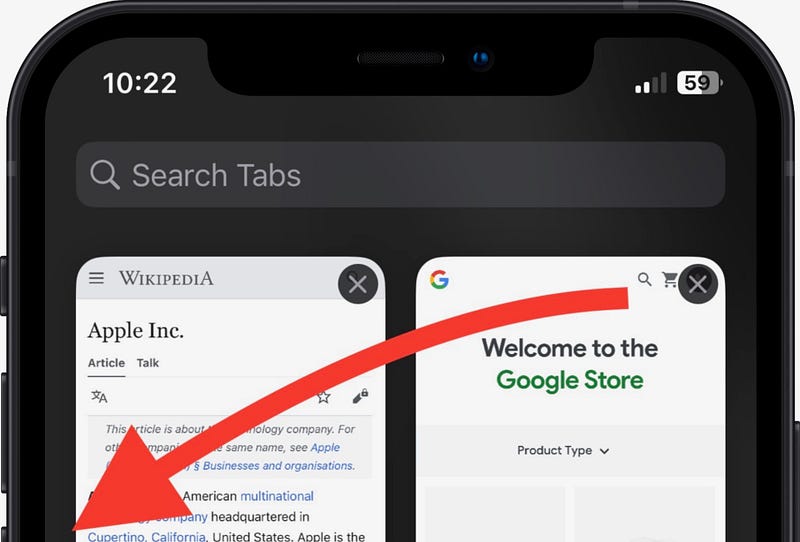
<Tinderers get this easily. Anyone here?>
• To visit previous or next page,
instead of getting your thumb down to the < or > glyphs at the bottom,
- swipe a page right from its left edge to visit its previous page, or
- swipe a page left from it right edge to visit its next page.
#3. Tap and hold 👆
• Visit a copied link quickly 🔗
If you have a link copied to the clipboard, the quickest way to open it is to
- Tap and hold tab bar,
- Click on ‘Paste and Go 📑’.
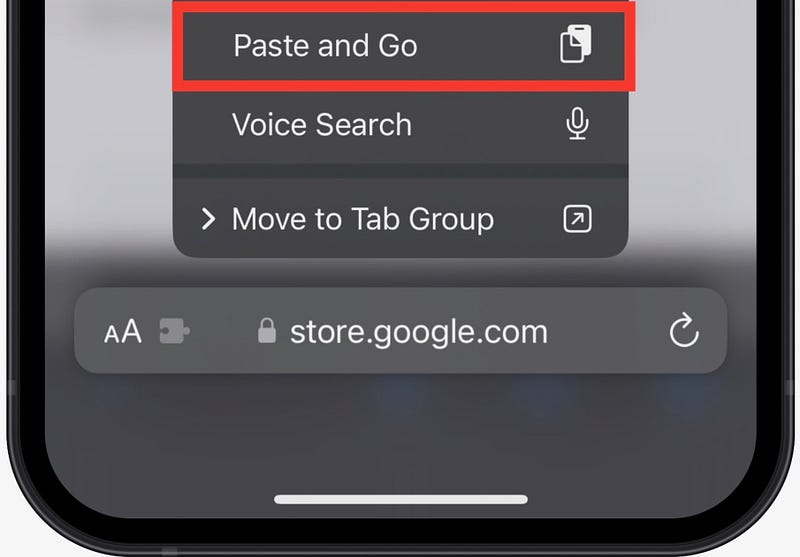
This replaces multiple clicks.
• Pin tabs 📌
You might be having 1–2 important tabs in the sea of 92 tabs. So pin them and they’ll always stay at the top, safe.
Here’s how.
Tab and hold a tab in Tab Switcher, and click ‘Pin Tab 📌’.
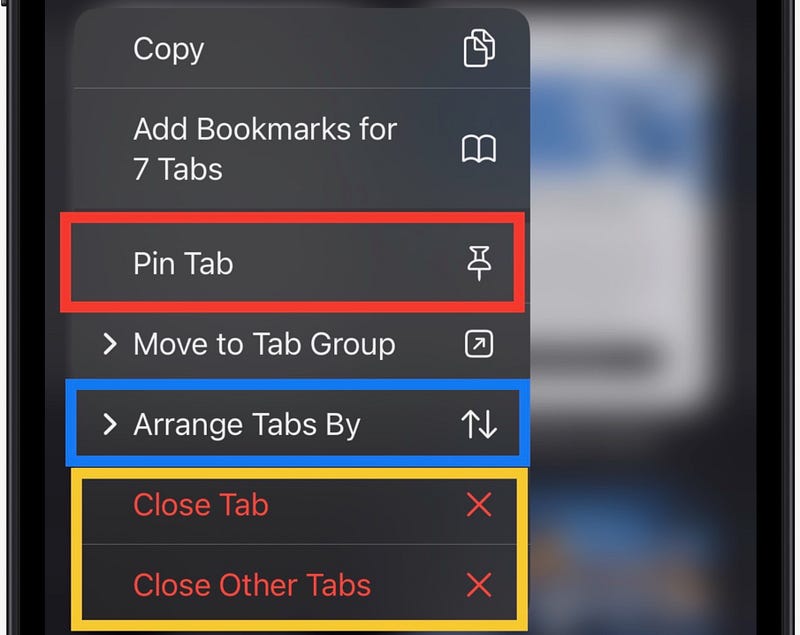
• Arrange tabs by …
If your active tabs just created a mess, you should arrange them in some manner you could easily find one.
Simply click ‘Arrange Tabs By 🔃’ and you can choose to arrange them by
- title,
- or website.
• Close tab (or all other tabs) ❌
You could also close a tab, or close everything else except the current tab.
Note:This won't clear pinned tabs. That's the advantage of pinning a tab. They can't be closed accidentally by swiping left, or in bulk. You can only close them individually.• Open a previously opened page
If you want a switch to a page two steps behind the current page, you don’t need to tap ‘<’, wait for the page to load, and tap ‘<’ again.
Simply hold ‘<’ and the page’s History pops up. Now choose the page you wanna navigate to.
Note:This even applies to next pages. Tap and hold '>' to view next pages you've already visited.To open a previously opened page in a new tab, tap and hold ‘➕’ glyph at the bottom-left corner on Tab Switcher.
• Take sneak peek of a hyperlink 🌐
If there’s a hyperlink* on a page and you wanna check if that’s the page you’re looking for, you don’t need to tap on it. That will open the page fully.
Instead, tap and hold on it, and you’ll get a preview.
- If that’s the page, click on the preview, and the page loads fully.
- If not, tap anywhere else, and the preview closes.
* A piece of text (often underlined and highlighted in blue) that redirects you to a new page when clicked.This is a hyperlink to this article, for example.• Copy text or subject of an image
(This feature debuted with iOS 16.)
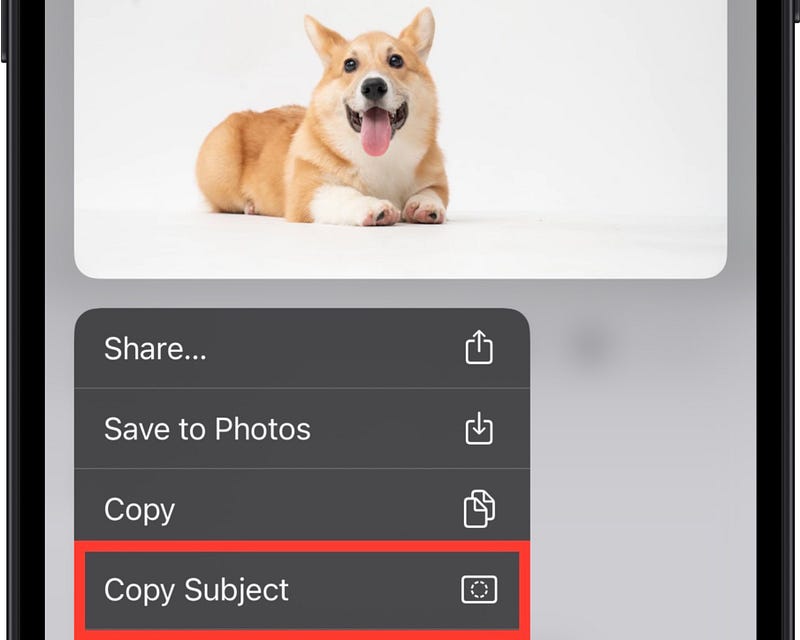
Oh, there’s an image on a webpage and it shows
- a quote by James Clear that thrilled you up, or
- a little doggy you found so cute.
And you wanted to have it local to your device. So, as a general rule,
If it’s text, tap and hold the text like you do for normal text on your iPhone. This lets you select a portion of text, and copy it.
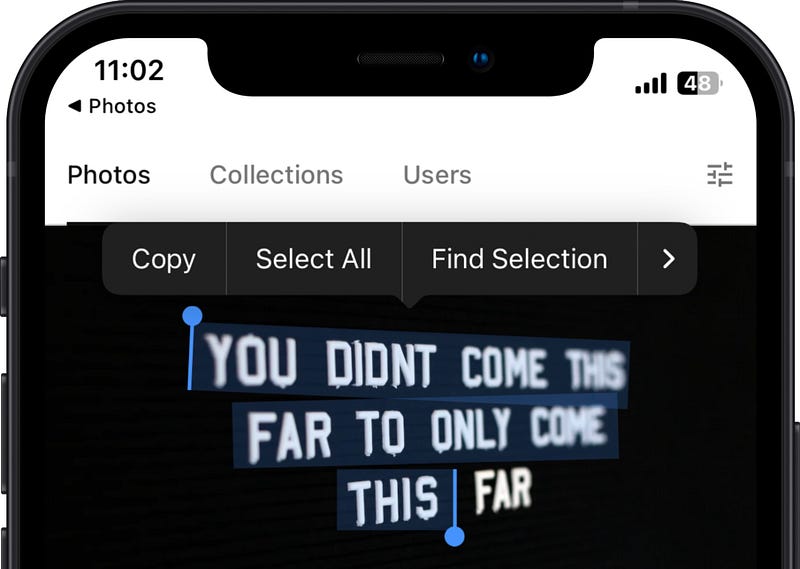
If it’s an image, tap and hold it, and you already know you could save it this way. But did you know you could copy its subject (only)?
• Reader mode (really quick) 🤓
If you’re reading this on Safari iOS, you can try these right now.
- Tap and hold ‘aA’ glyph on the address bar to toggle Reader Mode.
- Now tap (don’t hold) ‘aA’ for Reader Mode settings.
- Tap and hold ‘aA’ to exit Reader Mode.
These hacks just saved you multiple clicks.
• To bookmark a tab (or all active tabs), 📖
Tap and hold ‘Bookmarks 📖’ glyph at the bottom, and you’ll see this.
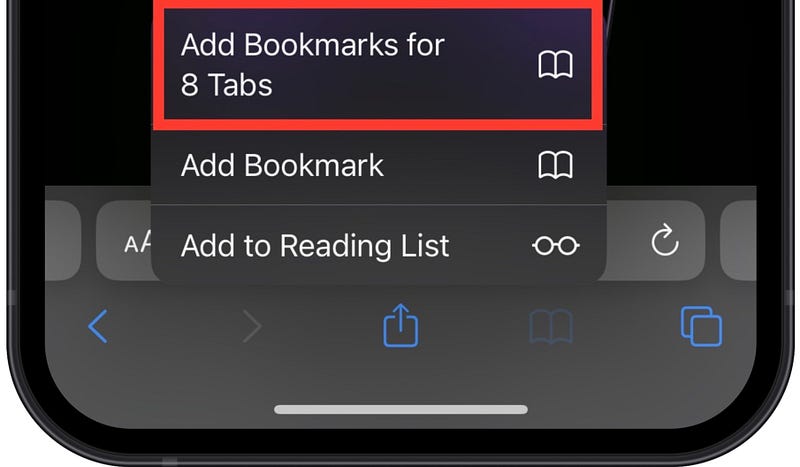
Now you know what to do.
• Drag tabs outside Safari to save or share
If you wanna share multiple tabs to a colleague, or save them to notes,
- Open Tab Switcher.
- Tap and hold a tab, and shake it.
- DON’T LEAVE THE FINGER ON THE TAB. Tap other tabs one by one with another finger (Now they form a stack).
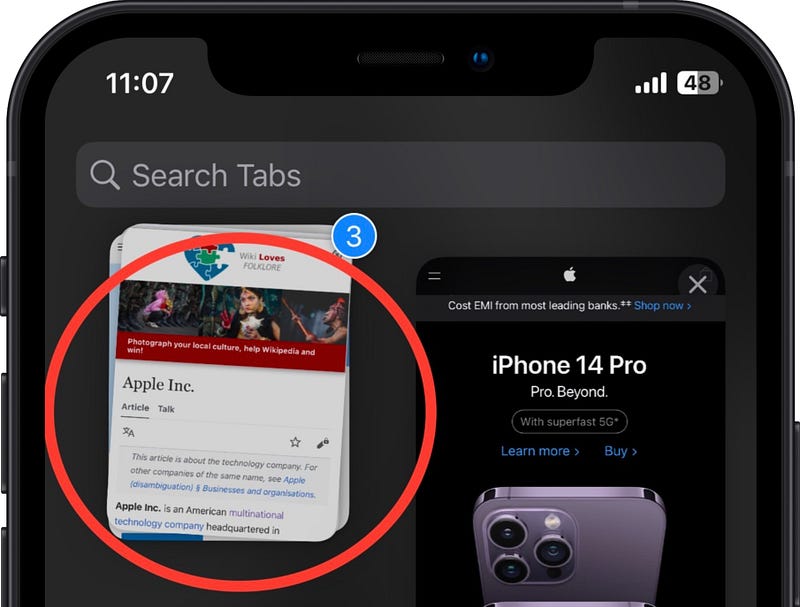
- DON’T LEAVE THE FINGER AGAIN. Switch to another app (like Notes, iMessage) with another finger and drop this stack there to save or share it.
#4. Copy links of all open tabs ⛓️
Some apps like WhatsApp don’t support the previous ‘Drag & drop’ tip. To share links of multiple tabs in such apps,
- Open Tab Switcher,
- click on ‘x Tabs’ below (x meaning number of active tabs),
- click ‘Edit’ at the top-left corner,
- click three dots glyph,
Now, you could Copy Links 🔗 of all the active tabs, and paste it anywhere.
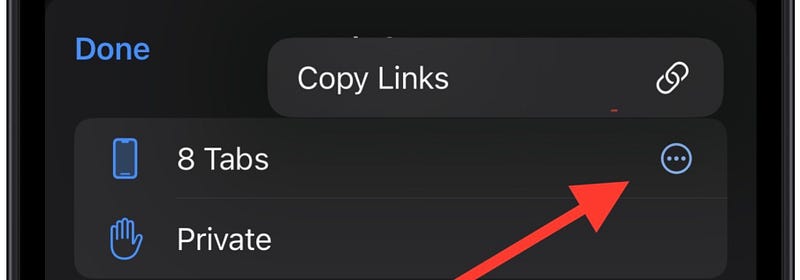
Note:Unlike in the previous tip, you can't choose which tabs to include in the copy list. It copies links of ALL the active tabs.#5. Resize images before uploading 🗜️
Sometimes,
- you wanna save data by uploading a resized image, or
- a page asks for an image <50kb in size, but you have a 4mb image.
Often, we employ online tools for resizing images, forgetting iOS could do it natively at par with popular tools.
Here’s how you try it → After you’ve chosen an image to upload,
- tap on ‘Actual Image (x)’ (X meaning image size),
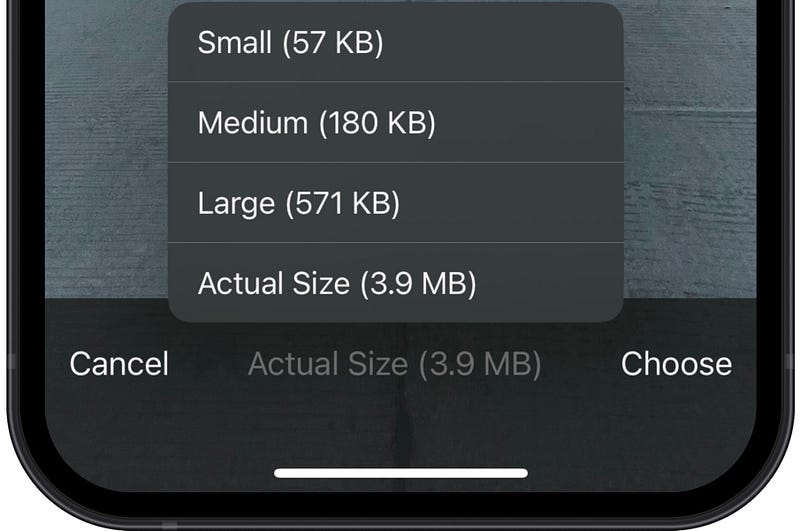
- choose any of the options listed, and the image will be resized accordingly and uploaded.
Note:This will neither resize the original image, nor save the resized image locally.#6. Keep Reading List offline ⬇️
People who love reading stuff en route will love this too → Go to ‘Settings ⚙️ < Safari 🧭’ and toggle ‘Automatically Save Offline’.
Now, any webpage you add to the Reading List will be saved offline and can be read later even without an internet connection.
Note: This only offline-s text and images. Videos aren't downloaded.To add a webpage to Reading List, tap and hold ‘Bookmarks 📖’ glyph at the bottom, and click ’Add to Reading List’ 👓.
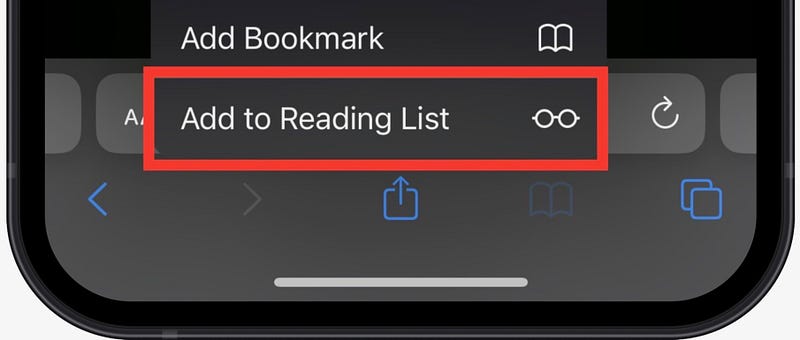
But if you think you always have internet available, you can toggle it off as it saves space.
Did you know?
The glasses glyph beside ‘Add to Reading List’ has a GREAT significance. Refer to #5 of this article to know it.
#7. Save webpages as pdf 📄
To save a webpage as pdf (regardless of how long it is),
- take a screenshot, tap on it,
- tap ‘Full Page’ at the top.
Now, it’s a pdf and you could save it for any purpose.
I wish Mac’s Safari gets this feature soon.
#8. Automatic desktop mode for specific websites 🖥️
Few websites (like Med!um) unlock all their functionality only on desktop mode. But isn’t it too tiresome to toggle it on everytime you visit it?
Here’s how to make desktop mode permanent for a website.
- Visit the site.
- Tap aA glyph on the address bar.
- Tap ‘Website Settings ⚙️’.
- Toggle ‘Request Desktop Website’.
Done.
#9. Tab Groups
If you’ve opened few tabs for your current project, and don’t want other irrelevant tabs to create a mess around them, use Tab Groups — a feature from iOS 15.
Tab Groups separate a group of tabs from the rest so you’d find it less distracting while working on them.
To add all active tabs to a new Tab Group,
- Open Tab Switcher,
- click on ‘x Tabs’ below (x meaning number of active tabs),
- tap ‘➕ New Tab Group from x Tabs’.
- Give it a name, and you’re good to go.
Note, your Tab Groups sync with all your devices.
From iOS 16, you could even collaborate on them with friends and family, so they can add or delete any pages in the group as well.
#10. Preload Top Hit 🔝
(You didn’t know your iPhone already does this!)
Most of the cases, we go with the first search result on Google (or any other search engine), right? (Hands-down).
So Apple secretly toggled on a setting — Preload Top Hit — that starts loading the first search result of any search engine immediately as the results appear.
This will save your time (if you’re actually gonna click it) at the cost of some battery and data.
But if you think you always have good internet, or won’t often go with first search results, prefer turning it off (in ‘Settings ⚙️ < Safari 🧭’ < Preload Top Hit’).
More more sneaky iOS settings you could blindly turn off,
9 Sneaky iOS 16 Settings You Need To Turn Off Now
Protect your privacy, battery, and data
medium.com
#11. Sync tabs to all devices 🔄
I know most of you folks already use this.
Syncing Safari with iCloud not only preserves your browsing data, if your device gets lost. But also syncs & shows active tabs real-time across all your devices.
I can’t give an exact scenario where this’d help you. But it will be handy, for sure.
Here’s how I see the synced active tabs on one of my iPhones.
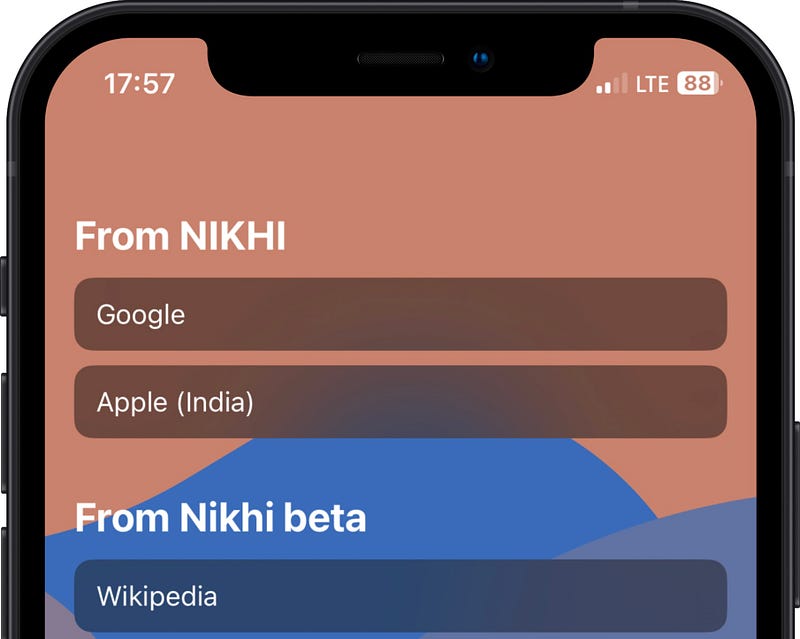
To sync Safari with iCloud, toggle ‘Settings ⚙️ < your name < iCloud ☁️ < Show All < Safari 🧭’.
#12. Skip CAPTCHAs 🤖
(This game-changing feature debuted with iOS 16)
CAPTCHAs are getting increasingly dry and difficult these days.
Maybe it expands to: Common Authentication Processes (even) Trump Can Hardly Achieve.
To help you bypass them, brother Apple lends you his hand with this hidden feature — Automatic Verification (in ‘Settings ⚙️ < your name < Password & Security’).
Toggle it on, and your hassle is a fifth gone.
But is it acceptable? Yep. This doesn’t disobey the purpose of CAPTCHAs, rather it verifies your human-ity by your device and Apple ID — that confirm you’re not a metal.
#13 Remind yourself about a webpage ⏳
Say you got an important call while reading an interesting article. What would you do?
Bookmark it… And set a reminder to read it again? N-O. Don’t do that when you can hit two birds with a single stone.
Before closing Safari, just say, “Hey Siri, remind me about this page later”. And your reminder is set.
Best part, you won’t need to bookmark the page. It is linked to the reminder. Simply tap the Safari icon or the webpage’s favicon to open it back.
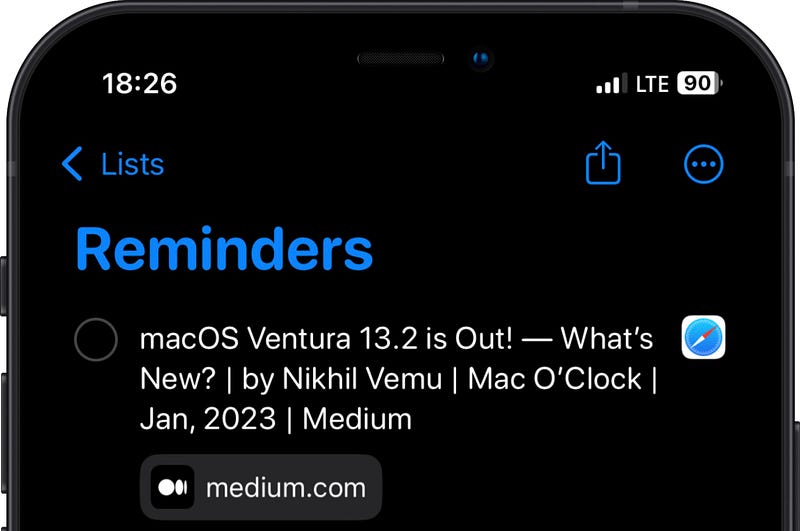
You can best use this Siri feature to remind yourself to pay a bill on the payment website.
#14. Autofill verification codes 🔓
Filling 2-FA verification codes is one of the most tiresome things to do — provided, you use third-party authenticators.
I use this.
— Apple’s in-built authenticator app that lies inside Keychain.
So whenever I had to type a 2-FA code, my keyboard prompts sth like this.
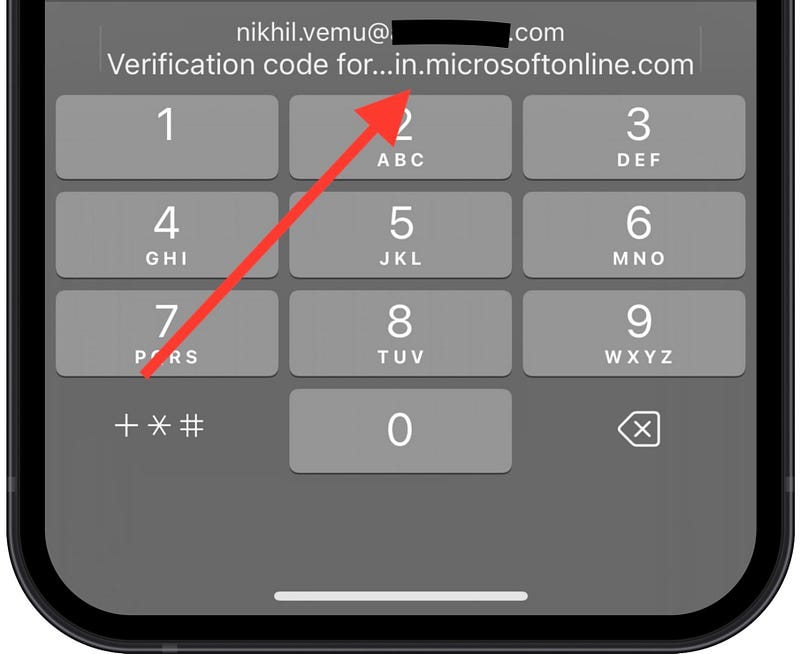
Just a click on it, and the code gets filled in the box after Face ID verification.
Great news!
From iOS 16, you could autofill codes from third-party authenticator apps too. Refer to #3 of this article to know how.
For more hidden iPhone tricks, read these.
Join 235+ others to get notified whenever I publish a new story.


