avatarNikhil Vemu

Free AI web copilot to create summaries, insights and extended knowledge, download it at here

5692

Abstract

.</p><p id="8b1d">So I headed over to <i>‘Settings ⚙️ < Clock 🕰️ < Siri Face Data Sources’</i>, and toggled it off for apps I didn’t want suggestions from.</p><div id="3eda" class="link-block"> <a href="https://readmedium.com/10-absolutely-useful-siri-tricks-you-probably-havent-tried-yet-312772cfb99"> <div> <div> <h2>10 Absolutely Useful Siri Tricks You Probably Haven’t Tried Yet</h2> <div><h3>These simple tricks might save you hours a year</h3></div> <div><p>medium.com</p></div> </div> <div> <div style="background-image: url(https://miro.readmedium.com/v2/resize:fit:320/1*hjcEyEYTB4NNWUUx86M57Q.png)"></div> </div> </div> </a> </div><h1 id="f474">#5. Ping misplaced iPhone 🔍</h1><p id="f65e">The Apple Watch is so standalone you won’t need your iPhone for most actions.</p><div id="449e" class="link-block"> <a href="https://readmedium.com/7-useful-things-your-apple-watch-can-do-without-your-iphone-nearby-c151f5c94089"> <div> <div> <h2>7 Useful Things Your Apple Watch Can Do Without Your iPhone Nearby</h2> <div><h3>This might make you bold enough to leave your iPhone at home</h3></div> <div><p>medium.com</p></div> </div> <div> <div style="background-image: url(https://miro.readmedium.com/v2/resize:fit:320/0*vXpFnm-STnFwBD1X)"></div> </div> </div> </a> </div><p id="521f">So it’s common iPhone getting misplaced.</p><p id="3eb5">Anytime that happens, open Control Center and tap this little icon.</p><figure id="5035"><img src="https://cdn-images-1.readmedium.com/v2/resize:fit:800/1*UfhfBsPePOfH_RNUSn9_Rw.jpeg"><figcaption>You can add it if it doesn’t appear (Credit: <a href="https://support.apple.com/en-in/guide/watch/apd06bc15da1/watchos">Apple</a>)</figcaption></figure><p id="b0a9">This pings your iPhone, and it makes some sound.</p><p id="b5c8">For visual cue, tap and <b><i>hold</i></b> the icon. This, along with sound, will also trigger flashes on your iPhone.</p><div id="b80d"><pre><span class="hljs-symbol">Note:</span> The misplaced iPhone <span class="hljs-keyword">should </span><span class="hljs-keyword">be </span>connected to your Apple Watch via <span class="hljs-keyword">Bluetooth </span><span class="hljs-keyword">and </span>Wi-Fi for this to work.</pre></div><h2 id="6bb1">Sadly, I can’t use this trick. Here’s why.</h2><p id="874b">I have an iPhone and a “cellular” Apple Watch. And I rarely sync my Apple Watch to iPhone. So they aren’t connected most of the time (This saves me from EMF radiation).</p><p id="c8be">This is why, if my iPhone’s misplaced, I can’t ping it from my Apple Watch.</p><p id="d146">Heck, I can’t even call myself from Apple Watch to iPhone — as technically, I can’t call myself, right?</p><p id="9ac9">The only option: calling it from some other guy’s phone.</p><h1 id="6f40">#6. Transfer incoming call to iPhone 📲</h1><p id="3191">Let’s say a call comes on your Apple Watch, but you wanna take it on your iPhone. But you need a few seconds to grab it.</p><p id="ec7b">Also, you don’t want the call to hang up in the meanwhile. <i>(Oh, feels like a cinematic thriller.)</i></p><p id="772c">What would you do? Lift the call, and say hey wait a second.? <b>NO.</b></p><ul><li>Tap the three dots glyph at the bottom right corner on your Apple Watch,</li><li>Tap <i>‘Answer on iPhone’</i>.</li></ul><p id="4937">This will answer the call on your iPhone, <b><i>but on hold</i></b>.</p><p id="d576">Until you unhold it, they’ll be asked to hold to the call for a moment.</p><p id="4ee5">All they’ll hear is this.</p> <figure id="f175"> <div> <div> <img class="ratio" src="http://placehold.it/16x9"> <iframe class="" src="https://cdn.embedly.com/widgets/media.html?src=https%3A%2F%2Fw.soundcloud.com%2Fplayer%2F%3Furl%3Dhttps%253A%252F%252Fapi.soundcloud.com%252Ftracks%252F1440682267%26show_artwork%3Dtrue%26secret_token%3Ds-fS6qSz4DZSp&amp;display_name=SoundCloud&amp;url=https%3A%2F%2Fsoundcloud.com%2Fnikhil-vemu%2Fanswer-on-iphone%2Fs-fS6qSz4DZSp%3Fsi%3Dad21c6c39d7f4a76811917ad14b17bac%26utm_source%3Dclipboard%26utm_medium%3Dtext%26utm_campaign%3Dsocial_sharing&amp;image=https%3A%2F%2Fi1.sndcdn.com%2Fartworks-P8WuECg96ak2dXzU-ANnJQw-t500x500.jpg&amp;key=a19fcc184b9711e1b4764040d3dc5c07&amp;type=text%2Fhtml&amp;schema=soundcloud" allowfullscreen="" frameborder="0" height="166" width="800"> </div> </div> </figure></iframe></div></div></figure><p id="7cca">If you aren’t able to find your iPhone, tap the glyph at the bottom-left corner. It pings your iPhone — remember tip #5?</p><p id="415f">Note, you could transfer a call from Apple Watch to iPhone even after answering it.</p><div id="a829"><pre><span class="hljs-symbol">Note:</span></pre></div><div id="d6e4"><pre>Your Apple Watch and iPhone need to be connected to <span class="hljs-keyword">do</span> <span class="hljs-keyword">this</span>. I wish I could <span class="hljs-keyword">do</span> <span class="hljs-keyword">this</span> even <span class="hljs-keyword">when</span> they<span class="hljs-string">'re not connected - by cellular signals.</span></pre></div><h1 id="86fb">#7. Know charged % while charging 🔋</h1><p id="7c8f">Apple Watch doesn’t show up the current battery percentage while charging. It only shows a <b><i>circular indicator</i></b>.</p><p id="697a">To view the exact charge %, just

Options

tap on it.</p><h2 id="8f72">To prolong your Apple Watch’s battery life,</h2><div id="059c" class="link-block"> <a href="https://readmedium.com/15-apple-watch-settings-you-should-turn-off-right-away-51eaf9b7c263"> <div> <div> <h2>15 Apple Watch Settings You Should Turn Off Right Away</h2> <div><h3>Make the most out of your Apple Watch</h3></div> <div><p>medium.com</p></div> </div> <div> <div style="background-image: url(https://miro.readmedium.com/v2/resize:fit:320/0*FWdWScWxBA4_TyvQ)"></div> </div> </div> </a> </div><h1 id="25ac">#8. Mute the current notification 🤫</h1><p id="5639">If you’re receiving a call, message, or workout feedback on your Apple Watch, you can mute it by tapping your palm on the display.</p><p id="ec72">Most people might already know this — But, did you know this will also mute the incoming call on your iPhone nearby?</p><h1 id="d4b0">#9. Mute Apple Watch entirely 😌</h1><p id="f9f9">Instead of just tapping your palm (as told in the previous trick), if you rest your palm for atleast 3 secs after a notification, your Apple Watch gets muted entirely. <i>(You’ll receive a haptic feedback to confirm that)</i>.</p><p id="74b2">Wouldn’t this be helpful in a meeting?</p><p id="b0ff">To use this feature, toggle <i>‘Cover to Mute’</i> in <i>‘Settings ⚙️ < Sounds & Haptics 🔊’</i>.</p><h1 id="2188">#10. Exploit Water Lock 💧</h1><figure id="718e"><img src="https://cdn-images-1.readmedium.com/v2/resize:fit:800/1*rLVVSotnNBmUYm_0o7soPQ.jpeg"><figcaption>Credit: <a href="https://support.apple.com/en-in/HT210931">Apple</a></figcaption></figure><p id="265c">The Water Lock feature basically prevents any unintended taps on your Apple Watch while wearing it in water.</p><p id="7b17">To unlock it, you have to tap and hold Digital Crown for a while (This will also eject water from speakers).</p><p id="2615">But, have you ever thought of using it as child lock?</p><p id="51db">I bet children’s little frenzy brains won’t think of holding a button for a few seconds to unlock a device.</p><h2 id="ed31">Wanna child lock your iPhone too?</h2><div id="99ee" class="link-block"> <a href="https://readmedium.com/apples-hidden-child-lock-feature-7850f7e3eadf"> <div> <div> <h2>Apple’s (Hidden) Child Lock Feature</h2> <div><h3>Many bought separate iPhones to their kids, not knowing this</h3></div> <div><p>medium.com</p></div> </div> <div> <div style="background-image: url(https://miro.readmedium.com/v2/resize:fit:320/1*GSs5FRN2-kGUHHVoF0chuA.png)"></div> </div> </div> </a> </div><h1 id="a154">#11. The secret behind Maps haptics 🗺️</h1><p id="28ca">Have you ever used Apple Watch Maps for navigation while biking? I use it almost everyday.</p><p id="95ff">I turn on <i>‘Wake on Wrist Raise’</i> so I could lift my hand up to see the path while on the go. But that’s not easy to do. Risky too.</p><p id="e286">Also, I never understood the meaning behind my Watch’s haptics while changing directions.</p><p id="a007">But lately, I did. → While at an intersection, if the Apple Watch plays a haptic:</p><ul><li>High tone followed by low tone (tick tock tick tock), go left ⬅️.</li><li>Low tone followed by high tone (tock tick tock tick), go right ➡️.</li></ul><p id="db70">If you feel a single vibration, welcome to your destination!</p><h1 id="1be5">#12. Unlock Tip calculator (and your generosity) 💵</h1><p id="d061">Are you a regular tipper? So sweet!</p><p id="234b">Did you know you could calculate a % of tip right in Apple Watch calculator? To do that,</p><ul><li>Open Calculator,</li><li>Enter the total bill amount,</li><li>Tap on ‘TIP’.</li></ul><p id="a0d7">(If you can’t see ‘TIP’ in Calculator, go to <i>‘Settings ⚙️ < Calculator’</i>, and toggle <i>‘💲 Tip Function’</i>.)</p><ul><li>Choose the % of total bill you wanna tip,</li><li>Choose the no. of people you wanna split the tip among,</li><li>View your tip below.</li></ul><h2 id="9871">For more amazing articles on Apple Watch, read these</h2><div id="65ff" class="link-block"> <a href="https://nikhilvemu.medium.com/list/a873043e5ae0"> <div> <div> <h2>All Apple Watch Things</h2> <div><h3> </h3></div> <div><p>Apple Watch Things nikhilvemu.medium.com</p></div> </div> <div> <div style="background-image: url(https://miro.readmedium.com/v2/resize:fit:320/0*322e62dc1593ab44e1ff7a967b4b85797e29a1a0.jpeg)"></div> </div> </div> </a> </div><p id="1e5a"><i>Join <b>240+</b> others to <a href="https://nikhilvemu.medium.com/subscribe"><b>get notified</b></a> whenever I publish a new story.</i></p><div id="c839" class="link-block"> <a href="https://nikhilvemu.medium.com/membership"> <div> <div> <h2>Join Medium with my referral link — Nikhil Vemu</h2> <div><h3>Read every story from Nikhil Vemu (and thousands of other writers on Medium). Your membership fee directly supports…</h3></div> <div><p>nikhilvemu.medium.com</p></div> </div> <div> <div style="background-image: url(https://miro.readmedium.com/v2/resize:fit:320/0*mBIp7BmNza2bZ74G)"></div> </div> </div> </a> </div></article></body>

Photo by Ryan Stone on Unsplash

12 Incredible Apple Watch Tricks You’ll Wish you Knew Sooner

The little device isn’t “little” inside

#1. Reorder watch faces without iPhone ↔️

I keep my most favourite watch faces adjacent so it’d be easy to switch between them — Just a swipe from the edge of the screen.

And I’ve always used my iPhone to reorder Apple Watch faces, not knowing I could do that right from the Apple Watch.

I lately discovered that. Here’s how →

  • Tap and hold the current watch face to open watch face switcher.
  • Tap and hold it again.
  • Now, drag it left or right to reorder it.
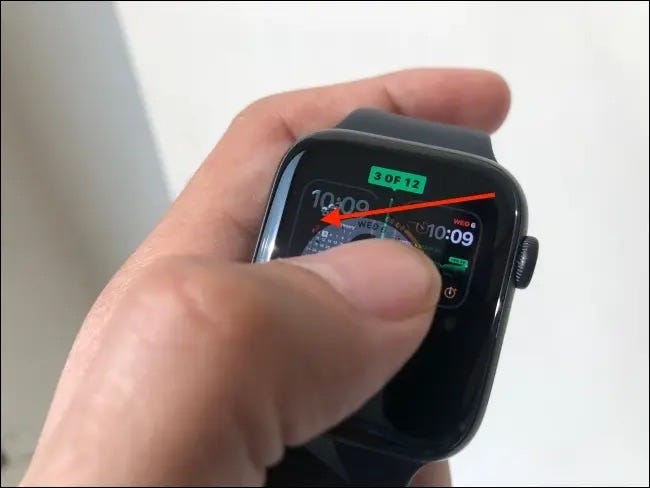
Credit: How-To Geek

#2. Clear RAM

This is a terribly underrated feature.

If a device’s acting slow, you should clear its RAM, na?

But how’s that on an Apple Watch?

  • Tap and hold side button till you feel a jerk.
  • Tap and hold Digital Crown till you get back to Home Screen again.

Your RAM is cleared!

Try these to clear RAM and Cache on your iPhone,

#3. Quick Actions (you SHOULD use this) 🤏

Have you ever used Assistive Touch on your Apple Watch? I did, but soon had to disable as it isn’t as comfortable as using the Watch the normal way.

However, I still use ‘Quick Actions’ — A part of Assistive Touch. The only gesture it supports: Double pinch.

I use this to keep my lazy right hand at rest for little actions like:

  • Capture photo from Camera Remote,
  • Answer/end phone calls,
  • Dismiss notifications,
  • Play/pause music,
  • Stop timer after it ends,
  • Snooze alarms,
  • Pause/resume workouts.

(If you follow tip #7 of this article to pause/resume workouts, every time you do that, Apple Watch will take a screenshot. Heck. Quick Actions is better to use.)

Just a double pinch, and things happen.

No need to by-heart the above bullet points, as you’ll be notified when you can use Quick Actions, by a little banner notification. Like this.
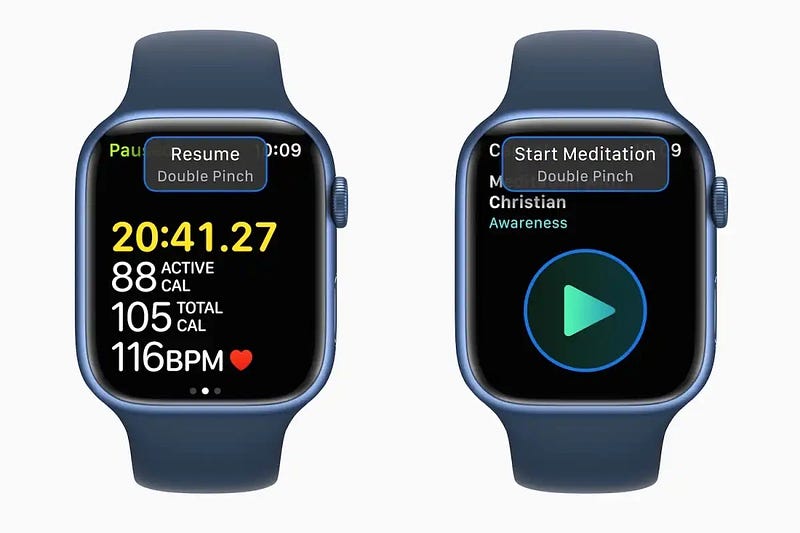
Credit: Macworld

To activate Quick Actions, go to ‘Settings ⚙️ < Accessibility 🚹 < Quick Actions’, and tap On.

To minimalise the banner notification’s appearance, tap ‘Minimal’ in the Appearance section.

#4. Make Siri watch face useful 🧹
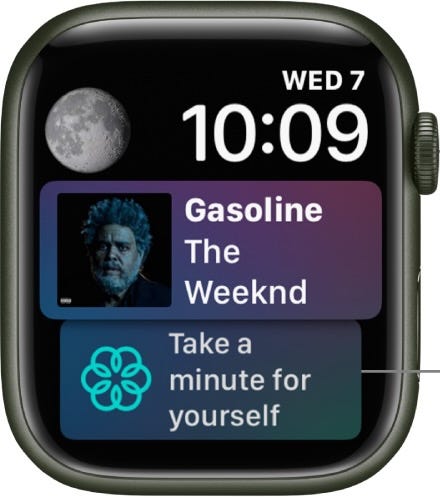
Credit: Apple

Siri is one of my favourite watch faces.

Demanding zero effort, it learns how I use my Apple Watch and suggests things — based on time of the day and current location — right on the watch face.

Ex: It reminds me of any appointments, Mindfulness sessions, medications, sound levels, severe weather, etc… I ❤ it.

Best part, it subtly motivates me to workout by showing empty rings (in case) at mornings and evenings. <Naughty Siri>

However, there might pop up some suggestions that might be irrelevant — like Stocks, sunrise/set, Astronomy — which I never need, yet they occupy space.

So I headed over to ‘Settings ⚙️ < Clock 🕰️ < Siri Face Data Sources’, and toggled it off for apps I didn’t want suggestions from.

#5. Ping misplaced iPhone 🔍

The Apple Watch is so standalone you won’t need your iPhone for most actions.

So it’s common iPhone getting misplaced.

Anytime that happens, open Control Center and tap this little icon.
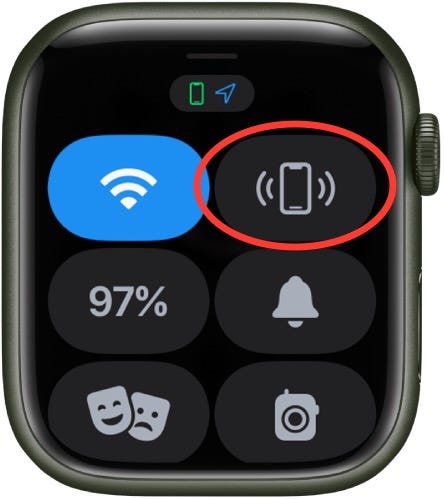
You can add it if it doesn’t appear (Credit: Apple)

This pings your iPhone, and it makes some sound.

For visual cue, tap and hold the icon. This, along with sound, will also trigger flashes on your iPhone.

Note: The misplaced iPhone should be connected to your Apple Watch via Bluetooth and Wi-Fi for this to work.

Sadly, I can’t use this trick. Here’s why.

I have an iPhone and a “cellular” Apple Watch. And I rarely sync my Apple Watch to iPhone. So they aren’t connected most of the time (This saves me from EMF radiation).

This is why, if my iPhone’s misplaced, I can’t ping it from my Apple Watch.

Heck, I can’t even call myself from Apple Watch to iPhone — as technically, I can’t call myself, right?

The only option: calling it from some other guy’s phone.

#6. Transfer incoming call to iPhone 📲

Let’s say a call comes on your Apple Watch, but you wanna take it on your iPhone. But you need a few seconds to grab it.

Also, you don’t want the call to hang up in the meanwhile. (Oh, feels like a cinematic thriller.)

What would you do? Lift the call, and say hey wait a second.? NO.

  • Tap the three dots glyph at the bottom right corner on your Apple Watch,
  • Tap ‘Answer on iPhone’.

This will answer the call on your iPhone, but on hold.

Until you unhold it, they’ll be asked to hold to the call for a moment.

All they’ll hear is this.

If you aren’t able to find your iPhone, tap the glyph at the bottom-left corner. It pings your iPhone — remember tip #5?

Note, you could transfer a call from Apple Watch to iPhone even after answering it.

Note:
Your Apple Watch and iPhone need to be connected to do this. I wish I could do this even when they're not connected - by cellular signals.

#7. Know charged % while charging 🔋

Apple Watch doesn’t show up the current battery percentage while charging. It only shows a circular indicator.

To view the exact charge %, just tap on it.

To prolong your Apple Watch’s battery life,

#8. Mute the current notification 🤫

If you’re receiving a call, message, or workout feedback on your Apple Watch, you can mute it by tapping your palm on the display.

Most people might already know this — But, did you know this will also mute the incoming call on your iPhone nearby?

#9. Mute Apple Watch entirely 😌

Instead of just tapping your palm (as told in the previous trick), if you rest your palm for atleast 3 secs after a notification, your Apple Watch gets muted entirely. (You’ll receive a haptic feedback to confirm that).

Wouldn’t this be helpful in a meeting?

To use this feature, toggle ‘Cover to Mute’ in ‘Settings ⚙️ < Sounds & Haptics 🔊’.

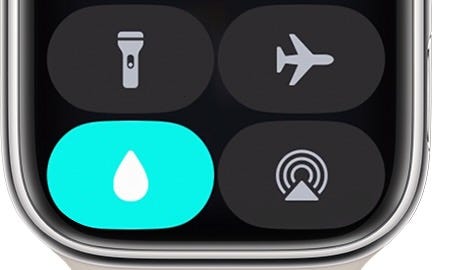
#10. Exploit Water Lock 💧
Credit: Apple

The Water Lock feature basically prevents any unintended taps on your Apple Watch while wearing it in water.

To unlock it, you have to tap and hold Digital Crown for a while (This will also eject water from speakers).

But, have you ever thought of using it as child lock?

I bet children’s little frenzy brains won’t think of holding a button for a few seconds to unlock a device.

Wanna child lock your iPhone too?

#11. The secret behind Maps haptics 🗺️

Have you ever used Apple Watch Maps for navigation while biking? I use it almost everyday.

I turn on ‘Wake on Wrist Raise’ so I could lift my hand up to see the path while on the go. But that’s not easy to do. Risky too.

Also, I never understood the meaning behind my Watch’s haptics while changing directions.

But lately, I did. → While at an intersection, if the Apple Watch plays a haptic:

  • High tone followed by low tone (tick tock tick tock), go left ⬅️.
  • Low tone followed by high tone (tock tick tock tick), go right ➡️.

If you feel a single vibration, welcome to your destination!

#12. Unlock Tip calculator (and your generosity) 💵

Are you a regular tipper? So sweet!

Did you know you could calculate a % of tip right in Apple Watch calculator? To do that,

  • Open Calculator,
  • Enter the total bill amount,
  • Tap on ‘TIP’.

(If you can’t see ‘TIP’ in Calculator, go to ‘Settings ⚙️ < Calculator’, and toggle ‘💲 Tip Function’.)

  • Choose the % of total bill you wanna tip,
  • Choose the no. of people you wanna split the tip among,
  • View your tip below.

For more amazing articles on Apple Watch, read these

Join 240+ others to get notified whenever I publish a new story.

Technology
Apple
Apple Watch
Wearables
Watchos
Recommended from ReadMedium