avatarNikhil Vemu

Free AI web copilot to create summaries, insights and extended knowledge, download it at here

4011

Abstract

Apple Watch <span class="hljs-keyword">and</span> the <span class="hljs-built_in">new</span> <span class="hljs-type">time</span> won’t be synced <span class="hljs-keyword">to</span> your iPhone.</pre></div><p id="7c7f">You may secretly try this with your tidoptimist friend too.</p><h1 id="67f0">#3. Scroll through watch faces faster</h1><p id="9795">Irrespective of how fast you swipe through watch faces, it only moves by one per swipe. This is annoying if you have dozens of favourite watch faces.</p><p id="c393">To move faster, scroll the Digital Crown up or down in the switcher to move left or right through the watch faces.</p><h1 id="2307">#4. Check time in dark</h1><p id="cfad">It’s an inevitable fact the Apple Watch’s display brightness is lower than that of the iPhone. But it’s enough to hurt your eyes if it’s suddenly turned on in dark.</p><p id="f205">It might happen when you want to check time in a dark theatre or at midnight.</p><p id="ccb5">But there’s a trick.</p><p id="afaa">When the display’s turned off, slowly swipe the Digital Crown up to gradually raise its brightness. After there’s enough light to know the time, swipe it back to turn it off.</p><figure id="54d6"><img src="https://cdn-images-1.readmedium.com/v2/resize:fit:800/1*5oLQ_2n7PDUTBOZONMi5Qg.png"><figcaption>Isn’t this brightness enough when it’s dark?</figcaption></figure><div id="1eb0"><pre><span class="hljs-symbol">Note:</span> You may use <span class="hljs-meta">#1 for this too.</span></pre></div><h1 id="dce4">#5. Sirizaam and Shazam 🎵</h1><p id="5310">Did you know Apple <a href="https://nr.apple.com/dE3O0T5d4L">owns</a> Shazam?</p><p id="4c74">It’s integrated into Siri so you can app-less-ly ask her to identify a song playing nearby.</p><p id="f7c7">But if you <i>download</i> Shazam, you’ll have a bonus feature.</p><figure id="c51b"><img src="https://cdn-images-1.readmedium.com/v2/resize:fit:800/1*bEJpqcjJ0KxAONnYNF4ZYQ.jpeg"><figcaption></figcaption></figure><p id="8639">The identified song can be played right by the Apple Watch, without any Bluetooth headphone.</p><p id="86d4"><i>Right from freakin’ Apple Watch speakers!</i></p><p id="b697">I want this feature of playing a song from the native Apple Watch speakers to arrive to Apple Music too. You?</p><div id="ac94" class="link-block"> <a href="https://readmedium.com/10-possible-features-the-apple-watch-should-have-but-doesnt-yet-1fd875f33747"> <div> <div> <h2>10 Possible Features I Desperately Need On My Apple Watch</h2> <div><h3>It feels terribly incomplete without them</h3></div> <div><p>medium.com</p></div> </div> <div> <div style="background-image: url(https://miro.readmedium.com/v2/resize:fit:320/0*q0GKItGGLEQ1OPlN)"></div> </div> </div> </a> </div><h1 id="5878">#6. Skip the countdown before workout</h1><p id="a29d">When you’re all set to do a thing, three more seconds to wait feels like an eternity.</p><p id="89d0">I don’t know about you, but I feel so when my Apple Watch counts down 3, 2, 1 before starting a workout. But thankfully,</p><p id="db98">I discovered tapping on the display while it’s counting down skips it entirely and start the workout right away.</p><h1 id="41b6">#7. Auto-pause workouts 🏃‍♂️🧍‍♂️</h1><p id="70d6">For accurate measurement of workouts, time is a major factor. But, if the workout’s still running even if you stopped moving for a while, you may receive inaccurate workout summaries.</p><p id="0b82">To prevent this, go to <code>Settings ⚙️ < Workout 🏃‍♂️ < Auto-Pause</code> , and toggle it on. This will detect if you stop moving and will auto-pause the workout. It’s resumed when you start moving again.</p><div id="677a"><pre>Note: Applicable <span class="hljs-keyword">only</span> <span class="hljs-keyword">for</span> <span class="hljs-keyword">Running</span> <span class="hljs-keyword">and</span> Out

Options

door Cycling workouts.</pre></div><h2 id="9a7a">Bonus feature: Pause workouts manually</h2><p id="2849">If your workout doesn’t have much movement (e.g. Yoga), the previous feature won’t work. To pause this easily, go to <code>Settings ⚙️ < Workout 🏃‍♂️ < Press to Pause</code> .</p><p id="b5ec">Now you can pause or resume the workout by pressing the side button & Digital Crown at the same time.</p><h1 id="497e">#8. Raise to Siri</h1><p id="394b">If you’re an avid Siri user i.e., you use Siri for almost everything, you might find this helpful.</p><p id="18da">Go to <code>Settings ⚙️ < Siri</code> , and toggle on <code>Raise to Speak</code>. Now, Siri gets activated every time you raise your wrist. You may ignore if you don’t need it.</p><div id="278f"><pre><span class="hljs-keyword">Note</span>: This uses <span class="hljs-keyword">more</span> battery.</pre></div><div id="de37" class="link-block"> <a href="https://readmedium.com/15-apple-watch-settings-you-should-turn-off-right-away-51eaf9b7c263"> <div> <div> <h2>15 Apple Watch Settings You Should Turn Off Right Away</h2> <div><h3>Make the most out of your Apple Watch</h3></div> <div><p>medium.com</p></div> </div> <div> <div style="background-image: url(https://miro.readmedium.com/v2/resize:fit:320/0*FWdWScWxBA4_TyvQ)"></div> </div> </div> </a> </div><h1 id="d939">#9. Replace a word with emoji</h1><figure id="4df3"><img src="https://cdn-images-1.readmedium.com/v2/resize:fit:800/1*lcxC3KimtaUHG53VYoZLmA.png"><figcaption></figcaption></figure><p id="4389">Searching for an emoji on the little screen is tiresome. Do this instead.</p><ul><li>Type a word (in Mail, Messages etc.).</li><li>Tap on it (it gets a green box).</li><li>Scroll the Digital Crown down to find closely related words or emojis.</li><li>Stop scrolling where you want and the word/emoji will replace the original word.</li></ul><h1 id="b71e">#10. Switch to recently used apps faster</h1><p id="298e">Your Apple Watch always remembers the two recently used apps (even if they’re closed).</p><p id="e370">To switch to the most recently used app, double press the Digital Crown (wherever you are). To switch to the second most recent app, do it again.</p><h2 id="f219">For more amazing articles on Apple Watch, read these</h2><div id="3632" class="link-block"> <a href="https://nikhilvemu.medium.com/list/a873043e5ae0"> <div> <div> <h2>All Apple Watch Things</h2> <div><h3> </h3></div> <div><p>Apple Watch Things nikhilvemu.medium.com</p></div> </div> <div> <div style="background-image: url(https://miro.readmedium.com/v2/resize:fit:320/0*d73bbdb490a61d1cc47febeb95f9ccead36991c1.jpeg)"></div> </div> </div> </a> </div><p id="a107"><i>If you enjoyed this story, join <b>110+</b> others to <a href="https://nikhilvemu.medium.com/subscribe"><b>get notified</b></a> whenever I publish a new story.</i></p><p id="eed4"><i>Grab my ebook <b><a href="https://nikhilvemu.gumroad.com/l/atbg">A Tech Blogger’s Guide</a></b>to write tech better.</i></p><div id="29eb" class="link-block"> <a href="https://nikhilvemu.medium.com/membership"> <div> <div> <h2>Join Medium with my referral link — Nikhil Vemu</h2> <div><h3>Read every story from Nikhil Vemu (and thousands of other writers on Medium). Your membership fee directly supports…</h3></div> <div><p>nikhilvemu.medium.com</p></div> </div> <div> <div style="background-image: url(https://miro.readmedium.com/v2/resize:fit:320/0*xj6p9tvAqJ4v2Gj6)"></div> </div> </div> </a> </div></article></body>

10 cool Apple Watch tricks you’ll wish you knew earlier

Make your Apple Watch worth its money
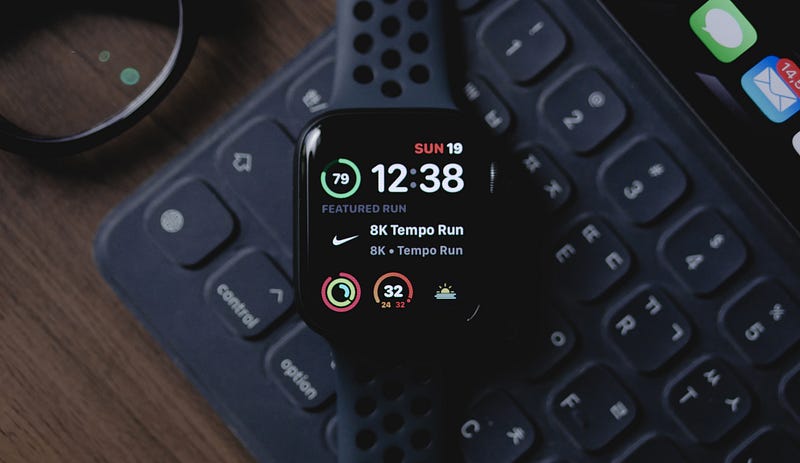
Photo by Shiwa ID on Unsplash

#1. Know the time without even seeing it

This feature won’t pique you unless you have a strict boss who feels insulted if you check time while he talks.

(Pun intended.)

If so, go to Settings ⚙️ < Clock ⏰ < Taptic Time , and choose your preferred way.
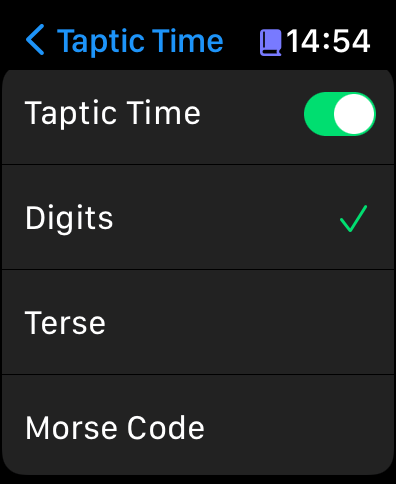
This, and all the images below are screenshots by the author

If the time is 19:51 and you’ve chosen:

Digits:

It vibrates as

z zzzzzzzzz zzzzz z
1     9       5   1

indicating it’s 19:51.

Terse:

It vibrates as

 ZZZ      zzzz      ZZZ
5x3 hrs  1x4 hrs  15x3 min
= 19 hrs 45 min
Z --> Long tap
z --> Short tap

i.e., it long taps for every 5 hours, short taps for the remaining hours, and long taps for each remaining quarter hour.

Drawback: It gives out the same vibration pattern for times between 19:45 and 19:59, as they all lie in the same quarter hour.

Morse:

It vibrates as

zZZZZ ZZZZz zzzzz zZZZZ
  1     9     5     1

— The Morse code of 1951.

This feature works only when your Apple Watch is on Silent 🔕 and you tap your primary watch face with two fingers.

Your boss can’t hear the vibrations. Hehe.

#2. A tip for tidsoptimists

Tidsoptimist:
A person who’s habitually late because they think they have more time than they do.

If you’re feel you’re always late by 5–10 minutes for everything, you may want your Apple Watch to advance by that time to hurry you up.

(My father used to do this on his old analog watch.)

To do it on watchOS, go to Settings ⚙️ < Clock ⏰ < +0 min , and set the time you want your Apple Watch to advance by.
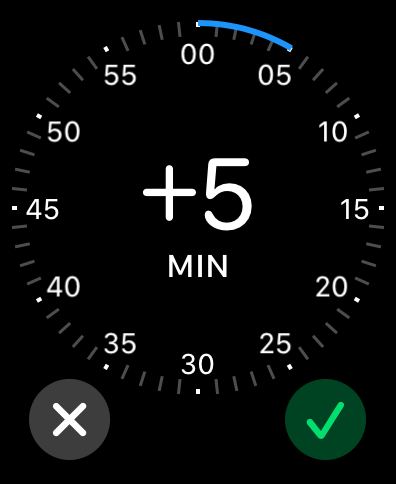
Note: This feature is exclusive to Apple Watch and the new time won’t be synced to your iPhone.

You may secretly try this with your tidoptimist friend too.

#3. Scroll through watch faces faster

Irrespective of how fast you swipe through watch faces, it only moves by one per swipe. This is annoying if you have dozens of favourite watch faces.

To move faster, scroll the Digital Crown up or down in the switcher to move left or right through the watch faces.

#4. Check time in dark

It’s an inevitable fact the Apple Watch’s display brightness is lower than that of the iPhone. But it’s enough to hurt your eyes if it’s suddenly turned on in dark.

It might happen when you want to check time in a dark theatre or at midnight.

But there’s a trick.

When the display’s turned off, slowly swipe the Digital Crown up to gradually raise its brightness. After there’s enough light to know the time, swipe it back to turn it off.
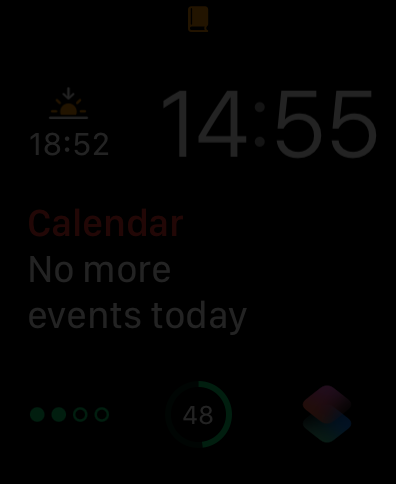
Isn’t this brightness enough when it’s dark?
Note: You may use #1 for this too.

#5. Sirizaam and Shazam 🎵

Did you know Apple owns Shazam?

It’s integrated into Siri so you can app-less-ly ask her to identify a song playing nearby.

But if you download Shazam, you’ll have a bonus feature.
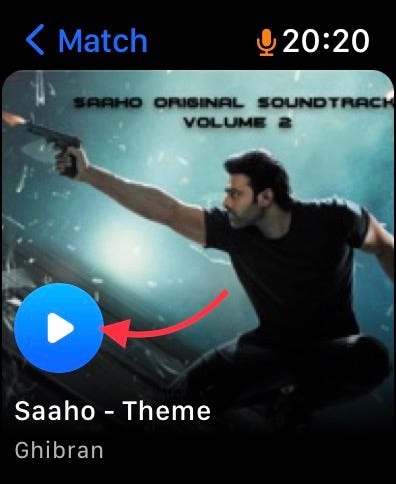
The identified song can be played right by the Apple Watch, without any Bluetooth headphone.

Right from freakin’ Apple Watch speakers!

I want this feature of playing a song from the native Apple Watch speakers to arrive to Apple Music too. You?

#6. Skip the countdown before workout

When you’re all set to do a thing, three more seconds to wait feels like an eternity.

I don’t know about you, but I feel so when my Apple Watch counts down 3, 2, 1 before starting a workout. But thankfully,

I discovered tapping on the display while it’s counting down skips it entirely and start the workout right away.

#7. Auto-pause workouts 🏃‍♂️🧍‍♂️

For accurate measurement of workouts, time is a major factor. But, if the workout’s still running even if you stopped moving for a while, you may receive inaccurate workout summaries.

To prevent this, go to Settings ⚙️ < Workout 🏃‍♂️ < Auto-Pause , and toggle it on. This will detect if you stop moving and will auto-pause the workout. It’s resumed when you start moving again.

Note: Applicable only for Running and Outdoor Cycling workouts.

Bonus feature: Pause workouts manually

If your workout doesn’t have much movement (e.g. Yoga), the previous feature won’t work. To pause this easily, go to Settings ⚙️ < Workout 🏃‍♂️ < Press to Pause .

Now you can pause or resume the workout by pressing the side button & Digital Crown at the same time.

#8. Raise to Siri

If you’re an avid Siri user i.e., you use Siri for almost everything, you might find this helpful.

Go to Settings ⚙️ < Siri , and toggle on Raise to Speak. Now, Siri gets activated every time you raise your wrist. You may ignore if you don’t need it.

Note: This uses more battery.

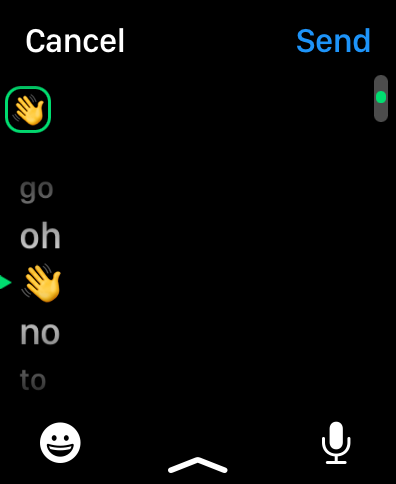
#9. Replace a word with emoji

Searching for an emoji on the little screen is tiresome. Do this instead.

  • Type a word (in Mail, Messages etc.).
  • Tap on it (it gets a green box).
  • Scroll the Digital Crown down to find closely related words or emojis.
  • Stop scrolling where you want and the word/emoji will replace the original word.

#10. Switch to recently used apps faster

Your Apple Watch always remembers the two recently used apps (even if they’re closed).

To switch to the most recently used app, double press the Digital Crown (wherever you are). To switch to the second most recent app, do it again.

For more amazing articles on Apple Watch, read these

If you enjoyed this story, join 110+ others to get notified whenever I publish a new story.

Grab my ebook A Tech Blogger’s Guideto write tech better.

Technology
Apple
Apple Watch
Wearables
Innovation
Recommended from ReadMedium