avatarNikhil Vemu

Free AI web copilot to create summaries, insights and extended knowledge, download it at here

2240

Abstract

ccess to:</p><ul><li><b>Side Button: </b>Your child can’t lock the device or use it for screenshot, unless you set Back Tap for it. He can’t switch off the device too.</li><li><b>Volume Buttons: </b>He can’t turn volume up or down.</li><li><b>Motion: </b>He can neither shake the device to undo things, nor turn the device to horizontal mode.</li><li><b>Keyboards: </b>The keyboard won’t pop up for any text field in the app. External keyboards won’t work too.</li><li><b>Touch: </b>The screen will become unresponsive. He can only read or watch what’s showing up.</li><li><b>Dictionary Lookup: </b>He can’t select a word and look up its meaning from the local dictionary. <b>(</b>This appears only on apps with copy-able text.)</li></ul><figure id="0d24"><img src="https://cdn-images-1.readmedium.com/v2/resize:fit:800/1*diBMNlRZGu5NHSmXXEh6jQ.jpeg"><figcaption>Screenshot by the author</figcaption></figure><p id="ac24">With <code>Time Limit</code> , you can limit his screen time. After the set time, the screen becomes blank saying the time has ended. To exit the <code>Guided Access</code> , you have to use Face ID o Passcode.</p><p id="1d3c">After you’re sure it’s fully set, click on <code>Start</code> at the top-right corner to start Guided Access.</p><div id="21a6"><pre>Note: I used <span class="hljs-string">'he'</span>, <span class="hljs-string">'his'</span> <span class="hljs-keyword">as</span> the child<span class="hljs-string">'s pronouns for the sake of brevity. It works for '</span>sh<span class="hljs-string">e', '</span>her<span class="hljs-string">' too.</span></pre></div><h1 id="29e7">Quick Tip</h1><p id="088c">You can also use this robust feature when someone asks for your iPhone for, say a call. This ensures they won’t peep into your sensitive info like mails, photos etc.</p><p id="4512">That’s why I call it ‘Peeper Lock’ too.</p><p id="76bb">I still remember the day I gave my friend my iPhone when he asked it for a call. After it ended, he said, “Why doesn’t the Phone app close?”</p><h1 id="eb6f">Bonus Feature — Horizontal Mode</h1><figure id="2cb2"><img src="https://cdn-images-1.readmedium.com/v2/resize:fit:800/1*JPvIbsp-ypOTC4lti275aA.png"><figcaption>Screenshot by the author from <a href="https:/

Options

/youtu.be/DDAHHPGcLzo">this</a> YouTube video</figcaption></figure><p id="4a47">I hate it when my iPhone unexpectedly turns itself to portrait while I’m watching a video.</p><p id="2146">I longed for the landscape mode or rotation lock to iOS that’s been existing on Android for years.</p><p id="5cc6"><a href="https://nikhilvemu.medium.com/list/ios-16-bfb16160e680">iOS 16</a> disappointed me here.</p><p id="d942">Thankfully, you can use Guided Access to lock your device on horizontal mode. To do this,</p><ul><li>Open a video,</li><li>Turn it to landscape mode,</li><li>Triple-click to keep Guided Access steady,</li><li>Click <code>Options</code> ,</li><li>Turn off <code>Motion</code> ,</li><li>Start Guided Access.</li></ul><p id="4a32">Now try turning your iPhone to vertical and it still stays horizontal!</p><p id="211e">So that’s all about what Guided Access is — and how to eke the best out of it.</p><h1 id="e6b6">PSst:</h1><p id="b68e">Do you know what’s the child lock feature for the Apple Watch? Water Lock. To unlock it, roll the Digital Crown really quick.</p><p id="afe1"><b>If you liked this story, you might also like:</b></p><div id="6ddb" class="link-block"> <a href="https://nikhilvemu.medium.com/list/546d133de990"> <div> <div> <h2>iPhone Hidden Tricks</h2> <div><h3> </h3></div> <div><p>Hidden Tricks nikhilvemu.medium.com</p></div> </div> <div> <div style="background-image: url(https://miro.readmedium.com/v2/resize:fit:320/0*5cf4cc9c21e3d34c05f5258f8d97c63c9f07ade5.jpeg)"></div> </div> </div> </a> </div><p id="545d"><i>Hey! If you enjoyed this story, <b>sign up for Medium</b> as a member using my <a href="https://nikhilvemu.medium.com/membership"><b>referral link</b></a>! It’s just 5, and you get access to all of Medium.</i></p><p id="a326"><i>Also, you can join <b>95+</b> others to <a href="https://nikhilvemu.medium.com/subscribe"><b>get notified</b></a> whenever I publish. Grab a copy of my ebook <b>“<a href="https://nikhilvemu.gumroad.com/l/atbg">A Tech Blogger’s Guide</a>”</b> for just 0.99 now!</i></p></article></body>

Apple’s (Hidden) Child Lock Feature

Many bought separate iPhones to their kids, not knowing this
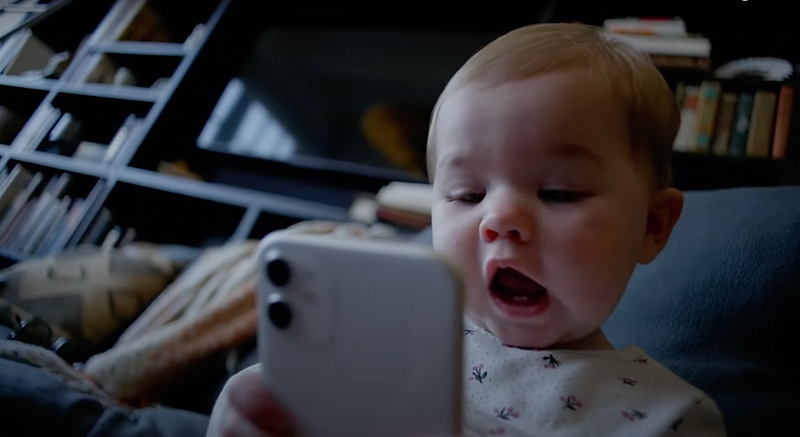
Screenshot by the author from this YouTube video

Being the parent of a curious child isn’t easy, especially if you use your iPhone for everything — office calls, payments, mails etc.

You heart doesn’t stop hammering until you get your iPhone back from your child who asks for it to play a game or to listen to an online class.

But let me tell you one simple trick to get out of such anxities.

‘Guided Access’

— I call it ‘Child Lock’ or ‘Peeper Lock’

It secretly exists within the Accessibility settings. With that, you can:

  • never let your child close the active app or game,
  • turn off response to • iPhone buttons (lock, volume, etc.), • sensors (touch, motion etc.), and • other vital things like keyboard.
  • set time limits to the app (with a voiceover speaking out the remaining time).

and more. Feels relieving?

Here’s how you activate it

Go to Settings ⚙️ < Accessibility 🚹 < Guided Access 🔒 , and turn it on.

Now try this.

  • Go to any app of your choice (except Settings),
  • triple-click the side-button,
  • And you’ll get this.
Screenshot by the author

As it says at the bottom, you may circle certain areas on the screen to make them unresponsive after the Guided Access starts.

Now, click Options .
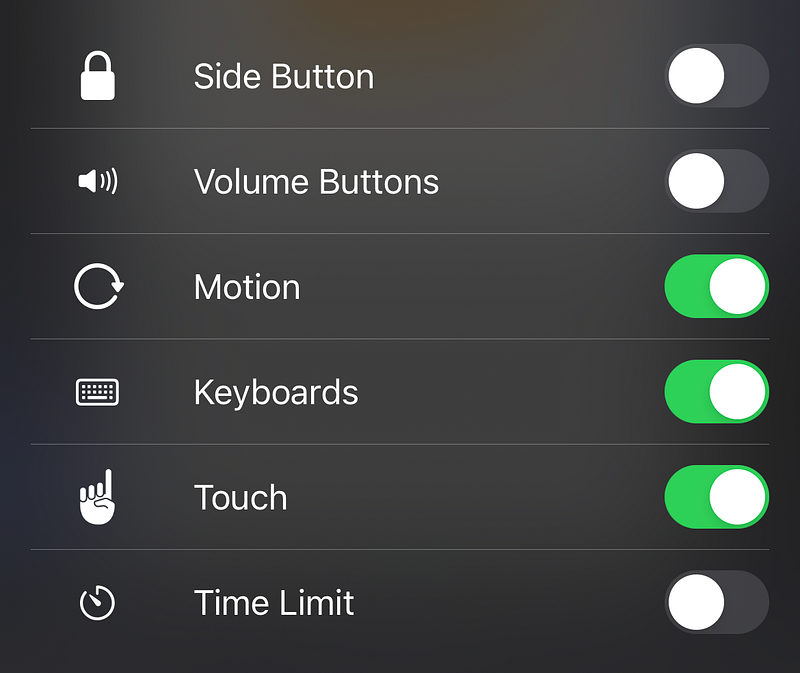
Screenshot by the author

You can turn on/off access to these things. If you turn off the access to:

  • Side Button: Your child can’t lock the device or use it for screenshot, unless you set Back Tap for it. He can’t switch off the device too.
  • Volume Buttons: He can’t turn volume up or down.
  • Motion: He can neither shake the device to undo things, nor turn the device to horizontal mode.
  • Keyboards: The keyboard won’t pop up for any text field in the app. External keyboards won’t work too.
  • Touch: The screen will become unresponsive. He can only read or watch what’s showing up.
  • Dictionary Lookup: He can’t select a word and look up its meaning from the local dictionary. (This appears only on apps with copy-able text.)

Screenshot by the author

With Time Limit , you can limit his screen time. After the set time, the screen becomes blank saying the time has ended. To exit the Guided Access , you have to use Face ID o Passcode.

After you’re sure it’s fully set, click on Start at the top-right corner to start Guided Access.

Note: I used 'he', 'his' as the child's pronouns for the sake of brevity. It works for 'she', 'her' too.

Quick Tip

You can also use this robust feature when someone asks for your iPhone for, say a call. This ensures they won’t peep into your sensitive info like mails, photos etc.

That’s why I call it ‘Peeper Lock’ too.

I still remember the day I gave my friend my iPhone when he asked it for a call. After it ended, he said, “Why doesn’t the Phone app close?”

Bonus Feature — Horizontal Mode
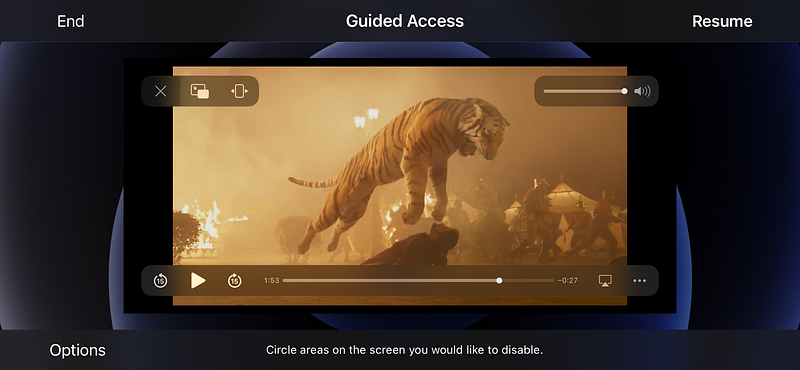
Screenshot by the author from this YouTube video

I hate it when my iPhone unexpectedly turns itself to portrait while I’m watching a video.

I longed for the landscape mode or rotation lock to iOS that’s been existing on Android for years.

iOS 16 disappointed me here.

Thankfully, you can use Guided Access to lock your device on horizontal mode. To do this,

  • Open a video,
  • Turn it to landscape mode,
  • Triple-click to keep Guided Access steady,
  • Click Options ,
  • Turn off Motion ,
  • Start Guided Access.

Now try turning your iPhone to vertical and it still stays horizontal!

So that’s all about what Guided Access is — and how to eke the best out of it.

PSst:

Do you know what’s the child lock feature for the Apple Watch? Water Lock. To unlock it, roll the Digital Crown really quick.

If you liked this story, you might also like:

Hey! If you enjoyed this story, sign up for Medium as a member using my referral link! It’s just $5, and you get access to all of Medium.

Also, you can join 95+ others to get notified whenever I publish. Grab a copy of my ebook A Tech Blogger’s Guide for just $0.99 now!

Privacy
Technology
Mobile
Apple
Art
Recommended from ReadMedium