avatarAlena Gorb

Free AI web copilot to create summaries, insights and extended knowledge, download it at here

2952

Abstract

ut the more unique the better), as this will make it very easy for ChatGPT to parse your news into different columns</li><li>Describe exactly which part you want to go under each column heading and specify that you want the final output to be in table format</li></ol><p id="2b4e">Once you’ve ensured that your post formatting is consistent and easy to recognise, you can start by describing the formatting to ChatGPT and how you want it parsed and displayed. So your first prompt might be something like this:</p><figure id="fdce"><img src="https://cdn-images-1.readmedium.com/v2/resize:fit:800/1*nI2l87KeFkz4yUyybuwnsw.png"><figcaption></figcaption></figure><p id="661a">Now, you can just switch to the Teams channel you want to scrape, select all text (Ctrl+A) or just parts of the text you want to scrape, copy it (Ctrl+C), and paste it (Ctrl+V) into ChatGPT. This is what I pasted in (note that this is made-up Teams channel content for demo purposes):</p><figure id="3639"><img src="https://cdn-images-1.readmedium.com/v2/resize:fit:800/1*KbvxgZXNaQL5QmbgcSNAqQ.png"><figcaption></figcaption></figure><figure id="67b6"><img src="https://cdn-images-1.readmedium.com/v2/resize:fit:800/1*F-WLj6pso6Gf7wsFHmz2pQ.png"><figcaption></figcaption></figure><p id="913c">You should get something like this in response:</p><figure id="e5a7"><img src="https://cdn-images-1.readmedium.com/v2/resize:fit:800/1*m7as5Lp3aqCj0WAb3eh1uA.png"><figcaption></figcaption></figure><p id="248b">Now, just something I noticed is that ChatGPT doesn’t always display the data in this nice table format, providing some kind of markdown or SQL version instead. To fix this, you can try regenerating the response a few times, but if this doesn’t work, try clearing your cookies, which, for some reason, finally solved the issue for me.</p><p id="38a1">There are a few limitations to this method, of course: you can only paste text-based information into ChatGPT 3.5, so images or file attachments won’t be scraped. It could also become quite time-consuming if you have multiple web pages to scrape (like in the case of LinkedIn <a href="https://readmedium.com/web-scraping-linkedin-with-selenium-in-python-a-step-by-step-approach-79bd63dd32ec">scraping</a>) so this is not really suitable if you have hundreds of pages to go through. Nevertheless, it is a neat trick if you also have a PDF file with consistent formatting (such as some kind of event agenda or program) or other kinds of files, such as a FASTA file, which can also be scraped with ChatGPT (instead of using Python, as I did in my first ever <a href="https://readmedium.com/automating-data-extraction-txt-file-to-excel-with-python-step-by-step-guide-4ed89f52c5e6">blog</a>)</p><h2 id="57df">2. Multiple Calendar Invites</h2><p id="d6f1">Another use case that can save you time is creating multiple calendar invites by generating a custom .ics file. For example, you have 3 company events coming up in the next qu

Options

arter, for which you can’t just send a recurring link. So you can use ChatGPT to create a single .ics file, which you can then send to your colleagues, who can import it once and have all three invites added to their calendars at once.</p><p id="243d">We can start with the following prompt:</p><figure id="77b8"><img src="https://cdn-images-1.readmedium.com/v2/resize:fit:800/1*M4mAYQfkFqFVDxm-G9MWvw.png"><figcaption></figcaption></figure><p id="09e6">Now, notice how the formatting is a bit inconsistent and the time zones are different, but that shouldn’t matter because ChatGPT should still recognise these and convert into .ics file format accordingly so your invites that you get at the end should have time zones adjusted to your current timezone automatically. So, here’s the output:</p><figure id="4605"><img src="https://cdn-images-1.readmedium.com/v2/resize:fit:800/1*6cVWS4BegDedWciNw1o8sQ.png"><figcaption></figcaption></figure><figure id="1e1e"><img src="https://cdn-images-1.readmedium.com/v2/resize:fit:800/1*iRzDOh8uxhBRhveC6_yEoA.png"><figcaption></figcaption></figure><figure id="de51"><img src="https://cdn-images-1.readmedium.com/v2/resize:fit:800/1*RuUe2lv0WYzAYXN7Te1zsg.png"><figcaption></figcaption></figure><p id="f74a">And now, as ChatGPT suggested, you can just copy and paste this code into a text file and save it as .ics file. Now, you can send this file to your colleagues, who would just need to open it with their calendar application of choice and import it to get something like this:</p><figure id="1790"><img src="https://cdn-images-1.readmedium.com/v2/resize:fit:800/1*mOMZO4YiogkeyAuBFc8ZCA.png"><figcaption></figcaption></figure><figure id="ca40"><img src="https://cdn-images-1.readmedium.com/v2/resize:fit:800/1*SUaFbsgJ3rGlyXDV740hEQ.png"><figcaption></figcaption></figure><p id="d521">Notice how the event that I specified in GMT and UK time ended up being recognised as the same time zone while the event that was specified in Eastern Time got converted to GMT time zone automatically without you having to specify anything.</p><p id="0cff">Of course, you can do the same with many more invites than 3 (I just did this in the interest of time), and you don’t have to spam your colleagues with 100s of email calendar invites for each individual event. Win-win, I say!</p><p id="d463">Now this is it for now, and if you enjoyed this blog, you might also find my generative AI chatbot comparison <a href="https://readmedium.com/which-generative-ai-is-the-best-chatgpt-vs-bard-vs-pi-vs-claude-4c94342bbd6a">article</a> and using ChatGPT to learn Python <a href="https://readmedium.com/learn-python-fast-with-chatgpt-top-tips-for-prompt-engineering-6bdab3a3c2c7">article</a> interesting. And as always, let me know if you have any comments, suggestions, or ideas for future blogs. Follow and subscribe to my email list so you don’t miss when I post (which is usually once a week on Sundays)!</p></article></body>

Work Smarter, Not Harder: Two ChatGPT Use Cases to Save You Time At Work
Photo by Emiliano Vittoriosi on Unsplash

I think we can all agree that generative AI has revolutionised the way we work. I am personally a big fan of OpenAI’s ChatGPT (in case you haven’t noticed from my other blogs😉). I go in-depth as to why it is one of my favourite chatbots in the other blog but in this one, I wanted to highlight two more “creative” ways you can use a free version of ChatGPT (version 3.5) in your workplace to save time and money and impress your boss to get that promotion you so deserve! So without further ado, let’s jump right into it.

1. Web Scraping and Data Extraction

Yes, you’ve read that right. You can do some web scraping with ChatGPT 3.5 fast and with zero coding required. With ChatGPT being a large language model, it can easily take in, analyse, parse, and display text-based information in different formats, including tables. In this example, we will be pasting loads of text from a webpage into ChatGPT and asking it to parse it and display only the relevant information in table format.

I have previously published an article on web scraping a Teams channel using Python, but you can also do something similar with the free version of ChatGPT without having to download and learn Python! The key here is to make it as easy as possible for ChatGPT to parse the text that you give it, so it can differentiate between the original post and comments added to that post, and for that, I have a few tips I use in my work:

  1. Start each new post in the Teams channel with a specific identifier. For instance, I add the date in a specific format of DD/MM/YYYY (which is different from how Teams posts are time-stamped automatically since it’s not very consistent in formatting). This way, I can tell ChatGPT that when it encounters a date in the format of DD/MM/YYYY, that indicates the start of a new post
  2. If your posts include links or other bits of information, such as news titles and news descriptions, try and use a non-trivial delimiter to separate the different parts, which will eventually become different columns in the output table. For example, separate different parts with “%&%” symbols (you can use any delimiter you like, but the more unique the better), as this will make it very easy for ChatGPT to parse your news into different columns
  3. Describe exactly which part you want to go under each column heading and specify that you want the final output to be in table format

Once you’ve ensured that your post formatting is consistent and easy to recognise, you can start by describing the formatting to ChatGPT and how you want it parsed and displayed. So your first prompt might be something like this:
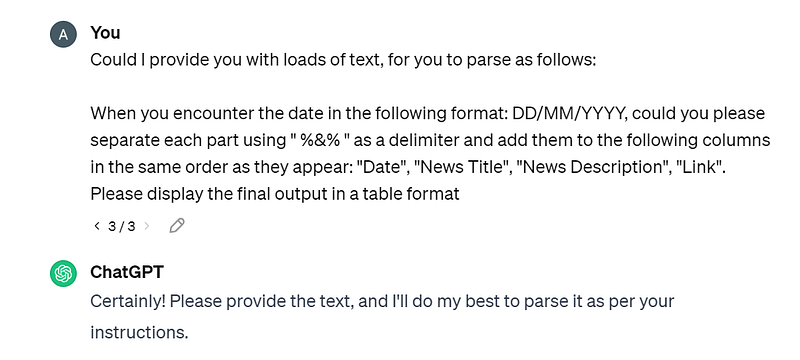
Now, you can just switch to the Teams channel you want to scrape, select all text (Ctrl+A) or just parts of the text you want to scrape, copy it (Ctrl+C), and paste it (Ctrl+V) into ChatGPT. This is what I pasted in (note that this is made-up Teams channel content for demo purposes):
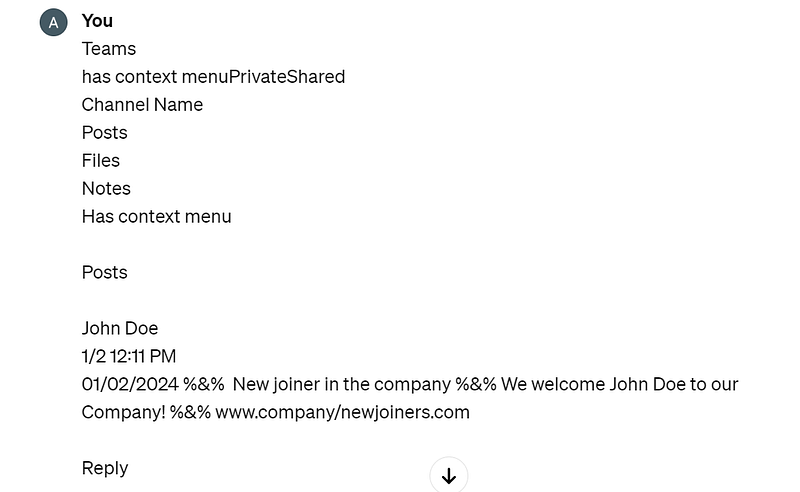
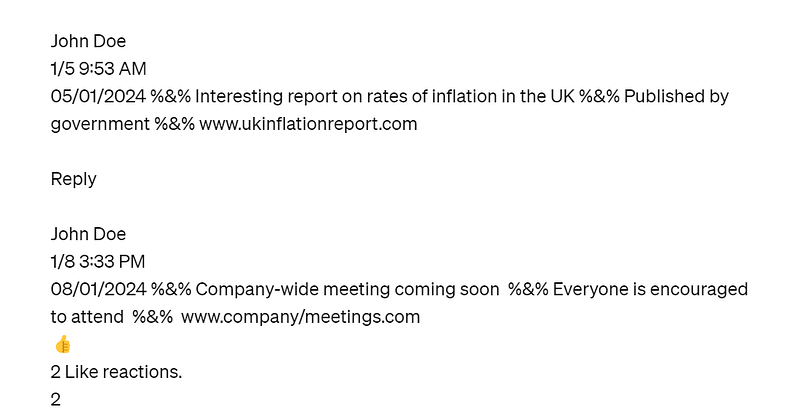
You should get something like this in response:
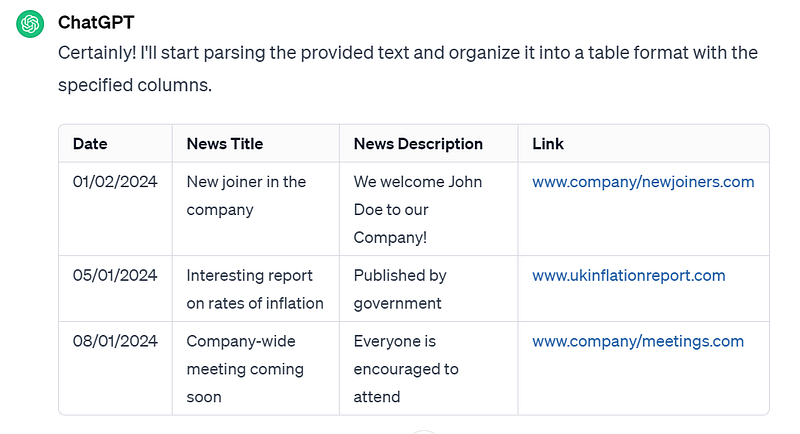
Now, just something I noticed is that ChatGPT doesn’t always display the data in this nice table format, providing some kind of markdown or SQL version instead. To fix this, you can try regenerating the response a few times, but if this doesn’t work, try clearing your cookies, which, for some reason, finally solved the issue for me.

There are a few limitations to this method, of course: you can only paste text-based information into ChatGPT 3.5, so images or file attachments won’t be scraped. It could also become quite time-consuming if you have multiple web pages to scrape (like in the case of LinkedIn scraping) so this is not really suitable if you have hundreds of pages to go through. Nevertheless, it is a neat trick if you also have a PDF file with consistent formatting (such as some kind of event agenda or program) or other kinds of files, such as a FASTA file, which can also be scraped with ChatGPT (instead of using Python, as I did in my first ever blog)

2. Multiple Calendar Invites

Another use case that can save you time is creating multiple calendar invites by generating a custom .ics file. For example, you have 3 company events coming up in the next quarter, for which you can’t just send a recurring link. So you can use ChatGPT to create a single .ics file, which you can then send to your colleagues, who can import it once and have all three invites added to their calendars at once.

We can start with the following prompt:

Now, notice how the formatting is a bit inconsistent and the time zones are different, but that shouldn’t matter because ChatGPT should still recognise these and convert into .ics file format accordingly so your invites that you get at the end should have time zones adjusted to your current timezone automatically. So, here’s the output:
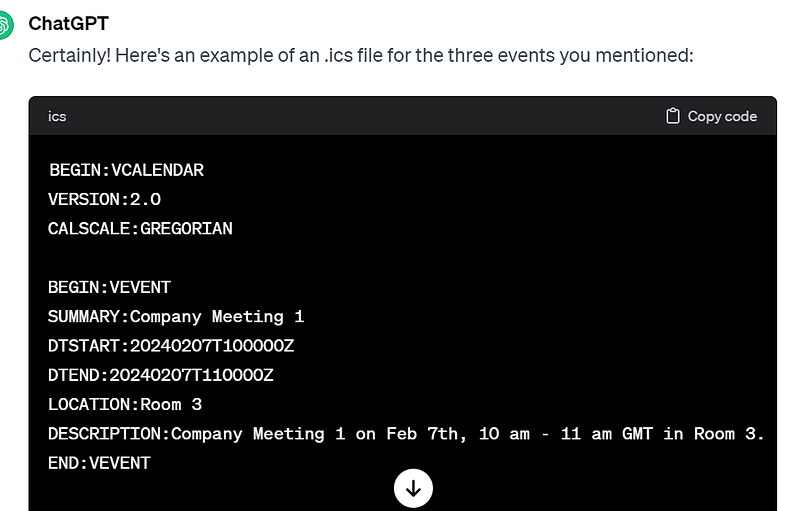
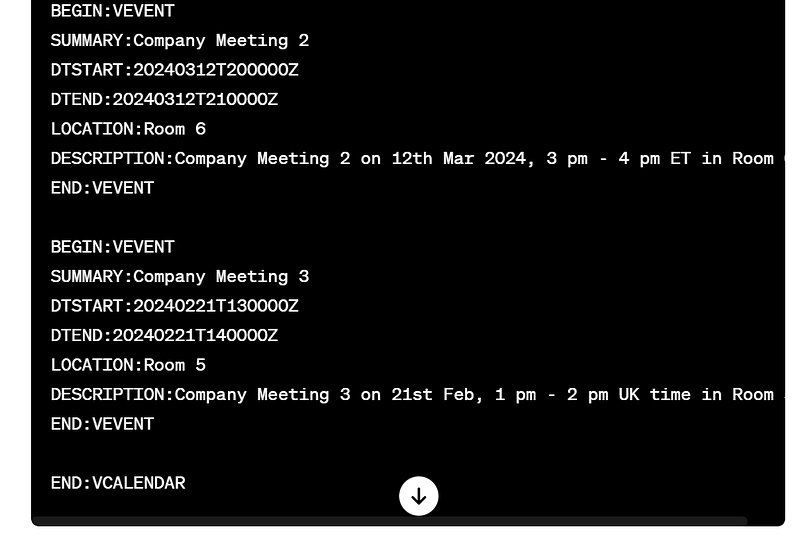
And now, as ChatGPT suggested, you can just copy and paste this code into a text file and save it as .ics file. Now, you can send this file to your colleagues, who would just need to open it with their calendar application of choice and import it to get something like this:
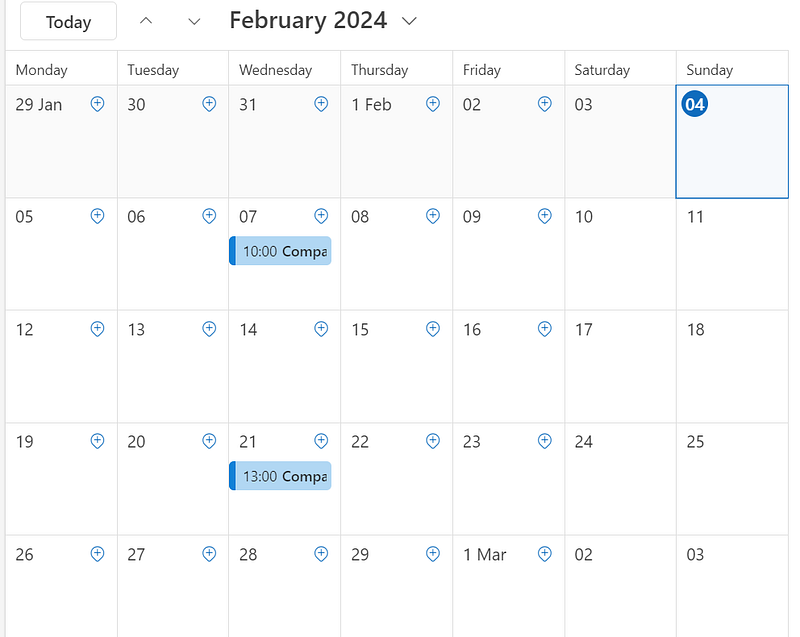
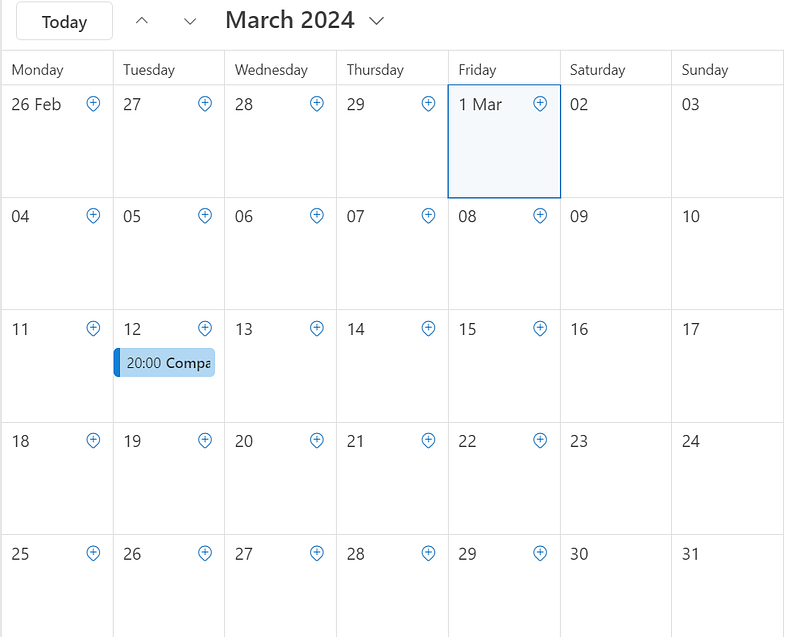
Notice how the event that I specified in GMT and UK time ended up being recognised as the same time zone while the event that was specified in Eastern Time got converted to GMT time zone automatically without you having to specify anything.

Of course, you can do the same with many more invites than 3 (I just did this in the interest of time), and you don’t have to spam your colleagues with 100s of email calendar invites for each individual event. Win-win, I say!

Now this is it for now, and if you enjoyed this blog, you might also find my generative AI chatbot comparison article and using ChatGPT to learn Python article interesting. And as always, let me know if you have any comments, suggestions, or ideas for future blogs. Follow and subscribe to my email list so you don’t miss when I post (which is usually once a week on Sundays)!

ChatGPT
Web Scraping
Automation Tools
Generative Ai Tools
Prompt Engineering
Recommended from ReadMedium
