
Automating Data Extraction: TXT File to Excel with Python (Step-by-Step Guide)

When I was doing my Master’s in Neuroscience, I came across an interesting problem. I was analyzing a list of proteins using different bioinformatics software. I won’t bore you with the details, but the issue was that proteins had varying lengths (i.e., the number of amino acids they are made of), and most software had restrictions on how long the protein sequences passed into them could be (most had a 5000 or 6000 amino acid limit).
As a first step, I obtained protein sequences in FASTA format from an open-source database called STRING. A FASTA file is essentially a text file that has information formatted in a specific way that makes it easy for bioinformatics software to interact with it. I wanted to take this txt file and extract the names of the proteins and their lengths in amino acids into an Excel table, so I could quickly see which proteins could be analyzed and which couldn’t. The beauty of the FASTA format is that it keeps formatting exactly the same for all proteins, so if you can extract one protein name and its length, you can do it for all of them.
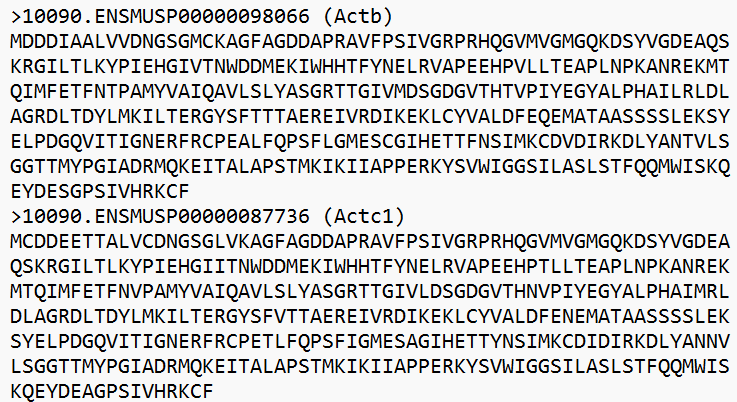
So as the first step, open the txt file in read-only mode and loop through each line to extract a name and length for the first protein. The lines starting with “>10090.ENSMUSP” always contain protein names in brackets, so we can use .startswith()string method to filter out these lines. Then, using .find() method, which returns an index of the character passed to it, we can extract the protein name, by finding the indices of two round brackets and getting only the characters between these brackets. Finally, assign the protein name to a variable.
Getting a protein length is a little more tricky. The lines that contain protein names, never contain any amino acids, so if the line starts with “>10090.ENSMUSP”, the protein length would be 0. For all other lines, we can just get the length of the line using len() function and keep adding it to the protein length variable until another line containing a protein name is encountered. .rstrip()method is not strictly necessary here, but I like to use it to ensure that the protein length does not include accidentally include trailing characters (such as new line characters or spaces). And voilà! We can get one protein name and its length.
#Step 1: Get the data (protein name and length) for one protein

#Imports
import os

#Ensure that you are in the right folder where your txt file is
os.chdir("your target directory")

#Open the txt file in read-only mode with a context manager

with open("string_protein_sequences.fa", "r") as f:
#Loop through each line in the file
    for line in f:
        if line.startswith(">10090.ENSMUSP"): #get the name of the protein
            start = line.find("(")
            end = line.find(")")
            protein_name = line[start+1:end]
            protein_length = 0
          #For each new protein, initialize the protein length
        else:
            protein_length += len(line.rstrip())
#rstrip is not necessary here, but is helpful to remove trailing characters
#when they are present

print(protein_name)
print(protein_length)
The next step would be to repeat this for the rest of the proteins in the file. To do this, protein names and their lengths need to be stored in some kind of variable. In this case, the Python dictionary data structure works well because all proteins have unique names which can be stored together with their corresponding lengths (just like each word in a normal dictionary is stored together with its definition).
#Step 2: If you can do it for one, you can do it for many

#Create an empty dictionary to store all protein names
#and corresponding protein lengths from the file

protein_data = {} #empty dictionary

with open("string_protein_sequences.fa", "r") as f:
#Loop through each line in the file
    for line in f:
        if line.startswith(">10090.ENSMUSP"):
            start = line.find("(")
            end = line.find(")")
            protein_name = line[start+1:end]
            protein_data[protein_name] = 0
        else:
            protein_data[protein_name]+=len(line)

print(protein_data)
The final step is to convert this dictionary into dataframe and save it as an Excel file. For that, we will use the Python pandas library. The .keys() from our dictionary will become a column with the title “Protein” and .values() will become a column “Protein Length”. The.set_index() method ensures that the first column in the resulting table will be “Protein”. The .to_excel() method will convert the Pandas dataframe to an Excel file and save it under a given file name.
#Step 3: Convert your dictionary into dataframe and save as an excel file

#Import pandas library
import pandas as pd

#Convert the dictionary to dataframe with Protein column containing
#protein names and Protein Length containing protein lengths
df = pd.DataFrame({"Protein": protein_data.keys(), "Protein Length": protein_data.values()})
df.set_index("Protein", inplace=True)
df.to_excel("Protein names and lengths.xlsx")
When we put all the steps together, the final script should look something like this:
#Step 4: Put everything together into a function so you can use this throughout
#your scripts

#Imports
import os
import pandas as pd

os.chdir("your target directory")

#Define your function and what variables it will take in
#(txt file and excel in this case)
def protein_table(original_txt_file, new_excel_file):
    protein_data = {} #empty dictionary

    with open(original_txt_file, "r") as f:
    #Loop through each line in the file
        for line in f:
            if line.startswith(">10090.ENSMUSP"):
                start = line.find("(")
                end = line.find(")")
                protein_name = line[start+1:end]
                protein_data[protein_name] = 0
            else:
                protein_data[protein_name]+=len(line)

    #Convert the dictionary to dataframe with Protein column containing
    #protein names and Protein Length containing protein lengths
    df = pd.DataFrame({"Protein": protein_data.keys(), "Protein Length": protein_data.values()})
    df.set_index("Protein", inplace=True)
    df.to_excel(new_excel_file)

protein_table("string_protein_sequences.fa", "Protein names and lengths.xlsx")
Note that we created our custom function first and then used it to create an Excel table. Again, making a function is not a necessary step here, but it is a good practice for when you are writing longer scripts and want to reuse your custom function elsewhere in the script.
The final Excel table should look something like this:
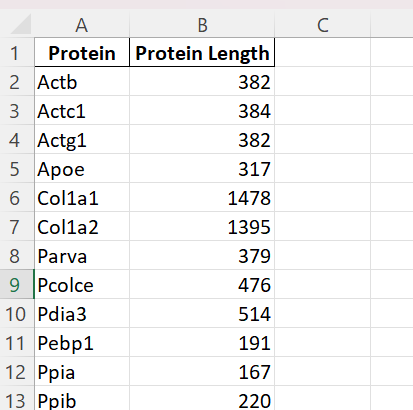
Of course, this is just one example of the kind of analysis you can perform on protein sequences. From here, you can analyze and visualize the frequency of specific amino acids, amino acid motifs, etc. The sky is the limit!
You can find the example FASTA file, Jupyter Notebook code, and the final Excel table on my GitHub, and if you are interested in the detailed methodology and findings from my analysis, check out my paper here.


