
Using Obsidian for Work
Lots of people use Obsidian for their studies, DnD or even learning a language. A relatively untapped area is for office work. I’ve written about using Obsidian for a new job or for work in general, but this article focuses on the practical structure, plugins and tips you’ll find most useful in a traditional office/work environment.
Four types of notes for the office
1. Project notes (#project)
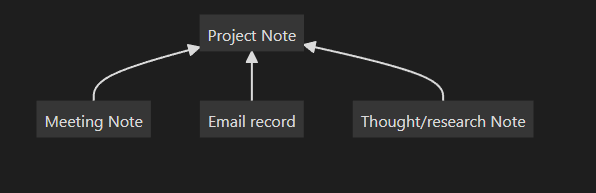
Project Notes contain the master narrative of your work projects for you (or your future self), to help you keep track of what happened or what is happening. Projects could be cases, campaigns, sales efforts, strategies, etc. Anything episodic. The point is to show in one place, all the effort associated with that piece of work.
Project Notes should have a short description of the project and a timeline of events, and Event notes (see below for more info about Event notes). An example description looks like this:
#project about xxx. Sponsored by [[person y]], supported by [[person z]]. Deadline YYYYMMDD
The best part about Obsidian is being able to easily include links to other pages. In this case, use the Dataview plugin function to automatically include notes that are linked to this project. Just remember to add a link to this project note in your event notes.
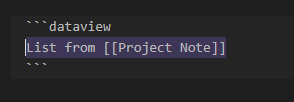
2. Event notes
Event notes are used to record key developments for a project. That usually falls into a meeting, email or thought/research. If you ever find yourself creating a note but are not clear about which project it falls under, that might mean you’re not very clear on why that note exists.
Meeting notes (#meeting)
First, meeting notes should start with a date and have a descriptive title. So don’t write “Tuesday regular meeting”, instead write “20230605 Meeting decided on xx”. That way, your Project Note (which is pulling the title of the Meeting note via Dataview) will clearly show what was accomplished at each meeting.
Second, have a short description at the top of the note, such as:
#meeting about [[project]] or [[client]] with [[person x]] and [[person y]] from [[organisation A]]
Having this short description at the top of the note serves a few useful purposes:
- It quickly reminds you (and shows future you) the tags, related project and people involved. Far better than to leave the tags at the bottom of the note where they are harder to see, and scatter the rest of the information through the note.
- Composing it keeps you honest about the goals of the meeting and its outcome.
Email note (#email)
Sometimes projects progress via email. It could be an instruction or a decision. As with meeting notes, include the title and a clear description of the decision/event, such as “20230607 Boss X agreed to support Project Y”. The note’s topline description could look like this:
#email about [[project]] from [[person x]] from [[organisation A]]
You should attach the relevant email screenshot or verbatim quote of the decision as well. See below for more details about Note blocks
Thought/research note
Thought or research notes follow the same principle as the preceding two notes. Describe the note in the title and include a summary at the top of the note. Be sure to relate it to a project, organisation, person etc.
#thought about [[project]]. I think etc etc
3. People (#person) and organisation notes (#organisation)
You might have noticed that the descriptions for each note include links to either people or organisations. This is a basic method to enable links to be drawn between your projects and entities (ie people, organisations or business units).
For people, I have found it useful to include information such as the organisation they are from, when you first met (it could even be linked to a meeting note) and any other comments or facts you have about them, like their family or work biography. Be sure to include the #person tag.
Organisation notes benefit from tags like #country and #industry to easily find the relevant organisation in the future.
4. Product notes (#product)
This is a separate sort of entity. It’s always useful to keep track of the features and pain points of your (or your competitor’s) products. It is also a good place to keep a short description of the product, brochures and tutorials.
Note: Save your attachments in a separate folder, that will keep your main vault neat and easy to navigate. I do not recommend having too many folders as that defeats the purpose of Obsidian’s tagging and linking system — which permits you to see associated notes without placing them in rigid taxonomies (ie folders).
B. Using code blocks instead of callouts
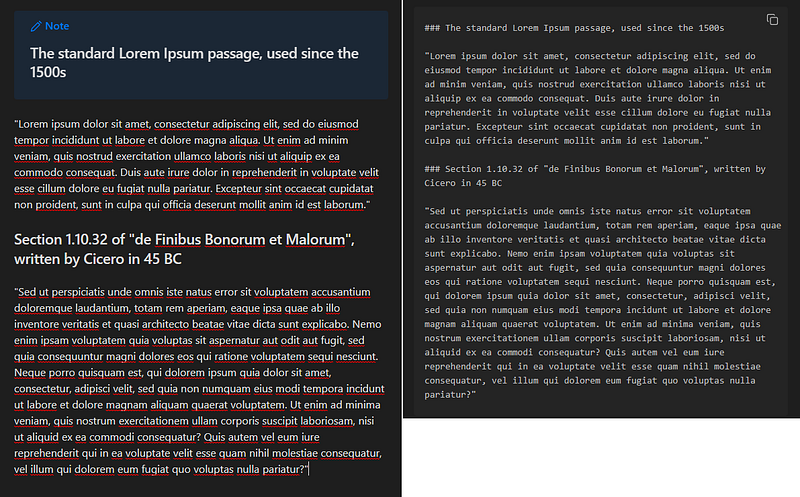
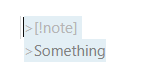
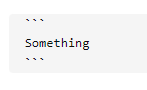
Obsidian offers a way to create callouts like “notes” and “info”. But I do not recommend them, because callouts stop working when it meets a line break. As line breaks are very common in text communications, you would then have to manually delete each line break for the note feature to work. It’s far easier to use a code block (```) as your formatting is retained.
A second reason is that code blocks are easy to use — 4 key strokes vs 7 for callouts:
C. Sharing notes
When sharing your notes with other people, you have two options:
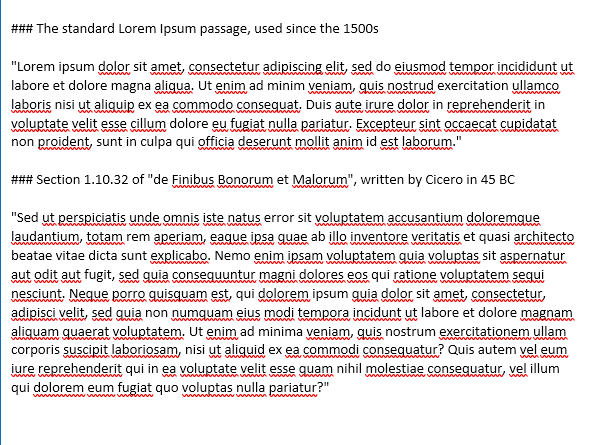
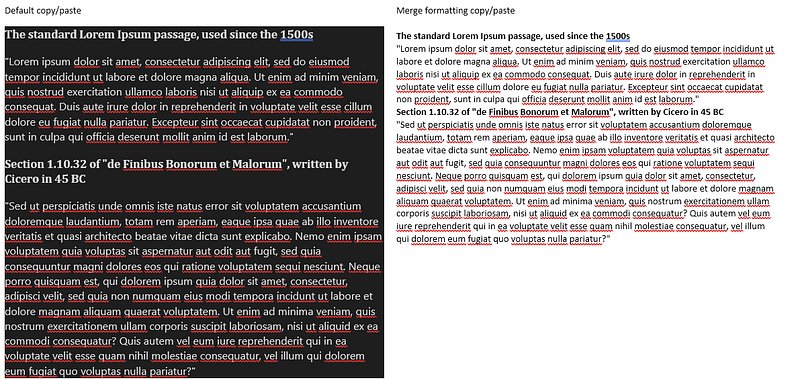
- Copy/paste your text from the reading pane (not the edit pane) and paste. Doing so eliminates the markdown language that would be distracting for a reader.
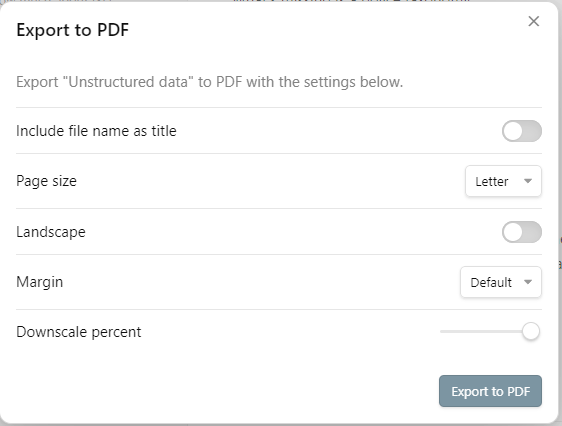
2. Export to PDF. You can export to PDF as well.
C. Plugins
In addition to Dataview for your project notes and templates (a core plugin) for your event notes, I have found Omnisearch to be very useful and accurate — it continually throws up relevant results where the standard Obsidian search cannot.
As most office workers have to deal with PDFs, powerpoint slides and a host of other text/image formats, it is also useful to download Text Extractor (also by Simon Cambier) to help OCR and PDFs for your text searches.
I’d also like to make a pitch for the Graph Analysis plugin, which uses statistics and nlp to read through the text and images of your notes to throw up useful related notes.
Do you use Obsidian for work? How do you use it? Share what you think in the comments.
In the meantime, take a look at the rest of my articles on Obsidian:
- Template and Dataview for tracking movie scenes in Obsidian
- How Mermaid diagrams work in Obsidian
- How to use Obsidian or any note-taking app for work (aka don’t fall for PKM candy)
- When you should consider switching to Obsidian
- Obsidian’s Graph Analysis plugin
- Using Obsidian’s Graph view for real
- Using Obsidian for group KM
- Obsidian for making sense of things


