avatarErika Burkhalter

Free AI web copilot to create summaries, insights and extended knowledge, download it at here

2814

Abstract

</div>
          <div>
            <div style="background-image: url(https://miro.readmedium.com/v2/resize:fit:320/1*9kWVFcZyz6qx0Co--RxjqA.jpeg)"></div>
          </div>
        </div>
      </a>
    </div><h2 id="3105">The next step</h2><p id="d5c4">Once you have the image up on your computer in “Photos,” you can see the “live” feature in action by hovering your mouse over the “live” button in the upper left. It will look like a short video.</p><p id="b400">To enter the “edit” mode, you just click on the “Edit”button in the upper right hand corner.</p><figure id="3f73"><img src="https://cdn-images-1.readmedium.com/v2/resize:fit:800/1*JDjCTrr2U2AbLs9KHegtyw.png"><figcaption>The “Edit” button is in the upper right hand corner.</figcaption></figure><p id="a83d">Once you are in edit mode, you will see a little “filmstrip” at the bottom. These are all the shots that the phone snapped. You can cycle through these to select which photo you like the best.</p><figure id="ae8f"><img src="https://cdn-images-1.readmedium.com/v2/resize:fit:800/1*Em0mm0d7GmKuNqOFf1Ky0w.png"><figcaption></figcaption></figure><p id="3ea7">For instance, here I made the very first image in the filmstrip the “key image.” The wave is further out from shore than it is in the shot above. It’s a very small difference, but that is what makes this trick work.</p><figure id="3442"><img src="https://cdn-images-1.readmedium.com/v2/resize:fit:800/1*ktk1ph1iJD5hQ9q519p3dQ.jpeg"><figcaption>The wave is a little further out from shore. Photo ©Erika Burkhalter</figcaption></figure><h2 id="76b8">Creating the long exposure effect</h2><p id="dd00">To create a true “long exposure” shot on a camera, you would leave the shutter open longer. But what you are doing on the iPhone is blending together all of those shots on the filmstrip.</p><p id="8150">At the bottom of the screen (in edit mode), you will see a drop-down menu. It will say “live” (see above photo). Select “Long Exposure” and, voila!</p><figure id="cad5"><img src="https://cdn-images-1.readmedium.com/v2/resize:fit:800/1*f0o_UXv6sm9kW6Bj0vQ_Mw.png"><figcaption>Select “long exposure” from the drop-down menu at the bottom right.</figcaption></figure><p id="9a83">What is interesting to me, and I have to confess that I do not know how this works, is that when I selected the first image in my filmstrip to be my main photo and then selected “Long Exposure,” the photo looks a little different than the lead photo in this story (which was created when I selected the middle photo in the filmstrip to be my main photo).</p><figure id="d934"><img src="https://cdn-images-1.readmedium.com/v2/resize:fit:800/1*Tx4t1UNFDc6dQCnFX9x-vw.jpeg"><figcaption>It’s a little different than the lead photo because I used a different “Main Photo.” Photo ©Erika 

Options

Burkhalter.</figcaption></figure><p id="e442">While it not quite the same effect as a “true” long exposure photograph, I think that this is a pretty cool trick.</p><p id="b7c2">If you give this a try, I’d love to see the results. You can post them in the comments or tag me in your piece.</p><p id="2388">I hope that you found this useful. I love experimenting with photography and am always playing around with new techniques. You can find more pieces like this in my little publication, <a href="https://medium.com/butterfly-dreams"><i>Butterfly Dreams</i></a>, and in other publications, like <a href="https://medium.com/snap-shots">SNAPSHOTS</a>, on medium.</p><p id="e5e6"><i>Erika Burkhalter is a yogi, neurophilosopher, cat-mom, photographer, and lover of travel and nature, spreading her love and amazement for Mother Earth’s glories, one photo, poem or story at a time. (MS Neuropsychology, MA Yoga Studies).</i></p><p id="a628">Thank you for reading. I hope that you enjoyed my meanderings and photos.</p><p id="15ce">If you enjoyed this piece, you might also like:</p><div id="e410" class="link-block"> <a href="https://readmedium.com/falling-into-eternity-during-the-perseid-meteor-shower-7ff94bc4d620"> <div> <div> <h2>Falling into Eternity During the Perseid Meteor Shower</h2> <div><h3>My first attempt at astrophotography</h3></div> <div><p>medium.com</p></div> </div> <div> <div style="background-image: url(https://miro.readmedium.com/v2/resize:fit:320/1*wT2Xf7NmnNpAsuLt8G7CWg.jpeg)"></div> </div> </div> </a> </div><div id="7adf" class="link-block"> <a href="https://readmedium.com/will-smith-you-have-a-new-fan-af55b7a8dd79"> <div> <div> <h2>Will Smith, You Have a New Fan</h2> <div><h3>Bisou really loves “Welcome to Earth”</h3></div> <div><p>medium.com</p></div> </div> <div> <div style="background-image: url(https://miro.readmedium.com/v2/resize:fit:320/1*9LwuuA8EZHkXSdSyDTkgIQ.jpeg)"></div> </div> </div> </a> </div><p id="3acc"><i>Story and photo ©Erika Burkhalter. All rights reserved.</i></p><p id="6203">If you enjoyed this piece, you might consider <a href="https://erikaburkhalter.medium.com/subscribe">subscribing to my stories</a>. You’ll get an alert whenever a story gets published. You can also help to support me and so many dedicated and talented writers here by <a href="https://erikaburkhalter.medium.com/membership">joining medium</a> and getting unlimited access to every story and article on the platform.</p></article></body>

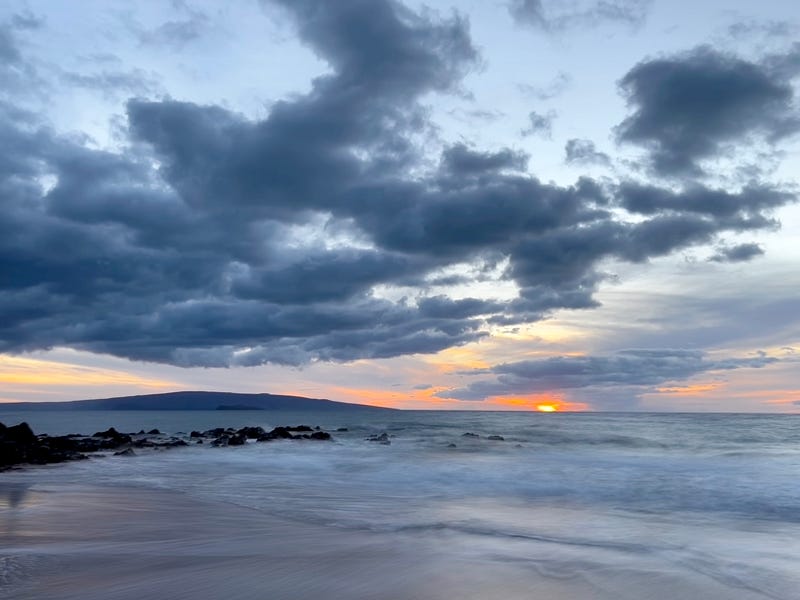
Polo Beach, Maui. Shot with my iPhone 13 Pro Max and converted into a “long exposure” photo. ©Erika Burkhalter

Photography Tips, Photography

Turning a “Live” iPhone Photo into a Long Exposure Shot

A really cool trick that puts a little “wow” into your photograph

If I told you that the above photo and the one below are the exact same photo, shot on my iPhone 13 Pro Max, would you believe me?

I’ve been playing around with longer exposures during the “blue hour” with my Nikon z7II lately, but I had no idea until just recently that you could get a “long exposure effect” with the iPhone.
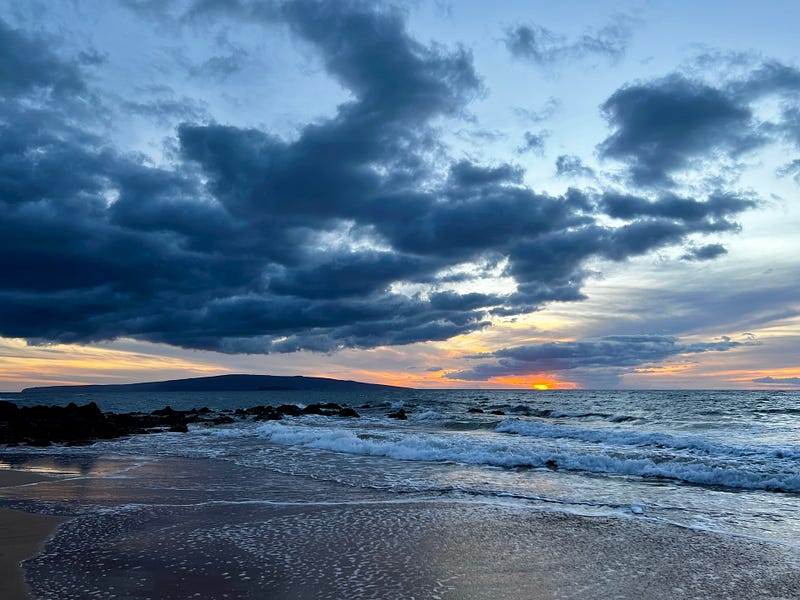
The original “live” photo. ©Erika Burkhalter.

I recently shot this photo on Polo Beach in Maui, at sunset and I did not even realize at the moment that I had left the “live” feature on. But it was good luck that I had because when I learned about this little trick, I went back and looked and realized that I had a few “live” photos to play with.

How it works

So here’s the first step in the trick — when you shoot your photo, make sure you have the “live” feature on:

The “live” button

You will see the little “double circle” in the upper right hand corner of your phone screen. It will mostly likely have a slash through it, to indicate that it is turned off. Tap it once to turn it on.

This tip works best for moving water photos where you can blur the sea or river to get that “soft” effect.

When you take a “live” iPhone photo, what you are really capturing is a series of photos taken before and after the main photo that you see. It’s really a cool feature — one that I use a lot with photos of kids and pets and bees and things that move fast — because, once you open the “edit” mode on your computer, you can actually pick which photo (out of the series)that you want to use. You can read more about that process here:

The next step

Once you have the image up on your computer in “Photos,” you can see the “live” feature in action by hovering your mouse over the “live” button in the upper left. It will look like a short video.

To enter the “edit” mode, you just click on the “Edit”button in the upper right hand corner.
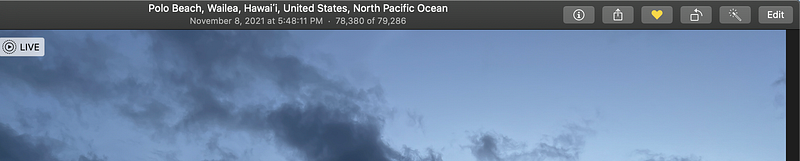
The “Edit” button is in the upper right hand corner.

Once you are in edit mode, you will see a little “filmstrip” at the bottom. These are all the shots that the phone snapped. You can cycle through these to select which photo you like the best.

For instance, here I made the very first image in the filmstrip the “key image.” The wave is further out from shore than it is in the shot above. It’s a very small difference, but that is what makes this trick work.
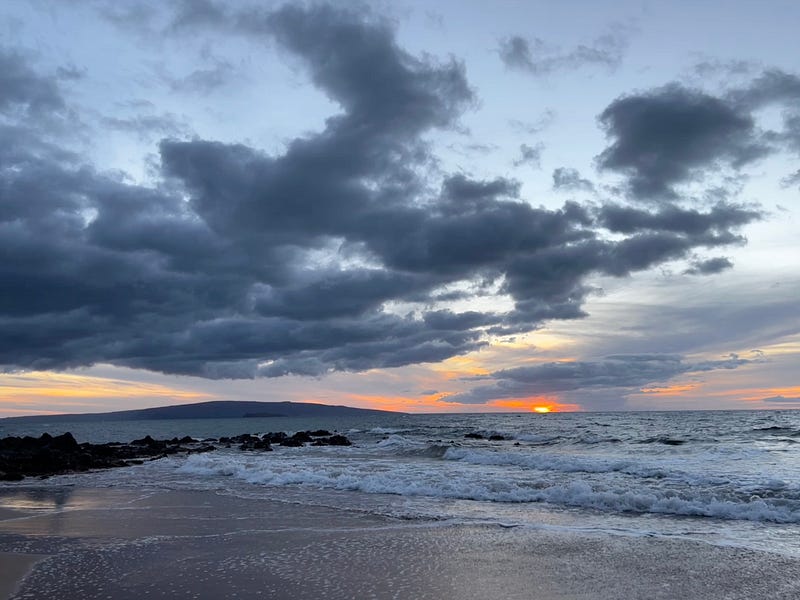
The wave is a little further out from shore. Photo ©Erika Burkhalter

Creating the long exposure effect

To create a true “long exposure” shot on a camera, you would leave the shutter open longer. But what you are doing on the iPhone is blending together all of those shots on the filmstrip.

At the bottom of the screen (in edit mode), you will see a drop-down menu. It will say “live” (see above photo). Select “Long Exposure” and, voila!

Select “long exposure” from the drop-down menu at the bottom right.

What is interesting to me, and I have to confess that I do not know how this works, is that when I selected the first image in my filmstrip to be my main photo and then selected “Long Exposure,” the photo looks a little different than the lead photo in this story (which was created when I selected the middle photo in the filmstrip to be my main photo).
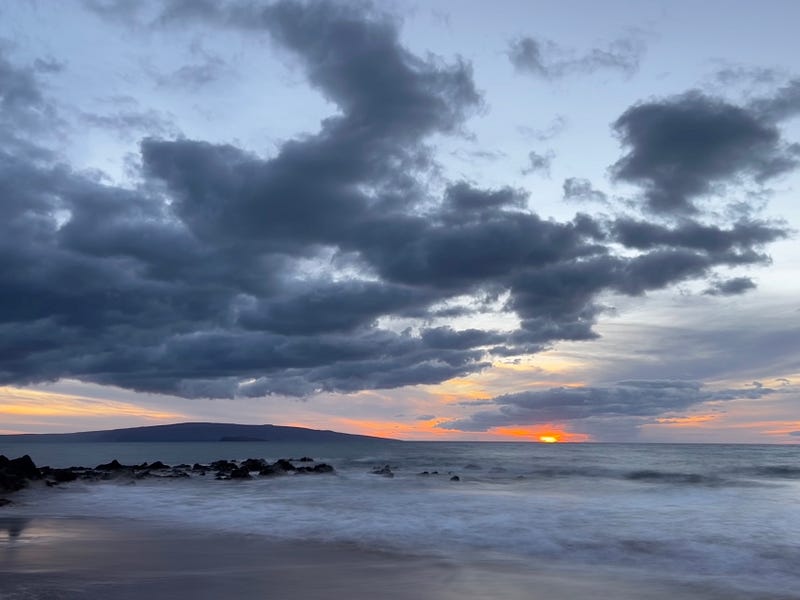
It’s a little different than the lead photo because I used a different “Main Photo.” Photo ©Erika Burkhalter.

While it not quite the same effect as a “true” long exposure photograph, I think that this is a pretty cool trick.

If you give this a try, I’d love to see the results. You can post them in the comments or tag me in your piece.

I hope that you found this useful. I love experimenting with photography and am always playing around with new techniques. You can find more pieces like this in my little publication, Butterfly Dreams, and in other publications, like SNAPSHOTS, on medium.

Erika Burkhalter is a yogi, neurophilosopher, cat-mom, photographer, and lover of travel and nature, spreading her love and amazement for Mother Earth’s glories, one photo, poem or story at a time. (MS Neuropsychology, MA Yoga Studies).

Thank you for reading. I hope that you enjoyed my meanderings and photos.

If you enjoyed this piece, you might also like:

Story and photo ©Erika Burkhalter. All rights reserved.

If you enjoyed this piece, you might consider subscribing to my stories. You’ll get an alert whenever a story gets published. You can also help to support me and so many dedicated and talented writers here by joining medium and getting unlimited access to every story and article on the platform.

Photography
Photography Tips
Maui
iPhone
Iphone Tips
Recommended from ReadMedium