avatarKesk -*-

Free AI web copilot to create summaries, insights and extended knowledge, download it at here

4785

Abstract

an> /etc/_ver /etc/-rel; <span class="hljs-built_in">cat</span> /etc/_ver /etc/-rel</span></pre></div><figure id="61d0"><img src="https://cdn-images-1.readmedium.com/v2/resize:fit:800/1*Nx9xk3WEQu0I92rYH2Jw9g.png"><figcaption>Screenshot with execution result.</figcaption></figure><h2 id="1eec">8. Show a notification when a shell command is completed</h2><p id="88a5">If we add “;notify-send done” to the end of a command, we will receive a notification when the command completes.</p><div id="adda"><pre><span class="hljs-meta prompt_"> </span><span class="language-bash"><span class="hljs-built_in">ls</span> -l ;notify-send <span class="hljs-keyword">done</span></span></pre></div><figure id="632e"><img src="https://cdn-images-1.readmedium.com/v2/resize:fit:800/1*Hx3N95d2B7pXJxVbnwPn2A.png"><figcaption>Screenshot with execution result.</figcaption></figure><h2 id="7fb6">9. Execute command without asking for confirmation</h2><p id="3560">If we want to execute a Linux command without being asked for confirmation at each step, we can use “yes” as follows:</p><div id="c71c"><pre><span class="hljs-symbol"></span> <span class="hljs-keyword">yes</span> | sudo apt install XXX</pre></div><h2 id="f9da">10. Monitoring CPU speed</h2><p id="498a">The default is every 2 seconds.</p><div id="cd77"><pre><span class="hljs-meta prompt_"> </span><span class="language-bash">watch grep \"cpu MHz\" /proc/cpuinfo</span></pre></div><figure id="3304"><img src="https://cdn-images-1.readmedium.com/v2/resize:fit:800/1*2Xq_sMoZ-KfzAynjTOYhYw.png"><figcaption>Screenshot with execution result.</figcaption></figure><h2 id="f9e2">11. Find broken symbolic links</h2><p id="afe9">If we want to find all the broken symbolic links on our system, we can run the following command:</p><div id="a1e2"><pre><span class="hljs-meta prompt_"> </span><span class="language-bash">find . -<span class="hljs-built_in">type</span> l ! -<span class="hljs-built_in">exec</span> <span class="hljs-built_in">test</span> -e {} ; -<span class="hljs-built_in">print</span></span></pre></div><h2 id="31da">12. Equivalent to the ENTER key on our terminal</h2><p id="6586">Very useful if, for some reason, the “ENTER” key does not work.</p><div id="290d"><pre>CTRL + m <span class="hljs-keyword">or </span>CRL + <span class="hljs-keyword">j</span></pre></div><h2 id="6f39">13. Find the process that is using a specific port</h2><p id="1683">Simple and practical, not much more needs to be said.</p><div id="7a7e"><pre><span class="hljs-variable"> </span>lsof -P | grep <span class="hljs-string">':8080'</span></pre></div><h2 id="a1ee">14. Backup a drive into a file on a remote host via ssh</h2><p id="94e3">We do not need to use any tool to create a backup of our disk.</p><div id="22ea"><pre><span class="hljs-meta prompt_"> </span><span class="language-bash"><span class="hljs-built_in">dd</span> <span class="hljs-keyword">if</span>=/dev/sda | ssh user@server <span class="hljs-string">'dd of=backup_sda.img'</span></span></pre></div><h2 id="4b0d">15. One-liner countdown in terminal</h2><p id="1acc">We do not need either any third-party application to launch a countdown from the command line and be notified when it reaches zero.</p><div id="68d4"><pre><span class="hljs-meta prompt_"> </span><span class="language-bash"><span class="hljs-keyword">for</span> i <span class="hljs-keyword">in</span> `<span class="hljs-built_in">seq</span> 10 -1 1` ; <span class="hljs-keyword">do</span> <span class="hljs-built_in">echo</span> -ne <span class="hljs-string">"\r<span class="hljs-variable">i</span> "</span> ; <span class="hljs-built_in">sleep</span> 1 ; <span class="hljs-keyword">done</span> ;notify-send ZERO!</span></pre></div><figure id="a8ef"><img src="https://cdn-images-1.readmedium.com/v2/resize:fit:800/1*U3h5YpaOt1AfSRn6igOERw.png"><figcaption>Screenshot with execution result.</figcaption></figure><h2 id="1513">16. List the most used commands</h2><p id="07c3">With the following command, we can see which have been the most frequently executed commands during the different shell sessions.</p><div id="af9a"><pre><span class="hljs-meta prompt_"> </span><span class="language-bash"><span class="hljs-built_in">history</span> | awk <span class="hljs-string">'{a[2]++}END{for(i in a){print a[i] " " i}}'</span> | <span class="hljs-built_in">sort</span> -rn | <span class="hljs-built_in">head</span></span></pre></div><figure id="424a"><img src="https://cdn-images-1.readmedium.com/v2/resize:fit:800/1*hGM9J3uDRZ0lFSN86V7aQg.png"><figcaption>Screenshot with execution result.</figcaption></figure><h2 id="12d2">17. Count files in the current directory, including subdirectories</h2><div id="d0e9"><pre><span class="hljs-meta prompt_">$ </span><span class="language-bash">find . -<span c

Options

lass="hljs-built_in">type</span> f | <span class="hljs-built_in">wc</span> -l</span></pre></div><figure id="f23c"><img src="https://cdn-images-1.readmedium.com/v2/resize:fit:800/1*sDUR6uHdrDZUyKbpC4cdGA.png"><figcaption>Screenshot with execution result.</figcaption></figure><h2 id="a789">18. Remove executable bit</h2><p id="ab89">The following command recursively removes the executable bit from all files in the current directory.</p><div id="aa33"><pre><span class="hljs-meta prompt_"> </span><span class="language-bash"><span class="hljs-built_in">chmod</span> -R -x+X *</span></pre></div><h2 id="0dbc">19. Simulate the execution of some commands with echo</h2><p id="905e">For example, in this case, we see which files with the .csv extension will be deleted.</p><div id="405b"><pre><span class="hljs-meta prompt_"> </span><span class="language-bash"><span class="hljs-built_in">echo</span> <span class="hljs-built_in">rm</span> *.csv</span></pre></div><figure id="2788"><img src="https://cdn-images-1.readmedium.com/v2/resize:fit:800/1*I3QzbcBnU_eHPPVq_LFj0Q.png"><figcaption>Screenshot with execution result.</figcaption></figure><h2 id="33da">20. Show all current string values in the ram</h2><p id="aa8c">A practical way to see the strings we have stored in the RAM.</p><figure id="dfaa"><img src="https://cdn-images-1.readmedium.com/v2/resize:fit:800/1*MQo9Zum5AfVXjyz851QXnA.png"><figcaption>Screenshot with execution result.</figcaption></figure><p id="7888">I hope you found it valuable and entertaining to read. Do not hesitate to try the commands :)</p><p id="9e44">If you liked this post, I think you will like these other posts that talk about the Linux command line:</p><div id="b653" class="link-block"> <a href="https://betterprogramming.pub/25-awesome-linux-command-one-liners-9495f26f07fb"> <div> <div> <h2>25 Awesome Linux Command One-Liners</h2> <div><h3>Save time in your day-to-day work and have fun with it</h3></div> <div><p>betterprogramming.pub</p></div> </div> <div> <div style="background-image: url(https://miro.readmedium.com/v2/resize:fit:320/1*_pw1I6rLLLMEWGcuavMlwA.jpeg)"></div> </div> </div> </a> </div><div id="01a7" class="link-block"> <a href="https://readmedium.com/11-evil-bash-linux-commands-explained-f367d8282399"> <div> <div> <h2>11 Evil Bash Linux commands Explained</h2> <div><h3>If you want to be ba evil with this, you have it easy</h3></div> <div><p>medium.com</p></div> </div> <div> <div style="background-image: url(https://miro.readmedium.com/v2/resize:fit:320/1*w6J6eG1tnXpJ4QNoj1LVqw.jpeg)"></div> </div> </div> </a> </div><div id="bdc7" class="link-block"> <a href="https://readmedium.com/18-selected-super-useful-linux-one-liners-398ba6d20f8c"> <div> <div> <h2>18 Selected Super-Useful Linux One-Liners</h2> <div><h3>Functional, Practical, and some also extremely Dangerous</h3></div> <div><p>medium.com</p></div> </div> <div> <div style="background-image: url(https://miro.readmedium.com/v2/resize:fit:320/1*M-mBApgNHf389mgB5AQUyA.jpeg)"></div> </div> </div> </a> </div><div id="45b6" class="link-block"> <a href="https://readmedium.com/12-awesome-linux-commands-utilities-49ab56588a84"> <div> <div> <h2>12 Awesome Linux Commands && Utilities</h2> <div><h3>Squeezes the command line</h3></div> <div><p>medium.com</p></div> </div> <div> <div style="background-image: url(https://miro.readmedium.com/v2/resize:fit:320/1*ivxC4I8-e7mE10gB6tvHyw.jpeg)"></div> </div> </div> </a> </div><div id="6d0f" class="link-block"> <a href="https://readmedium.com/the-linux-swiss-army-knife-dd9d27668c0e"> <div> <div> <h2>The Linux Swiss army knife</h2> <div><h3>Commands that will make you forget the GUI</h3></div> <div><p>medium.com</p></div> </div> <div> <div style="background-image: url(https://miro.readmedium.com/v2/resize:fit:320/1*o3JMD6QAuTE38ka9c95x7w.jpeg)"></div> </div> </div> </a> </div><p id="a175">Any suggestion is always welcome.</p></article></body>

The Art of Using the Command Line

20 curated super bash One-liners commands for your day to day

Foto de Soumil Kumar de Pexels: https://www.pexels.com/es-es/foto/foto-de-persona-escribiendo-en-el-teclado-de-la-computadora-735911/

I love the Linux command line, so I have written several articles where I show tricks and utilities that bring us real utility.

On this occasion, I compile 20 command one-liners that I find especially useful. I hope you like them!

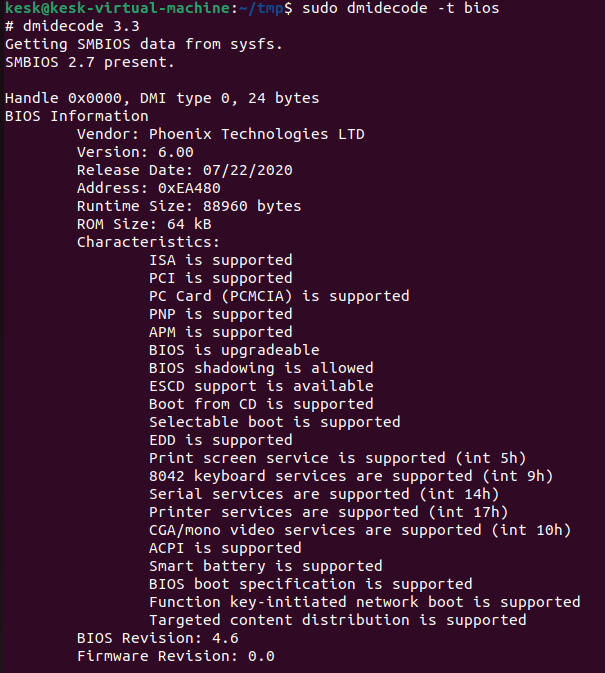
1. Show bios information

With the following command, we can see the Bios information of our computer.

$ sudo dmidecode -t bios
2. Encode and Decode a string in base64

We pass a text using the pipeline operator to the base64 command to encode it and add the “- - decode” flag to decode it to the original value. It’s as simple as that.

$ echo password1 | base64
$ echo xxx | base64 --decode

Screenshot with execution result.

3. Share a folder quickly using a web server

Using python, we can easily share a folder in a URL.

$ cd $mydir && python3 -m http.server 8888

4. A simple way to Monitor memory every 2 seconds:

“watch -n X” repeats a command every X seconds and highlights the differences.

$ watch -n 2-d '/bin/free -m'

Screenshot with execution result.

5. Execute in one step a pull request in all git directories

A quick way to update all our git repositories is to run the following command:

$ for i in */.git; do cd $(dirname $i); git pull; cd ..; done

6. Convert a CSV file to Json file

You need to have python installed.

CSV file:
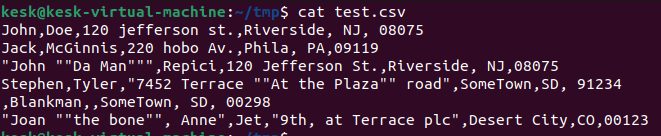
test.csv file.
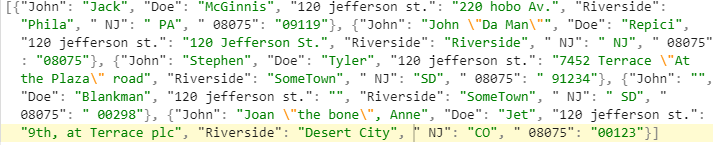
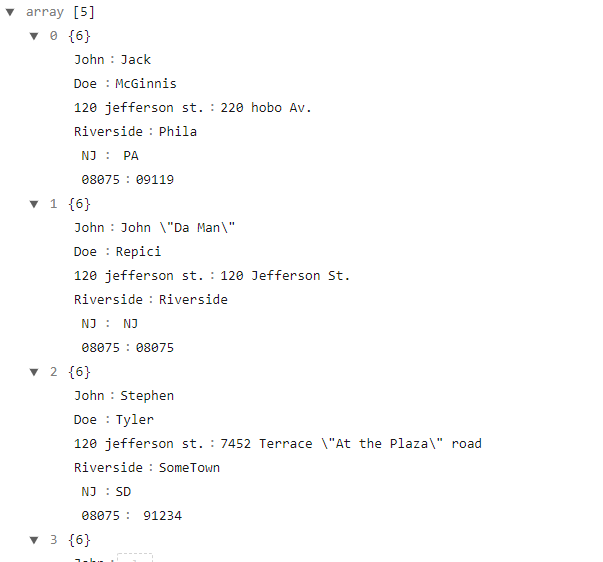
$ cat test.csv | python3 -c 'import csv, json, sys; print(json.dumps([dict(r) for r in csv.DictReader(sys.stdin)]))'

Json:

Screenshot with execution result.
Screenshot with the execution result

7. Display the Linux distribution information

The following command will display all available information about our current distribution, the package management, and the base details:

$ echo /etc/*_ver* /etc/*-rel*; cat /etc/*_ver* /etc/*-rel*
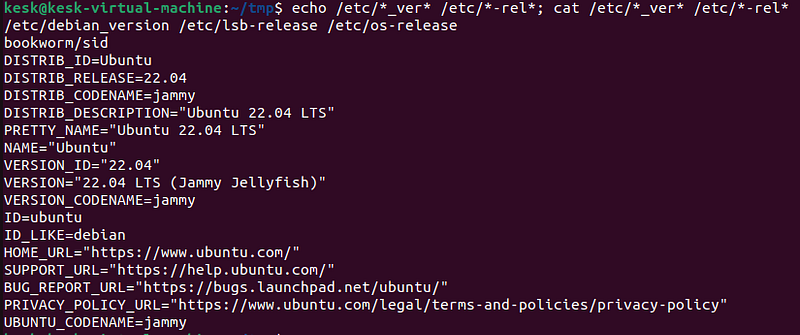
Screenshot with execution result.

8. Show a notification when a shell command is completed

If we add “;notify-send done” to the end of a command, we will receive a notification when the command completes.

$ ls -l ;notify-send done
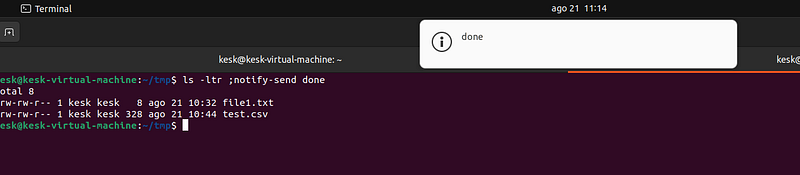
Screenshot with execution result.

9. Execute command without asking for confirmation

If we want to execute a Linux command without being asked for confirmation at each step, we can use “yes” as follows:

$ yes | sudo apt install XXX

10. Monitoring CPU speed

The default is every 2 seconds.

$ watch grep \"cpu MHz\" /proc/cpuinfo
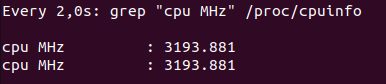
Screenshot with execution result.

11. Find broken symbolic links

If we want to find all the broken symbolic links on our system, we can run the following command:

$ find . -type l ! -exec test -e {} \; -print

12. Equivalent to the ENTER key on our terminal

Very useful if, for some reason, the “ENTER” key does not work.

CTRL + m or CRL + j

13. Find the process that is using a specific port

Simple and practical, not much more needs to be said.

$ lsof -P | grep ':8080'

14. Backup a drive into a file on a remote host via ssh

We do not need to use any tool to create a backup of our disk.

$ dd if=/dev/sda | ssh user@server 'dd of=backup_sda.img'

15. One-liner countdown in terminal

We do not need either any third-party application to launch a countdown from the command line and be notified when it reaches zero.

$ for i in `seq 10 -1 1` ; do echo -ne "\r$i " ; sleep 1 ; done ;notify-send ZERO!
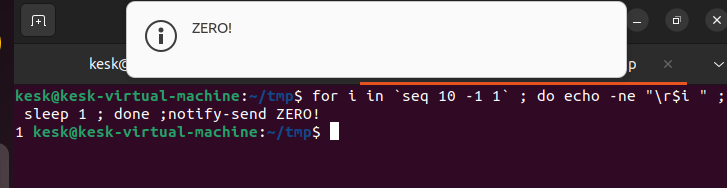
Screenshot with execution result.

16. List the most used commands

With the following command, we can see which have been the most frequently executed commands during the different shell sessions.

$ history |  awk '{a[$2]++}END{for(i in a){print a[i] " " i}}' |  sort -rn |  head

Screenshot with execution result.

17. Count files in the current directory, including subdirectories

$ find . -type f | wc -l

Screenshot with execution result.

18. Remove executable bit

The following command recursively removes the executable bit from all files in the current directory.

$ chmod -R -x+X *

19. Simulate the execution of some commands with echo

For example, in this case, we see which files with the .csv extension will be deleted.

$ echo rm *.csv
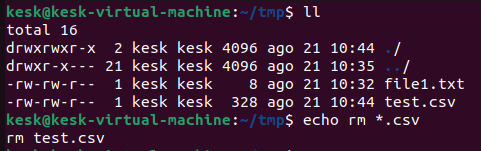
Screenshot with execution result.

20. Show all current string values in the ram

A practical way to see the strings we have stored in the RAM.
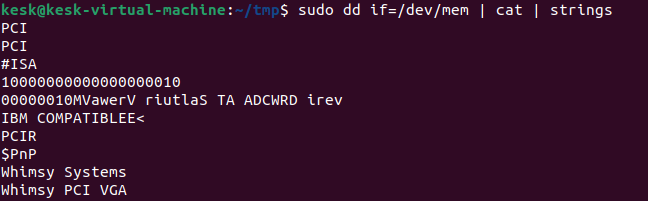
Screenshot with execution result.

I hope you found it valuable and entertaining to read. Do not hesitate to try the commands :)

If you liked this post, I think you will like these other posts that talk about the Linux command line:

Any suggestion is always welcome.

Linux
Shell
Bash
System Administration
Command Line
Recommended from ReadMedium