18 Selected Super-Useful Linux One-Liners
Functional, Practical, and some also extremely Dangerous

In this post, I compile a series of commands demonstrating how powerful it is to use the Linux bash shell.
Be careful when running some of them because you could lose all your data. However, others will be very handy to you for increasing your productivity. Let’s start.
Dangerous commands
Only execute them if you are sure of what you are doing
I have added at the beginning and at the end of the command the word “- -” so that you cannot copy and paste it.
1. Fork Bomb
This “command,” if you run it on your PC, may not be very dangerous, but if you run it on a server, you can cause a denial of service and leave it without service.
It looks like a series of strange symbols, but it is not. Instead, it is the definition of a bash function.
Bash allows the symbol “:” as the name of a function. And what we do when we execute the command “:(){ :|:& };::” is to create the function called “:.”
Inside the function, it calls itself, and the output redirects it with | to the function “:,” that is, to itself again. This function will be running in the background indefinitely.
With “&,” we tell the process to run in the background.
$ -- :(){ :|: & };: --2. Writes Directly to a Hard Drive
You will quickly damage your file system if you run any command and dump its output directly into a disk. So who wants to do this?
$ -- "a command" > /dev/sda --Write random data to the disk
This command is helpful if, for example, you want to overwrite the sectors of your hard disk so that the data cannot be recovered. Remember that recovering the data with specialized tools is simple if you format the disk.
If you use this command in a loop and run it 3 or 4 times, it will give you enough assurance that the data on the disk cannot be recovered in any way.
$ -- dd if=/dev/urandom of=/dev/disk --//for i in {1..10}; do dd if=/dev/urandom of=/dev/disk; done3. Delete all
This command deletes everything, including files on the hard disk and connected removable devices, making it extremely dangerous as it does not even ask for confirmation.
With the “rf” flag, we are telling the command to run recursively and force the deletion of all files without asking for confirmation.
With “/,” we are telling the command to start in the root directory, which contains all files and all mounted media devices, including remote file shares and removable drives.
$ -- rm -rf --no-preserve-root / --- From POSIX 7th version you need to use the “no-preserve-root” flag. This flag is used to avoid treating “/” in a special way.
Regular commands
4. Find out the Top Most Used Commands
This one-liner command is handy if you want to know which commands you use the most. With -n X, you indicate how many you want to show. For example, n -10 shows the ten most used commands.
cat ~/.bash_history | tr "\|\;" "\n" | sed -e "s/^ //g" | cut -d " " -f 1 | sort | uniq -c | sort -n | tail -n 10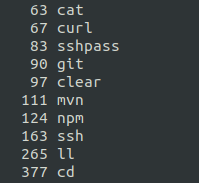
5. Find a List of Unique Words in a file
The following one-liner command is used to enumerate words that have alphabets. The “tr” command converts the characters that are not alphabets to a new line. Next, we will use the “sed” command to remove the empty lines, and finally, we will uniquely sort the same, avoiding duplicates using the “sort” command.
tr -c a-zA-Z '\n' < someFile.txt | sed '/^$/d' | sort | uniq -i -c6. Colorize the output of ps
This one-liner command colorizes the output of ps to show services in red and session leaders in green.
Ascii colors: http://es.tldp.org/COMO-INSFLUG/COMOs/Bash-Prompt-Como/Bash-Prompt-Como-5.html
ps ajxf | awk '{ if($2 == $4) { if ($1 == 1) { print "\033[35m" $0"\033[0m"} else print "\033[1;32m" $0"\033[0m" } else print $0 }'
7. Change to the previous working directory
Super helpful and often not used. If you want to return to the previous directory, just run the following command.
cd -8. Traceroute and ping combined
This command is a combination of ping and traceroute commands. It is a diagnostic tool that continuously sends packets showing ping time for each hop.
mtr google.com
9. Find the last command that begins with “xxx” without executing it
In this example, we are looking for the first command starting with “cp”.
!cp:p
10. How to run a command N times
I don’t think it needs any explanation: a loop and the command you want to be executed on each iteration.
for i in {1..10}; do command; done11. Add a clock to your terminal
By executing the following commands, you can add a clock to your terminal that will be maintained as long as you do not close it.
while sleep 1;do tput sc;tput cup 0 $(($(tput cols)-29));date;tput rc;done &
12. Find duplicate files
A simple way to search for duplicate files. To do so, it obtains the hash of the files and compares them.
find -not -empty -type f -printf "%s
" |  sort -rn |  uniq -d |  xargs -I{} -n1  find -type f -size {}c -print0 |  xargs -0  md5sum |  sort |  uniq -w32 --all-repeated=separate
13. Set an audible alarm when an IP address comes online
That command sequence can be helpful for many things. For example, it can alert you to a sound when a server is back online.
The “-i” 120 flag indicates how many seconds to wait between pings. The “-a” flag is used to indicate a sound when the server receives a packet.
ping -i 120 -a IP_address14. Delete all files in a folder that don’t match a specific file extension
How often has it happened to you that you want to clean up a directory but leave some files? Instead of doing it little by little, with this command, you can do it in one step indicating which files you want to leave undeleted.
rm !(*.xls|*.slsx|*.csv)15. Remove all but one specific file
This command is similar to the previous one, but we will indicate only one file in this case.
rm -f !(theFile.txt)16. Generate a random password of a specified size
If it happens to you like me that when you want to generate a password, you don’t know what to put, you can use this command to do it for you.
With the flag -c 8, you can indicate the size you want your password to be.
date +%s | sha256sum | base64 | head -c 8; echo17. Recursively remove all empty directories
A simple way to search for all empty directories and delete them.
find . -type d -empty -delete18. Copy the permissions of file1 the same as file2
A simple way to copy permissions from file2 to file1
chmod --reference file2 file1Final thoughts
The command line is lovely, and you can do infinite things with it. I hope you have found this post helpful!
Thanks!