
12 Awesome Linux Commands && Utilities
Squeezes the command line

I come back with another list of little-known utilities and commands for Linux that will help you go faster with your daily work.
1. googler
We are used to using Google search through a graphical interface in the browser. However, this is a problem in environments where the graphical interface is not available. With the googler utility, we will be able to perform Google searches from the command line.
Googler is a full-featured Python-based command-line tool for accessing Google (Web & News & Search) within the Linux terminal.
Url: https://github.com/jarun/googler
How to install it:
# ubuntu$ sudo add-apt-repository ppa:twodopeshaggy/jarun
$ sudo apt-get update
$ sudo apt install googlerOR$ sudo snap install googlerExample of use:
$ googler ford usa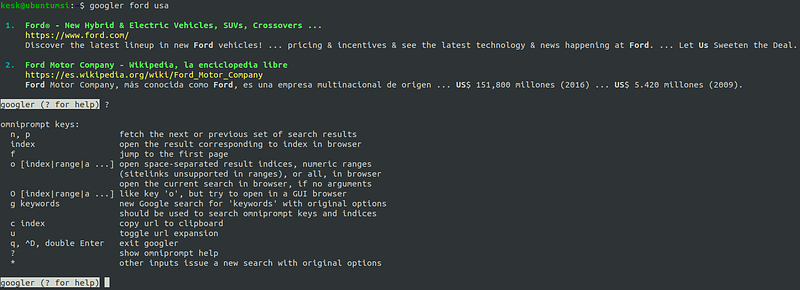
2. sl (Steam Locomotive)
Instead of typing the command ‘ls,’ how often have you typed ‘sl’?
Instead of showing you the tedious “command not found” message, this little utility will show you a nice picture; at least this way, you will laugh a little or be more careful next time.
How to install it:
$sudo apt install slExample of use:
$ sl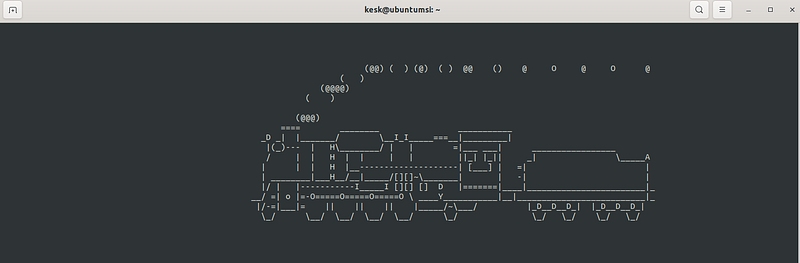
It is true that it can become tiresome in the end, although it will also serve to make you pay attention.
3. hstr
hstr is a great tool that I use daily that allows you to easily view, browse and search the history of commands entered in the shell history suggestion box. It is available for bash and zsh.
URL: http://dvorka.github.io/hstr/
URL: https://github.com/dvorka/hstr
How to install it:
#Ubuntu
$ sudo add-apt-repository ppa:ultradvorka/ppa && sudo apt-get update && sudo apt-get install hstr && hstr --show-configuration >> ~/.bashrc && . ~/.bashrc
4. yes
This command which comes by default in Linux is handy for system administrators who can use it to pass a predefined response to the terminal.
Example of use:
$ yes hello-world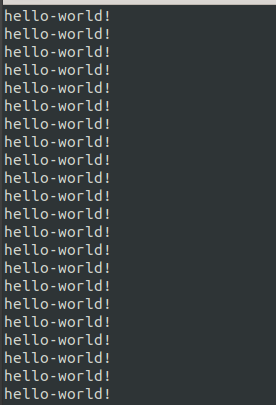
5. rev (Reverse)
It reverses every string given to it, which is sometimes helpful.
Example of use:
$ rev
$ hello world!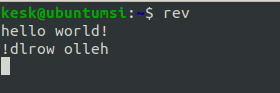
The good thing is that you don’t have to install anything.
6. Wikit
This Linux utility is used to search Wikipedia articles from the command line.
The only thing you have to do to use is to execute the command with the search term you want to get the information.
URL: https://www.tecmint.com/wikipedia-commandline-tool/
How to install it:
# Debian/Ubuntu$ sudo apt install nodejs $ sudo npm install wikit -gExample of use:
Wikit matrix
7. pydf
This tool is an excellent alternative to the “df” command. It displays the amount of used and available disk space on a Linux file system, just like the df command, but with different colors, and also lets you customize the results.
Note that it is written in Python.
URL: https://pypi.org/project/pydf/
#Ubuntu# only if you do not have phyton installed:
$ sudo apt install python3-pip
$ pip install pydf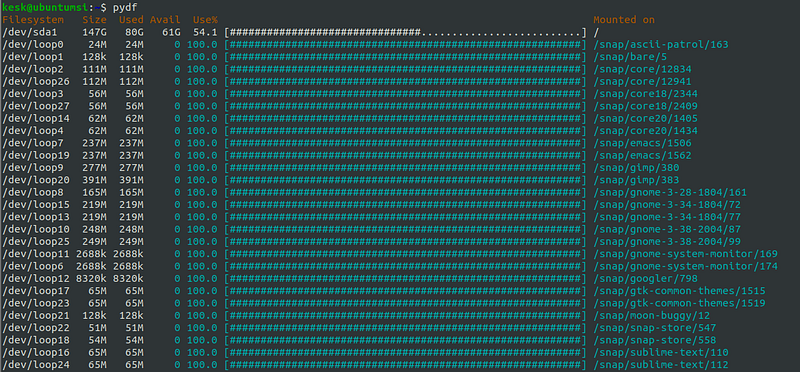
8. trash-cli
Trash-cli is a command-line interface that trashes files and records the original absolute path, deletion date, and permissions.
URL: https://github.com/andreafrancia/trash-cli
How to install it:
# Debian/Ubuntu systems
$ sudo easy_install trash-cli
Example of use:
# We create an example file named file1
$ echo "hello world!" > file1
$ trash-put file1
#
$ trash-list
Available commands:
$ trash-put           #trash files and directories.
$ trash-list          #list trashed files.
$ trash-restore       #restore a trashed file.
$ trash-rm            #remove individual files from the trashcan.
$ trash-empty         #empty the trashcan(s).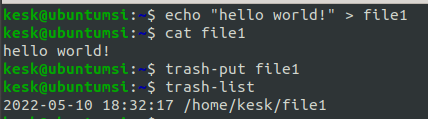
9. eSpeak NG
eSpeak NG is free and open-source software that can be used to convert text to voice in English and other languages. It is based on the eSpeak engine created by Jonathan Duddington.
URL: https://github.com/espeak-ng/espeak-ng
How to install it:
# Ubuntu
$ apt-get install espeak
Now, let’s speak the line “Hi Kesk!” and record it to the hello.mp4 audio file:
$ espeak "Hi Kesk!" -w hello.mp4 -g 60 -p 70 -s 100 -v en-usYou can also specify the text file that you want to record.
$ espeak -f example.txt -w example.mp4 -g 60 -p 70 -s 100 -v en-usNow all you have to do is play it with your favorite application, and that’s it.
10. glances
This command-line system monitoring utility allows you to monitor CPU, load average, memory, network interfaces, disk I/O, processes, and file system space utilization.
Glances utility is written in Python and uses the psutil library to obtain system information and display it in a friendly format.
It also allows us to set different warning thresholds using a configuration file.
Very useful to have everything under control.
URL: https://nicolargo.github.io/glances/
How to install it:
$ sudo apt install glancesExample of use:
$ glances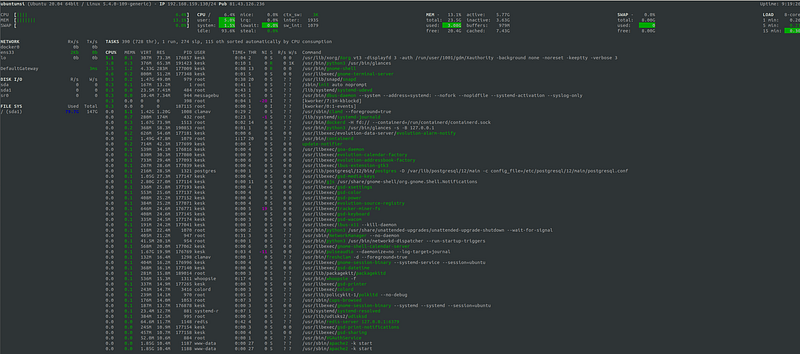
11. gtop
The gtop utility is a Linux system monitor that displays various information about the system and its processes.
The tool is easy to use and consumes very few resources, so we can have it running without wasting resources. Moreover, it displays the information in a quite striking and accurate way as it uses commands of the operating system.
It is an open-source tool developed in JavaScript by Can Güney Aksakalli, and you will need to have nodejs installed on your computer to install and run it.
URL: git clone https://github.com/aksakalli/gtop.git
How to install it:
$ sudo npm install gtop -gExample of use:
$ gtop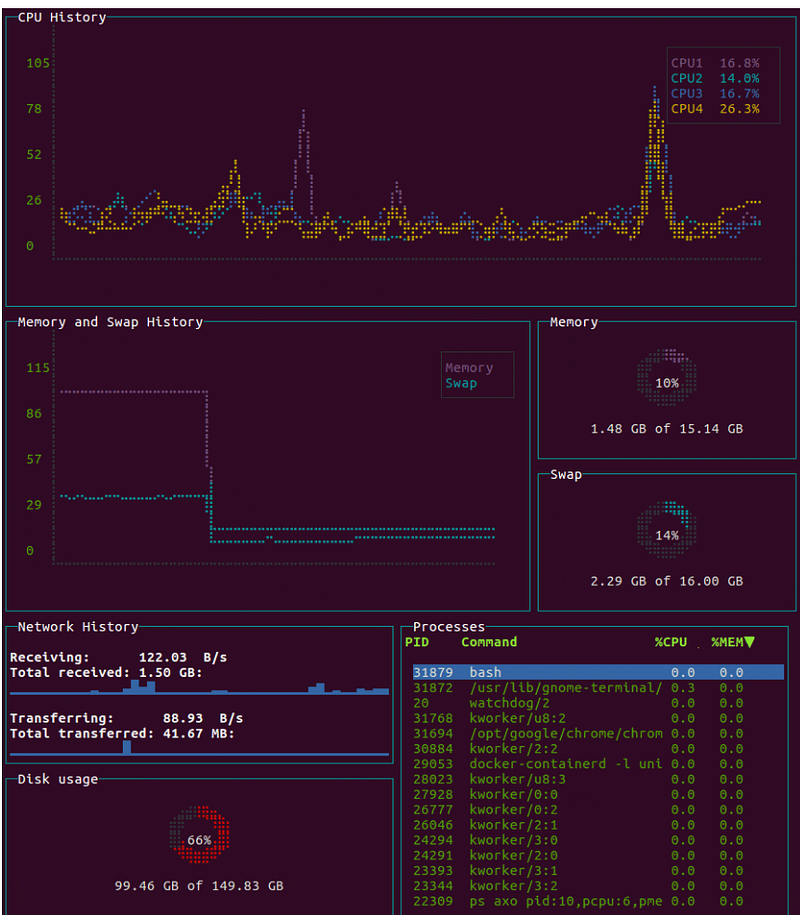
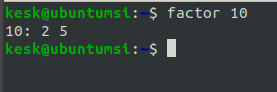
12. factor
Like the previous utility, this small program is by default and may be helpful at some point.
If you know any Linux command-line utility or any command that helps you especially and is not very well known, I would be grateful if you could tell us about it.
Thank you!