avatarKesk -*-

Free AI web copilot to create summaries, insights and extended knowledge, download it at here

5118

Abstract

reen with the result displayed on the command line.</figcaption></figure><h2 id="0681">Display System Hardware information</h2><p id="6a05">This command display a lot of information about your Hardware.</p><div id="c1ef"><pre><span class="hljs-variable"> </span>sudo lshw</pre></div><figure id="054c"><img src="https://cdn-images-1.readmedium.com/v2/resize:fit:800/1*vQI_fKxr5h6Njo0FAm0aGQ.png"><figcaption>Screen with the result displayed on the command line.</figcaption></figure><p id="cacb">If you prefer the short version in HTML format:</p><div id="17fa"><pre><span class="hljs-variable"> </span>sudo lshw -html > systemInfo.html</pre></div><figure id="0f38"><img src="https://cdn-images-1.readmedium.com/v2/resize:fit:800/1*m1ByyTG6hwEsdyLTEtjzeg.png"><figcaption>Screen with the result displayed on the browser.</figcaption></figure><p id="ba8c">A trick, in the command console, you can display the result in the language of your choice with the following commands:</p><div id="9c5b"><pre><span class="hljs-built_in">export</span> <span class="hljs-attribute">LANG</span>=en_US.UTF-8 <span class="hljs-built_in">export</span> <span class="hljs-attribute">LANGUAGE</span>=en</pre></div><h1 id="0adb">System admin</h1><h2 id="58b3">Reboot the system</h2><div id="7e93"><pre><span class="hljs-variable"> </span>sudo reboot</pre></div><h2 id="ae45">Shutdown the system at a specific time</h2><div id="aa1a"><pre> sudo shutdown -h <span class="hljs-number">19</span>:<span class="hljs-number">05</span> <span class="hljs-string">"Some message..."</span></pre></div><h2 id="db26">Start/Stop/Restart a service</h2><div id="b76c"><pre><span class="hljs-variable"></span> sudo systemctl <span class="hljs-built_in">start</span> serviceName <span class="hljs-variable"></span> sudo systemctl stop serviceName <span class="hljs-variable"></span> sudo systemctl restart serviceName</pre></div><h2 id="f369">Checking a service status</h2><div id="8156"><pre><span class="hljs-variable"> </span>sudo systemctl status serviceName</pre></div><h2 id="8c81">Enabling/Disabling a service to run at boot time</h2><div id="28eb"><pre>sudo systemctl <span class="hljs-built_in">enable</span> serviceName sudo systemctl <span class="hljs-built_in">disable</span> serviceName</pre></div><h2 id="4335">Increasing the size of the swapfile</h2><p id="b21b">The primary function of swap space is to substitute disk space for RAM when RAM fills up and more space is needed. With this command, you can set the size of the swap file.</p><ol><li>Turn off all swap processes</li></ol><div id="5176"><pre><span class="hljs-variable"> </span>sudo swapoff -a</pre></div><p id="d299">2. Resize the swap to 4GB</p><div id="3012"><pre> sudo dd <span class="hljs-attribute">if</span>=/dev/zero <span class="hljs-attribute">of</span>=/swapfile <span class="hljs-attribute">bs</span>=1G <span class="hljs-attribute">count</span>=4</pre></div><p id="1c08">if: input file, of output file, bs: block size</p><p id="cf97">3. Make the file usable as a swap</p><div id="1d91"><pre><span class="hljs-meta prompt_"> </span><span class="language-bash">sudo mkswap /swapfile</span></pre></div><p id="4f84">4. Activate the swap file</p><div id="6229"><pre><span class="hljs-meta prompt_"> </span><span class="language-bash">sudo swapon /swapfile</span></pre></div><h2 id="cda2">Schedule jobs with Crontab Command</h2><p id="d5fe">Cron is a regular background process manager (daemon) that runs processes at regular intervals (for example, every minute, day, week, or month). The processes to be run and the time they should run is specified in the crontab file.</p><ol><li>List schedule jobs</li></ol><div id="4928"><pre><span class="hljs-variable"> </span>crontab -l</pre></div><div id="1f00"><pre><span class="hljs-comment">//00 * * * * nameOfTheCommandToExecute</span></pre></div><p id="5621">Cron job every hour.</p><p id="2294">2. Edit the crontab</p><div id="e5d6"><pre><span class="hljs-variable"> </span>crontab -e</pre></div><figure id="8f71"><img src="https://cdn-images-1.readmedium.com/v2/resize:fit:800/1*qd1VCuzVYO_Psv6RY4YXrQ.png"><figcaption>Screen with the result displayed on the command line.</figcaption></figure><h2 id="0075">Create a temporary aliase</h2><p id="0f13">An easy way to save time is to create an aliased for the most used commands.</p><div id="4391"><pre><span class="hljs-meta prompt_">#</span><span class="language-bash"><span class="hljs-built_in">alias</span> [name]=<span class="hljs-string">"[command]"</span></span> <span class="hljs-meta prompt_"> </span><span class="language-bash"><span class="hljs-built_in">alias</span> <span class="hljs-built_in">dir</span>=<span class="hljs-string">"ls -la"</span></span></pre></div><figure id="07a3"><img src="https://cdn-images-1.readmedium.com/v2/resize:fit:800/1*FSWx2nKreDC58VkxL18qTA.png"><figcaption>Screen with the result displayed on the command line.</figcaption></figure><h1 id="d372">Media</h1><h2 id="e429">Mute volume</h2><div id="1649"><pre> amixer set <span class="hljs-keyword">Master</span> <span class="hljs-title">muteclear</span> </

Options

pre></div><figure id="35d3"><img src="https://cdn-images-1.readmedium.com/v2/resize:fit:800/1*EqST3CnxW04fnw-z-gPOgg.png"><figcaption>Screen with the result displayed on the command line.</figcaption></figure><h2 id="083a">Find duplicate files based on the MD5 hash</h2><div id="5d9b"><pre><span class="hljs-meta prompt_"> </span><span class="language-bash">find -<span class="hljs-built_in">type</span> f -<span class="hljs-built_in">exec</span> <span class="hljs-built_in">md5sum</span> <span class="hljs-string">'{}'</span> <span class="hljs-string">';'</span> | <span class="hljs-built_in">sort</span> | <span class="hljs-built_in">uniq</span> --all-repeated=separate -w 33 | <span class="hljs-built_in">cut</span> -c 35-</span></pre></div><figure id="0b4c"><img src="https://cdn-images-1.readmedium.com/v2/resize:fit:800/1*ZSTJNYeoZjynBSPRscPQKg.png"><figcaption>Screen with the result displayed on the command line.</figcaption></figure><h2 id="3aba">Convert camelCase</h2><p id="c02c">With this command, you can convert the contents of a file to lowercase.</p><div id="a7ff"><pre><span class="hljs-variable"> </span>sed -e <span class="hljs-string">'s/(.*)/\L\1/'</span> hello.txt > output.txt</pre></div><figure id="4a32"><img src="https://cdn-images-1.readmedium.com/v2/resize:fit:800/1*xQKuCr71KJDBHSzCDb33yQ.png"><figcaption>Screen with the result displayed on the command line.</figcaption></figure><h2 id="9801">Find files greater between X and Y</h2><figure id="a8b8"><img src="https://cdn-images-1.readmedium.com/v2/resize:fit:800/1*LNC_YRGtx0dZuWJjDe4JzQ.png"><figcaption></figcaption></figure><h2 id="0d81">Find all files which are accessed N days back</h2><div id="dcea"><pre> <span class="hljs-built_in">find</span> / -atime 2</pre></div><figure id="d402"><img src="https://cdn-images-1.readmedium.com/v2/resize:fit:800/1*CUUruxHAYJDroceunHhgxw.png"><figcaption>Screen with the result displayed on the command line.</figcaption></figure><h2 id="bb04">Find modifies files in the last N minutes</h2><div id="920f"><pre> <span class="hljs-built_in">find</span> / -mmin -1</pre></div><figure id="0ba5"><img src="https://cdn-images-1.readmedium.com/v2/resize:fit:800/1*JQzjZwj_sSZX1Sw5yqSw3A.png"><figcaption>Screen with the result displayed on the command line.</figcaption></figure><h1 id="168f">Various</h1><p id="7eb7">With this utility, you can convert text to json format.</p><div id="11b2"><pre>sudo apt-<span class="hljs-keyword">get</span> install jshon echo '{<span class="hljs-string">"name"</span>: <span class="hljs-string">"Kesk"</span>,<span class="hljs-string">"surname"</span>:<span class="hljs-string">"norem"</span>}' | jshon </pre></div><figure id="9cd1"><img src="https://cdn-images-1.readmedium.com/v2/resize:fit:800/1*iH7UAs7CtKDpe4HefTQYNw.png"><figcaption>Screen with the result displayed on the command line.</figcaption></figure><h1 id="9525">Extra</h1><p id="b9b3">To finish, nothing better than a couple of games to play from the command line. Yes, you can play them from the command line.</p><h2 id="72ff">Terminal games</h2><h2 id="4974">Greed</h2><div id="6ac8"><pre><span class="hljs-variable"> </span>sudo apt-get install greed <span class="hljs-variable"> </span>greed</pre></div><figure id="9dc6"><img src="https://cdn-images-1.readmedium.com/v2/resize:fit:800/1*bS0GwG84vjZTRBJy2WMNPw.png"><figcaption>The pacman game in the bash shell.</figcaption></figure><p id="3924">Use the arrow keys to eat as many digits as possible in any direction.</p><div id="fdb2" class="link-block"> <a href="http://www.catb.org/~esr/greed/"> <div> <div> <h2>Resource page for greed 4.2</h2> <div><h3>Eat as much as you can before munching yourself into a corner. When you move in a direction, you erase N grid squares…</h3></div> <div><p>www.catb.org</p></div> </div> <div> <div style="background-image: url(https://miro.readmedium.com/v2/resize:fit:320/0*sNbo680P4iVIJgQO)"></div> </div> </div> </a> </div><h2 id="9ecd">Pacman</h2><div id="72d0"><pre><span class="hljs-variable"> </span>sudo apt-get install pacman4console <span class="hljs-variable"> </span>pacman4console</pre></div><figure id="3ca7"><img src="https://cdn-images-1.readmedium.com/v2/resize:fit:800/1*fMx22Hsm9txfFcSU8ceFdw.png"><figcaption>The Pacman game in the bash shell.</figcaption></figure><p id="04f1"><a href="https://github.com/YoctoForBeaglebone/pacman4console">https://github.com/YoctoForBeaglebone/pacman4console</a></p><p id="e6a4">If you have arrived here, I invite you to look at these other <a href="https://betterprogramming.pub/25-awesome-linux-command-one-liners-9495f26f07fb">25 Awesome Linux Command One-Liners</a>, where you will find combinations of Linux commands that I am sure will surprise you.</p><p id="1231">If you liked this post, please <b>consider subscribing to Medium through my <a href="https://kesk.medium.com/membership">profile</a></b>.</p><p id="f100">Thank you!</p></article></body>

The Linux Swiss army knife

Commands that will make you forget the GUI

Photo by Miguel Á. Padriñán: https://www.pexels.com/photo/flat-lay-shot-of-tools-3930091/

Not long ago, I wrote a post with 25 one-command-liners that allow you to do complex things with just one line without using the graphical interface. Now, I will show you a list of commands to turn you into the perfect Linux mechanic.

Note: All commands have been tested on ubuntu 20.04. To execute some commands, you will need administrator permissions.

System information

Check the battery’s status via the terminal

This command outputs a lot of status and statistical information about the battery.

$ upower -i /org/freedesktop/UPower/devices/battery_BAT0

In my case, I’m using ubuntu on a virtualized machine, so it doesn’t show relevant stats, but if you try it on a native installation, it will show you a lot of helpful information.
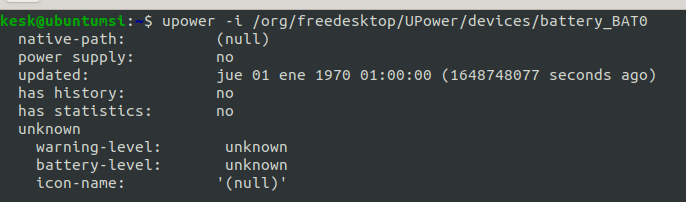
Screen with the result displayed on the command line.

Time the machine has been running

The command returns information about how long the system has been running since it was started up the last time.

$ uptime
Screen with the result displayed on the command line.

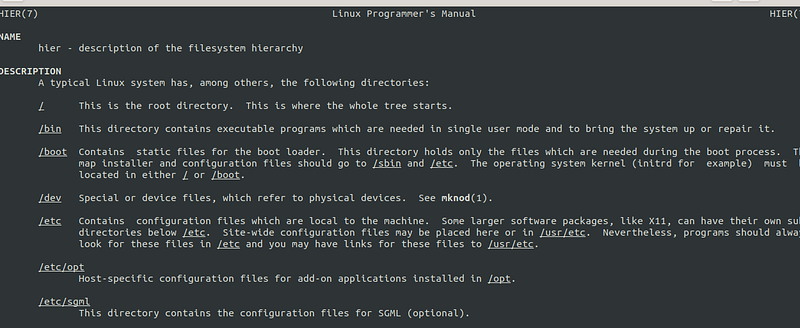
Show File system structure

The command shows the description of the file system hierarchy.

$ man hier
Screen with the result displayed on the command line.

Display disk usage information

This command shows the disk usage information.

$ df -k
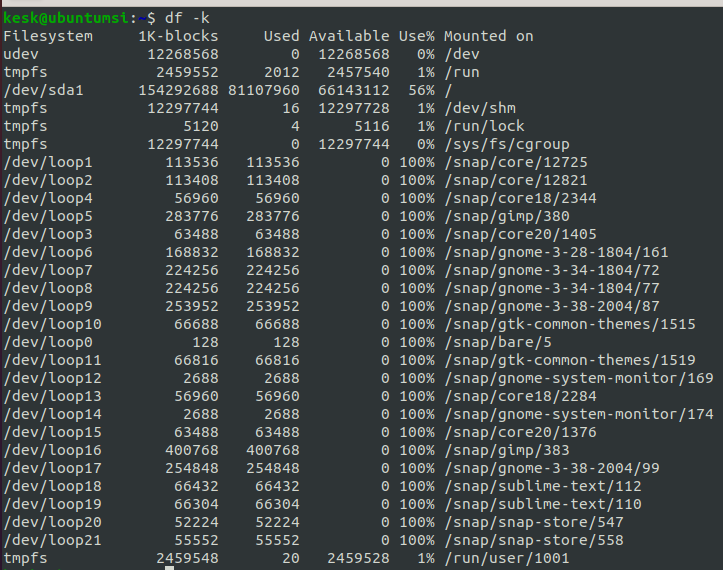
Screen with the result displayed on the command line.

Display information about the CPU

This command shows the CPU usage information.

$ lscpu
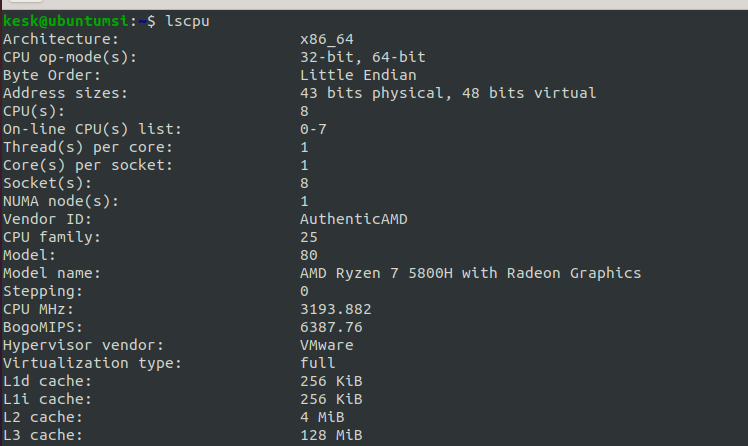
Screen with the result displayed on the command line.

Display a calendar with the current day highlighted

This command displays a simple calendar.

$ cal
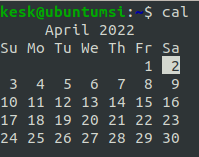
Screen with the result displayed on the command line.

Display Bandwidth usage

I love this utility; it is handy to know what is happening on your computer and where it is connecting to.

$ apt-get install iftop
$ iftop
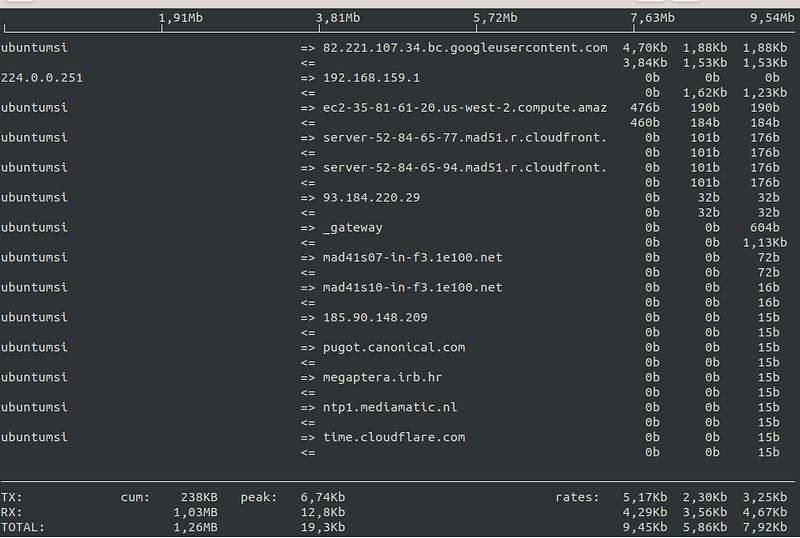
Screen with the result displayed on the command line.

List network interfaces

This command shows the network interfaces with the “ethernet” name.

$ lspci | egrep -i 'network|ethernet'

Screen with the result displayed on the command line.

Display information about your kernel release

$ uname -a

Screen with the result displayed on the command line.

Display System Hardware information

This command display a lot of information about your Hardware.

$ sudo lshw
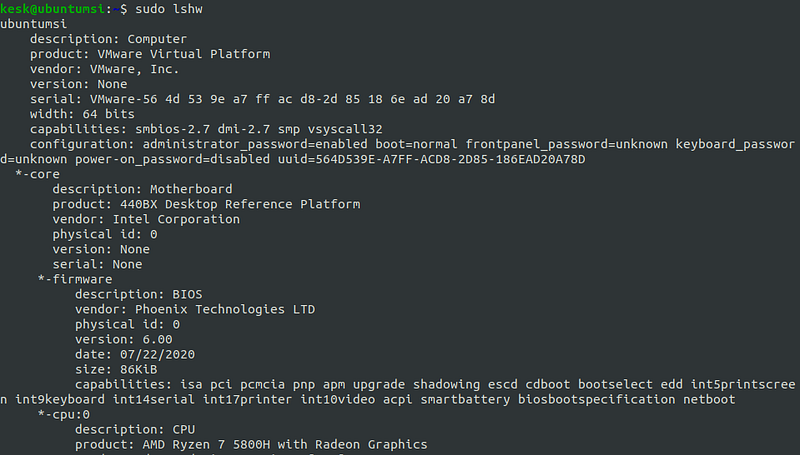
Screen with the result displayed on the command line.

If you prefer the short version in HTML format:

$ sudo lshw -html > systemInfo.html
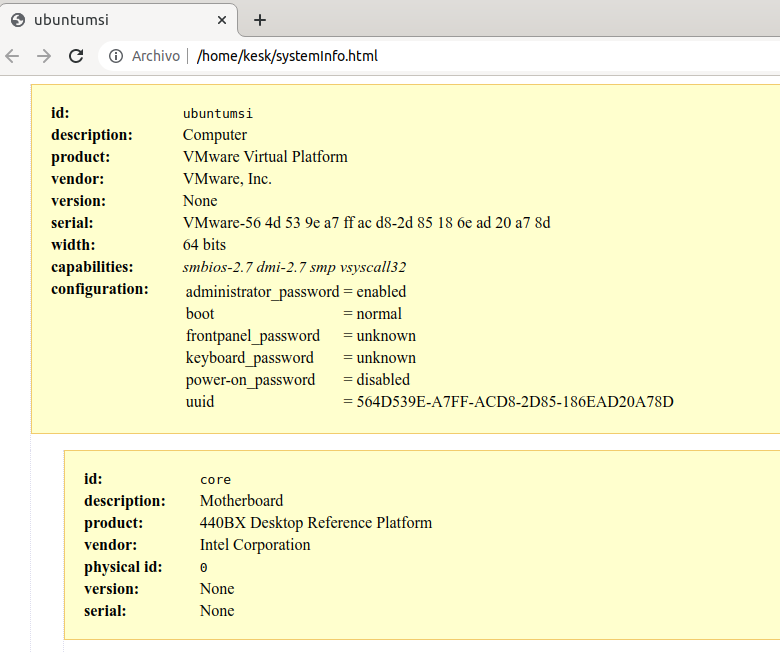
Screen with the result displayed on the browser.

A trick, in the command console, you can display the result in the language of your choice with the following commands:

$ export LANG=en_US.UTF-8
$ export LANGUAGE=en

System admin

Reboot the system

$ sudo reboot

Shutdown the system at a specific time

$ sudo shutdown -h 19:05 "Some message..."

Start/Stop/Restart a service

$ sudo systemctl start serviceName
$ sudo systemctl stop serviceName
$ sudo systemctl restart serviceName

Checking a service status

$ sudo systemctl status serviceName

Enabling/Disabling a service to run at boot time

$ sudo systemctl enable serviceName
$ sudo systemctl disable serviceName

Increasing the size of the swapfile

The primary function of swap space is to substitute disk space for RAM when RAM fills up and more space is needed. With this command, you can set the size of the swap file.

  1. Turn off all swap processes
$ sudo swapoff -a

2. Resize the swap to 4GB

$ sudo dd if=/dev/zero of=/swapfile bs=1G count=4

if: input file, of output file, bs: block size

3. Make the file usable as a swap

$ sudo mkswap /swapfile

4. Activate the swap file

$ sudo swapon /swapfile

Schedule jobs with Crontab Command

Cron is a regular background process manager (daemon) that runs processes at regular intervals (for example, every minute, day, week, or month). The processes to be run and the time they should run is specified in the crontab file.

  1. List schedule jobs
$ crontab -l
//00 * * * * nameOfTheCommandToExecute

Cron job every hour.

2. Edit the crontab

$ crontab -e
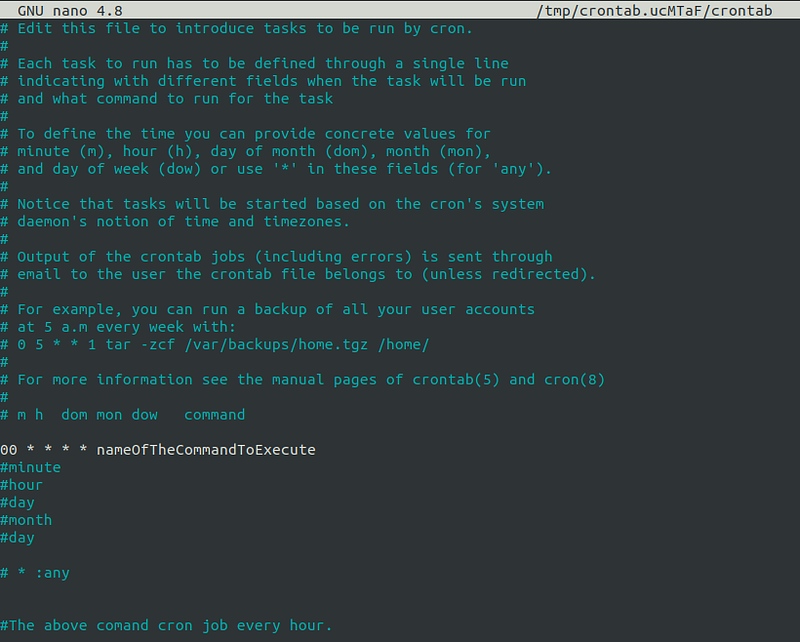
Screen with the result displayed on the command line.

Create a temporary aliase

An easy way to save time is to create an aliased for the most used commands.

#alias [name]="[command]"
$ alias dir="ls -la"
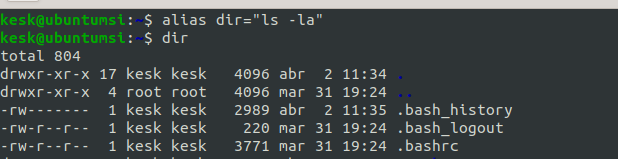
Screen with the result displayed on the command line.

Media

Mute volume

$ amixer set Master muteclear
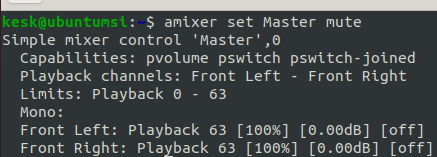
Screen with the result displayed on the command line.

Find duplicate files based on the MD5 hash

$ find -type f -exec  md5sum '{}' ';' |  sort |  uniq --all-repeated=separate -w 33 |  cut -c 35-
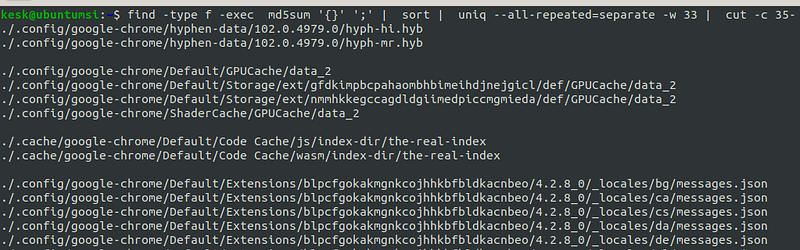
Screen with the result displayed on the command line.

Convert camelCase

With this command, you can convert the contents of a file to lowercase.

$ sed -e 's/\(.*\)/\L\1/' hello.txt > output.txt
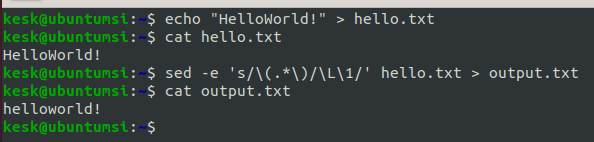
Screen with the result displayed on the command line.

Find files greater between X and Y

Find all files which are accessed N days back

$ find / -atime 2
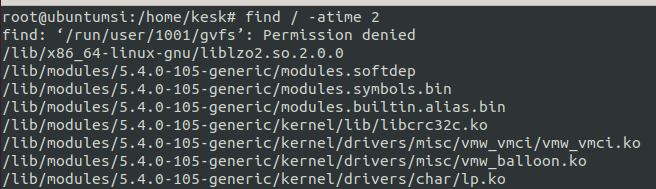
Screen with the result displayed on the command line.

Find modifies files in the last N minutes

$ find / -mmin -1
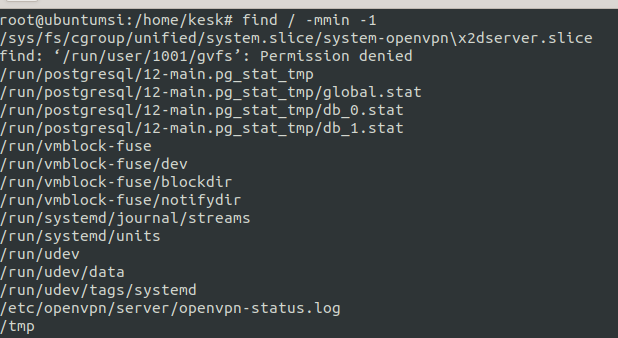
Screen with the result displayed on the command line.

Various

With this utility, you can convert text to json format.

$ sudo apt-get install jshon
$ echo '{"name": "Kesk","surname":"norem"}' | jshon 

Screen with the result displayed on the command line.

Extra

To finish, nothing better than a couple of games to play from the command line. Yes, you can play them from the command line.

Terminal games

Greed

$ sudo apt-get install greed
$ greed
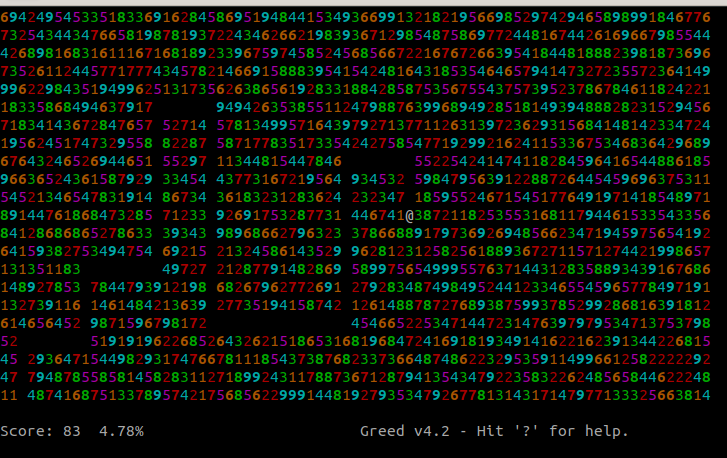
The pacman game in the bash shell.

Use the arrow keys to eat as many digits as possible in any direction.

Pacman

$ sudo apt-get install pacman4console
$ pacman4console
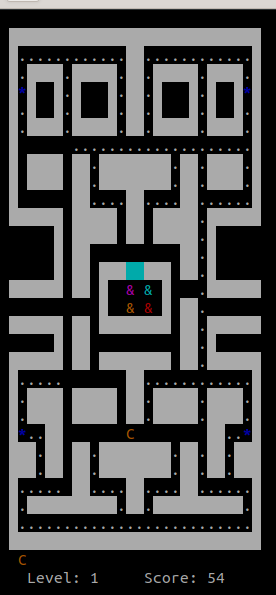
The Pacman game in the bash shell.

https://github.com/YoctoForBeaglebone/pacman4console

If you have arrived here, I invite you to look at these other 25 Awesome Linux Command One-Liners, where you will find combinations of Linux commands that I am sure will surprise you.

If you liked this post, please consider subscribing to Medium through my profile.

Thank you!

Linux
Linux Commands
Shell
Bash
Programming
Recommended from ReadMedium