
The Top 7 Features Of MacOS 13 Ventura — (Part 2)
It sets a new standard to an OS
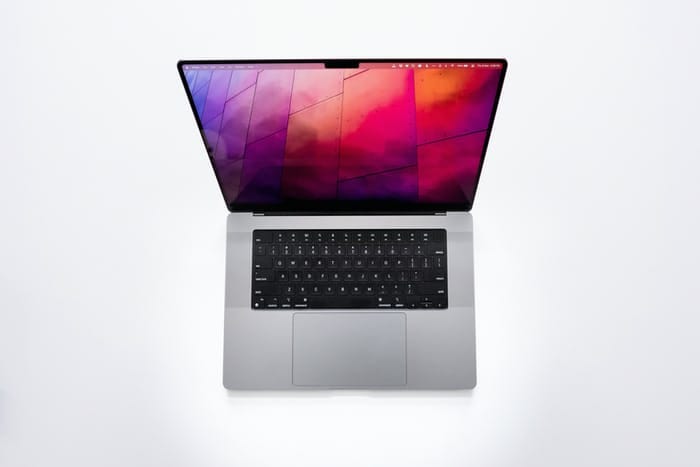
macOS 13 Ventura is lately out to the public — yes, after a month and a half of iOS 16.
For the first 7(+5) features of the update,
And here are 7 more features & changes macOS Ventura brings.
#1. Quick Actions in Spotlight 💨
Spotlight’s got more powers with the latest macOS update.
You can now perform simple actions like creating an alarm, timer, or starting a focus directly in Spotlight.
Examples:
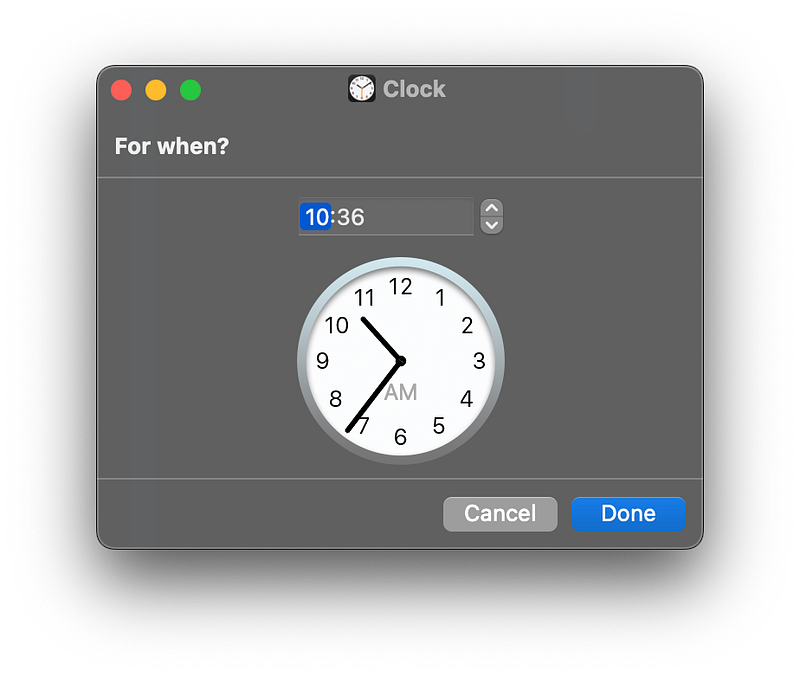
→ Creating an alarm:
- Type ‘alarm’ and click on ‘⏰ Create Alarm’.
- Choose the time you want to set the alarm for — on the clock widget that pops up.
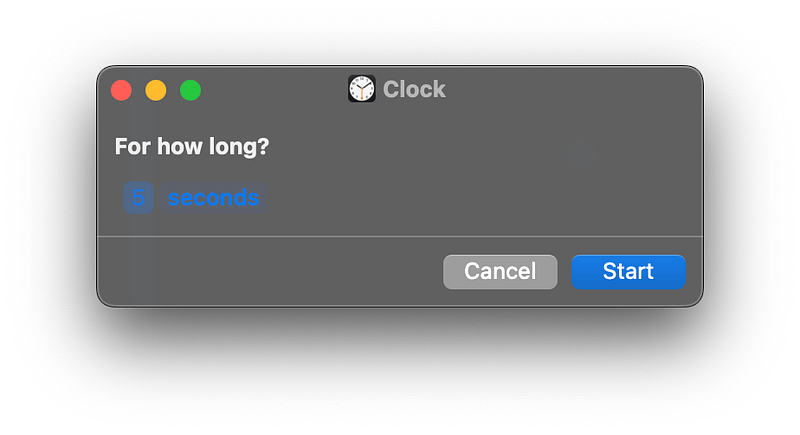
→ Setting a timer:
- Type ‘timer’ and click on ‘⏱️ Start Timer’.
- Choose the duration for the timer — on the clock widget that pops up.
→ Starting a focus:
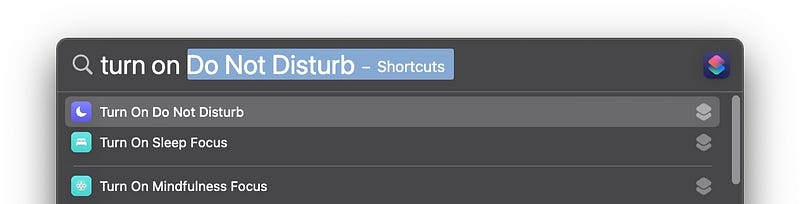
- Type ‘turn on…’ and choose the focus you wanna start.
Simple.
Isn’t this quicker than the traditional process of doing them all?
#2. Siri gets minimalistic 💁♀️
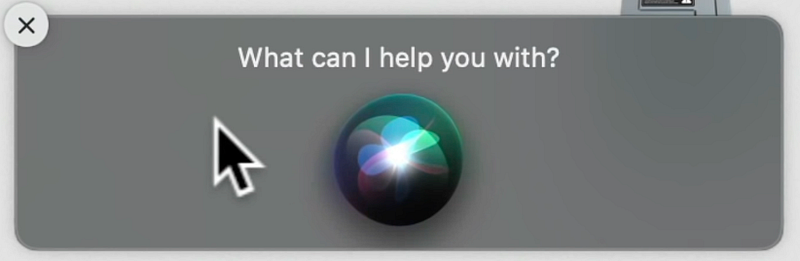
Back in macOS Monterey, when Siri’s activated, it came up in a big box with “What can I help you with?” written above.
Like this:
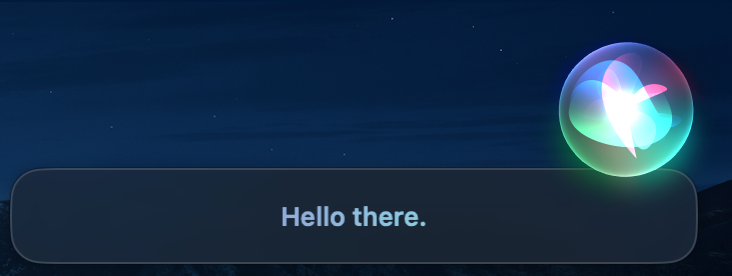
With macOS Ventura, it gets minimalistic to its barest level possible.
Now, Siri’s just a plasma ball that comes up at the top-right corner when activated.
#3. New options for password suggestions 🔑
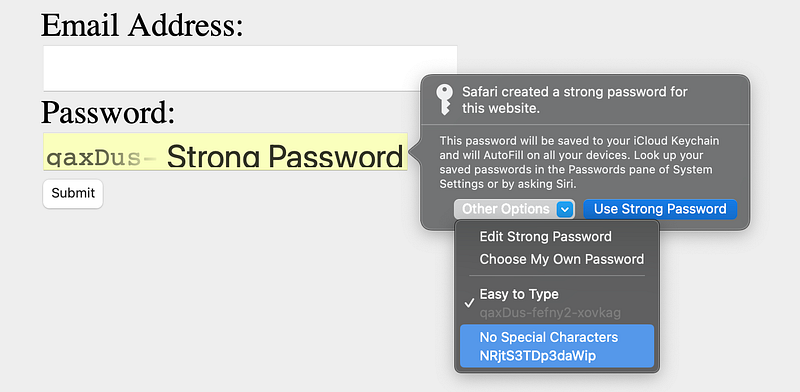
With macOS Ventura, your Mac not only suggests strong passwords while you’re creating new accounts on the web, but also, lets you
- edit the strong password, or
- request another password without any special characters.
#4. Background sounds arrive to Macs 🎵
As yet, background sounds (for focused work) existed only on iOS.
And that’s (I think) pointless — as most people work on their Macs, not on iPhones.
Maybe Apple realised it a bit too late.
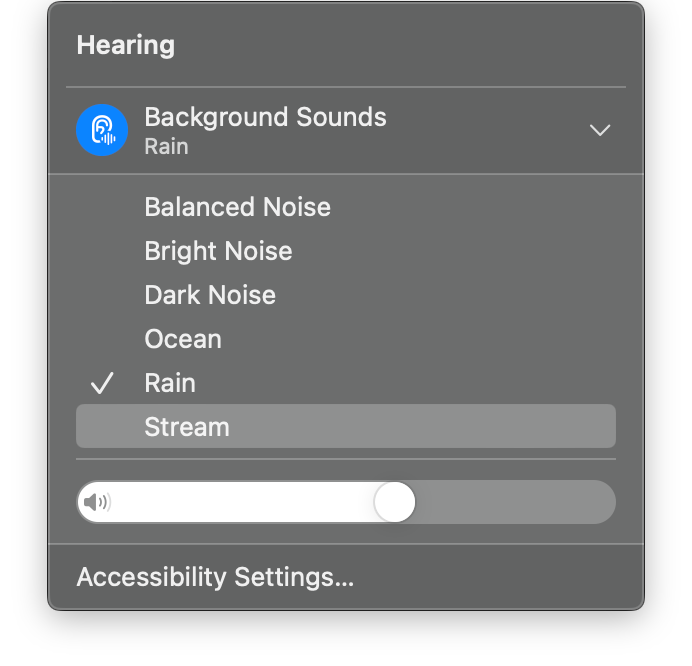
macOS Ventura comes with Background Sounds that help you focus while at work.
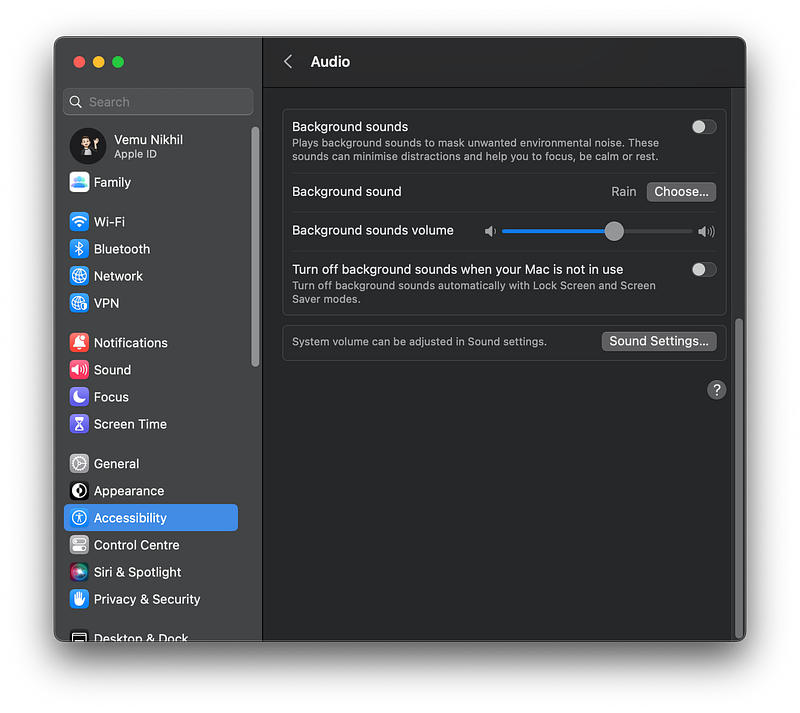
To use them, go to ‘System Settings ⚙️ < Accessibility 🚹 < Audio 🔊’ and toggle ‘Background sounds’.
If you want a different sound, click on ‘Choose…’ below it.
Long process, right?
Shorter process
Go to ‘System Settings ⚙️ < Control Centre 🎚️ < Hearing 👂’ and toggle ‘Show in Menu Bar’.
Now, anytime you want them on, click on the 👂 icon on the Menu Bar, and hit ‘Background Sounds 👂’.
#5. Powerful dictation (inserts emojis too) 🎙️
Okay, let me try typing this with dictation.
With macOS Ventura, dictation can automatically punctuate text with commas, periods, and question marks in real-time as you speak.
Also, did you know this?
You can insert emojis with just your voice. To do this, just say the name of the emoji, and add “emoji”.

Example:To type ___, say _____ + "emoji".• 😂 - Face with tears of joy.
• 😀 - Grinning face.
• 😎 - Smiling face with sunglasses.So if you’re a hard-core dictation user, it’s worth remembering the names of your frequently used emojis.
To know the official name of an emoji, click ‘🌐 fn’ key, and hover pointer over the emoji for a few secs.
#6. New Wallpapers(+Old ones too)
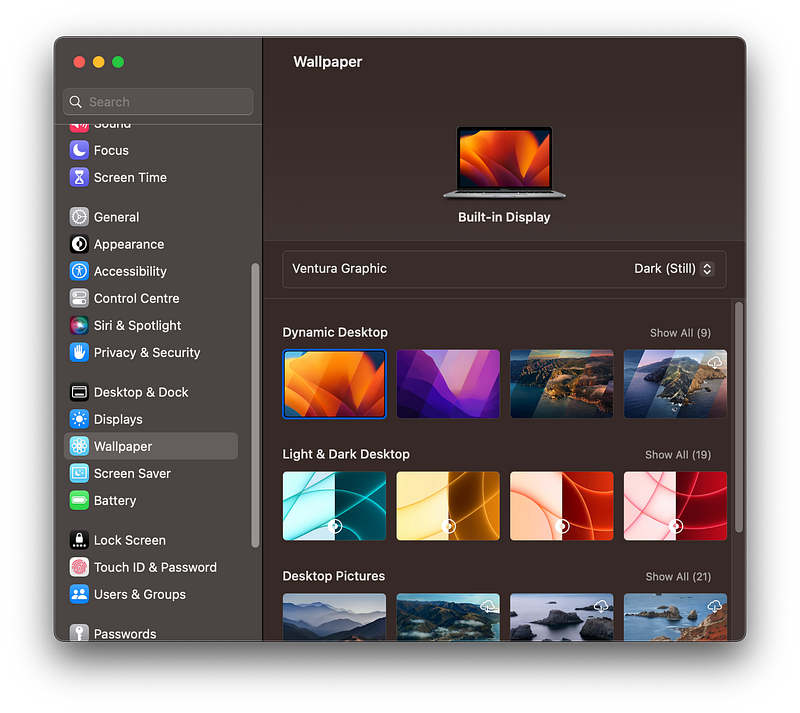
You’ve got a new wallpaper — called ‘Ventura Graphic’. However,
Unlike iOS, you didn’t lose access to older wallpapers. In fact, you can still find macOS Monterey’s wallpaper in System Settings.
You’ve also got a new feature that lets you add a Mac folder (with pics) to the wallpaper settings —
so you can choose any including pic as wallpaper, or even cycle through all of them with a customisable interval.
#7. Freeform app
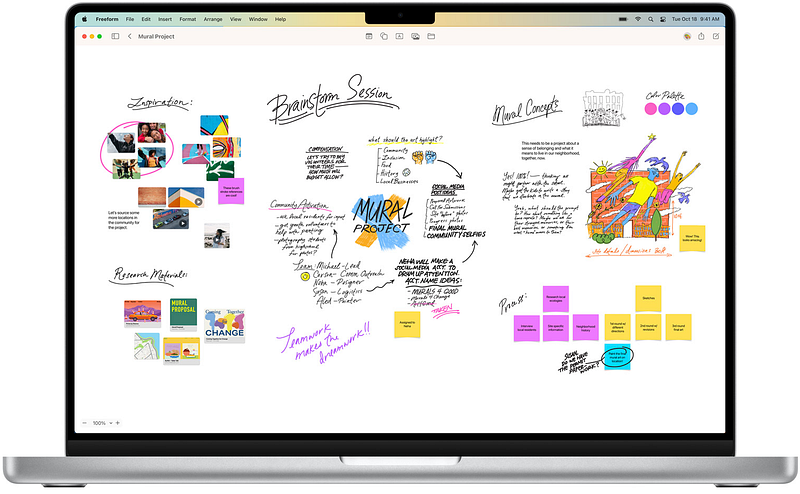
Freeform is Apple’s new productivity app coming later this year.
This app is just an infinite canvas where you, and your collaborators can add pretty much anything you need to work with — pics, videos, docs, pdfs, and webpages.
And, you can use Markup tools to write or draw anything, anywhere.
My favourite feature — you could go to a collaborator’s place on Freeform, wherever they are, by simply clicking on their name.
Wait, macOS Ventura isn’t done yet. There’s a lot more. It supports a lion’s share of features iOS 16 supports.
Join 170+ others to get notified whenever I publish a new story.