
10 Essential iPhone Typing Hacks Every User Should Know
Unleash the superpowers of that little keyboard
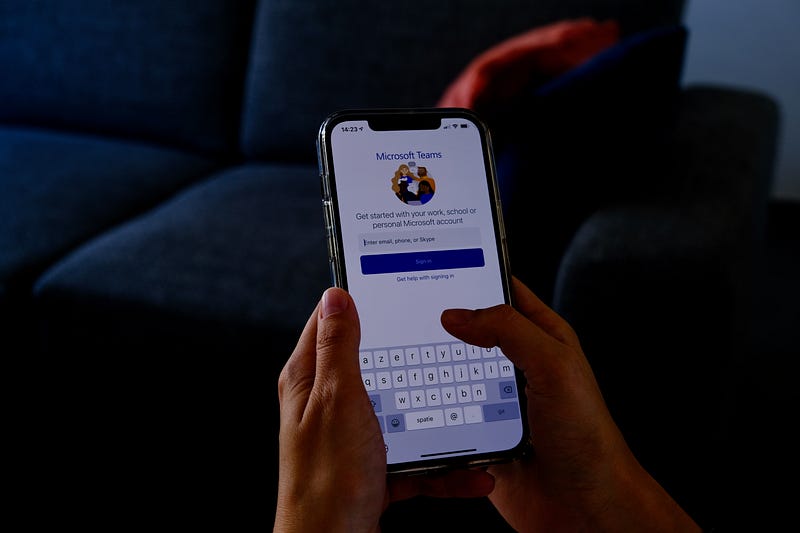
Typing is what we do 90% of the time on our iPhones, and it’s become inevitable today. And hence it’s clearly important we learn a few hacks that come handy while we type.
Here are 10 of the best curated tips make your typing easier. And I bet you can’t stop using these after you try them once.
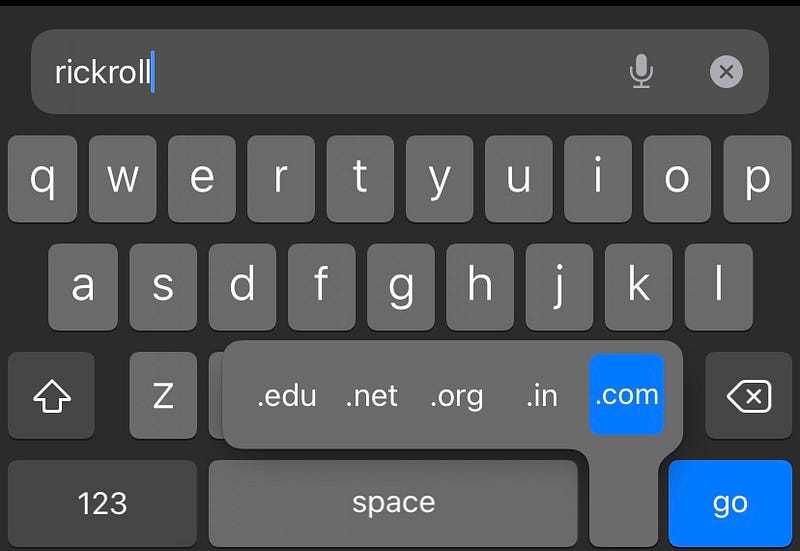
#1. Stop typing url suffixes 🌐
This feature works only when your iPhone confirms you’re in a field that wants an email address or a url.
When you’re in such a field, and are about to type the suffix (like .com, .org etc.), simply tap and hold period. Then it shows some quick hit suffixes that you can choose from by swiping left or right.
#2. Select text quick 💬
After years of owning iPhones, I see many people still struggling with the simple task of selecting text.
Let me tell you how exactly how you could select different chunks of text.
- (Single) Tap anywhere on the text to get blinking cursor there.
- Tap and hold the cursor, and move it around to take it anywhere on the text (like a trackpad).
- Tap, hold, and leave the cursor to get all the selecting options available (look below).
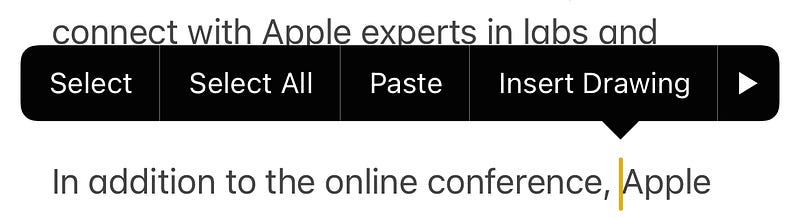
- Now, double tap on any word to select it.
- Triple tap to select the entire paragraph.
#3. Get quick accent symbols
This is especially useful for iPhone users of non-English speaking countries.
Whenever you’re typing and you need an accent symbol, press and hold the letter that closely resembles it (like a for â, e for ę, etc.). And see if the keyboard has it.
This will save you lots of time at the end of the day.
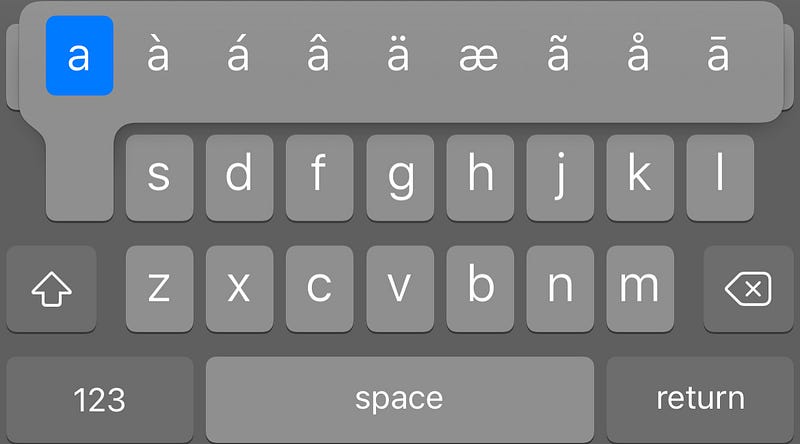
If the symbol isn’t there, you can copy-paste it from the internet — And use Text-replacement from next time.
This takes me to →
#4. Text replacement
If you’re someone who types the same content or sends the same messages on and on everyday (like an editor for a publication), you’ll greatly appreciate this feature.
The text replacement feature on iPhone allows you to type a short text, which is then converted to comprehensive phrase by the iPhone, both of which are pre-defined by you.
For example: “omw” is by default converted to “On my way!”.
To use this, navigate to Settings ⚙️ < General ⚙️ < Keyboard < Text Replacement , and add your own entry.
For example, if I were an editor, I’d add
Hey there! We're glad to have your submission into our publication.for AcceptIt .
This saves lots of time and energy.
#5. Cut-Copy-Paste the easier way ✂️
The traditional way to cut/copy and paste involves multiple clicks, which could be avoided by this simpler way.
Now, select some text (refer #2 for that quick way):
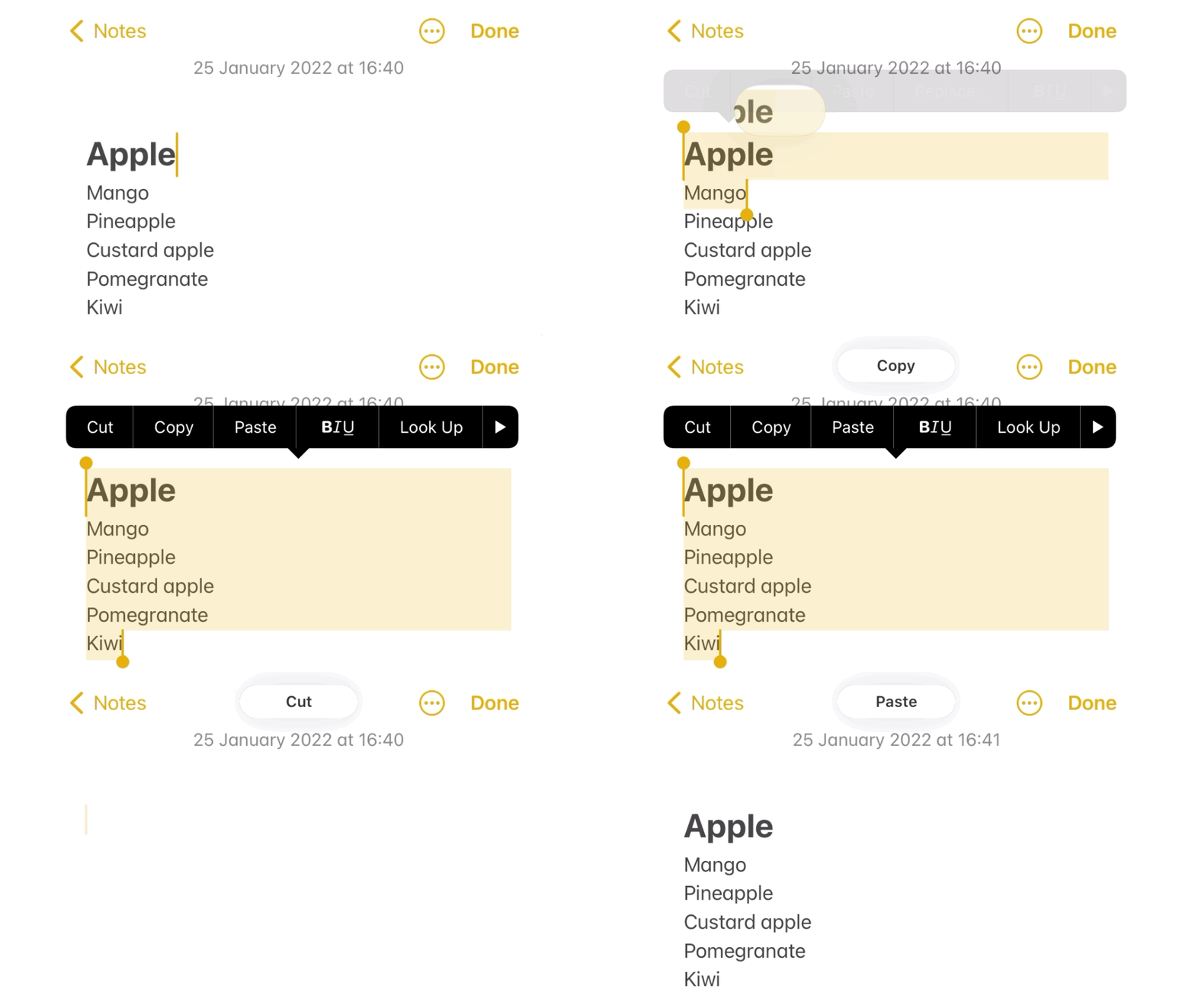
- To copy it, pinch the screen with your thumb and two other fingers.
- To cut it, pinch the same way again.
- To paste it, spread on the screen with the same fingers.
Simple.
Note: This also works with media. Try it for yourself!#6. Tap and hold 😃 for:
Simply tapping and holding emoji icon at the bottom-left corner of the keyboard gives you the option to:
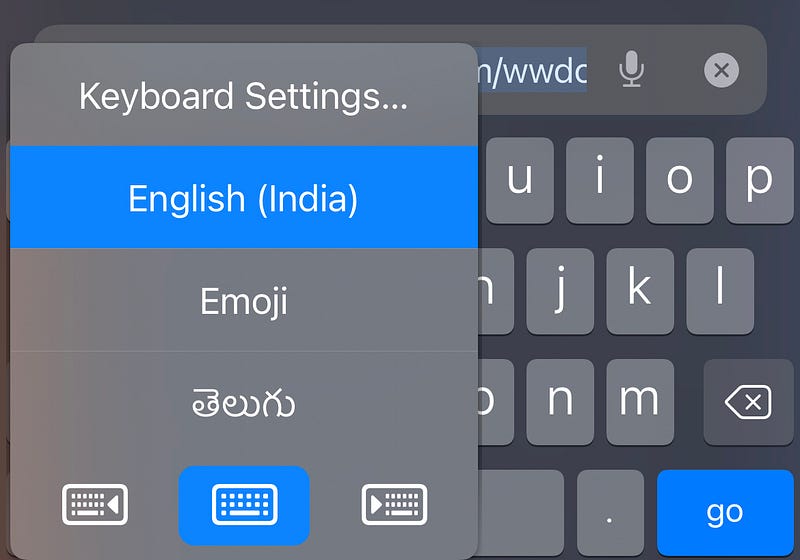
- Change the keyboard. If you’d like to change the language you’re typing in.
- Set keyboard to left-handed or right-handed mode. I use this option whenever I need to text someone while I’m eating.
- Access keyboard settings. As it’s a long process to access them the other way from Settings app.
#7. Swipe through emojis 🔛
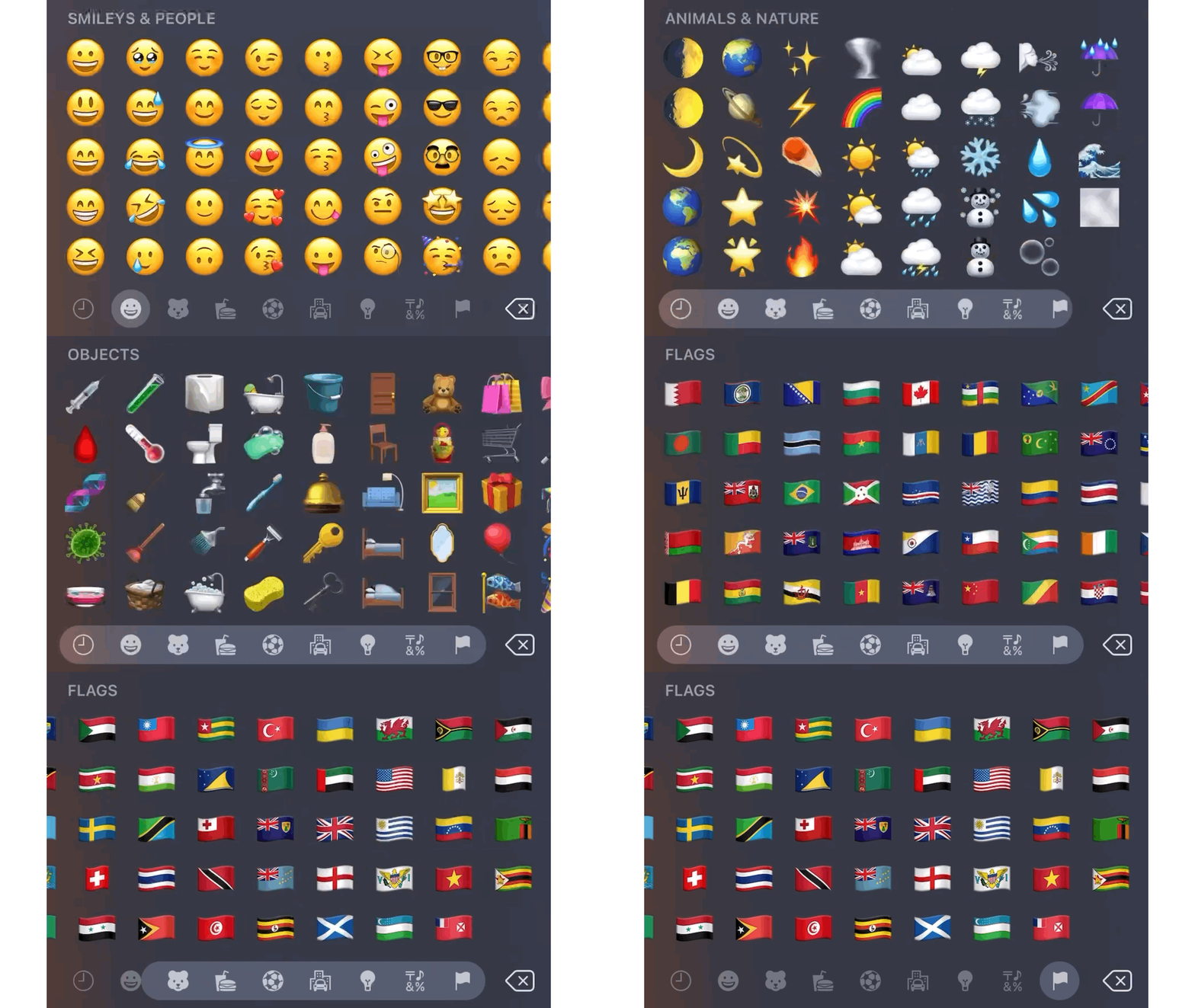
Did you know you can swipe through emojis? This will help find relevant emojis faster.
To do this, simply tap and hold on the white aura below the emojis, and then drag left or right to scroll fast through them.
#8. Use Space bar as trackpad 🕹
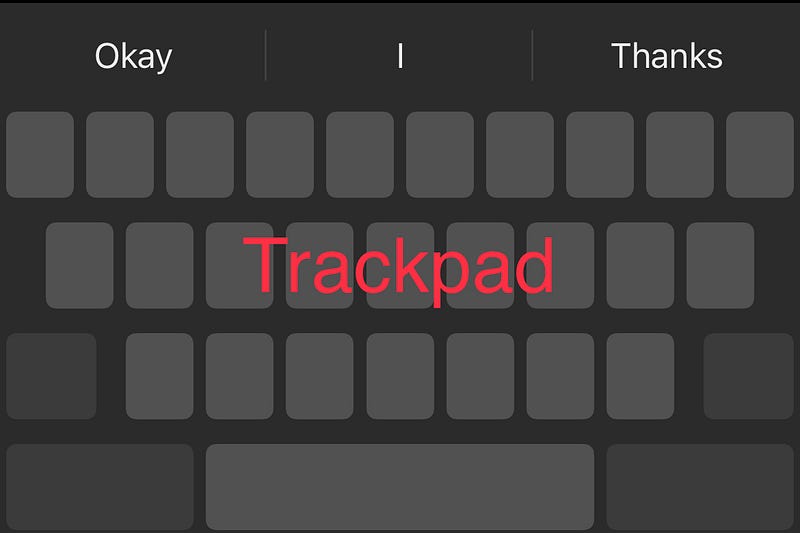
Back in my early Apple days, I found it really difficult to navigate through text paragraphs. I wasn’t able to easily point the blinking cursor between a word.
My pal then showed me this nifty feature. He told,
“You can use space bar as trackpad. Just tap and hold it for a while, and swipe across the keyboard to move the blinking cursor.”
Thanks friend :)
#8. Easy period.
While you’re in a typing flow, it feels a bit uncomfortable to open the characters page, and hit period. The faster way to do this is to hit spacebar twice.
I did it for the period at the end of this sentence. It’s faster!
#9. You’ve been using Shift key all wrong
You might already know this.
- Tapping Shift key once will allow you to type one capital letter, and
- Tapping it twice will allow you to type capital letters as many as you want.
But, did you know holding it with one finger and typing letters with another gives capital letters as long as you hold?
Try it!
#10. Shake to undo 📳
Whenever you type something wrong, it isn’t always easy to use backspace to clear it. The simpler way is to shake the iPhone, and you’ll get this prompt:

Just tap on Undo to revert back the changes.
To use this, go to Settings ⚙️ < Accessibility 🚹 < Touch 👆 and enable Shake to Undo.
Conclusion
So there ends the list of 10 best tips to type easier on iPhone. And I hope you’ve found a couple of features you haven’t used before.
If you liked this story, you might also like:
Hey! If you enjoyed this story, sign up for Medium as a member using my referral link! It’s just $5, and you get access to all of Medium.
Also, you can join 65+ others to get notified whenever I publish. Grab a free copy of my ebook “A Tech Blogger’s Guide” to write tech better!


