avatarHussain Arif

Free AI web copilot to create summaries, insights and extended knowledge, download it at here

15332

Abstract

ode>Link</code> component.</p><h2 id="e68c">The Link component</h2><p id="978d">In real-world use, the user isn’t expected to navigate our website by manually entering the routes into the address bar. We have to use buttons or anchor links that the user will click so that they can go through the website.</p><p id="aca4">This is where React Router’s <code>Link</code> component comes in. You can assume the <code>Link</code> component to be an <code>a</code> tag.</p><p id="ad18">Since <code>Link</code> is used for navigation purposes, we will use it in <code>Nav.js</code>.</p><p id="fa71">Go to <code>Nav.js</code> and start by importing <code>Link</code> from the <code>react-router-dom</code> package like so:</p><figure id="8e72"><img src="https://cdn-images-1.readmedium.com/v2/resize:fit:800/1*AHezHCnkHfWX9ME1cQTgrg.png"><figcaption>Importing Nav.js</figcaption></figure><p id="54bd">In <code>Nav.js</code> , find your <code>return</code> block:</p><figure id="a5e5"><img src="https://cdn-images-1.readmedium.com/v2/resize:fit:800/1*wSOCbEUpY6ifqi7wTShf4A.png"><figcaption>Code to find in Nav.js</figcaption></figure><p id="4062">Now replace this with the following piece of code:</p> <figure id="0ed6"> <div> <div>

            <iframe class="gist-iframe" src="/gist/HussainArif12/e7eef9d4d8959ca8719376abae04b64e.js" allowfullscreen="" frameborder="0" height="undefined" width="undefined">
          </div>
        </div>
    </figure></iframe></div></div></figure><ul><li>Lines 4-6: We have wrapped our <code>Link</code> component between <code>li</code> tags so that they can be rendered in our list element. This <code>Link</code> takes the user to the home page by directing them to the <code>/</code> route.</li><li>Lines 7-9: We have wrapped our <code>Link</code> component between <code>li</code> tags so that they can be rendered in our list element. This <code>Link</code> takes the user to the about page by directing them to the <code>/about</code> route.</li></ul><p id="672f">Now run the code. This will be the result:</p><figure id="0d08"><img src="https://cdn-images-1.readmedium.com/v2/resize:fit:800/1*fRWsDzhKqC3j8_rjTaLvnw.gif"><figcaption>Output of the code</figcaption></figure><p id="b09e">Our code works. Let’s now move on to working with redirects.</p><h2 id="9f1e">The Redirect component</h2><p id="1ea6">The usage of the <code>Redirect</code> component is fairly straightforward. When rendered, it will navigate the user to a new location. For example, in our program, if the user types the <code>/home</code> route in the address bar, we want our app to redirect them to the <code>/</code> page instead.</p><p id="34c3">Go to your <code>return</code> block in <code>App.js</code>:</p><figure id="0b86"><img src="https://cdn-images-1.readmedium.com/v2/resize:fit:800/1*iwxO43QUGQfN3woNLz2hcQ.png"><figcaption>Code to find in App.js</figcaption></figure><p id="d90f">Now change this to the following piece of code:</p>
    <figure id="5bc7">
        <div>
          <div>
            
            <iframe class="gist-iframe" src="/gist/HussainArif12/fc44793c1605533a4616bb05e5412ece.js" allowfullscreen="" frameborder="0" height="undefined" width="undefined">
          </div>
        </div>
    </figure></iframe></div></div></figure><p id="6578">The change is on line 7.</p><ul><li>Line 7: Here, we are telling React Router to redirect the user from <code>/home</code> to the <code>/</code> directory. The <code>from</code> prop is the pathname to redirect from. Furthermore, the <code>to</code> prop is the location to redirect to.</li></ul><p id="15d1">That’s it! Let’s run the code.</p><figure id="10df"><img src="https://cdn-images-1.readmedium.com/v2/resize:fit:800/1*ARLYcTnYnvrigpzFu7N60A.gif"><figcaption>Output of the code</figcaption></figure><p id="9442">As you can see, when we typed the <code>/home</code> route into the address bar, the app booted us back to the <code>/</code> directory. This means that our code works!</p><p id="fb21">We are now done with basic routing. In the next section, we will create dynamic and custom routes.</p><p id="b14e">In the end, <code>App.js</code> should look like this:</p>
    <figure id="8091">
        <div>
          <div>
            
            <iframe class="gist-iframe" src="/gist/HussainArif12/b4efceba3256e76b728da01cce9c0d05.js" allowfullscreen="" frameborder="0" height="undefined" width="undefined">
          </div>
        </div>
    </figure></iframe></div></div></figure><p id="bb59">And <code>Home.js</code> should look like this:</p>
    <figure id="4d5c">
        <div>
          <div>
            
            <iframe class="gist-iframe" src="/gist/HussainArif12/e6ce57be7a7218d55fba0e2c9f789d36.js" allowfullscreen="" frameborder="0" height="undefined" width="undefined">
          </div>
        </div>
    </figure></iframe></div></div></figure><p id="2497">Moreover, <code>Nav.js</code> should look like this:</p>
    <figure id="20ee">
        <div>
          <div>
            
            <iframe class="gist-iframe" src="/gist/HussainArif12/e2b4be226e41540beb19dc580ee0b246.js" allowfullscreen="" frameborder="0" height="undefined" width="undefined">
          </div>
        </div>
    </figure></iframe></div></div></figure><p id="2349">Finally, <code>About.js</code> should look like this:</p>
    <figure id="3210">
        <div>
          <div>
            
            <iframe class="gist-iframe" src="/gist/HussainArif12/cce662fcd06ae6a09431101c08fd0d0a.js" allowfullscreen="" frameborder="0" height="undefined" width="undefined">
          </div>
        </div>
    </figure></iframe></div></div></figure><h1 id="13e9">React Router: Dynamic and Custom Routing</h1><p id="4a38">In this part of the article, we’ll fetch data from an external API. We’ll be using this <a href="https://sampleapis.com/api-list/coffee">Coffee API</a> in particular. This is what we’ll do:</p><ul><li>On the home page, we’ll show two <code>Link</code> components.</li><li>One <code>Link</code> component will direct the user to a page with a list of names of hot coffees and the other will direct them to a page with a list of names of iced coffees.</li><li>When the user clicks on any of the names on the list, they will be taken to another page that shows the description of the coffee they just clicked on.</li></ul><p id="e1cf">Let’s now implement this in code.</p><p id="a648">Our first step is to render two <code>Links</code> in <code>Home.js</code>. Go to <code>Home.js</code> and import <code>Link</code> from <code>react-router-dom</code>:</p><figure id="0d40"><img src="https://cdn-images-1.readmedium.com/v2/resize:fit:800/1*UhlZ3NLso2O43SpeZIEfPQ.png"><figcaption>Import in Home.js</figcaption></figure><p id="2fc8">Now go to your <code>return</code> block in <code>App.js</code>:</p><figure id="bdc1"><img src="https://cdn-images-1.readmedium.com/v2/resize:fit:800/1*e5L60FuI1YuKmxHkqNhthQ.png"><figcaption>Code to find in Home.js</figcaption></figure><p id="5a80">Let’s now render it. Replace it with the following block of code:</p>
    <figure id="5fcb">
        <div>
          <div>
            
            <iframe class="gist-iframe" src="/gist/HussainArif12/7705bcf8ce96ec1f81e22d4387ecbac5.js" allowfullscreen="" frameborder="0" height="undefined" width="undefined">
          </div>
        </div>
    </figure></iframe></div></div></figure><p id="b2cd">Here, we are simply creating two <code>Link</code> components that will be displayed in a list.</p><ul><li>Lines 6-8: This <code>li</code> element has a <code>Link</code> component that will redirect the user to the <code>/coffee/hot</code> directory.</li><li>Lines 9-11: This <code>li</code> element has a <code>Link</code> component that will redirect the user to the <code>/coffee/iced</code> directory.</li></ul><p id="6af1">This will be the output:</p><figure id="5684"><img src="https://cdn-images-1.readmedium.com/v2/resize:fit:800/1*XAGESyMrSlvgGKE_-4gc6g.png"><figcaption>Output of the code</figcaption></figure><p id="b506">Our code works. However, we have not handled the <code>/coffee/hot</code> and <code>/coffee/iced</code> routes yet, which is why nothing will render to the page when they are clicked.</p><p id="5617">But there is one problem: How do we handle these two routes? Let’s first think.</p><p id="54e0">One solution would be like so:</p><ul><li>Create two components that would handle the <code>/coffee/hot</code> and <code>/coffee/iced</code> routes, respectively:</li></ul><figure id="566c"><img src="https://cdn-images-1.readmedium.com/v2/resize:fit:800/1*t6iJ4iS_ZojCZKmZC6fRBQ.png"><figcaption>Sample solution IcedCoffee</figcaption></figure><figure id="ea00"><img src="https://cdn-images-1.readmedium.com/v2/resize:fit:800/1*VuUT8lg-7Eq-AYRqvDtHlA.png"><figcaption>Sample solution HotCoffee</figcaption></figure><ul><li>Then, we could create two <code>Route</code> components to render these in <code>App.js</code>:</li></ul><figure id="c577"><img src="https://cdn-images-1.readmedium.com/v2/resize:fit:800/1*eedXRVAOBX9mrfjeBij7Gg.png"><figcaption>Sample Solution App.js</figcaption></figure><p id="1fc4">Although this is one way to rectify our problem, this is not ideal. The code for both <code>HotCoffee</code> and <code>IcedCoffee</code> will be similar, which will break the DRY (Don’t Repeat Yourself) principle of programming.</p><p id="9f5a">Another way to rectify this problem is to use parameters. This method is better and requires less code to be written. Notice that in <code>/coffee/hot</code> and <code>/coffee/iced</code>, we can classify the <code>/hot</code> and <code>/iced</code> routes as parameters.</p><h2 id="59fb">Accessing parameters with useParams</h2><p id="740a">If you have ever worked with Express.js, we would use parameters like so:</p><figure id="09dc"><img src="https://cdn-images-1.readmedium.com/v2/resize:fit:800/1*3lxWHoZ73xMw8-y27PspHw.png"><figcaption>Implementing this process App.js</figcaption></figure><p id="1b56">But how do we access these parameters in React?</p><p id="b888">The good news is that React Router allows parameters to be accessed in our code. To access URL parameters in React Router, we use the <code>useParams</code> hook.</p><p id="f8a6">Let’s first create a <code>Route</code> to handle the <code>/coffee/:type</code> route. Here, <code>type</code> is the parameter that we want to access.</p><p id="8008">Go to <code>App.js</code> and find the following code in your <code>return</code> block:</p><figure id="2a38"><img src="https://cdn-images-1.readmedium.com/v2/resize:fit:800/1*jsHTQHCKil98EjydElRbKA.png"><figcaption>Code to find in App.js</figcaption></figure><p id="5862">Now edit it with the following code:</p><figure id="cf42"><img src="https://cdn-images-1.readmedium.com/v2/resize:fit:800/1*srwl91MeVvW5Bj3MOa1-dQ.png"><figcaption>Code to write in App.js</figcaption></figure><ul><li>Line 5: Here, we are telling React Router to render the <code>Coffee</code> component if the user is on the <code>/coffee/:type</code> directory.</li></ul><p id="f666">Let’s now work with the <code>useParams</code> hook. As our next step, we will create a component that will render the list of coffees. Create a new file called <code>Coffee.js</code> and write the following code:</p>
    <figure id="1a7e">
        <div>
          <div>
            
            <iframe class="gist-iframe" src="/gist/HussainArif12/aa59d8efe5ff11338f95a2fafd9f613c.js" allowfullscreen="" frameborder="0" height="undefined" width="undefined">
          </div>
        </div>
    </figure></iframe></div></div></figure><ul><li>Lines 1 and 2: Importing the <code>useParams</code> and <code>useEffect</code> Hooks from the <code>react-router-dom</code> and <code>react</code> modules, respectively.</li><li>Line 4: This <code>params</code> variable will provide us with data regarding parameters in the URL. It has been assigned the <code>useParams</code> Hook that contains the value of the parameters in the URL.</li><li>Line 6-8: Here, we are logging out the value of <code>params</code> when the <code>Coffee</code> component is mounted to the DOM.</li></ul><p id="c3c0">Before running the program, let’s import this component in <code>App.js</code>. Go to <code>App.js</code> and import <code>Coffee</code> like so:</p><figure id="3285"><img src="https://cdn-images-1.readmedium.com/v2/resize:fit:800/1*8U2QPPFoVzsH5qsLq-w55w.png"><figcaption>Code to write in App.js</figcaption></figure><p id="fdd7">Now run the program. Let’s first go to the link that directs us to <code>/coffee/hot</code>:</p><figure id="6d49"><img src="https://cdn-images-1.readmedium.com/v2/resize:fit:800/1*1ZHhWFlAHHSa6A0HpDxI9g.gif"><figcaption>Output of the code</figcaption></figure><p id="301e">Look into the console of the Developer Tools of your browser. There, we can see the value of <code>params</code>:</p><figure id="dd3b"><img src="https://cdn-images-1.readmedium.com/v2/resize:fit:800/1*t2-FsBX4RhRvWmBPtFt-ew.png"><figcaption>Output in console</figcaption></figure><p id="76e1">As you can see, we got the value of the <code>type</code> parameter! Let’s use it.</p><p id="0d63">Let’s click on the link that redirects the user to <code>/coffee/iced</code>. This will be the output in the console:</p><figure id="7b37"><img src="https://cdn-images-1.readmedium.com/v2/resize:fit:800/1*h-BHXf2ABUJSjamtEsC5bg.png"><figcaption>Output in console</figcaption></figure><p id="57f2">Here, the <code>type</code> parameter is now <code>iced</code>. Our code works!</p><p id="8a9e">In the next step, we’ll <code>fetch</code> data from the <a href="https://sampleapis.com/api-list/coffee">Coffee API</a> and then render the list of coffees by type.</p><h2 id="c1c5">Fetching data</h2><p id="e37f">In <code>Coffee.js</code> , create a function called <code>fetchData</code>. There, write the following code:</p><figure id="6318"><img src="https://cdn-images-1.readmedium.com/v2/resize:fit:800/1*ttleMvE_N69W6oymhKA0UQ.png"><figcaption>Code to write in Coffee.js</figcaption></figure><ul><li>Line 2: Here, we are making a call to the Coffee API. In the end, we are appending the <code>type</code> parameter value that we procured from the <code>params</code> object. So depending on the clicked link, we are fetching data from <code>https://api.sampleapis.com/coffee/iced/</code> or <code>https://api.sampleapis.com/coffee/hot</code>.</li><li>Lines 3-4: Convert the extracted raw data to JSON.</li><li>Line 5: Then log out the JSON data into the console.</li></ul><p id="6039">Now, stay in <code>Coffee.js</code> and find the code in your <code>useEffect</code> hook:</p><figure id="697f"><img src="https://cdn-images-1.readmedium.com/v2/resize:fit:800/1*bl-Y-B7C_kAiVESLYmCCeQ.png"><figcaption>Code to find in Coffee.js</figcaption></figure><p id="1d23">And change it like so:</p><figure id="50cf"><img src="https://cdn-images-1.readmedium.com/v2/resize:fit:800/1*DgPFthaPYpHgVUHDgXB7XA.png"><figcaption>Code to replace with in Coffee.js</figcaption></figure><ul><li>Line 2: Here, we are invoking the 

Options

<code>fetchData</code> function as soon as the component is mounted.</li></ul><p id="a813">Run the code. This will be the output:</p><figure id="e454"><img src="https://cdn-images-1.readmedium.com/v2/resize:fit:800/1*0gGSjevGtTAd0lGU7fPI2Q.gif"><figcaption>Output of the code</figcaption></figure><p id="5de0">Nothing has changed here. However, open the Console and look at the output.</p><p id="b060">Here is the console output when we went to <code>/coffee/hot</code>. The <code>type</code> parameter is <code>hot</code>:</p><figure id="89a9"><img src="https://cdn-images-1.readmedium.com/v2/resize:fit:800/1*bj0Tilcwl8hgH22Q4pN7AA.png"><figcaption>Output in console</figcaption></figure><p id="baa2">And here is the console output when we navigated to the <code>/coffee/iced</code> directory. The <code>type</code> parameter is <code>iced</code>:</p><figure id="487c"><img src="https://cdn-images-1.readmedium.com/v2/resize:fit:800/1*h6muvY3AJl13uAplTsFbpQ.png"><figcaption>Output in console</figcaption></figure><p id="03bc">As you can see, we obtained an array of objects from the API. For now, we will only extract the <code>title</code> field from these objects.</p><p id="68b2">In <code>Coffee.js</code>, create a hook that will be assigned with the data from this API:</p><figure id="78d8"><img src="https://cdn-images-1.readmedium.com/v2/resize:fit:800/1*AYhWhviGJkK3mFGYg_XMew.png"><figcaption>code to write in Coffee.js</figcaption></figure><p id="5696">Now find your <code>fetchData</code> function in <code>Coffee.js</code>:</p><figure id="f4e0"><img src="https://cdn-images-1.readmedium.com/v2/resize:fit:800/1*Z5xauFPc037mHK_7_Ag7JA.png"><figcaption>Code to find in Coffee.js</figcaption></figure><p id="8096">And change it to the following piece of code:</p><figure id="651b"><img src="https://cdn-images-1.readmedium.com/v2/resize:fit:800/1*W4_NE5xMI6jkerDPtLeNOw.png"><figcaption>Code to replace with in Coffee.js</figcaption></figure><ul><li>Line 5: Here, we are setting the value of the <code>data</code> hook to the data we just fetched from the Coffee API.</li></ul><p id="f86a">Now find your <code>return</code> block in <code>Coffee.js</code>:</p><figure id="e963"><img src="https://cdn-images-1.readmedium.com/v2/resize:fit:800/1*5XuJc1LTWzl3K-q4Va3DZQ.png"><figcaption>Code to find in Coffee.js</figcaption></figure><p id="8e86">And then change this to the following block of code:</p><figure id="bace"><img src="https://cdn-images-1.readmedium.com/v2/resize:fit:800/1*VwfpmD8cbhEbqSQGvuft6Q.png"><figcaption>Code to replace with in Coffee.js</figcaption></figure><ul><li><code>Line 3</code>: Use the <code>map</code> method on the contents of the <code>data</code> array. This will iterate through the array.</li><li>Line 4: Output the <code>title</code> field of each object in the array. The <code>title</code> field contains the name of the coffee.</li></ul><p id="fbec">Run the code. This will be the output:</p><figure id="4987"><img src="https://cdn-images-1.readmedium.com/v2/resize:fit:800/1*AGKr1aRoql7K5Paq6Lgn8A.gif"><figcaption>Output of the code</figcaption></figure><p id="2444">Our code works. Let’s now change each item in this list to a clickable <code>Link</code> element.</p><p id="4c81">Find the code we just wrote:</p><figure id="b6b5"><img src="https://cdn-images-1.readmedium.com/v2/resize:fit:800/1*VwfpmD8cbhEbqSQGvuft6Q.png"><figcaption>Code to find in Coffee.js</figcaption></figure><p id="2fd7">Change it like so:</p><figure id="f0ad"><img src="https://cdn-images-1.readmedium.com/v2/resize:fit:800/1*8OsUCVLqcFbbuw1GdEeuXw.png"><figcaption>Code to write in Coffee.js</figcaption></figure><p id="30fc">The changes are on line 5.</p><ul><li><code>Line 5</code>: Now each item in the rendered list will direct the user to <code>/coffee/:type/:id</code>. Here, <code>type</code> and <code>id</code> are parameters. We’ve extracted the <code>id</code> field of each object in the array.</li></ul><p id="92a9">In the next section, we will render a separate page to display the description of each of these coffees.</p><p id="403f">In the end, <code>Coffee.js</code> should look like this:</p> <figure id="2e5f"> <div> <div>

            <iframe class="gist-iframe" src="/gist/HussainArif12/586c852edf76f5c98519d827841a9488.js" allowfullscreen="" frameborder="0" height="undefined" width="undefined">
          </div>
        </div>
    </figure></iframe></div></div></figure><h2 id="62fc">Displaying the description</h2><p id="29d3">Let’s first create a <code>Route</code> component that will render a component when the user navigates to the <code>/coffee/:type/:id</code> directory.</p><p id="1822">Go to <code>App.js</code> and find your <code>return</code> block:</p>
    <figure id="2165">
        <div>
          <div>
            
            <iframe class="gist-iframe" src="/gist/HussainArif12/5ff201cd90b951d9a935513ce447b9a4.js" allowfullscreen="" frameborder="0" height="undefined" width="undefined">
          </div>
        </div>
    </figure></iframe></div></div></figure><p id="d190">Now change it like so:</p>
    <figure id="2fd0">
        <div>
          <div>
            
            <iframe class="gist-iframe" src="/gist/HussainArif12/d732222389beee647bcc7a57ef8b78bb.js" allowfullscreen="" frameborder="0" height="undefined" width="undefined">
          </div>
        </div>
    </figure></iframe></div></div></figure><ul><li>Line 10: Here, we are telling React Router to render the <code>CoffeeInfo</code> component if the user goes to the <code>/coffee/:type/:id</code> route. On this line, <code>type</code> and <code>id</code> are parameters.</li></ul><p id="022d">Let’s now create the <code>CoffeeInfo</code> component. Create a new file called <code>CoffeeInfo.js</code> and write the following code:</p>
    <figure id="628c">
        <div>
          <div>
            
            <iframe class="gist-iframe" src="/gist/HussainArif12/3d39cda58b60a4e21fbf26ef7dde3a91.js" allowfullscreen="" frameborder="0" height="undefined" width="undefined">
          </div>
        </div>
    </figure></iframe></div></div></figure><p id="df45">This code is fairly similar to the initial version of <code>Coffee.js</code>:</p><ul><li>Line 4: We are just extracting the parameters of the URL with the <code>useParams</code> Hook and then storing them in the <code>params</code> variable.</li><li>Line 7: Log out the result of <code>params</code> when the component is mounted.</li></ul><p id="4673">In the end, let’s import this file in <code>App.js</code>. Go to <code>App.js</code> and import the <code>CoffeeInfo.js</code> file:</p><figure id="97f8"><img src="https://cdn-images-1.readmedium.com/v2/resize:fit:800/1*jazCTN1ycZfU0nbM6uM0RQ.png"><figcaption>Importing in App.js</figcaption></figure><p id="027b">Now run the code. This will be the result:</p><figure id="a35a"><img src="https://cdn-images-1.readmedium.com/v2/resize:fit:800/1*5k7N2AqsXID65n-H2Uulqg.gif"><figcaption>Output of the code</figcaption></figure><p id="0f59">Nothing out of the ordinary happened, but we logged out the parameter values in the console in the <code>CoffeeInfo</code> file. Look at your console. This will be the output:</p><figure id="de2e"><img src="https://cdn-images-1.readmedium.com/v2/resize:fit:800/1*13gJi9p0p9f0ap7sxUGM7w.png"><figcaption>Output in console</figcaption></figure><p id="06b5">Great! We got the value of the parameters. Let’s now use it.</p><p id="e3f9">In <code>CoffeeInfo.js</code>, create a function called <code>fetchData</code>. There, write the following code:</p><figure id="867d"><img src="https://cdn-images-1.readmedium.com/v2/resize:fit:800/1*12kDgs_Z1mpfjWoqi8sqfA.png"><figcaption>Code to write in CoffeeInfo.js</figcaption></figure><ul><li>Line 2: Here, we are fetching data from the Coffee API. But this time, we’re appending the parameter’s <code>type</code> and <code>id</code> values to get the desired coffee description and name.</li><li>Line 5: Output the fetched data to the console.</li></ul><p id="a7be">Run the code. This will be the output:</p><figure id="998f"><img src="https://cdn-images-1.readmedium.com/v2/resize:fit:800/1*VxZQ7zYDCSzsAjvYTYnH1w.gif"><figcaption>Output of the code</figcaption></figure><p id="ee2f">Nothing changed. But look at the console:</p><figure id="453b"><img src="https://cdn-images-1.readmedium.com/v2/resize:fit:800/1*_re7BauG3wdwDZBMeUosOw.png"><figcaption>Output in console</figcaption></figure><p id="196b">Voila! We got our desired data.</p><p id="d0ed">As our final step, let’s now display this data to the browser.</p><p id="61c4">In <code>CoffeeInfo.js</code>, declare two Hooks:</p><figure id="5239"><img src="https://cdn-images-1.readmedium.com/v2/resize:fit:800/1*PKBZrd9z2kHJSvd27_Wpfw.png"><figcaption>Declaring hooks in CoffeeInfo.js</figcaption></figure><ul><li>The <code>data</code> Hook will store the fetched data.</li><li>The <code>ingredients</code> Hook will store just the contents of the <code>ingredients</code> array from the fetched data.</li></ul><p id="db30">Now go to your <code>fetchData</code> function in <code>CoffeeInfo</code>:</p><figure id="0f35"><img src="https://cdn-images-1.readmedium.com/v2/resize:fit:800/1*12kDgs_Z1mpfjWoqi8sqfA.png"><figcaption>Code to find in CoffeeInfo</figcaption></figure><p id="d9bc">Change it like so:</p><figure id="0aad"><img src="https://cdn-images-1.readmedium.com/v2/resize:fit:800/1*6Lavu_iiWe11buQiQTiX_Q.png"><figcaption>Code to replace with in CoffeeInfo.js</figcaption></figure><p id="6caf">The changes are on lines 6 and 7:</p><ul><li>Line 6: Store the fetched data in the <code>data</code> Hook.</li><li>Line 7: Store the <code>ingredients</code> array from the fetched data into the <code>ingredients</code> Hook.</li></ul><p id="d8c2">Let’s now display it.</p><p id="fb3c">Go to your <code>return</code> block in <code>CofeeInfo</code>:</p><figure id="954c"><img src="https://cdn-images-1.readmedium.com/v2/resize:fit:800/1*3VVp4fjibWEJhQKN0qMfOQ.png"><figcaption>Code to find in CoffeeInfo.js</figcaption></figure><p id="42ed">Change it like so:</p>
    <figure id="826f">
        <div>
          <div>
            
            <iframe class="gist-iframe" src="/gist/HussainArif12/a6495cfeacb0548fedb68dc51b12fe78.js" allowfullscreen="" frameborder="0" height="undefined" width="undefined">
          </div>
        </div>
    </figure></iframe></div></div></figure><ul><li>Lines 3-4: Display the <code>title</code> and <code>description</code> values from the fetched data.</li><li>Line 7: Since <code>ingredients</code> is an array, we are using the <code>map</code> function.</li><li>Line 8: Iterate through the <code>ingredients</code> array and display their values.</li></ul><p id="a6d9">Run the code. This will be the result:</p><figure id="c992"><img src="https://cdn-images-1.readmedium.com/v2/resize:fit:800/1*bGdwL9HCchL83I3TgUhOAg.gif"><figcaption>Output of the code</figcaption></figure><p id="a3f9">Our code works.</p><p id="4b4b">In the end, this is how <code>CoffeeInfo.js</code> should look:</p>
    <figure id="0afa">
        <div>
          <div>
            
            <iframe class="gist-iframe" src="/gist/HussainArif12/894dbd9266f87a0ade43d598f1042dc9.js" allowfullscreen="" frameborder="0" height="undefined" width="undefined">
          </div>
        </div>
    </figure></iframe></div></div></figure><p id="a991">And this is how <code>App.js</code> should look:</p>
    <figure id="0e48">
        <div>
          <div>
            
            <iframe class="gist-iframe" src="/gist/HussainArif12/bcb101209603a485ac755ea24abd1f9d.js" allowfullscreen="" frameborder="0" height="undefined" width="undefined">
          </div>
        </div>
    </figure></iframe></div></div></figure><h2 id="af07">Building a horizontal Navbar</h2><p id="09a9">In this section, we will now build a horizontal navigation component. This will help users navigate our website with ease.</p><p id="54b5">To do so, go to <code>Nav.js</code> and assign a <code>className</code> property to your <code>ul</code> element.</p><div id="e13b"><pre><span class="language-xml">//change in Nav.js

return ( <span class="hljs-tag"><></span> <span class="hljs-tag"><<span class="hljs-name">ul</span> <span class="hljs-attr">className</span>=<span class="hljs-string">"nav"</span>></span> <span class="hljs-tag"></<span class="hljs-name">ul</span>></span> </span><span class="hljs-template-tag">{/* <span class="hljs-name">Further</span> code..*/}</span></pre></div><p id="40d5">Next, go to your <code>App.css</code> file. Here, append this snippet:</p> <figure id="ad76"> <div> <div>

            <iframe class="gist-iframe" src="/gist/HussainArif12/47a0222d840ba4476fb95afb386de969.js" allowfullscreen="" frameborder="0" height="undefined" width="undefined">
          </div>
        </div>
    </figure></iframe></div></div></figure><ul><li>Line 2: Our <code>nav</code> component should have a <code>display</code> property of <code>inline</code> . This means that React will render its child elements in one line.</li><li>Lines 6–8: The <code>float</code> property indicates that JavaScript will display all elements next to each other. Later on, we added some padding so that all the elements will have some space between them. This makes the links easier to click.</li></ul><p id="333d">This will be the result:</p><figure id="276e"><img src="https://cdn-images-1.readmedium.com/v2/resize:fit:800/1*7HS9A9eSbPGKMVi4X0ZTQw.gif"><figcaption>Output of the code</figcaption></figure><p id="d5ba">And we’re done!</p><h1 id="e648">GitHub Links and Other Resources</h1><h2 id="3b2b">GitHub link</h2><p id="dba9"><a href="https://github.com/HussainArif12/react-router-tutorial">Repo for this project</a></p><h2 id="e625">Other reading resources</h2><ul><li><a href="https://www.youtube.com/watch?v=Law7wfdg_ls">React Router Tutorial — Dev Ed</a></li><li><a href="https://www.youtube.com/watch?v=yQf1KbGiwiI">React Router In 5 Minutes — James Quick</a></li><li><a href="https://reactrouter.com/web/api/Hooks/useparams">React Router <code>usePar</code>ams</a></li><li><a href="https://reactjs.org/docs/lists-and-keys.html">React Lists And Keys</a> (a guide on displaying contents of the array)</li></ul><h1 id="1389">Conclusion</h1><p id="9c5f">If you faced any issues with this tutorial, then play with the code and research extensively to fully grasp the inner workings of React Routers. Don’t give up!</p><p id="97a6">This tutorial was by no means a short article. Congratulations on making it to the end! I hope you learned a lot. Thanks for reading!</p><p id="3fa1">Next Post: <a href="https://readmedium.com/the-complete-guide-to-using-graphql-in-node-js-with-apollo-server-aef347a7a0ee">The Complete Guide to Using GraphQL in Node.js With Apollo Server</a>

Previous Post: <a href="https://readmedium.com/build-a-react-pomodoro-app-with-material-ui-and-tailwindcss-e4bab98e30ae">Build A React Pomodoro App With TailwindCSS and Material UI</a></p></article></body>

React Routers, Explained

How to build dynamic, multi-page React apps

Photo by Sven Pieren on Unsplash.

Traditionally, React has been used to build single-page web apps. However, if you insisted on building a React app with multiple pages or routes, the following process had to be done:

  • Tell React to render the page according to the route that the user has navigated to.
  • To make this possible, React had to go out and fetch the page from a server.

Implementing these steps in code used to be a bit tedious. This is where React Router starts to shine.

Introduction to React Router

What is React Router?

According to this Medium article, the React Router library allows the user to implement dynamic routing in their app. Furthermore, it utilizes a component-based approach by rendering React components depending on the route. In other words, it tells React to render specific components on specific routes of the URL. For instance, render the About React component when the user is on the /about directory.

When to use React Router

Let me demonstrate this with an example.

Let’s create a component called Home.js . This will be the component that will be displayed when the user navigates to the root( / ) directory.
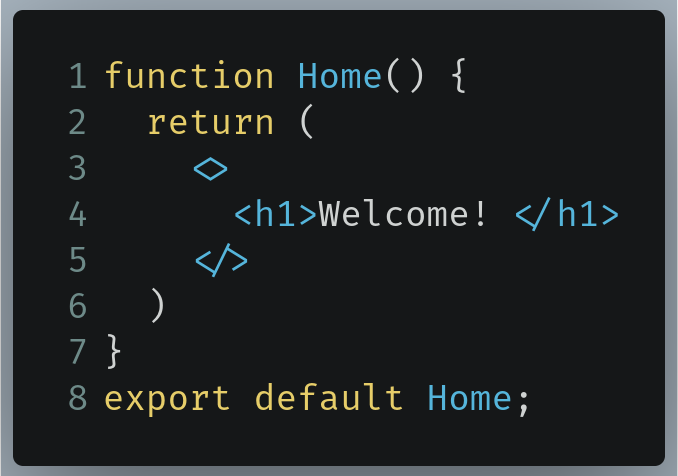
The Home component in our example

Next, let’s write another component called About.js. This will be rendered when the user goes to the /about directory of the URL.
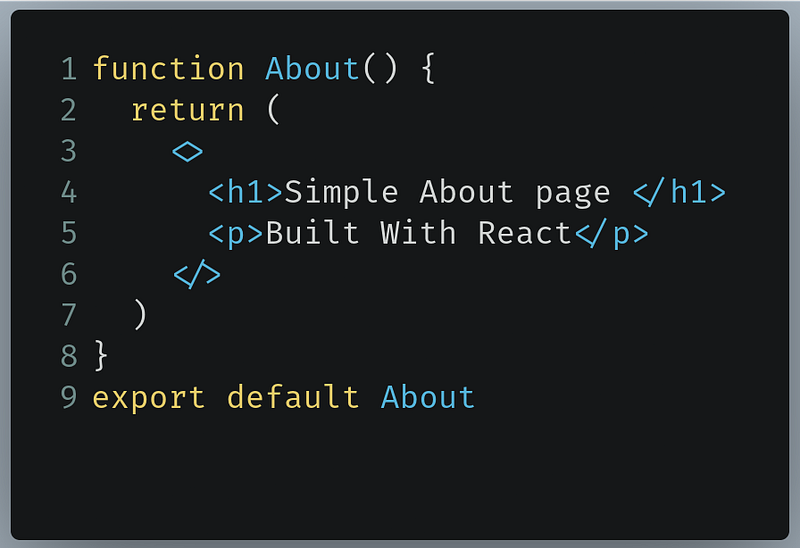
The About component in our example

Let’s now display it to the DOM. To do so, let’s go to the return block in App.js:
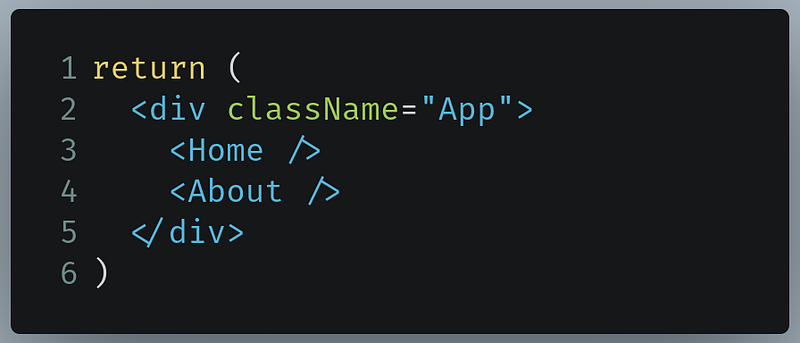
Displaying these components to the DOM

This will produce the following output:
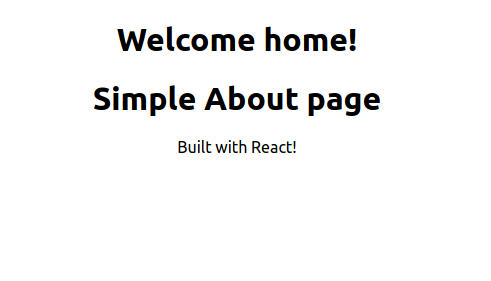
Output of the code example

Our code works. However, the problem is that we do not want to render both About and Home on the same page. We want Home to be rendered on the / page and the About component to be rendered on a separate route called /about.

In circumstances like these, we will be utilizing the power of the React Router library.

There is one additional benefit to using this library as well: Since your React app does not have to fetch the page from the server and just has to load up specific components, your web app becomes faster and more dynamic. As a result, this makes your app feel like a native desktop or mobile application.

Let’s write some code!

Getting Started

First, initialize your project’s repository using the following terminal command:
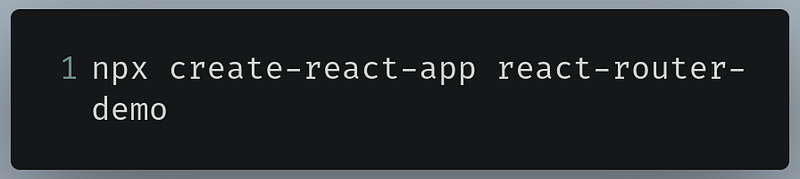
Command to initialize project

When that’s done, let’s now install the react-router-dom package.

Installation of required libraries

We will only install the react-router-dom module since the React Router library is dependent on this package to operate.

To do so, run the following terminal command:

Command to install react-router-dom package

In the next section, we will write code to set up a React Router for our project.

React Routers: Basic Routing

Setup

Before starting, go to App.js and import the following modules from the react-router-dom package:

  • Route: This will allow us to tell React to render specific components based on the routes.
  • BrowserRouter: This will add routing facilities to our project. Everything between the BrowserRouter tags will have the ability to perform routing.
  • Switch: This will render the first Route it encounters that will match the route. We will cover this in greater detail later in the tutorial.
  • Redirect: The Redirect module will allow us to redirect the user to another route depending on the directory they have navigated to. For example, redirect the user to the /home directory if they navigate to the / directory.

To do so, go to App.js and write the following code:
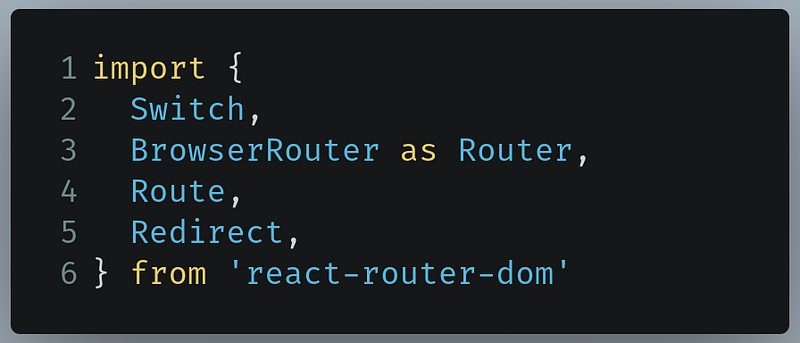
Importing library in App.js

We are just using the object destructuring assignment to get these packages from react-router-dom.

  • Line 3: Here, we are simply renaming BrowserRouter to Router.

Let’s now move on to creating some components that will be used to demonstrate routing in React.

In your src folder, create a new file called Home.js and write the following code:

Code for Home.js

Let’s now create another component called About.js:

Code in About.js

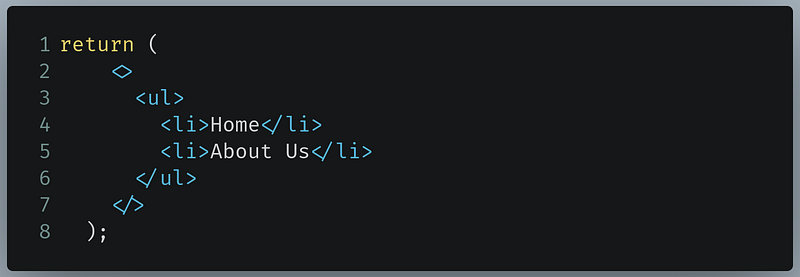
When that is done, let’s create another component called Nav.js. This component will be rendered on every route:

This is a basic component that consists of a ul element with a couple of li child items in it.

When that is done, let’s move on to basic routing.

Basic routing

In this section, we’ll finally add basic routing facilities to our project.

Let’s start by importing our newly made components into App.js:

Importing in App.js

Go to App.js and find your return block:
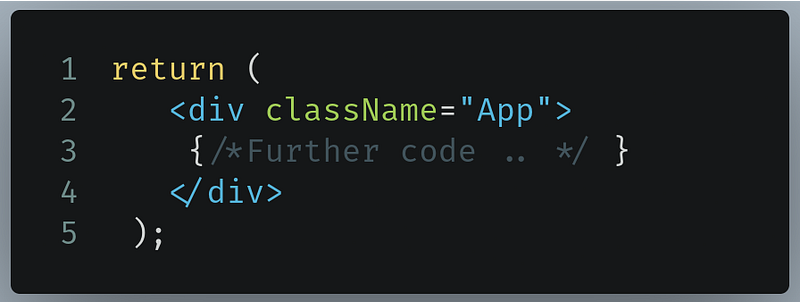
Code to find in App.js

Now remove the code between the div tags and write the following code:
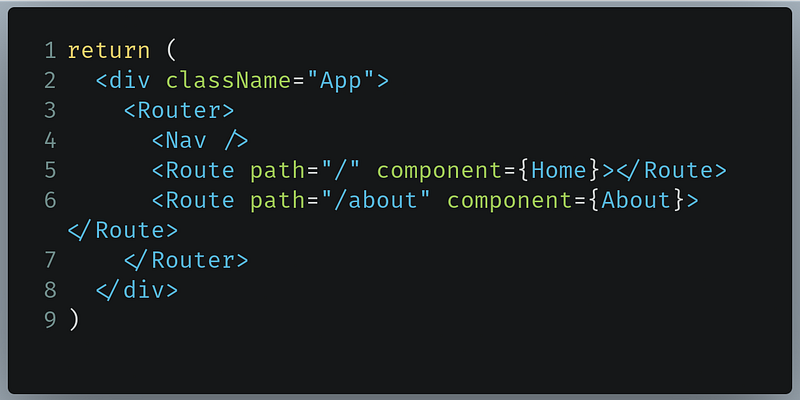
Code to write in App.js
  • Line 4: Render the Nav component.
  • Line 5: Tell React to render the Home component if the user is on the / directory.
  • Line 6: Assuming the user is at the /about page, tell React Router to render the About component.
  • Lines 3 and 7: Everything between the Router tags now has the ability to perform basic routing.

When that’s done, let’s now run the code. This will be the output:
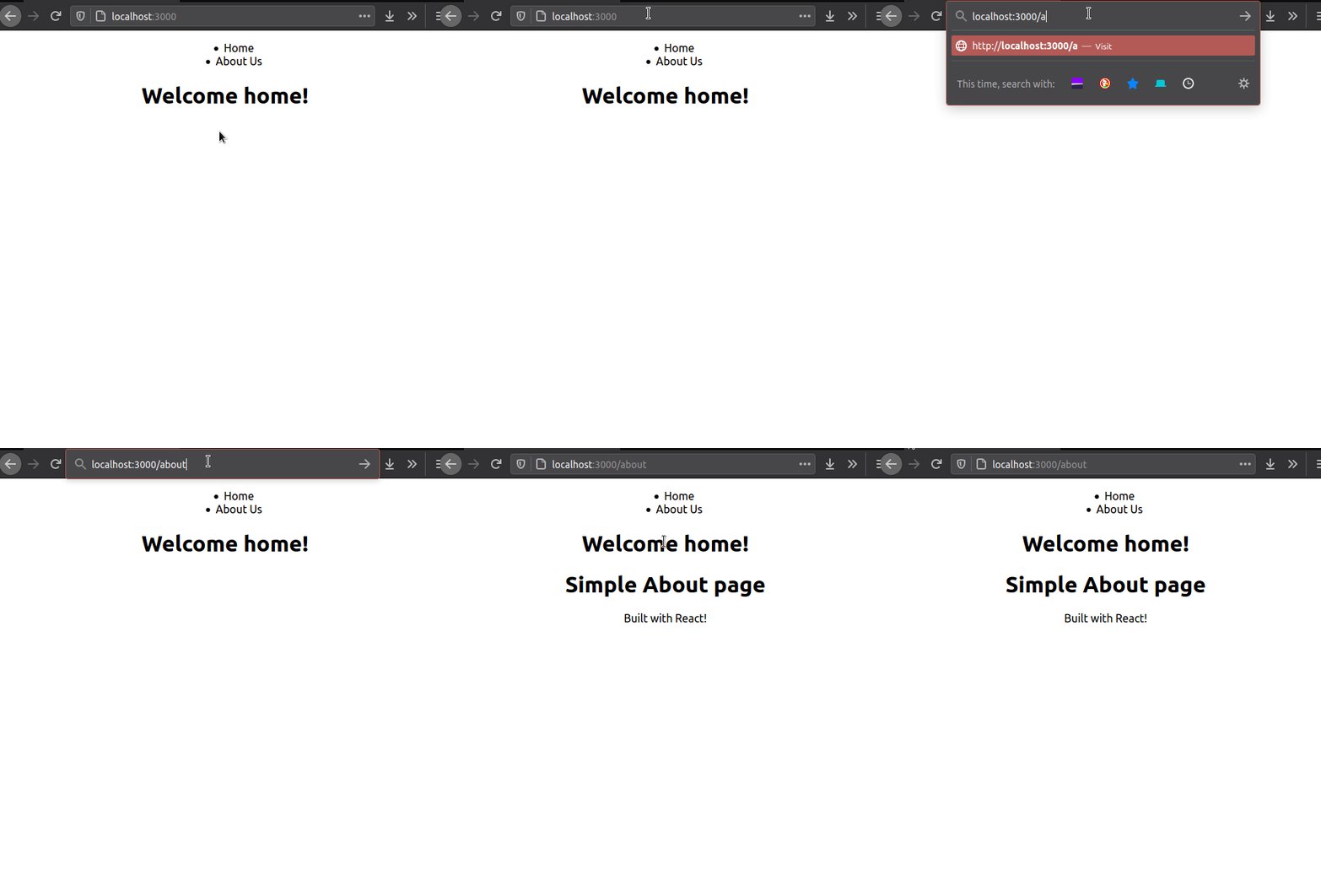
As we can see, the About.js component rendered when we navigated to the /about page. However, the Home component was still displayed even though our code told React to render this component on the / page. So why did this problem occur?

Let’s backtrack to this piece of code we just wrote:

Code to find in App.js

The reason is that Router just checks the route paths without being too specific. So in this piece of code, it essentially goes through all of these Route components.

  • According to line 5, we told React to render the Home component if it encounters a slash ( / ) in the path prop of any child Route component.
  • Now according to line 6, if we go to the /about page, React Router first checks if the route contains a /. Since this condition is true, Home is being displayed again. Additionally, since the path contained the about keyword, then the About component is being rendered as well.

So in a nutshell, by default, React Router will render all of the components that are subroutes of each other. To rectify this issue, we need to use the Switch component.

The Switch component

According to React Router’s documentation, the Switch component essentially stops the whole process of going through all of the route paths as soon as it matches the URL. It will only render the first Route component that matches the current URL.

In App.js , find your return block:

Code to find in App.js

Wrap all of your Route components with Switch tags. In the end, your return block should look like this:

Since we wrapped our Route tags between Switch tags, React Router will now look into these Routes and render the first Route component that matches its criteria. So in theory, Home should be rendered if the user goes to the / path and only About should be rendered when the user navigates to the /about directory.

When you’ve written the code, run the program. This will be the result:
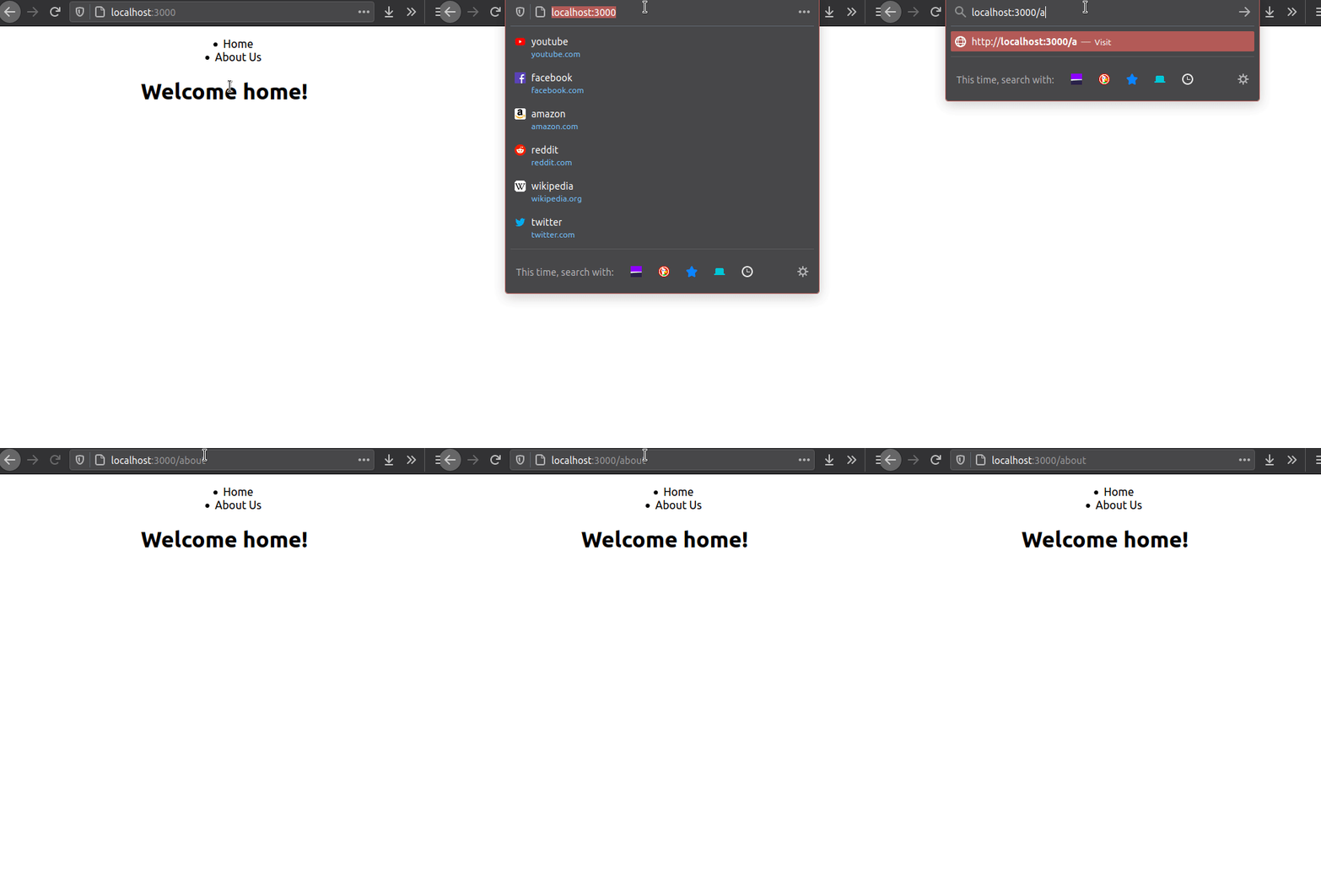
Output of the code

As you can see, the Switch component introduced a problem in our program. Only Home was rendered even when we went to the /about page. So what happened?

Let’s backtrack to the code we just wrote:
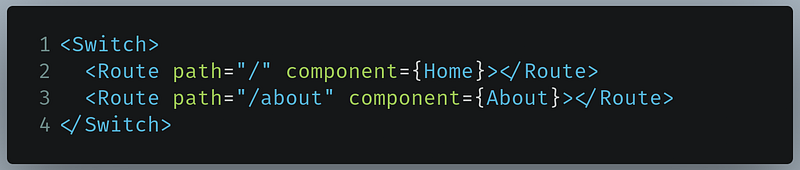
Code to refer to( App.js)
  • Line 2: We told React Router to render Home if the URL contains a /.
  • Line 3: We told React Router to render About if the URL contains a /about.
  • So when we navigated to /about, React Router first performed a check of whether the URL contained the /. Since this condition was true, Home was rendered.
  • This is where Switch took over. Recall that Switch only renders the first Route component that matches the URL. So on /about, now that Home was rendered (the first Route component that matched the URL), Switch halted the URL matching process. Consequently, About was not rendered to the DOM.

Let’s now work on correcting this problem. To do so, we need to use the exact prop in our Route component.

The exact prop

The exact prop essentially tells React Router to render the Route's component if the pathname matches the URL exactly. So in our app, we can expect that Home should be rendered only when the user navigates to / and that About should only be displayed if the user goes to the /about directory.

Go to your return block in App.js and find the following code:

Code to find in App.js

Now, just add the exact prop to your Route components like so:
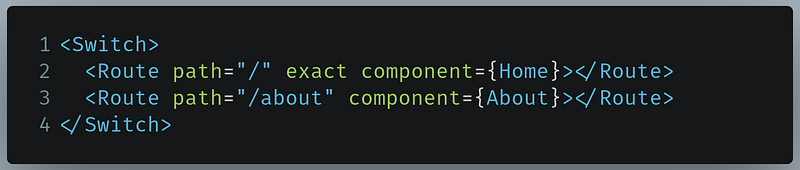
Code to replace with in App.js
  • Line 2: The exact prop now tells React Router to display the Home component only if the user navigates to the / directory.

When you’ve written the code, run the program. This will be the result:
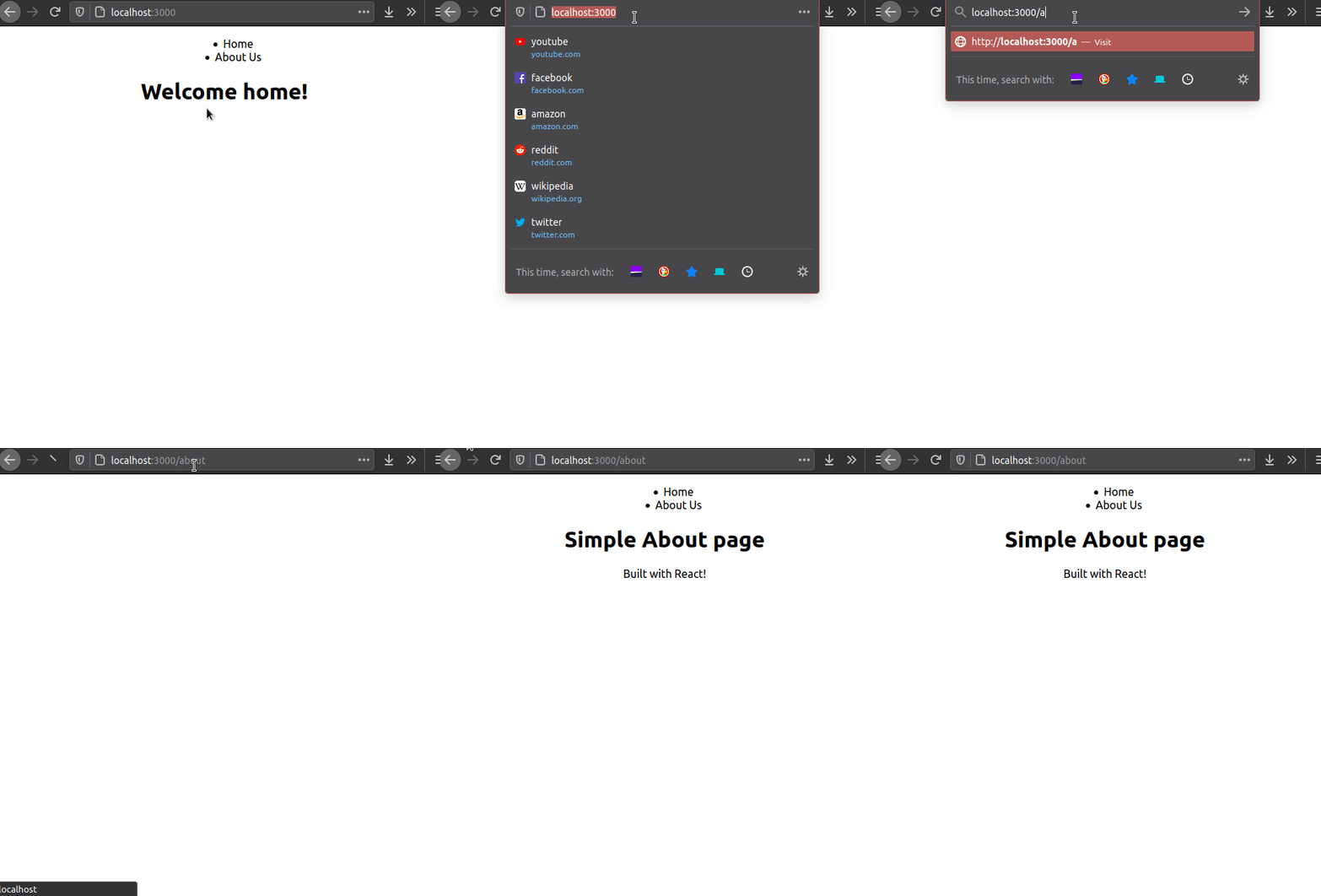
Output of the code

Our code works! Our output was what we intended.

Next, we’ll work on adding navigation to our app by using the Link component.

The Link component

In real-world use, the user isn’t expected to navigate our website by manually entering the routes into the address bar. We have to use buttons or anchor links that the user will click so that they can go through the website.

This is where React Router’s Link component comes in. You can assume the Link component to be an a tag.

Since Link is used for navigation purposes, we will use it in Nav.js.

Go to Nav.js and start by importing Link from the react-router-dom package like so:

Importing Nav.js

In Nav.js , find your return block:

Code to find in Nav.js

Now replace this with the following piece of code:

  • Lines 4-6: We have wrapped our Link component between li tags so that they can be rendered in our list element. This Link takes the user to the home page by directing them to the / route.
  • Lines 7-9: We have wrapped our Link component between li tags so that they can be rendered in our list element. This Link takes the user to the about page by directing them to the /about route.

Now run the code. This will be the result:
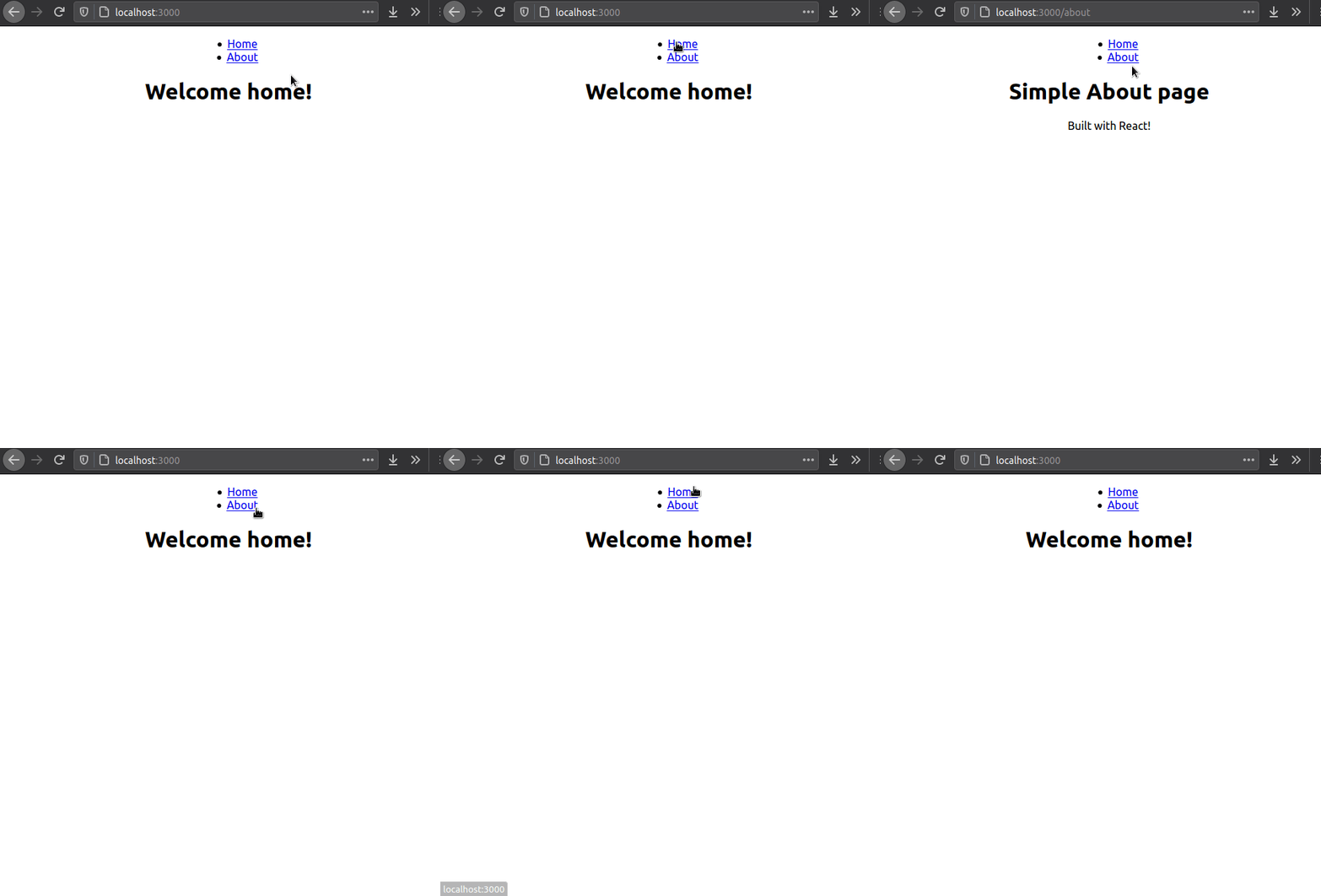
Output of the code

Our code works. Let’s now move on to working with redirects.

The Redirect component

The usage of the Redirect component is fairly straightforward. When rendered, it will navigate the user to a new location. For example, in our program, if the user types the /home route in the address bar, we want our app to redirect them to the / page instead.

Go to your return block in App.js:
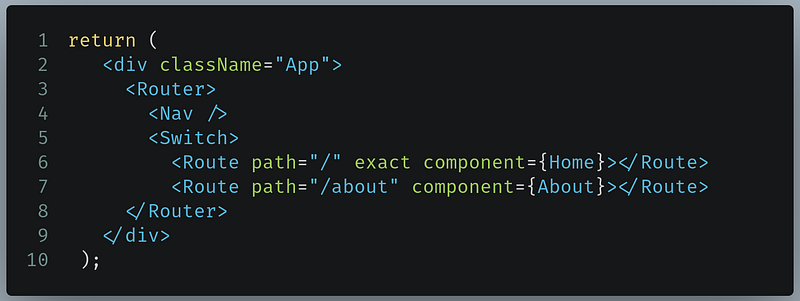
Code to find in App.js

Now change this to the following piece of code:

The change is on line 7.

  • Line 7: Here, we are telling React Router to redirect the user from /home to the / directory. The from prop is the pathname to redirect from. Furthermore, the to prop is the location to redirect to.

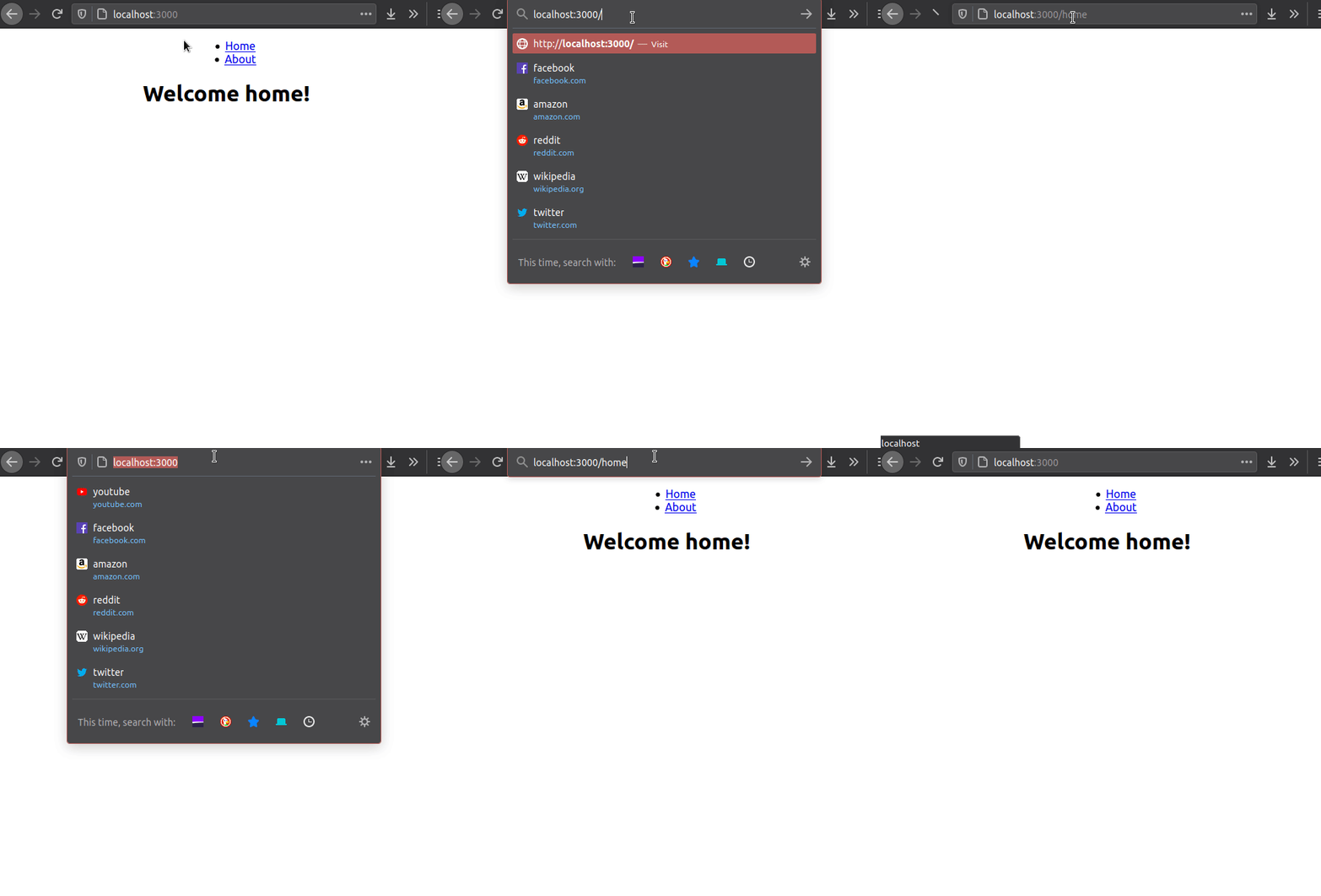
That’s it! Let’s run the code.
Output of the code

As you can see, when we typed the /home route into the address bar, the app booted us back to the / directory. This means that our code works!

We are now done with basic routing. In the next section, we will create dynamic and custom routes.

In the end, App.js should look like this:

And Home.js should look like this:

Moreover, Nav.js should look like this:

Finally, About.js should look like this:

React Router: Dynamic and Custom Routing

In this part of the article, we’ll fetch data from an external API. We’ll be using this Coffee API in particular. This is what we’ll do:

  • On the home page, we’ll show two Link components.
  • One Link component will direct the user to a page with a list of names of hot coffees and the other will direct them to a page with a list of names of iced coffees.
  • When the user clicks on any of the names on the list, they will be taken to another page that shows the description of the coffee they just clicked on.

Let’s now implement this in code.

Our first step is to render two Links in Home.js. Go to Home.js and import Link from react-router-dom:

Import in Home.js

Now go to your return block in App.js:
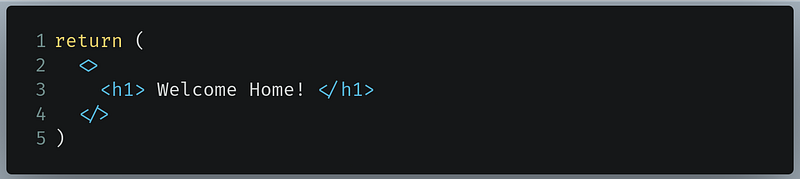
Code to find in Home.js

Let’s now render it. Replace it with the following block of code:

Here, we are simply creating two Link components that will be displayed in a list.

  • Lines 6-8: This li element has a Link component that will redirect the user to the /coffee/hot directory.
  • Lines 9-11: This li element has a Link component that will redirect the user to the /coffee/iced directory.

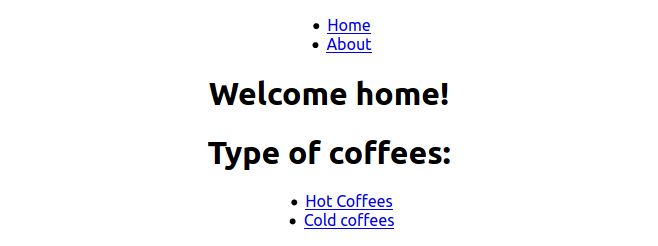
This will be the output:

Output of the code

Our code works. However, we have not handled the /coffee/hot and /coffee/iced routes yet, which is why nothing will render to the page when they are clicked.

But there is one problem: How do we handle these two routes? Let’s first think.

One solution would be like so:

  • Create two components that would handle the /coffee/hot and /coffee/iced routes, respectively:
Sample solution IcedCoffee
Sample solution HotCoffee
  • Then, we could create two Route components to render these in App.js:
Sample Solution App.js

Although this is one way to rectify our problem, this is not ideal. The code for both HotCoffee and IcedCoffee will be similar, which will break the DRY (Don’t Repeat Yourself) principle of programming.

Another way to rectify this problem is to use parameters. This method is better and requires less code to be written. Notice that in /coffee/hot and /coffee/iced, we can classify the /hot and /iced routes as parameters.

Accessing parameters with useParams

If you have ever worked with Express.js, we would use parameters like so:

Implementing this process App.js

But how do we access these parameters in React?

The good news is that React Router allows parameters to be accessed in our code. To access URL parameters in React Router, we use the useParams hook.

Let’s first create a Route to handle the /coffee/:type route. Here, type is the parameter that we want to access.

Go to App.js and find the following code in your return block:
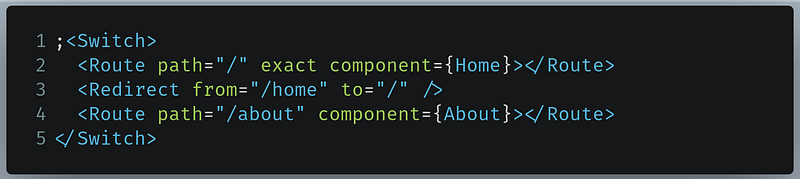
Code to find in App.js

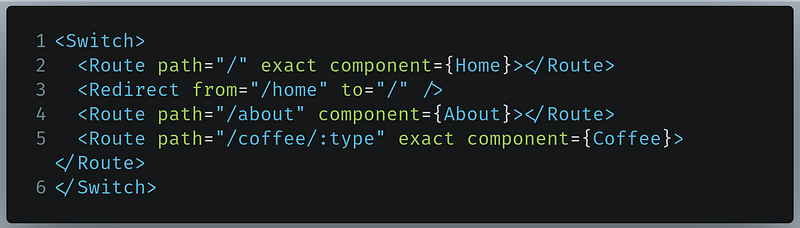
Now edit it with the following code:

Code to write in App.js
  • Line 5: Here, we are telling React Router to render the Coffee component if the user is on the /coffee/:type directory.

Let’s now work with the useParams hook. As our next step, we will create a component that will render the list of coffees. Create a new file called Coffee.js and write the following code:

  • Lines 1 and 2: Importing the useParams and useEffect Hooks from the react-router-dom and react modules, respectively.
  • Line 4: This params variable will provide us with data regarding parameters in the URL. It has been assigned the useParams Hook that contains the value of the parameters in the URL.
  • Line 6-8: Here, we are logging out the value of params when the Coffee component is mounted to the DOM.

Before running the program, let’s import this component in App.js. Go to App.js and import Coffee like so:

Code to write in App.js

Now run the program. Let’s first go to the link that directs us to /coffee/hot:
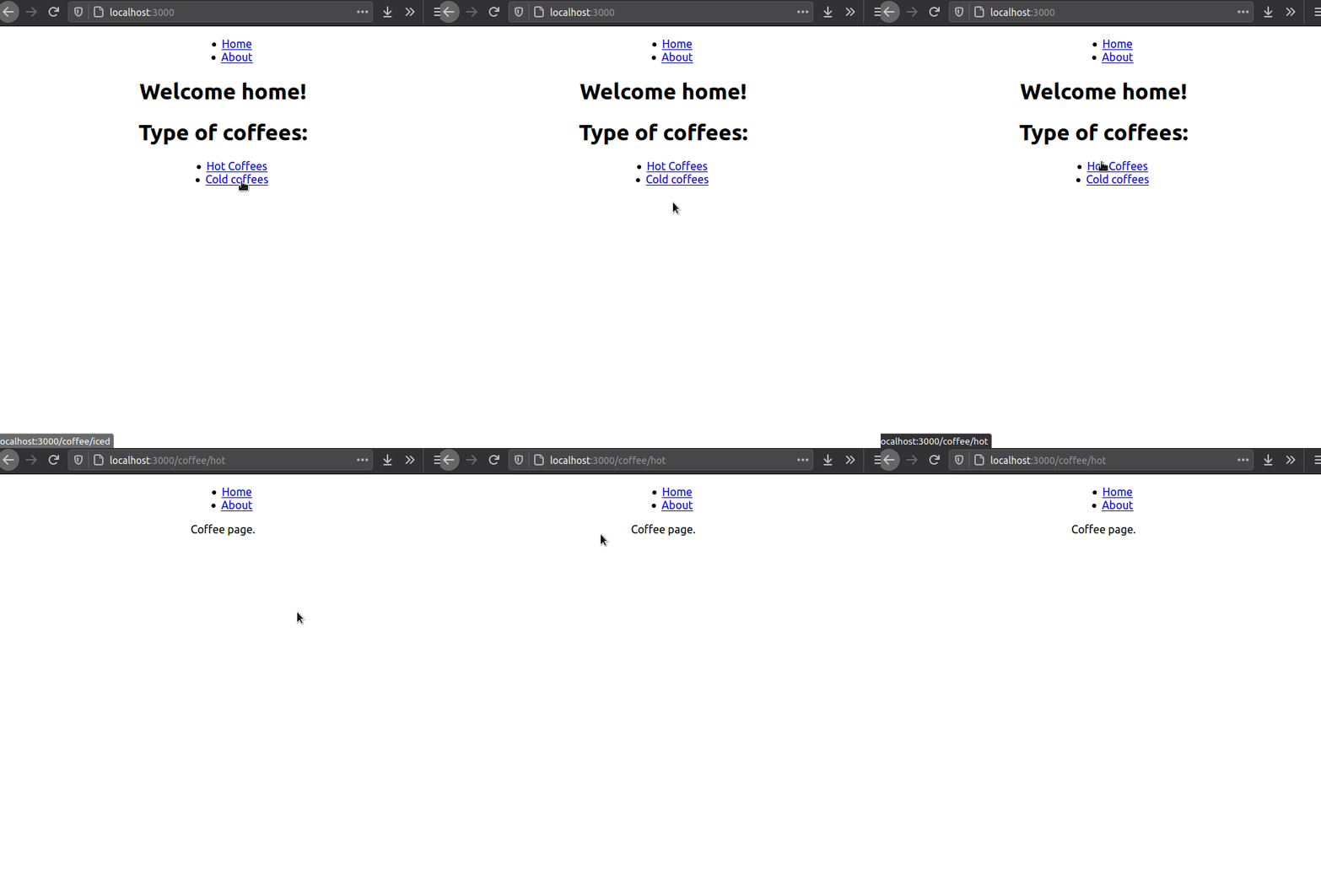
Output of the code

Look into the console of the Developer Tools of your browser. There, we can see the value of params:

Output in console

As you can see, we got the value of the type parameter! Let’s use it.

Let’s click on the link that redirects the user to /coffee/iced. This will be the output in the console:

Output in console

Here, the type parameter is now iced. Our code works!

In the next step, we’ll fetch data from the Coffee API and then render the list of coffees by type.

Fetching data

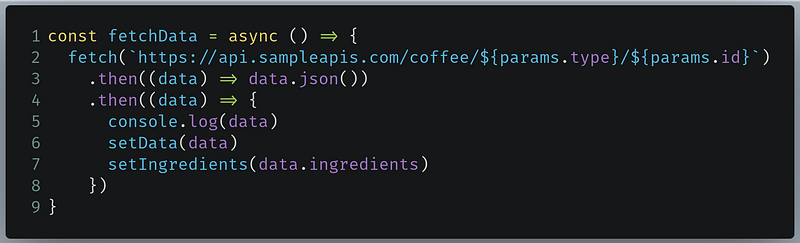
In Coffee.js , create a function called fetchData. There, write the following code:
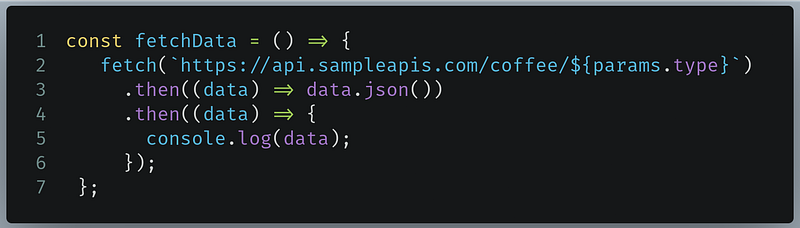
Code to write in Coffee.js
  • Line 2: Here, we are making a call to the Coffee API. In the end, we are appending the type parameter value that we procured from the params object. So depending on the clicked link, we are fetching data from https://api.sampleapis.com/coffee/iced/ or https://api.sampleapis.com/coffee/hot.
  • Lines 3-4: Convert the extracted raw data to JSON.
  • Line 5: Then log out the JSON data into the console.

Now, stay in Coffee.js and find the code in your useEffect hook:

Code to find in Coffee.js

And change it like so:

Code to replace with in Coffee.js
  • Line 2: Here, we are invoking the fetchData function as soon as the component is mounted.

Run the code. This will be the output:
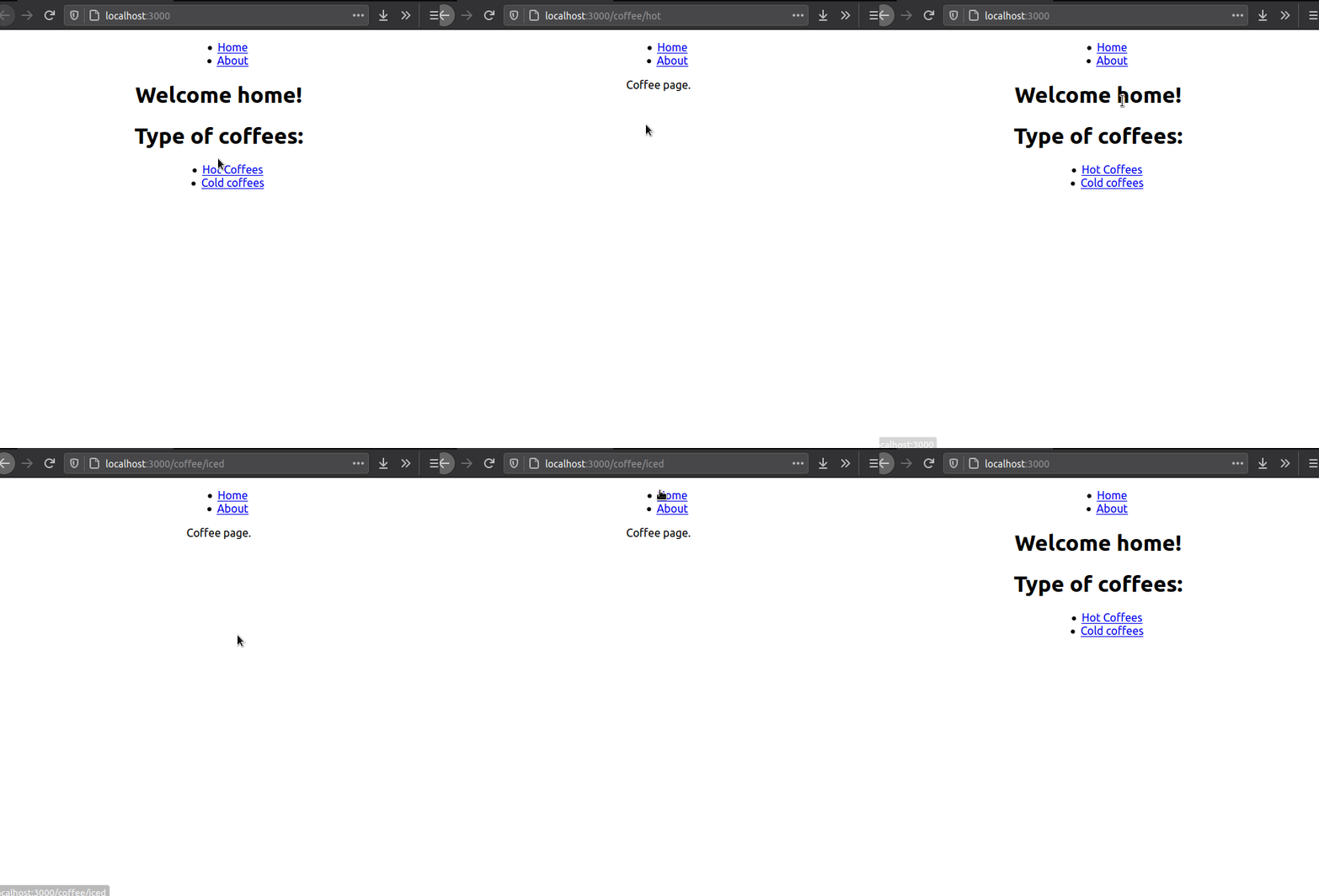
Output of the code

Nothing has changed here. However, open the Console and look at the output.

Here is the console output when we went to /coffee/hot. The type parameter is hot:
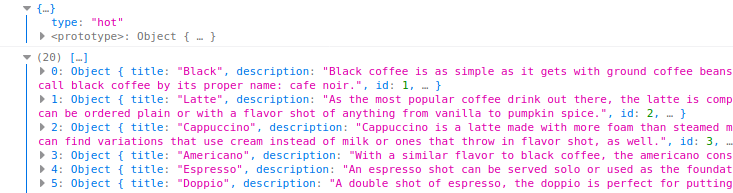
Output in console

And here is the console output when we navigated to the /coffee/iced directory. The type parameter is iced:
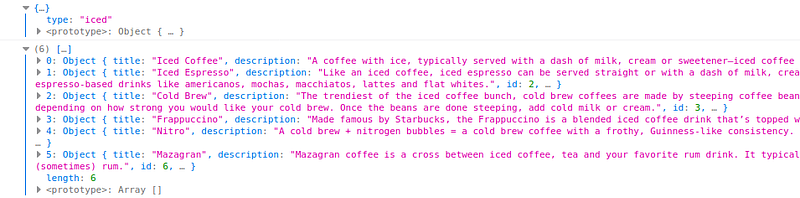
Output in console

As you can see, we obtained an array of objects from the API. For now, we will only extract the title field from these objects.

In Coffee.js, create a hook that will be assigned with the data from this API:

code to write in Coffee.js

Now find your fetchData function in Coffee.js:
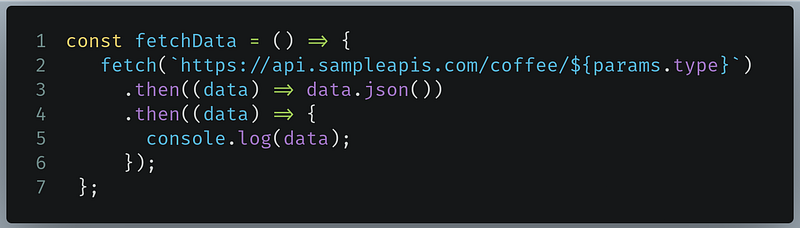
Code to find in Coffee.js

And change it to the following piece of code:
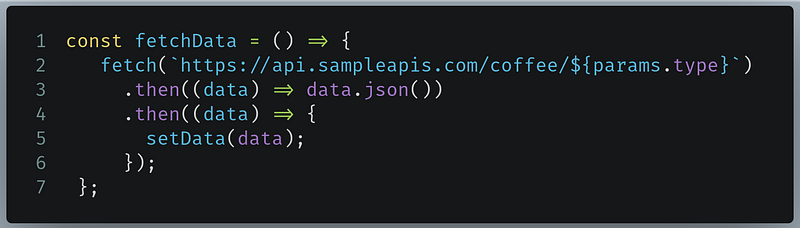
Code to replace with in Coffee.js
  • Line 5: Here, we are setting the value of the data hook to the data we just fetched from the Coffee API.

Now find your return block in Coffee.js:
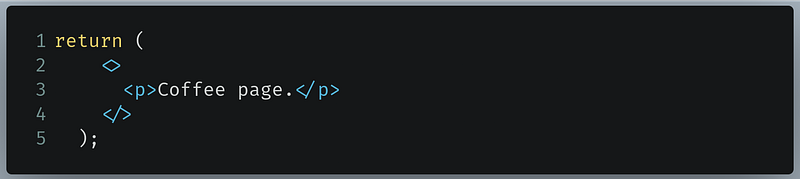
Code to find in Coffee.js

And then change this to the following block of code:
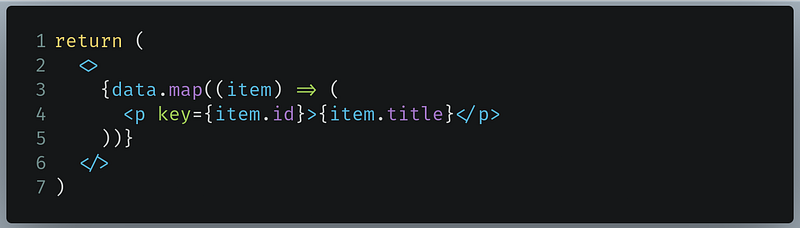
Code to replace with in Coffee.js
  • Line 3: Use the map method on the contents of the data array. This will iterate through the array.
  • Line 4: Output the title field of each object in the array. The title field contains the name of the coffee.

Run the code. This will be the output:
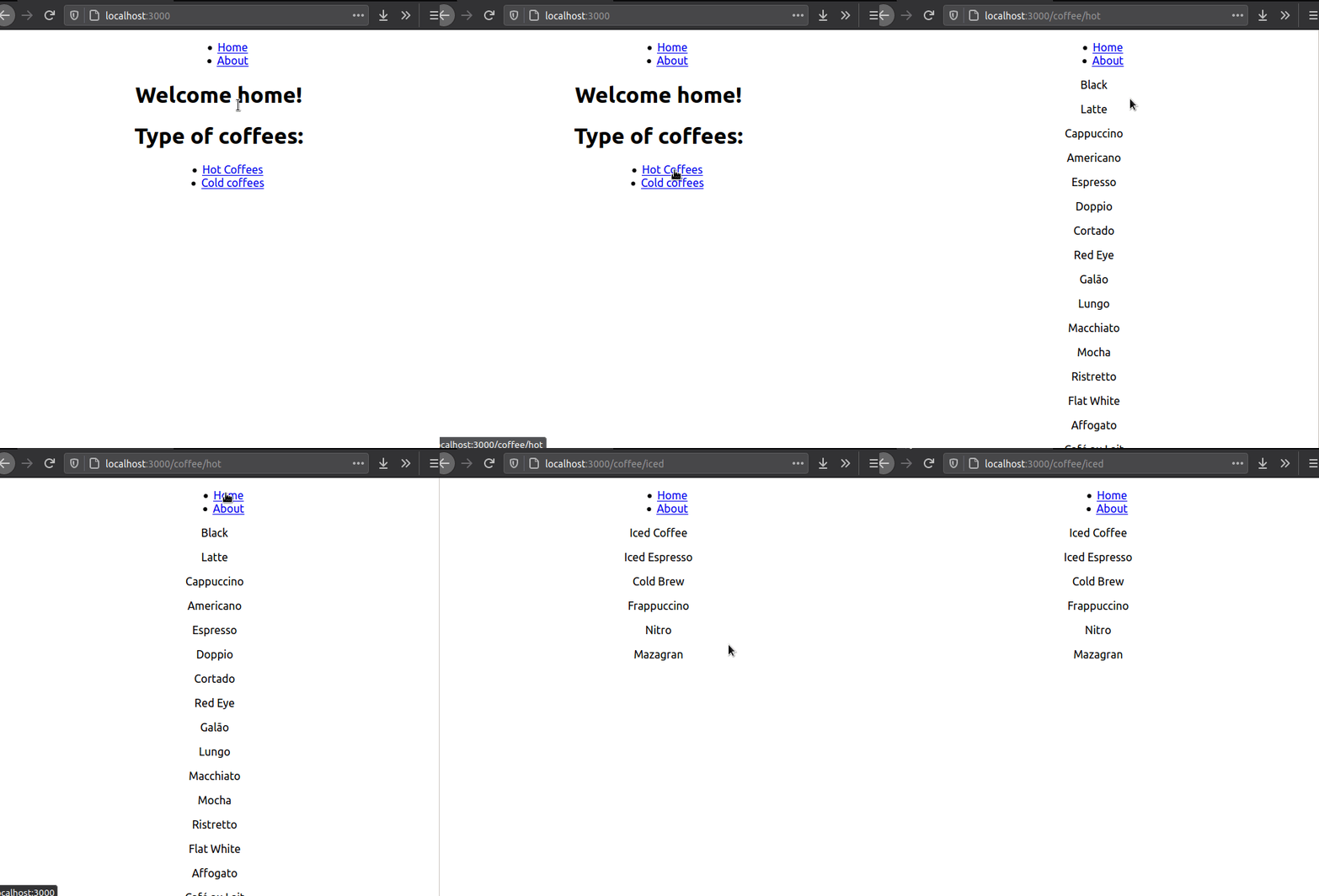
Output of the code

Our code works. Let’s now change each item in this list to a clickable Link element.

Find the code we just wrote:

Code to find in Coffee.js

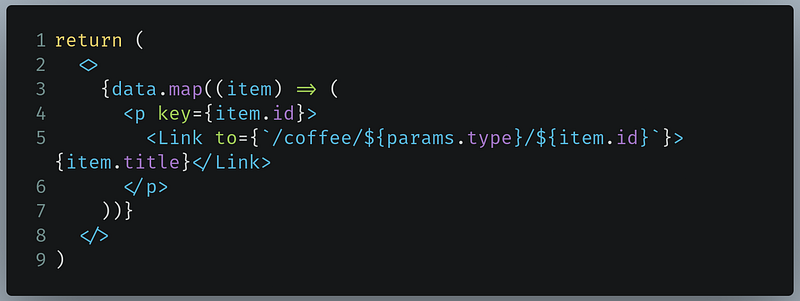
Change it like so:

Code to write in Coffee.js

The changes are on line 5.

  • Line 5: Now each item in the rendered list will direct the user to /coffee/:type/:id. Here, type and id are parameters. We’ve extracted the id field of each object in the array.

In the next section, we will render a separate page to display the description of each of these coffees.

In the end, Coffee.js should look like this:

Displaying the description

Let’s first create a Route component that will render a component when the user navigates to the /coffee/:type/:id directory.

Go to App.js and find your return block:

Now change it like so:

  • Line 10: Here, we are telling React Router to render the CoffeeInfo component if the user goes to the /coffee/:type/:id route. On this line, type and id are parameters.

Let’s now create the CoffeeInfo component. Create a new file called CoffeeInfo.js and write the following code:

This code is fairly similar to the initial version of Coffee.js:

  • Line 4: We are just extracting the parameters of the URL with the useParams Hook and then storing them in the params variable.
  • Line 7: Log out the result of params when the component is mounted.

In the end, let’s import this file in App.js. Go to App.js and import the CoffeeInfo.js file:

Importing in App.js

Now run the code. This will be the result:
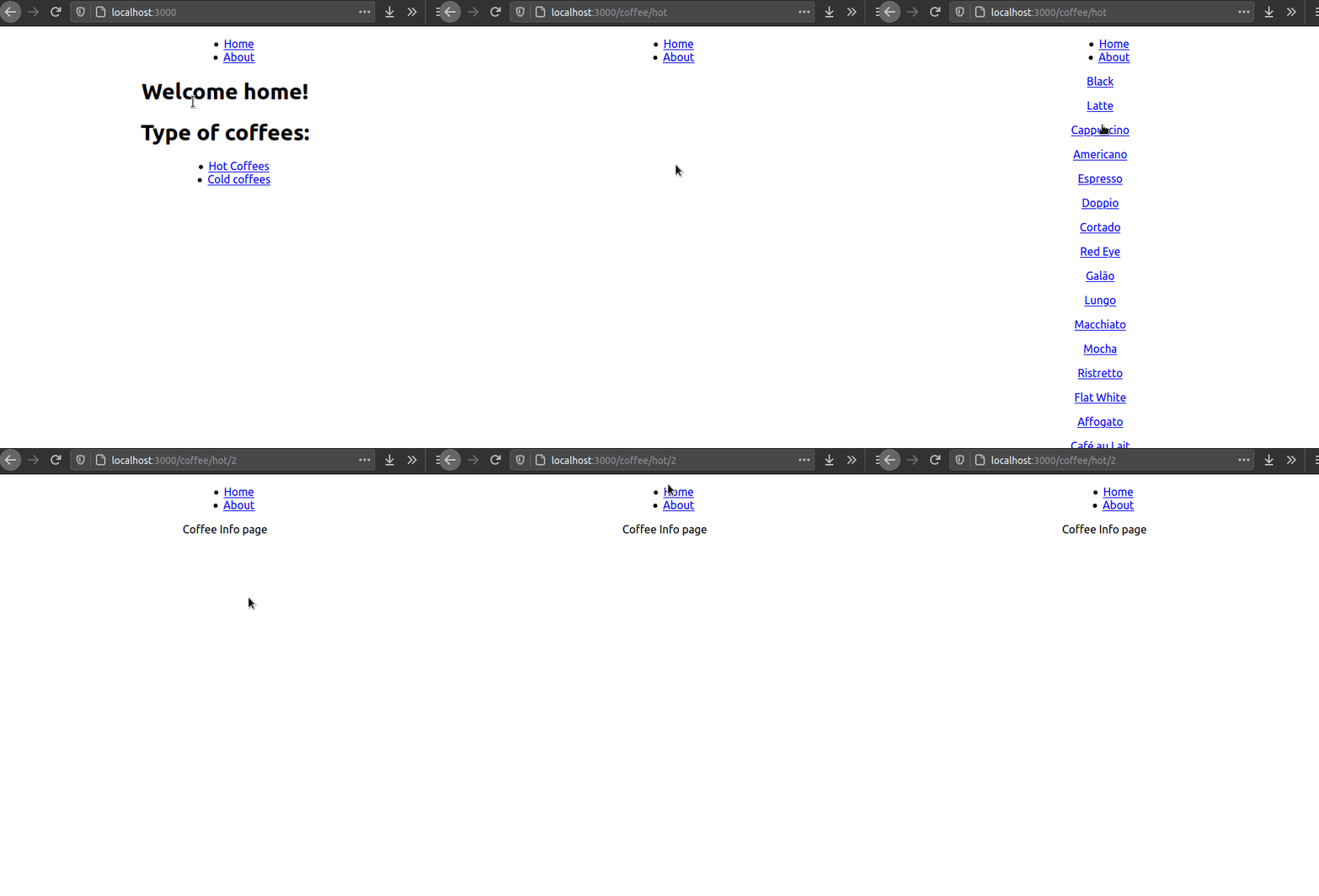
Output of the code

Nothing out of the ordinary happened, but we logged out the parameter values in the console in the CoffeeInfo file. Look at your console. This will be the output:

Output in console

Great! We got the value of the parameters. Let’s now use it.

In CoffeeInfo.js, create a function called fetchData. There, write the following code:
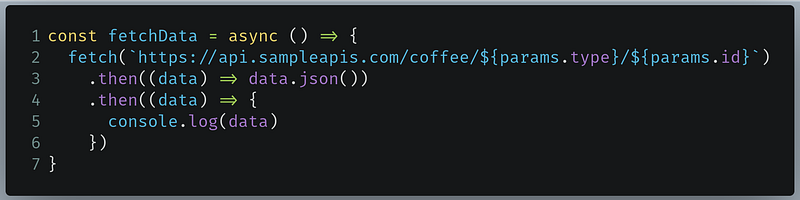
Code to write in CoffeeInfo.js
  • Line 2: Here, we are fetching data from the Coffee API. But this time, we’re appending the parameter’s type and id values to get the desired coffee description and name.
  • Line 5: Output the fetched data to the console.

Run the code. This will be the output:
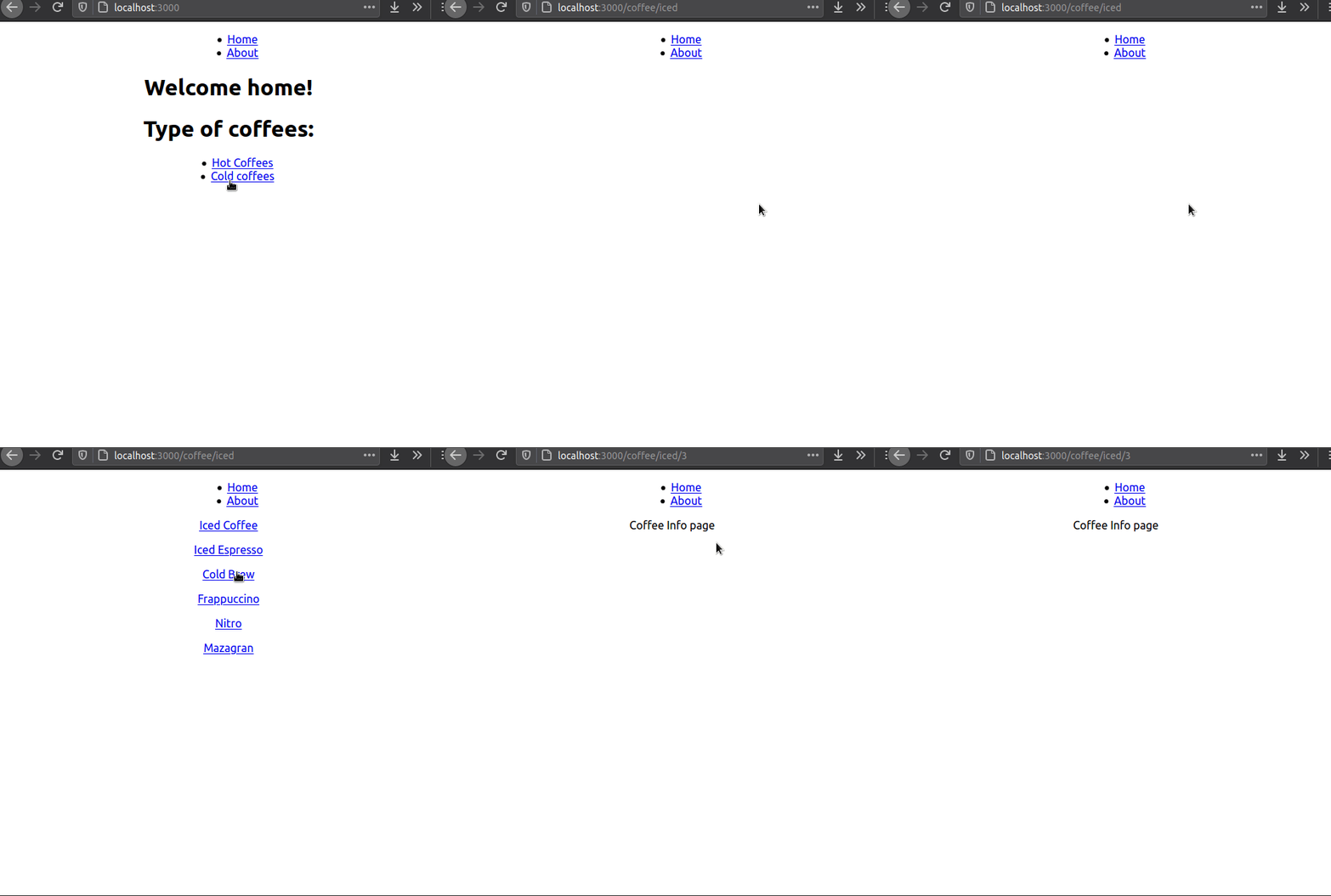
Output of the code

Nothing changed. But look at the console:

Output in console

Voila! We got our desired data.

As our final step, let’s now display this data to the browser.

In CoffeeInfo.js, declare two Hooks:

Declaring hooks in CoffeeInfo.js
  • The data Hook will store the fetched data.
  • The ingredients Hook will store just the contents of the ingredients array from the fetched data.

Now go to your fetchData function in CoffeeInfo:

Code to find in CoffeeInfo

Change it like so:

Code to replace with in CoffeeInfo.js

The changes are on lines 6 and 7:

  • Line 6: Store the fetched data in the data Hook.
  • Line 7: Store the ingredients array from the fetched data into the ingredients Hook.

Let’s now display it.

Go to your return block in CofeeInfo:

Code to find in CoffeeInfo.js

Change it like so:

  • Lines 3-4: Display the title and description values from the fetched data.
  • Line 7: Since ingredients is an array, we are using the map function.
  • Line 8: Iterate through the ingredients array and display their values.

Run the code. This will be the result:
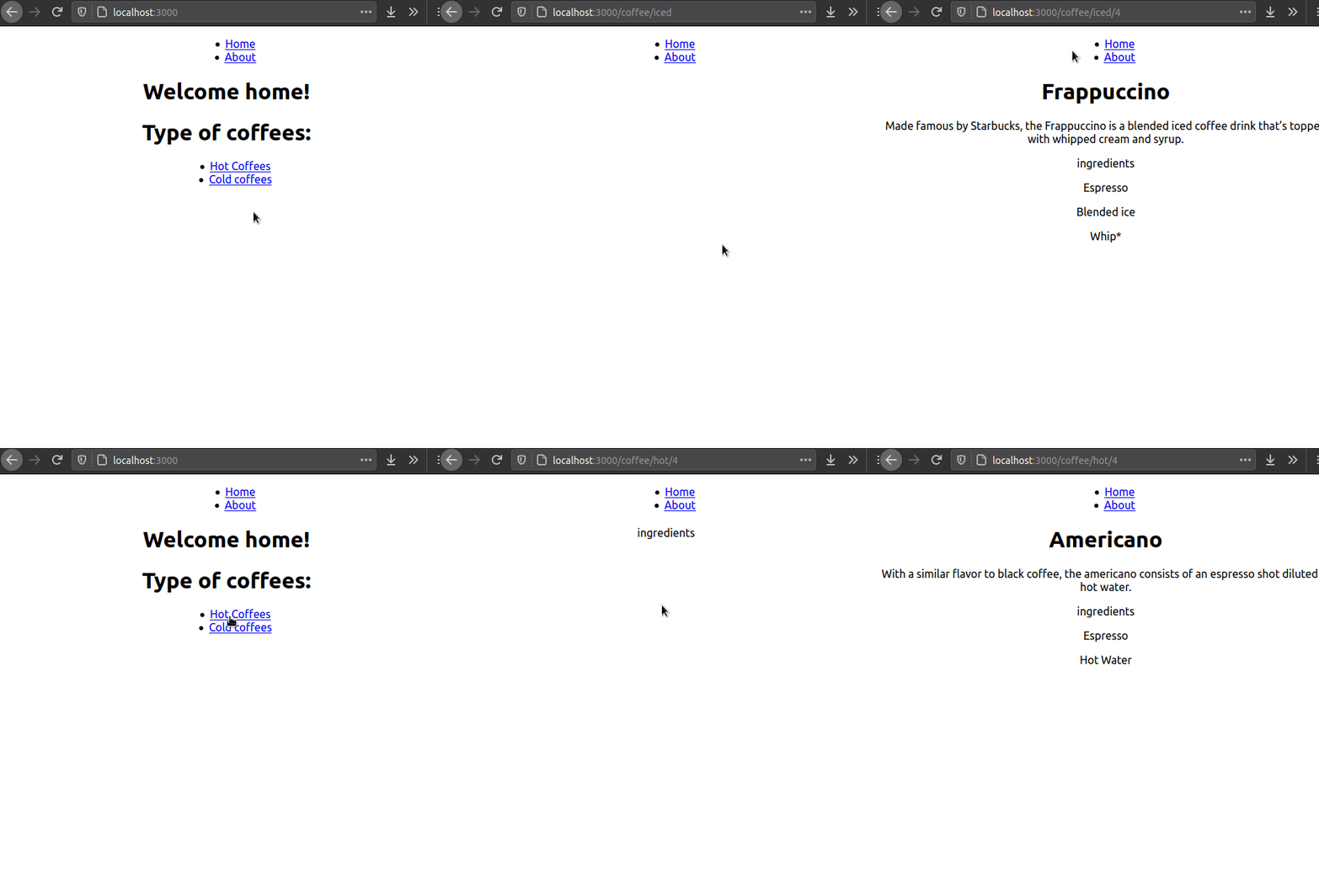
Output of the code

Our code works.

In the end, this is how CoffeeInfo.js should look:

And this is how App.js should look:

Building a horizontal Navbar

In this section, we will now build a horizontal navigation component. This will help users navigate our website with ease.

To do so, go to Nav.js and assign a className property to your ul element.

//change in Nav.js
return (
  <>
    <ul className="nav"> </ul>
    {/* Further code..*/}

Next, go to your App.css file. Here, append this snippet:

  • Line 2: Our nav component should have a display property of inline . This means that React will render its child elements in one line.
  • Lines 6–8: The float property indicates that JavaScript will display all elements next to each other. Later on, we added some padding so that all the elements will have some space between them. This makes the links easier to click.

This will be the result:
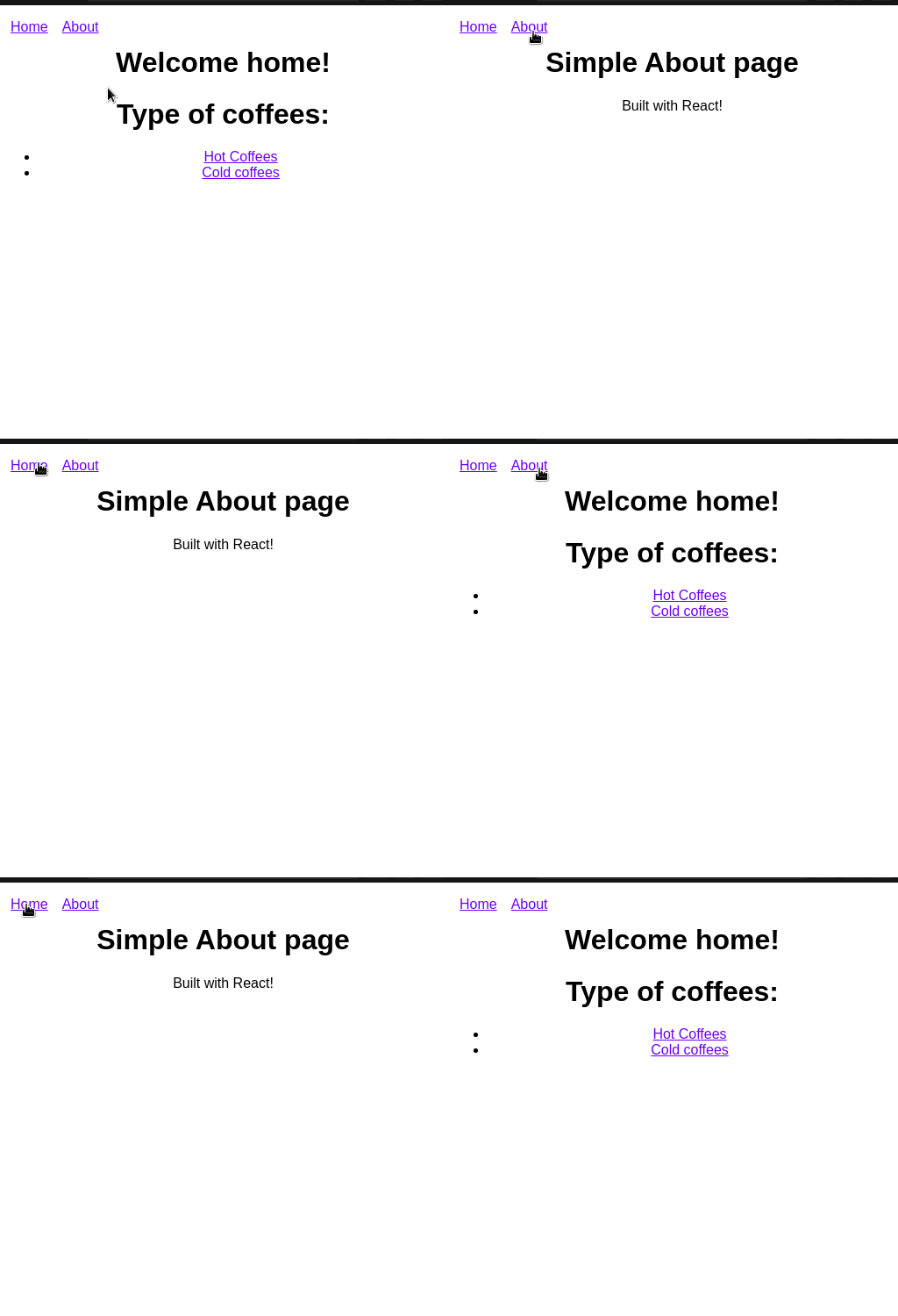
Output of the code

And we’re done!

GitHub Links and Other Resources

GitHub link

Repo for this project

Other reading resources

Conclusion

If you faced any issues with this tutorial, then play with the code and research extensively to fully grasp the inner workings of React Routers. Don’t give up!

This tutorial was by no means a short article. Congratulations on making it to the end! I hope you learned a lot. Thanks for reading!

Next Post: The Complete Guide to Using GraphQL in Node.js With Apollo Server Previous Post: Build A React Pomodoro App With TailwindCSS and Material UI

Programming
Web Development
JavaScript
React
Reactjs
Recommended from ReadMedium