avatarAayushi Johari

Free AI web copilot to create summaries, insights and extended knowledge, download it at here

9237

Abstract

Now, bin refers to the range of values that are divided into a series of intervals. Bins are usually created of the same size. In the below code, I have created the bins in the interval of 10 which means the first bin contains elements from 0 to 9, then 10 to 19 and so on.</p><div id="bec8"><pre>import matplotlib<span class="hljs-selector-class">.pyplot</span> as plt population_age = <span class="hljs-selector-attr">[22,55,62,45,21,22,34,42,42,4,2,102,95,85,55,110,120,70,65,55,111,115,80,75,65,54,44,43,42,48]</span> bins = <span class="hljs-selector-attr">[0,10,20,30,40,50,60,70,80,90,100]</span> plt<span class="hljs-selector-class">.hist</span>(population_age, bins, histtype=<span class="hljs-string">'bar'</span>, rwidth=<span class="hljs-number">0.8</span>) plt<span class="hljs-selector-class">.xlabel</span>(<span class="hljs-string">'age groups'</span>) plt<span class="hljs-selector-class">.ylabel</span>(<span class="hljs-string">'Number of people'</span>) plt<span class="hljs-selector-class">.title</span>(<span class="hljs-string">'Histogram'</span>) plt<span class="hljs-selector-class">.show</span>()</pre></div><p id="f3b2"><b><i>Output –</i></b></p><figure id="775d"><img src="https://cdn-images-1.readmedium.com/v2/resize:fit:800/1*eBGRM79WX8htY_6JKrc5nA.png"><figcaption></figcaption></figure><p id="a6f4">As you can see in the above plot, we got age groups with respect to the bins. Our biggest age group is between 40 and 50.</p><h1 id="c557">Scatter Plot</h1><p id="e7c4">Usually, we need scatter plots in order to compare variables, for example, how much one variable is affected by another variable to build a relation out of it. The data is displayed as a collection of points, each having the value of one variable which determines the position on the horizontal axis and the value of other variable determines the position on the vertical axis.</p><p id="60ba">Consider the below example:</p><div id="734a"><pre><span class="hljs-attribute">import</span> matplotlib.pyplot as plt <span class="hljs-attribute">x</span> =<span class="hljs-meta"> [1,1.5,2,2.5,3,3.5,3.6]</span> <span class="hljs-attribute">y</span> =<span class="hljs-meta"> [7.5,8,8.5,9,9.5,10,10.5]</span>

<span class="hljs-attribute">x1</span>=[<span class="hljs-number">8</span>,<span class="hljs-number">8</span>.<span class="hljs-number">5</span>,<span class="hljs-number">9</span>,<span class="hljs-number">9</span>.<span class="hljs-number">5</span>,<span class="hljs-number">10</span>,<span class="hljs-number">10</span>.<span class="hljs-number">5</span>,<span class="hljs-number">11</span>] <span class="hljs-attribute">y1</span>=[<span class="hljs-number">3</span>,<span class="hljs-number">3</span>.<span class="hljs-number">5</span>,<span class="hljs-number">3</span>.<span class="hljs-number">7</span>,<span class="hljs-number">4</span>,<span class="hljs-number">4</span>.<span class="hljs-number">5</span>,<span class="hljs-number">5</span>,<span class="hljs-number">5</span>.<span class="hljs-number">2</span>]

<span class="hljs-attribute">plt</span>.scatter(x,y, label='high income low saving',color='r') <span class="hljs-attribute">plt</span>.scatter(x1,y1,label='low income high savings',color='b') <span class="hljs-attribute">plt</span>.xlabel('saving*<span class="hljs-number">100</span>') <span class="hljs-attribute">plt</span>.ylabel('income*<span class="hljs-number">1000</span>') <span class="hljs-attribute">plt</span>.title('Scatter Plot') <span class="hljs-attribute">plt</span>.legend() <span class="hljs-attribute">plt</span>.show()</pre></div><p id="6f9f"><b><i>Output –</i></b></p><figure id="8b28"><img src="https://cdn-images-1.readmedium.com/v2/resize:fit:800/1*zZT_FNLqjreIOaIFI7uJdw.png"><figcaption></figcaption></figure><p id="6213">As you can see in the above graph, I have plotted two scatter plots based on the inputs specified in the above code. The data is displayed as a collection of points having ‘high-income low salary’ and ‘low-income high salary’.</p><p id="a149">Next, let us understand area plot or you can also say Stack plot using python matplotlib.</p><h1 id="41e0">Area Plot</h1><p id="0f24">Area plots are pretty much similar to the line plot. They are also known as stack plots. These plots can be used to track changes over time for two or more related groups that make up one whole category. For example, let’s compile the work done during a day into categories, say sleeping, eating, working and playing. Consider the below code:</p><div id="9356"><pre>import matplotlib<span class="hljs-selector-class">.pyplot</span> as plt days = <span class="hljs-selector-attr">[1,2,3,4,5]</span>

sleeping =<span class="hljs-selector-attr">[7,8,6,11,7]</span> eating = <span class="hljs-selector-attr">[2,3,4,3,2]</span> working =<span class="hljs-selector-attr">[7,8,7,2,2]</span> playing = <span class="hljs-selector-attr">[8,5,7,8,13]</span>

plt<span class="hljs-selector-class">.plot</span>(<span class="hljs-selector-attr">[]</span>,<span class="hljs-selector-attr">[]</span>,<span class="hljs-attribute">color</span>=<span class="hljs-string">'m'</span>, label=<span class="hljs-string">'Sleeping'</span>, linewidth=<span class="hljs-number">5</span>) plt<span class="hljs-selector-class">.plot</span>(<span class="hljs-selector-attr">[]</span>,<span class="hljs-selector-attr">[]</span>,<span class="hljs-attribute">color</span>=<span class="hljs-string">'c'</span>, label=<span class="hljs-string">'Eating'</span>, linewidth=<span class="hljs-number">5</span>) plt<span class="hljs-selector-class">.plot</span>(<span class="hljs-selector-attr">[]</span>,<span class="hljs-selector-attr">[]</span>,<span class="hljs-attribute">color</span>=<span class="hljs-string">'r'</span>, label=<span class="hljs-string">'Working'</span>, linewidth=<span class="hljs-number">5</span>) plt<span class="hljs-selector-class">.plot</span>(<span class="hljs-selector-attr">[]</span>,<span class="hljs-selector-attr">[]</span>,<span class="hljs-attribute">color</span>=<span class="hljs-string">'k'</span>, label=<span class="hljs-string">'Playing'</span>, linewidth=<span class="hljs-number">5</span>)

plt<span class="hljs-selector-class">.stackplot</span>(days, sleeping,eating,working,playing, colors=<span class="hljs-selector-attr">[<span class="hljs-string">'m'</span>,<span class="hljs-string">'c'</span>,<span class="hljs-string">'r'</span>,<span class="hljs-string">'k'</span>]</span>)

plt<span class="hljs-selector-class">.xlabel</span>(<span class="hljs-string">'x'</span>) plt<span class="hljs-selector-class">.ylabel</span>(<span class="hljs-string">'y'</span>) plt<span class="hljs-selector-class">.title</span>(<span class="hljs-string">'Stack Plot'</span>) plt<span class="hljs-selector-class">.legend</span>() plt<span class="hljs-selector-class">.show</span>()</pre></div><p id="4f9e"><b><i>Output –</i></b></p><figure id="896f"><img src="https://cdn-images-1.readmedium.com/v2/resize:fit:800/1*hcpgRRVNDekQZZSYcHEU9w.png"><figcaption></figcaption></figure><p id="ffef">As we can see in the above image, we have time spent based on the categories. Therefore, area plot or stack plot is used to show trends over time, among different attributes. Next, let us move to our last yet most frequently used plot — Pie chart.</p><h1 id="2181">Pie Chart</h1><p id="4039">A pie chart refers to a circular graph which is broken down into segments i.e. slices of pie. It is basically used to show the percentage or proportional data where each slice of pie represents a category. Let’s have a look at the below example:</p><div id="7e48"><pre><span class="hljs-attribute">import</span> matplotlib.pyplot as plt

<span class="hljs-attribute">days</span> =<span class="hljs-meta"> [1,2,3,4,5]</span>

<span class="hljs-attribute">sleeping</span> =[<span class="hljs-number">7</span>,<span class="hljs-number">8</span>,<span class="hljs-number">6</span>,<span class="hljs-number">11</span>,<span class="hljs-number">7</span>] <span class="hljs-attribute">eating</span> =<span class="hljs-meta"> [2,3,4,3,2]</span> <span class="hljs-attribute">working</span> =[<span class="hljs-number">7</span>,<span class="hljs-number">8</span>,<span class="hljs-number">7</span>,<span class="hljs-number">2</span>,<span class="hljs-number">2</span>] <span class="hljs-attribute">playing</span> =<span class="hljs-meta"> [8,5,7,8,13]</span> <span class="hljs-attribute">slices</span> =<span class="hljs-meta"> [7,2,2,13]</span> <span class="hljs-attribute">activities</span> =<span class="hljs-meta"> ['sleeping','eating','working','playing']</span> <span class="hljs-attribute">cols</span> =<span class="hljs-meta"> ['c','m','r','b']</span>

<span class="hljs-attribute">plt</span>.pie(slices, <span class="hljs-attribute">labels</span>=activities, <span class="hljs-attribute">colors</span>=cols, <span class="hljs-attribute">startangle</span>=<span class="hljs-number">90</span>, <span class="hljs-attribute">shadow</span>= True, <span class="hljs-attribute">explode</span>=(<span class="hljs-number">0</span>,<span class="hljs-number">0</span>.<span class="hljs-number">1</span>,<span class="hljs-number">0</span>,<span class="hljs-number">0</span>), <span c

Options

lass="hljs-attribute">autopct</span>='%<span class="hljs-number">1</span>.<span class="hljs-number">1</span>f%%')

<span class="hljs-attribute">plt</span>.title('Pie Plot') <span class="hljs-attribute">plt</span>.show()</pre></div><p id="0d79"><b><i>Output –</i></b></p><figure id="6ccf"><img src="https://cdn-images-1.readmedium.com/v2/resize:fit:800/1*jGmwkfAMCyN65qUHKYFp6Q.png"><figcaption></figcaption></figure><p id="be9d">In the above pie chart, I have divided the circle into 4 sectors or slices which represents the respective category (playing, sleeping, eating and working) along with the percentage they hold. Now, if you have noticed these slices adds up to 24 hrs, but the calculation of pie slices is done automatically for you. In this way, pie charts are really useful as you don’t have to be the one who calculates the percentage or the slice of the pie.</p><p id="097c">Next, in python matplotlib, let’s understand how to work with multiple plots.</p><h1 id="b994">Working With Multiple Plots</h1><p id="64aa">I have discussed about multiple types of plots in python matplotlib such as bar plot, scatter plot, pie plot, area plot etc. Now, let me show you how to handle multiple plots. For this, I have to import numpy module which I discussed in my previous blog on Python Numpy. Let me implement it practically, consider the below example.</p><div id="f631"><pre><span class="hljs-attribute">import</span> numpy as np <span class="hljs-attribute">import</span> matplotlib.pyplot as plt

<span class="hljs-attribute">def</span> f(t): <span class="hljs-attribute">return</span> np.exp(-t) * np.cos(<span class="hljs-number">2</span>np.pit) <span class="hljs-attribute">t1</span> = np.arange(<span class="hljs-number">0</span>.<span class="hljs-number">0</span>, <span class="hljs-number">5</span>.<span class="hljs-number">0</span>, <span class="hljs-number">0</span>.<span class="hljs-number">1</span>) <span class="hljs-attribute">t2</span> = np.arange(<span class="hljs-number">0</span>.<span class="hljs-number">0</span>, <span class="hljs-number">5</span>.<span class="hljs-number">0</span>, <span class="hljs-number">0</span>.<span class="hljs-number">02</span>) <span class="hljs-attribute">plt</span>.subplot(<span class="hljs-number">221</span>) <span class="hljs-attribute">plt</span>.plot(t1, f(t1), 'bo', t2, f(t2)) <span class="hljs-attribute">plt</span>.subplot(<span class="hljs-number">222</span>) <span class="hljs-attribute">plt</span>.plot(t2, np.cos(<span class="hljs-number">2</span>np.pit2)) <span class="hljs-attribute">plt</span>.show()</pre></div><p id="68f8"><b><i>Output-</i></b></p><figure id="5958"><img src="https://cdn-images-1.readmedium.com/v2/resize:fit:800/1*R9EW25gRgqMSrfcGWGXmLg.png"><figcaption></figcaption></figure><p id="3993">The code is pretty much similar to the previous examples that you have seen but there is one new concept here i.e. subplot. The subplot() command specifies numrow, numcol, fignum which ranges from 1 to numrowsnumcols. The commas in this command are optional if numrowsnumcols<10. So subplot (221) is identical to subplot (2,2,1). Therefore, subplots help us to plot multiple graphs in which you can define it by aligning vertically or horizontally. In the above example, I have aligned it horizontally.</p><p id="e893">Apart from these, python matplotlib has some disadvantages. Some of them are listed below:</p><ul><li>They are heavily reliant on other packages, such as NumPy.</li><li>It only works for python, so it is hard or impossible to be used in languages other than python. (But it can be used from Julia via PyPlot package).</li></ul><p id="a2a2">We have come to an end of this python matplotlib tutorial. I have covered all the basics of matplotlib, so you can start practicing now. I hope you guys are clear about each and every aspect that I have discussed above.</p><p id="4249">If you wish to check out more articles on the market’s most trending technologies like Artificial Intelligence, DevOps, Ethical Hacking, then you can refer to Edureka’s official site.</p><p id="7b26">Do look out for other articles in this series which will explain the various other aspects of Python and Data Science.</p><blockquote id="2773"><p>1. <a href="https://readmedium.com/python-tutorial-be1b3d015745">Python Tutorial</a></p></blockquote><blockquote id="ed5e"><p>2.<a href="https://readmedium.com/python-functions-f0cabca8c4a"> </a><a href="https://readmedium.com/python-programming-language-fc1015de7a6f">Python Programming Language</a></p></blockquote><blockquote id="2283"><p>3. <a href="https://readmedium.com/python-functions-f0cabca8c4a">Python Functions</a></p></blockquote><blockquote id="d41a"><p>4.<a href="https://readmedium.com/python-numpy-tutorial-89fb8b642c7d"> </a><a href="https://readmedium.com/file-handling-in-python-e0a6ff96ede9">File Handling in Python</a></p></blockquote><blockquote id="c958"><p>5.<a href="https://readmedium.com/scikit-learn-machine-learning-7a2d92e4dd07"> </a><a href="https://readmedium.com/python-numpy-tutorial-89fb8b642c7d">Python Numpy Tutorial</a></p></blockquote><blockquote id="40d1"><p>6. <a href="https://readmedium.com/scikit-learn-machine-learning-7a2d92e4dd07">Scikit Learn Machine Learning</a></p></blockquote><blockquote id="76f6"><p>7. <a href="https://readmedium.com/python-pandas-tutorial-c5055c61d12e">Python Pandas Tutorial</a></p></blockquote><blockquote id="4823"><p>8. <a href="https://readmedium.com/tkinter-tutorial-f655d3f4c818">Tkinter Tutorial</a></p></blockquote><blockquote id="dedc"><p>9. <a href="https://readmedium.com/python-requests-tutorial-30edabfa6a1c">Requests Tutorial</a></p></blockquote><blockquote id="b00e"><p>10. <a href="https://readmedium.com/pygame-tutorial-9874f7e5c0b4">PyGame Tutorial</a></p></blockquote><blockquote id="31e0"><p>11. <a href="https://readmedium.com/python-opencv-tutorial-5549bd4940e3">OpenCV Tutorial</a></p></blockquote><blockquote id="ccdb"><p>12. <a href="https://readmedium.com/web-scraping-with-python-d9e6506007bf">Web Scraping With Python</a></p></blockquote><blockquote id="1994"><p>13. <a href="https://readmedium.com/pycharm-tutorial-d0ec9ce6fb60">PyCharm Tutorial</a></p></blockquote><blockquote id="44dd"><p>14. <a href="https://readmedium.com/machine-learning-tutorial-f2883412fba1">Machine Learning Tutorial</a></p></blockquote><blockquote id="a6af"><p>15.<a href="https://readmedium.com/linear-regression-in-python-e66f869cb6ce"> Linear Regression Algorithm from scratch in Python</a></p></blockquote><blockquote id="f5b7"><p>16.<a href="https://readmedium.com/learn-python-for-data-science-1f9f407943d3"> Python for Data Science</a></p></blockquote><blockquote id="4eab"><p>17. <a href="https://readmedium.com/python-regex-regular-expression-tutorial-f2d17ffcf17e">Python Regex</a></p></blockquote><blockquote id="1dbc"><p>18. <a href="https://readmedium.com/loops-in-python-fc5b42e2f313">Loops in Python</a></p></blockquote><blockquote id="a16f"><p>19. <a href="https://readmedium.com/python-projects-1f401a555ca0">Python Projects</a></p></blockquote><blockquote id="cf12"><p>20. <a href="https://readmedium.com/machine-learning-projects-cb0130d0606f">Machine Learning Projects</a></p></blockquote><blockquote id="23b1"><p>21. <a href="https://readmedium.com/arrays-in-python-14aecabec16e">Arrays in Python</a></p></blockquote><blockquote id="14be"><p>22. <a href="https://readmedium.com/sets-in-python-a16b410becf4">Sets in Python</a></p></blockquote><blockquote id="b517"><p>23. <a href="https://readmedium.com/what-is-mutithreading-19b6349dde0f">Multithreading in Python</a></p></blockquote><blockquote id="d809"><p>24. <a href="https://readmedium.com/python-interview-questions-a22257bc309f">Python Interview Questions</a></p></blockquote><blockquote id="1d83"><p>25. <a href="https://readmedium.com/java-vs-python-31d7433ed9d">Java vs Python</a></p></blockquote><blockquote id="c6a7"><p>26. <a href="https://readmedium.com/how-to-become-a-python-developer-462a0093f246">How To Become A Python Developer?</a></p></blockquote><blockquote id="f668"><p>27. <a href="https://readmedium.com/python-lambda-b84d68d449a0">Python Lambda Functions</a></p></blockquote><blockquote id="5ecf"><p>28. <a href="https://readmedium.com/how-netflix-uses-python-1e4deb2f8ca5">How Netflix uses Python?</a></p></blockquote><blockquote id="00ec"><p>29. <a href="https://readmedium.com/socket-programming-python-bbac2d423bf9">What is Socket Programming in Python</a></p></blockquote><blockquote id="ddcd"><p>30. <a href="https://readmedium.com/python-database-connection-b4f9b301947c">Python Database Connection</a></p></blockquote><blockquote id="9669"><p>31. <a href="https://readmedium.com/golang-vs-python-5ac32e1ef2">Golang vs Python</a></p></blockquote><blockquote id="6c01"><p>32. <a href="https://readmedium.com/python-seaborn-tutorial-646fdddff322">Python Seaborn Tutorial</a></p></blockquote><blockquote id="a532"><p>33. <a href="https://readmedium.com/python-career-opportunities-a2500ce158de">Python Career Opportunities</a></p></blockquote><p id="5c46"><i>Originally published at <a href="https://www.edureka.co/blog/python-matplotlib-tutorial">www.edureka.co</a> on August 8, 2017.</i></p></article></body>

Python Matplotlib Guide - Learn Matplotlib Library with Examples
In my previous blog, I discussed a numerical library of python called Python NumPy. In this blog, I will be talking about another library, Python Matplotlib. matplotlib.pyplot is a python package used for 2D graphics. Below is the sequence in which I will be covering all the topics of python matplotlib:

  • What Is Python Matplotlib?
  • Types Of Plots – Bar Graph – Histogram – Scatter Plot – Area Plot – Pie Chart
  • Working With Multiple Plots

What Is Python Matplotlib?

matplotlib.pyplot is a plotting library used for 2D graphics in python programming language. It can be used in python scripts, shell, web application servers and other graphical user interface toolkits.

There are several toolkits that are available that extend python matplotlib functionality. Some of them are separate downloads, others can be shipped with the matplotlib source code but have external dependencies.

  • Basemap: It is a map plotting toolkit with various map projections, coastlines, and political boundaries.
  • Cartopy: It is a mapping library featuring object-oriented map projection definitions, and arbitrary point, line, polygon and image transformation capabilities.
  • Excel tools: Matplotlib provides utilities for exchanging data with Microsoft Excel.
  • Mplot3d: It is used for 3-D plots.
  • Natgrid: It is an interface to the natgrid library for irregular gridding of the spaced data.

Next, let us move forward in this blog and explore different types of plots available in python matplotlib.

Types of Plots

There are various plots which can be created using python matplotlib. Some of them are listed below:
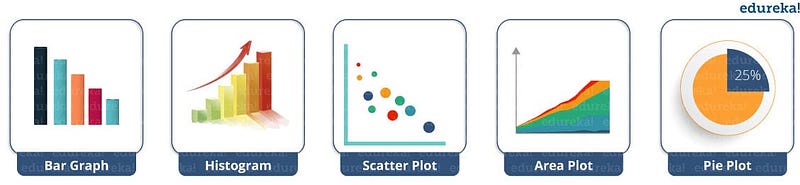
I will demonstrate each one of them in detail.

But before that, let me show you very basic codes in python matplotlib in order to generate a simple graph.

from matplotlib import pyplot as plt
 #Plotting to our canvas
 plt.plot([1,2,3],[4,5,1])
 #Showing what we plotted
 plt.show()

Output –
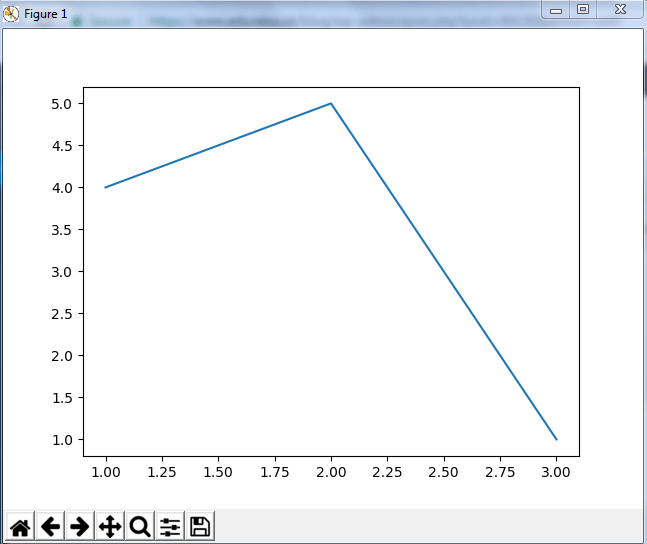
So, with three lines of code, you can generate a basic graph using python matplotlib. Simple, isn’t it? Let us see how can we add title and labels to our graph created by python matplotlib library to bring in more meaning to it. Consider the below example:

from matplotlib import pyplot as plt
 
x = [5,2,7]
y = [2,16,4]
plt.plot(x,y)
plt.title('Info')
plt.ylabel('Y axis')
plt.xlabel('X axis')
plt.show()

Output –
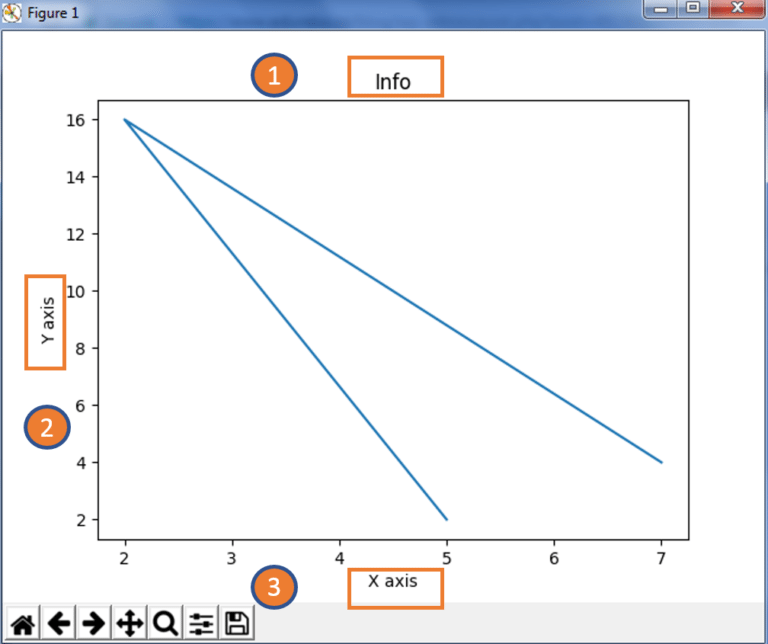
You can even try many styling techniques to create a better graph. What if you want to change the width or color of a particular line or what if you want to have some grid lines, there you need styling! So, let me show you how to add style to a graph using python matplotlib. First, you need to import the style package from python matplotlib library and then use styling functions as shown in below code:

from matplotlib import pyplot as plt
from matplotlib import style
 
style.use('ggplot')
x = [5,8,10]
y = [12,16,6]
x2 = [6,9,11]
y2 = [6,15,7]
plt.plot(x,y,'g',label='line one', linewidth=5)
plt.plot(x2,y2,'c',label='line two',linewidth=5)
plt.title('Epic Info')
plt.ylabel('Y axis')
plt.xlabel('X axis')
plt.legend()
plt.grid(True,color='k')
plt.show()

Output –
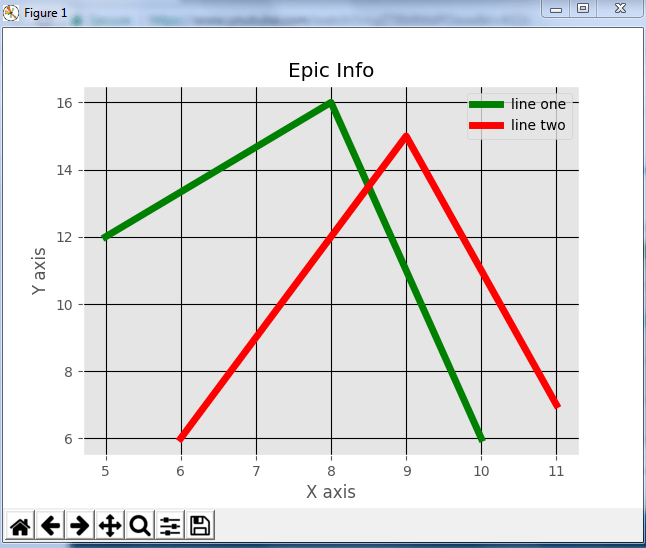
Next, in this python matplotlib blog, we will understand different kinds of plots. Let’s start with the bar graph!

Bar Graph

First, let us understand why do we need a bar graph. A bar graph uses bars to compare data among different categories. It is well suited when you want to measure the changes over a period of time. It can be represented horizontally or vertically. Also, the important thing to keep in mind is that longer the bar, greater is the value. Now, let us practically implement it using python matplotlib.

from matplotlib import pyplot as plt
 
plt.bar([0.25,1.25,2.25,3.25,4.25],[50,40,70,80,20],
label="BMW",width=.5)
plt.bar([.75,1.75,2.75,3.75,4.75],[80,20,20,50,60],
label="Audi", color='r',width=.5)
plt.legend()
plt.xlabel('Days')
plt.ylabel('Distance (kms)')
plt.title('Information')
plt.show()

Output –
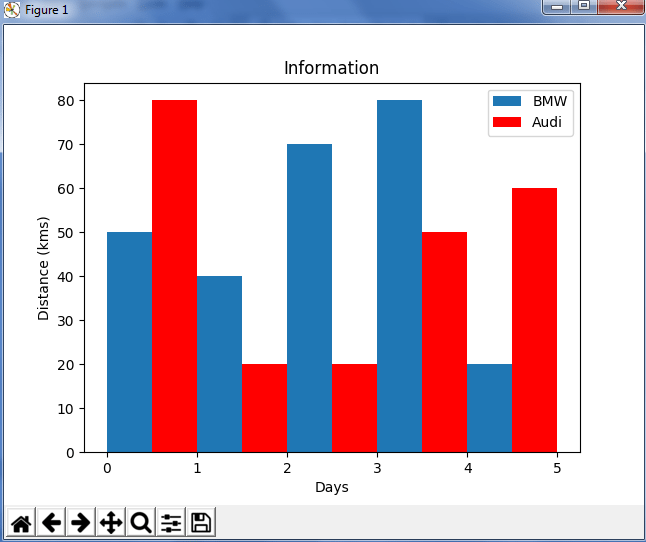
In the above plot, I have displayed the comparison between the distance covered by two cars BMW and Audi over a period of 5 days. Next, let us move on to another kind of plot using python matplotlib — Histogram.

Histogram

Let me first tell you the difference between a bar graph and a histogram. Histograms are used to show a distribution whereas a bar chart is used to compare different entities. Histograms are useful when you have arrays or a very long list. Let’s consider an example where I have to plot the age of population with respect to the bin. Now, bin refers to the range of values that are divided into a series of intervals. Bins are usually created of the same size. In the below code, I have created the bins in the interval of 10 which means the first bin contains elements from 0 to 9, then 10 to 19 and so on.

import matplotlib.pyplot as plt
population_age = [22,55,62,45,21,22,34,42,42,4,2,102,95,85,55,110,120,70,65,55,111,115,80,75,65,54,44,43,42,48]
bins = [0,10,20,30,40,50,60,70,80,90,100]
plt.hist(population_age, bins, histtype='bar', rwidth=0.8)
plt.xlabel('age groups')
plt.ylabel('Number of people')
plt.title('Histogram')
plt.show()

Output –
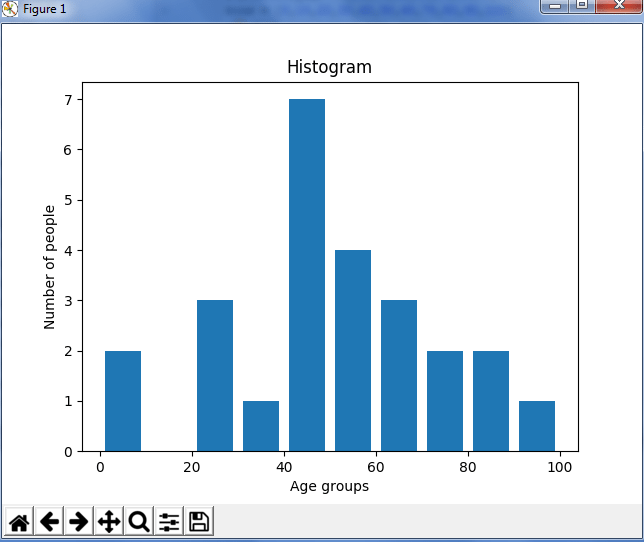
As you can see in the above plot, we got age groups with respect to the bins. Our biggest age group is between 40 and 50.

Scatter Plot

Usually, we need scatter plots in order to compare variables, for example, how much one variable is affected by another variable to build a relation out of it. The data is displayed as a collection of points, each having the value of one variable which determines the position on the horizontal axis and the value of other variable determines the position on the vertical axis.

Consider the below example:

import matplotlib.pyplot as plt
x = [1,1.5,2,2.5,3,3.5,3.6]
y = [7.5,8,8.5,9,9.5,10,10.5]
 
x1=[8,8.5,9,9.5,10,10.5,11]
y1=[3,3.5,3.7,4,4.5,5,5.2]
 
plt.scatter(x,y, label='high income low saving',color='r')
plt.scatter(x1,y1,label='low income high savings',color='b')
plt.xlabel('saving*100')
plt.ylabel('income*1000')
plt.title('Scatter Plot')
plt.legend()
plt.show()

Output –
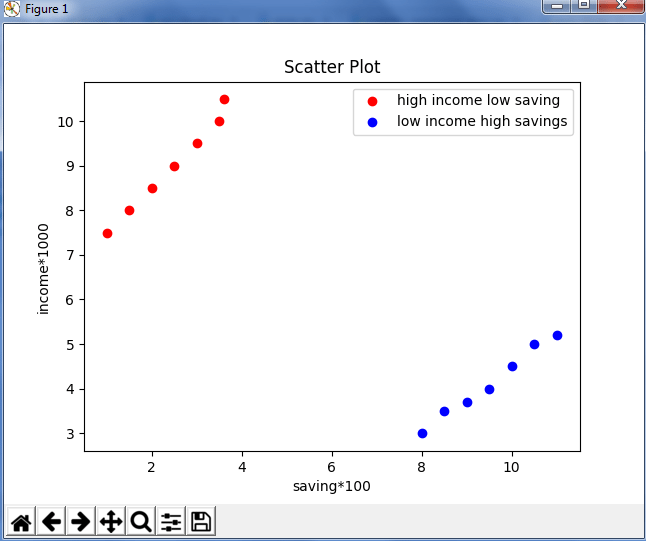
As you can see in the above graph, I have plotted two scatter plots based on the inputs specified in the above code. The data is displayed as a collection of points having ‘high-income low salary’ and ‘low-income high salary’.

Next, let us understand area plot or you can also say Stack plot using python matplotlib.

Area Plot

Area plots are pretty much similar to the line plot. They are also known as stack plots. These plots can be used to track changes over time for two or more related groups that make up one whole category. For example, let’s compile the work done during a day into categories, say sleeping, eating, working and playing. Consider the below code:

import matplotlib.pyplot as plt
days = [1,2,3,4,5]
  
 sleeping =[7,8,6,11,7]
 eating = [2,3,4,3,2]
 working =[7,8,7,2,2]
 playing = [8,5,7,8,13]
  
 plt.plot([],[],color='m', label='Sleeping', linewidth=5)
 plt.plot([],[],color='c', label='Eating', linewidth=5)
 plt.plot([],[],color='r', label='Working', linewidth=5)
 plt.plot([],[],color='k', label='Playing', linewidth=5)
  
 plt.stackplot(days, sleeping,eating,working,playing, colors=['m','c','r','k'])
  
 plt.xlabel('x')
 plt.ylabel('y')
 plt.title('Stack Plot')
 plt.legend()
 plt.show()

Output –
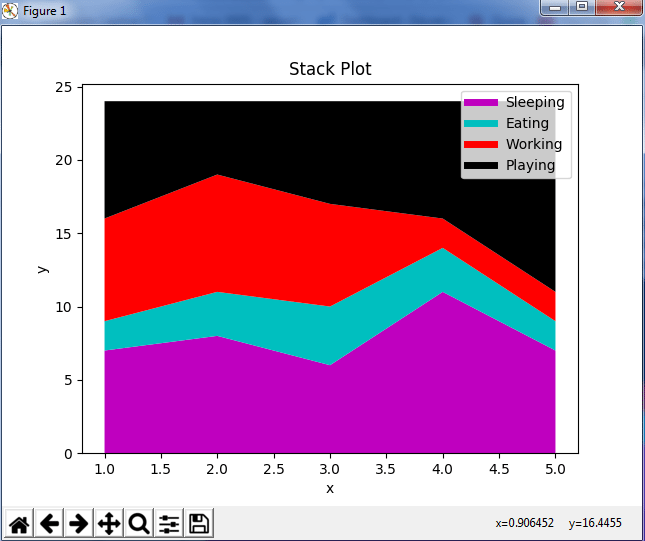
As we can see in the above image, we have time spent based on the categories. Therefore, area plot or stack plot is used to show trends over time, among different attributes. Next, let us move to our last yet most frequently used plot — Pie chart.

Pie Chart

A pie chart refers to a circular graph which is broken down into segments i.e. slices of pie. It is basically used to show the percentage or proportional data where each slice of pie represents a category. Let’s have a look at the below example:

import matplotlib.pyplot as plt
 
days = [1,2,3,4,5]
 
sleeping =[7,8,6,11,7]
eating = [2,3,4,3,2]
working =[7,8,7,2,2]
playing = [8,5,7,8,13]
slices = [7,2,2,13]
activities = ['sleeping','eating','working','playing']
cols = ['c','m','r','b']
 
plt.pie(slices,
  labels=activities,
  colors=cols,
  startangle=90,
  shadow= True,
  explode=(0,0.1,0,0),
  autopct='%1.1f%%')
 
plt.title('Pie Plot')
plt.show()

Output –
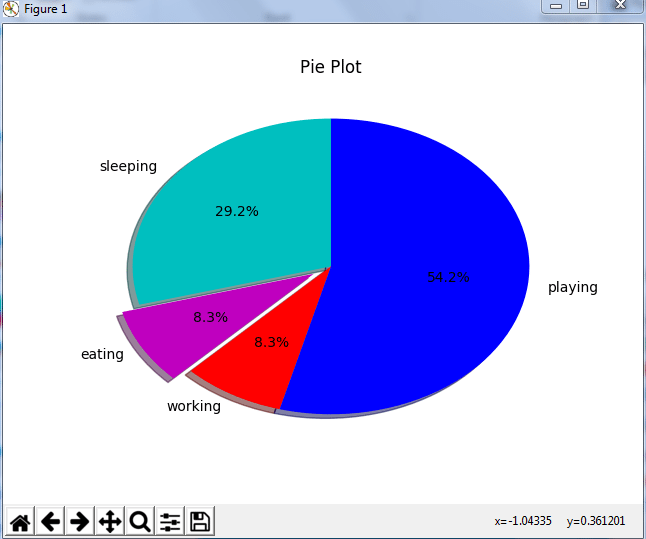
In the above pie chart, I have divided the circle into 4 sectors or slices which represents the respective category (playing, sleeping, eating and working) along with the percentage they hold. Now, if you have noticed these slices adds up to 24 hrs, but the calculation of pie slices is done automatically for you. In this way, pie charts are really useful as you don’t have to be the one who calculates the percentage or the slice of the pie.

Next, in python matplotlib, let’s understand how to work with multiple plots.

Working With Multiple Plots

I have discussed about multiple types of plots in python matplotlib such as bar plot, scatter plot, pie plot, area plot etc. Now, let me show you how to handle multiple plots. For this, I have to import numpy module which I discussed in my previous blog on Python Numpy. Let me implement it practically, consider the below example.

import numpy as np
import matplotlib.pyplot as plt
 
def f(t):
    return np.exp(-t) * np.cos(2*np.pi*t)
t1 = np.arange(0.0, 5.0, 0.1)
t2 = np.arange(0.0, 5.0, 0.02)
plt.subplot(221)
plt.plot(t1, f(t1), 'bo', t2, f(t2))
plt.subplot(222)
plt.plot(t2, np.cos(2*np.pi*t2))
plt.show()

Output-
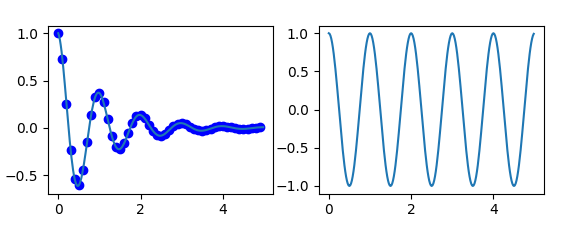
The code is pretty much similar to the previous examples that you have seen but there is one new concept here i.e. subplot. The subplot() command specifies numrow, numcol, fignum which ranges from 1 to numrows*numcols. The commas in this command are optional if numrows*numcols<10. So subplot (221) is identical to subplot (2,2,1). Therefore, subplots help us to plot multiple graphs in which you can define it by aligning vertically or horizontally. In the above example, I have aligned it horizontally.

Apart from these, python matplotlib has some disadvantages. Some of them are listed below:

  • They are heavily reliant on other packages, such as NumPy.
  • It only works for python, so it is hard or impossible to be used in languages other than python. (But it can be used from Julia via PyPlot package).

We have come to an end of this python matplotlib tutorial. I have covered all the basics of matplotlib, so you can start practicing now. I hope you guys are clear about each and every aspect that I have discussed above.

If you wish to check out more articles on the market’s most trending technologies like Artificial Intelligence, DevOps, Ethical Hacking, then you can refer to Edureka’s official site.

Do look out for other articles in this series which will explain the various other aspects of Python and Data Science.

1. Python Tutorial

2. Python Programming Language

3. Python Functions

4. File Handling in Python

5. Python Numpy Tutorial

6. Scikit Learn Machine Learning

7. Python Pandas Tutorial

8. Tkinter Tutorial

9. Requests Tutorial

10. PyGame Tutorial

11. OpenCV Tutorial

12. Web Scraping With Python

13. PyCharm Tutorial

14. Machine Learning Tutorial

15. Linear Regression Algorithm from scratch in Python

16. Python for Data Science

17. Python Regex

18. Loops in Python

19. Python Projects

20. Machine Learning Projects

21. Arrays in Python

22. Sets in Python

23. Multithreading in Python

24. Python Interview Questions

25. Java vs Python

26. How To Become A Python Developer?

27. Python Lambda Functions

28. How Netflix uses Python?

29. What is Socket Programming in Python

30. Python Database Connection

31. Golang vs Python

32. Python Seaborn Tutorial

33. Python Career Opportunities

Originally published at www.edureka.co on August 8, 2017.

Data Science
Python
Python Programming
Matplotlib
Plot
Recommended from ReadMedium