avatarRakia Ben Sassi

Free AI web copilot to create summaries, insights and extended knowledge, download it at here

6369

Abstract

n class="hljs-keyword">from</span> <span class="hljs-string">'./lib/multi-edit-table.module'</span>;</pre></div><p id="ebb0">Then install the following dependencies:</p><div id="0cf8"><pre><span class="hljs-built_in">npm</span> install @angular/material <span class="hljs-built_in">npm</span> install @angular/cdk <span class="hljs-built_in">npm</span> install hammerjs</pre></div><div id="ac45" class="link-block"> <a href="https://readmedium.com/angular-dynamic-layout-with-ngtemplate-8b6faa995a8f"> <div> <div> <h2>Angular Dynamic Templates: How to Build an App With 3 Layout Styles</h2> <div><h3>An advanced use case of Angular ngTemplateLayout</h3></div> <div><p>medium.com</p></div> </div> <div> <div style="background-image: url(https://miro.readmedium.com/v2/resize:fit:320/0*h9Qa-VQ3nRypn1Zo)"></div> </div> </div> </a> </div><p id="918f">and update <b><i>peerDependencies</i></b> in <code>projects/multi-edit-table/<b>package.json</b>:</code></p><figure id="cc6f"><img src="https://cdn-images-1.readmedium.com/v2/resize:fit:800/1*VMZtHlUV9dCWsRh6siUjuw.png"><figcaption><code>projects/multi-edit-table/package.json</code></figcaption></figure><p id="94ad">When we create an Angular library <a href="https://blog.angularindepth.com/the-angular-library-series-publishing-ce24bb673275">there are at least 3 <b>package.json</b></a> files in our workspace:</p><ul><li><b>Workspace Root package.json: </b>the main <code>package.json</code> file in the root of our workspace.</li><li><b>Library Project package.json: </b>the <code>projects/multi-edit-table</code><b> </b>directory and tells <code><b>ng-packagr</b></code> what information goes into the distribution <code>package.json </code>that will be shipped with our library.</li><li><b>Library Distribution package.json: </b>generated by <b>ng-packagr</b> in the <code>dist/multi-edit-table </code>directory when we build our library. It is the <code>package.json</code> that gets published with our library.</li></ul><p id="1db4">We have to import the angular theme now, by adding the following line to <code>projects/multi-edit-table/src/lib/<b>multi-edit-table.component.scss</b></code>:</p><div id="57d4"><pre><span class="hljs-keyword">@import</span> “~<span class="hljs-variable">@angular</span>/material/prebuilt-themes/indigo-pink.css”;</pre></div><div id="6d8d" class="link-block"> <a href="https://readmedium.com/typescript-new-release-19f1238c6a68"> <div> <div> <h2>What’s New in TypeScript 4.1?</h2> <div><h3>Recursive conditional types, JSX factories for React, and more features in the new TypeScript release</h3></div> <div><p>medium.com</p></div> </div> <div> <div style="background-image: url(https://miro.readmedium.com/v2/resize:fit:320/0*fzrx2nLUkboLRkKb)"></div> </div> </div> </a> </div><p id="6729">Since the MultiEditTableComponent will be changed from a component <i>(in our last Angular app)</i> to be part of a library, we need to add the <code>Column </code>interface and we have to change some attributes and methods by using<code>@Input</code>and <code>@output</code>to improve its reusability:</p><div id="236c"><pre><span class="hljs-keyword">export</span> <span class="hljs-keyword">interface</span> <span class="hljs-title class_">Column</span> { <span class="hljs-attr">col</span>: <span class="hljs-built_in">string</span>; <span class="hljs-attr">label</span>: <span class="hljs-built_in">string</span>; editable?: <span class="hljs-built_in">boolean</span>; } <span class="hljs-keyword">export</span> <span class="hljs-keyword">interface</span> <span class="hljs-title class_">EditedRows</span> { <span class="hljs-attr">startRow</span>: <span class="hljs-built_in">number</span>; <span class="hljs-attr">endRow</span>: <span class="hljs-built_in">number</span>; } <span class="hljs-keyword">export</span> <span class="hljs-keyword">interface</span> <span class="hljs-title class_">EditedCell</span> { <span class="hljs-attr">rowId</span>: <span class="hljs-built_in">number</span>; <span class="hljs-attr">colId</span>: <span class="hljs-built_in">number</span>; <span class="hljs-attr">cellsType</span>: <span class="hljs-built_in">string</span>; <span class="hljs-attr">newValue</span>: <span class="hljs-built_in">string</span>; }</pre></div><div id="6ecf"><pre><span class="hljs-meta">@Component({ selector: 'lib-multi-edit-table', templateUrl: './multi-edit-table.component.html', styleUrls: ['./multi-edit-table.component.scss'] })</span> export <span class="hljs-keyword">class</span> <span class="hljs-title class_">MultiEditTableComponent</span> <span class="hljs-keyword">implements</span> <span class="hljs-title class_">OnChanges</span> {

<span class="hljs-meta">@Input()</span> dataSource; <span class="hljs-meta">@Input()</span> columns: Column[]; <span class="hljs-meta">@Output()</span> updateDependingColumns = <span class="hljs-keyword">new</span> <span class="hljs-title class_">EventEmitter</span><EditedRows>(); <span class="hljs-meta">@Output()</span> updateCell = <span class="hljs-keyword">new</span> <span class="hljs-title class_">EventEmitter</span><EditedCell>(); <span class="hljs-meta">@Output()</span> afterDelete = <span class="hljs-keyword">new</span> <span class="hljs-title class_">EventEmitter</span><<span class="hljs-keyword">void</span>>(); displayedColumns: string[];</pre></div><div id="2ebe"><pre> ngOnChanges(changes: SimpleChanges): void { <span class="hljs-keyword">if</span>(changes.columns) { <span class="hljs-keyword">this</span>.displayedColumns = <span class="hljs-keyword">this</span>.columns.map((column: Column) => column.col ); <span class="hljs-keyword">this</span>.LAST_EDITABLE_COL = <span class="hljs-keyword">this</span>.displayedColumns.length - <span class="hljs-number">1</span>; } }</pre></div><div id="edc3" class="link-block"> <a href="https://readmedium.com/javascript-history-and-future-71b0ceb737aa"> <div>

Options

      <div>
            <h2>25 Years of JavaScript</h2>
            <div><h3>From a simple scripting language to the foundation of every modern web application</h3></div>
            <div><p>medium.com</p></div>
          </div>
          <div>
            <div style="background-image: url(https://miro.readmedium.com/v2/resize:fit:320/1*IfWWB278vX9RGd1Dy6Gq3w.png)"></div>
          </div>
        </div>
      </a>
    </div><p id="4713">Update <code>multi-edit-table.component.html</code>:</p><figure id="580d"><img src="https://cdn-images-1.readmedium.com/v2/resize:fit:800/1*E8STAPiBUX9uD92YS4YYLw.png"><figcaption>multi-edit-table.component.html</figcaption></figure><p id="aeb9">and <code>app.component.html</code> like the following:</p><figure id="44ae"><img src="https://cdn-images-1.readmedium.com/v2/resize:fit:800/1*UkzVG1A1zKi3C4-8ix6Sxw.png"><figcaption>app.component.html</figcaption></figure><p id="0f1c">and here how the inputs and outputs — required by the library — and declared in <code>app.component.ts</code> are looking like:</p><figure id="5de1"><img src="https://cdn-images-1.readmedium.com/v2/resize:fit:800/1*wqGZvyN8e6G2s18Zgy7_oA.png"><figcaption>app.component.ts</figcaption></figure><p id="b446">Now we can build, test, and lint the project with Angular CLI commands:</p><div id="89d2"><pre>ng build multi-<span class="hljs-keyword">edit</span>-<span class="hljs-keyword">table</span>

ng <span class="hljs-keyword">test</span> multi-<span class="hljs-keyword">edit</span>-<span class="hljs-keyword">table</span> ng lint multi-<span class="hljs-keyword">edit</span>-<span class="hljs-keyword">table</span></pre></div><p id="3939">After building the library, the distribution <code>package.json</code> looks like this:</p><figure id="4073"><img src="https://cdn-images-1.readmedium.com/v2/resize:fit:800/1*m_WSDzHPbuxqtp9fZvAiXQ.png"><figcaption>distribution package.son</figcaption></figure><h2 id="973b">Publishing our Angular Library on npm</h2><p id="d669">I’m not going to dive in this too deep, but <a href="undefined">Todd Palmer</a> does an awesome job explaining more details about publishing an angular library on npm in this <a href="https://blog.angularindepth.com/the-angular-library-series-publishing-ce24bb673275">nice article</a>.</p><p id="d079">To be able to publish a package, we need to sign up for <a href="https://www.npmjs.com">an npm account</a>. If you have already an npm <b><i>Enterprise profile</i></b>, you can create a second profile for a different registry, such as the <b><i>public </i></b>npm registry. To set the <a href="https://docs.npmjs.com/configuring-your-registry-settings-as-an-npm-enterprise-user">public registry</a> for an <b><i>open-source profile</i></b>, you need to run the following command:</p><div id="fc1b"><pre>npm config set registry https:<span class="hljs-comment">//registry.npmjs.com</span></pre></div><p id="7c7e">then you can log in to npm:</p><div id="7416"><pre><span class="hljs-built_in">npm</span> login</pre></div><p id="26be">This will prompt us for our npm credentials and email. Finally, we are ready to publish our library (packaged in the <b>.tgz</b> file) by running the <b><i>package </i></b>and <b><i>publish </i></b>tasks:</p><div id="82ed"><pre>npm <span class="hljs-keyword">run</span> package npm publish ./dist/multi-<span class="hljs-keyword">edit</span>-<span class="hljs-keyword">table</span>/multi-<span class="hljs-keyword">edit</span>-<span class="hljs-keyword">table</span>-1.0.0.tgz</pre></div><p id="d1a6">The <b><i>package </i></b>npm task is a custom task that we need to add to our main <code>package.json</code> file in the root of our workspace:</p><figure id="bae5"><img src="https://cdn-images-1.readmedium.com/v2/resize:fit:800/1*SaVil3hnFm1qH3gDWTTB2Q.png"><figcaption>new tasks in package.json</figcaption></figure><p id="cdef">Npm allows us to publish a specific <b>name and version</b> combination once. Hence, we need to change the version each time we want to publish updates to our library on npm. The published package is available on npm at this URL: https://www.npmjs.com/package/multi-edit-table</p><figure id="0bff"><img src="https://cdn-images-1.readmedium.com/v2/resize:fit:800/1*a7mkQd2k3MSa-Vx3l64hKg.png"><figcaption>multi-edit-table on npm</figcaption></figure><p id="4371">If you want to use it in your project, you just have to run:</p><div id="e209"><pre>npm install multi-<span class="hljs-keyword">edit</span>-<span class="hljs-keyword">table</span></pre></div><p id="dc72">🧠💡 I write about engineering, technology, and leadership for a community of smart, curious people. <a href="https://rakiabensassi.substack.com/"><b>Join my free email newsletter for exclusive access</b></a><b> </b>or sign up for Medium <a href="https://rakiabensassi.medium.com/membership">here</a>.</p><p id="4182"><i>You can check my <b>video course</b> on Udemy: <a href="https://www.udemy.com/course/identify-and-fix-javascript-memory-leaks/">How to Identify, Diagnose, and Fix Memory Leaks in Web Apps</a>.</i></p><div id="5eb9" class="link-block"> <a href="https://readmedium.com/promise-vs-observable-vs-stream-165a310e886f"> <div> <div> <h2>What are the Differences between Promises, Observables, and Streams?</h2> <div><h3>3 flavors in modern programming</h3></div> <div><p></p></div> </div> <div> <div style="background-image: url(https://miro.readmedium.com/v2/resize:fit:320/1*eP6CDsjYVdV2AmgiGmVszg.jpeg)"></div> </div> </div> </a> </div><div id="dfff" class="link-block"> <a href="https://levelup.gitconnected.com/learning-velocity-and-coding-standards-10952f6c9640"> <div> <div> <h2>Why Coding Standards Matter and How to Measure a Developer Velocity</h2> <div><h3>How long does it take to get familiar with a new project</h3></div> <div><p>levelup.gitconnected.com</p></div> </div> <div> <div style="background-image: url(https://miro.readmedium.com/v2/resize:fit:320/0*JZhsj7UQG9QTBuQz)"></div> </div> </div> </a> </div></article></body>

Web Development

How to Create an Angular Library with NodeJS

Export an Angular Material Table with npm publish

Photo by Paul Esch-Laurent on Unsplash

You can check my video course on Udemy: How to Identify, Diagnose, and Fix Memory Leaks in Web Apps.

In a previous article, I’ve created an Angular Material Table with an inline edit functionality like Excel. In this post, I’m going to publish it with NodeJS as an angular library, so it could be reused by installing it like any other npm package in other angular applications. This is really helpful to avoid duplicating code and maintain it n times. A typical use case is the implementation of the authentication layer. Instead of copy/paste the same source code in your different angular apps, you can just export the auth-component and the auth-service as an Angular library and re-use it the same way you are using other npm packages.

Getting started

Let’s create a new Angular project:

ng new multi-edit-table-app
cd multi-edit-table-app

and use the Angular CLI to generate a new library skeleton with the following command:

ng generate library multi-edit-table
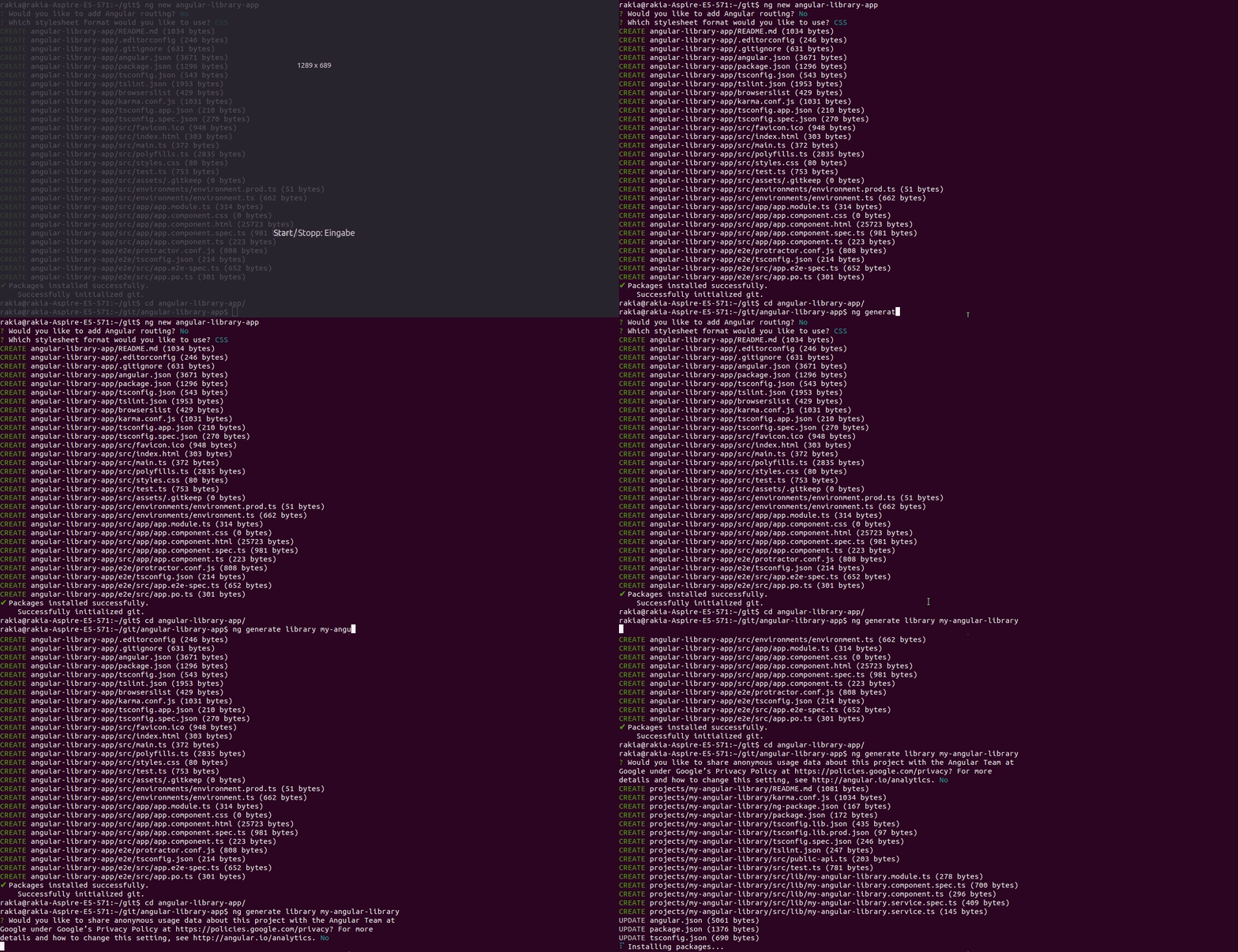
Generate an Angular Library

This creates the projects/multi-edit-table folder in our workspace, which contains a component and a service inside an NgModule. The workspace configuration file angular.json will be updated with a project of type 'library'. The source code under the/src folder is playing the role of the hosting angular app which is using our library.
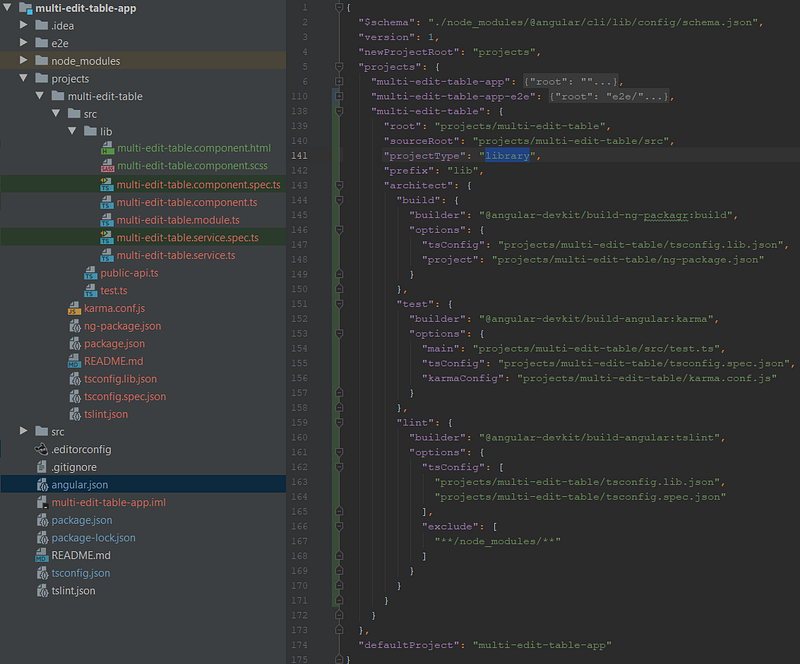
Source code structure

Generating a library component

When generating a component for our library we use the --project flag to tell Angular CLI that we want it to generate the component in our library project:

ng generate component multi-edit-table --project=multi-edit-table

The filesmulti-edit-table.comoponent.html, multi-edit-table.comoponent.scss, multi-edit-table.comoponent.ts,... will be added to the projects/multi-edit-table/src/lib/multi-edit-tablefolder, but I moved those file to the parent folder projects/multi-edit-table/src/libsince it’s the only component in this library.

We have to replace the content of those files (*.html, *.scss and *.ts) with the content of app.comoponent.html, app.comoponent.scss andapp.comoponent.tsfrom the last post (Github).

Adding the component to the entry file

As you noted our library project has an entry file that defines its public API: projects\multi-edit-table\src\public_api.ts

We need to add the following lines to the entry file to tell ng-packagr that this component class should be exposed to the users of our library (ng-packagr is a solution for packaging Angular libraries, it’s part of Angular CLI):

export * from './lib/multi-edit-table.service';
export * from './lib/multi-edit-table.component';
export * from './lib/multi-edit-table.module';

Then install the following dependencies:

npm install @angular/material
npm install @angular/cdk
npm install hammerjs

and update peerDependencies in projects/multi-edit-table/package.json:
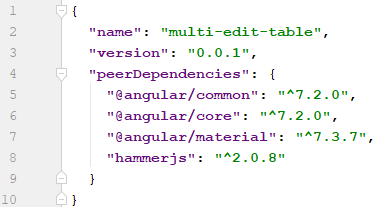
projects/multi-edit-table/package.json

When we create an Angular library there are at least 3 package.json files in our workspace:

  • Workspace Root package.json: the main package.json file in the root of our workspace.
  • Library Project package.json: the projects/multi-edit-table directory and tells ng-packagr what information goes into the distribution package.json that will be shipped with our library.
  • Library Distribution package.json: generated by ng-packagr in the dist/multi-edit-table directory when we build our library. It is the package.json that gets published with our library.

We have to import the angular theme now, by adding the following line to projects/multi-edit-table/src/lib/multi-edit-table.component.scss:

@import “~@angular/material/prebuilt-themes/indigo-pink.css”;

Since the MultiEditTableComponent will be changed from a component (in our last Angular app) to be part of a library, we need to add the Column interface and we have to change some attributes and methods by using@Inputand @outputto improve its reusability:

export interface Column {
  col:       string;
  label:     string;
  editable?: boolean;
}
export interface EditedRows {
  startRow: number;
  endRow:   number;
}
export interface EditedCell {
  rowId:     number;
  colId:     number;
  cellsType: string;
  newValue:  string;
}
@Component({
  selector: 'lib-multi-edit-table',
  templateUrl: './multi-edit-table.component.html',
  styleUrls: ['./multi-edit-table.component.scss']
})
export class MultiEditTableComponent implements OnChanges {

  @Input() dataSource;
  @Input() columns: Column[];
  @Output() updateDependingColumns = new EventEmitter<EditedRows>();
  @Output() updateCell             = new EventEmitter<EditedCell>();
  @Output() afterDelete            = new EventEmitter<void>();
  displayedColumns: string[];
  ngOnChanges(changes: SimpleChanges): void {
    if(changes.columns) {
      this.displayedColumns  = this.columns.map((column: Column) => column.col );
      this.LAST_EDITABLE_COL = this.displayedColumns.length - 1;
    }
  }

Update multi-edit-table.component.html:
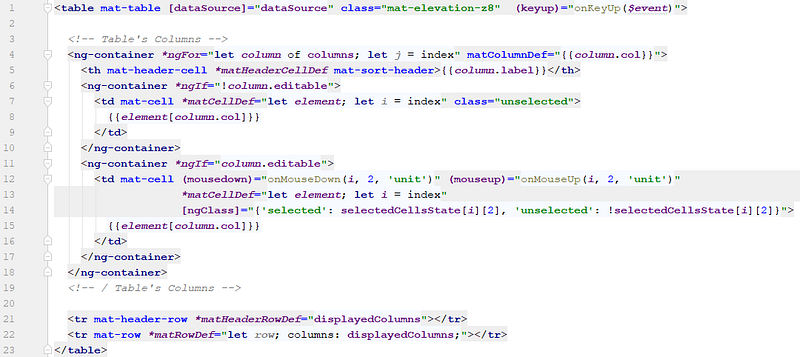
multi-edit-table.component.html

and app.component.html like the following:

app.component.html

and here how the inputs and outputs — required by the library — and declared in app.component.ts are looking like:
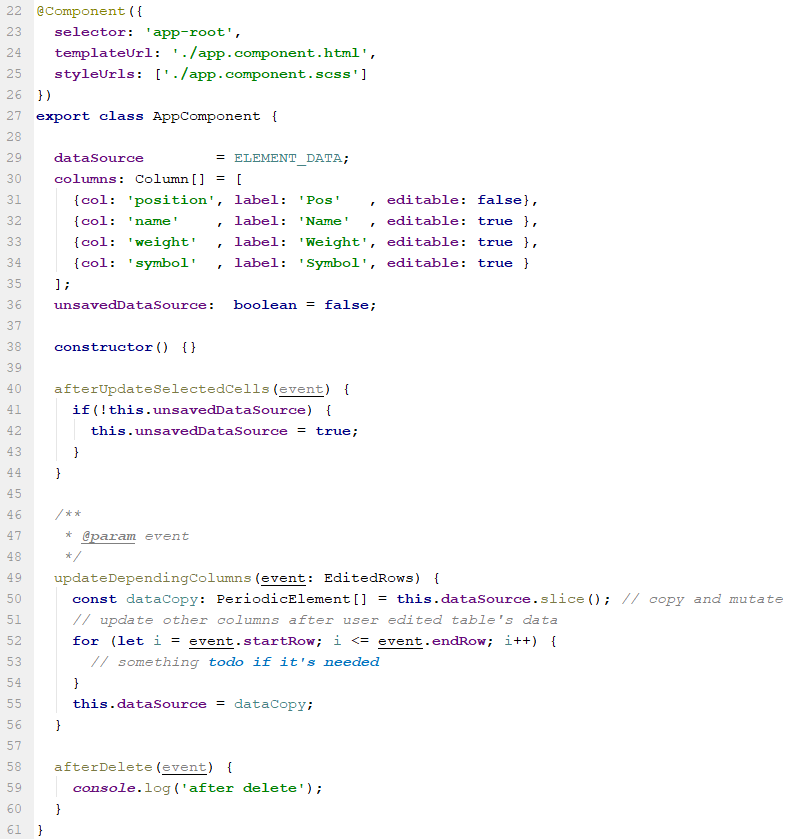
app.component.ts

Now we can build, test, and lint the project with Angular CLI commands:

ng build multi-edit-table
ng test multi-edit-table
ng lint multi-edit-table

After building the library, the distribution package.json looks like this:
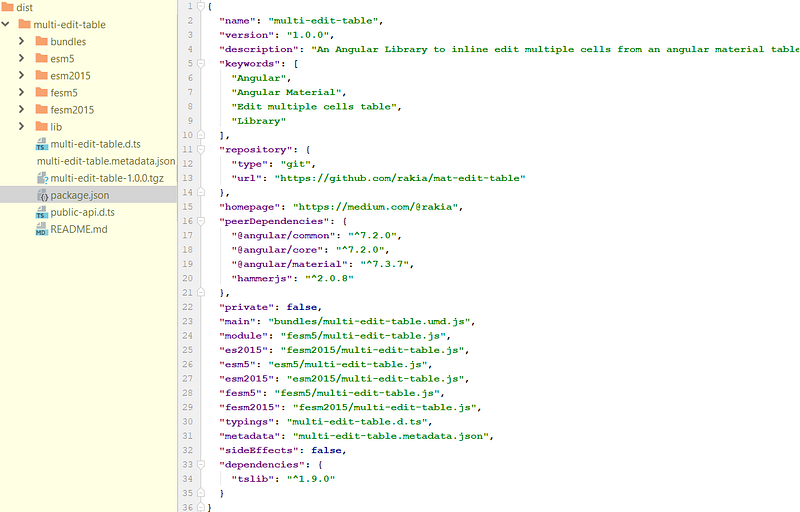
distribution package.son

Publishing our Angular Library on npm

I’m not going to dive in this too deep, but Todd Palmer does an awesome job explaining more details about publishing an angular library on npm in this nice article.

To be able to publish a package, we need to sign up for an npm account. If you have already an npm Enterprise profile, you can create a second profile for a different registry, such as the public npm registry. To set the public registry for an open-source profile, you need to run the following command:

npm config set registry https://registry.npmjs.com

then you can log in to npm:

npm login

This will prompt us for our npm credentials and email. Finally, we are ready to publish our library (packaged in the .tgz file) by running the package and publish tasks:

npm run package
npm publish ./dist/multi-edit-table/multi-edit-table-1.0.0.tgz

The package npm task is a custom task that we need to add to our main package.json file in the root of our workspace:
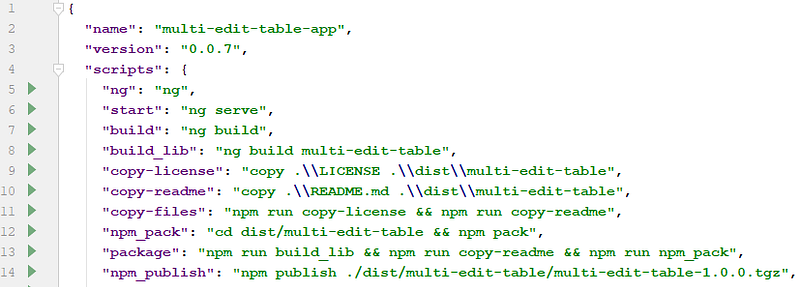
new tasks in package.json

Npm allows us to publish a specific name and version combination once. Hence, we need to change the version each time we want to publish updates to our library on npm. The published package is available on npm at this URL: https://www.npmjs.com/package/multi-edit-table
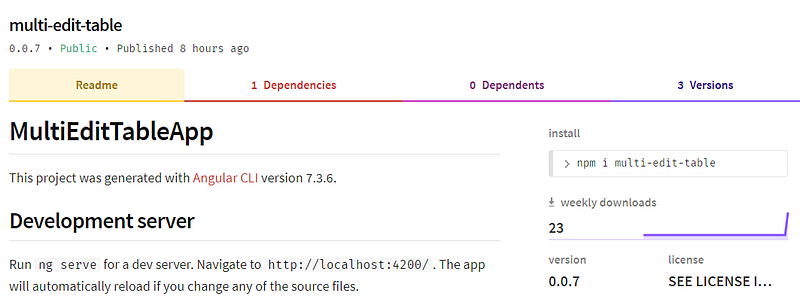
multi-edit-table on npm

If you want to use it in your project, you just have to run:

npm install multi-edit-table

🧠💡 I write about engineering, technology, and leadership for a community of smart, curious people. Join my free email newsletter for exclusive access or sign up for Medium here.

You can check my video course on Udemy: How to Identify, Diagnose, and Fix Memory Leaks in Web Apps.

JavaScript
Web Development
Programming
Software Development
Software Engineering
Recommended from ReadMedium