
Medium Profile Page Changes
Everyone’s Profile page has changed, how to create your Medium Profile
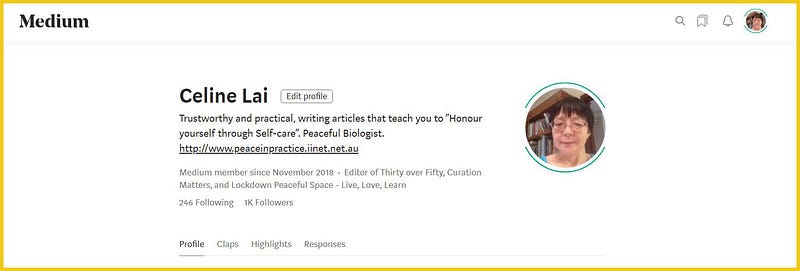
First, you should have a nice small round photo of yourself appear in your Avatar. This is the round circle at top right of your Medium profile page. To add a suitable photo, click on the default Avatar, then on Settings. Scroll down to Photo, to upload a photo.
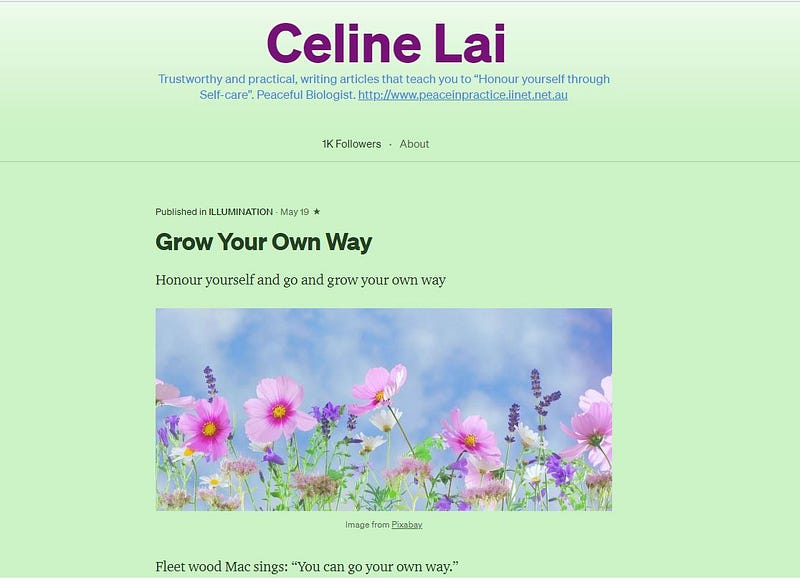
Medium has updated every person’s Profile page on the platform. You can customise your new Medium Profile page by clicking on your Avatar (little round picture at the top-right) and clicking on Design your Profile. Have a look at my profile, if you want.
Clicking on “About” next to the Number of Followers will take you to the person’s Bio AND will show the names of Publications that they are an Editor for.
UPDATE: March 2022. Once again Medium has changed things so here’s a link to an updated post about customising your Medium Profile page!
The design control panel has areas for Colors / Fonts / Header.
Colors
Change the Accent colors, which means the color of your Name in your header and the color of the “Read more….” Click in the box and pick a color of your choice. Click on “Reset color “if you want to go back to the default for this section (page background) and start again. (Note: the text in blue at the top of my Profile page is my Bio)
This make take a few tries. Make sure you press Publish to view your changes. You can always reset the color to the default and try again.
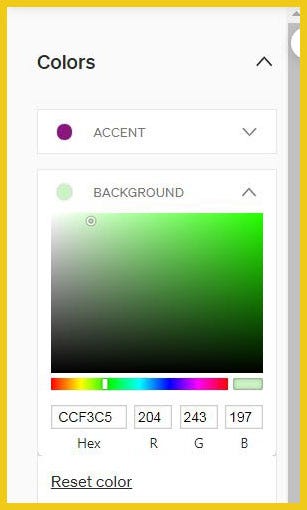
You can change the background color for your Profile page. Use the slider to go through the spectrum of color choices. Click on a color in the color panel to choose a color, as shown by the little circle below (just under BACKGROUND).
Fonts
Change the font type for your Story titles, your Details meaning the text in your header (your name and your bio, if in your Header), and for the text in the body of your stories.
Header
Horizontal setting
This refers to the content in your Header, whether you want it to be left-aligned or centred.
Background
You can select a color for your Header here, and whether to make the colors appear on a gradient or with graduated or degrees of color. Click in the box and pick a color of your choice. You can add a background image if you like, within the specifications. Click on “Reset color “if you want to go back to the default for this section (header background) and start again.
Name
You can have your Name or a Logo in your Header. In my case I have got my name Celine Lai, which automatically appears if you select Text. Select Text to have your name appear. You can change the Name Color if you like. You can select the size for your Name.
To add a Logo, create one using Canva or another free editing program, or select an appropriate sized (small) picture from your computer, and click on Add.
Ticking “Show Logo on Story header” will place your Logo (if you have added one) to the top left corner of a Story which is self-published i.e. on your Profile page and not in a Publication. See the following for an example. You will see a tiny pink square in the top left (which actually has Celine’s Corner on it but is too small to see that — I created this logo using Canva). 😸
https://readmedium.com/travel-buffs-splash-out-on-jumbo-jet-flights-to-nowhere-9fa6e71d0785
Bio
Add your Bio to the Sidebar (left side) OR to the header area (at the top of your page). You can change the color of the Bio also. Note: if you change your Bio information, you will also have to go to your Settings (by clicking on your Avatar) and change the Bio information also.
You can Feature MORE than one Story!

PIN or Feature one or MORE stories to the top. Woohoo!
I have pinned “Grow Your Own Way”.
Pin a Story by scrolling through your stories on your Profile page and clicking on the 3 little dots at bottom right of the story extract. Then click on “Pin story”.
Happy Formatting! If you want to read Medium’s official instructions on designing your new Profile page, click on the Link below.
https://help.medium.com/hc/en-us/articles/115004747067-Your-profile-page
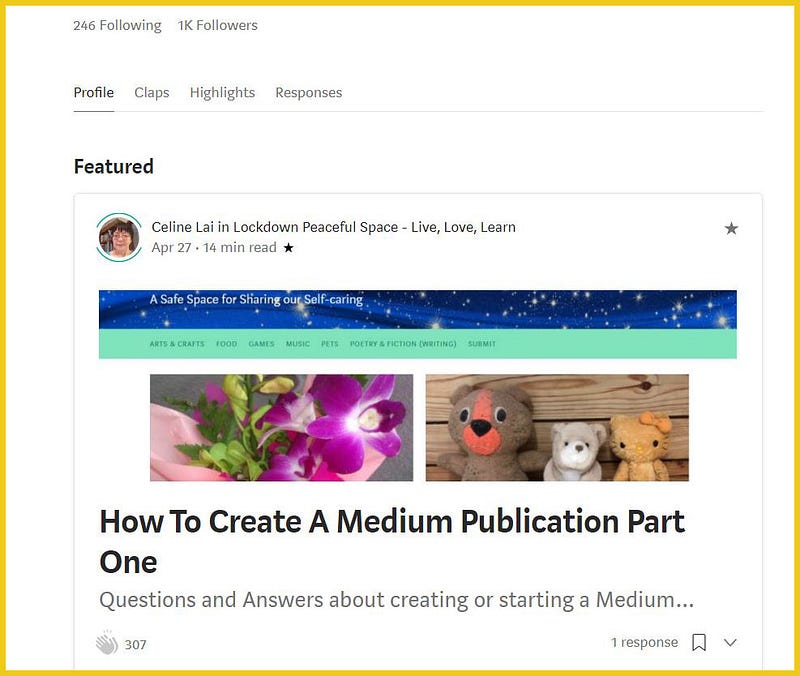
Claps / Highlights / Responses
These have all disappeared now. BUT you can still see your own highlights and responses, albeit through a long-winded way.
https://medium.com/@CelineL/highlights ←highlights (Reading list)
https://medium.com/@CelineL/responses ←responses (Your stories including your Responses/Comments)
To see your own, go to your Profile page. Make sure you can see the URL or web page address in your browser address window. Type forward slash / and one of the above (after the @ CelineL part).

As at the time of writing this article, the Highlights and Responses, which I think are valuable information, can still be seen, with this work-around.
https://medium.com/@CelineL/has-recommended ← claps
THIS WAS THE URL FORMAT FOR “CLAPS” BUT IT DOESN’T WORK NOW
It looks like the Highlights and Responses were associated with other pages or elements of Medium. I have no idea if Medium will reinstate showing us the stories we have clapped for, sometime in the future.
You may be interested in the following article. 😃