avatarGrace Mary Power

Free AI web copilot to create summaries, insights and extended knowledge, download it at here

3171

Abstract

um, clicking on your Avatar at the top of the Publication’s home page will drop down the same options as shown above.</p><h1 id="8662">Designing Your Profile Page</h1><figure id="f8fc"><img src="https://cdn-images-1.readmedium.com/v2/resize:fit:800/1*a6GyctgLdBnrfvBKOguYHw.jpeg"><figcaption></figcaption></figure><p id="6424">Once you get to the design area you will see the 4 options above. 👌</p><p id="8045">Click on the arrow next to an option, and the formatting area drops down, as shown for “Colors.”</p><h1 id="b438">Customising Colors</h1><figure id="0600"><img src="https://cdn-images-1.readmedium.com/v2/resize:fit:800/1*cUVZiCw17hG_qQMdh2UQHg.jpeg"><figcaption>Screenshot by Celine Lai</figcaption></figure><p id="a8cb">Once you have looked at a section, clicking on the upward pointing arrow (shown for the expanded BACKGROUND setting) will close up the area, showing just the title of the function).</p><p id="ffb7">Honestly, I think that the ACCENT color, <a href="https://help.medium.com/hc/en-us/articles/115004747067-Your-profile-page">which is supposed to be “buttons” and links according to Medium</a>, doesn’t matter much. I can only see the link titled “Edit profile” on my Design screen and on my Profile page in the “Accent” color.</p><p id="63e9">I also think that the accent color may look different on different coloured backgrounds.</p><p id="80ec"><a href="https://medium.com/@CelineL">For my Profile page</a> <b>background </b>I selected a green colour as shown above.</p><p id="0f78">I created the graduated colours of purple fading into green via the <b>Header</b> option. I checked “Gradient” and selected a purple colour. 😆</p><figure id="0a4c"><img src="https://cdn-images-1.readmedium.com/v2/resize:fit:800/1*8QaL2c-LwbpDek0B4rqTCg.jpeg"><figcaption></figcaption></figure><p id="7a11">If you have your name showing on your Profile page, you can set the colour of it under <b>NAME COLOR</b> shown below.</p><figure id="bfa3"><img src="https://cdn-images-1.readmedium.com/v2/resize:fit:800/1*6uh7Wx_r4qCEO89ynM4mRA.jpeg"><figcaption></figcaption></figure><p id="e512">This section also allows you to have <b><i>EITHER </i></b>your name or your Logo at the top of your Medium profile page.</p><h1 id="19d2">Add an image to the top of your Profile page</h1><p id="5c93">Get your image ready. It should be a JPG, PNG or Gif image and at least 1500 pixels wide. Your banner/header image should be suitable for the purpose, i.e. be a long wide strip and not a picture of a vertical thing. So a landscape or a free banner image that you found on the internet or your own image would suit.</p><p id="3485">Under the Header section, click on Add next to “Image”.</p><p id="ffc3">You can select the image from your computer OR upload one from the web that you have permission to use. Then click on “Add image” to save and close. You can move the image around a little bit using the options that pop up after you have added an image.</p><h1 id="5d6a">Fonts and Blogroll</h1><p id="1b92">You may like to experiment with <b>FONTS </b>but I don’t see a lot of use from this.</p><p id="d3d0">The fonts for my Titles, Details and Body are sans-serif.

Options

“Sans” means without, and sans-serif means without the curly letter effects of Times New Roman and similar fonts, in my words. I like having “clean” fonts, i.e. one with “sans” in it and see little difference between the 3 fonts provided by Medium!</p><p id="9cff">Last and least for me is the <b>Blogroll</b>.</p><p id="9100">I started blogging on WordPress in 2012 with my “<a href="https://facinatingamazinganimals.wordpress.com/"><b>Fascinating Animals</b></a>” blog/website. That was after using online forums such as Ning and Yuku. WordPress has blog-rolls where the blog creator can customise the “roll” or list of links to add what she wants to add.</p><p id="6cee">The WordPress blogroll is customisable but Medium’s is not!</p><p id="96eb">The blogroll provided by Medium is simply a list of some of the people and publications that you are following. The list is ordered by showing the publications and people who have most recently published at the top. This refreshes i.e. changes as these change.</p><p id="0316">I am happy for the curious reader to <b><i>find </i></b>the “Following” link connected to my Medium Profile in order to see who I am following. This link can be found at the bottom of my “About” page next to the link for “Followers”.</p><div id="741a" class="link-block"> <a href="https://medium.com/@CelineL/about"> <div> <div> <h2>About - Celine Lai - Medium</h2> <div><h3>Practical and trustworthy. Bachelor of Applied Science degree (Biology), Post-graduate Diploma in Social Research &…</h3></div> <div><p>medium.com</p></div> </div> <div> <div style="background-image: url(https://miro.readmedium.com/v2/resize:fit:320/0*HV0a7Zh5MqnSZpAB)"></div> </div> </div> </a> </div><p id="2afd">Note that some writers<a href="https://readmedium.com/now-you-can-really-customise-your-medium-about-page-ebd30dcbd5f4"> <b>don’t have an “About” page/link</b></a><b> </b>and this is because they don’t want one.</p><p id="8e3b">In summary, I think the best thing about “Design your profile” is that one can make the backgrounds of one’s Profile page and self-published stories in colour. Have a look around Medium to see what colours that other writers use.</p><p id="9fee">Your colours should look clear and not be too dark or bright. I have seen black backgrounds for stories, that I don’t like. White backgrounds are good, to me, but for my own profile and stories, I like green.</p><p id="c1a2">Green, orange and pink are my favourite colours. <a href="https://readmedium.com/172c83aa7665">Purple is a spiritual colour </a>and I use a gradient for my Profile page to symbolise we are all part of one merged consciousness!</p><p id="6f28"><b><i>Hi </i></b>😄 If you liked this article and want to read more, signing up as a member of Medium will mean you can read all stories on Medium (and a portion of your fees will go to me, as well as support others).<b><i> Click <a href="https://medium.com/@CelineL/membership">here </a>to become a member!</i></b></p></article></body>

How To Design Your Profile Page On Medium
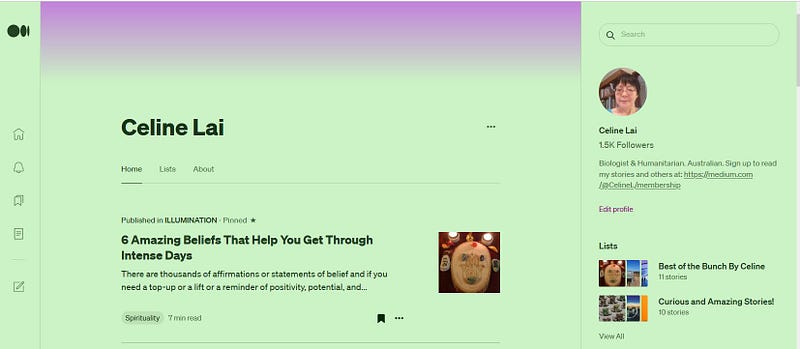
Medium Profile page for Celine Lai, provided by the author

UPDATE: April 2023 Medium is no longer supporting customized pages!

If, like me, you love colour everywhere, even on your Medium profile page, here are instructions on how to customise / design your Profile page!

Keep in mind that selecting a colour for your “background” means this colour appears not only on your Medium Profile page, but on your self-published stories also.

So choose a colour for which black text will appear clearly on it. If you want to see an example, click on the link below. It takes you to a self-published story that I wrote. You will see the background colour is the same as for my Profile page. 😄

https://readmedium.com/can-the-future-be-changed-if-you-know-what-will-happen-beforehand-2172b3326b49

There are four ways to get to the Design area, at the time of writing this.

Method One

  1. On the Medium home page click on your Avatar (the little round icon or picture representing you) in the lower left-corner. Then click on your name.
  2. This takes you to your Profile page. Click on the 3 little dots at the top.
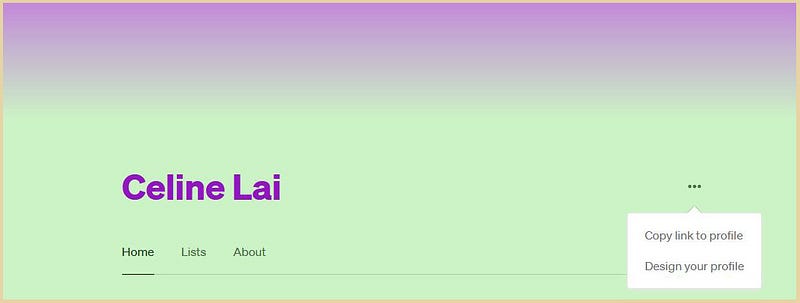
3. Click on “Design your profile.”

Method Two

  1. Click on your Avatar then on Settings.
  2. Click on the word “Design” under “About you.”
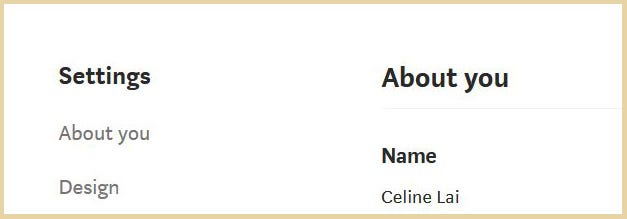
3. Click on “Design your profile” on the right.

Method Three

Create a new story by clicking on the first icon from the bottom of your Medium home page. 😃

Click on your Avatar then on “Design your profile.” These options were under one’s Avatar before Medium changed the story layouts and the Medium home page! Who knows if Medium will put a link to “Design your profile” under your Avatar which appears on your Medium home page at the bottom left.
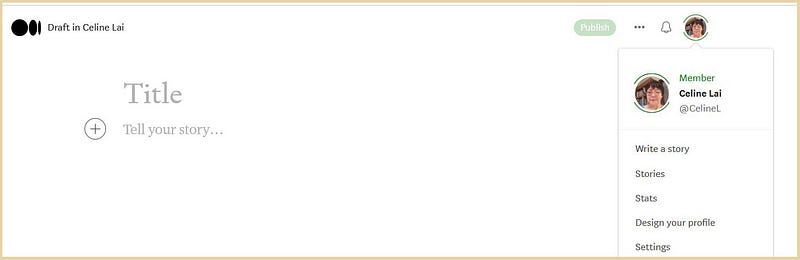
Screenshot at 1st March 2022 provided by Celine Lai

Method Four

If you run a Publication on Medium, clicking on your Avatar at the top of the Publication’s home page will drop down the same options as shown above.

Designing Your Profile Page
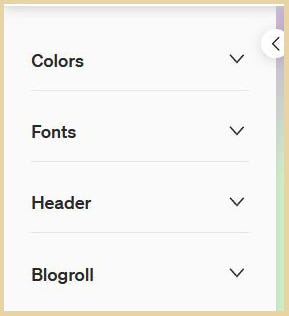
Once you get to the design area you will see the 4 options above. 👌

Click on the arrow next to an option, and the formatting area drops down, as shown for “Colors.”

Customising Colors
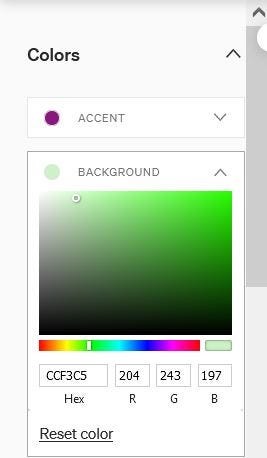
Screenshot by Celine Lai

Once you have looked at a section, clicking on the upward pointing arrow (shown for the expanded BACKGROUND setting) will close up the area, showing just the title of the function).

Honestly, I think that the ACCENT color, which is supposed to be “buttons” and links according to Medium, doesn’t matter much. I can only see the link titled “Edit profile” on my Design screen and on my Profile page in the “Accent” color.

I also think that the accent color may look different on different coloured backgrounds.

For my Profile page background I selected a green colour as shown above.

I created the graduated colours of purple fading into green via the Header option. I checked “Gradient” and selected a purple colour. 😆
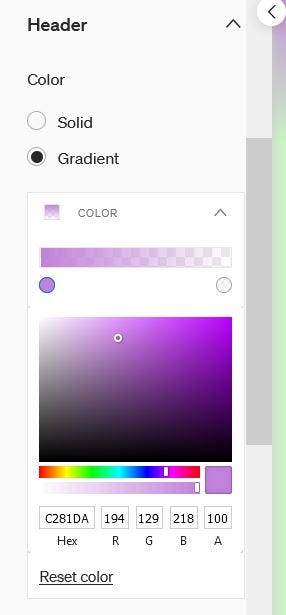
If you have your name showing on your Profile page, you can set the colour of it under NAME COLOR shown below.
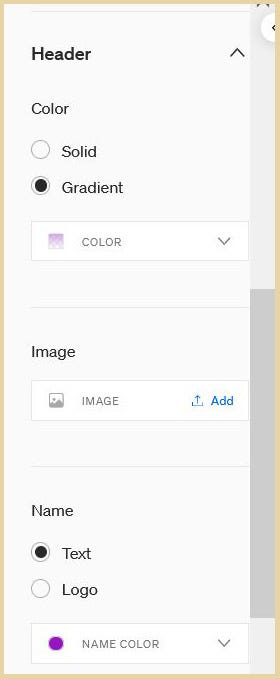
This section also allows you to have EITHER your name or your Logo at the top of your Medium profile page.

Add an image to the top of your Profile page

Get your image ready. It should be a JPG, PNG or Gif image and at least 1500 pixels wide. Your banner/header image should be suitable for the purpose, i.e. be a long wide strip and not a picture of a vertical thing. So a landscape or a free banner image that you found on the internet or your own image would suit.

Under the Header section, click on Add next to “Image”.

You can select the image from your computer OR upload one from the web that you have permission to use. Then click on “Add image” to save and close. You can move the image around a little bit using the options that pop up after you have added an image.

Fonts and Blogroll

You may like to experiment with FONTS but I don’t see a lot of use from this.

The fonts for my Titles, Details and Body are sans-serif. “Sans” means without, and sans-serif means without the curly letter effects of Times New Roman and similar fonts, in my words. I like having “clean” fonts, i.e. one with “sans” in it and see little difference between the 3 fonts provided by Medium!

Last and least for me is the Blogroll.

I started blogging on WordPress in 2012 with my “Fascinating Animals” blog/website. That was after using online forums such as Ning and Yuku. WordPress has blog-rolls where the blog creator can customise the “roll” or list of links to add what she wants to add.

The WordPress blogroll is customisable but Medium’s is not!

The blogroll provided by Medium is simply a list of some of the people and publications that you are following. The list is ordered by showing the publications and people who have most recently published at the top. This refreshes i.e. changes as these change.

I am happy for the curious reader to find the “Following” link connected to my Medium Profile in order to see who I am following. This link can be found at the bottom of my “About” page next to the link for “Followers”.

Note that some writers don’t have an “About” page/link and this is because they don’t want one.

In summary, I think the best thing about “Design your profile” is that one can make the backgrounds of one’s Profile page and self-published stories in colour. Have a look around Medium to see what colours that other writers use.

Your colours should look clear and not be too dark or bright. I have seen black backgrounds for stories, that I don’t like. White backgrounds are good, to me, but for my own profile and stories, I like green.

Green, orange and pink are my favourite colours. Purple is a spiritual colour and I use a gradient for my Profile page to symbolise we are all part of one merged consciousness!

Hi 😄 If you liked this article and want to read more, signing up as a member of Medium will mean you can read all stories on Medium (and a portion of your fees will go to me, as well as support others). Click here to become a member!

Medium
Médium
Profile
Medium Profile
Profile Page
Recommended from ReadMedium