
Now You Can Really Customise Your Medium “About” Page!
How you can customise your “About” page on Medium.
In case you didn’t know, Medium has given a lot more functionality to a writer’s/reader’s “About” page!
Note that there are 2 places where information about you can appear.
One area is called your “Bio” and is at the top right of your Profile page under your Avatar (the round picture where a round photo of you goes). This information is what you have typed into the “Short Bio” field under your Settings (if anything).
You can click on your Avatar at the bottom left-corner, to see a menu of options, including “Settings.”
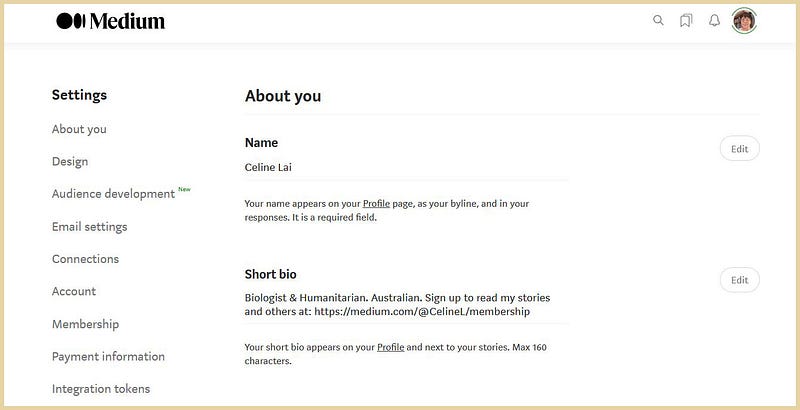
The “About” page is a separate thing, accessed by clicking on the word “About” at the top of yours or someone else's Medium Profile page. You can edit it by clicking on “Edit” at the top right of your “About” page. 😁
Before today (at least for me) you could only have around 150 characters (i.e. letters/numbers, etc.) in your “About” description. It was pretty limited.
But now, hey presto, you can type in a lot more text. Also, you can add an image (say of yourself) and use embedded or in-line links (i.e. you can highlight snippets of text and insert links once the formatting tool-bar pops up). Howzat! 😄
You can click on the embedded link below to see what I have done to customise my “About” page, if you want.
If you don’t see “About” at the top of a profile page, that may be because the writer has chosen not to use it (by not entering any information in). If you don’t see “About” at the top of your page, but want it, go to your Settings. Scroll down the Settings area to “About page” and click on “Edit your about page.”
Medium’s official blog post about this functionality states that one can put in Emoticons too (like the Smiley face above), but I can’t do that at the moment, using Chrome or Firefox. Maybe it’s still “in the works” for some of us.
Also, you’re allowed to put a link to your Membership / Referral page too, so that’s what I did. Plus I put in my favourite quote under my photo, and boldened it.
If you have a personal Twitter account, you can link or connect your Medium profile page to it and show the Twitter icon on your About page. To do this, click on your Avatar, then on Settings. Scroll down to the section captioned or titled “Connections.”
Toggle on “Connect to Twitter” and turn on or toggle on “Show link to your Twitter account on your profile page.” Note, you can’t do this for a Facebook connection.
Altogether, I am happy with this functionality. I am pleased with the result for my “About” page!
And I look forward to seeing other people’s shiny, new “About” pages as I travel around the Medium platform!
Hi 😄 If you liked this article and want to read more, signing up as a member of Medium will mean you can read all stories on Medium (and a portion of your fees will go to me, as well as support others). Click here to become a member!