
Image Classification Using Transfer Learning (VGG-16)
Before starting, you just need to have some knowledge regarding convolutional neural network implementation with TensorFlow/Keras. I have already written an article on convolutional neural networks, which you can look at that from the link.
We know these days image classification is becoming popular and its applications are increasing rapidly. In this blog, we will use convolutional neural networks for image classification on skin cancer data.
“we will start with google colab because there no issue with python libraries their dependencies and also its cloud base environment so we will not need a lot of configuration.”
Note: Let’s start implementation, if you will follow step by step tutorial then there will be no error at the end.

Step-1
We need to create a folder in Google Drive with the name “image classification”. This is not a necessary name you can create a folder with another name as well.

Step-2
Now, we need to make a folder of the “dataset” inside the image classification folder in which we will store our training and testing data. This is not a necessary name you can create a folder with another name as well.
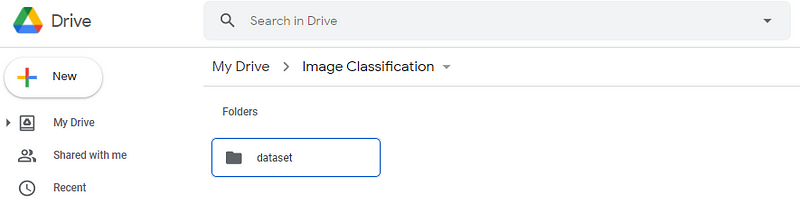
You can use any dataset but in this article, I will focus on binary classification, which means the dataset I will use have two classes. for multi-class classification, the procedure will be the same, but at some steps little changing needed, which I will tell in every step mentioned below.
Step-3
Now, we need to add data inside the “dataset” folder, you can use any dataset, while the dataset I have used is from Kaggle and the data is regarding “skin cancer binary classification”. you can download the dataset from the link.
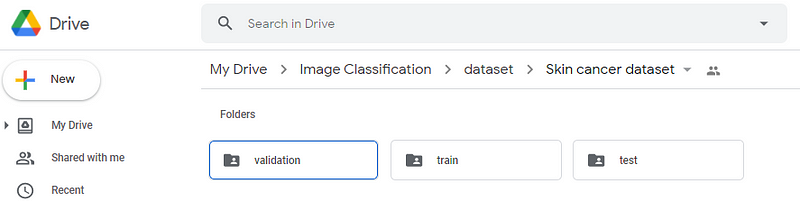
Step-4
Now, we need to make a notebook inside the “image classification” folder, because we will write code inside that file and also will be able to access the dataset from Google Drive.
you can open the “image classification” folder and then click
New->More->Google Colaboratory (process for making google colab file in folders)
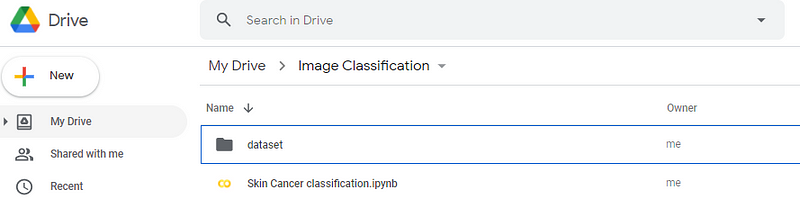
Now, we have set the dataset path and notebook file created. let start with a code for classifying cancer in the skin.
Step-5
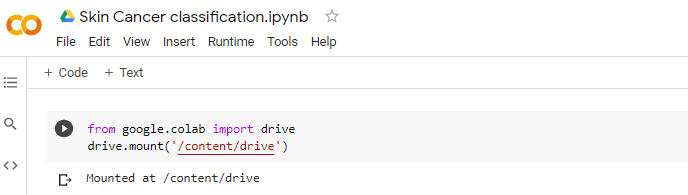
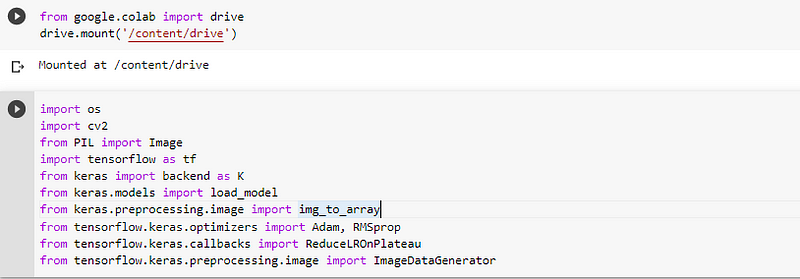
To open the Google Colab file, we first need to mount Google Drive to access the dataset stored in the “image classification” folder. You can use the below-written code to mount Google Drive.
from google.colab import drivedrive.mount(‘/content/drive’)once you run the above code. It will ask you for an authorization code, once you add that, your google drive will be mounted.
Note: google drive and google colab account must be the same for authorization. If the google account changed then google drive will not mount.
Step-6
Now, we need to import libraries for dataset reading and CNN (convolutional neural network) model creation.
import osimport cv2from PIL import Imageimport tensorflow as tffrom keras import backend as Kfrom keras.models import load_modelfrom keras.preprocessing.image import img_to_arrayfrom tensorflow.keras.optimizers import Adam, RMSpropfrom tensorflow.keras.callbacks import ReduceLROnPlateaufrom tensorflow.keras.preprocessing.image import ImageDataGeneratorStep-7
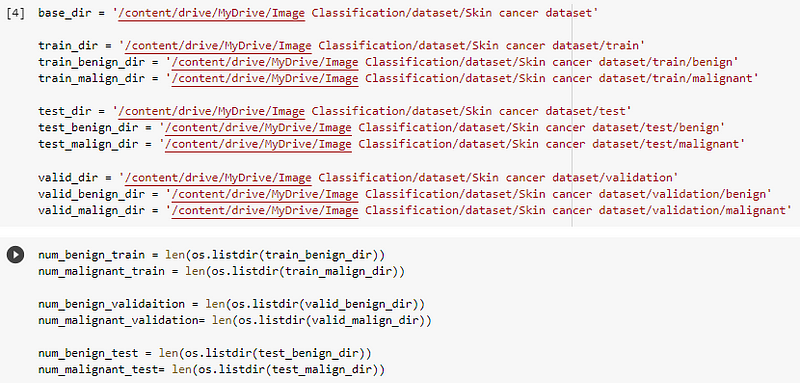
Now, we need to set the path of training, testing, and validation directories. You can use only (test and train folders), validation folder usage is not necessary.
base_dir = '/content/drive/MyDrive/Image Classification/dataset/Skin cancer dataset'train_dir = '/content/drive/MyDrive/Image Classification/dataset/Skin cancer dataset/train'train_benign_dir = '/content/drive/MyDrive/Image Classification/dataset/Skin cancer dataset/train/benign'train_malign_dir = '/content/drive/MyDrive/Image Classification/dataset/Skin cancer dataset/train/malignant'test_dir = '/content/drive/MyDrive/Image Classification/dataset/Skin cancer dataset/test'test_benign_dir = '/content/drive/MyDrive/Image Classification/dataset/Skin cancer dataset/test/benign'test_malign_dir = '/content/drive/MyDrive/Image Classification/dataset/Skin cancer dataset/test/malignant'valid_dir = '/content/drive/MyDrive/Image Classification/dataset/Skin cancer dataset/validation'valid_benign_dir = '/content/drive/MyDrive/Image Classification/dataset/Skin cancer dataset/validation/benign'valid_malign_dir = '/content/drive/MyDrive/Image Classification/dataset/Skin cancer dataset/validation/malignant'Note: you can select a path by clicking on a folder in the left vertical tab->drive->My Drive->Folder Path
Step-8
Now, we need data from these folders with the help of the OS library.
num_benign_train = len(os.listdir(train_benign_dir))num_malignant_train = len(os.listdir(train_malign_dir))num_benign_validaition = len(os.listdir(valid_benign_dir))num_malignant_validation= len(os.listdir(valid_malign_dir))num_benign_test = len(os.listdir(test_benign_dir))num_malignant_test= len(os.listdir(test_malign_dir))Until now, our colab notebook has four cells containing code as shown in the image below.
Step-9
Now, let’s take a look at, how many training and testing images we have in our dataset.
print("Total Training Benign Images",num_benign_train)print("Total Training Malignant Images",num_malignant_train)print("--")print("Total validation Benign Images",num_benign_validaition)print("Total validation Malignant Images",num_malignant_validation)print("--")print("Total Test Benign Images", num_benign_test)print("Total Test Malignant Images",num_malignant_test)total_train = num_benign_train+num_malignant_traintotal_validation = num_benign_validaition+num_malignant_validationtotal_test = num_benign_test+num_malignant_testprint("Total Training Images",total_train)print("--")print("Total Validation Images",total_validation)print("--")print("Total Testing Images",total_test)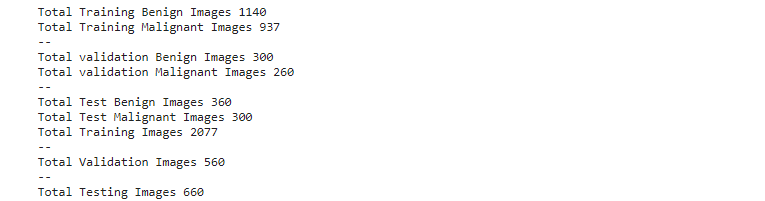
Step-10
Now, we need to set the size (height, width) of the images. This step is mostly needed when dataset images have different sizes, it will speed up the training process. I used an image shape of (224,224).
Note: we need to resize images to (224,224) because VGG-16 only accepts that image size.
IMG_SHAPE = 224batch_size = 32Step-11
Now, we need to preprocess data (train, test, validation), which includes, rescaling and shuffling.
image_gen_train = ImageDataGenerator(rescale = 1./255)train_data_gen = image_gen_train.flow_from_directory(batch_size = batch_size,directory = train_dir,shuffle= True,target_size = (IMG_SHAPE,IMG_SHAPE),class_mode = 'binary')image_generator_validation = ImageDataGenerator(rescale=1./255)val_data_gen = image_generator_validation.flow_from_directory(batch_size=batch_size,directory=valid_dir,target_size=(IMG_SHAPE, IMG_SHAPE),class_mode='binary')image_gen_test = ImageDataGenerator(rescale=1./255)test_data_gen = image_gen_test.flow_from_directory(batch_size=batch_size,directory=test_dir,target_size=(IMG_SHAPE, IMG_SHAPE),class_mode='binary')Step-12
Before proceeding, let's check class names, The image data generator will use folder names as class names.

Now, Our Data preprocessing steps are completed, it’s time to download VGG-16 pre-trained weights.
Step-13
Let’s download VGG-16 weights, by including the top layer parameter as false.
We know VGG-16 is trained with many classes, so if we use (top_layer = True), then we need to retrain it on all classes at which VGG-16 trained, but if we use (top_layer = False), then in retraining, we only need to add our training classes.
pre_trained_model = tf.keras.applications.VGG16(input_shape=(224, 224, 3), include_top=False, weights="imagenet")Step-14
Now, we need to freeze the training layers of VGG-16. (because VGG-16, is already trained on huge data).
for layer in pre_trained_model.layers:print(layer.name)layer.trainable = FalseStep-15
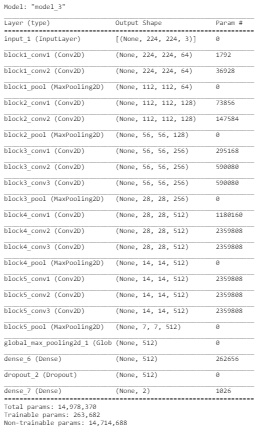
As all layers of VGG-16 are frozen, we need to modify the last layer for our classes. I added one max polling, one dense layer, one dropout, and one output with the last layer of VGG-16.
last_layer = pre_trained_model.get_layer('block5_pool')last_output = last_layer.outputx = tf.keras.layers.GlobalMaxPooling2D()(last_output)x = tf.keras.layers.Dense(512, activation='relu')(x)x = tf.keras.layers.Dropout(0.5)(x)x = tf.keras.layers.Dense(2, activation='sigmoid')(x)for “Multiclass classification”, change the last dense layer value with 3, and activation with softmax.
x = tf.keras.layers.Dense(3, activation='softmax')(x)Step-16
Now, we need to merge the original VGG-16 layers, with our custom layers.
model = tf.keras.Model(pre_trained_model.input, x)Step 17
let’s compile the model, before starting training.
model.compile(optimizer='adam', loss=tf.keras.losses.sparse_categorical_crossentropy, metrics=['acc'])for “Multiclass classification”, change the loss with categorical_crossentropy.
model.compile(optimizer='adam', loss=tf.keras.losses.categorical_crossentropy, metrics=['acc'])Step-18
Let’s check the model summary.
Step-19
Finally, we need to start our training process.
vgg_classifier = model.fit(train_data_gen,steps_per_epoch=(total_train//batch_size),epochs = 5,validation_data=val_data_gen,validation_steps=(total_validation//batch_size),batch_size = batch_size,verbose = 1)Note: I trained the model on five epochs. For better results, 50–60 epochs can be tested, in order to achieve 85% accuracy on testing data.
If, you followed all the above steps, then now, you can able to see epochs running after the step-19 code also shown in the below picture.

Step-20
Now, we can test our model on testing data.
result = model.evaluate(test_data_gen,batch_size=batch_size)print("test_loss, test accuracy",result)
Step 21
Now, we need to save our model.
model_json = model.to_json()with open("/content/drive/MyDrive/Image Classification/VGG_Skin_Classifier.json", "w") as json_file:json_file.write(model_json)model.save("/content/drive/MyDrive/Image Classification/VGG_Skin_Classifier.h5")print("Saved model to disk")model.save_weights("/content/drive/MyDrive/Image Classification/VGG_Skin.h5")Note: Congratulations, you have retrained VGG-16 on your own data. This article only focuses on binary classification, while you can test on your own data (binary or multiclass classification).
If you have videos and want to develop a dataset from these videos, read my articles regarding these,
If you have data and want to label that for object detection, object tracking, etc., read my article regarding that,
About Me
- Muhammad Rizwan Munawar is a highly experienced professional with more than three years of work experience in Computer Vision and Software Development. He is working as a Computer Vision Engineer and has knowledge and expertise in different computer vision techniques including Object Detection, Object Tracking, Pose Estimation, Object Segmentation, Segment Anything, Python, and Sofware Development, Embedded Systems, Nvidia Embedded Devices. In his free time, he likes to play online games and enjoys his time sharing knowledge with the community through writing articles on Medium.
Please feel free to comment if you have any questions 🙂, If you like the article, Let’s connect on LinkedIn :) 👇


