
How to Use VS Code to Debug Unit Test Cases
Better debugging with VS Code

How do you debug unit test cases? There are two popular methods:
- Use the built-in capability of Visual Studio Code (commonly known as VS Code)
- Use Chrome DevTools’ built-in debugger
In this article, we are going to cover the first method: how to use VS Code to debug unit test cases. As a prerequisite, Jest Extension must be installed and enabled to debug unit test cases via VS Code. My other article, “10 Useful Plugins for Visual Studio Code,” describes how to install and use Jest.
Debug the Original Create React App Unit Test Cases
The following is Facebook’s famous Create React App, opened with VS Code editor. There is one unit test file, src/App.test.js, in the codebase.

You can run this command: npm run test.
PASS  src/App.test.js
✓ renders without crashing (3ms)
Test Suites: 1 passed, 1 total
Tests:       1 passed, 1 total
Snapshots:   0 total
Time:        0.056s, estimated 1s
Ran all test suites related to changed files.
All tests passed. We feel good.
Wait a minute.
What if there is an error in the unit test case? What if the test case is complicated, and visual inspection cannot identify the issue? Do we have to hardcode many console.logs to debug?
VS Code has a built-in solution for us.
Click the following Run button on the left side panel. It presents an interface for Run and Debug. By specifying a proper configuration, we can debug with breakpoints, as well as check variables and call stacks, during the process. No special code changes (e.g., console.log or debugger statement) are needed.

From the above screenshot, click the link create a launch.json file. This allows us to select a predefined environment.

After choosing Debug Jest tests using vscode-jest, we end up with the following debug configuration, launch.json.

This file appears at the root of the project:

We modified the generated configure file a bit:
{
  "version": "0.2.0",
  "configurations": [
    {
      "type": "node",
      "name": "vscode-jest-tests",
      "request": "launch",
      "args": [
        "test",
        "--runInBand",
        "--no-cache"
      ],
      "cwd": "${workspaceFolder}",
      "console": "internalConsole",
      "internalConsoleOptions": "openOnSessionStart",
      "disableOptimisticBPs": true,
      "runtimeExecutable":
        "${workspaceFolder}/node_modules/.bin/react-scripts",
      "protocol": "inspector"
    }
  ]
}
The following are Jest options:
—-runInBand: Alias-i. Run all tests serially in the current process, rather than creating a worker pool of child processes that run tests. This is used for debugging environment.--no-cache: Disable cache. This is optional. On average, disabling the cache makes Jest at least two times slower.
This is a launch configuration for Create React App. Therefore, “runtimeExecutable” is set to react-scripts.
The following options are set to run tests in Debug Console, instead of in Terminal.
"console": "internalConsole",
"internalConsoleOptions": "openOnSessionStart",
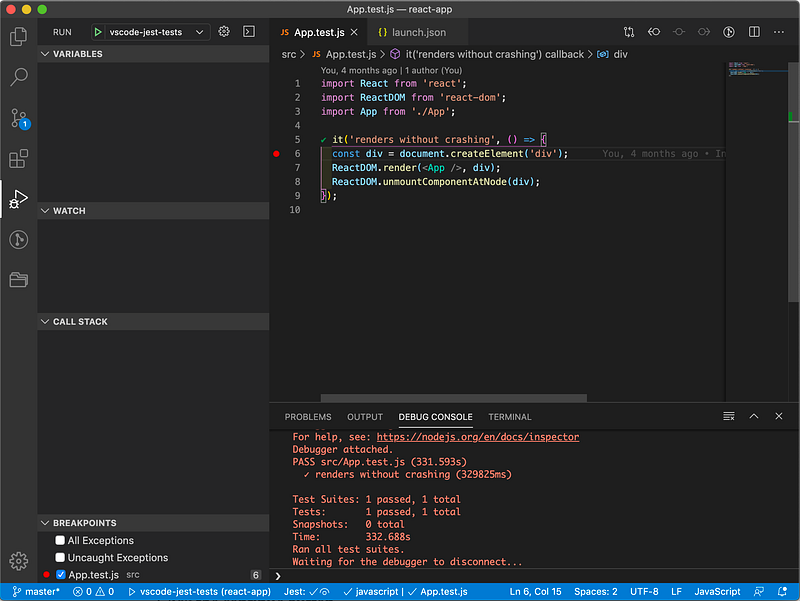
On src/App.test.js, click to set breakpoint at line 6.

Then click Start Debugging button, which is marked in the red box in the above screenshot.

The execution stops at line 6 for debugging. A set of buttons, marked in the red box in the above screenshot, allows us to continue, step over, step into, step out, restart, and stop.
Click the Continue button, and the test finishes with a success status:
Debug the Rewired Create React App Unit Test Cases
For a project using the rewired Create React App (See “Fun Fact #5 About Create React App”), we follow the same steps and generate the following revised launch.json:
{
  "version": "0.2.0",
  "configurations": [
    {
      "type": "node",
      "name": "vscode-jest-tests",
      "request": "launch",
      "args": [
        "test",
        "--runInBand",
        "--no-cache"
      ],
      "cwd": "${workspaceFolder}",
      "console": "internalConsole",
      "internalConsoleOptions": "openOnSessionStart",
      "disableOptimisticBPs": true,
      "runtimeExecutable":
        "${workspaceFolder}/node_modules/.bin/react-app-rewired",
      "protocol": "inspector"
    }
  ]
}
The only difference here is that “runtimeExecutable” has been changed to react-app-rewired.

Debug the Ejected Create React App Unit Test Cases
Are you wondering how to debug regular JavaScript unit test cases? We use the ejected Create React App to try out this case. Again, follow the same steps and generate the below revised launch.json:
{
  "version": "0.2.0",
  "configurations": [
    {
      "type": "node",
      "name": "vscode-jest-tests",
      "request": "launch",
      "args": [
        "--runInBand"
      ],
      "cwd": "${workspaceFolder}",
      "console": "internalConsole",
      "internalConsoleOptions": "openOnSessionStart",
      "disableOptimisticBPs": true,
      "program": "${workspaceFolder}/node_modules/jest/bin/jest"
    }
  ]
}
In the above setting, args are simpler, and “program” directly points to jest executable.

Debug Options for Unit Test Cases
Are you wondering how to specify more options via VS Code debugging? Let’s see a few examples with the modified App.test.js in the ejected Create React App codebase:
We can match unit test names using the option "--testNamePattern=<regex>". Alias: -t <regex>. It runs only tests with a name that matches the regex.
"-t" is put in "args".
"-t 1\\+1"starts one unit test:

"-t 1\\+"starts three unit tests:

"-t any thing"starts 2 unit tests:
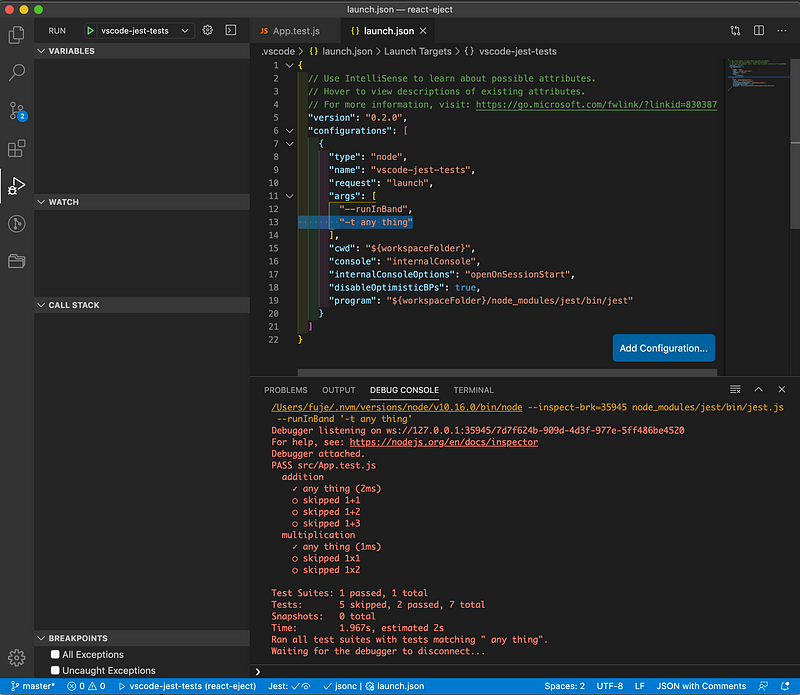
For "-t" option to work in VS Code, the it test cases need to be wrapped by describe. Therefore, the App.test.js file in Create React App needs to be adjusted a bit (in the code below, line 5 and line 11 are added):
In addition, "args" can match a file name:

"args" can also match a directory name:

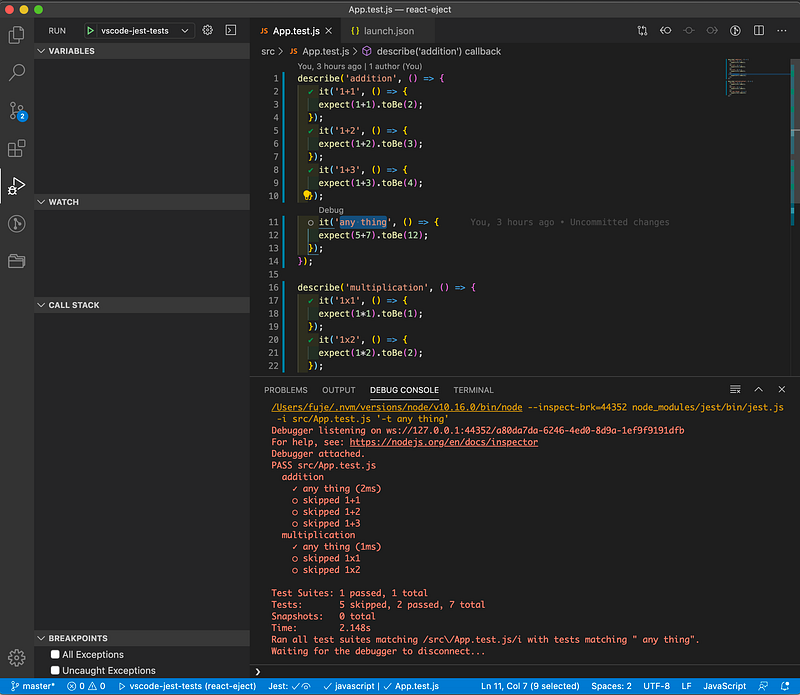
Want to make it fancier? You can use VS Code’s predefined variables:
${relativeFile}— the current opened file relative to${workspaceFolder}${selectedText}— the current selected text in the active file

Then, in App.test.js, select 'any thing'. Click Start Debugging button, and the two unit test cases named 'any thing' in the current file will run.
Isn’t that easy?
If you want to try more advanced Jest options, go to the Jest official site for more details.
If you want to try more advanced VS Code debugging options, go to the VS Code official site for more details.
Thanks for the help from Vikash Singh, Shraddha Chadha, and Shreya Shah to verify and optimize this method.
Thanks for reading. I hope this was helpful. You can see my other Medium publications here.


