avatarShinichi Okada

Free AI web copilot to create summaries, insights and extended knowledge, download it at here

4056

Abstract

<pre><span class="hljs-built_in">export</span> <span class="hljs-attribute">PATH</span>=<span class="hljs-string">"/home/your-username/bin:<span class="hljs-variable">$PATH</span>"</span></pre></div><figure id="5bfb"><img src="https://cdn-images-1.readmedium.com/v2/resize:fit:800/1*b40gTcahZaJ6y9gajwqQMQ.png"><figcaption></figcaption></figure><p id="da4d">Source the <code>~/.bashrc</code> file and check it again:</p><div id="6bf2"><pre><span class="hljs-built_in">source</span> ~/.bashrc

<span class="hljs-built_in">echo</span> <span class="hljs-variable">$PATH</span></pre></div><p id="7615">Add a symlink:</p><div id="7201"><pre>ln -s <span class="hljs-regexp">/home/y</span>our-username<span class="hljs-regexp">/awesome/m</span>anop<span class="hljs-regexp">/manop ~/</span>bin/manop</pre></div><p id="0f4c">Check if the symlink is working:</p><div id="f932"><pre>which manop <span class="hljs-regexp">/home/y</span>our-username<span class="hljs-regexp">/bin/m</span>anop manop -h</pre></div><div id="2713"><pre><span class="hljs-section">Name: =====</span> manop ...</pre></div><h1 id="30f9">How to use it</h1><p id="64f4">Let’s print the <code>mkdir -p</code>option description:</p><div id="6f3c"><pre>manop mkdir -p</pre></div><figure id="0b6d"><img src="https://cdn-images-1.readmedium.com/v2/resize:fit:800/1*G0cPWNg8OikGKAZgvudP_A.png"><figcaption>The manop mkdir -p output. Image by Author.</figcaption></figure><p id="240a">How about the <code>ls</code> command description:</p><div id="a0e9"><pre>manop <span class="hljs-built_in">ls</span></pre></div><figure id="2f1c"><img src="https://cdn-images-1.readmedium.com/v2/resize:fit:800/1*B6pwtagoJ8W-DHCjy0ZiVQ.png"><figcaption>The manop ls output. Image by Author.</figcaption></figure><p id="4ca0">You can print the builtin command <code>cd</code> description:</p><div id="bb2e"><pre>manop <span class="hljs-built_in">cd</span></pre></div><figure id="1e81"><img src="https://cdn-images-1.readmedium.com/v2/resize:fit:800/1*nTYVpuLaushE-HgX_H81Gg.png"><figcaption>The manop cd output. Image by Author.</figcaption></figure><p id="d430">Let’s print the builtin <code>cd -e</code> option description:</p><div id="58b4"><pre>manop <span class="hljs-built_in">cd</span> -e</pre></div><figure id="3a83"><img src="https://cdn-images-1.readmedium.com/v2/resize:fit:800/1*WmwGSWihZ8m11FALdVEyoA.png"><figcaption>The manop cd -e output. Image by Author.</figcaption></figure><p id="88f8">The output may have spaces.</p><div id="f2c9"><pre>manop grep -b -b, — <span class="hljs-keyword">byte</span>-<span class="hljs-built_in">offset</span> The <span class="hljs-built_in">offset</span> <span class="hljs-keyword">in</span> <span class="hljs-keyword">bytes</span> <span class="hljs-keyword">of</span> <span class="hljs-keyword">a</span> matched pattern is displayed <span class="hljs-keyword">in</span> front <span class="hljs-keyword">of</span> <span class="hljs-keyword">the</span> respective matched <span class="hljs-built_in">line</span>.</pre></div><p id="97a9">You can trim spaces using the <code>-t</code> flag:</p><div id="3c7f"><pre>manop -t grep -b -b, — <span class="hljs-keyword">byte</span>-<span class="hljs-built_in">offset</span> The <span class="hljs-built_in">offset</span> <span class="hljs-keyword">in</span> <span class="hljs-keyword">bytes</span> <span class="hljs-keyword">of</span> <span class="hljs-keyword">a</span> matched pattern is displayed <span class="hljs-keyword">in</span> front <span class="hljs-keyword">of</span> <span class="hljs-keyword">the</span> respective matched <span class="hljs-built_in">line</span>.</pre></div><figure id="84b8"><img src="https://cdn-images-1.readmedium.com/v2/resize:fit:800/1*EcTKl7-W0gIM_ry9iZU1Gg.png"><figcaption>The outputs from manop grep -b and manop -t grep -b. Image by Author.</figcaption></figure><h1 id="239a">Conclusion</h1><p id="f9fd">I often read other people’s scripts. When I come across a command or a command option that I don’t know, I use manop. In this way, I d

Options

on’t need to use the <code>/</code> command to search within the manual.</p><p id="7185">If you want to know more about the man page, please reference <a href="https://betterprogramming.pub/7-tips-to-effectively-use-the-man-page-in-linux-3a365c3eb8c5">this article</a> about the Man Page.</p><div id="4bfe" class="link-block"> <a href="https://betterprogramming.pub/7-tips-to-effectively-use-the-man-page-in-linux-3a365c3eb8c5"> <div> <div> <h2>7 Tips To Effectively Use the Man Page in Linux</h2> <div><h3>Quickly find an option description, navigate through the man page, and more</h3></div> <div><p>betterprogramming.pub</p></div> </div> <div> <div style="background-image: url(https://miro.readmedium.com/v2/resize:fit:320/0*vtok0zgvkWbDb-79)"></div> </div> </div> </a> </div><p id="5845">Please let me know what you think about <a href="https://github.com/shinokada/manop">manop</a>!</p><p id="5df9"><b>Get full access to every story on Medium by <a href="https://blog.codewithshin.com/membership">becoming a member</a>.</b></p><figure id="a7c2"><img src="https://cdn-images-1.readmedium.com/v2/resize:fit:800/1*DjTM9iFtVc2wlcWcOms7VQ.png"><figcaption><a href="https://blog.codewithshin.com/subscribe">https://blog.codewithshin.com/subscribe</a></figcaption></figure><div id="bc6b" class="link-block"> <a href="https://readmedium.com/automate-creating-a-github-repo-with-a-line-of-code-on-linux-f21fb2aafebd"> <div> <div> <h2>Automate Creating a Github Repo With a Line of Code on Linux</h2> <div><h3>Introducing updated version of Gitstart</h3></div> <div><p>medium.com</p></div> </div> <div> <div style="background-image: url(https://miro.readmedium.com/v2/resize:fit:320/0*aqVBagG2CYVRGhjp)"></div> </div> </div> </a> </div><div id="8a33" class="link-block"> <a href="https://readmedium.com/a-new-simple-package-manager-for-script-languages-a1228fd0972a"> <div> <div> <h2>A New Simple Package Manager for Script Languages</h2> <div><h3>A painless tool to manage installation and uninstallation</h3></div> <div><p>medium.com</p></div> </div> <div> <div style="background-image: url(https://miro.readmedium.com/v2/resize:fit:320/1*4Uxfp1bEgh0Z4x98tNu1oA.gif)"></div> </div> </div> </a> </div><div id="0cdf" class="link-block"> <a href="https://betterprogramming.pub/how-to-automate-homebrew-installs-on-your-new-mac-or-linux-51e06881c5b7"> <div> <div> <h2>How To Automate Homebrew Installs on Your New Mac or Linux</h2> <div><h3>You don’t need to install Homebrew packages one by one</h3></div> <div><p>betterprogramming.pub</p></div> </div> <div> <div style="background-image: url(https://miro.readmedium.com/v2/resize:fit:320/1*OPHiwGh1voiqa70-qDg_mA.png)"></div> </div> </div> </a> </div><div id="2a05" class="link-block"> <a href="https://readmedium.com/how-to-automate-cleaning-up-your-trash-and-downloads-directory-1ac2815b2089"> <div> <div> <h2>How to Automate Cleaning up Your Trash and Downloads Directory</h2> <div><h3>Set a cleanup schedule on macOS with a single line of code</h3></div> <div><p>medium.com</p></div> </div> <div> <div style="background-image: url(https://miro.readmedium.com/v2/resize:fit:320/0*u1vYLfSoknldTrk3)"></div> </div> </div> </a> </div></article></body>

Save Time Using Manop to Print Only Selected Content From the Man Page

Manop is a simple Bash script that outputs an option and a description

Image by the author using Teffects 3d.

Introduction

A man page (manual page) is software documentation for a Unix operating system. Some of the commands have many lines on the man page and it can be difficult to find the information you are looking for.

I have introduced manop before and now you can install it using Homebrew. manop only outputs a command description or an option description from the man or help page. [Repo URL]

manop is for macOS/Linux. The name manop came from “man option”. By using manop, you can save your variable time.

Installation

macOS using Homebrew

If you have Homebrew on your macOS, your can run:

brew tap shinokada/manop && brew install manop

Check if it is working:

manop -h

Name:
=====
manop
Version:
=====
v0.1.4
...

Installing manop using Awesome package manager

The awesome is a simple shell script package manager. Awesome installs a shell script package from a GitHub repo on your macOS/Linux.

After installing Awesome package manager:

awesome install shinokada/manop

Manual installation

I use Ubuntu for this example. But you should be able to adopt the same method for the other Linux systems.

Clone/download this repo and make a symlink to your bin directory. Your bin directory needs to be in your terminal configuration file’s PATH variable. (See more on this.)

I keep manop in the /home/your-username/awesome directory:

mkdir /home/your-username/awesome
cd /home/shin/awesome
git clone https://github.com/shinokada/manop.git

Create the ~/bin directory:

mkdir ~/bin

Check if /home/your-username/bin in the PATH variable:

echo $PATH
/home/your-username/bin:/usr/local/sbin:/usr/local/bin:/usr/sbin:/usr/bin:/sbin:/bin:/usr/games:/usr/local/games:/snap/bin

If not add the /home/your-username/bin directory to the ~/.bashrc file.

export PATH="/home/your-username/bin:$PATH"

Source the ~/.bashrc file and check it again:

source ~/.bashrc
echo $PATH

Add a symlink:

ln -s /home/your-username/awesome/manop/manop ~/bin/manop

Check if the symlink is working:

which manop
/home/your-username/bin/manop
manop -h
Name:
=====
manop
...

How to use it

Let’s print the mkdir -poption description:

manop mkdir -p
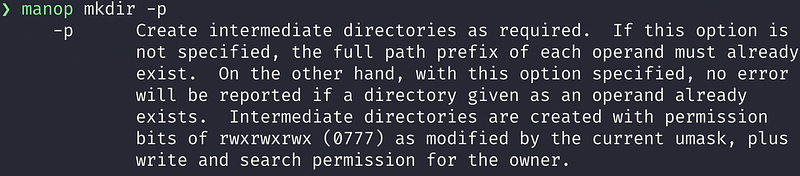
The manop mkdir -p output. Image by Author.

How about the ls command description:

manop ls

The manop ls output. Image by Author.

You can print the builtin command cd description:

manop cd
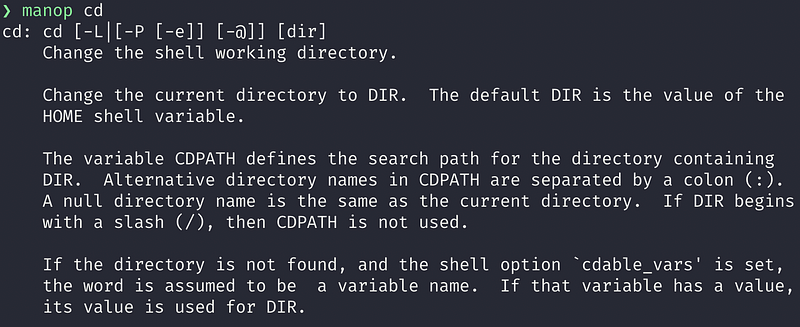
The manop cd output. Image by Author.

Let’s print the builtin cd -e option description:

manop cd -e

The manop cd -e output. Image by Author.

The output may have spaces.

manop grep -b
     -b, — byte-offset
             The offset in bytes of a matched pattern 
             is displayed  in front of the respective 
             matched line.

You can trim spaces using the -t flag:

manop -t grep -b
-b, — byte-offset
The offset in bytes of a matched pattern is displayed in front of the respective matched line.
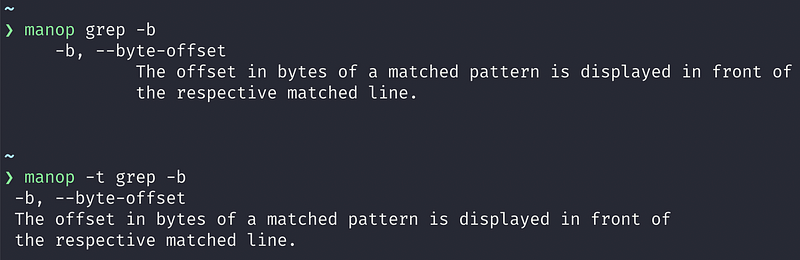
The outputs from manop grep -b and manop -t grep -b. Image by Author.

Conclusion

I often read other people’s scripts. When I come across a command or a command option that I don’t know, I use manop. In this way, I don’t need to use the / command to search within the manual.

If you want to know more about the man page, please reference this article about the Man Page.

Please let me know what you think about manop!

Get full access to every story on Medium by becoming a member.

https://blog.codewithshin.com/subscribe
Bash
Man Pages
Cli
Terminal
Linux
Recommended from ReadMedium