
5 Command-Line Text Effects for Your Programming Article
Stand out from the crowd and make something different
Introduction
After creating a Bash script to clip an image to text, I created 5 more scripts for article header images. I used Getoptions for the option parser. It allows me to display options for the subcommands as well. Getoptions also allows getting help messages for subcommands.
$ teffects -help
$ teffects 3d -help
$ teffects split --help
The repo name is Teffects. You can find the GitHub repo here. All the CSS credits go to the original authors and links are listed below. I tested Teffects on Ubuntu 20.04 and macOS v11.6.
Installing Teffects
If you are using macOS/Homebrew:
$ brew tap shinokada/teffects
$ brew install teffects
Using Awesome package manager:
$ awesome install shinokada/teffectsOr you can download the repo to your bin directory.
1. Retro
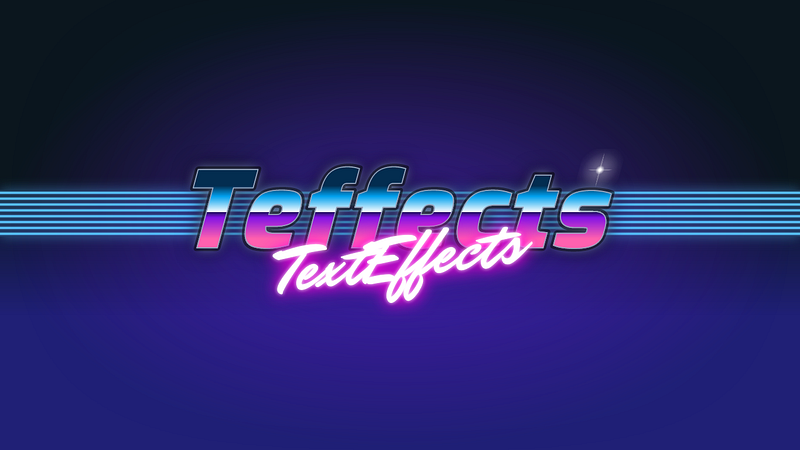
Retro is inspired by Yoav Kadosh’s Retro Text Effect Pure CSS. The above image is created by the following command:
$ teffects retro -t Teffects -s TextEffects -d ~/DownloadsYou can change the first line by using the -t valueoption and the second line with the -s valueoption. Specify the absolute path to a directory where you want to save the image using the -d valueoptions.
Options
$ teffects retro -h
Usage: teffects retro [options] [arguments]
Creates retro texts.
All parameters accepts --param value and --param=value form.
OPTIONS DESCRIPTION
-e, --height HEIGHT Image height. Default: 1200px.
-d, --dir OUTPUT_DIR Output directory. Use an absolute path without a trailing slash. Default: /Users/shinichiokada/Bash_Projects/Teffects/teffects/outputs
-s, --subtext SUB_TEXT Subtext. Your text to print.
-t, --text TEXT Your text to print.
-w, --width WIDTH Image width. Use a number without px. Default: 1600px.
-h, --helpExamples
$ teffects retro -t Super -s Duper -d ~/Downloads2. Split

Split is inspired by Håvard Brynjulfsen’s Split text with clip-path.
You can change the word by using the -t valueoptions. Specify two colors using the -c #valueand -b #valueoptions. Change the width and height using the -w numberand -e numberoptions without px. The -d valuesets a directory where you want to save the image. Use the absolute path for the directory.
Options
$ teffects split -h
Usage: teffects split [options] [arguments]
Creates split texts.
All parameters accepts --param value and --param=value form.OPTIONS DESCRIPTION
-b, --bcolor BCOLOR Background color. Enclose with quotes. Default: #000
-o, --bocolor BOCOLOR Body color
-c, --color COLOR Font color. Enclose with quotes. Default: #fff
-e, --height HEIGHT Image height. Default: 1200px.
-d, --dir OUTPUT_DIR Output directory. Use an absolute path without a trailing slash. Default: teffects/outputs directory.
-p, --padding PADDING Container padding. Default: 100px. e.g. 50px 100px.
-s, --size SIZE Font-size. Use a number without a unit. Default: 10vw.
-t, --text TEXT Your text to print.
-w, --width WIDTH Image width. Use a number without px. Default: 1600px.
-h, --helpExamples
The above image is created by the following command:
$ teffects split -t "AWESOME" -c "#4465aa" -b "#f4e990" -w 900 -e 300 -s 8 -d ~/Downloads$ teffects split -t "Heading for your programming article" -c "#4465aa" -b "#f4e990" -w 1600 -e 1200 -s 83. Sticker
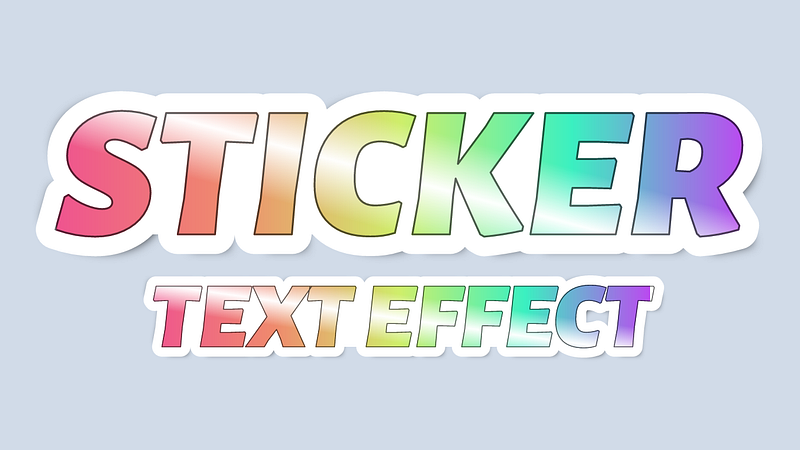
Sticker is inspired by Stephanie Eckles’s CSS Sticker. You can change the first line using the -t valueoption and the second line with the -u valueoption. Specify the absolute path to a directory where you want to save the image using the -d valueoptions.
Options
$ teffects sticker -h
Usage: teffects sticker [options] [arguments]
Creates sticker texts.
All parameters accepts --param value and --param=value form.OPTIONS DESCRIPTION
-b, --bcolor BCOLOR Background color. Enclose with quotes. Default: #eee
-e, --height HEIGHT Image height. Default: 1200px.
-d, --dir OUTPUT_DIR Output directory. Use an absolute path without a trailing slash. Default: teffects/outputs directory.
-l, --lsize LSIZE Top text font-size. Default: 14vw
-p, --padding PADDING Container padding. Default: 100px. e.g. 50px 100px.
-s, --size SIZE Font-size. Use a number without a unit. Default: 10vw.
-u, --subtext SUB_TEXT Subtext. Your text to print.
-t, --text TEXT Your text to print.
-w, --width WIDTH Image width. Use a number without px. Default: 1600px.
-h, --helpExamples
I used the following command for my terminal radio article.
$ teffects sticker -t "TERA" -u "Terminal Radio" -w 1600 -e 1200 -l 380 -s 12 -d ~/Downloads4. 3D
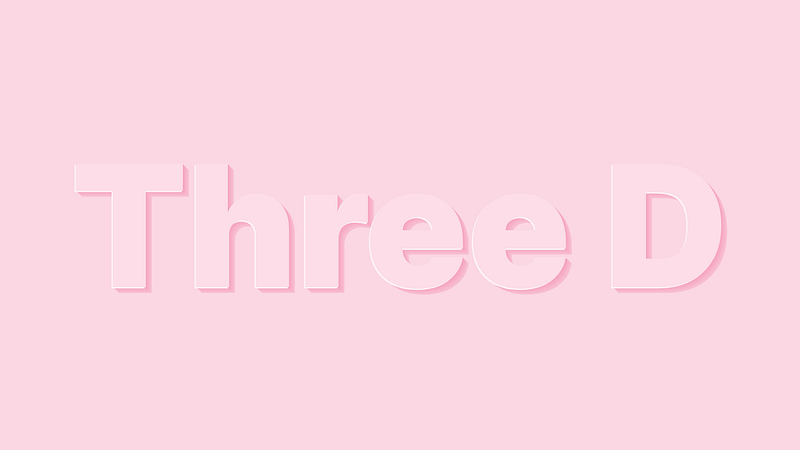
3d is inspired by Håvard Brynjulfsen’s 3D letters sugar sweet. You can change the words using the -t valueoption. Specify the absolute path to a directory where you want to save the image using the -d valueoptions.
Options
$ teffects 3d -h
Usage: teffects 3d [options] [arguments]
Creates 3d texts.
All parameters accepts --param value and --param=value form.OPTIONS DESCRIPTION
-b, --bcolor BCOLOR Background color. Enclose with quotes. Default: #fbd7e3
-c, --color COLOR Font color. Enclose with quotes. Default: #fcdde8
-e, --height HEIGHT Image height. Default: 1200px.
-d, --dir OUTPUT_DIR Output directory. Use an absolute path without a trailing slash. Default: teffects/outputs directory.
-p, --padding PADDING Container padding. Default: 100px. e.g. 50px 100px.
-s, --size SIZE Font-size. Use a number without a unit. Default: 10vw.
-t, --text TEXT Your text to print.
-w, --width WIDTH Image width. Use a number without px. Default: 1600px.
-h, --helpExamples
$ teffects 3d -d ~/Downloads -t "My Super Article" -s 8 -w 800 -e 300 -c "#2ca562" -b "#d22525"
5. Arcade
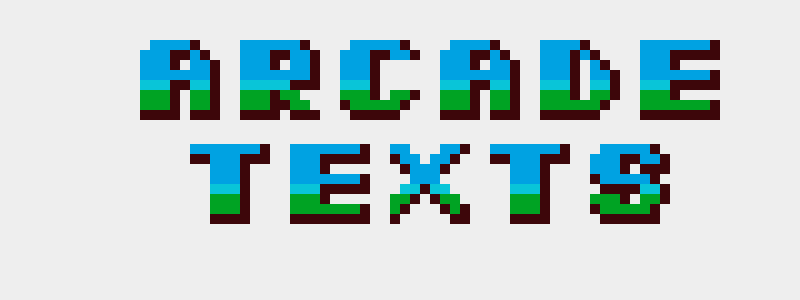
Arcade is inspired by Lynn Fisher’s CSS Arcade Typography: Snow Bros. 1990. Change the words using the -t valueoption. Use the -w number and -e number to change the width and height of the image. Specify the absolute path to a directory where you want to save the image using the -d valueoptions.
Options
$ teffects arcade -h
Usage: teffects arcade [options] [arguments]
Creates arcade texts.
All parameters accepts --param value and --param=value form.OPTIONS DESCRIPTION
-a, --align ALIGN Text alignment. Default: center.
-b, --bcolor BCOLOR Background color. Enclose with quotes. Default: #eee
-d, --dir OUTPUT_DIR Output directory. Use an absolute path without a trailing slash. Default: teffects/outputs directory.
-e, --height HEIGHT Image height. Default: 1200px.
-t, --text TEXT Your text to print.
-w, --width WIDTH Image width. Use a number without px. Default: 1600px.
-h, --helpExamples
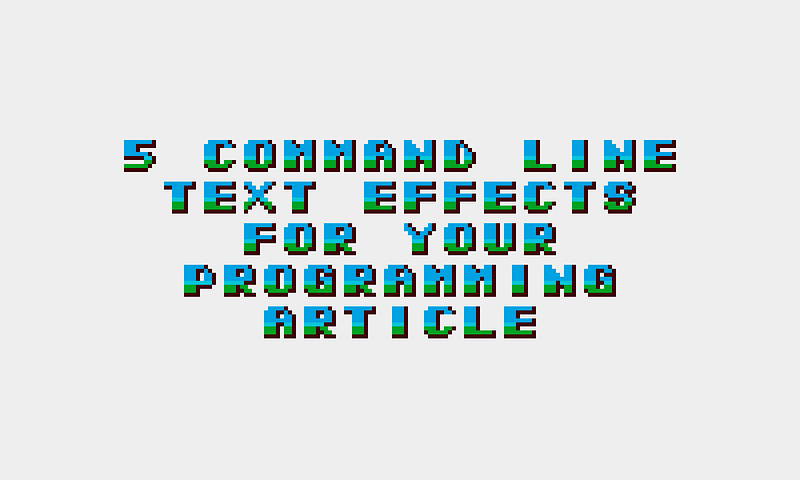
As the default, it will print a word per line. To make words in a line, use — between words. The first image of this article is created with the following command:
$ teffects arcade -t "5=Command-Line Text-Effects for-Your Programming Article" -w 2000 -e 1200Use -a option to set alignment:
$ teffects arcade -t "Teffects arcade command line texts" -w 1040 -e 800 -d ~/Downloads -a left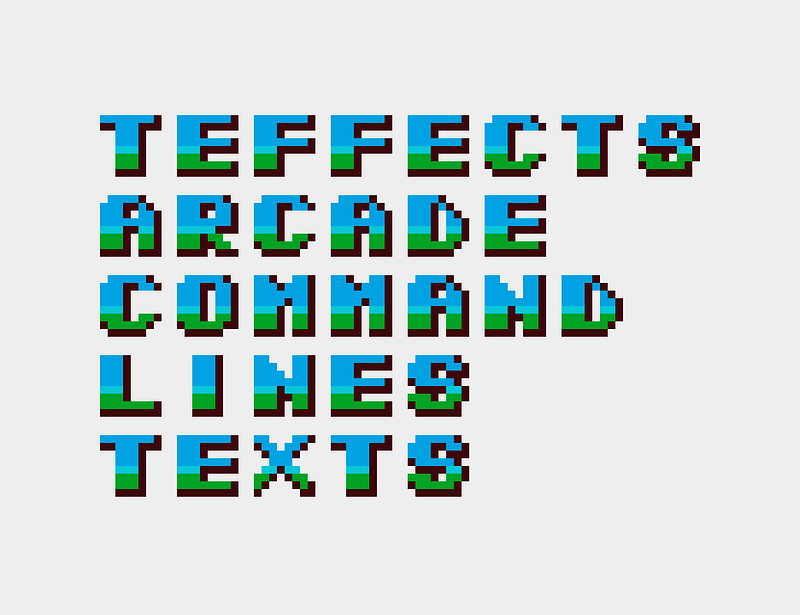
Please check 5 More Unique Text Effects from Command-Line.
Conclusion
Teffects includes the clip command as well. It clips an image to a text that you specify. Getoptions makes it easy to parse subcommand options. The library is easy to use, small in size, and portable for POSIX, Bash, and other shell scripts.
I had a lot of fun making the scripts. I will post more once they are done in a future article. Keep in touch.
Get full access to every story on Medium by becoming a member.


