
5 More Unique Text Effects from Command-Line
Easy to create image headings with Teffects
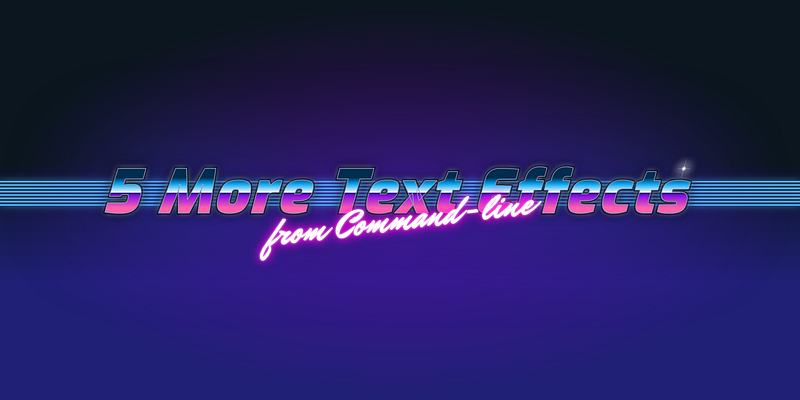
Table of Contents
· Introduction
· 1. Layer
· 2. Popart
· 3. Neon
· 4. Blob
· 5. Strokeshadow
· Conclusion
Introduction
In my last article, I introduced Teffects. Teffects is a command-line text effects library. I created it to use as blog article heading images. In this article, you will find 5 more text effects that I think you will like.
Installation
If you are using macOS/Homebrew:
$ brew tap shinokada/teffects
$ brew install teffects
You can install Teffects using Awesome package manager or download it to your /bin directory.
$ awesome install shinokada/teffects1. Layer
Layer is inspired by Shireen Taj’s Layered text-shadow effect. It adds layers of color to texts. It works for multiple lines as well. The following command will create a PNG image with a width of 1200px and a height of 800px. Specify the text you want to set using the -t option.
$ teffects layer -t "Teffects" -w 1200 -e 800 -d ~/Downloads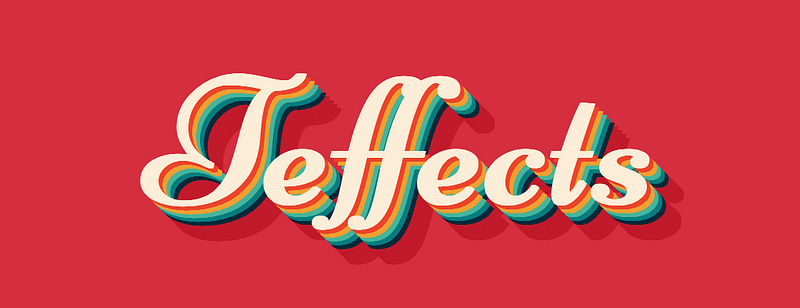
Options
You can change the background color using the -b purpleoption. If you are using a hexadecimal code for the font color, you need to enclose it with quotes as -b “#eee”. Use the -s option to change the font size in vw as -s 8.
$ teffects layer -h
Usage: teffects layer [options] [arguments]
Creates layered texts.
All parameters accepts --param value and --param=value form.OPTIONS DESCRIPTION
-b, --bcolor BCOLOR Background color. Enclose with quotes. Default: #d52e3f
-e, --height HEIGHT Image height. Default: 1200px.
-d, --dir OUTPUT_DIR Output directory. Use an absolute path without a trailing slash. Default: teffects/outputs directory.
-p, --padding PADDING Container padding. Default: 100px. e.g. 50px 100px.
-s, --size SIZE Font-size. Use a number without a unit. Default: 10vw.
-t, --text TEXT Your text to print.
-w, --width WIDTH Image width. Use a number without px. Default: 1600px.
-h, --helpExamples
The following code specifies the text with the -t option. The size of image is 1400px by 800px and using #ddd for the background color. I specified the directory by using the -d option.
$ teffects layer -t "Header for Your Programming Article" -w 1400 -e 800 -b "#ddd" -s 8 -d ~/Downloads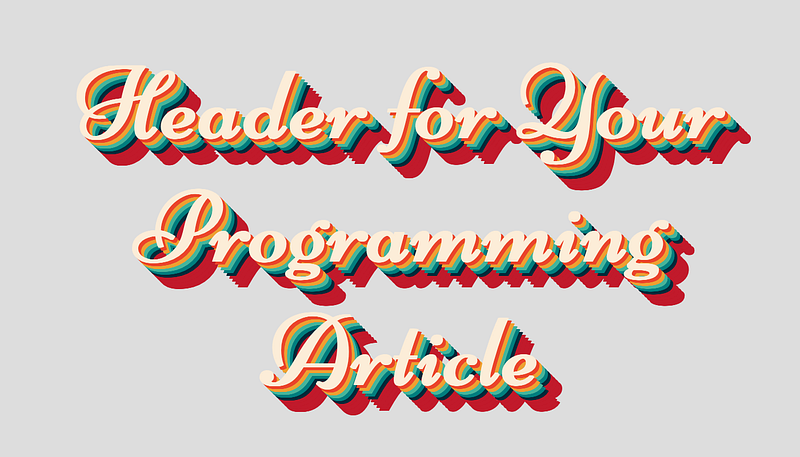
2. Popart
Popart is inspired by creatz’s Typo triple. It creates a bold and bright image.
$ teffects popart -t "Bold, bright and brash" -e 600 -d ~/Downloads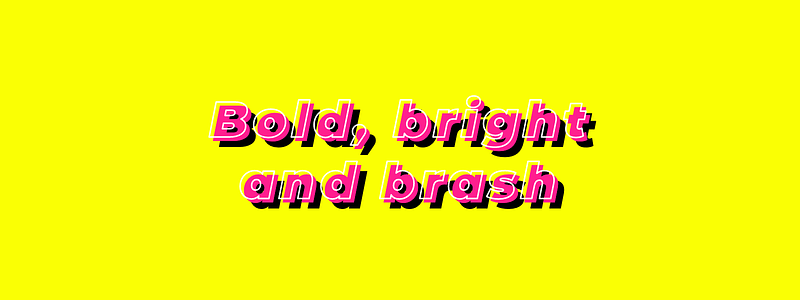
Options
The default background color is yellow and the text color is pink. You can change them with the -b and -c options. If you are using hexadecimal for colors enclose it with quotes like-c "#eee".
$ teffects popart -h
Usage: teffects popart [options] [arguments]
Creates pop art texts.
All parameters accepts --param value and --param=value form.OPTIONS DESCRIPTION
-a, --align ALIGN Text alignment. Default: center.
-b, --bcolor BCOLOR Background color. Enclose with quotes. Default: #faff04
-c, --color COLOR Font color. Enclose with quotes. Default: #ff1f8f
-t, --text TEXT Your text to print.
-d, --dir OUTPUT_DIR Output directory. Use an absolute path without a trailing slash. Default: teffects/outputs directory.
-s, --size SIZE Font-size. Use a number without a unit. Default: 10vw.
-w, --width WIDTH Image width. Use a number without px. Default: 1600px.
-e, --height HEIGHT Image height. Default: 1200px.
-h, --helpExamples
The following code outputs an image with purple background color and font size of 12vw. The text is “Bold, bright” and the image height is 600px.
$ teffects popart -t "Bold, bright" -e 600 -b purple -s 12 -a left -d ~/Downloads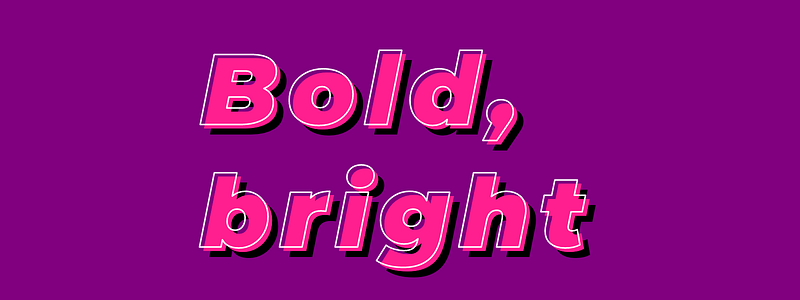
3. Neon
Neon is inspired by Sarah Fossheim’s Neon light text. It creates animated texts growing like neon lights.
The following code will create an image size of 1000px by 600px with a font size of 10vw.
$ teffects neon -t "TEFFECTS NEON LIGHTS" -w 1000 -e 600 -s 12 -d ~/Downloads[Update] When you run this, it will open a browser. If you prefer not to open the browser, use the +o or --no-open option.
$ teffects neon -t "TEFFECTS NEON LIGHTS" -w 1000 -e 600 -s 12 -d ~/Downloads +o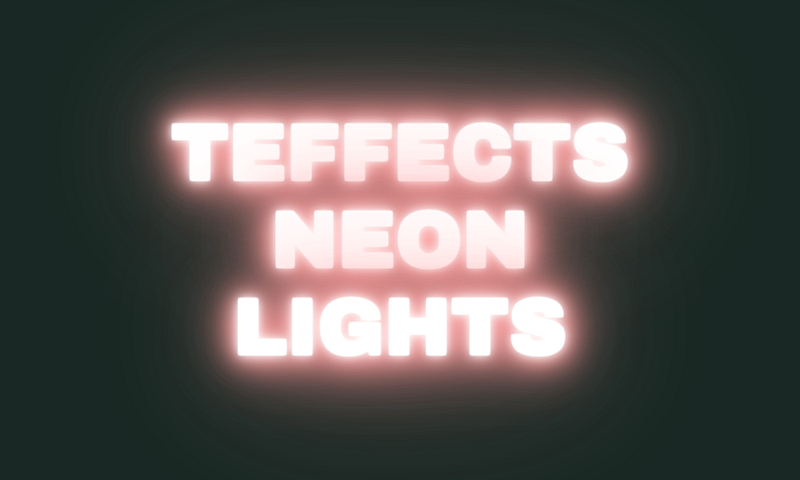
Options
You can change the background color using the -b option. Specify the directory where you want to save the image using the -d option. The default font size is 10vw and you can change it by using the -s option.
$ teffects neon -h
Usage: teffects neon [options] [arguments]
Creates an image with animated neon style text. This opens the default browser.
All parameters accepts --param value and --param=value form.OPTIONS DESCRIPTION
-o, --{no-}open A browser will be open as the default. Not to open it, use +o or --no-open.
-a, --align ALIGN Text alignment. Default: center.
-b, --bcolor BCOLOR Background color. Enclose with quotes. Default: #192824
-d, --dir OUTPUT_DIR Output directory. Use an absolute path without a trailing slash. Default: teffects/outputs directory.
-e, --height HEIGHT Image height. Default: 1200px.
-p, --padding PADDING Container padding. Default: 100px. e.g. 50px 100px.
-s, --size SIZE Font-size. Use a number without a unit. Default: 10vw.
-t, --text TEXT Your text to print.
-w, --width WIDTH Image width. Use a number without px. Default: 1600px.
-h, --help4. Blob
Blob is inspired by Amli’s Animated Blobs Text — Multiple Colors. It creates animated cute blobs as you see below. It is suitable for a GIF animation but it looks charming without animation as well.
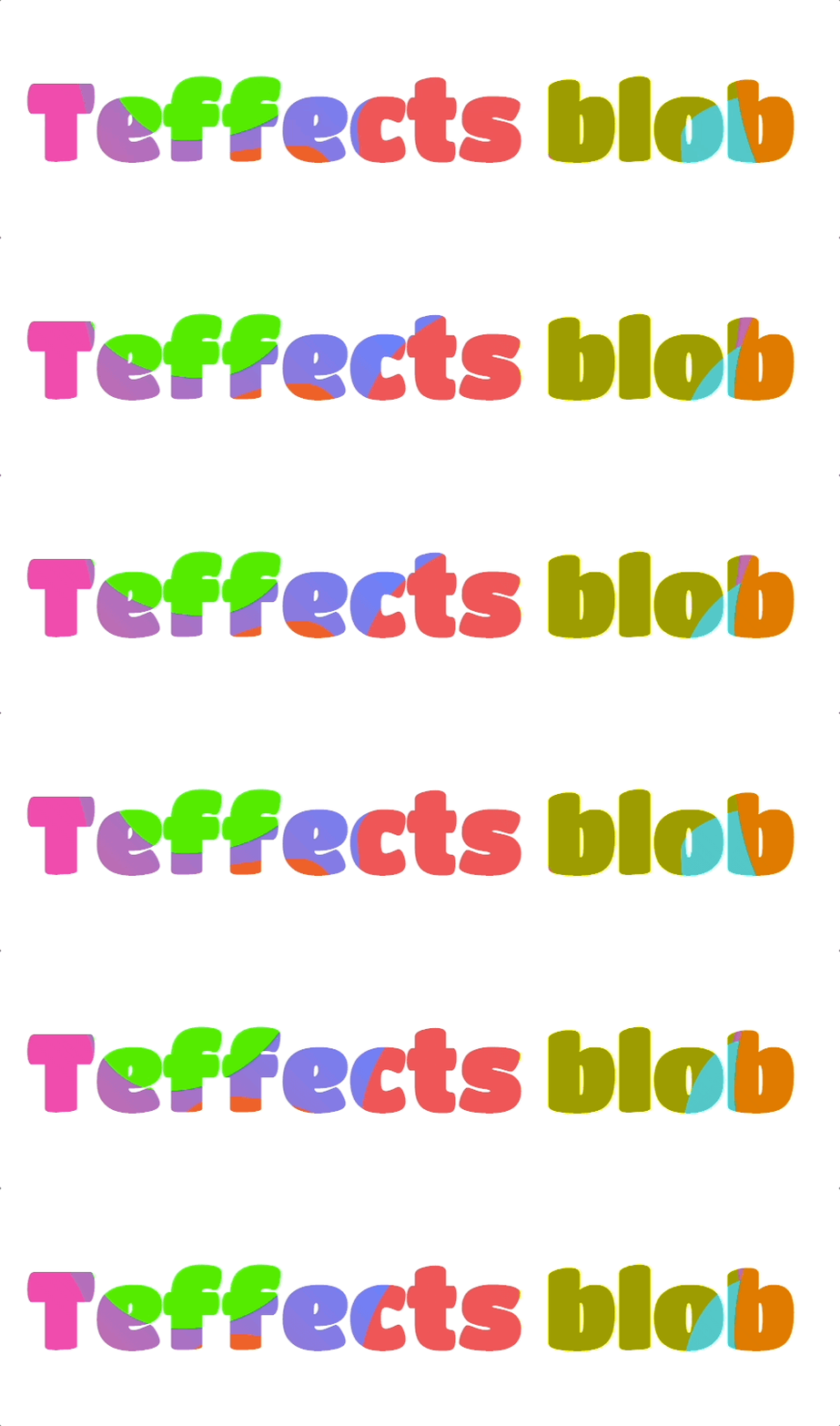
[Update] When you run this, it will open a browser. If you prefer not to open the browser, use the +o or --no-open option.
Options
You can set your text using the -t option. The default image size is 1600px by 1200px and you can change them by using the -w and -e options. The units are in px.
$ teffects blob -h
Usage: teffects arcade [options] [arguments]
Creates blob texts.
All parameters accepts --param value and --param=value form.
OPTIONS DESCRIPTION
-o, --{no-}open A browser will be open as the default. Not to open it, use +o or --no-open.
-a, --align ALIGN Text alignment. Default: center.
-d, --dir OUTPUT_DIR Output directory. Use an absolute path without a trailing slash. Default: teffects/outputs directory.
-e, --height HEIGHT Image height. Default: 1200px.
-p, --padding PADDING Container padding. Default: 100px. e.g. 50px 100px.
-s, --size SIZE Font-size. Use a number without a unit. Default: 10vw.
-t, --text TEXT Your text to print.
-w, --width WIDTH Image width. Use a number without px. Default: 1600px.
-h, --helpExamples
The following code shows multiple lines of text with different sizes in dimension and font size.
$ teffects blob -t "Create Your Programming Article Heading Image with Teffects" -w 1200 -e 900 -s 8 -d ~/Downloads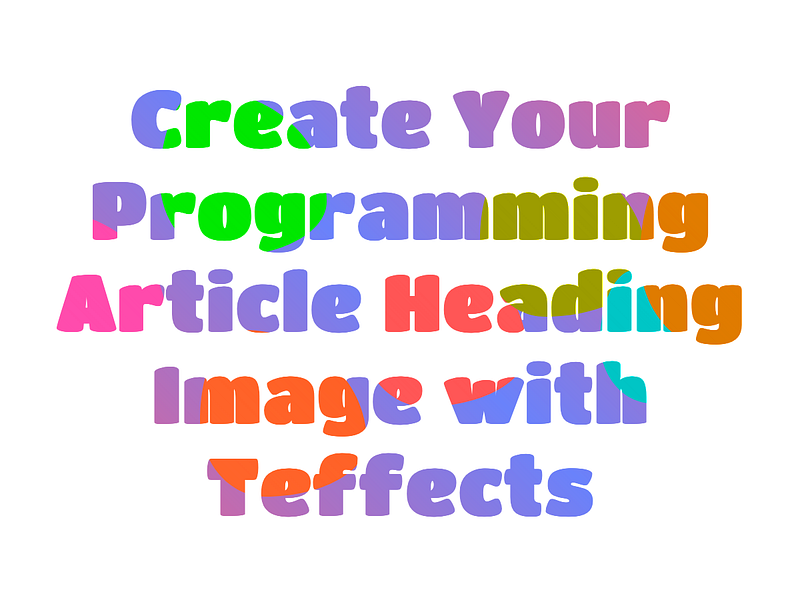
5. Strokeshadow
Strokeshadow is inspired by Mark Mead’s Strokes, Shadows + Halftone Effects. I used only two types from his code. It adds strokes and shadow to texts.
The default behavior is to add color to texts. The following code changes the image width, image height, font size, and color.
$ teffects strokeshadow -c purple -t "Article heading" -s 8 -e 400 -w 1400 -d ~/Downloads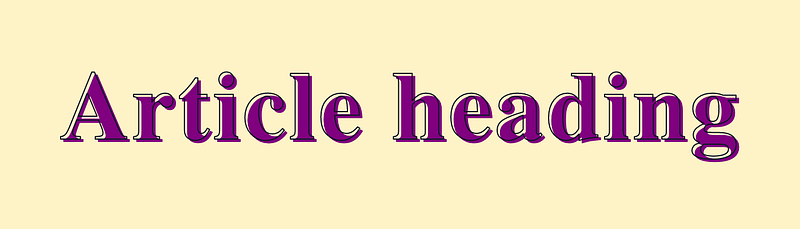
By adding the --behind option, the color goes behind the texts.
$ teffects strokeshadow -c purple -t "Article heading" -s 8 --behind -e 400 -w 1400 -d ~/Downloads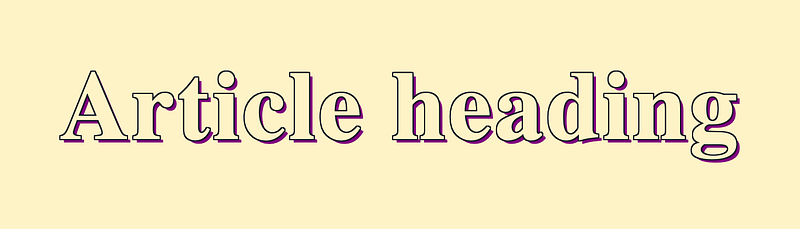
Options
Change the background color using the -b option enclosing a hexadecimal code with quotes.
$ teffects strokeshadow -h
Usage: teffects strokeshadow [options] [arguments]
Creates stroke-shadow texts.
All parameters accepts --param value and --param=value form.OPTIONS DESCRIPTION
--behind Set the color behind the text.
-a, --align ALIGN Text alignment. Default: center.
-b, --bcolor BCOLOR Background color. Enclose with quotes. Default: #fef3c7
-c, --color SCOLOR Shadow color
-t, --text TEXT Your text to print.
-d, --dir OUTPUT_DIR Output directory. Use an absolute path without a trailing slash. Default: teffects/outputs directory.
-p, --padding PADDING Container padding. Default: 100px. e.g. 50px 100px.
-s, --size SIZE Font-size. Use a number without a unit. Default: 10vw.
-w, --width WIDTH Image width. Use a number without px. Default: 1600px.
-e, --height HEIGHT Image height. Default: 1200px.
-h, --helpConclusion

You can use these text images for your articles, email, presentations, and any other purpose. I started using it for my articles and emails.
I’m working on more text effects for Teffects. Please stay in touch by choosing one of the following options.
Get full access to every story on Medium by becoming a member.


