avatarShinichi Okada

Free AI web copilot to create summaries, insights and extended knowledge, download it at here

4883

Abstract

df">Source the <code>~/.zshrc</code> file and check it again:</p><div id="4ef8"><pre><span class="hljs-built_in">source</span> /.zshrc <span class="hljs-built_in">echo</span> <span class="hljs-variable">$PATH</span></pre></div><p id="a2f2">Add a symlink using <code>ln -s sorce target</code>:</p><div id="1855"><pre><span class="hljs-built_in">ln</span> -s /awesome/cleanit/cleanit /bin/cleanit</pre></div><p id="8078">Check if the symlink is working:</p><div id="7d22"><pre><span class="hljs-attribute">cleanit</span> -v <span class="hljs-attribute">0</span>.<span class="hljs-number">1</span>.<span class="hljs-number">2</span></pre></div><h1 id="f7aa">How to use Cleanit</h1><p id="3236">Run <code>cleanit</code> on your terminal. It will move files older than 20 days in the Downloads (<code>/Downloads</code>) directory to Trash (<code>/.Trash</code>):</p><div id="661e"><pre><span class="hljs-attribute">cleanit</span></pre></div><p id="1697">If you want to move files older than 10 days in the Downloads directory to Trash (<code>/.Trash</code>), set the <code>-D 10</code></p><div id="f714"><pre><span class="hljs-attribute">cleanit</span> -D <span class="hljs-number">10</span></pre></div><p id="15f4">You can set a directory where you want to move files <b>from </b>using <code>-f direcotry-name</code>.</p><div id="06e7"><pre><span class="hljs-attribute">cleanit</span> -D <span class="hljs-number">10</span> -f /Mydir</pre></div><p id="8f9f">This will move files older than 10 days from <code>/Mydir</code> to the Trash directory.</p><p id="bbdf">You can set a directory where you want to move files <b>to, </b>using <code>-t directory-name</code>.</p><div id="bcf7"><pre>cleanit -D 10 -f <span class="hljs-string">/Mydir</span> -t <span class="hljs-string">/Anotherdir</span></pre></div><p id="95bf">This will move files older than 10 days from <code>/Mydir</code> to <code>/Anotherdir</code>.</p><p id="4b0c">You can clean up the Trash directory using <code>-f trash</code>.</p><div id="b432"><pre><span class="hljs-attribute">cleanit</span> -D <span class="hljs-number">10</span> -f trash</pre></div><h1 id="2dc2">Update</h1><p id="5eff">You can clean the downloads directory by:</p><div id="156e"><pre><span class="hljs-attribute">cleanit downloads</span></pre></div><p id="eb9c">Clean the Trash directory:</p><div id="ff47"><pre><span class="hljs-attribute">cleanit trash</span></pre></div><p id="f753">Both commands can take the <code>-D</code> option:</p><div id="960c"><pre><span class="hljs-attribute">cleanit</span> -D <span class="hljs-number">5</span> downloads</pre></div><h1 id="6379">Set up auto clean using a Crontab</h1><h2 id="41b1">Full Disk permissions</h2><p id="15ab">You need to all your terminal and your bash path for the full disk access.</p><p id="2bb7">You can check your bash path:</p><div id="2603"><pre>which bash <span class="hljs-regexp">/bin/</span>bash <span class="hljs-comment"># you may have</span> <span class="hljs-regexp">/opt/</span>homebrew<span class="hljs-regexp">/bin/</span>bash</pre></div><p id="2efb">Go to the System Preference > Security & Privacy, click Full Disk Access on the left menu. Press “Click the lock to make changes”, and press the “+” button. Select your terminal and the bash path. You need to press SHIFT+CMD+. to see hidden files. After this, you may need to restart your computer.</p><figure id="c97c"><img src="https://cdn-images-1.readmedium.com/v2/resize:fit:800/0*DuQS4GKJMsLnOTNg.png"><figcaption>System Preferences, Security & Privacy view. Image by Author.</figcaption></figure><figure id="d95c"><img src="https://cdn-images-1.readmedium.com/v2/resize:fit:800/0*qwPXZBjc76c9anhq.png"><figcaption>Selecting /bin/bash. Press SHIFT+CMD+. to show hidden files. Image by Author.</figcaption></figure><figure id="befb"><img src="https://cdn-images-1.readmedium.com/v2/resize:fit:800/1*N_SGfnhs7MOPUA2WaCDEig.png"><figcaption>You may have /opt/homebrew/bin/bash. Image by the author.</figcaption></figure><p id="357c">Let’s set up a Cleanit cron job. <code>cron</code> is a Linux utility that schedules a command or script on your server/computer to run automatically at a specified time and date.</p><div id="d2f0"><pre><span class="hljs-attribute">cleanit</span> cron -H <span class="hljs-number">10</span> -M <span class="hljs-number">0</span> -D <span class="hljs-number">30</span></pre></div><p id="06e1">This line of code sets up a cron job to clean up the Downloads and Trash directory every day at 10:00 AM. The cron job cleans up files older than 20 days (which is the default) in the Downloads directory and 30 days in the Trash directory.</p><p id="9651">You can change the days to 10 days:</p><div id="01cc"><pre><span class="hljs-attribute">cleanit</span> cron -H <span class="hljs-number">10</span> -M <span class="hljs-number">0</span> -D <span class="hljs-number">

Options

10</span></pre></div><p id="de9c">This cron job cleans up files older than 20 days (which is the default) in the Downloads directory and 10 days in the Trash directory.</p><p id="54be">You can remove the cron job:</p><div id="ddf7"><pre><span class="hljs-attribute">cleanit -r</span></pre></div><h1 id="83a9">Conclusion</h1><p id="94cc">Once the cleanup schedule is set up, you don’t need to worry about clogging your Downloads and Trash directories with unnecessary files. Even if you don’t want to set a cron job, you can use the <code>cleanit</code> command to clean up your Downloads directory from time to time.</p><p id="fd54">If you want to learn more about Bash scripting, <a href="undefined">Uday Hiwarale</a> wrote an excellent introduction article, <a href="https://readmedium.com/bash-scripting-everything-you-need-to-know-about-bash-shell-programming-cd08595f2fba">Bash Scripting: Everything you need to know about Bash-shell programming</a>.</p><p id="ca00">You can read more about scheduling jobs in <a href="https://towardsdatascience.com/a-step-by-step-guide-to-scheduling-tasks-for-your-data-science-project-d7df4531fc41">this article</a>.</p><div id="f4d3" class="link-block"> <a href="https://towardsdatascience.com/a-step-by-step-guide-to-scheduling-tasks-for-your-data-science-project-d7df4531fc41"> <div> <div> <h2>The Complete Guide to Cron and Launchd in macOS/Linux</h2> <div><h3>A Step-by-Step Guide to Scheduling Tasks</h3></div> <div><p>towardsdatascience.com</p></div> </div> <div> <div style="background-image: url(https://miro.readmedium.com/v2/resize:fit:320/1*jWnBhn8ka6qF4-gXZM-9pw.png)"></div> </div> </div> </a> </div><p id="3001">Happy coding!</p><p id="bb07"><b>Get full access to every story on Medium by <a href="https://blog.codewithshin.com/membership">becoming a member</a>.</b></p><figure id="ca1a"><img src="https://cdn-images-1.readmedium.com/v2/resize:fit:800/1*DjTM9iFtVc2wlcWcOms7VQ.png"><figcaption><a href="https://blog.codewithshin.com/subscribe">https://blog.codewithshin.com/subscribe</a></figcaption></figure><div id="8584" class="link-block"> <a href="https://readmedium.com/a-new-simple-package-manager-for-script-languages-a1228fd0972a"> <div> <div> <h2>A New Simple Package Manager for Script Languages</h2> <div><h3>A painless tool to manage installation and uninstallation</h3></div> <div><p>medium.com</p></div> </div> <div> <div style="background-image: url(https://miro.readmedium.com/v2/resize:fit:320/1*4Uxfp1bEgh0Z4x98tNu1oA.gif)"></div> </div> </div> </a> </div><div id="d613" class="link-block"> <a href="https://betterprogramming.pub/how-to-automate-homebrew-installs-on-your-new-mac-or-linux-51e06881c5b7"> <div> <div> <h2>How To Automate Homebrew Installs on Your New Mac or Linux</h2> <div><h3>You don’t need to install Homebrew packages one by one</h3></div> <div><p>betterprogramming.pub</p></div> </div> <div> <div style="background-image: url(https://miro.readmedium.com/v2/resize:fit:320/1*OPHiwGh1voiqa70-qDg_mA.png)"></div> </div> </div> </a> </div><div id="24c0" class="link-block"> <a href="https://readmedium.com/automate-creating-a-github-repo-with-a-line-of-code-on-linux-f21fb2aafebd"> <div> <div> <h2>Automate Creating a Github Repo With a Line of Code on Linux</h2> <div><h3>Introducing updated version of Gitstart</h3></div> <div><p>medium.com</p></div> </div> <div> <div style="background-image: url(https://miro.readmedium.com/v2/resize:fit:320/0*aqVBagG2CYVRGhjp)"></div> </div> </div> </a> </div><div id="a80a" class="link-block"> <a href="https://readmedium.com/how-to-use-manop-to-print-only-selected-content-from-the-man-page-11309b9efa38"> <div> <div> <h2>Save Time Using Manop to Print Only Selected Content From the Man Page</h2> <div><h3>Manop is a simple Bash script that outputs an option and a description</h3></div> <div><p>medium.com</p></div> </div> <div> <div style="background-image: url(https://miro.readmedium.com/v2/resize:fit:320/1*uRuvZLSXeaCZAPz6fGTGtQ.png)"></div> </div> </div> </a> </div></article></body>

How to Automate Cleaning up Your Trash and Downloads Directory

Set a cleanup schedule on macOS with a single line of code

Photo by The Creative Exchange on Unsplash

Introduction

How many files do you have in your Downloads directory? Find it out with this command on your terminal:

ls ~/Downloads | wc -l

How about your Trash directory?

ls ~/.Trash | wc -l

Now let’s find out how many files are older than 7 days in your Downloads and Trash directory.

find ~/Downloads -mtime +7 | wc -l | xargs
find ~/.Trash -mtime +7 | wc -l | xargs

Do you have a lot of files? If you haven’t used them for a long time, you won’t need them. Let’s clean it up.

Cleanit makes it easy to clean up these directories depending on the date when files were created. You can also schedule cleaning up your Downloads and Trash directory on macOS.

I have introduced Cleanit before. The new version can set a cronjob and you can install it using Homebrew.

Are you interested? Read on!

Installation

Homebrew

brew tap shinokada/cleanit && brew install cleanit

Awesome package manager

The awesome script package manager creates the ~/awesome directory and the ~/bin directory if they don’t exist. When you install a script package, it clones a package to the ~/awesome directory and creates a symlink in the ~/bin directory.

Let’s install awesome:

curl -s https://raw.githubusercontent.com/shinokada/awesome/main/install | bash -s install

Now you can install cleanit:

awesome install shinokada/cleanit

You can uninstall a package:

awesome rm cleanit

Manual installation

If you don’t use Homebrew, you can still install Cleanit on your Mac.

Let’s create a directory called awesome and keep cleanit in the ~/awesome directory:

mkdir ~/awesome
cd ~/awesome
git clone https://github.com/shinokada/cleanit.git

Create the ~/bin directory if you don’t have it:

mkdir ~/bin

Check if /Users/your-username/bin is in the PATH variable:

echo $PATH
/Users/your-username/bin:/usr/local/sbin:/usr/local/bin:/usr/sbin:/usr/bin:/sbin:/bin:/usr/games:/usr/local/games:/snap/bin

If it doesn’t have it, add the /Users/your-username/bin directory to your terminal configuration file such as the ~/.zshrc file.

export PATH="/Users/your-username/bin:$PATH"

Source the ~/.zshrc file and check it again:

source ~/.zshrc
echo $PATH

Add a symlink using ln -s sorce target:

ln -s ~/awesome/cleanit/cleanit ~/bin/cleanit

Check if the symlink is working:

cleanit -v
0.1.2

How to use Cleanit

Run cleanit on your terminal. It will move files older than 20 days in the Downloads (~/Downloads) directory to Trash (~/.Trash):

cleanit

If you want to move files older than 10 days in the Downloads directory to Trash (~/.Trash), set the -D 10

cleanit -D 10

You can set a directory where you want to move files from using -f direcotry-name.

cleanit -D 10 -f ~/Mydir

This will move files older than 10 days from ~/Mydir to the Trash directory.

You can set a directory where you want to move files to, using -t directory-name.

cleanit -D 10 -f ~/Mydir -t ~/Anotherdir

This will move files older than 10 days from ~/Mydir to ~/Anotherdir.

You can clean up the Trash directory using -f trash.

cleanit -D 10 -f trash

Update

You can clean the downloads directory by:

cleanit downloads

Clean the Trash directory:

cleanit trash

Both commands can take the -D option:

cleanit -D 5 downloads

Set up auto clean using a Crontab

Full Disk permissions

You need to all your terminal and your bash path for the full disk access.

You can check your bash path:

which bash
/bin/bash
# you may have
/opt/homebrew/bin/bash

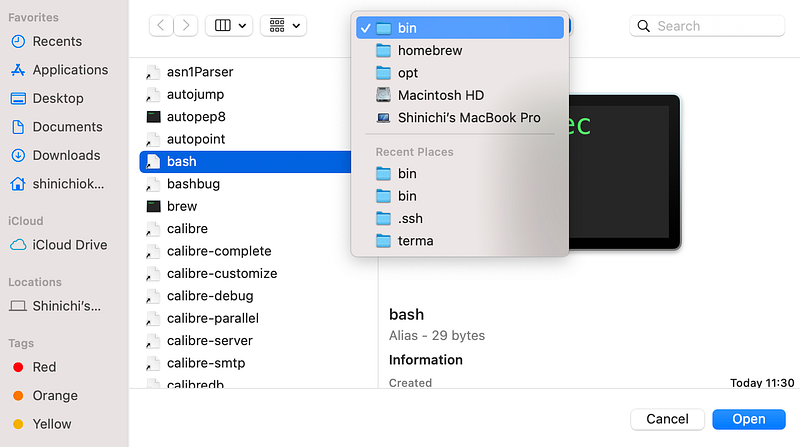
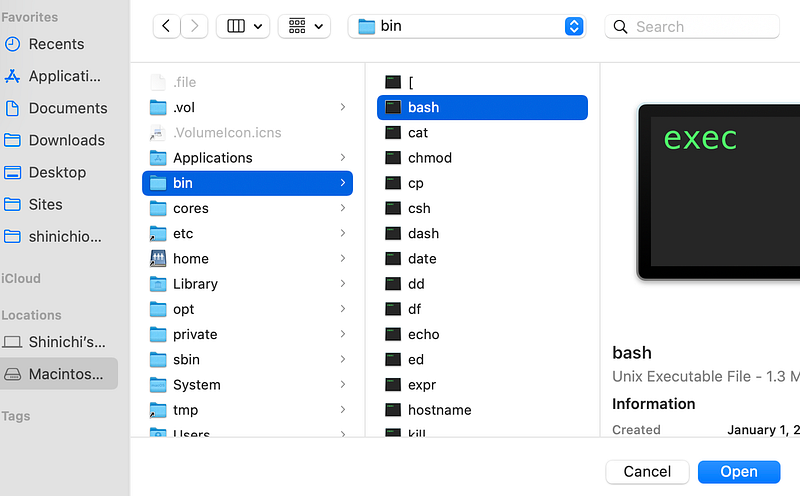
Go to the System Preference > Security & Privacy, click Full Disk Access on the left menu. Press “Click the lock to make changes”, and press the “+” button. Select your terminal and the bash path. You need to press SHIFT+CMD+. to see hidden files. After this, you may need to restart your computer.
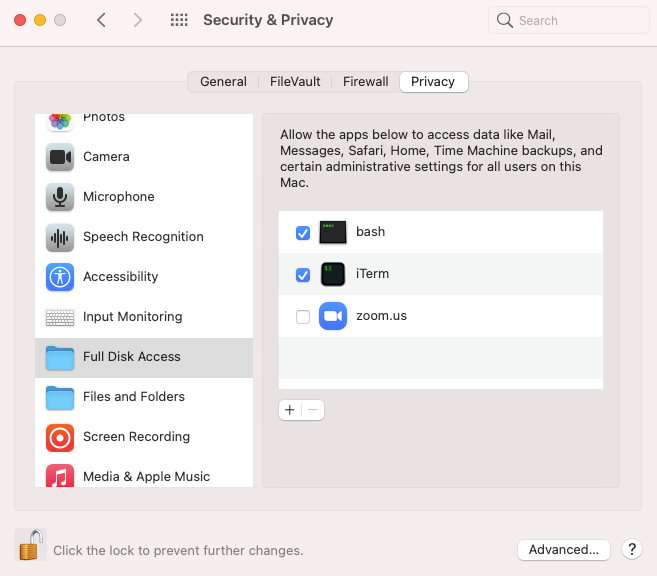
System Preferences, Security & Privacy view. Image by Author.
Selecting /bin/bash. Press SHIFT+CMD+. to show hidden files. Image by Author.
You may have /opt/homebrew/bin/bash. Image by the author.

Let’s set up a Cleanit cron job. cron is a Linux utility that schedules a command or script on your server/computer to run automatically at a specified time and date.

cleanit cron -H 10 -M 0 -D 30

This line of code sets up a cron job to clean up the Downloads and Trash directory every day at 10:00 AM. The cron job cleans up files older than 20 days (which is the default) in the Downloads directory and 30 days in the Trash directory.

You can change the days to 10 days:

cleanit cron -H 10 -M 0 -D 10

This cron job cleans up files older than 20 days (which is the default) in the Downloads directory and 10 days in the Trash directory.

You can remove the cron job:

cleanit -r

Conclusion

Once the cleanup schedule is set up, you don’t need to worry about clogging your Downloads and Trash directories with unnecessary files. Even if you don’t want to set a cron job, you can use the cleanit command to clean up your Downloads directory from time to time.

If you want to learn more about Bash scripting, Uday Hiwarale wrote an excellent introduction article, Bash Scripting: Everything you need to know about Bash-shell programming.

You can read more about scheduling jobs in this article.

Happy coding!

Get full access to every story on Medium by becoming a member.

https://blog.codewithshin.com/subscribe
Launchd
Cron
Bash
Automation
Cli
Recommended from ReadMedium