avatarShinichi Okada

Free AI web copilot to create summaries, insights and extended knowledge, download it at here

4924

Abstract

figure><p id="b5d8">The minimum required scopes are ‘repo’, ‘read:org’, ‘admin:public_key’. But you can select more fields.</p><figure id="7291"><img src="https://cdn-images-1.readmedium.com/v2/resize:fit:800/1*9Jp2kGKfbydxHYLWtRz4-g.png"><figcaption>Selecting scopes for a new personal access token. Image by Author.</figcaption></figure><p id="49e6">Click the Generate token button.</p><figure id="335d"><img src="https://cdn-images-1.readmedium.com/v2/resize:fit:800/1*KFx8mnJtlYWlrx3Q8atrgw.png"><figcaption>A generated personal token. Image by Author.</figcaption></figure><p id="4345">Copy and paste the token to the terminal and proceed.</p><figure id="a16b"><img src="https://cdn-images-1.readmedium.com/v2/resize:fit:800/1*PN_7VWy385V5Fpp8cBrVHA.png"><figcaption>Pasting an authentication token. Image by Author.</figcaption></figure><h1 id="2f90">Installing Gitstart</h1><h2 id="27f8">Installing using Awesome package manager</h2><p id="f833">The <a href="https://github.com/shinokada/awesome"><code>awes</code>ome</a> is a simple shell script package manager. Awesome installs a shell script package from a GitHub repo on your macOS/Linux.</p><p id="6c97">After installing <a href="https://github.com/shinokada/awesome">Awesome package manager</a>:</p><div id="014b"><pre>awesome install shinokada/gitstart</pre></div><h2 id="6140">Installing using a deb file</h2><p id="5efb">Download a latest deb file from the <a href="https://github.com/shinokada/gitstart/releases">release page</a>. And use the <code>sudo apt install</code> command. For example:</p><div id="8396"><pre><span class="hljs-attribute">sudo</span> apt install ./gitstart_0.<span class="hljs-number">2</span>.<span class="hljs-number">11</span>-<span class="hljs-number">1</span>_all.deb</pre></div><h2 id="874e">Installing manually</h2><p id="ad02">Keep <code>gitstart</code> in the <code>/home/<b>your-username</b>/awesome</code> directory:</p><div id="d887"><pre><span class="hljs-built_in">mkdir</span> /home/your-username/awesome <span class="hljs-built_in">cd</span> /home/your-username/awesome git <span class="hljs-built_in">clone</span> https://github.com/shinokada/manop.git</pre></div><p id="fa63">Create the <code>~/bin</code> directory if you don’t have it:</p><div id="eb04"><pre><span class="hljs-built_in">mkdir</span> /bin</pre></div><p id="5f73">Check if <code>/home/<b>your-username</b>/bin</code> is in the PATH variable:</p><div id="dda4"><pre>echo <span class="hljs-variable">PATH</span> <span class="hljs-regexp">/home/y</span>our-username<span class="hljs-regexp">/bin:/u</span>sr<span class="hljs-regexp">/local/</span>sbin:<span class="hljs-regexp">/usr/</span>local<span class="hljs-regexp">/bin:/u</span>sr<span class="hljs-regexp">/sbin:/u</span>sr<span class="hljs-regexp">/bin:/</span>sbin:<span class="hljs-regexp">/bin:/u</span>sr<span class="hljs-regexp">/games:/u</span>sr<span class="hljs-regexp">/local/g</span>ames:<span class="hljs-regexp">/snap/</span>bin</pre></div><p id="2072">If it is not in the PATH variable then, add the <code>/home/<b>your-username</b>/bin</code> directory path to the <code>~/.bashrc</code> file.</p><div id="92e4"><pre><span class="hljs-built_in">export</span> <span class="hljs-attribute">PATH</span>=<span class="hljs-string">"/home/your-username/bin:<span class="hljs-variable">PATH</span>"</span></pre></div><p id="b7df">Source the <code>/.bashrc</code> file and check it again:</p><div id="4ef8"><pre><span class="hljs-built_in">source</span> /.bashrc <span class="hljs-built_in">echo</span> <span class="hljs-variable">$PATH</span></pre></div><p id="a2f2">Let’s add a symlink. This will create a file in the <code>/bin</code> directory connected to the <code>gitstart</code> file.</p><div id="1855"><pre>ln -s <span class="hljs-regexp">/home/y</span>our-username<span class="hljs-regexp">/awesome/gi</span>ststart<span class="hljs-regexp">/gitstart ~/</span>bin/gitstart</pre></div><p id="8078">Check if the symlink is working:</p><div id="7d22"><pre><span class="hljs-attribute">gitstart</span> -v <span class="hljs-attribute">0</span>.<span class="hljs-number">2</span>.<span class="hljs-number">1</span></pre></div><h1 id="a008">How to use Gitstart</h1><p id="8d88">Find out how to use it:</p><div id="3547"><pre><span class="hljs-attribute">gitstart -h</span></pre></div><p id="6aa7">The required parameter is a directory using <code>-d</code>.</p><p id="db93">Let’s create a repository called <code>new_repo</code> in the <code>Awesome</code> directory:</p><div id="5410"><pre>mkdir <span class="hljs-keyword">new</span><span class="hljs-type">_dir</span> cd <span class="hljs-keyword">new</span><span class="hljs-type">_dir</span> gitstart -d ./<span class="hljs-keyword">new</span><span class="hljs-type">_repo</span></pre></div><p id="ef7e">You can use <code>.</code> as well:</p><div id="d13d"><pre>cd <span class="hljs-keyword">new</span><span class="hljs-t

Options

ype">_dir</span> mkdir <span class="hljs-keyword">new</span><span class="hljs-type">_repo</span> cd <span class="hljs-keyword">new</span><span class="hljs-type">repo</span> gitstart -d .</pre></div><p id="f7de">The result is the same as in the previous example.</p><p id="1b58">You can define the programming language. It will create a <code>.gitignore</code> file according to the specified language.</p><div id="7faa"><pre>gitstart -l python -d <span class="hljs-keyword">new</span><span class="hljs-number"></span>repo</pre></div><h1 id="900f">Conclusion</h1><p id="e267">Automating to create a GitHub repo with Gitstart saves you time. It creates a README file, a <code>.gitignore</code> file if you provide a language, adds a license.txt depending on your choice, and creates a new repo at GitHub.com with one line of code.</p><p id="9c96">If you are new to GitHub, <a href="undefined">Flavio Copes</a> wrote a nice introduction about GitHub in <a href="https://readmedium.com/a-developers-introduction-to-github-1034fa55c0db">A developer’s introduction to GitHub</a>.</p><p id="e02d">Please leave a comment if you have any questions.</p><p id="2b28">More about Gitstart:</p><div id="7a14" class="link-block"> <a href="https://towardsdatascience.com/automate-creating-a-new-github-repository-with-gitstart-1ae961b99866"> <div> <div> <h2>Automate Creating a New GitHub Repository with “Gitstart”</h2> <div><h3>Gitstart creates, adds, and pushes with one line</h3></div> <div><p>towardsdatascience.com</p></div> </div> <div> <div style="background-image: url(https://miro.readmedium.com/v2/resize:fit:320/1*06m5FRKAZF1oR_EjGMayYQ.jpeg)"></div> </div> </div> </a> </div><p id="0ad7">Happy coding!</p><p id="9a3a"><b>Get full access to every story on Medium by <a href="https://blog.codewithshin.com/membership">becoming a member</a>.</b></p><figure id="65a2"><img src="https://cdn-images-1.readmedium.com/v2/resize:fit:800/1*DjTM9iFtVc2wlcWcOms7VQ.png"><figcaption><a href="https://blog.codewithshin.com/subscribe">https://blog.codewithshin.com/subscribe</a></figcaption></figure><div id="0f05" class="link-block"> <a href="https://readmedium.com/how-to-automate-cleaning-up-your-trash-and-downloads-directory-1ac2815b2089"> <div> <div> <h2>How to Automate Cleaning up Your Trash and Downloads Directory</h2> <div><h3>Set a cleanup schedule on macOS with a single line of code</h3></div> <div><p>medium.com</p></div> </div> <div> <div style="background-image: url(https://miro.readmedium.com/v2/resize:fit:320/0*u1vYLfSoknldTrk3)"></div> </div> </div> </a> </div><div id="b7c0" class="link-block"> <a href="https://betterprogramming.pub/how-to-automate-homebrew-installs-on-your-new-mac-or-linux-51e06881c5b7"> <div> <div> <h2>How To Automate Homebrew Installs on Your New Mac or Linux</h2> <div><h3>You don’t need to install Homebrew packages one by one</h3></div> <div><p>betterprogramming.pub</p></div> </div> <div> <div style="background-image: url(https://miro.readmedium.com/v2/resize:fit:320/1*OPHiwGh1voiqa70-qDg_mA.png)"></div> </div> </div> </a> </div><div id="3df5" class="link-block"> <a href="https://readmedium.com/a-new-simple-package-manager-for-script-languages-a1228fd0972a"> <div> <div> <h2>A New Simple Package Manager for Script Languages</h2> <div><h3>A painless tool to manage installation and uninstallation</h3></div> <div><p>medium.com</p></div> </div> <div> <div style="background-image: url(https://miro.readmedium.com/v2/resize:fit:320/1*4Uxfp1bEgh0Z4x98tNu1oA.gif)"></div> </div> </div> </a> </div><div id="3584" class="link-block"> <a href="https://readmedium.com/how-to-use-manop-to-print-only-selected-content-from-the-man-page-11309b9efa38"> <div> <div> <h2>Save Time Using Manop to Print Only Selected Content From the Man Page</h2> <div><h3>Manop is a simple Bash script that outputs an option and a description</h3></div> <div><p>medium.com</p></div> </div> <div> <div style="background-image: url(https://miro.readmedium.com/v2/resize:fit:320/1*uRuvZLSXeaCZAPz6fGTGtQ.png)"></div> </div> </div> </a> </div></article></body>

How to Automate a Github Repo With a Line of Code on Linux

Introducing updated version of Gitstart

Photo by Clemens van Lay on Unsplash

Gitstart automates creating a Github repository.

For example:

gitstart -d new_repo

This creates .gitignore, a license.txt, a README.md file, run add, commit and push to create a new repo at GitHub.com.

I have explained how to install Gitstart on macOS. Here is how to install Gitstart on a Linux system. I use Ubuntu 20.04 for this example, but the method should be the same for other Linux systems.

Prerequisites

Gitstart requires a YAML processor yq and Github CLI gh.

Installing yq

sudo apt install yq -y

See other installation methods for >yq.

Installing gh

Download a deb file from the release page. And use the apt install command. For example:

sudo apt install ./gh_1.14.0_linux_arm64.deb

Or see other installation methods for gh.

I don’t recommend installing gh with the snap command. Snap doesn’t permit accessing hidden files.

Logging in to Github using Github CLI

Add your server SSH-key to your GitHub account if you haven’t already done so. Log in to GitHub and select Settings:
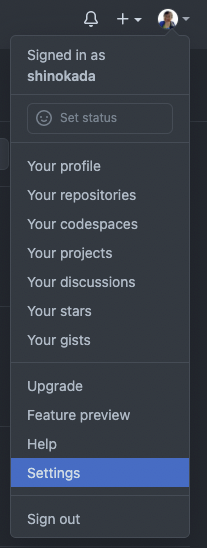
GitHub menu. Select Settings. Image by Author.

From your computer, print your id_rsa.pub and copy the key to your clipboard:

cat ~/.ssh/id_rsa.pub

Select SSH and GPG keys. Add a Title and paste the key to the Key field.
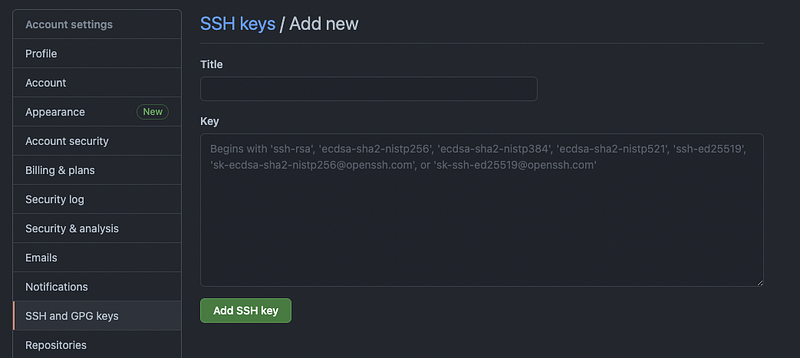
Adding an SSH key on the GitHub page. Image by Author.

From your terminal, login to Github using gh:

gh auth login

Follow the instructions to log in to Github.

Running gh auth login. Image by Author.

Use the SSH protocol for Git operations. Select “Paste an authentication token” if you don’t have a browser (because you are installing it on a server).

Or select “Login with a web browser”. It is much easier and faster.

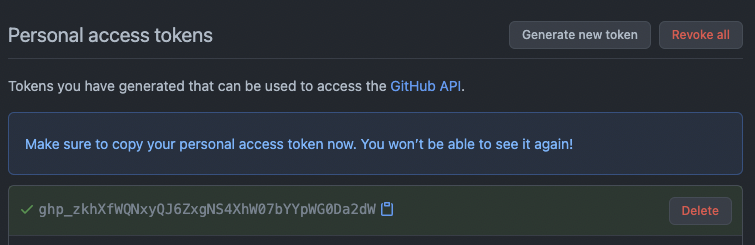
If you selected the token method, go to https://github.com/settings/tokens to create a token.

Generating a GitHub token. Image by Author.

The minimum required scopes are ‘repo’, ‘read:org’, ‘admin:public_key’. But you can select more fields.
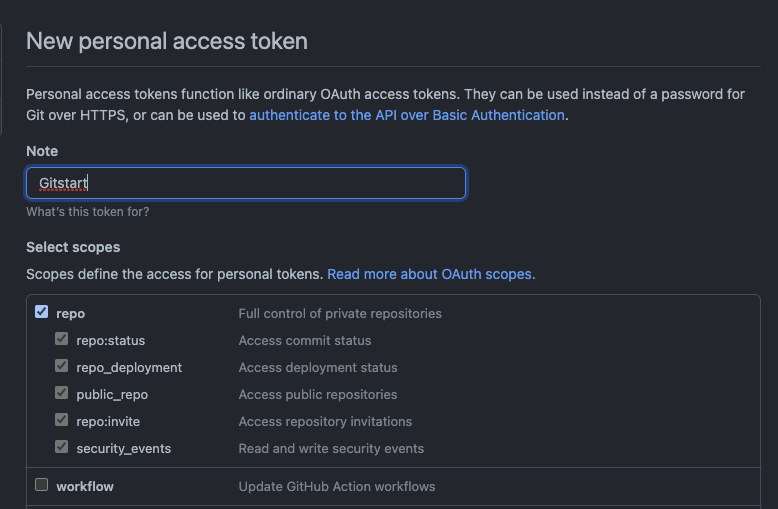
Selecting scopes for a new personal access token. Image by Author.

Click the Generate token button.

A generated personal token. Image by Author.

Copy and paste the token to the terminal and proceed.
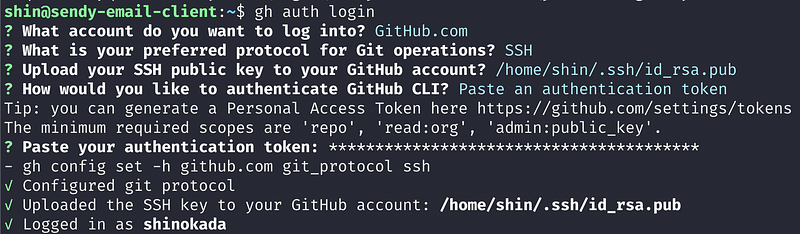
Pasting an authentication token. Image by Author.

Installing Gitstart

Installing using Awesome package manager

The awesome is a simple shell script package manager. Awesome installs a shell script package from a GitHub repo on your macOS/Linux.

After installing Awesome package manager:

awesome install shinokada/gitstart

Installing using a deb file

Download a latest deb file from the release page. And use the sudo apt install command. For example:

sudo apt install ./gitstart_0.2.11-1_all.deb

Installing manually

Keep gitstart in the /home/your-username/awesome directory:

mkdir /home/your-username/awesome
cd /home/your-username/awesome
git clone https://github.com/shinokada/manop.git

Create the ~/bin directory if you don’t have it:

mkdir ~/bin

Check if /home/your-username/bin is in the PATH variable:

echo $PATH
/home/your-username/bin:/usr/local/sbin:/usr/local/bin:/usr/sbin:/usr/bin:/sbin:/bin:/usr/games:/usr/local/games:/snap/bin

If it is not in the PATH variable then, add the /home/your-username/bin directory path to the ~/.bashrc file.

export PATH="/home/your-username/bin:$PATH"

Source the ~/.bashrc file and check it again:

source ~/.bashrc
echo $PATH

Let’s add a symlink. This will create a file in the ~/bin directory connected to the gitstart file.

ln -s /home/your-username/awesome/giststart/gitstart ~/bin/gitstart

Check if the symlink is working:

gitstart -v
0.2.1

How to use Gitstart

Find out how to use it:

gitstart -h

The required parameter is a directory using -d.

Let’s create a repository called new_repo in the Awesome directory:

mkdir new_dir
cd new_dir
gitstart -d ./new_repo

You can use . as well:

cd new_dir
mkdir new_repo
cd new_repo
gitstart -d .

The result is the same as in the previous example.

You can define the programming language. It will create a .gitignore file according to the specified language.

gitstart -l python -d new_repo

Conclusion

Automating to create a GitHub repo with Gitstart saves you time. It creates a README file, a .gitignore file if you provide a language, adds a license.txt depending on your choice, and creates a new repo at GitHub.com with one line of code.

If you are new to GitHub, Flavio Copes wrote a nice introduction about GitHub in A developer’s introduction to GitHub.

Please leave a comment if you have any questions.

More about Gitstart:

Happy coding!

Get full access to every story on Medium by becoming a member.

https://blog.codewithshin.com/subscribe
Github Repositories
Automation
Bash
Cli
Linux
Recommended from ReadMedium