avatarThe Wordsmith™🏳️‍🌈🇺🇸

Free AI web copilot to create summaries, insights and extended knowledge, download it at here

4120

Abstract

ferent, but each is intuitive with a shallow learning curve.</p><ol><li><b>Grammarly</b></li></ol><p id="783f">Grammarly has the advantage that it will keep edited documents indefinitely and without limit. Fig. 1, <i>infra</i>.</p><figure id="e6ad"><img src="https://cdn-images-1.readmedium.com/v2/resize:fit:800/1*BmBn6Ob_S7ccs_Ee_cJNFQ.jpeg"><figcaption>Fig. 1 <a href="https://share.getcloudapp.com/4gunvnGZ">Author’s Grammarly Premium Home Screen</a> | screenshot | <a href="https://grammarly.com">Grammarly</a></figcaption></figure><figure id="7c94"><img src="https://cdn-images-1.readmedium.com/v2/resize:fit:800/1*obFiNzCXPPPH2kkusLccIA.jpeg"><figcaption>Fig. 2 <a href="https://share.getcloudapp.com/JruDYxzE">Author’s Grammarly Editing Window</a> | screenshot | <a href="https://grammarly.com/">Grammarly</a></figcaption></figure><p id="ddd1">Grammarly displays the text to the left of its editing window. In center-right, it lists the suggested corrections and the applicable rules. Do not implement a proposed edit without independent consideration. Sometimes, you will have a good reason to ignore the rule. Sometimes, the suggestion will be incorrect. Fig. 2, <i>supra</i>.</p><p id="ab1e">At any point, you can generate an analysis giving various statistics and an evaluation of the writing. Fig. 2, <i>supra</i>.</p><p id="4a6d">A valuable and instructive, if somewhat expensive, this Grammarly feature is editing by a professional editor. This is a paid service charged by the word. Fig. 2, <i>supra</i>. (lower right) (0.099/word for a 3-day turn around; 136.12 for this 1,349-word document)</p><p id="8536"><b>2. Scribens</b></p><p id="9c9c">The Scribens UI is markedly different, as is the scheme of identifying errors and displaying suggested edits. Unlike Grammarly, Scribens offers no ability to add unknown words to its dictionary. Its analysis reports are also different.</p><figure id="3629"><img src="https://cdn-images-1.readmedium.com/v2/resize:fit:800/1*gu7wn1_XuXQpX3jGHFDbdw.jpeg"><figcaption>Fig. 3 <a href="https://share.getcloudapp.com/E0uABjLL">Scribens Browser-Based Editing Window </a>| screenshot | <a href="http://https;//scribens.com/">Scribens</a></figcaption></figure><p id="6cda">Scribens displays the draft text in the right panel. In the left pane, it identifies the detected errors. There is a radio button for each error type. Selecting a button highlights the respective errors in the text. Fig. 3, <i>supra</i>. (instances of run-on sentences)</p><p id="68eb">Note that Grammarly can edit inside Scribens, where it underscores errors just as in its window. Fig. 3, <i>supra</i>.</p><p id="d9f9">The various grammatical analyses that Scribens generates are selected at the upper left. Fig. 3, <i>supra</i>. (lexical errors (“style”) report shown in the left panel)</p><h1 id="1343">Using Grammarly and Scribens with Medium</h1><p id="0c74">Install the Grammarly and Scribens browser extensions. Log on to your account in each. Open a new tab and navigate to <a href="https://grammarly.com">Grammarly</a>’s site. Do the same for <a href="https://scribens.com/">Scribens</a>. You should be logged in. If not, log on to your account in that tab. Leave these two tabs open.</p><p id="6da9">With the browser extension installed, the app monitors what you type. It will note errors as it detects them and display its suggested correction if you place the cursor over one. At that point, you can elect to let the app correct or not.</p><p id="d956">However, neither Grammarly nor Scribens works inside Medium. The only way to use either with Medium is to copy the Medium source text to the app’s editing window and run the app. For each suggested edit you decide to implement, switch to the Medium article’s window and manually edit. Switching back and forth and manually entering corrections is tedious.</p><p id="2f23">However, it is worth the effort. The final product will be a composition free of grammar, punctuation, and spelling errors. It will have an improved sentence structure and vocabulary.</p><p id="230f">Exercise judgment when making suggested edits. They are

Options

suggestions, not mandates. If you have a reason to refuse a suggestion, you might prefer to let the text stand.</p><p id="c90b">The Grammarly and Scribens apps produce analysis reports containing helpful information. Each has some information the other does not. These reports lend insight into your writing habits that will help you better understand your work. They will improve your future performance. Use both to get the best possible, complete feedback.</p><h1 id="21ae">Using Hemingway App with Medium</h1><p id="742e">When you finish with Grammarly and Scribens, run the finalized text through <a href="https://hemingwayapp.com/">Hemingway App</a>.</p><figure id="50ec"><img src="https://cdn-images-1.readmedium.com/v2/resize:fit:800/1*XIMUQU9N-foyVulLA2bhEg.jpeg"><figcaption>Fig. 4 <a href="https://share.getcloudapp.com/mXur4pD2">Hemingway Editor v. 3.0 Home Screen</a> | screenshot | <a href="https://hemingwayapp.com">Hemingway App</a></figcaption></figure><p id="e444">Hemingway App is available as both a browser-based and an offline desktop app for Mac OS 10.9+ and Windows 7+. Fig. 4, <i>supra</i>.</p><p id="362d">As its name implies, it is oriented toward Ernest Hemingway’s writing style. However, it will identify and note all lexical atrocities. Fig. 5, <i>infra</i>.</p><p id="477a">Both Grammarly and Scribens work inside Hemingway App’s browser window, but, of course, not in the desktop app, which works offline.</p><figure id="41a5"><img src="https://cdn-images-1.readmedium.com/v2/resize:fit:800/1*dvB8NH0gWYw4vyyQ9hCaPw.jpeg"><figcaption>Fig, 5 <a href="https://hemingwayapp.com/">Hemingway App Browser Editing Window with Errors Identified</a> | screenshot | <a href="https://hemingwayapp.com">Hemingway App</a></figcaption></figure><h1 id="6558">Get the most out of all three</h1><p id="e1c1">All three AI editors detect many of the same errors, but each will catch some that the others will miss. They produce various analysis reports of the checked text. Each has certain information not duplicated in the others.</p><p id="ff54">To get the complete editing and reporting benefits,</p><ol><li>edit it in all three browser-based editors, Grammarly, Scribens, Hemingway App, in that order;</li><li>edit in Grammarly; switch back and forth between the Grammarly and Medium windows, making such edits in the Medium window as you determine to accept;</li><li>feed that edited text to Scribens and repeat the process; and</li><li>feed that text to Hemingway App and repeat the process.</li></ol><p id="ce98">I suggest not using Hemingway App for an article such as this. It’s best suited to works like the short personal memories I wrote in <a href="https://readmedium.com/memories-of-our-fathers-d8cca11bf1f2">Memories of Our Fathers</a> and <a href="https://readmedium.com/be-open-more-about-me-the-death-of-enmity-f2df2261f175">Be Open (More About Me) — The Death of Enmity </a>or the book-length story <a href="https://readmedium.com/a-tale-of-two-souls-253dd8c51582">A Tale of Two Souls</a>.</p><p id="64cb">If you want Hemingway for offline work, purchase the desktop version for a one-time fee. You can compose directly in it and submit from it directly to Medium and WordPress. Further, you can import/export documents from/to Microsoft Word from within it.</p><p id="1d99">When you finish editing in this manner, you will have a manuscript-quality final draft you can submit to your chosen publication with confidence and pride.</p><h1 id="f681">More From</h1><figure id="a41d"><img src="https://cdn-images-1.readmedium.com/v2/resize:fit:800/1*LuIXU76si8H6HITR6uYgAg.png"><figcaption><a href="https://medium.com/@stevealexander-48"><b>The Wordsmith™🏳️‍🌈🇺🇸</b></a><b> | Existentialist Extraordinaire</b> | quote on the scroll from Robert Frost | author’s registered trademark</figcaption></figure><p id="d7df"><a href="https://readmedium.com/producing-superior-medium-content-a5e00f5d0585">Producing Superior Medium Content</a></p><p id="5573"><a href="https://readmedium.com/perfection-in-writing-is-the-goal-4c5ffbe2c38a">Perfection in Writing Is The Goal</a></p></article></body>

How to Edit for Superior Quality: Use AI Grammar Checkers

Edit your final draft with Grammarly, Scribens, and Hemingway App
Image by Anne Karakash from Pixabay

Let’s leave aside for the moment how to get to a final draft and concentrate on what to do to make it manuscript quality. If you are not using one of these grammar checkers, you are missing out on an opportunity to bring your final draft up to near-professional-quality, line-edited copy.

Editing A Final Draft

The final draft is the time to edit for surface errors. They are errors in grammar, punctuation, spelling, and voice (active vs. passive). One must also edit sentence and paragraph structure in the final draft to the extent that they have escaped prior edits.

Copy editing, line editing, and proofreading

Before the advent of Artificial Intelligence (AI) software, copy editors, line editors, and proofreaders transformed the final draft into a publishable manuscript. Today, these functions are essentially the domain of AI grammar and spelling checkers.

One should delay copy editing, line editing, and proofreading until the final draft. Every rewrite or major revision creates significant potential for new grammatical errors. It’s premature to expend the effort that copy and line editing and proofreading entail before the final draft because of that potential. It is time enough to undertake that editing when the rewrites and revisions are done.

Today, anyone can achieve high-quality copy and line editing, spell checking, and proofreading results using any of several available AI grammar checkers. These will even edit for sentence structure, catching common errors like run-on sentences, unclear or convoluted phrasing, and wordiness.

Three AI editors: Grammarly, Scribens, and Hemingway App

I routinely run my final drafts through three AI grammar checkers: Grammarly, Scribens, and Hemingway App. There are common features, yet each has unique features. Each can catch errors that escape the others. Thus arises the necessity of using all three in combination.

All are browser-based. Grammarly and Scribens have free and paid (“premium”) subscription versions. For the differences between the paid and free subscriptions, see What is Grammarly Premium, and how is it different from the free version? and Scribens Premium. Anyone determined to produce quality Medium work product should subscribe to the premium versions if at all possible. The price is least when paid annually. The additional benefits are substantial.

Grammarly and Scribens have extensions for each of the four major web browsers: Firefox, Google Chrome, Safari, and Microsoft Edge. See, Install the Grammarly browser extension and Scribens: Test Our Extensions for Free and Without an Account.

The two user interfaces (UIs) are different, but each is intuitive with a shallow learning curve.

  1. Grammarly

Grammarly has the advantage that it will keep edited documents indefinitely and without limit. Fig. 1, infra.
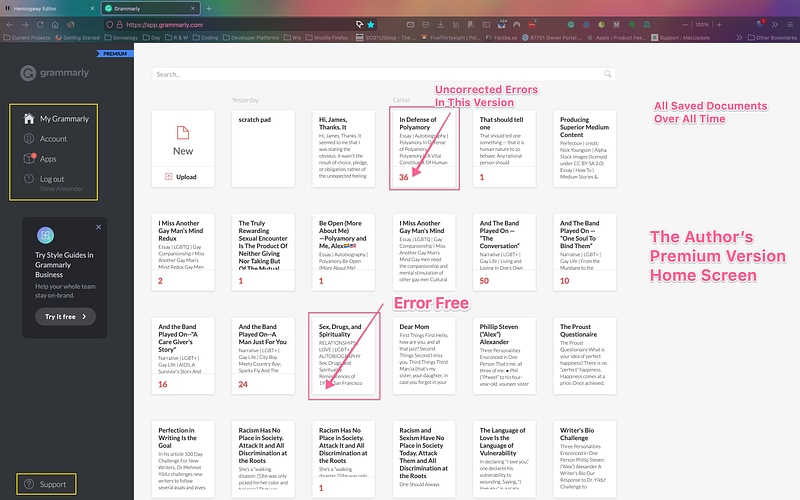
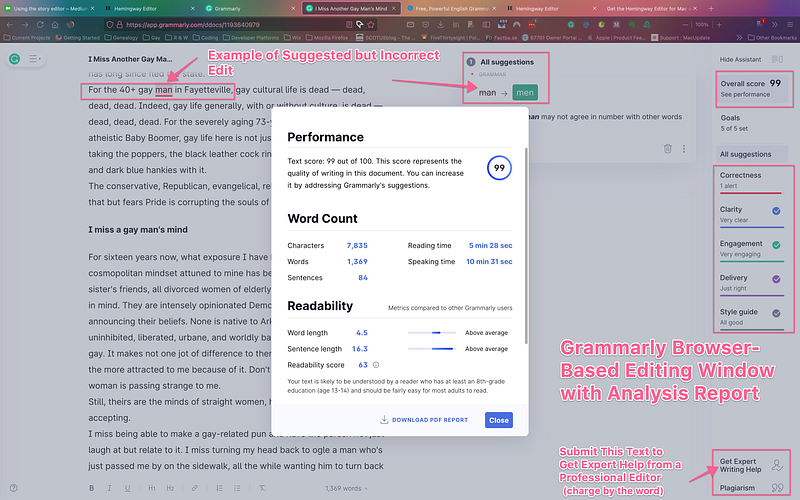
Fig. 1 Author’s Grammarly Premium Home Screen | screenshot | Grammarly
Fig. 2 Author’s Grammarly Editing Window | screenshot | Grammarly

Grammarly displays the text to the left of its editing window. In center-right, it lists the suggested corrections and the applicable rules. Do not implement a proposed edit without independent consideration. Sometimes, you will have a good reason to ignore the rule. Sometimes, the suggestion will be incorrect. Fig. 2, supra.

At any point, you can generate an analysis giving various statistics and an evaluation of the writing. Fig. 2, supra.

A valuable and instructive, if somewhat expensive, this Grammarly feature is editing by a professional editor. This is a paid service charged by the word. Fig. 2, supra. (lower right) ($0.099/word for a 3-day turn around; $136.12 for this 1,349-word document)

2. Scribens

The Scribens UI is markedly different, as is the scheme of identifying errors and displaying suggested edits. Unlike Grammarly, Scribens offers no ability to add unknown words to its dictionary. Its analysis reports are also different.
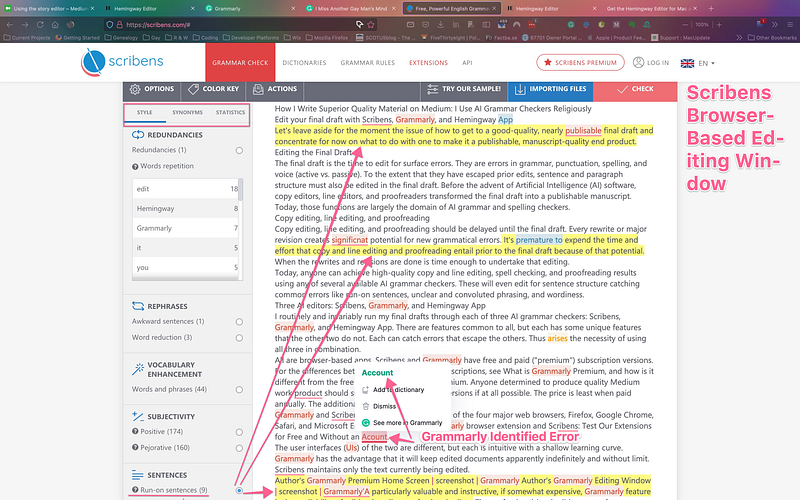
Fig. 3 Scribens Browser-Based Editing Window | screenshot | Scribens

Scribens displays the draft text in the right panel. In the left pane, it identifies the detected errors. There is a radio button for each error type. Selecting a button highlights the respective errors in the text. Fig. 3, supra. (instances of run-on sentences)

Note that Grammarly can edit inside Scribens, where it underscores errors just as in its window. Fig. 3, supra.

The various grammatical analyses that Scribens generates are selected at the upper left. Fig. 3, supra. (lexical errors (“style”) report shown in the left panel)

Using Grammarly and Scribens with Medium

Install the Grammarly and Scribens browser extensions. Log on to your account in each. Open a new tab and navigate to Grammarly’s site. Do the same for Scribens. You should be logged in. If not, log on to your account in that tab. Leave these two tabs open.

With the browser extension installed, the app monitors what you type. It will note errors as it detects them and display its suggested correction if you place the cursor over one. At that point, you can elect to let the app correct or not.

However, neither Grammarly nor Scribens works inside Medium. The only way to use either with Medium is to copy the Medium source text to the app’s editing window and run the app. For each suggested edit you decide to implement, switch to the Medium article’s window and manually edit. Switching back and forth and manually entering corrections is tedious.

However, it is worth the effort. The final product will be a composition free of grammar, punctuation, and spelling errors. It will have an improved sentence structure and vocabulary.

Exercise judgment when making suggested edits. They are suggestions, not mandates. If you have a reason to refuse a suggestion, you might prefer to let the text stand.

The Grammarly and Scribens apps produce analysis reports containing helpful information. Each has some information the other does not. These reports lend insight into your writing habits that will help you better understand your work. They will improve your future performance. Use both to get the best possible, complete feedback.

Using Hemingway App with Medium

When you finish with Grammarly and Scribens, run the finalized text through Hemingway App.
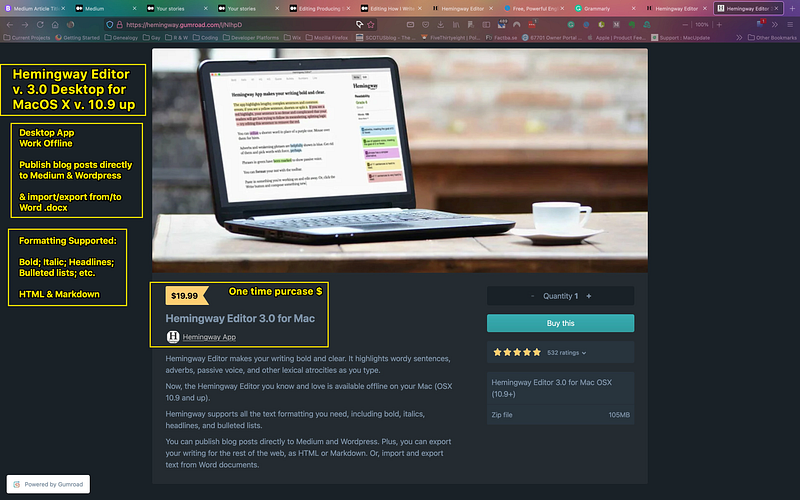
Fig. 4 Hemingway Editor v. 3.0 Home Screen | screenshot | Hemingway App

Hemingway App is available as both a browser-based and an offline desktop app for Mac OS 10.9+ and Windows 7+. Fig. 4, supra.

As its name implies, it is oriented toward Ernest Hemingway’s writing style. However, it will identify and note all lexical atrocities. Fig. 5, infra.

Both Grammarly and Scribens work inside Hemingway App’s browser window, but, of course, not in the desktop app, which works offline.
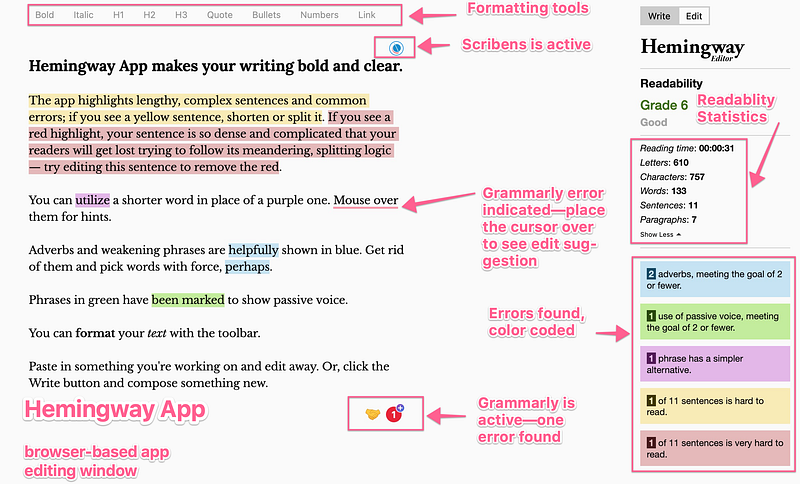
Fig, 5 Hemingway App Browser Editing Window with Errors Identified | screenshot | Hemingway App

Get the most out of all three

All three AI editors detect many of the same errors, but each will catch some that the others will miss. They produce various analysis reports of the checked text. Each has certain information not duplicated in the others.

To get the complete editing and reporting benefits,

  1. edit it in all three browser-based editors, Grammarly, Scribens, Hemingway App, in that order;
  2. edit in Grammarly; switch back and forth between the Grammarly and Medium windows, making such edits in the Medium window as you determine to accept;
  3. feed that edited text to Scribens and repeat the process; and
  4. feed that text to Hemingway App and repeat the process.

I suggest not using Hemingway App for an article such as this. It’s best suited to works like the short personal memories I wrote in Memories of Our Fathers and Be Open (More About Me) — The Death of Enmity or the book-length story A Tale of Two Souls.

If you want Hemingway for offline work, purchase the desktop version for a one-time fee. You can compose directly in it and submit from it directly to Medium and WordPress. Further, you can import/export documents from/to Microsoft Word from within it.

When you finish editing in this manner, you will have a manuscript-quality final draft you can submit to your chosen publication with confidence and pride.

More From
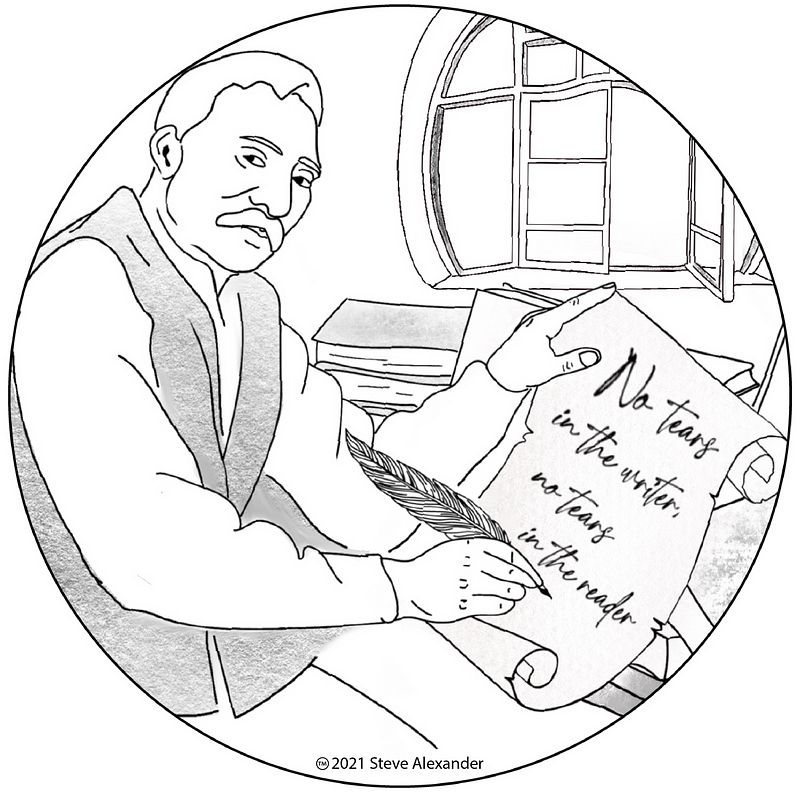
The Wordsmith™🏳️‍🌈🇺🇸 | Existentialist Extraordinaire | quote on the scroll from Robert Frost | author’s registered trademark

Producing Superior Medium Content

Perfection in Writing Is The Goal

Writing
Grammar
Writing Tips
Grammar Checker
Editing
Recommended from ReadMedium