
How To Create A Medium Publication Part One
Questions and Answers about creating or starting a Medium Publication or How to start a Medium Publication
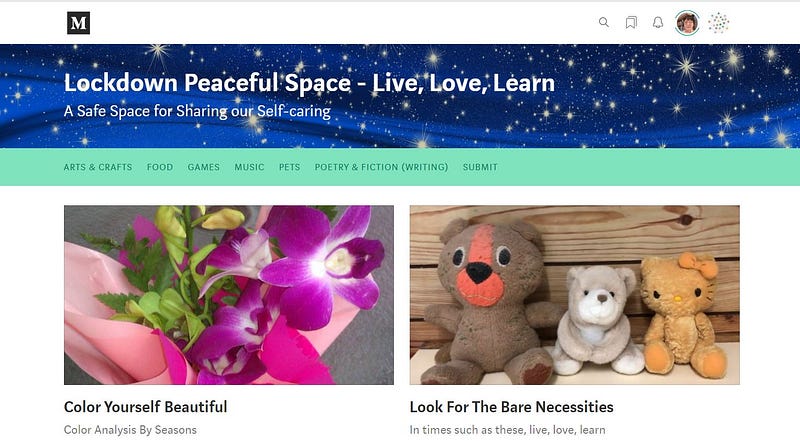
What is a Medium Publication?
It is a collection of related web-pages or web content on Medium that has a specific theme or type of content.
For example: Lockdown Peaceful Space — Live, Love, Learn is for those who have had enough of reading and hearing about “you-know-what” in 2020, and who want to read and write about nice positive things that we are doing.
Medium runs its own Publications, some of which you can apply to join as writers.
The current list of Medium-run Publications can be found at: https://help.medium.com/hc/en-us/articles/360025123674-Submit-stories-to-Medium-s-Editorial-Group
UPDATE JAN 2023:
The above page has been removed from the Medium website, for who knows what reason.
Medium runs quite a number of anthologies, columns, guides, and collections. However, these are retained as legacy records and are not active.
https://medium.com/collections
You cannot “pitch” or contact Medium to ask if they would be interested in publishing one of your “stories” in any of these, as the company has writers lined up for their own Publications, and/or the Editors of these find writers who they want articles from.
However, Medium may occasionally call for submissions for one of these in the “Medium Partner Program” newsletter.
A writer/reader on Medium can start her/his own “privately run” Publication on Medium. The Publication can be restricted wholly to content from the publication creator, or other writers can be sourced and/or added as writers.
There are thousands of privately-run Medium Publications, and you can search keywords to find one of your liking, to read, and/or you can look at the top 100, on Smedian. Click on the link below to go to Smedian.
IMPORTANT UPDATE @ JAN 2023
SMEDIAN HAS CLOSED & IS NOW NO LONGER AVAILABLE !!
Read this article here.
Click on “Top 100 Publications” in the left side-bar of the Smedian home page to view the 100 most followed privately-run Medium Publications.
The Search bar to enter keywords is at the top of the Smedian home page.
Why Would You Have a Medium Publication?
If you want to feature your own Medium “stories” in one collection, and/or publish stories related to your particular interests; and you have got the time and the inclination and discipline, then running your own Medium Publication may be for you.
First it may help to do a search on Medium itself and on Smedian to see if a Publication related to your interests already exists. It can be a good idea to see what your “competition” may be, and to decide if you can angle your own Publication to make it different to existing Medium Publications.
For example: My first Medium Publication, “Thirty Over Fifty” is designed for writers aged fifty and over. My second Medium Publication, “Curation Matters” is designed to list curated stories of individuals, to follow and to learn from.
With your own Medium Publication, you can publish stories whenever you like, and write regular Newsletters, and these may help draw more views and reads of your Medium stories.
What Should You Call Your Medium Publication?
You are not allowed to use the word “Medium” in the Title of your own Medium Publication (because the word “Medium” in context of content titles on Medium is the property of the Medium company and your publication must not infer that it is run by Medium).
If in doubt, email [email protected] which is what I did before opening “Curation Matters”. If you check out the “Submission Guidelines” of Curation Matters, you will see a Disclaimer — noting that the Publication is not endorsed by Medium.
You should select a Title that fits the purpose of your Publication, for example, “Thirty over Fifty” refers to an estimate that 30% of the registered Medium users are aged fifty years or over. The “About” page of Thirty over Fifty explains why the title was chosen.
Choose your Publication Title wisely, because if you want to change the title later, the web-address (URL) will NOT change…unless you badly want to change it in which case you will have to email Medium and ask them to change it, which could take..quite a while!
How Do You Set Up your Own Medium Publication?
.
Be aware that once you get the ball rolling, you CANNOT save your Publication as a DRAFT. As soon as you click CREATE your Publication will be public.
You will get to the stage where you click on the Create button and then your Publication will be “live”. However, you can close the window rather than click on the Create button if you want to abandon setting up a Publication.
There is NO directory or listing of newly created Publications provided by Medium for potential readers, so you will need to promote your own Medium Publication, and one way to do that is to advertise/promote it on Smedian.
A new publication has to be added to Smedian by the creator, if she/he wants to advertise the Publication in Smedian. New Medium Publications do NOT automatically appear in Smedian.
Important Update: January 2023
Medium now has a dynamic “Staff Picks” List of privately run Publications on Medium. Perhaps look at the list below before deciding if you want to put in the time and effort to run your own Publication. You may find that Publications on your topics or interests already exist and are already contributed to by writers.
If you change your mind about having a Publication, don’t worry because there’s a Delete button you can use. You can read about how to delete your Publication in Part two of this series.
UPDATE: February 2023
Medium constantly changes things. The homepage keeps changing. As at Feb 2023 you have to click on your Avatar at top right of the homepage, then on “See All Publications” or on “Manage Publications” then on “New Publication” to create your own Publication!
To create your own Publication, click on your Avatar (the round picture in the top right-corner) then on Publications in the drop-down list (at the time of writing this it’s under Reading List). ← — — obsolete now
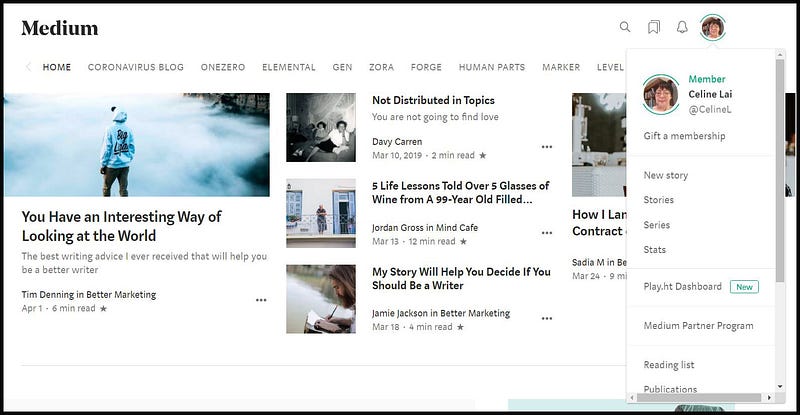
Click on “New Publication” shown below.
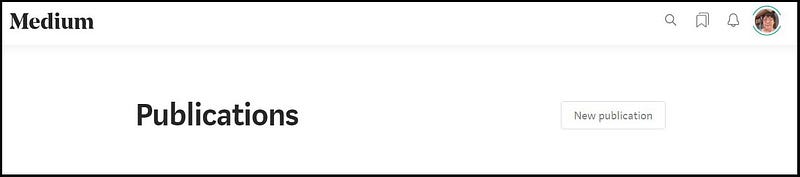
UPDATE: February 2022
Now that Medium has changed the layout/design of the home-page, you need to click on your Avatar at the top right corner, then on “Manage Publications” then you will see a button for a “New Publication.”
You will see a blank data entry form, though note that the one below is an example of setting up a Publication. So it shows the information/data that has been typed in by me.
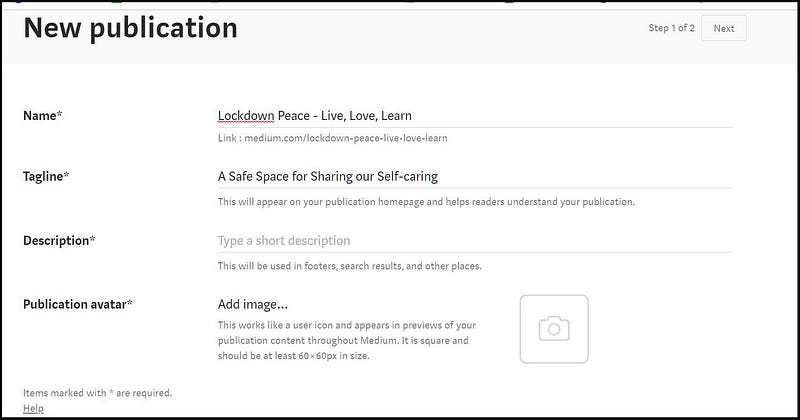
Below is the short description that I typed in for my new Publication.
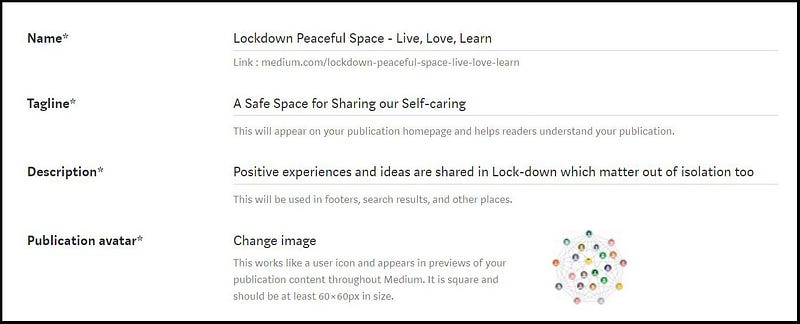
This Description appears in the About [name of Publication] page. Example shown below.
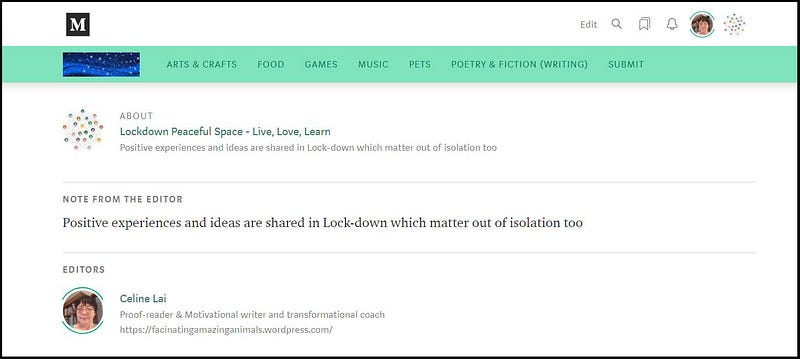
Note: Look at the footer at the bottom of any Publication home page and you will see “About….” followed by the name of the publication. Click on it, e.g. in this example, if you click on “About Lockdown Peaceful Space — Live, Love, Learn” at the bottom of the page here, you will go to the “about” page.
This will take you to the “About” page with the publication description under “Note from the editor” and the names of the Editor(s) and of any Writers.

What Is a Publication Avatar?
An “Avatar” is a graphical representation chosen by a user for an online platform, and in the case of your own Medium Publication, you can choose an appropriate Publication Avatar, to create a unique tiny image for your About page and which will appear next to your personal Avatar (or Profile picture) at the top right of your Medium homepage.
On the left of “About” in screenshot 6 above, you will see a tiny version of what looks like an “atom” (but is really a network of nice friendly people in a circle-shaped web).
You will see your Publication Avatar at the top right next to your personal Avatar, at the top right of the home page of your Publication. This is the avatar that you click on in order to manage your Medium Publication.
This is handy because a glance at the Publication Avatar alerts you to which Publication that you are working with, if you run several Medium Publications. You can see the Avatar for “Lockdown Peaceful Space” next to my personal Avatar at top-right in screenshot 6.
You may have a small icon/picture in mind, or want to use the picture which you use to represent yourself as your personal Avatar (which is quite okay) OR be able to find a suitable Publication Avatar yourself.
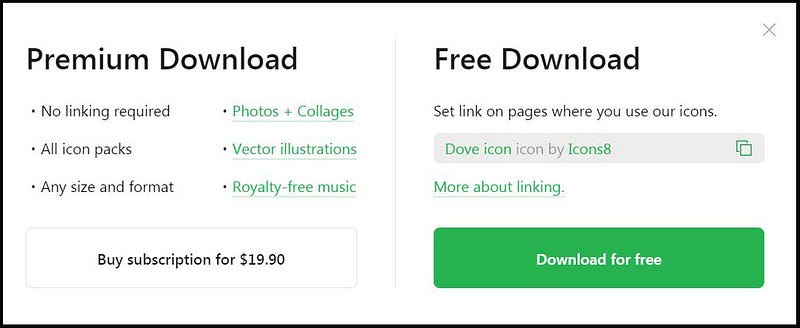
One source of suitably sized Avatars is below, but you have to give credit to icons8 in your Publication description.
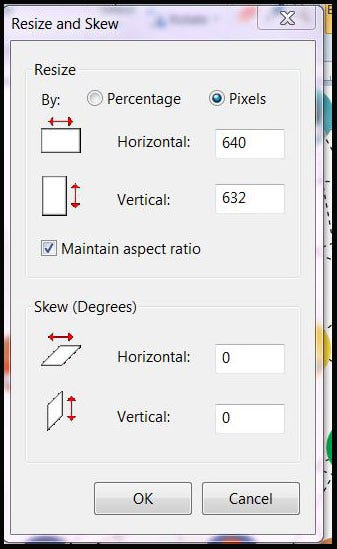
You can customize the size of your downloaded icon to 60 square pixels (click on customize then type in 60), which is the size recommended for your Medium Publication Avatar.
https://icons8.com/icons/pack/animals ← click on a category on the left to see icons other than those related to animals.
Note, that before you Download from icons8 you have to copy the text under “Set link on pages where you use our icons” to paste it into your Publication description or somewhere in your Publication.
You can create your own 60 x 60 pixel Avatar using Canva or other software, if you want to!
I turned to Pixabay for an avatar by typing “avatar” into the search field.
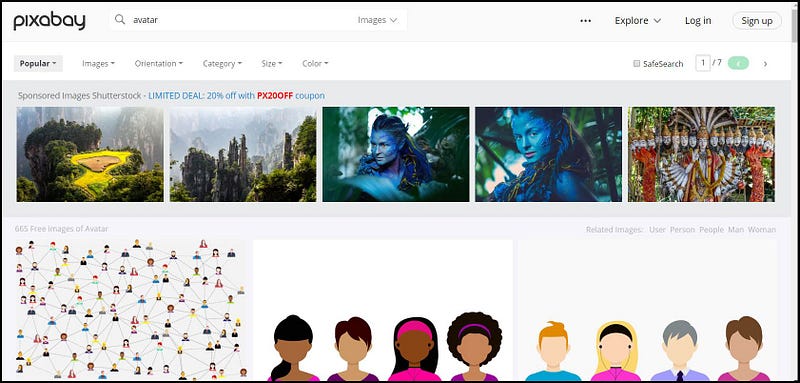
If you’re not signed up with Pixabay, to download an image from Pixabay you will need to tick a box asking you to confirm that you are not a Robot.
Choose an appropriate folder on your computer (e.g. Medium / Images) to save the image to.
If you click on the link below & scroll down, you may see the image I am using for my Lockdown publication. It’s called “Connections.”
Hovering your mouse over a picture on Pixabay brings up some details.
https://pixabay.com/images/search/avatar/
You should choose a small compressed image that will look okay when made smaller, and use Paint or IrfanView or another programme to re-size the image!
Here’s the image I chose, original size 640 pixels by 632. Keep in mind the image will lose a lot of detail when shrunk.
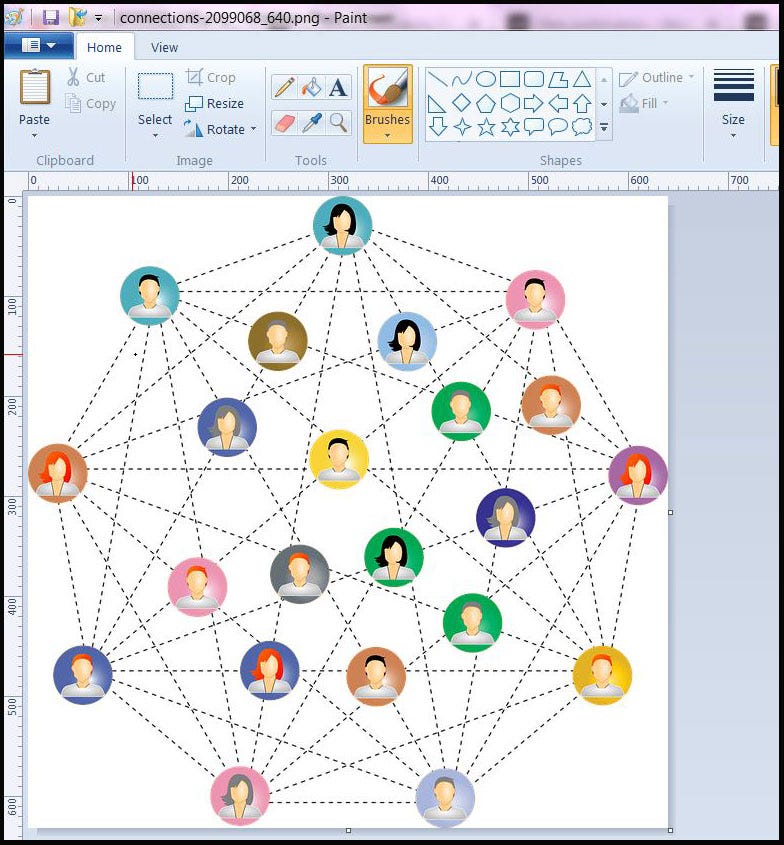
Click on Resize (using the free Paint programme), change the 640 and 632 pixels to 60 then click OK.
To upload the Publication Avatar, click on “Change image” (see screenshot 5 above), find and highlight your image saved on your computer and click on Open.
If you change your mind, just click Cancel at the top, but if you’re happy with the result, click the OK button at the bottom. Part 2 will cover what the Publication logo is for. 😃
Why Add Social and Tags to Your Publication?
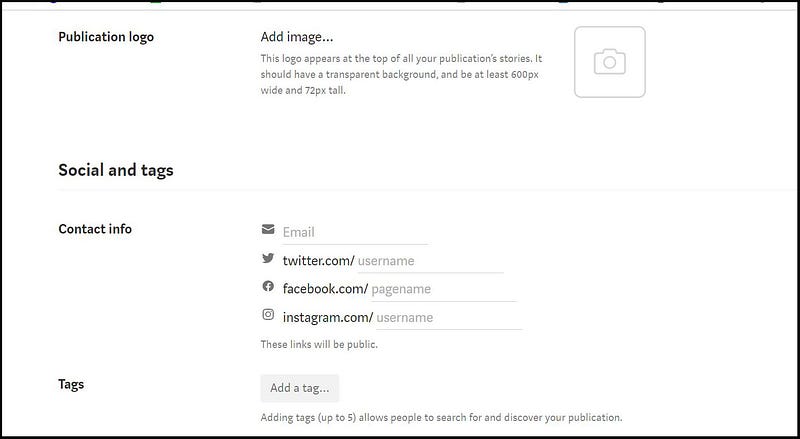
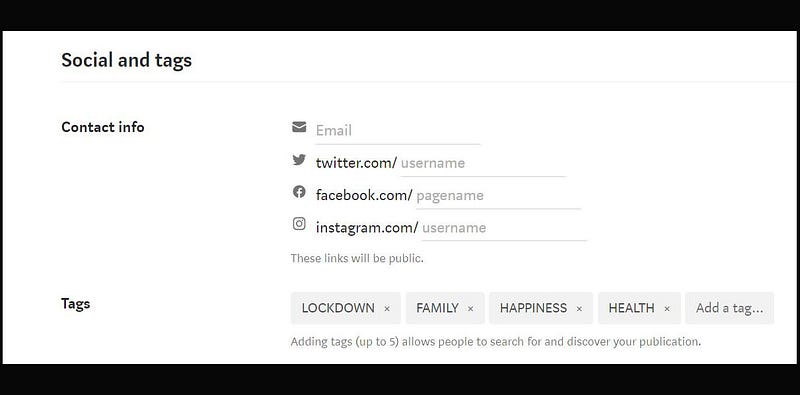
If you would like to provide an email address for readers and writers to contact you on, and/or a Twitter or Facebook or Instagram page that is relevant by being associated with your Publication, the Contact info area is where to add them.
Go to one of my favourite Publications, “Live your Life on Purpose” and you will see icons for Twitter & Facebook at the top right, which can be clicked on. If you provide a direct email for readers and writers to contact you on, an icon for it will appear at the top-right of your Publication home page.
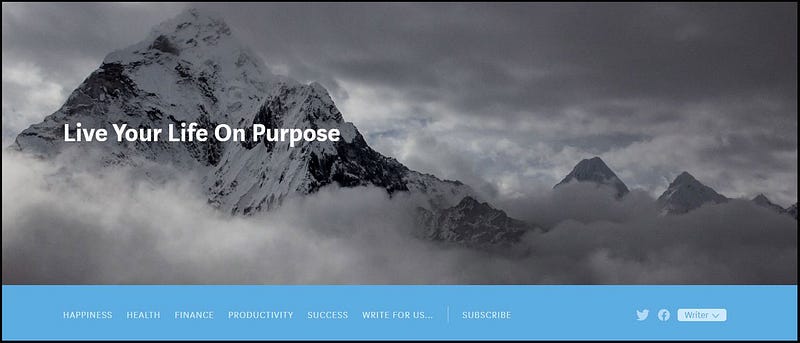
Click on Live Your Life On Purpose to go to the Publication and see the Social Media icons, in this case, at this point of time, for Twitter and Facebook.
Tags are important just as they are for your individual Medium stories. Entering 5 tags means that when someone is doing a search via Tags and Publications, they may more easily come across your Publication.
At the time of writing this, if you type Lockdown into the search field at the top right of your Medium home screen, where the Magnifying glass is (see first screenshot in this article), AND click on Publications, my Publication “Lockdown Peaceful Space -Live, Love, Learn” appears 5th in the list.
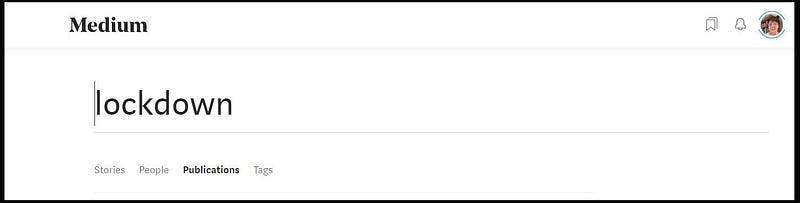
My research has shown that the more Followers that a Publication has, the higher up the Publications results list that it will appear.
Try to use at least one very unique Tag that aptly describes your Publication which you feel that readers will search upon!
How to Add Editors & Writers, and What’s the Difference?
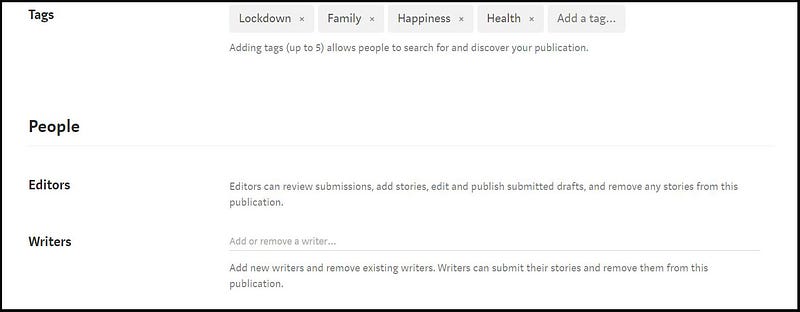
If you are creating your own Medium Publication, then you are an Editor. 😃
You are the Founder of your Publication, and as an Editor and a Publisher you publish and schedule your own stories.
If you choose to allow others to submit stories to your Publication, then you are responsible for editing or reviewing and assessing submitted stories, as an Editor.
You can ask people you know who are on Medium if they would like to be an Editor for your Publication, if you want to. You should tell them your expectations, e.g. you could review and either accept or reject submitted stories 4 days a week and they could 3 days per week.
People who help you edit your Publication are your Co-editors.
It would be a good idea to set up a private Facebook group or a group on Slack or other means for all the Editors to communicate.
Some Publication founders invite Medium users to be complimentary Editors, which means they can approve and publish their own stories.
The advantage of this is that you don’t have to review and decide whether to publish their stories or not, but you do have to trust them to publish suitable stories to your Publication.
Note that if you are a complimentary Editor for a Medium Publication you will receive notifications of all the story submissions. Editors always receive these kinds of notifications, so you can’t turn them off. If there are many submissions, you will see tons of Notifications in-house (via Medium by clicking on the “bell” icon next to your personal avatar).
If you are a complimentary editor or the founder of a Medium publication with complimentary editors, ignore these notifications. You don’t have to action them because complimentary editors will publish or schedule their own stories.
These notifications can be either annoying or interesting, depending upon whether you want fewer Notifications or if you are curious about what others are publishing. An editor can always have her/his role changed to writer.
If you have a mix of Complimentary Editors and Writers, you need to make it clear if just you as the Founder reviews and assesses drafts submitted by writers, or if a “complimentary editor” is expected to share the reading and processing of Medium stories submitted by just Writers!
Usually when someone establishes a Publication on Medium, they want to have stories published by several writers, but there are some Publications which are more like personal blogs where only the Founder publishes to it.
Whether you are the creator or a co-editor or a complimentary editor or a writer for a Medium Publication, the entity reference for your Medium Profile URL (web address) that uniquely identifies you will be used in the Editor’s or Writer’s area, as shown below for an Editor.
Screenshot 2 under “How Do You Set Up Your Own Medium Publication” shows the entity reference part of the URL for me, which is CelineL .
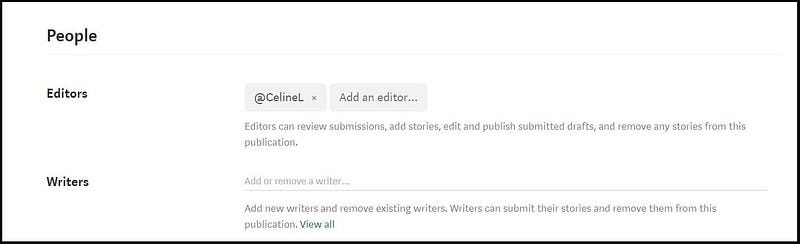
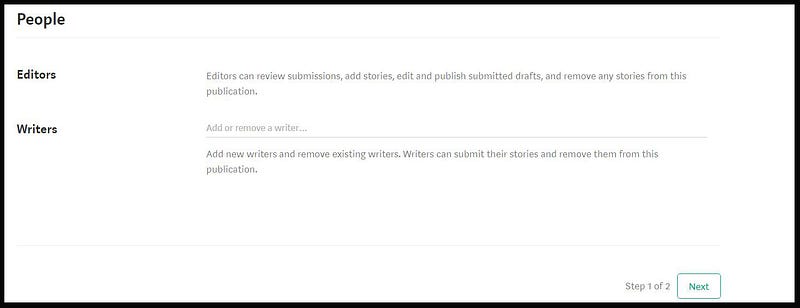
If you want to add Medium users as editors or writers of your Publication (with their permission) you can add them now, and then go to the next screen and click Save to save your new Publication; or you can create your Publication and add editors and/ or writers later.
Add writers (or editors) by finding or asking for their Username i.e. for their unique Medium profile reference (also called their entity reference which is the part after the ampersand in their Medium Profile URL).
Go to the person’s Medium Profile page and you will see a part of the web-address or URL for their Profile page after the ampersand, i.e. after the @ and after the medium dot com. Their Display Name will show also, as shown below for Ev Williams, founder of Medium.
For example, Ev Williams’ Username or character entity reference is shown below. It is ev .
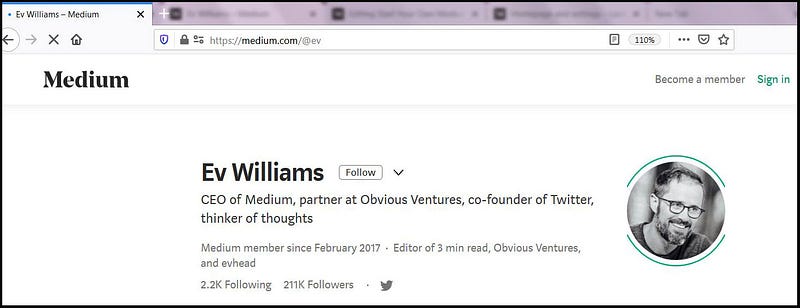
Ensure you know both the Display Name and the Username (or entity reference) of the person that you want to add as a Writer (or Editor).
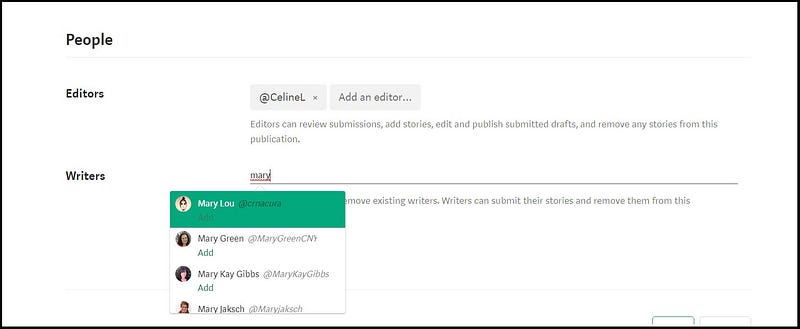
Start typing in the display name that you want to add.
As you start typing in letters, for example below…mary ….suggested names will pop up. You need to click on the correct name.
Note, that it could be important to know the part after the @ to make sure you add the right person, for example if there are two people on Medium with exactly the same first name and surname!
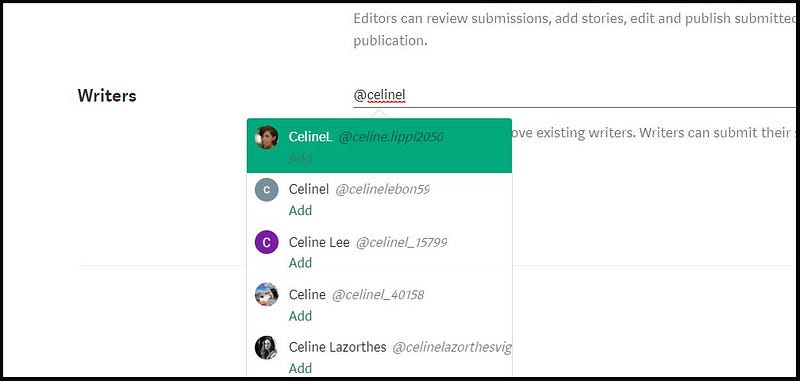
If a writer gives you their Username or unique part of their Medium profile, you can type @ followed by the Username into the data entry field next to Writers (or Editors), to add the person.
Make sure that you look at the person’s display name as well as the part after the ampersand to choose the correct person.
For example my display name is Celine Lai but there is somebody on Medium at the time of writing this, whose display name is CelineL.
It is easy to confuse two people if you’re not careful, e.g. I ask to be added as a writer and tell you that my username is CelineL and you wrongly add the Celine at the top of the list in the screenshot below instead of me, because you only look at the Display Name and ignore what comes after the ampersand @ (which is the username/entity reference)!
Look at the display name in the drop-down list (being Celine Lai for me) and at the Avatar to make sure they match what you see on the person’s Medium Profile page.
DO NOT CONFUSE DISPLAY NAMES WITH USERNAMES
Once you have added a Writer (or an Editor) by selecting the correct name and clicking on Add, click Next in the bottom right.
If you have typed in a name into the Writers area, the name of the person will disappear from the “Writers” area, but don’t worry.
You can see all the names of your Editors and Writers by clicking on the words “View All” after “Add new writers and remove existing writers……” which will take you to your Publication’s “About” page.
If you wish to remove a Writer, just type her/his name into the data entry field next to Writers. The name will pop-up with text “Remove”. Click on “Remove” to remove the person as a writer for your Publication.
If you want to remove an Editor, just click on the X on their name label. See screenshot 15.
If you have no Editors or Writers to add at this point of time, just click on Next at the bottom right to advance to the 2nd step or screen.
You can always add Editors or Writers later by clicking on your Publication Avatar then on “Homepage and settings” and adding them on the Info page.
After adding your Publication Title, Description and Publication Logo, and Writers/Editors optionally, click on the green Next at the bottom right, to go to Step 2 on the next screen, to design your Publication’s layout.
Go to Part 2 of this Series (click on the Link below) to read about your Publication Layout and how to add a banner header image and a Publication Logo.
Part 3 covers Navigation (or setting up Pages), and Letters and Stats for your Publication.


