avatarGrace Mary Power

Free AI web copilot to create summaries, insights and extended knowledge, download it at here

11291

Abstract

articles about Medium. This is so they do not clog up the Publication homepage!</p><p id="afce">Click on your Publication Avatar then on <b>Feature pages</b>. Click on the green “<b>New feature page</b>”.</p><figure id="23ab"><img src="https://cdn-images-1.readmedium.com/v2/resize:fit:800/1*RoGhv2e_S2AmjZ2lfcEl8A.jpeg"><figcaption>Screenshot 8</figcaption></figure><p id="2a61">Fill in your Page info just like you did for your main Publication homepage. This screen is a “hybrid” or mix of <b>Info</b> and<b> Layout elements</b> as are set out on separate screens under “Homepage and settings” of your Publication.</p><figure id="c51f"><img src="https://cdn-images-1.readmedium.com/v2/resize:fit:800/1*EO-TDw0dIrheGxB8Wra0sQ.jpeg"><figcaption>Screenshot 9</figcaption></figure><p id="f9f9">You can see the Title (“The Peaceful Page”) for this pretend Feature Page in the example above.</p><p id="95c2">Note that the text that you type into the Link area will form the final part of the web address or URL for the Feature page. This text should therefore be short and to the point for search engines or for people directly typing the URL into their browser address areas.</p><p id="f937"><b><i>Note “Layout” at the bottom left</i></b>. The screenshot 9 is just the top half of the New Feature Page screen. Below the word “Layout” you will see a default section with Featured stories in a Stream layout. <b>See screenshot below.</b></p><figure id="ab99"><img src="https://cdn-images-1.readmedium.com/v2/resize:fit:800/1*iXeGuHkRIClxsO0UuIab9A.jpeg"><figcaption>Screenshot 10 showing bottom half of the “New Feature Page” screen</figcaption></figure><p id="a891">The Feature Page is great for tailoring or customising what content to feature.</p><p id="4f83">You can have several Sections on a Feature page.</p><p id="9930">You can choose specific stories from your Publication as “featured stories” on your Feature page in a “Featured Stories” Section, shown above.</p><p id="aad5">You can choose a Tag to show Stories with a specific tag in a Section, as shown below.</p><p id="db9f">Some Publications use Feature pages solely to feature stories written by a particular writer.</p><figure id="673f"><img src="https://cdn-images-1.readmedium.com/v2/resize:fit:800/1*3gSUPNNj_WJle6HYgXHe7w.jpeg"><figcaption>Screenshot 11 showing that for a Feature Page you can use Stories with one particular tag</figcaption></figure><p id="7fbe">You can change the type of stories used from “Featured stories” to “<b>Stories in a tag</b>” by clicking on the down-ward pointing arrow next to the default “Featured stories.”</p><p id="02f7">You can display stories with a particular tag by typing the tag name into the space where it has “Select tag” and the number of stories you have set to be displayed,<b> using that Tag name</b>, will appear on the Feature page (after pressing the Save button).</p><p id="e8ca">If you go to the <a href="https://medium.com/publishous"><b>Publishous homepage </b></a>you will find Feature Pages with links to stories written by an individual writer. Go to any story on any writer’s Page and scroll down and you will see the writer’s name as one of the Tags!</p><p id="b9c3">Publishous has used “Stories in a tag” for some of their Feature pages, with the tag being a writer’s name.</p><p id="84d7"><b><i>Pro Tips</i></b>:</p><p id="b451">You could have<b> a Feature Page titled “Guest Writers</b>” or similar and set up <b><i>several </i></b>Sections on the one Feature Page, with <i>each section </i>with stories with a specific Tag being one writer’s name.</p><p id="a682">Thus stories of several writers will be shown on<b> one Page,</b> keeping in mind that you<b> </b>can only have 7 pages maximum, INCLUDING<b> </b>Feature Pages!!</p><p id="76fd">You can have <i>more than one </i>Feature page but can only have a total of 7 pages/tabs <b>shown </b>at the top of your Publication, including Feature pages.</p><p id="c3f7">Make sure you customise the number of stories to show in order to ensure that you show all the Stories you want to show, by clicking on the + or — next to the default 10.</p><p id="7687">Also make sure you’re happy with the Layout Design, i.e. do you want this page to have stories in a stream or a grid or a mixed layout?</p><p id="24a3">A really great use of the Feature Pages function, I think, is to use it to prominently show your Submission Guidelines, with or without Newsletters!</p><p id="f336">See the part “What is a Newsletter” below to see how I used a Feature page to show Submission Guidelines AND newsletters on one Page of my Publication “<a href="https://medium.com/thirty-over-fifty">Thirty Over Fifty”</a>.</p><h2 id="8462">How do I Link a Page to an External Website?</h2><p id="007b">.</p><p id="cb31"><b>Screenshot 6</b> shows “Add a tab linking to a different site (e.g. your non-Medium site or a store)” at the bottom. 😃</p><p id="6d5a">Click in the box by the text to tick the box and turn it green, then type in a Tab name and type or copy and paste the web-address (URL) for the link.</p><figure id="8dcf"><img src="https://cdn-images-1.readmedium.com/v2/resize:fit:800/1*xCs8Q-3rNlqpgO1AAhxrew.jpeg"><figcaption>Screenshot 12 Adding a Link to an External page</figcaption></figure><p id="6337">If you go to my Medium Publication “Curation Matters” you will see the last Page (or Tab) is titled Curation Guidelines. When you click on it, it takes you to an official Medium Help page. 😄</p><div id="85e7" class="link-block"> <a href="https://medium.com/curation-matters"> <div> <div> <h2>Curation Matters</h2> <div><h3>Our Curated stories on Medium and Curation Tips. Please read the Submission Guidelines</h3></div> <div><p>medium.com</p></div> </div> <div> <div style="background-image: url(https://miro.readmedium.com/v2/resize:fit:320/1*RHMQgPPWRjuHeeQOokivtw.jpeg)"></div> </div> </div> </a> </div><p id="3561">After you have put in information about your Publication, and set up the homepage elements and layout and the Sections with their story types, and navigation to tabs or pages (if you want tabs), click on <b>Create </b>at the bottom right and your Publication will go “live”. 😃</p><h1 id="605d">What is a Newsletter?</h1><p id="6e2c">The Newsletters function of a Medium Publication is very handy if you want to send out regular Newsletters about your Publication!</p><p id="b764">A letter is actually a regular Story that you write and then can email out to all your Publication followers. 😃</p><p id="f34a"><b><i>For some examples</i></b>, go to the page below showing Letters (newsletters) to date, for my other Publication, “<b>Thirty Over Fifty</b>”.</p><p id="c3ce">The Submission Guidelines for the Publication is at the top with Newsletters underneath.</p><p id="295b"><a href="https://medium.com/thirty-over-fifty/medium-com-thirty-over-fifty-submit-home/home">https://medium.com/thirty-over-fifty/medium-com-thirty-over-fifty-submit-home/home</a></p><p id="5ff6">To write a Newsletter, click on your Publication Avatar then click on Newsletter.</p><p id="cb6d">In July 2020 Medium changed its Letters / Newsletter function for Medium Publications, so now when you first click on “Newsletter” in the drop-down menu for your Publication’s editing functions, you will see a page appear where you can type in your Newsletter Title and description.</p><p id="2c28">If you tick the box next to “<b>Promote your newsletter on your Publication’s stories”</b> this will place the box at the bottom of the Stories in your Publication, asking if readers would like to sign up with email to receive your Newsletters!</p><p id="e314">Click on <b>Create</b> then you will see a screen with a green button “Write a newsletter”. Click on this “button” and you will see a screen similar to below, but with your Publication Title before “letters”.</p><figure id="e9de"><img src="https://cdn-images-1.readmedium.com/v2/resize:fit:800/1*7AhacgVN1mlx3H_cxjideQ.jpeg"><figcaption>Screenshot 13 — Letter screen</figcaption></figure><p id="676f">You can then type in the subject title of your Letter and the body of your email. Once you start doing this, you will see “Add a tag” at the bottom, which you click on and type in a Tag such as “Newsletter”.</p><p id="48b4">Clicking on<b> Email preview</b> will send a draft of your Letter to yourself (as long as you have receiving emails turned on under your settings on your Medium profile).</p><figure id="1418"><img src="https://cdn-images-1.readmedium.com/v2/resize:fit:800/1*1lPc1LnseXQicz5DFSgBow.jpeg"><figcaption>Screenshot 14</figcaption></figure><p id="825c">You can click on <b>Send</b> to email the Letter to the followers of your Publication. <b><i>Note</i></b>: the email will have the full content of your letter and unless the email readers go to your Story in Medium, “member reading time” won’t be clocked-up for that Letter story by those who open the email.</p><p id="3495">You can <b>SAVE</b> your Letter as a <b>DRAFT</b> by clicking on Close then clicking on “Save for Later.” You can delete your draft letter by clicking on Close then on “Delete.”</p><h2 id="7237">How to create a Feature Page with Submission Guidelines and Letters</h2><p id="e6b8">.</p><p id="9788"><b>You can set up a new Feature Page</b> (see instructions above) with one specific Featured story at the top, in this example, being “Submission Guidelines” (after, of course, you have carefully created/written your guidelines in a Story that you have added/published to your Publication).</p><p id="81bb">See the page titled “Submit and Newsletters” at the top of my Publication “<a href="https://medium.com/thirty-over-fifty">Thirty over Fifty</a>” for an example.</p><h2 id="4a98">IF you also want Newsletters to be shown on this page of your Publication, add a Section and set it up to use stories in a tag.</h2><h2 id="5905">Select the tag “Newsletter” for the stories in this Section.</h2><h2 id="d948">Whenever you write a Letter, make sure that you use the tag “Newsletter”.</h2><p id="2a7e">For my “<b>Submit and Newsletters</b>” feature page, I created a Feature page and typed “Submit and Newsletter” into the<b> Feature page Title.</b></p><figure id="0186"><img src="https://cdn-images-1.readmedium.com/v2/resize:fit:800/1*SA3C0upsqw7tGgU12fi7ow.jpeg"><figcaption>Screenshot 15 — the Feature Page info for the “Submit and Newsletters” Feature Page of “Thirty Over Fifty”</figcaption></figure><p id="20b2">The 2 screenshots below show the rest of my <b>Feature Page</b> (titled “Submit and Newsletters”) in 2 sequential snapshots. The info and the layout elements are all on one page or screen when creating a Feature page.</p><figure id="d469"><img src="https://cdn-images-1.readmedium.com/v2/resize:fit:800/1*KgtWGgm5DE_BDHjOsLydDQ.jpeg"><figcaption>Screenshot 16 showing a Featured story for the first story on the “Submit and Newsletter” Feature Page of “Thirty Over Fifty”</figcaption></figure><figure id="de21"><img src="https://cdn-images-1.readmedium.com/v2/resize:fit:800/1*9ztUXOrA9XTLKvq2O801hA.jpeg"><figcaption>Screenshot 17 — showing the second Section on the Feature Pag

Options

e “Submit and Newsletter” with stories tagged NEWSLETTER</figcaption></figure><p id="cae4">Don’t get confused with Feature Pages and Featured Stories. Above is the layout of a Feature Page for my Publication “<a href="https://medium.com/thirty-over-fifty"><b>Thirty Over Fifty</b></a>.”</p><p id="db2b">It has 2 sections (which I have shown in 2 snapshots because I couldn’t get the whole page in one image). The first section displays a featured story (the Submission Guidelines) and the second section displays stories with the tag “Newsletter”.</p><p id="4c1e">After creating your Feature page <b>go to Navigation </b>under your Publication avatar. First, write out or think about the order of your 7 pages across the top of your Publication and create Pages that go before your Feature page, if necessary. At the end of the list of created Tab names, you can generate a line for another Tab / Page.</p><p id="e248">Type in an appropriate <b>Tab name,</b> such as “Submit and Newsletters” or “Submission Guidelines and Letters” for your Feature page after setting up its placement among the order of Tabs/Pages across your homepage; and select “<b>Feature page</b>” from the Tab type.</p><p id="3b9f"><b>See screenshot below</b>.</p><p id="befb">Click in the <b>Contents</b> field and type in or select the Title for your Feature page (e.g. I selected “Submit and Newsletter” but if you have more than one Feature page, select the Feature Page title that you want).</p><p id="3c12">Don’t get confused as the Tab name is the name that you want for your Page name, and the Contents refers to the NAME of the Feature Page that you created!</p><figure id="ef9d"><img src="https://cdn-images-1.readmedium.com/v2/resize:fit:800/1*eoKyhwNlSxvHY5GB0dU5OQ.jpeg"><figcaption>Screenshot 18 showing the Tab names and Tab types and 6 different tags for the 7 Pages of <a href="https://medium.com/thirty-over-fifty">Thirty Over Fifty</a></figcaption></figure><p id="0523">After you have created and sent your Letter, if you go to the Letter screen, you will see results similar to below.</p><figure id="a8c7"><img src="https://cdn-images-1.readmedium.com/v2/resize:fit:800/1*fVue7VaDIiZ-QwB-ci_wrg.jpeg"><figcaption>Screenshot 19 showing Letters for my Publication “Thirty Over Fifty”</figcaption></figure><p id="fb53">This is great because it shows you how many emails were sent and how many emails were clicked on and read, plus how many readers navigated to the Letter on Medium (clicked on a link in the email).</p><p id="0bba" type="7">Note: the Subject of the email will be the name of your Medium Publication.</p><p id="fdd5" type="7">It’s a good idea when starting out with letters to send yourself a draft Letter so that you can see how it looks to a Follower and make any changes you deem necessary.</p><p id="54e8" type="7">Also, be aware that a Follower can un-tick “Receive emails from this Publication” for any Publication that she is following (via her list of Publications if she is a writer for the publication and clicking on the arrow next to the Publication title, OR for Publications that she is not a writer for, by clicking next to “Following” at the top of the Publication homepage).</p><h1 id="07e4">What Stats are Available for a Medium Publication?</h1><p id="2dc9">If you click on <b>Stats</b> under your Publication Avatar you will see a screen similar to the one below.</p><p id="6888">The <b>Overview</b> tab or page shows Reading Time, Number of Views and Number of Visitors for the last 30 days or 90 days.</p><figure id="893d"><img src="https://cdn-images-1.readmedium.com/v2/resize:fit:800/1*KPFfMd2r0MQl8ZsgPWh54g.jpeg"><figcaption>Screenshot 20 the top part of the Stats page for my Publication “Lockdown Peaceful Space”</figcaption></figure><p id="da0e">Clicking on <b>Stories</b> will show Views, Reads, Read ratio, and Fans for ALL stories in your Publication (so will include stats for stories in your Publication which have been written by other writers).</p><figure id="b4a2"><img src="https://cdn-images-1.readmedium.com/v2/resize:fit:800/1*fQlTuWrSv7Tt2BVVdESysg.jpeg"><figcaption>Screenshot 21 showing Stats for some Stories in my Publication</figcaption></figure><h1 id="a66b">How Do I Promote My Publication?</h1><p id="2bee">.</p><p id="3c3d">This is an excellent question!</p><p id="69d4">If you’re comfortable with trying out Smedian, you could sign up there using an email or a Google account.</p><p id="18d4">Once you add your Medium profile to <a href="http://smedian.com"><b>Smedian</b></a>, you should be able to click “<b>Advertise my Publication</b>” at the top, or on “Advertise mine” where you see the latter link, currently under “Request to contribute” (to Publications).</p><p id="5e6d">I have to say honestly that I find it difficult to work with Smedian and can’t even find any Help pages on how to work with it, but somehow I managed to advertise my Publication on it.</p><figure id="9f32"><img src="https://cdn-images-1.readmedium.com/v2/resize:fit:800/1*uMohkqKY9Rl6qFeuc8buJw.jpeg"><figcaption>Screenshot 22 showing one of the Medium Publications I have registered with Smedian</figcaption></figure><p id="0be2">Let me say this, the hundreds of Medium Publications listed on the Smedian homepage, which writers can contribute to, appear in alphabetical order of Publication title.</p><p id="60af">A reader looking for a Publication can use the Search box at the top of the Smedian homepage.</p><p id="fc2b">As at the time of writing this article, I did a search upon “Lockdown” and the following appeared.</p><figure id="c448"><img src="https://cdn-images-1.readmedium.com/v2/resize:fit:800/1*W7qPdO5fOpm5Nep_sQ0HOg.jpeg"><figcaption>Screenshot 23 showing my Medium Publication in Smedian</figcaption></figure><p id="b179">You can see that the <b>Description</b> for your Publication is important because it is what will appear in Smedian if you use Smedian.</p><p id="e5f9">If you have any Requests from Medium users to join your Publication as a writer, you will see <b>xyz Request </b>as shown above where my Publication has 1 request.</p><p id="3832">Click on that link and from there check out the user on Medium and approve or don’t approve her application. Copy her Username to paste into the Writers area of your Publication.</p><p id="04e5">It could be a good idea to use the “Chat” function of Smedian to dialogue with your new writer also, e..g to ask them to read and follow the Guidelines for your Publication.</p><p id="8587">Other ways to promote your Publication are to share it on social media, and to share your own Stories in your Publication(s) in Facebook groups such as the ones below.</p><div id="cb99" class="link-block"> <a href="https://www.facebook.com/groups/mediummastery/"> <div> <div> <h2>Medium Mastery</h2> <div><h3>Medium Mastery is about helping each other use Medium.com to the fullest. To the best of our ability we will answer…</h3></div> <div><p>www.facebook.com</p></div> </div> <div> <div style="background-image: url(https://miro.readmedium.com/v2/resize:fit:320/0*LTK566K0IuZ-mz0T)"></div> </div> </div> </a> </div><div id="dbcd" class="link-block"> <a href="https://www.facebook.com/groups/GrowYourBlogMovement/"> <div> <div> <h2>Grow Your Blog Movement</h2> <div><h3>Grow Your Blog Movement is a place for you to connect with other like minded bloggers (or aspiring bloggers) about how…</h3></div> <div><p>www.facebook.com</p></div> </div> <div> <div style="background-image: url(https://miro.readmedium.com/v2/resize:fit:320/0*yV3PLSCk_nQ9v9aX)"></div> </div> </div> </a> </div><div id="5f86" class="link-block"> <a href="https://www.facebook.com/groups/tribebuildersnetwork/"> <div> <div> <h2>The Tribe Builder's Network</h2> <div><h3>Are you a writer who wants to build your influence? Do you want to: - sell more of your books, products, and services…</h3></div> <div><p>www.facebook.com</p></div> </div> <div> <div style="background-image: url(https://miro.readmedium.com/v2/resize:fit:320/0*EFWYOXmiUh2_sk-V)"></div> </div> </div> </a> </div><div id="9162" class="link-block"> <a href="https://www.facebook.com/groups/mediumwriterslounge/"> <div> <div> <h2>Medium Writers Lounge</h2> <div><h3>This is a where Medium writers come together to mingle and support each other. We will answer questions, provide…</h3></div> <div><p>www.facebook.com</p></div> </div> <div> <div style="background-image: url(https://miro.readmedium.com/v2/resize:fit:320/0*sa4t8Uk3K66IqdCB)"></div> </div> </div> </a> </div><p id="4ee3">And last but not least is a Facebook group that I started, ONLY for writers located in the Eastern Time Zones!</p><div id="da8d" class="link-block"> <a href="https://www.facebook.com/groups/309173796429826/"> <div> <div> <h2>Facebook</h2> <div><h3>Log into Facebook to start sharing and connecting with your friends, family, and people you know.</h3></div> <div><p>www.facebook.com</p></div> </div> <div> <div style="background-image: url(https://miro.readmedium.com/v2/resize:fit:320/)"></div> </div> </div> </a> </div><p id="a196">The hardest part about getting your stories read on Medium is the fact that at the time of writing this, the Search function of Medium is very cumbersome or tedious to use and not helpful to talented new writers; and there are millions of stories on Medium so that new Stories (which are static or presented in a linear fashion) are easily missed without sharing.</p><p id="fbd5">A solution to this is for each of us to read a lot on Medium and to SHARE links to the stories that we read, on our Social Media outlets and with our friends and whoever we can. 😄</p><p id="0057">Thank you for reading my series on creating a Medium Publication!</p><p id="b5bc">If you have any questions related to this series, you’re welcome to write a nice Comment below and I will try to answer (as soon as I can).</p><p id="1c0f">If you reading this <b><i>show</i></b> that you have got use from my series, by clapping for the stories in this series and following this Publication, then that will give these comprehensive Guidelines on how to create your own Medium Publication a massive boost!</p><p id="ae1c"><b>Connect with me at</b>: <a href="https://writewithceline.square.site/">https://writewithceline.square.site</a></p><figure id="0ea1"><img src="https://cdn-images-1.readmedium.com/v2/resize:fit:800/1*zNC0DaEhZMC2XnOqm4W1NA.jpeg"><figcaption></figcaption></figure></article></body>

How To Create A Medium Publication-Part Three

Questions and Answers about creating or starting a Medium Publication or How to start a Medium Publication
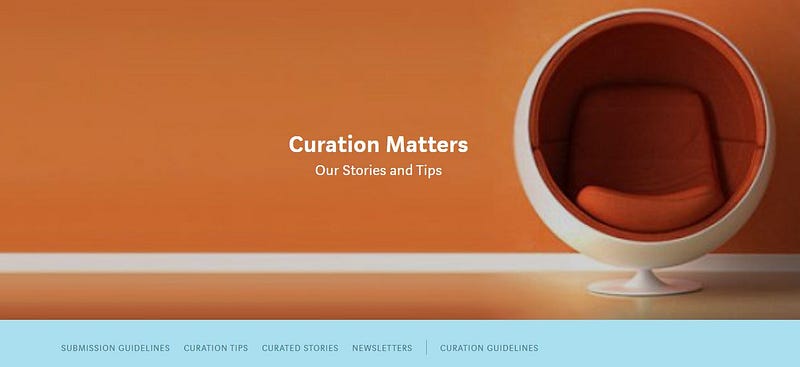
My second Medium Publication “Curation Matters”. Picture by Celine Lai

This is the third and last in the series about starting or setting up your own Medium Publication.

Part One looked at what a Medium Publication is and whether you should run one or not, and how to create the information elements of a Medium Publication and a Publication Avatar.

It also looked at the use of adding Tags to your Publication description and adding links to Social Media sites.

It looked at the roles of Editors and Writers, including co-editors and complimentary editors; and how to add and remove these.

Part Two looked at whether you would like to have a Publication Logo for your Medium Publication, how to add a Background Image to the top of your Publication, and at the option of having different Sections for your Publication.

It also covered different Layouts ( Grid / Stream / List / Mixed ) and different types (or sections) of Stories that are in your Publication (e.g. tagged or featured stories or Promos).

This part will look at setting up Pages (or navigation to pages), newsletters, statistics, and promoting your Medium Publication.

What are Pages?

.

Pages are separate pages or tabs of your Publication which either link to:

1.Stories with a specific or particular Tag

2. An individual specific story

3. A feature page

4. Archived stories

5. An “About” page

6. An external web-page

These are looked at in more detail below. 😃

  1. Stories in your Publication which have one specific Tag for convenience in showing them or to showcase them on a Page (Tab).

2. One specific story in your Publication, such as a Story with the Submission Guidelines for your Publication (if you allow writers to apply to join).

3. A Feature page, which is a Page or screen with just one story or as many stories as you like on the Page in one or more Sections.

This is handy if you want to easily direct your readers to an actual page with a particular Theme, as I have done with the “Medium Tips” page of this Publication, “Lockdown Peaceful Space-Live, Love, Learn.”

The “theme” could also be stories by one specific writer or stories by several writers, to showcase a writer or a few writers.

4. A list of all Stories in your Publication in date order — Archived Stories

However, note that readers can see these stories by clicking on “Latest stories” at the bottom right of a Publication home screen.

5. A page giving the information that appears on your “About” publication page.

I don’t see enough benefit from this IF you want to have lots of Pages, because readers can see your About info by clicking on “About …” at the bottom right of the Publication home screen, and your Publication can only have a maximum of 7 pages. Devoting a whole precious Page to the scant “About” information is a “waste” of a page, in my opinion!

6. A link to an external page, i.e. to a web-page outside of your Publication.

Remember: you can only set up a maximum of seven ( 7 ) internal Pages!

How do I set up my Pages?

To set up your Pages, click on Navigation under your Publication’s avatar.
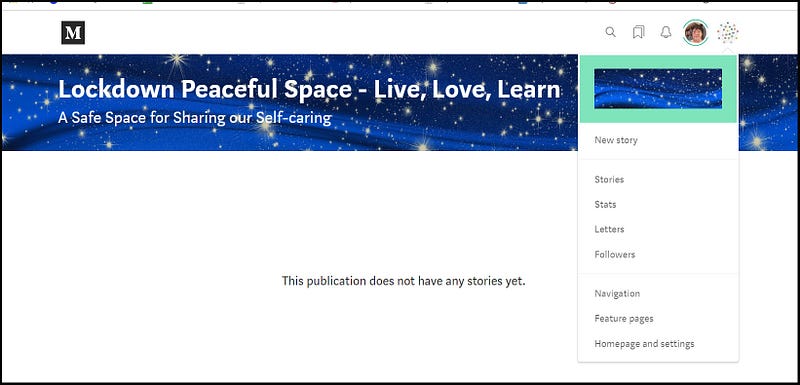
Screenshot 1 — click on the Avatar/picture next to your personal profile picture to access the Publication’s menu

You will be taken to a screen similar to below (but with your Publication title).
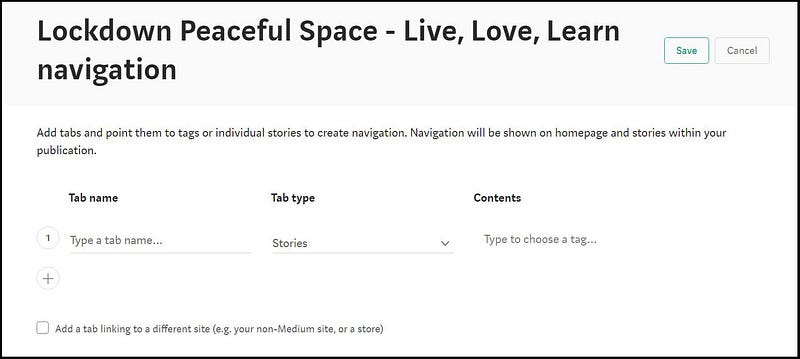
Screenshot 2 showing the Navigation page for a new Publication

Warning:

Medium only lets you have a maximum of 7 (seven) Pages that are linked to stories in your Publication, PLUS one Page (optional) that is linked to an external page.

You must plan ahead and think about the composition or types of the 7 pages you will have.

Don’t confuse sections with pages. You can have as many Sections as you like on your homepage with different categories of Stories (Latest / Featured / Trending/ Tagged / Promo ) but can only have a maximum of 7 pages or tabs prominent at the top of your Publication homepage.

You must decide upon an order for your Pages across the top of your homepage also BEFORE setting them up, because you CANNOT just swap or rearrange them after they have been set-up.

However, if you do want to re-order some Pages, you can do so by re-doing the Navigation for ALL of the existing Pages.

Click on the first plus ( + ) sign on the first line under Tab Name and “Type a tab name” will appear with Stories as the default tab type. Click on the down-ward pointing arrow next to Stories, and 5 choices drop down.
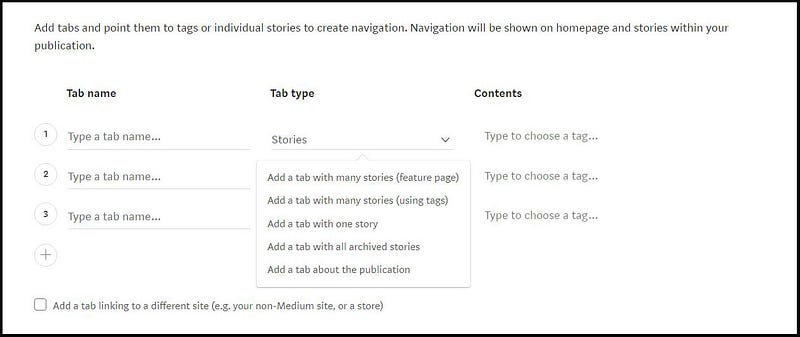
Screenshot 3 showing “Tab” or Page options

Note that a “Tab” is a tabbed Page or just called a TAB or called a PAGE. 😃 Here are the choices from the drop-down list to set up pages.

.

1. How do I set up a Tab or Page with Stories in my Publication which have a specific Tag?

.

See Screenshots 1, 2 and 3 above.

After you have gone to your Navigation screen, type in a name for the title of your Tab (or Page), such as Arts & Craft shown below. Click on the down-ward pointing arrow next to Stories and click on “Add a tab with many stories (using tags)”.
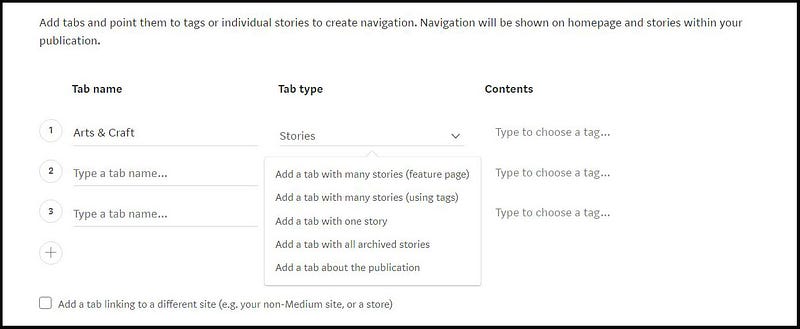
Screenshot 4 showing the options for the Page or Tab types under the Navigation function

Click where it has “Type to choose a tag…” under Contents, and start typing in a TAG NAME. Please note this Tag name can be any name.

As you type, suggestions will pop-up, and you can click on one if you like; however you are allowed to type in a Name that isn’t in the suggestions, upon which you press the Tab key for it to be “accepted”.

The point is to ask (or expect) your Writers to use this TAG NAME for stories related to this Tag, in order to have their stories “featured” under this Page.

Their stories can have up to 5 tags, but if the tags include this Tag name, the story will appear (in date order) on the Page with this Tag Name.
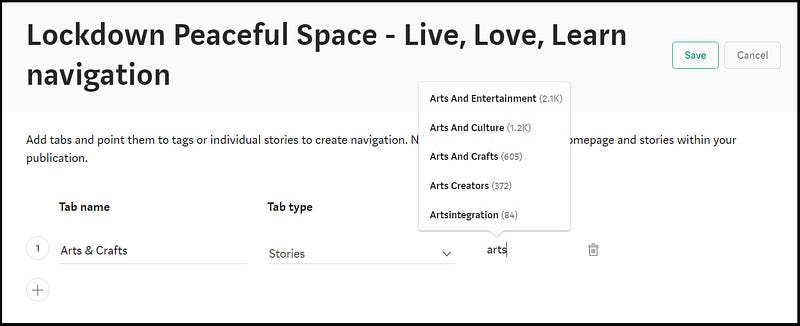
Screenshot 5 showing suggested tags for Arts & Craft. Did you know the numbers, like 2.1K (2.1 thousand) means the number of stories written under this tag?

2. How do I set up a Tab or Page linking to just one specific story in my Publication?

.

Your Publication can have a Tab / Page which links to one “story”, such as a Story about the Submission Guidelines for your Publication (if you allow writers to apply to join).

Type in a name for the title of your Page or Tab, such as Submit or Submission Guidelines.

Click on the down-ward pointing arrow next to Stories and click on “Add a tab with one story” and “Single story” will appear under Tab type.

Please see Screenshot 4.

If you go to the top of the homepage of this Publication that you are reading now (Lockdown Peaceful Space) you will see the second last Page (tab) is titled SUBMIT. This page was created using navigation to a “Single story”.
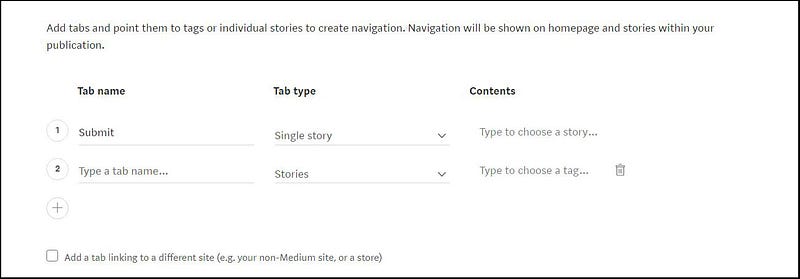
Screenshot 6

Click in “Type to choose a story…” under Contents for your SINGLE STORY tab type. Stories in your Publication will drop-down, in order of date published and you just scroll through them and click on the one that you want. Alternatively, start typing the title of the desired story, and suggestions will drop down.
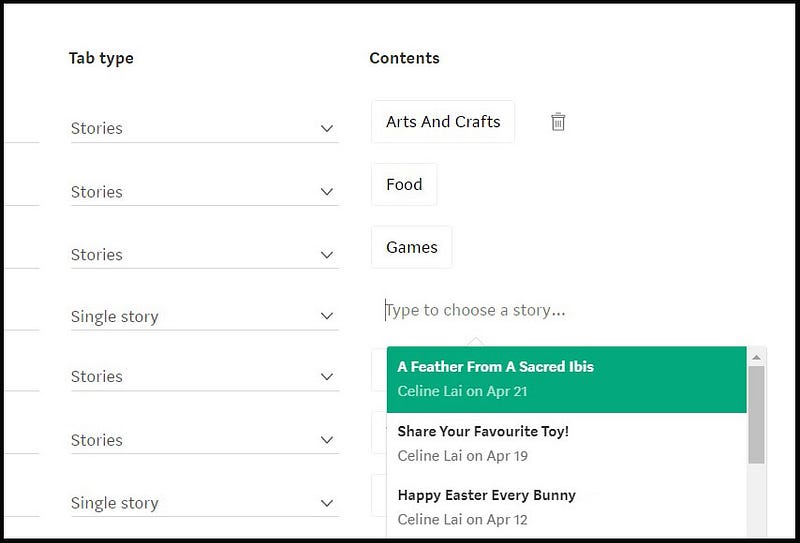
Screenshot 7

3. How do I set up a Tab or a Page with a list of all Stories in my Publication?

.

Use “Add a tab with all archived stories.” This is equivalent to clicking on “Archive” at the bottom right of your Publication.

See Screenshot 4 please.

Did you know that clicking on “Archive” at the bottom of any Publication is handy, because you can search the stories by month and day, and by “most read” or by latest or oldest story?

4. How do I set up a Tab or a Page giving the information that appears on the “About” publication page?

.

Use “Add a tab about the publication.” The result is equivalent to clicking on the “About [ publication name ] at the bottom right of your Publication.

See Screenshot 4 please.

5. How do I set up a Feature page?

.

FIRST you must create your Feature page! Then you use the Navigation function to add it to the Tabs / Pages at the top of your homepage.

Recall that a feature page contains stories from your Publication (so is not an external page). Don’t just have a Feature page for the sake of it, but for example this Publication you are reading does have a Feature page to contain all articles about Medium. This is so they do not clog up the Publication homepage!

Click on your Publication Avatar then on Feature pages. Click on the green “New feature page”.
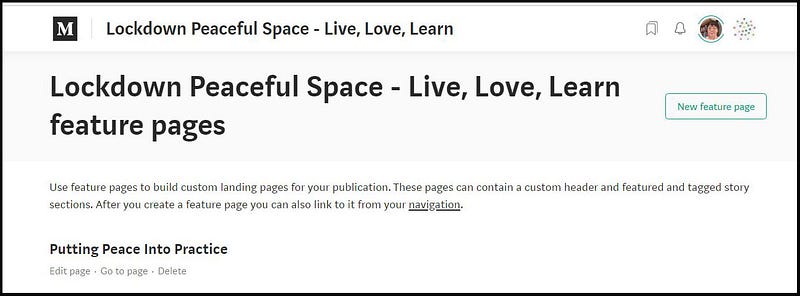
Screenshot 8

Fill in your Page info just like you did for your main Publication homepage. This screen is a “hybrid” or mix of Info and Layout elements as are set out on separate screens under “Homepage and settings” of your Publication.
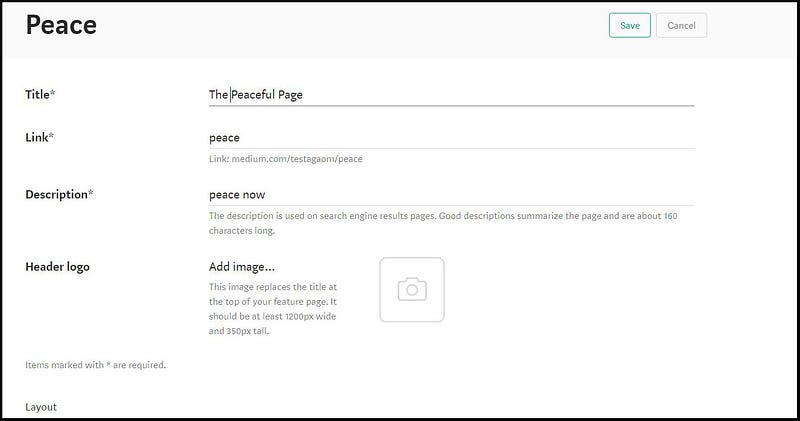
Screenshot 9

You can see the Title (“The Peaceful Page”) for this pretend Feature Page in the example above.

Note that the text that you type into the Link area will form the final part of the web address or URL for the Feature page. This text should therefore be short and to the point for search engines or for people directly typing the URL into their browser address areas.

Note “Layout” at the bottom left. The screenshot 9 is just the top half of the New Feature Page screen. Below the word “Layout” you will see a default section with Featured stories in a Stream layout. See screenshot below.
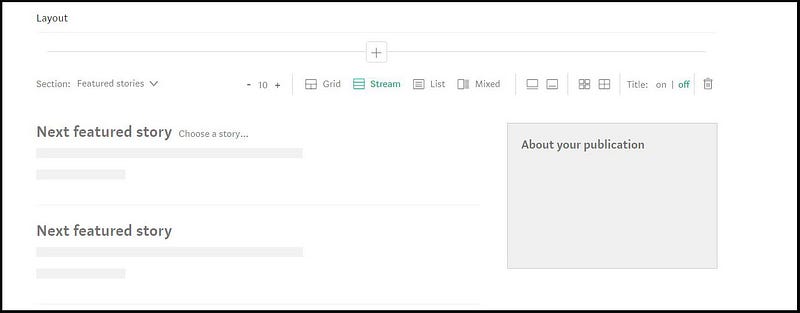
Screenshot 10 showing bottom half of the “New Feature Page” screen

The Feature Page is great for tailoring or customising what content to feature.

You can have several Sections on a Feature page.

You can choose specific stories from your Publication as “featured stories” on your Feature page in a “Featured Stories” Section, shown above.

You can choose a Tag to show Stories with a specific tag in a Section, as shown below.

Some Publications use Feature pages solely to feature stories written by a particular writer.
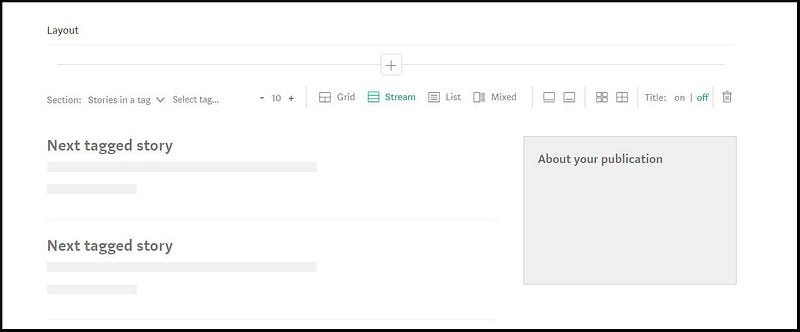
Screenshot 11 showing that for a Feature Page you can use Stories with one particular tag

You can change the type of stories used from “Featured stories” to “Stories in a tag” by clicking on the down-ward pointing arrow next to the default “Featured stories.”

You can display stories with a particular tag by typing the tag name into the space where it has “Select tag” and the number of stories you have set to be displayed, using that Tag name, will appear on the Feature page (after pressing the Save button).

If you go to the Publishous homepage you will find Feature Pages with links to stories written by an individual writer. Go to any story on any writer’s Page and scroll down and you will see the writer’s name as one of the Tags!

Publishous has used “Stories in a tag” for some of their Feature pages, with the tag being a writer’s name.

Pro Tips:

You could have a Feature Page titled “Guest Writers” or similar and set up several Sections on the one Feature Page, with each section with stories with a specific Tag being one writer’s name.

Thus stories of several writers will be shown on one Page, keeping in mind that you can only have 7 pages maximum, INCLUDING Feature Pages!!

You can have more than one Feature page but can only have a total of 7 pages/tabs shown at the top of your Publication, including Feature pages.

Make sure you customise the number of stories to show in order to ensure that you show all the Stories you want to show, by clicking on the + or — next to the default 10.

Also make sure you’re happy with the Layout Design, i.e. do you want this page to have stories in a stream or a grid or a mixed layout?

A really great use of the Feature Pages function, I think, is to use it to prominently show your Submission Guidelines, with or without Newsletters!

See the part “What is a Newsletter” below to see how I used a Feature page to show Submission Guidelines AND newsletters on one Page of my Publication “Thirty Over Fifty”.

How do I Link a Page to an External Website?

.

Screenshot 6 shows “Add a tab linking to a different site (e.g. your non-Medium site or a store)” at the bottom. 😃

Click in the box by the text to tick the box and turn it green, then type in a Tab name and type or copy and paste the web-address (URL) for the link.
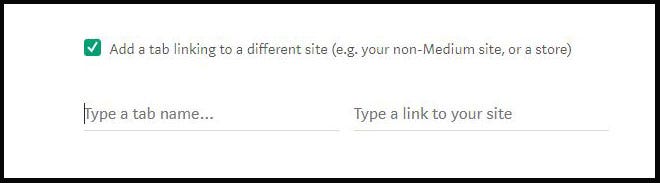
Screenshot 12 Adding a Link to an External page

If you go to my Medium Publication “Curation Matters” you will see the last Page (or Tab) is titled Curation Guidelines. When you click on it, it takes you to an official Medium Help page. 😄

After you have put in information about your Publication, and set up the homepage elements and layout and the Sections with their story types, and navigation to tabs or pages (if you want tabs), click on Create at the bottom right and your Publication will go “live”. 😃

What is a Newsletter?

The Newsletters function of a Medium Publication is very handy if you want to send out regular Newsletters about your Publication!

A letter is actually a regular Story that you write and then can email out to all your Publication followers. 😃

For some examples, go to the page below showing Letters (newsletters) to date, for my other Publication, “Thirty Over Fifty”.

The Submission Guidelines for the Publication is at the top with Newsletters underneath.

https://medium.com/thirty-over-fifty/medium-com-thirty-over-fifty-submit-home/home

To write a Newsletter, click on your Publication Avatar then click on Newsletter.

In July 2020 Medium changed its Letters / Newsletter function for Medium Publications, so now when you first click on “Newsletter” in the drop-down menu for your Publication’s editing functions, you will see a page appear where you can type in your Newsletter Title and description.

If you tick the box next to “Promote your newsletter on your Publication’s stories” this will place the box at the bottom of the Stories in your Publication, asking if readers would like to sign up with email to receive your Newsletters!

Click on Create then you will see a screen with a green button “Write a newsletter”. Click on this “button” and you will see a screen similar to below, but with your Publication Title before “letters”.
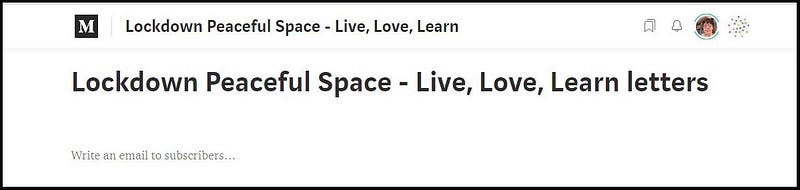
Screenshot 13 — Letter screen

You can then type in the subject title of your Letter and the body of your email. Once you start doing this, you will see “Add a tag” at the bottom, which you click on and type in a Tag such as “Newsletter”.

Clicking on Email preview will send a draft of your Letter to yourself (as long as you have receiving emails turned on under your settings on your Medium profile).
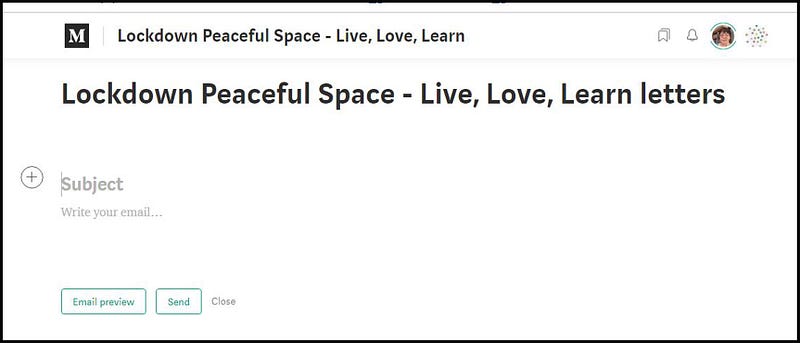
Screenshot 14

You can click on Send to email the Letter to the followers of your Publication. Note: the email will have the full content of your letter and unless the email readers go to your Story in Medium, “member reading time” won’t be clocked-up for that Letter story by those who open the email.

You can SAVE your Letter as a DRAFT by clicking on Close then clicking on “Save for Later.” You can delete your draft letter by clicking on Close then on “Delete.”

How to create a Feature Page with Submission Guidelines and Letters

.

You can set up a new Feature Page (see instructions above) with one specific Featured story at the top, in this example, being “Submission Guidelines” (after, of course, you have carefully created/written your guidelines in a Story that you have added/published to your Publication).

See the page titled “Submit and Newsletters” at the top of my Publication “Thirty over Fifty” for an example.

IF you also want Newsletters to be shown on this page of your Publication, add a Section and set it up to use stories in a tag.

Select the tag “Newsletter” for the stories in this Section.

Whenever you write a Letter, make sure that you use the tag “Newsletter”.

For my “Submit and Newsletters” feature page, I created a Feature page and typed “Submit and Newsletter” into the Feature page Title.
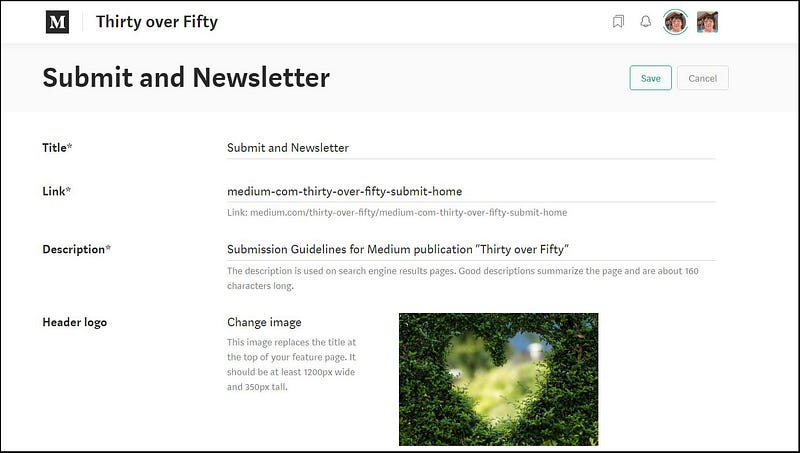
Screenshot 15 — the Feature Page info for the “Submit and Newsletters” Feature Page of “Thirty Over Fifty”

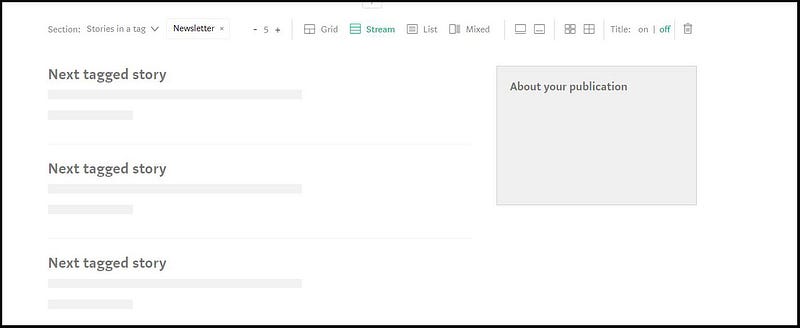
The 2 screenshots below show the rest of my Feature Page (titled “Submit and Newsletters”) in 2 sequential snapshots. The info and the layout elements are all on one page or screen when creating a Feature page.
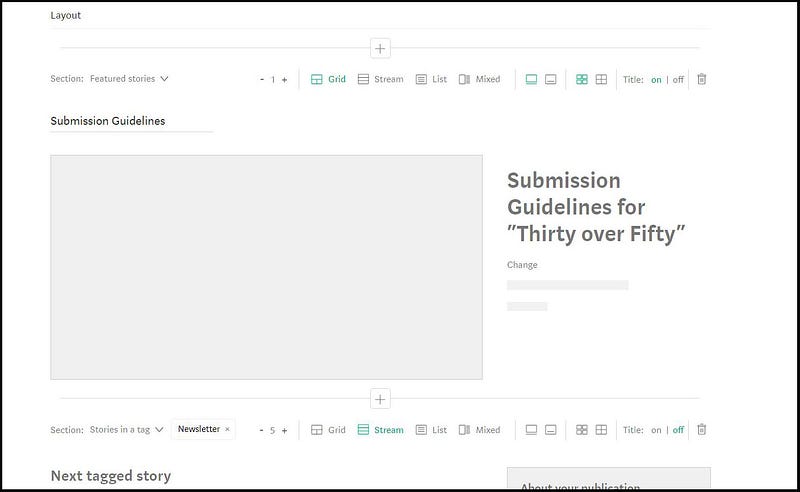
Screenshot 16 showing a Featured story for the first story on the “Submit and Newsletter” Feature Page of “Thirty Over Fifty”
Screenshot 17 — showing the second Section on the Feature Page “Submit and Newsletter” with stories tagged NEWSLETTER

Don’t get confused with Feature Pages and Featured Stories. Above is the layout of a Feature Page for my Publication “Thirty Over Fifty.”

It has 2 sections (which I have shown in 2 snapshots because I couldn’t get the whole page in one image). The first section displays a featured story (the Submission Guidelines) and the second section displays stories with the tag “Newsletter”.

After creating your Feature page go to Navigation under your Publication avatar. First, write out or think about the order of your 7 pages across the top of your Publication and create Pages that go before your Feature page, if necessary. At the end of the list of created Tab names, you can generate a line for another Tab / Page.

Type in an appropriate Tab name, such as “Submit and Newsletters” or “Submission Guidelines and Letters” for your Feature page after setting up its placement among the order of Tabs/Pages across your homepage; and select “Feature page” from the Tab type.

See screenshot below.

Click in the Contents field and type in or select the Title for your Feature page (e.g. I selected “Submit and Newsletter” but if you have more than one Feature page, select the Feature Page title that you want).

Don’t get confused as the Tab name is the name that you want for your Page name, and the Contents refers to the NAME of the Feature Page that you created!
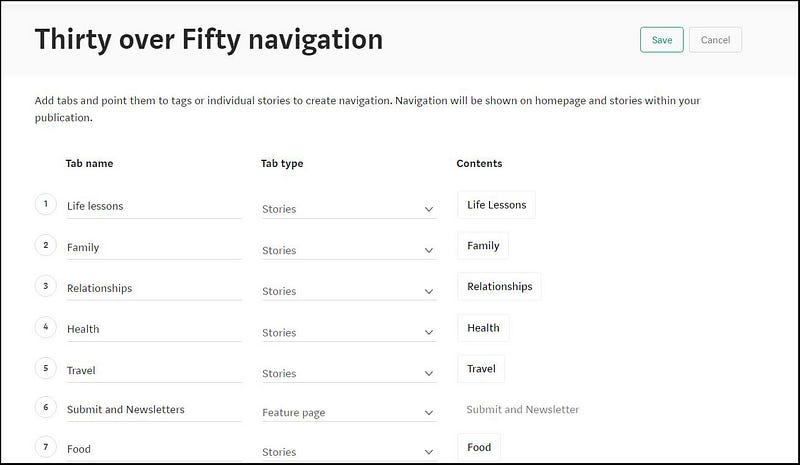
Screenshot 18 showing the Tab names and Tab types and 6 different tags for the 7 Pages of Thirty Over Fifty

After you have created and sent your Letter, if you go to the Letter screen, you will see results similar to below.
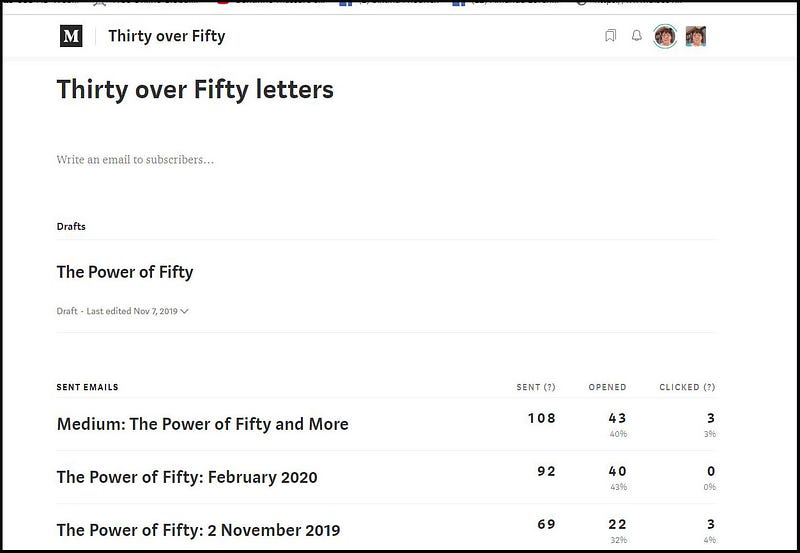
Screenshot 19 showing Letters for my Publication “Thirty Over Fifty”

This is great because it shows you how many emails were sent and how many emails were clicked on and read, plus how many readers navigated to the Letter on Medium (clicked on a link in the email).

Note: the Subject of the email will be the name of your Medium Publication.

It’s a good idea when starting out with letters to send yourself a draft Letter so that you can see how it looks to a Follower and make any changes you deem necessary.

Also, be aware that a Follower can un-tick “Receive emails from this Publication” for any Publication that she is following (via her list of Publications if she is a writer for the publication and clicking on the arrow next to the Publication title, OR for Publications that she is not a writer for, by clicking next to “Following” at the top of the Publication homepage).

What Stats are Available for a Medium Publication?

If you click on Stats under your Publication Avatar you will see a screen similar to the one below.

The Overview tab or page shows Reading Time, Number of Views and Number of Visitors for the last 30 days or 90 days.
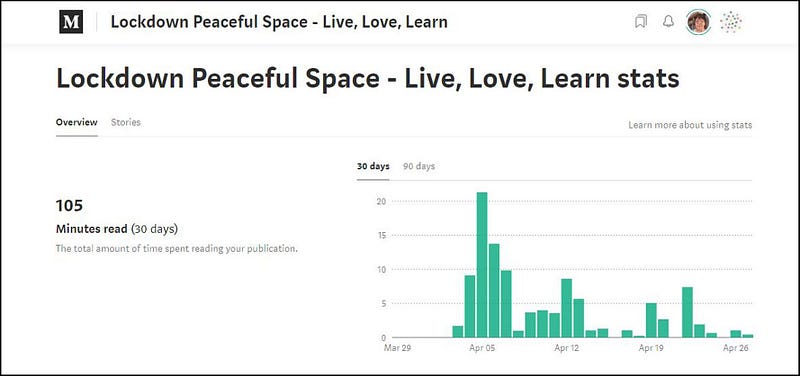
Screenshot 20 the top part of the Stats page for my Publication “Lockdown Peaceful Space”

Clicking on Stories will show Views, Reads, Read ratio, and Fans for ALL stories in your Publication (so will include stats for stories in your Publication which have been written by other writers).
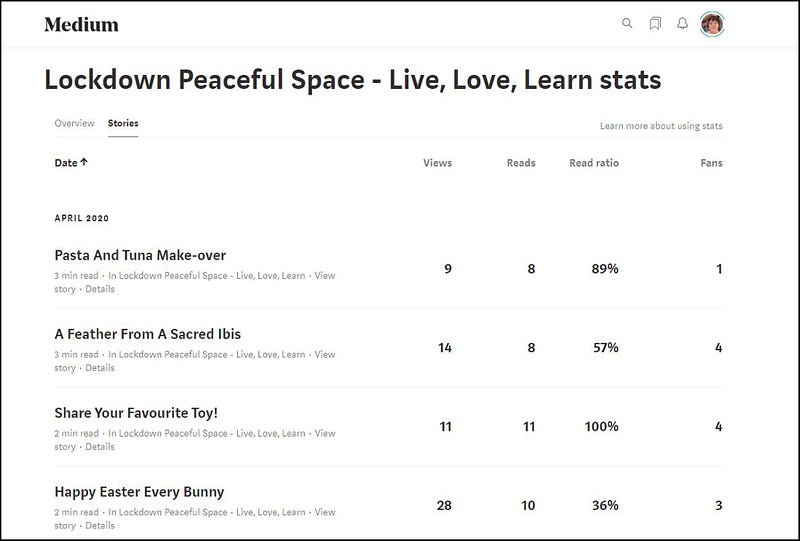
Screenshot 21 showing Stats for some Stories in my Publication

How Do I Promote My Publication?

.

This is an excellent question!

If you’re comfortable with trying out Smedian, you could sign up there using an email or a Google account.

Once you add your Medium profile to Smedian, you should be able to click “Advertise my Publication” at the top, or on “Advertise mine” where you see the latter link, currently under “Request to contribute” (to Publications).

I have to say honestly that I find it difficult to work with Smedian and can’t even find any Help pages on how to work with it, but somehow I managed to advertise my Publication on it.
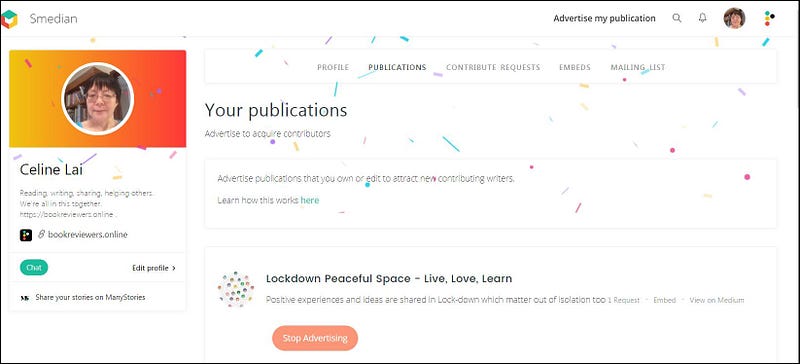
Screenshot 22 showing one of the Medium Publications I have registered with Smedian

Let me say this, the hundreds of Medium Publications listed on the Smedian homepage, which writers can contribute to, appear in alphabetical order of Publication title.

A reader looking for a Publication can use the Search box at the top of the Smedian homepage.

As at the time of writing this article, I did a search upon “Lockdown” and the following appeared.
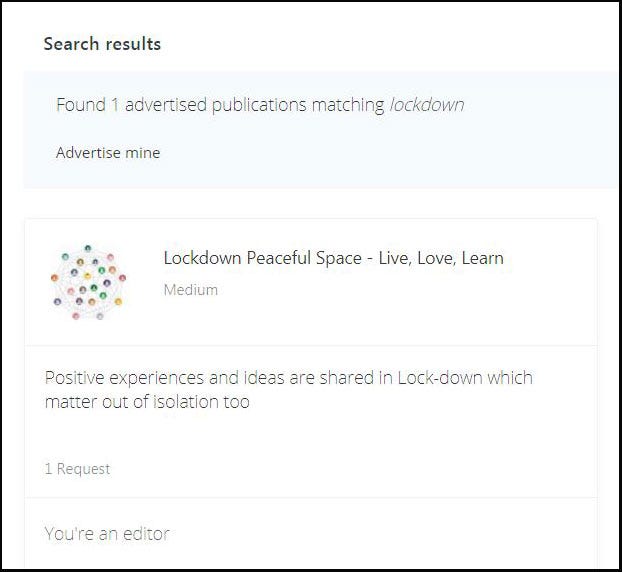
Screenshot 23 showing my Medium Publication in Smedian

You can see that the Description for your Publication is important because it is what will appear in Smedian if you use Smedian.

If you have any Requests from Medium users to join your Publication as a writer, you will see xyz Request as shown above where my Publication has 1 request.

Click on that link and from there check out the user on Medium and approve or don’t approve her application. Copy her Username to paste into the Writers area of your Publication.

It could be a good idea to use the “Chat” function of Smedian to dialogue with your new writer also, e..g to ask them to read and follow the Guidelines for your Publication.

Other ways to promote your Publication are to share it on social media, and to share your own Stories in your Publication(s) in Facebook groups such as the ones below.

And last but not least is a Facebook group that I started, ONLY for writers located in the Eastern Time Zones!

The hardest part about getting your stories read on Medium is the fact that at the time of writing this, the Search function of Medium is very cumbersome or tedious to use and not helpful to talented new writers; and there are millions of stories on Medium so that new Stories (which are static or presented in a linear fashion) are easily missed without sharing.

A solution to this is for each of us to read a lot on Medium and to SHARE links to the stories that we read, on our Social Media outlets and with our friends and whoever we can. 😄

Thank you for reading my series on creating a Medium Publication!

If you have any questions related to this series, you’re welcome to write a nice Comment below and I will try to answer (as soon as I can).

If you reading this show that you have got use from my series, by clapping for the stories in this series and following this Publication, then that will give these comprehensive Guidelines on how to create your own Medium Publication a massive boost!

Connect with me at: https://writewithceline.square.site

Writing
Medium Publications
Technology
Creativity
Productivity
Recommended from ReadMedium