
How to build a scraping tool for Linkedin in 7 minutes
Using Python and Selenium.
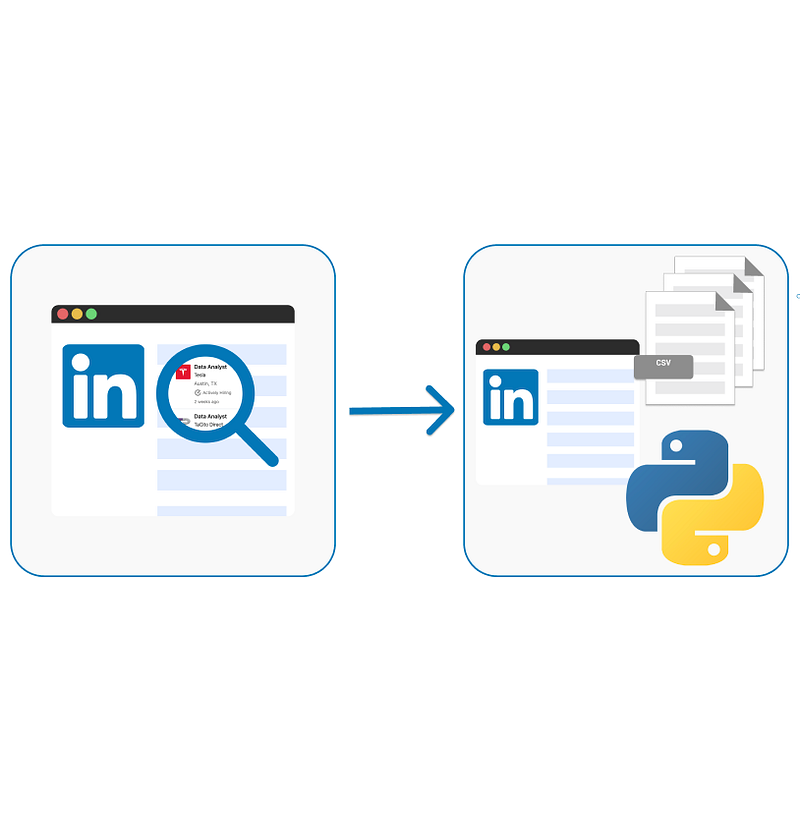
As an analytics engineer, I am really interested in finding out what languages, cloud platforms, and tools are in demand for any data-related job.
However, I find it quite annoying — and boring — to look through all the key information on different websites such as Linkedin.
Thus, I had an idea: Why don’t I try web-scraping Linkedin job lists to get all the key information directly in a database?
⚠️ A disclaimer that many websites restrict or ban scraping data from their pages. Be sure to read their terms, conditions, and restrictions before scraping their website.
Let’s learn together how to create such a tool! 👇🏻
#1. Setting up our environment.
To develop such project, there is one main required library:
- Selenium is used for automating web applications. It allows you to open a browser and perform tasks as a human being would, such as clicking buttons and searching for specific information on websites
Additionally, we need a Driver to interact with our browser. To set up our environment, we first need to:
- Install Selenium: Run the following command in your command prompt or terminal
pip install selenium - Download the Driver. We need a driver so
Seleniumcan interact with the browser. Check your Google Chrome version and download the right Chromedriver here. You need to unzip the driver and place it into a path you remember — we will need this path later on! ;)
⚠️ As I am a Google Chrome regular user, I am going to use it as my default browser. ️But you can use any other browser.
To understand the basics of Selenium and HTML, I recommend the following article! :D
#2. Loading Libraries
Once we have all the required libraries installed in our environment, we start our code by loading all of them. Apart from Selenium we will need Pandas and Time among others.
#3. Understanding Linkedin URLs and defining our job and location of interest.
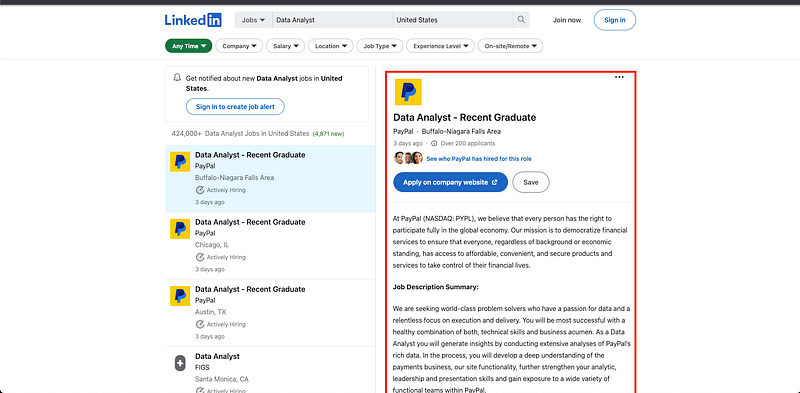
In my case, I want to start looking for jobs as Data Analyst in the USA. If I go directly to Linkedin, that’s as easy as writing both keywords in each input box.

If we search for such job and location, we can observe that both keywords are reflected in the corresponding URL.
We will have keywords=Data%20Analyst&location=United%20States.
That’s why, we can simply modify the URL directly to choose whatever job and location we want — which makes our life way easier! ;)
The only thing we need to be careful about is whenever we use more than one word, the URL will separate each of the words using “%20”. Thus, we can easily generate the URL we desire using the following code:
#4. Loading the driver and creating an instance
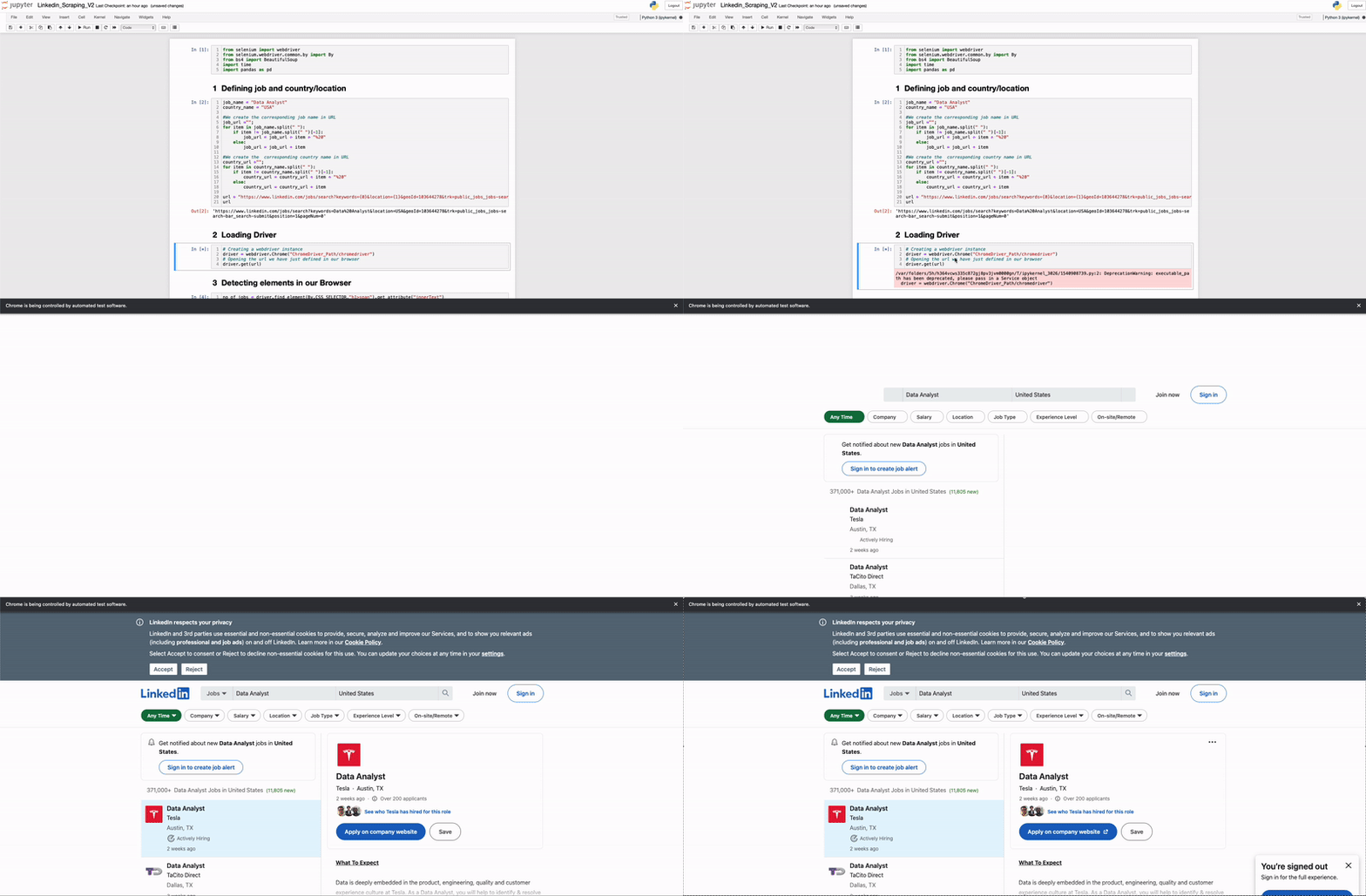
The basic idea here is to control a web browser with our python code. To do so, we need to create a bridge between python and our browser. That’s why we generat an instance of our web driver using the file we dowloaded in step 1 — Remember the path!
Once we have the instance, it is as easy as opening the job list URL using the driver.get() command. The previous code will open up a chrome window with our Linkedin webpage.
#5. Detecting how many jobs are available.
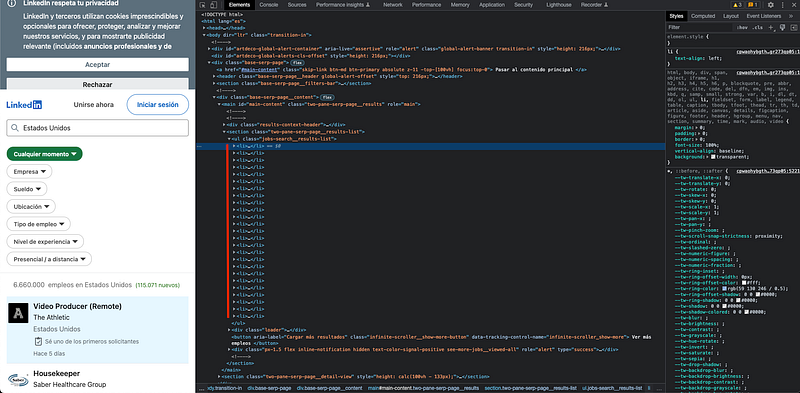
If you are not familiar with web scraping, you can right-click your mouse, and select inspect, or press F12. The following popup should appear:
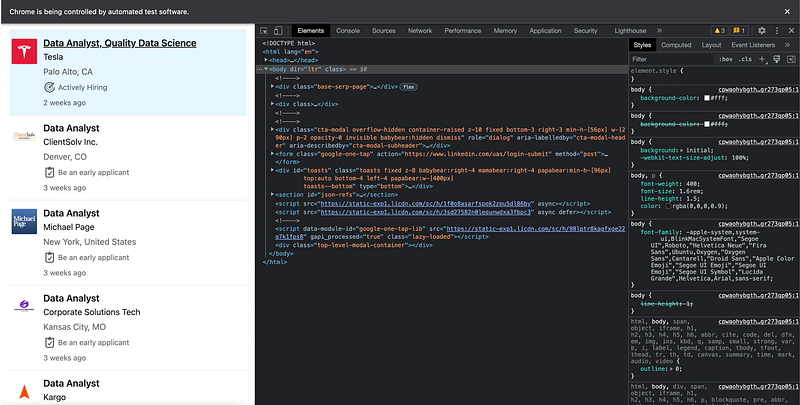
Linkedin’s search results typically have 25 results per page displayed on the left-hand side. Each job meta-data is displayed on a job card.
While it’s great that the job card contains most of the data we’re looking for — job title, company, and location — it only has an abbreviated version of the job description.
This is why we will have to click on the job card to get the full job data.
#6. Browse all the jobs
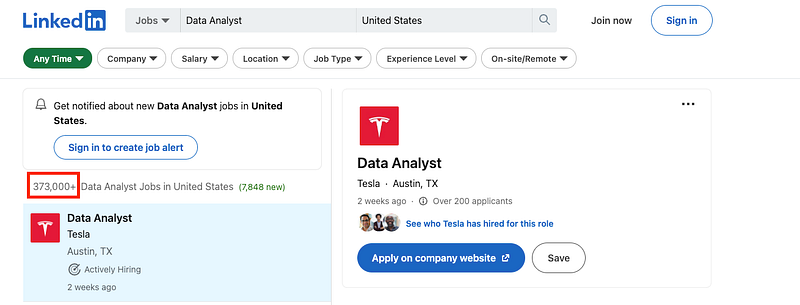
Next, we need to know how many jobs we have found through this search. To do so, we use the selenium library to get the number that appears in the upper-left corner.
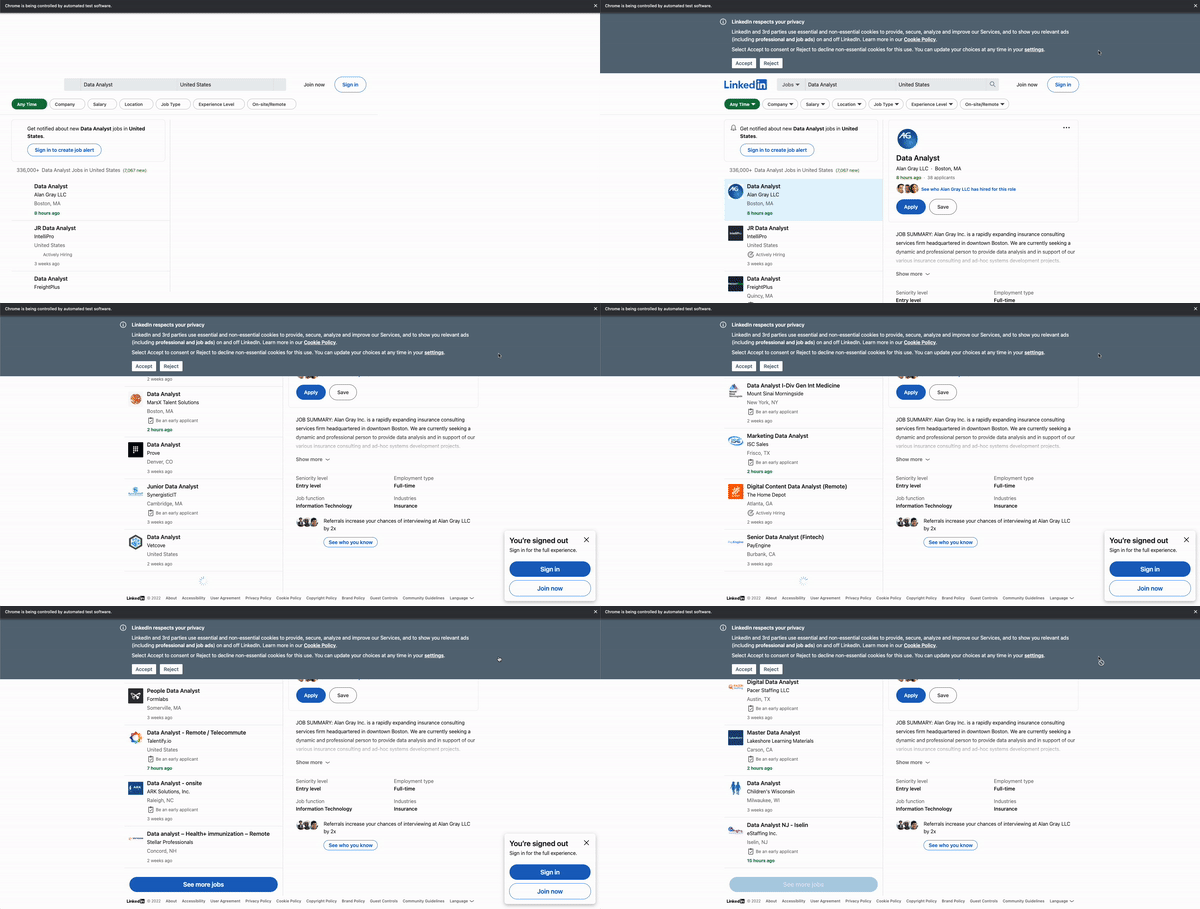
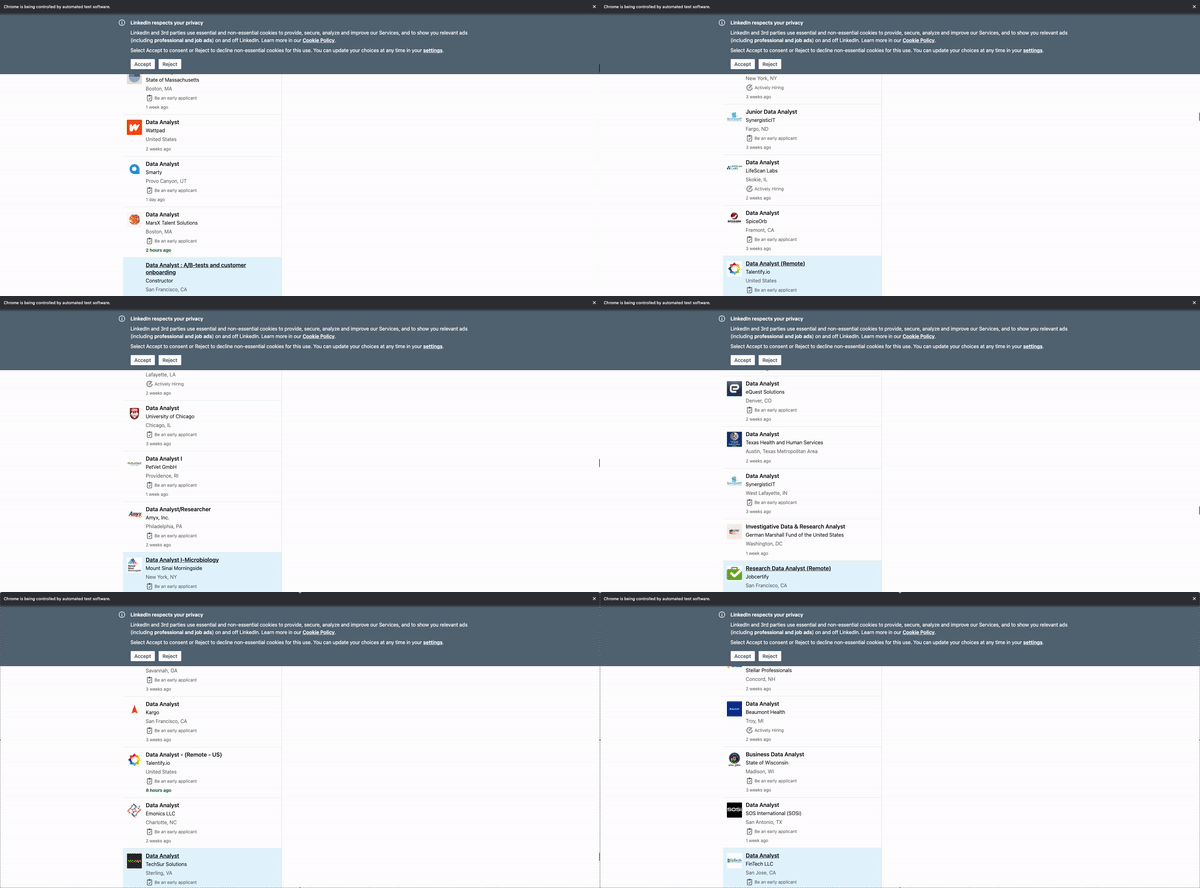
Then, we need to understand how Linkedin displays the job list. The way LinkedIn job postings work is by loading more jobs if you scroll down the browser bar. However, when you drag the bar a few times, it will not load automatically, but you have to click the button “See more jobs”.
This is why first we will have to scroll down and load more jobs a few times, and afterwards, we will have to keep scrolling down and pressing the “See more jobs” button to keep loading more jobs.
To accommodate both of the scenarios, we add a ‘try — except’ procedure.
If we execute the previous code, our browser should start scrolling down.
#7. Detecting all elements.
If we inspect the website again, we can easily observe that every job card is held within a
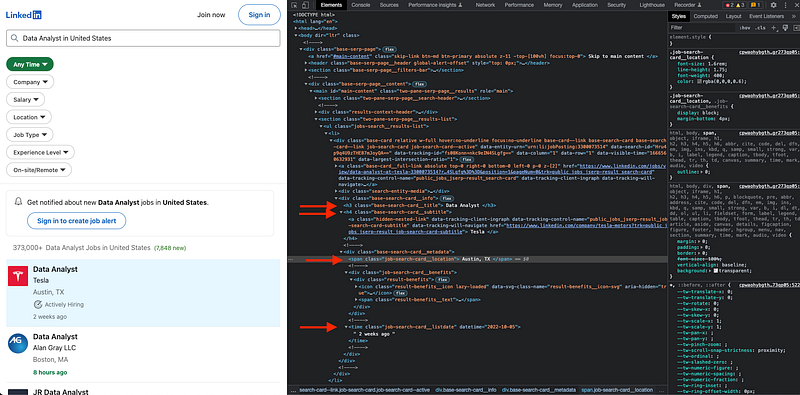
Within each job card, we can find a <div> element with class=base-search__card-info that contains all the abbreviated info we want to store:
- Job Title is stored in a
heading with the class ‘base-search-card__title’.
- Company Name is in the
tag container with the class of ‘base-search-card__subtitle’’.
- Company location is in a section with the class of ‘job-search-card__location’.
- Posting date range is in a
⚠️ It is important to know that the structure of the webpage can change at any time. This is why, you should try to understand how it works by inspecting the elements.
To store all this data, we first get the list with all obtained jobs on the previous step. After this, we loop over all jobs and extract from each of its elements the desired info.
For instance, to get the title, we just need to locate the h3 element by using the command driver.find_element(By.CSS_SELECTOR,"element") and get the data using the .get_attribute("Inner Text") command.
This very same procedure is repeated for each targeted info.
#8. Getting more detailed info for each job
As I stated before, each job card contains only the abbreviated information. However, we want to get as much information as possible. This is why, we are going to scroll all jobs, clicking on them and getting all data from their full description.
To do so, we locate once again the
- Job Link is contained directly in the
- element of each job card.
- Job Description is contained within a with the class=”show-more-less-html”
- Job Seniority is contained in the first
- element under the
- .
- Job Type is contained in the second
- element under the
- .
- Job Function is contained in the third
- element under the
- .
- Job Industry is contained in the fourth
- element under the
- .
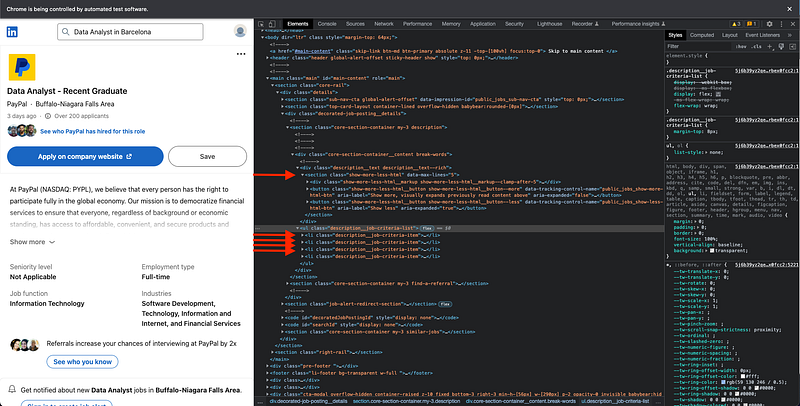
We repeat the same procedure as before, looping over all available jobs and getting the data using both driver.find_element(By.CSS_SELECTOR,"element") and .get_attribute("Inner Text") .
Now our browser will scroll down all available jobs while clicking on them.
#9. Creating our pandas dataframe and saving it up.
Once we already have all the data stored in different lists, we just need to create our pandas data frame that will contain all the data we have just scraped.
Once this is done, we should obtain a dataframe that looks as follows:
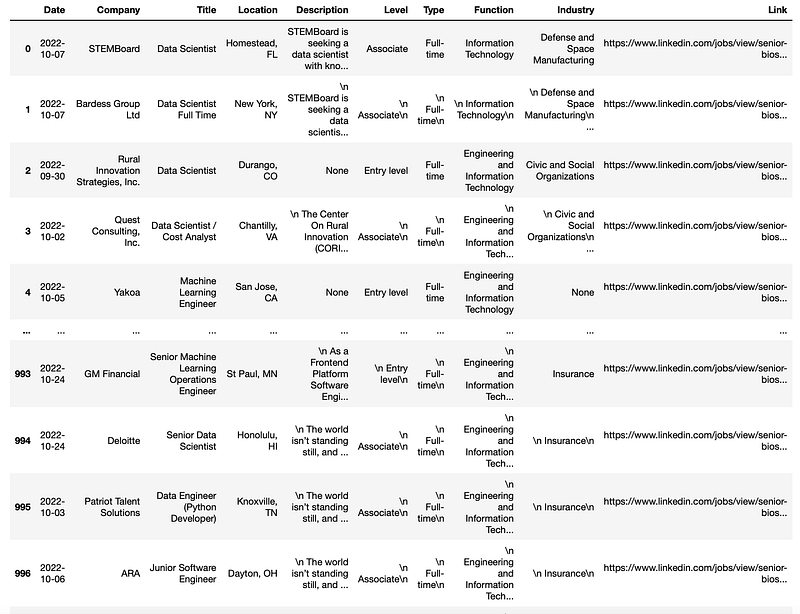
The last step would be saving up our dataframe as a CSV file.
Now, we have all scraped data just saved up in our laptop! :)
You can find my code here. Hope you find this story useful to understand how to scrape Linkedin info.
Feel free to ask me any further question! :D
Data always has a better idea — trust it.
You can subscribe to my Medium Newsletter to stay tuned and receive my content. I promise it will be unique!
If you are not a full Medium member yet, just check it out here to support me and many other writers. It really helps :D
Some other nice medium related articles you should go check out! :D


