
Understanding the Art of Web Scraping with Selenium and BeautifulSoup
The Basics of HTML Structure for Data Extraction Using Python
Are you curious about the world of web scraping and want to learn how to extract data from websites using Python?
In today’s digital era, the amount of information available on the internet is astronomical, and web scraping has become a valuable tool for individuals and businesses alike.
In this article, we will explore the basics of web scraping using Selenium, BeautifulSoup, and HTML structure. This knowledge will serve as a foundation for your web scraping journey, whether you’re an aspiring data scientist or just looking to expand your technical skill set.
So, let’s discover it all together! 👇🏻
Digging into the Essentials of Web Scraping
Imagine the internet as a massive virtual town where websites are the buildings, each containing valuable information.
Just as a researcher might visit different locations to gather data, web scraping allows us to extract information from various websites.

The limitless amounts of data available online can be downloaded and analyzed in a wide variety of ways.
Is web scraping the only way to do so?
Well… an API is always the preferred way of piping information.
But what if a site doesn’t give up its data easily?
Developers who are not offered APIs or CSV downloads can still retrieve the information they need using tools like Beautiful Soup and Selenium. By understanding the building blocks of websites — HTML structure — and using Python libraries, we can automate the process of data collection.
So first things first…
#1. Digging into the essentials of HTML — The Backbone of the Web
HTML — or Hypertext Markup Language — is s the standard language for creating web pages. It consists of a series of elements that define the structure, layout, and content of a website.
These elements are represented by tags, such as <p> for paragraphs, <h1> for headings, and <a> for hyperlinks. By understanding how these tags are organized, you can identify the relevant content you want to extract during web scraping.
Let’s take as an example the wikipedia website of the Shiba Inu dog race.
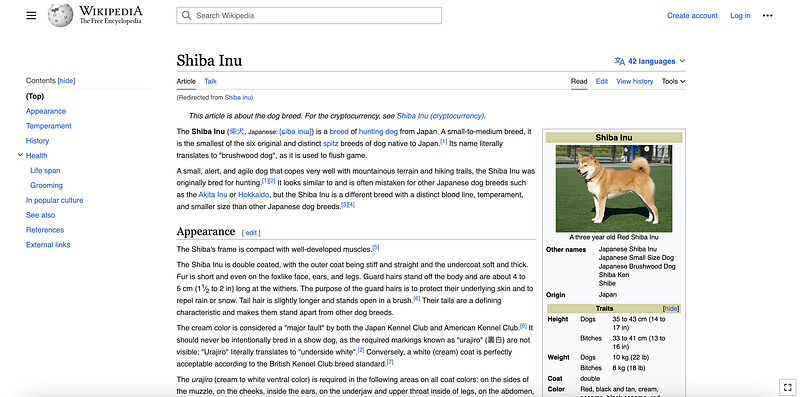
Now if we inspect the website HTLM page, we see the following structure…
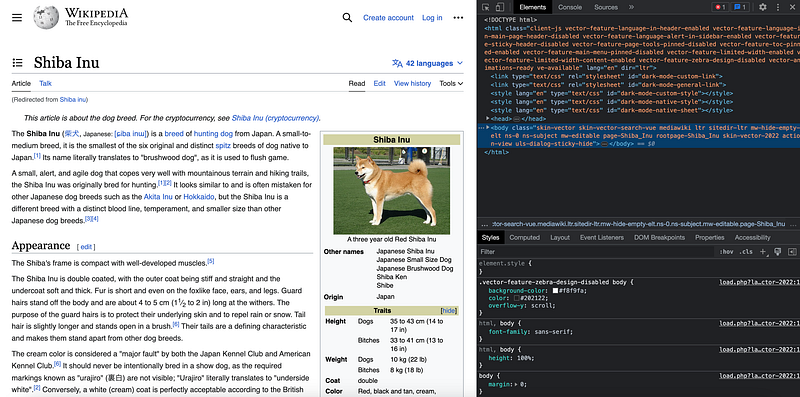
Surprisingly short… right?
Well, if we check again, the whole content is hidden under the <body> tag.
How can it be possible?
Every HTML file consists of a few essential components that form its underlying structure. These components are organized in a nested, hierarchical manner, and the contents of the document are enclosed within these tags.
#1.1 The basic structure of an HTML file.
<!DOCTYPE html>
<html>
<head>
    <title>Your Page Title</title>
</head>
<body>
    <!-- Your content goes here -->
</body>
</html>
<!DOCTYPE html>: This declaration defines the document type and version of HTML being used. It helps the browser understand how to render the page correctly.<html>: This is the root element of the page, which contains all the other elements of the document.<head>: The head element contains meta-information about the document.<title>: The title element specifies the title of the web page, which is displayed in the browser's title bar or tab.<body>: The body element contains the actual content of the web page, such as text, images, and multimedia.
Any HTML file is composed of different HTML tags. And this brings us to…
#1.2. The most common HTML Tags
In addition to the tags that form the basic structure of an HTML file, there are many other tags used to create different types of content on a web page. Here are some of the most common HTML tags you will come across:
<h1>to<h6>: These are header tags, used for creating headings and subheadings in your content.<h1>is the largest and most important, while<h6>is the smallest and least significant.<p>: The paragraph tag is used for creating paragraphs of text. It automatically adds a margin before and after the paragraph, providing a clear separation between blocks of text.<a>: The anchor tag is used to create hyperlinks, which allow users to navigate between web pages. Thehrefattribute specifies the target URL of the link.<ul>and<ol>: These tags are used to create unordered (bulleted) and ordered (numbered) lists, respectively. Each item in the list is enclosed within a<li>tag.<table>: The table tag is used to create tables for displaying data in rows and columns. It is often used in conjunction with other tags such as<tr>(table row),<th>(table header), and<td>(table data cell).
Is this it…? Ooooh… wait… we are here to webscrape right?
Then we still need some notions to go!
#1.3. HTML attributes
Each HTML element can have various attributes that provide additional information or modify its behavior. Some of the most used attributes for webscraping are class, id, and href.
Both class and id are usually used to locate and get the info of interest. href is used to navigate through different pages.
class: Theclassattribute allows you to assign one or more CSS classes to an HTML element. These classes can be used to style the element or target it with JavaScript.
<p class="highlighted important">This paragraph has two classes: "highlighted" and "important".</p>id: Theidattribute is used to uniquely identify an element within the HTML document. Eachidvalue must be unique across the entire document.
<div id="main-content">This div has a unique ID: "main-content".</div>href: Thehrefattribute is primarily used with the<a>(anchor) tag to specify the target URL of a hyperlink. When a user clicks on the link, the browser navigates to the specified URL.
<a href="https://www.example.com">Visit Example.com</a>These are just a few examples of the many attributes that can be added to HTML elements. Depending on the element type, there might be other attributes available that serve different purposes.
Now… what can we use for our webscraping?
There are two main possible ways of web scraping, depending on the needs we have:
- Static scraping ignores JavaScript. It pulls web pages from the server without using a browser. You get exactly what you see in the page source and then you cut and parse it. That’s where the static name comes from, you just get the HTLM structure of the URL you provided. That’s it.
- Dynamic scraping uses an actual browser — or headless browser — and allows you to read content that has been generated or modified via JavaScript. Put simple, it allows you to simulate you are a user — and just like a user, you can send inputs, change pages, or click buttons. Also sometimes you need to automate the browser by simulating the user to get the content you want. For such a task, you need to use Selenium WebDriver.
#2. Static webscraping with BeautifulSoup
Beautifulsoupis a Python library that uses an HTML/XML parser and turns the web page/html/xml into a tree of tags, elements, attributes, and values.
#2.1 Installing the Library
To get started with Beautiful Soup, run the following commands in the terminal.
pip install lxml
pip install requests
pip install beautifulsoup4
#2.2 Getting the HTML website content
Sending an HTTP GET request to the URL of the webpage that you want to scrape, which will respond with HTML content. We can do this by using the Request library of Python.
from bs4 import BeautifulSoup
import requests

# Make a GET request to fetch the raw HTML content
html_content = requests.get(url).text

# Parse the html content
soup = BeautifulSoup(html_content, "lxml")
print(soup.prettify()) # print the parsed data of html
#2.3. Inspecting the Contents of the Page and Extracting the Data
We can easily extract the content of interest from our HTML structure just using the .find([element_tag])— for just one element — or . .findAll([element_tag]) if there is more than just one element.
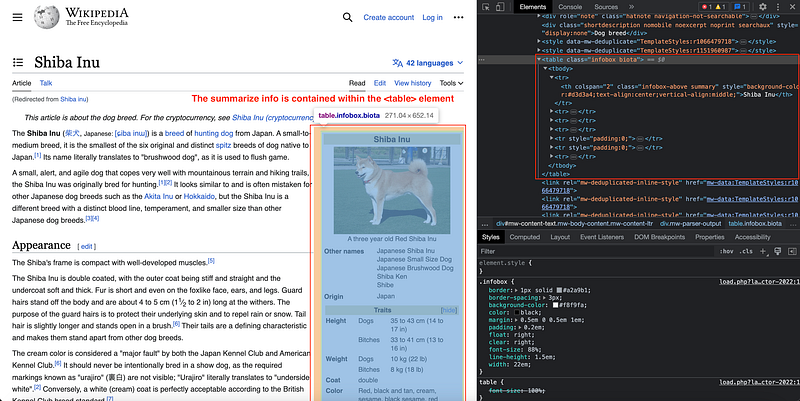
If we check what data can be extracted from the website view, we can check how paragraphs and the summary table are written in HTML.
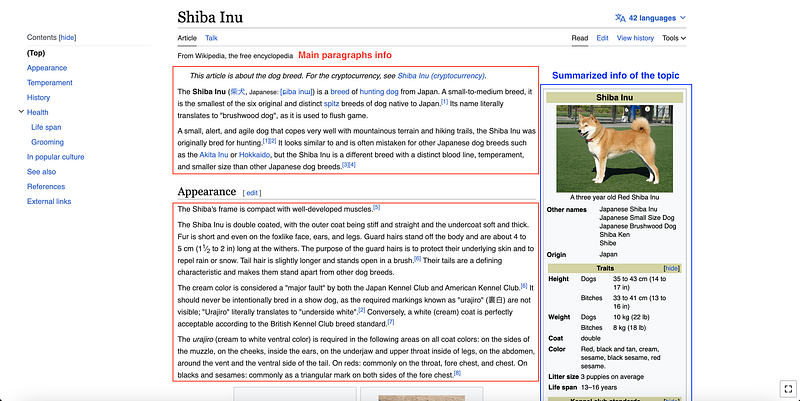
In this case, we need to inspect the elements and detect exactly where is this info contained within the HTML structure.
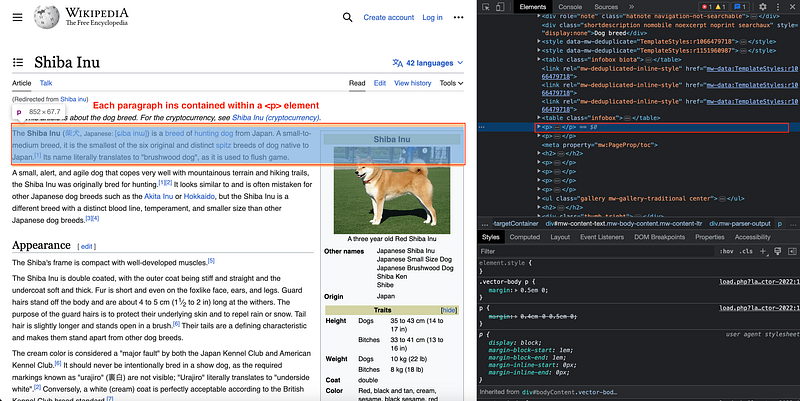
Each paragraph has its corresponding
element.
In this case, we have many paragraphs!
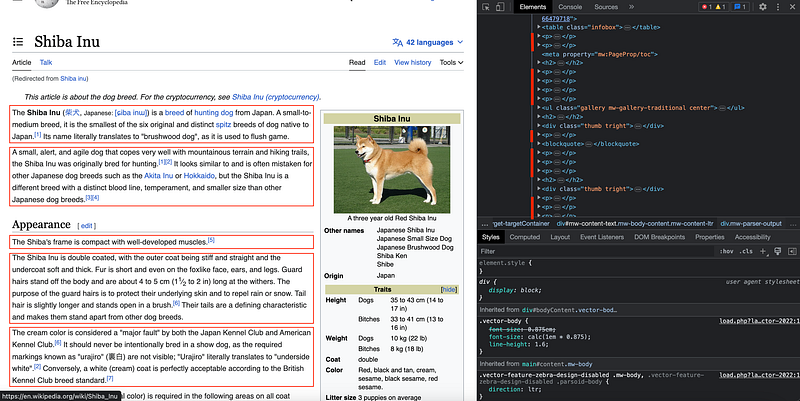
So it would be as easy as generating void lists and populating them with our subtitles, paragraphs, and table information.
title = soup.find("h1") #In this case we use the .find() command as there is only one element.
title.text

subtitles = soup.findAll("h2") #In this case we use the .findAll() command as there are many elements.
subtitles_list = [ii.text for ii in subtitles]
subtitles_list

paragraphs = soup.findAll("p")
paragraphs_list = [ii.text for ii in paragraphs]
paragraphs_list

table_element = soup.find("table")
print(table_element.text)
And that’s how we get data from a static webscraping.
#3. Dynamic web scraping with Selenium
Selenium is used for automating web applications. It allows you to open a browser and perform tasks as a human being would, such as clicking buttons and searching for specific information on websites.

#3.1 Installing the Library
Additionally, we need a Driver to interact with our browser. To set up our environment, we first need to:
- Install Selenium: Run the following command in your command prompt or terminal pip install selenium
- Download the Driver. We need a driver so Selenium can interact with the browser. Check your Google Chrome version and download the right Chromedriver here. You need to unzip the driver and place it into a path you remember — we will need this path later on! ;)
⚠️ As I am a Google Chrome regular user, I am going to use it as my default browser. ️But you can use any other browser.
#3.2 Loading the required libraries.
Once we have all the required libraries installed in our environment, we start our code by loading all of them. Apart from Selenium, we will need Pandas and Time among others.
from selenium import webdriver
from selenium.webdriver.common.by import By
from bs4 import BeautifulSoup
import time
import pandas as pd
#3.3. Loading the driver and creating an instance
The basic idea here is to control a web browser with our python code. To do so, we need to create a bridge between python and our browser. That’s why we generated an instance of our web driver using the file we downloaded in step 1 — Remember the path!
# Creating a webdriver instance
driver = webdriver.Chrome("ChromeDriver_Path/chromedriver")
# Opening the url we have just defined in our browser
driver.get(url)
Once we have the instance declared, it is as easy as opening the job list URL using the driver.get() command. The previous code will open up a chrome window with our Shiba Inu Wikipedia webpage.
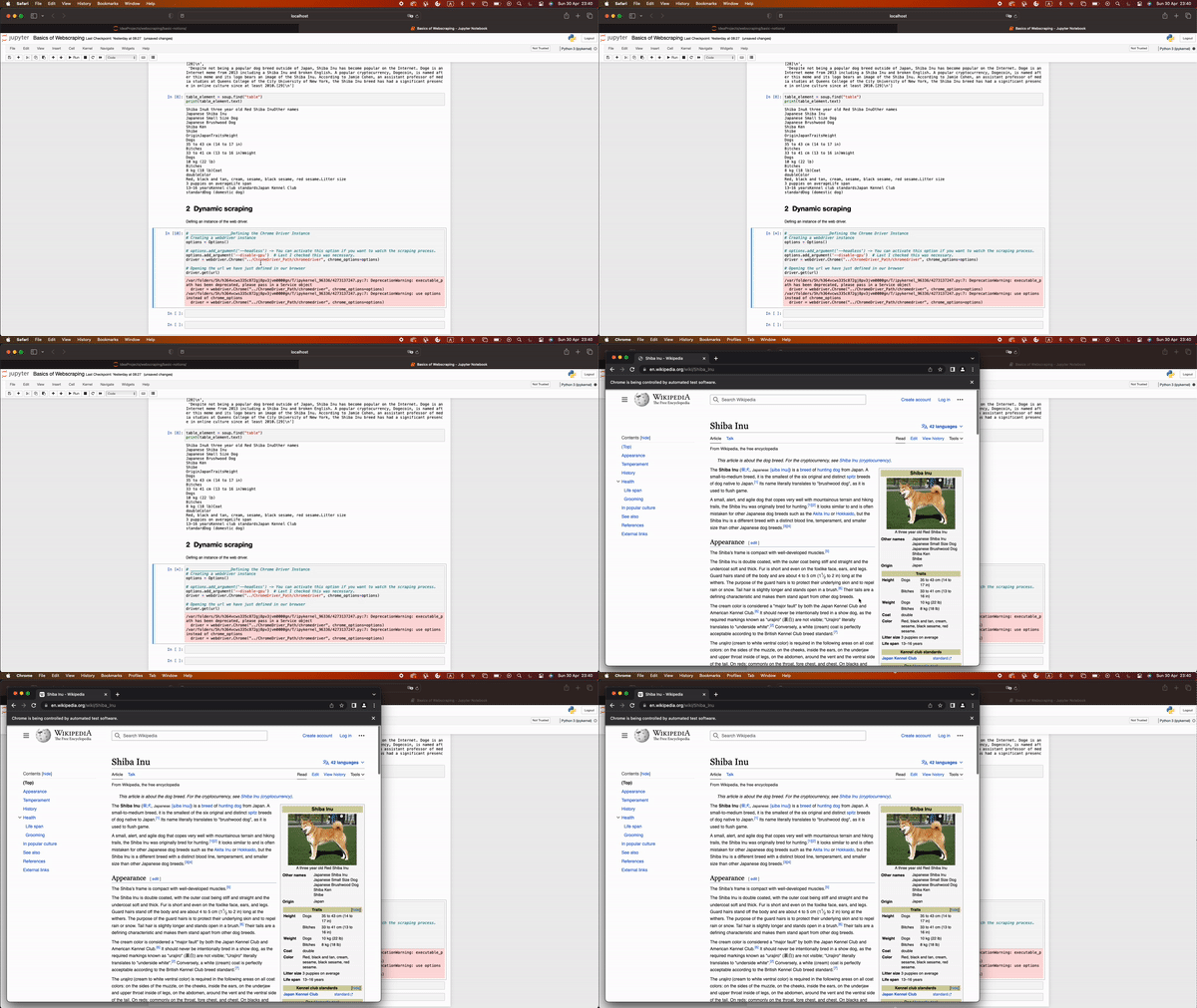
#3.4. Detecting the elements of interest.
With selenium we can easily use the content find_elementand find_elements commands to find our information of interest.
- The
find_element(locator_type, locator_value)method is used to find the first occurrence of an element on a web page that matches a given search criteria. It returns a WebElement object representing the first matching element. - The
find_elements(locator_type, locator_value)method is used to find all occurrences of elements on a web page that match a given search criteria. It returns a list of WebElement objects representing all matching elements. If no matching elements are found, an empty list is returned.
Commonly used locator types include:
By.ID: Locate an element by its ID attributeBy.NAME: Locate an element by its name attributeBy.CLASS_NAME: Locate an element by its class attributeBy.TAG_NAME: Locate an element by its HTML tagBy.CSS_SELECTOR: Locate an element using a CSS selectorBy.XPATH: Locate an element using an XPath expression
⚠️ To determine the xpath of any website, it is as easy as inspecting the desired element, and copying its corresponding XPath.
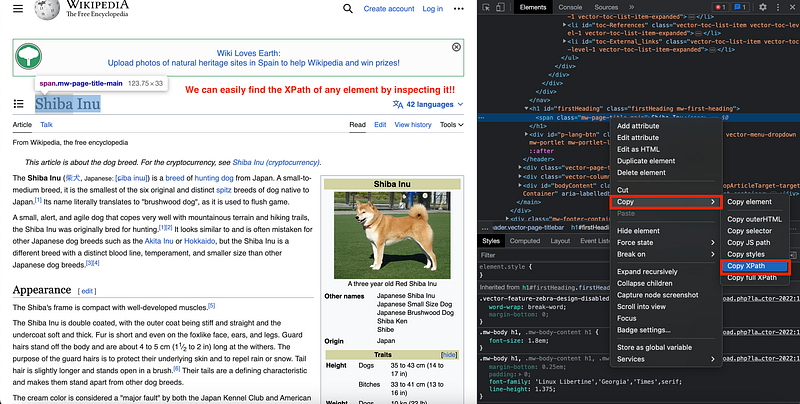
So in our case, we are going to get the same data as we extracted with BeautifulSoup, but using Selenium commands. As you can observe below, the structure is quite similar.
page = driver.find_element(By.TAG_NAME,"body") #We use the find_element() as there is only one.
page

title = page.find_element(By.TAG_NAME,"h1")
title.text

subtitles = page.find_elements(By.TAG_NAME,"h2") #We use the find_elements() as there are many of them - a list will be returned.
subtitles_list = [ii.text for ii in subtitles]

paragraphs = page.find_elements(By.TAG_NAME,"p")
paragraphs_list = [ii.text for ii in paragraphs]

table = page.find_elements(By.TAG_NAME,"table")
table_list = [ii.text for ii in table]
Is this it…? Of course not!
Selenium can perform as well dynamic actions, which mean, mimic a user behavior and nevigate throughout the website.
#3.5. Performing dynamic actions — clicking, scrolling and much more!
- Scrolling
We can easily scroll through our website executing some JavaScript code in the context of the current browser window within the driver.execute_script(script, *args) .
driver.execute_script("window.scrollTo(0, document.body.scrollHeight);")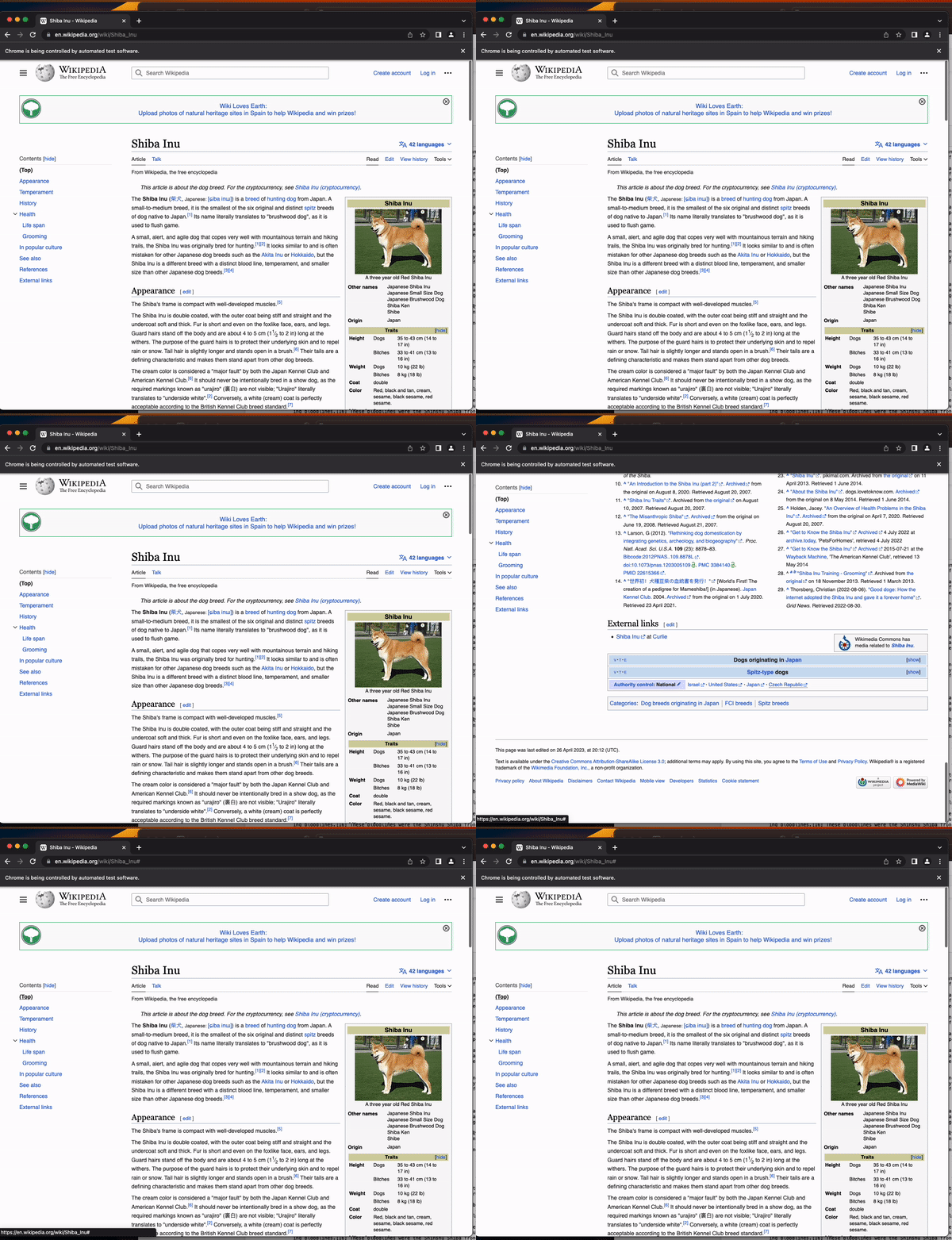
- Iterating different navigation elements to move through the same windows
Selenium allows us to click any element. This is really useful when having to navigate through a website. In this case, we just need to locate the elements that drive us to any part of the view and click on them using the following commands selenium_element.click()
mid_content = page.find_element(By.CLASS_NAME,"vector-toc-contents")
individual_content_list = mid_content.find_elements(By.TAG_NAME, "li")
for ii in individual_content_list:
    print(ii.text)
    ii.click()
    time.sleep(3)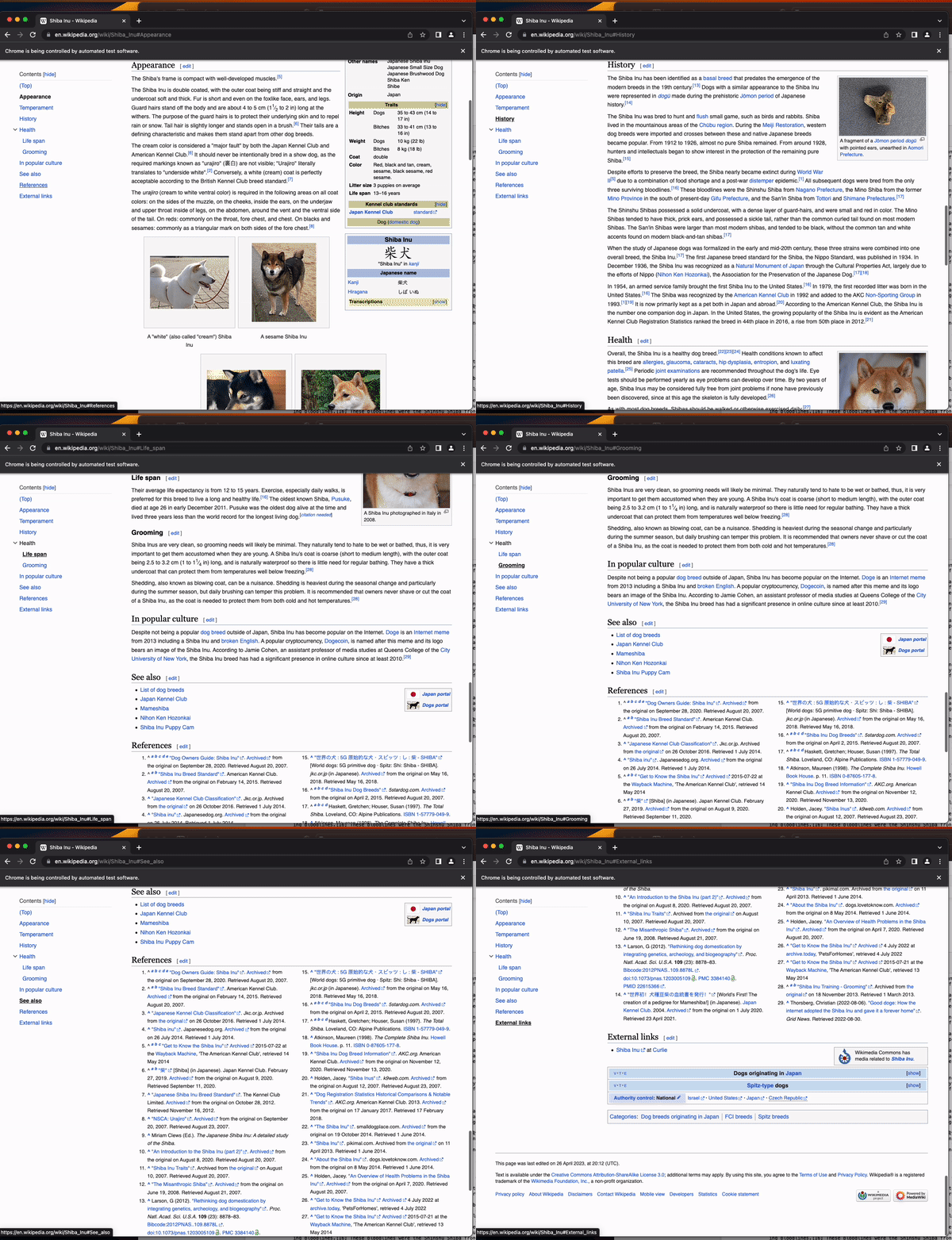
- Going to other websites — just browsing the internet
We can use Selenium to move to other websites by clicking elements with hyperlinks associated.
references = page.find_element(By.CLASS_NAME,"mw-references-wrap")
individual_reference_list = references.find_elements(By.TAG_NAME, "li")
#We just check the first one
individual_reference_list[0].find_element(By.CLASS_NAME,"reference-text").click()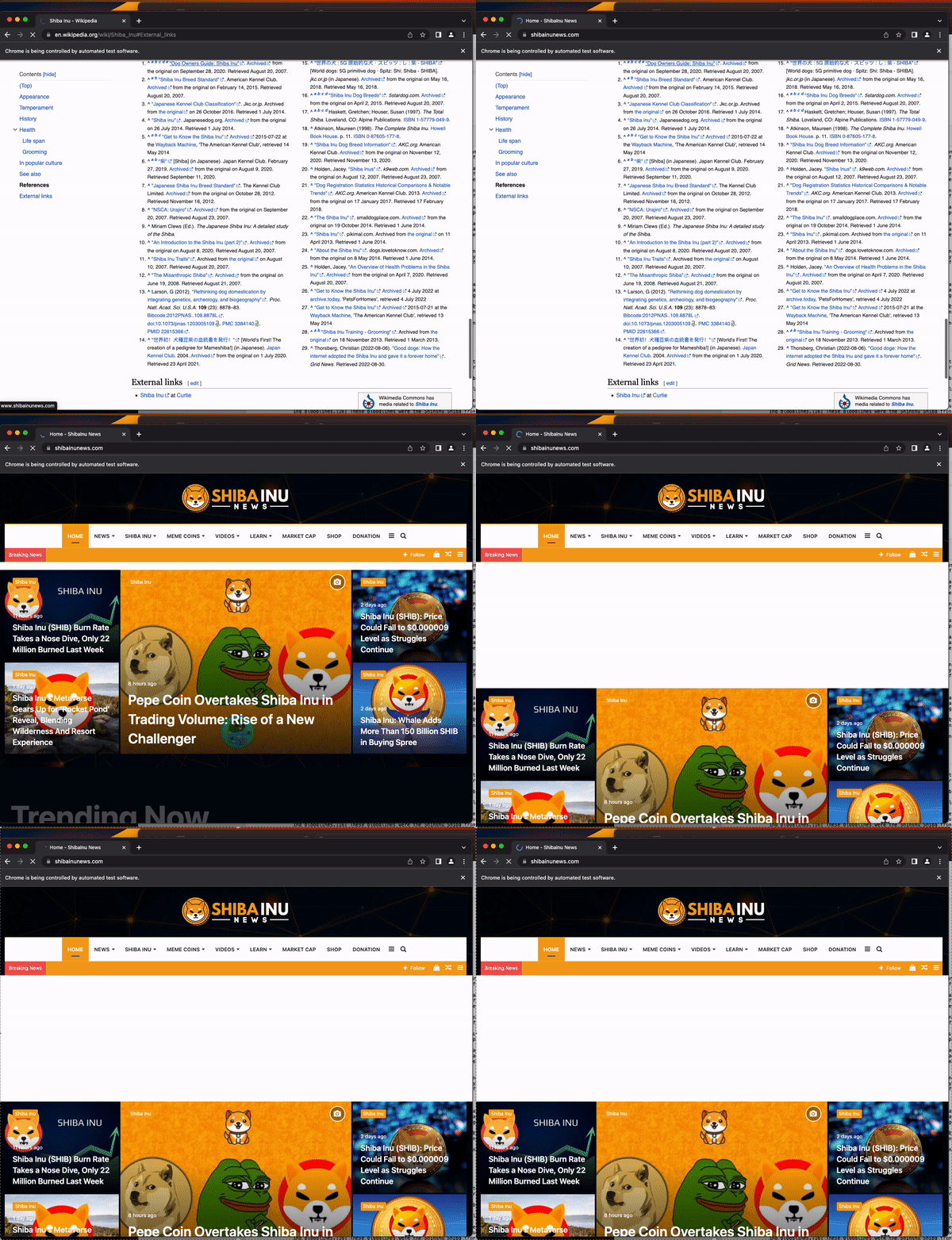
These are just a few examples. Selenium allows to send input — for instance if the scraping requires login into a website — and many other actions!
The example above is the most basic information needed to familiarize yourself with the HTML, BeautifulSoup and Selenium concepts. Most real-world scraping problems are way morecomplex!
You can check the following article that describes how to scrape LinkedIn using Selenium.
And that’s it!
With this first basic notions of BeautifulSoup and Selenium, you all can start scraping the internet. You can find my jupyer notebook with the most basic commands in my GitHub.
Do not hesitate to revert to me should there be any missing instructions in my tutorial!
Don’t forget to follow ForCode’Sake to get more articles like this one! ✨
You can subscribe to my Medium Newsletter to stay tuned and receive my content. I promise it will be unique!
If you are not a full Medium member yet, just check it out here to support me and many other writers. It really helps :D
Some other nice medium related articles you should go check out! :D


