
GCP- GitHub Actions with Terraform
How to integrate GitHub Actions with Terraform to manage Google Cloud Platform (GCP) services and store the Terraform state file in the GCP bucket
GitHub Actions is a continuous integration and continuous delivery (CI/CD) platform that allows you to automate your software development workflow. GitHub Actions uses a workflow language called YAML to define your automation.
Benefits of using GitHub Actions:
- Automated workflows: GitHub Actions allows you to automate your software development workflow, which can save you time and effort.
- Reusable actions: You can create and share reusable actions, which can help you to standardize your workflows and improve their efficiency.
- Secure secrets: GitHub Actions allows you to store secrets securely, which helps to protect your sensitive data.
- Integration with GitHub: GitHub Actions is tightly integrated with GitHub, which makes it easy to use.
In this tutorial, we will demonstrate how to integrate GitHub Actions with Terraform to manage Google Cloud Platform (GCP) services. And will store the Terraform state file in the GCP bucket.
Prerequisites
- Terraform is installed on your local machine.
- Google Cloud SDK installed on your local machine.
- Google Cloud Platform project set up.
1- Configuring the Google Cloud Platform:
- Service Account: To interact with Google Cloud from GitHub Terraform Workflow, you need to set up authentication using a Google service account. This involves creating a service account, role binding, and obtaining its credentials (JSON key). The JSON key will be used as a service account integration on GitHub.
# To create the service account in GCP
$  gcloud iam service-accounts create github-action-gcp --display-name "github-action-gcp"


# Verify the service account
$ gcloud iam service-accounts list
# Binding role with sercvce account in GCP
# Binding Storage admin role with service account
$ gcloud projects add-iam-policy-binding <Procject-ID> \
--member='serviceAccount:github-action-gcp@<Procject-ID>.iam.gserviceaccount.com' \
--role='roles/storage.admin'# Creatng json key through cli
$ gcloud iam service-accounts keys create <key.json> --iam-account=github-action-gcp@<Procject-ID>.iam.gserviceaccount.comVerify service account, and role assigned:
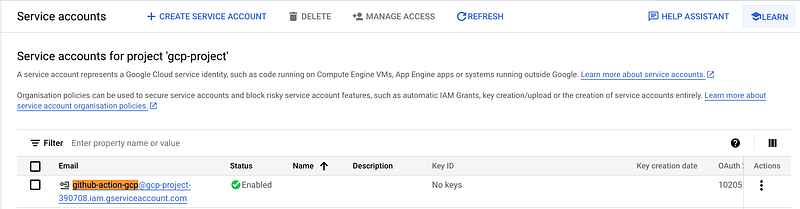

NOTE: You can create the json key from gcp console browser as below:
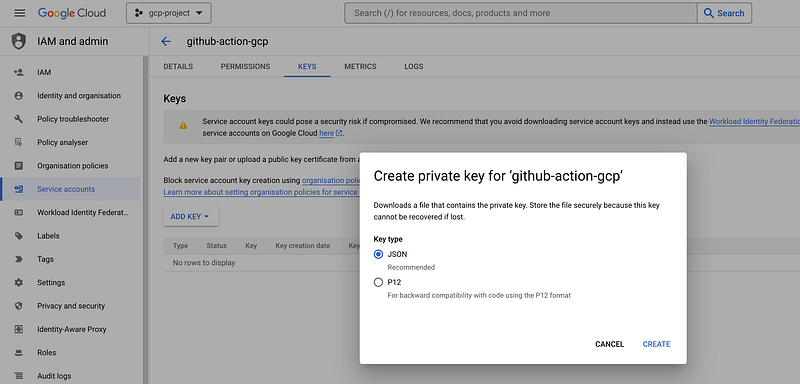
- Google Cloud Storage Bucket:
Terraform uses a state file to manage the state of infrastructure changes applied. To ensure the security and persistence of this state file, it is recommended to create a dedicated bucket on Google Cloud Storage to store it. Bucket named as
github-action-gcp-bucket.

2- GitHub Action Workflow:
- Configure terraform Workflow:
To create a GitHub Terraform Workflow, access the “Actions” tab on your GitHub repository (First create the new empty repo) and search for “terraform” as shown in the below image.
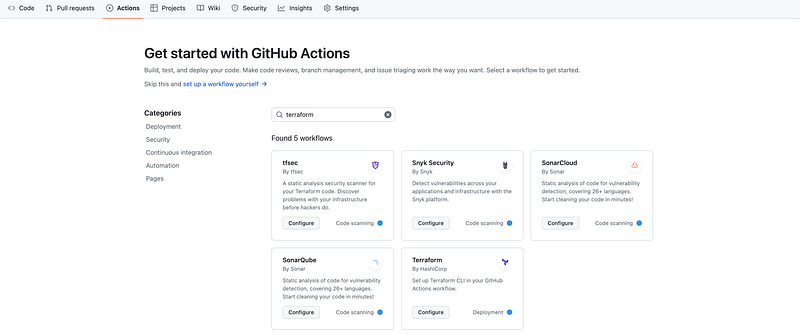
To configure Terraform by HashiCorp, click the “Configure” button, which will open a new window presenting a template for integration.
The initial workflow file will be presented as follows:
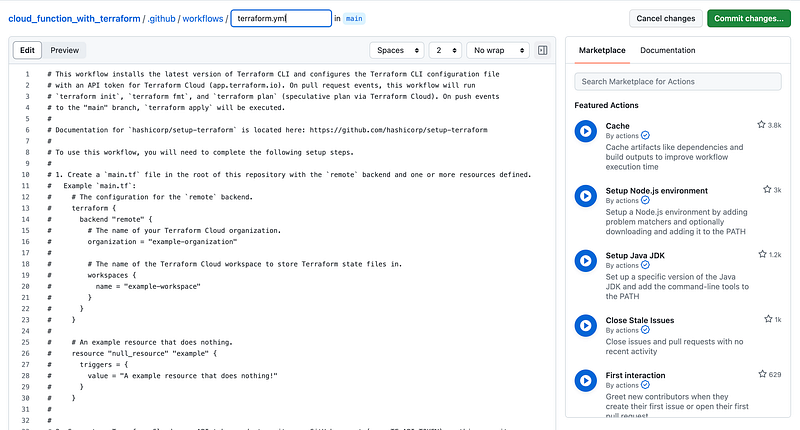
Examine the initial workflow file that is provided and, if suitable, accept it as the foundation for your integration.
Click “Start Commit” to proceed with the integration process.
# This workflow installs the latest version of Terraform CLI and configures the Terraform CLI configuration file
# with an API token for Terraform Cloud (app.terraform.io). On pull request events, this workflow will run
# `terraform init`, `terraform fmt`, and `terraform plan` (speculative plan via Terraform Cloud). On push events
# to the "main" branch, `terraform apply` will be executed.
#
# Documentation for `hashicorp/setup-terraform` is located here: https://github.com/hashicorp/setup-terraform
#
# To use this workflow, you will need to complete the following setup steps.
#
# 1. Create a `main.tf` file in the root of this repository with the `remote` backend and one or more resources defined.
#   Example `main.tf`:
#     # The configuration for the `remote` backend.
#     terraform {
#       backend "remote" {
#         # The name of your Terraform Cloud organization.
#         organization = "example-organization"
#
#         # The name of the Terraform Cloud workspace to store Terraform state files in.
#         workspaces {
#           name = "example-workspace"
#         }
#       }
#     }
#
#     # An example resource that does nothing.
#     resource "null_resource" "example" {
#       triggers = {
#         value = "A example resource that does nothing!"
#       }
#     }
#
#
# 2. Generate a Terraform Cloud user API token and store it as a GitHub secret (e.g. TF_API_TOKEN) on this repository.
#   Documentation:
#     - https://www.terraform.io/docs/cloud/users-teams-organizations/api-tokens.html
#     - https://help.github.com/en/actions/configuring-and-managing-workflows/creating-and-storing-encrypted-secrets
#
# 3. Reference the GitHub secret in step using the `hashicorp/setup-terraform` GitHub Action.
#   Example:
#     - name: Setup Terraform
#       uses: hashicorp/setup-terraform@v1
#       with:
#         cli_config_credentials_token: ${{ secrets.TF_API_TOKEN }}

name: 'Terraform'

on:
  push:
    branches: [ "main" ]
  pull_request:

permissions:
  contents: read

jobs:
  terraform:
    name: 'Terraform'
    runs-on: ubuntu-latest
    environment: production

    # Use the Bash shell regardless whether the GitHub Actions runner is ubuntu-latest, macos-latest, or windows-latest
    defaults:
      run:
        shell: bash

    steps:
    # Checkout the repository to the GitHub Actions runner
    - name: Checkout
      uses: actions/checkout@v3

    # Install the latest version of Terraform CLI and configure the Terraform CLI configuration file with a Terraform Cloud user API token
    - name: Setup Terraform
      uses: hashicorp/setup-terraform@v1
      with:
        cli_config_credentials_token: ${{ secrets.TF_API_TOKEN }}

    # Initialize a new or existing Terraform working directory by creating initial files, loading any remote state, downloading modules, etc.
    - name: Terraform Init
      run: terraform init

    # Checks that all Terraform configuration files adhere to a canonical format
    - name: Terraform Format
      run: terraform fmt -check

    # Generates an execution plan for Terraform
    - name: Terraform Plan
      run: terraform plan -input=false

      # On push to "main", build or change infrastructure according to Terraform configuration files
      # Note: It is recommended to set up a required "strict" status check in your repository for "Terraform Cloud". See the documentation on "strict" required status checks for more information: https://help.github.com/en/github/administering-a-repository/types-of-required-status-checks
    - name: Terraform Apply
      if: github.ref == 'refs/heads/"main"' && github.event_name == 'push'
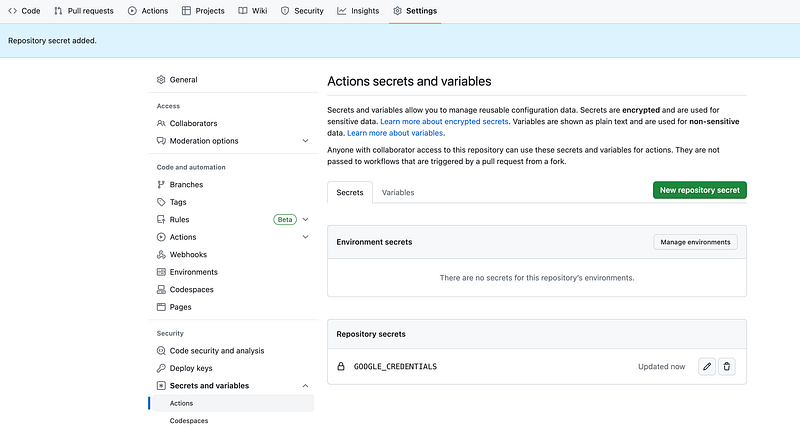
run: terraform apply -auto-approve -input=false- GOOGLE_CREDENTIALS secret on GitHub Action:
The next step is to use the JSON credentials key from the service account and create a secret named
GOOGLE_CREDENTIALSin your GitHub repository.
- Update GOOGLE_CREDENTIALS in the file:
The
GOOGLE_CREDENTIALSsecret created will be used as an environment variable in the workflow to authenticate and create resources on the Google Cloud Platform (GCP). This secret should be passed to each Terraform action step in the workflow to enable successful interactions with GCP services. Update the file.github/workflows.terraform.yml
name: 'Terraform'

on:
  push:
    branches: [ "main" ]
  pull_request:

permissions:
  contents: read

jobs:
  terraform:
    name: 'Terraform'
    runs-on: ubuntu-latest
    environment: production

    # Use the Bash shell regardless whether the GitHub Actions runner is ubuntu-latest, macos-latest, or windows-latest
    defaults:
      run:
        shell: bash

    steps:
    # Checkout the repository to the GitHub Actions runner
    - name: Checkout
      uses: actions/checkout@v3

    # Install the latest version of Terraform CLI and configure the Terraform CLI configuration file with a Terraform Cloud user API token
    - name: Setup Terraform
      uses: hashicorp/setup-terraform@v1
      with:
        cli_config_credentials_token: ${{ secrets.TF_API_TOKEN }}

    # Initialize a new or existing Terraform working directory by creating initial files, loading any remote state, downloading modules, etc.
    - name: Terraform Init
      run: terraform init
      env:
        GOOGLE_CREDENTIALS: ${{ secrets.GOOGLE_CREDENTIALS }}

    # Checks that all Terraform configuration files adhere to a canonical format
    - name: Terraform Format
      run: terraform fmt -check

    # Generates an execution plan for Terraform
    - name: Terraform Plan
      run: terraform plan -input=false
      env:
        GOOGLE_CREDENTIALS: ${{ secrets.GOOGLE_CREDENTIALS }}

      # On push to "main", build or change infrastructure according to Terraform configuration files
      # Note: It is recommended to set up a required "strict" status check in your repository for "Terraform Cloud". See the documentation on "strict" required status checks for more information: https://help.github.com/en/github/administering-a-repository/types-of-required-status-checks
    - name: Terraform Apply
      if: github.ref == 'refs/heads/main' && github.event_name == 'push'
      run: terraform apply -auto-approve -input=false
      env:
        GOOGLE_CREDENTIALS: ${{ secrets.GOOGLE_CREDENTIALS }}
3- Configure terraform file:
Add the terraform files to create the Storage Bucket.
- provider.tf To declare the connection to the Google provider in Terraform, you need to specify the provider block in your Terraform configuration file.
terraform {
  required_version = ">= 1.0"
  required_providers {
    google = {
      source  = "hashicorp/google"
      version = "~> 4.69.1"
    }
  }
}

provider "google" {
  project = var.project_id
  region  = var.region
}- variables.tf Declare the variables used in the Terraform files.
variable "project_id" {
  default = "gcp-project-390708"
}

variable "region" {
  default = "europe-west2"
}- backend.tf To configure the backend for storing and retrieving the Terraform state.
terraform {
  backend "gcs" {
    bucket = "github-action-gcp-bucket"
    prefix = "githubAction"
  }
}- main.tf To provision a separate bucket in GCP.
resource "google_storage_bucket" "Cloud_function_bucket" {
  name                        = "github-action-with-terraform-${var.project_id}"
  location                    = var.region
  project                     = var.project_id
  force_destroy               = true
  uniform_bucket_level_access = true
}
Note: We are provisioning the bucket only as a service account to have the storage admin role.
When a new commit containing files is pushed to the GitHub repository, the GitHub workflow will be triggered, and the Terraform actions defined in the workflow will be executed.
Observation:
Github Action workflow:

Bucket:

4- Destroy:
To destroy Terraform-provisioned infrastructure. Comment out the main.tf
I trust that you have found this user-friendly.
Please share your thoughts and experiences after following the steps outlined. Your feedback is valuable and helps us improve the quality.
Topics:
- Provision GKE Cluster with Terraform Using Module
- Deploy Cloud Functions on GCP with Terraform- (Environment -1st Gen)
- Deploy Cloud Functions on GCP with Terraform (2nd Gen Environment)
- Terraform Tools That You Need
Do not forget the 👏✌️❤️ if you like this content! Also, I will be glad if you hit the follow button so you get notified of my new posts. You can also follow me on LinkedIn! Thank you!


