
Deploy Cloud Functions on GCP with Terraform (1st Gen Environment)
How to set up a Cloud Function in Google Cloud Platform (GCP) that is triggered whenever a file is uploaded to a specific Google Cloud Storage (GCS) bucket.

Cloud Functions is a serverless computing service provided by cloud platforms that allows you to run your code without the need to manage servers. It is a lightweight computing solution for developers to create single-purpose, stand-alone functions that respond to Cloud events without the need to manage a server or runtime environment. With Cloud Functions, you can write small, single-purpose functions in languages like Python, Node.js, Go, Java, .NET, Ruby, and PHP, and have them executed in response to events or HTTP requests.
Terraform: It is an open-source Infrastructure as Code (IaC) tool that enables you to define and manage your infrastructure resources in a declarative way. With Terraform, you can write infrastructure code in a simple, human-readable language and use it to create, modify, and destroy resources across various cloud providers and on-premises environments.
In this tutorial, you will learn how to set up a Cloud Function in Google Cloud Platform (GCP) that is triggered whenever a file is uploaded to a specific Google Cloud Storage (GCS) bucket.
Prerequisites
- Terraform installed on your local machine
- Google Cloud SDK installed on your local machine
- Google Cloud Platform project set up
- Enable the Cloud Functions API
We’ll focus on deploying the following resources using Terraform:
- Bucket for file uploads: This is a Google Cloud Storage bucket that will be used to upload files to. It provides a scalable and durable storage solution for storing files.
- Bucket for Cloud Function source code: This is another Google Cloud Storage bucket that will store the source code for the Cloud Function. The Cloud Function will be triggered by file uploads to the first bucket.
- Cloud Function: This is a serverless function that runs in response to events, in this case, a file upload event to the first bucket. The Cloud Function is written in code (e.g., Python) and is stored in the second bucket. It allows you to perform custom logic or processing on the uploaded files, such as generating thumbnails, processing data, or sending notifications.
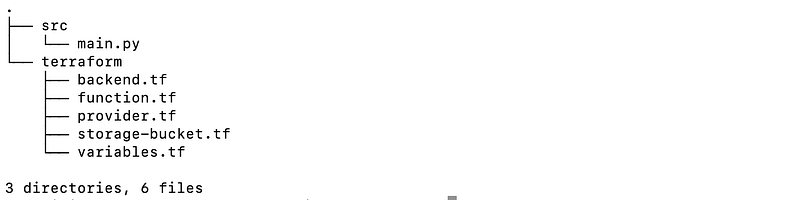
Folder Structure:
srcfolder contains the Python source code of the cloud functionterraformfolder contains the configuration files
Create Python function:
src/main.py:
The fileUpload function is the entry point of the Cloud Function. It takes two parameters: event and context. The event parameter contains information about the file upload event, such as the bucket name, file name, and file size. You can extract and use this information in your function.
def fileUpload(event, context):
    file_data = event

    # Extract relevant information from the event
    bucket_name = file_data['bucket']
    file_name = file_data['name']
    file_size = file_data['size']

    # Perform desired operations on the uploaded file
    # For example, you can process the file, store metadata, or trigger other actions

    print(f"File uploaded: {file_name} in bucket: {bucket_name}")
    print(f"File size: {file_size} bytes")

    # Add your custom logic here

    # Return a response (optional)
    return "File processing completed"
Create Terraform Infrastructure:
- provider.tf: To declare the connection to the Google provider in Terraform, you need to specify the provider block in your Terraform configuration file.
terraform {
  required_version = ">= 1.0"
  required_providers {
    google = {
      source  = "hashicorp/google"
      version = "~> 4.69.1"
    }
  }
}- backend.tf: To configure the backend for storing and retrieving the Terraform state.
terraform {
  backend "gcs" {
    bucket = "gcp-cloud-function-terraform-bucket-" # GCS bucket name to store terraform tfstate
    prefix = "function"               # Prefix name should be unique for each Terraform project having same remote state bucket.
  }
  # backend "local" {}
}
Note: Terraform stores the state file locally in the same directory as the Terraform configuration files. choose ‘local’ to stored in the local directory.
- variables.tf: Declare the variables used in the Terraform files.
variable "project_id" {
  type    = string
  default = "<YOUR-PROJECT-ID>"
}

variable "region" {
  type    = string
  default = "europe-west2"
}
Note: Update
project_idandregionvariable accordingly.
- storage-bucket.tf: Cloud Storage buckets to store the code of the Cloud Function and to upload files.
resource "google_storage_bucket" "Cloud_function_bucket" {
    name     = "Cloud-function-${var.project_id}"
    location = var.region
    project  = var.project_id
}

resource "google_storage_bucket" "input_bucket" {
    name     = "input-${var.project_id}"
    location = var.region
    project  = var.project_id
}- cloudfunction.tf: Declare the Cloud Function
# Generates an archive of the source code compressed as a .zip file.
data "archive_file" "source" {
  type        = "zip"
  source_dir  = "../src"
  output_path = "${path.module}/function.zip"
}

# Add source code zip to the Cloud Function's bucket (Cloud_function_bucket)
resource "google_storage_bucket_object" "zip" {
  source       = data.archive_file.source.output_path
  content_type = "application/zip"
  name         = "src-${data.archive_file.source.output_md5}.zip"
  bucket       = google_storage_bucket.Cloud_function_bucket.name
  depends_on = [
    google_storage_bucket.Cloud_function_bucket,
    data.archive_file.source
  ]
}

# Create the Cloud function triggered by a `Finalize` event on the bucket
resource "google_cloudfunctions_function" "Cloud_function" {
  name                  = "Cloud-function-trigger-using-terraform"
  description           = "Cloud-function will get trigger once file is uploaded in input-${var.project_id}"
  runtime               = "python39"
  project               = var.project_id
  region                = var.region
  source_archive_bucket = google_storage_bucket.Cloud_function_bucket.name
  source_archive_object = google_storage_bucket_object.zip.name
  entry_point           = "fileUpload"
  event_trigger {
    event_type = "google.storage.object.finalize"
    resource   = "input-${var.project_id}"
  }
  depends_on = [
    google_storage_bucket.Cloud_function_bucket,
    google_storage_bucket_object.zip,
  ]
}
Deploy cloud function:
- Start with initializing the Terraform workspace. A
terraform initdownloads all the required providers and plugins. Run aTerraform plancreates an execution plan. The execution plan looks good, so let’s move ahead and apply this plan.
$ cd terraform
$ terraform init
$ terraform fmt
$ terraform validate
$ terraform apply -auto-approve
cloud-function:

Storage buckets:
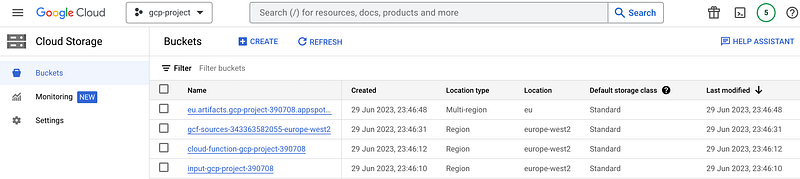
To test if everything is working correctly, follow these steps:
- Open the Google Cloud Console and log in to your project.
- Navigate to the Google Cloud Storage browser.
- Click on the bucket named
input-<YOUR-PROJECT-ID>. - Upload any file into the bucket to trigger the Cloud Function.
- To verify that the Cloud Function was triggered, go to the Cloud Functions list in the Google Cloud Console.
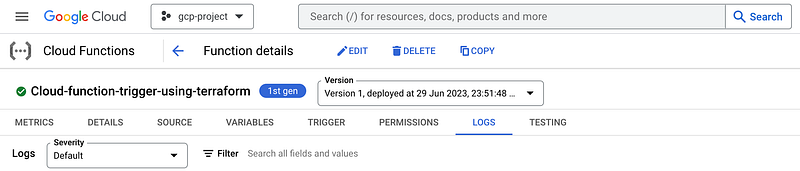
This test ensures that the Cloud Function is successfully triggered whenever a file is uploaded to the specified bucket, and you can confirm its execution by checking the logs.

Destroy: To destroy Terraform-provisioned infrastructure.
$ terraform destroy --auto-approveI trust that you have found this user-friendly.
Please share your thoughts and experiences after following the steps outlined. Your feedback is valuable and helps us improve the quality.
Topics:
- Provision GKE Cluster with Terraform Using Module
- Provision EKS Cluster with Terraform Using Modules
- Terraform Tools That You Need
Do not forget the 👏✌️❤️ if you like this content! Also, I will be glad if you hit the follow button so you get notified of my new posts. You can also follow me on LinkedIn! Thank you!


